PM Approval Process for Change Orders
Objective
This SOP outlines the steps required for the Project Management (PM) approval process for change orders, ensuring consistency and accuracy in project management tasks.
Key Steps
1. Accessing PM Change Orders 0:00
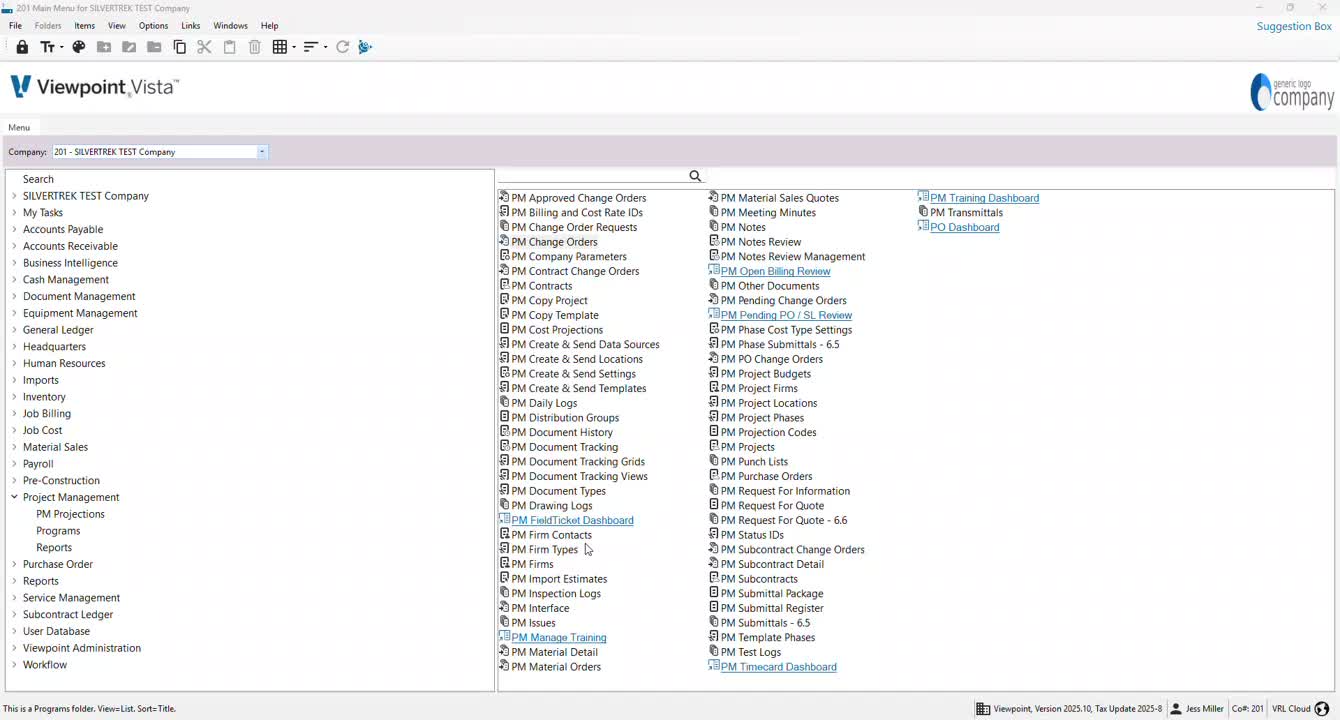
Navigate to Project Management.
Click on Programs.
Select PM Change Orders and double-click to open.
2. Selecting the Project 0:20
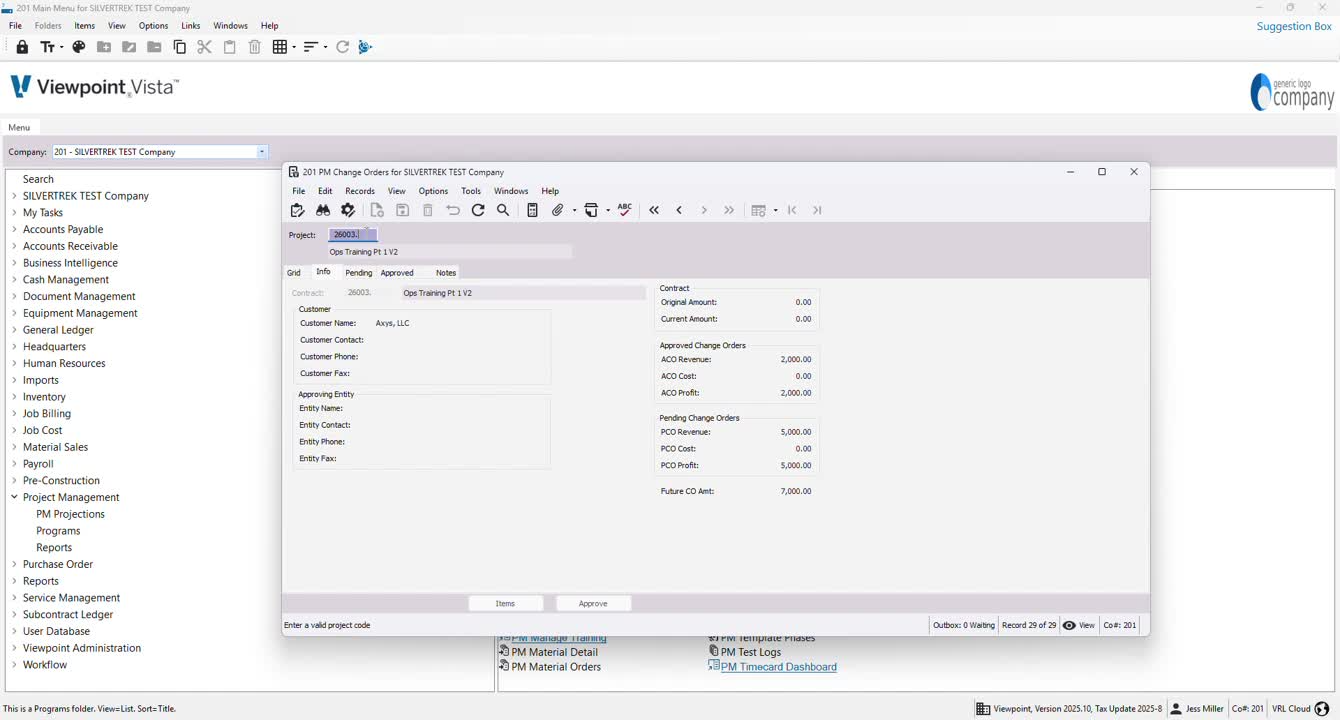
If the desired project is not already selected, press F4.
Scroll through the list to find and select the appropriate project.
3. Highlighting Pending Change Order 0:35
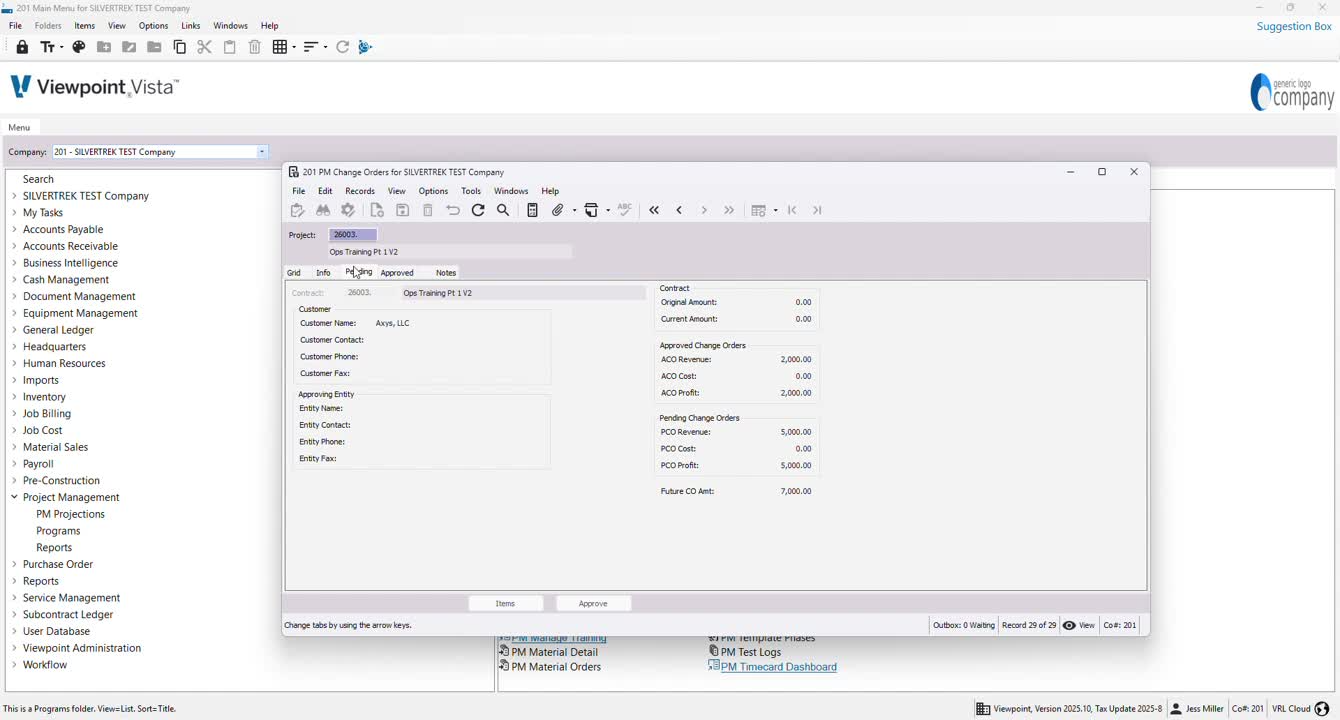
Locate the pending change order that needs approval.
Highlight the entire line of the change order.
4. Approving the Change Order 0:47
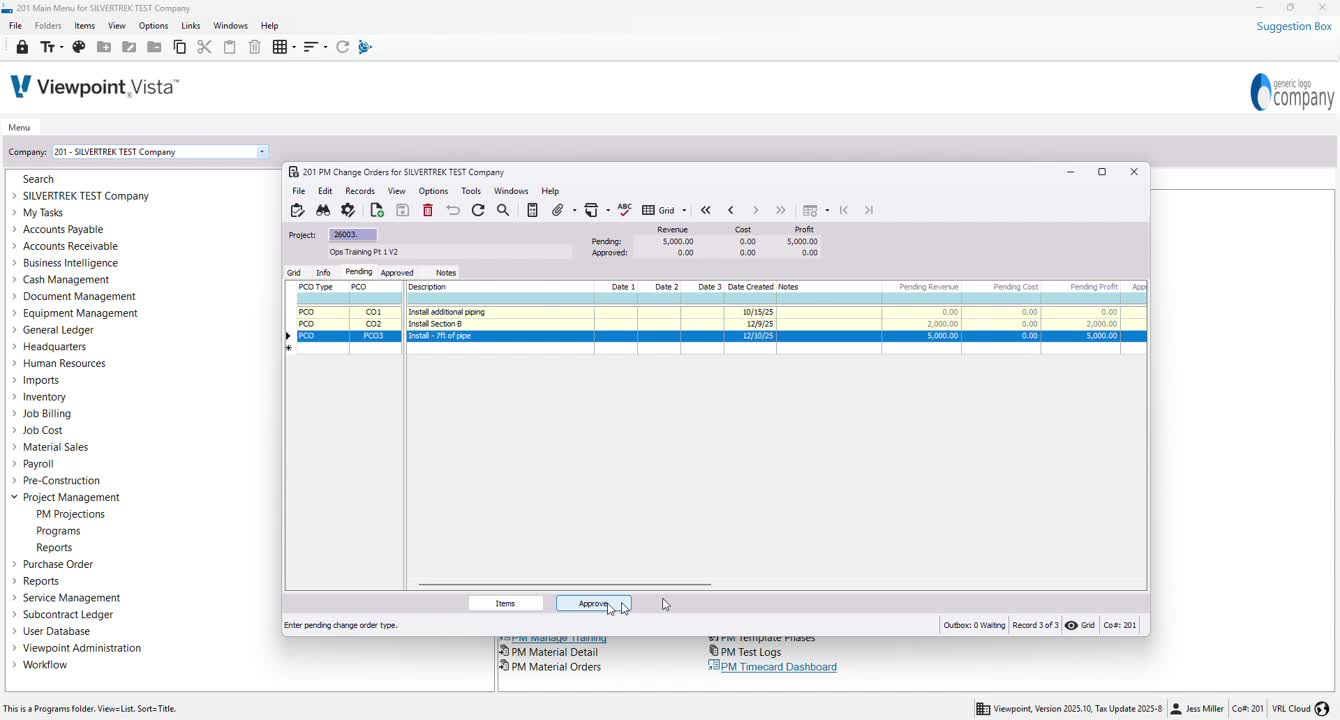
Verify that all details are correct.
Click on the Approve button to initiate the approval process.
5. Assigning ACO and Connecting Contract Item 1:03
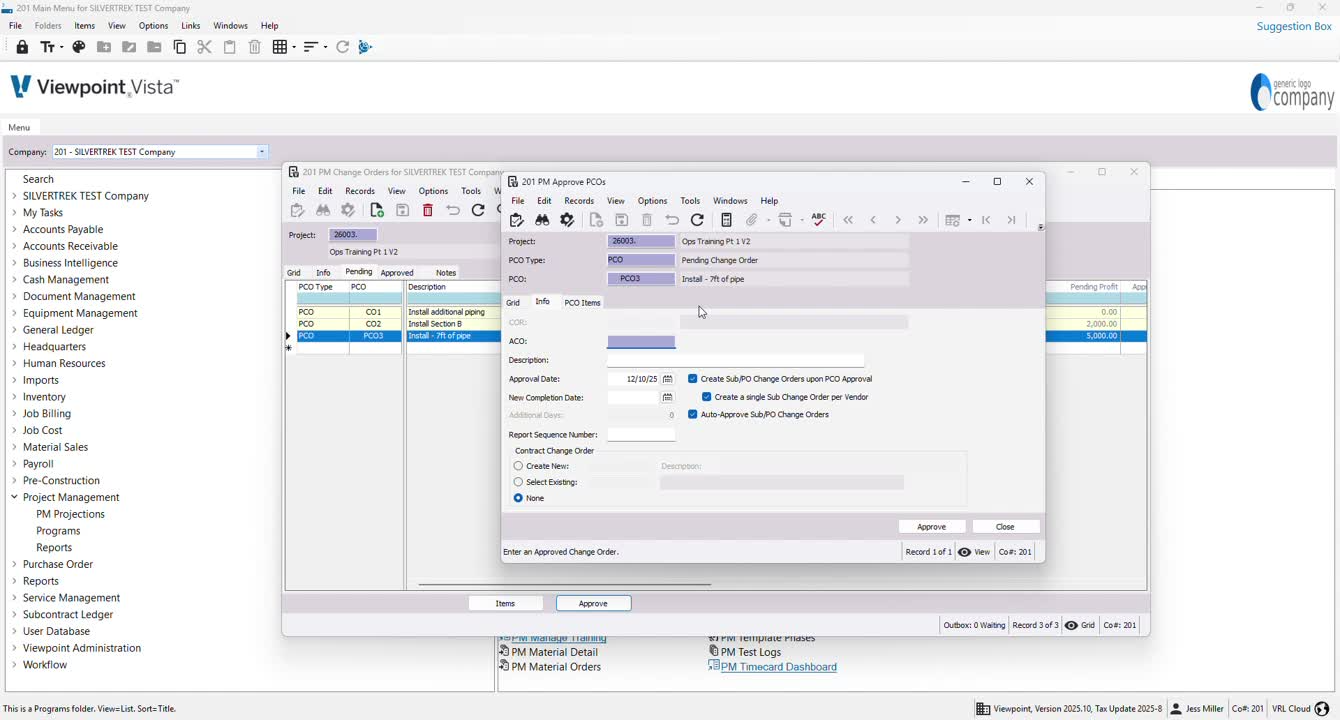
Enter the ACO number (e.g., ACO 3).
Press F4 to connect a contract item. If not available, proceed to setup.
6. Setting Up Contract Items 1:33
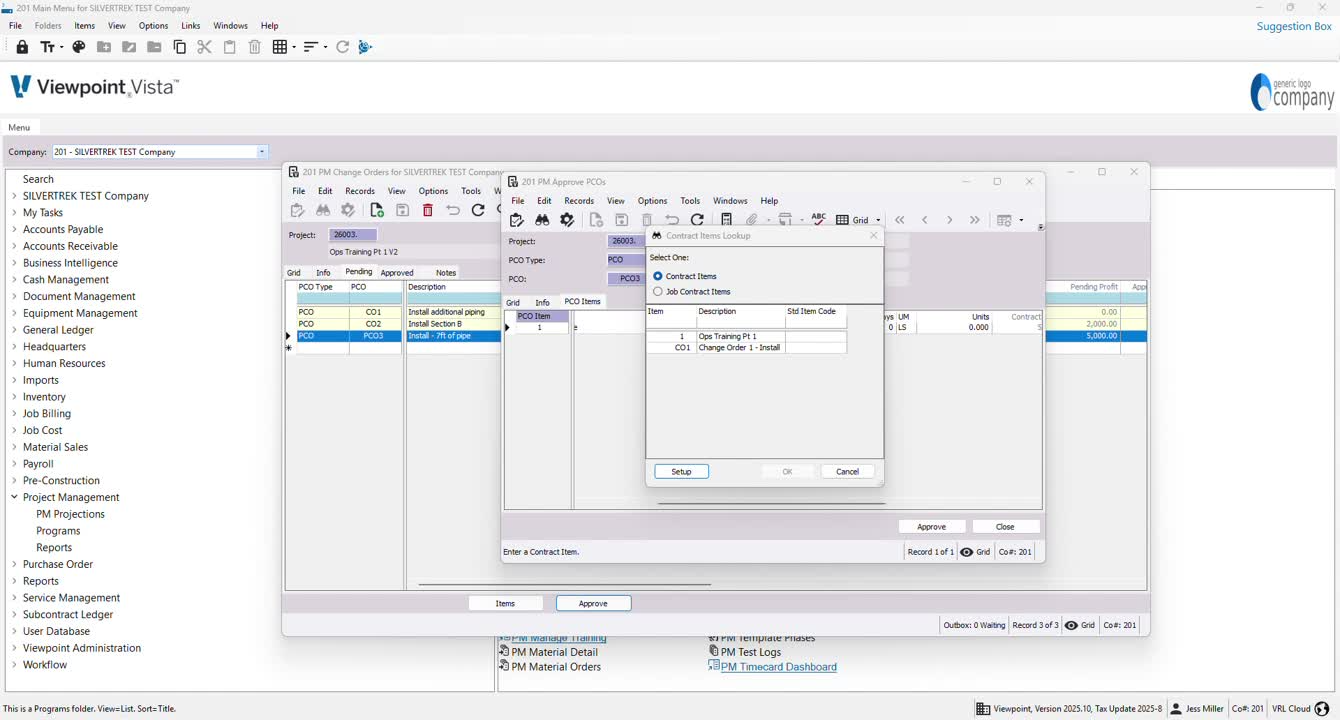
Click on Setup to open PM contract items.
Go to Info to view existing contract items.
7. Editing Contract Item Details 1:45
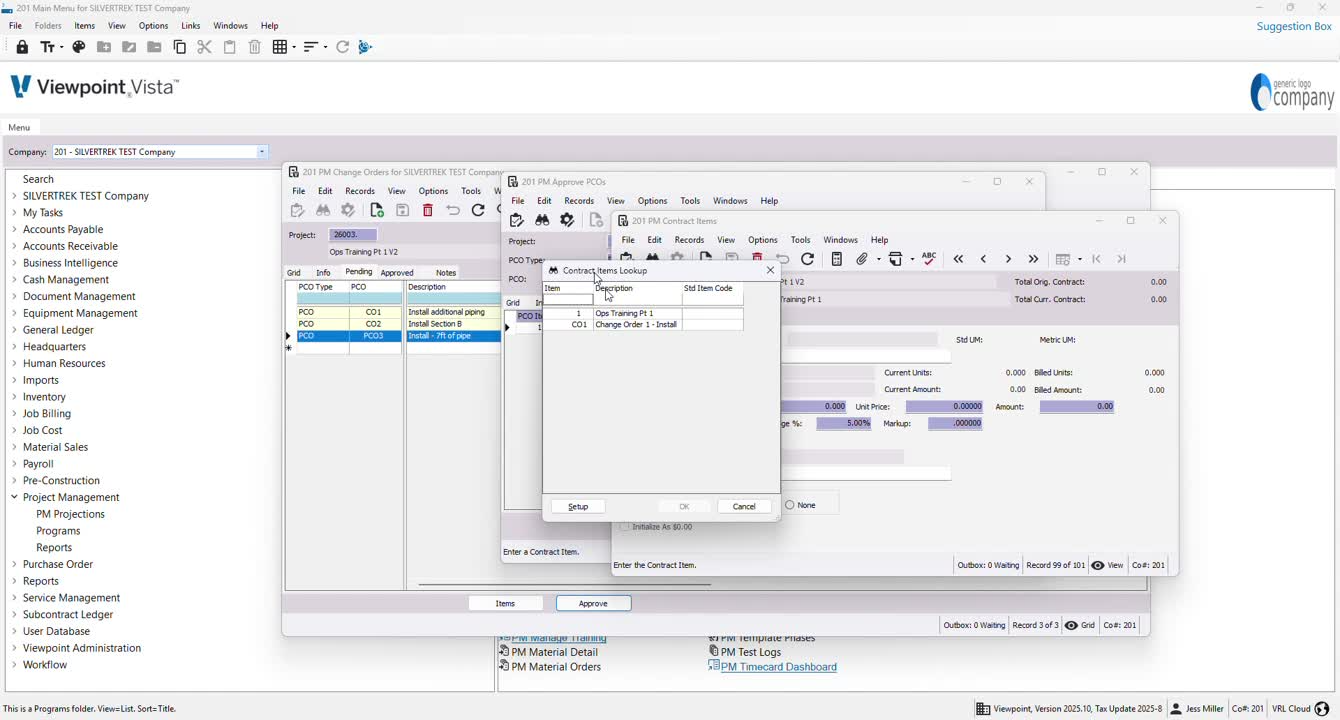
Highlight and delete existing details to avoid character limits.
Press Tab to load a new entry.
8. Entering New Contract Item Information 2:06
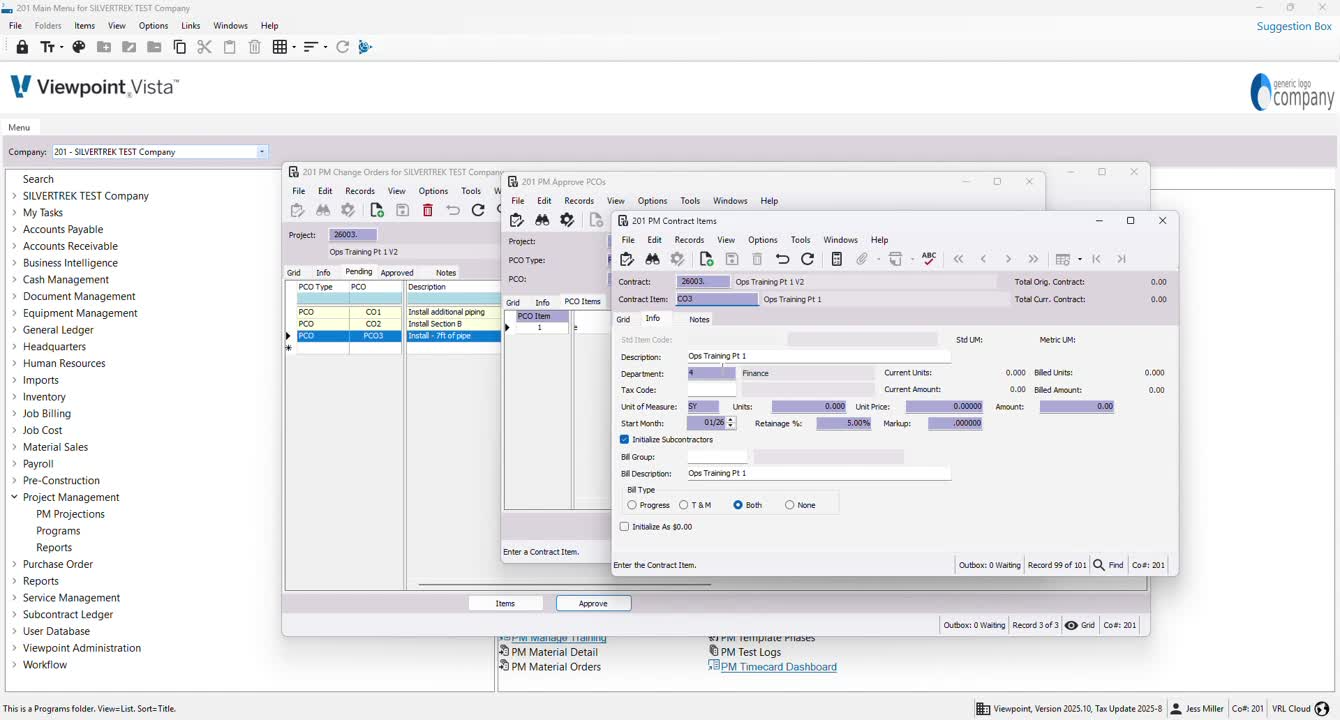
Input the new contract item description (e.g., Install 7 feet of pipe).
Ensure the correct department and unit measurement are selected (e.g., lump sum).
Enter the amount (e.g., $5,000).
Save the changes.
9. Finalizing Approval 2:33
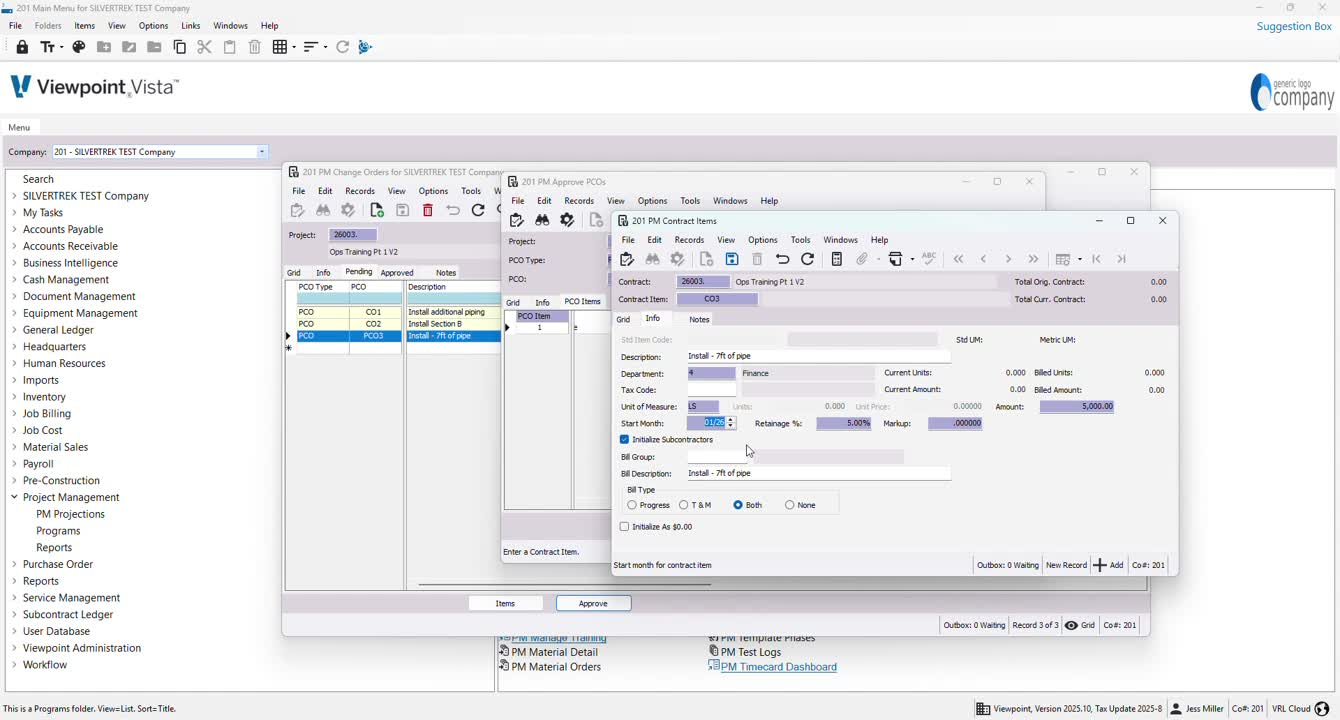
Confirm that all details are correct.
Click OK to finalize the entry.
Click the Approve button again to complete the approval.
10. Refreshing and Closing the Interface 3:08
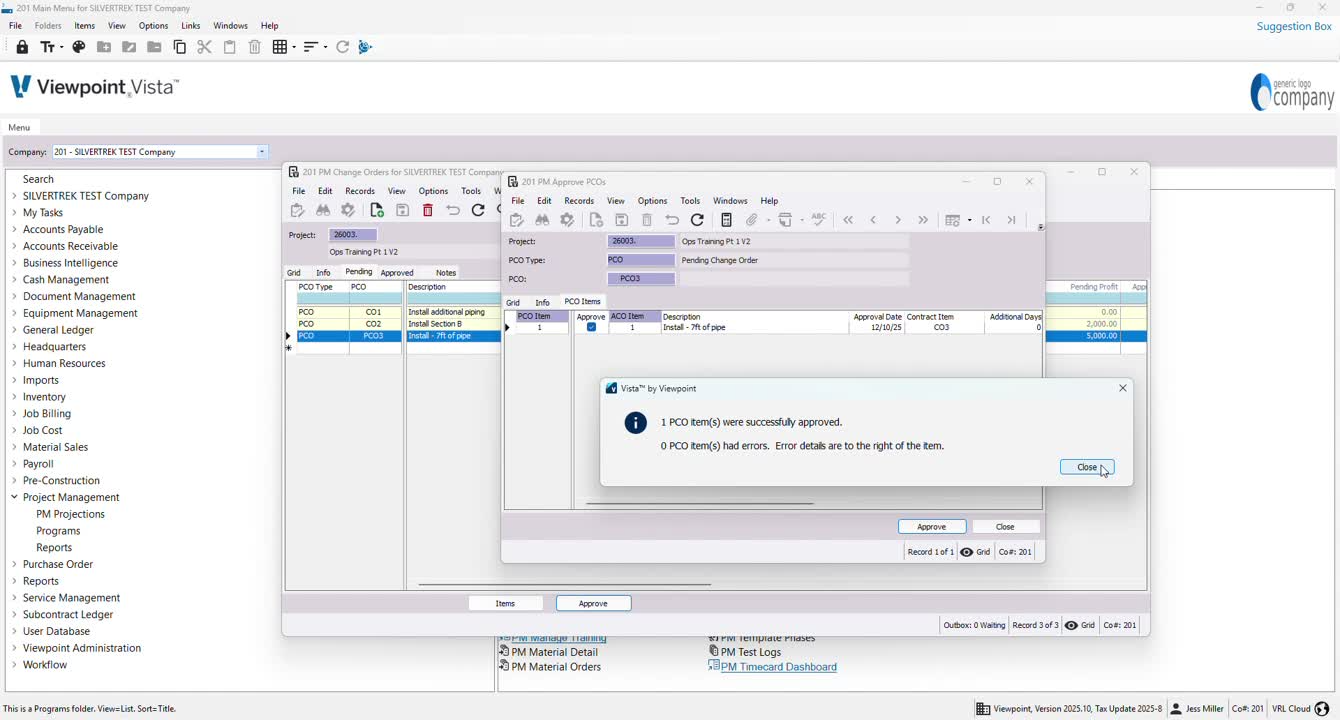
Close the current window and refresh the interface.
Exit out of the program.
11. Validating the Change Order 3:23
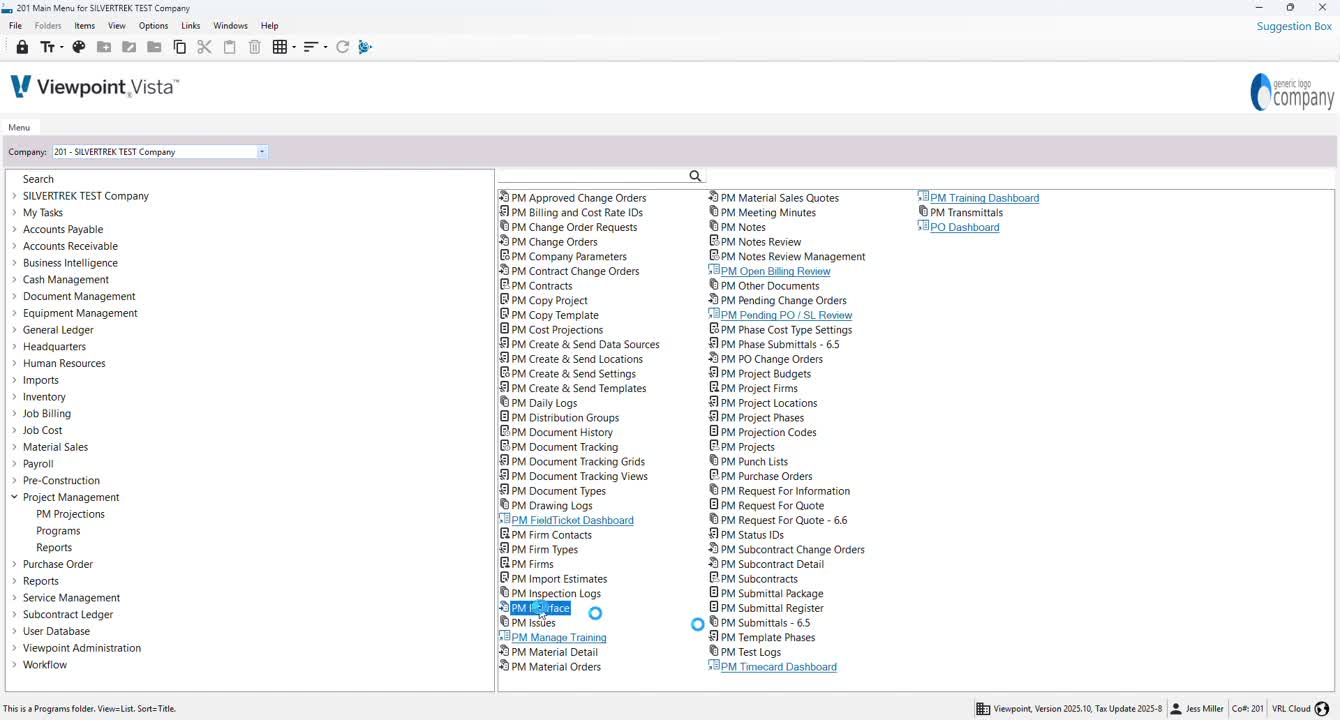
Navigate to the interface section.
Identify the approved change order and select it.
Click on Validate.
12. Posting the Change Order 4:00
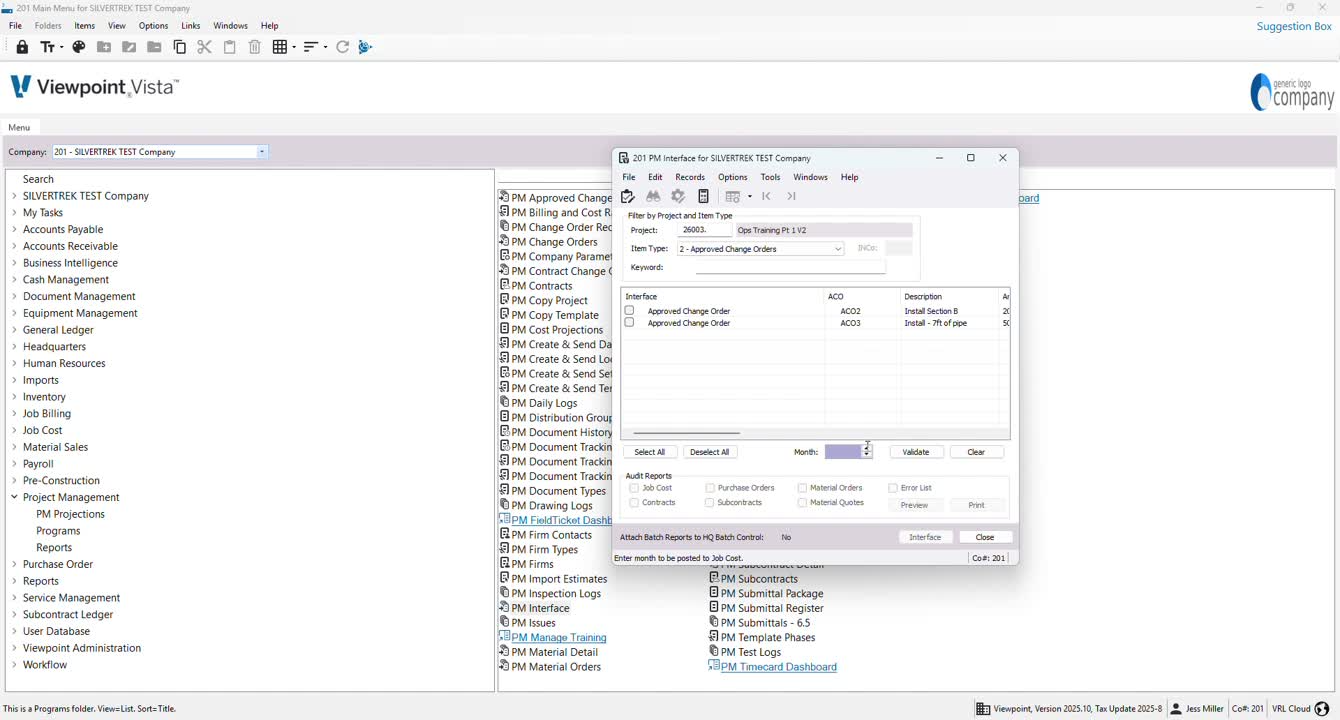
Review the details in the preview section.
Click on Interface to post the change order into the job.
Close the job once the process is complete.
Cautionary Notes
Always double-check the details of the change order before approving.
Ensure that the correct project is selected to avoid errors in the approval process.
Tips for Efficiency
Familiarize yourself with the keyboard shortcuts (e.g., F4) to speed up navigation.
Keep a checklist of required information for contract items to streamline data entry.
Link to Loom
https://loom.com/share/b7eebaa1d7df49f4a4c9eaecaba14beb
Was this article helpful?
That’s Great!
Thank you for your feedback
Sorry! We couldn't be helpful
Thank you for your feedback
Feedback sent
We appreciate your effort and will try to fix the article