PM Copy Project SOP
Objective
This SOP outlines the steps to copy a project management template into a new job, ensuring consistency and efficiency in project setup.
Key Steps
1. Accessing the PM Copy Project 0:36
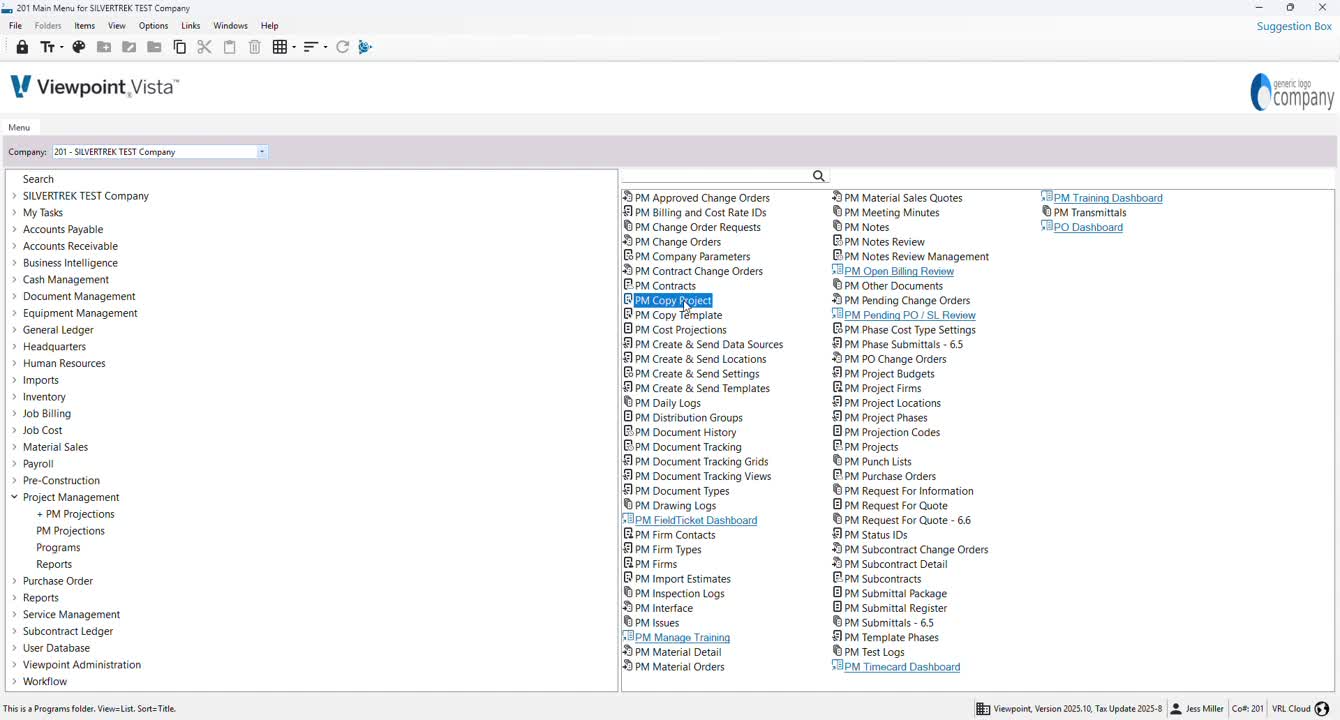
Navigate to Project Management.
Select Programs.
Click on PM Copy Project and double-click to open.
2. Selecting the Source Project 0:53
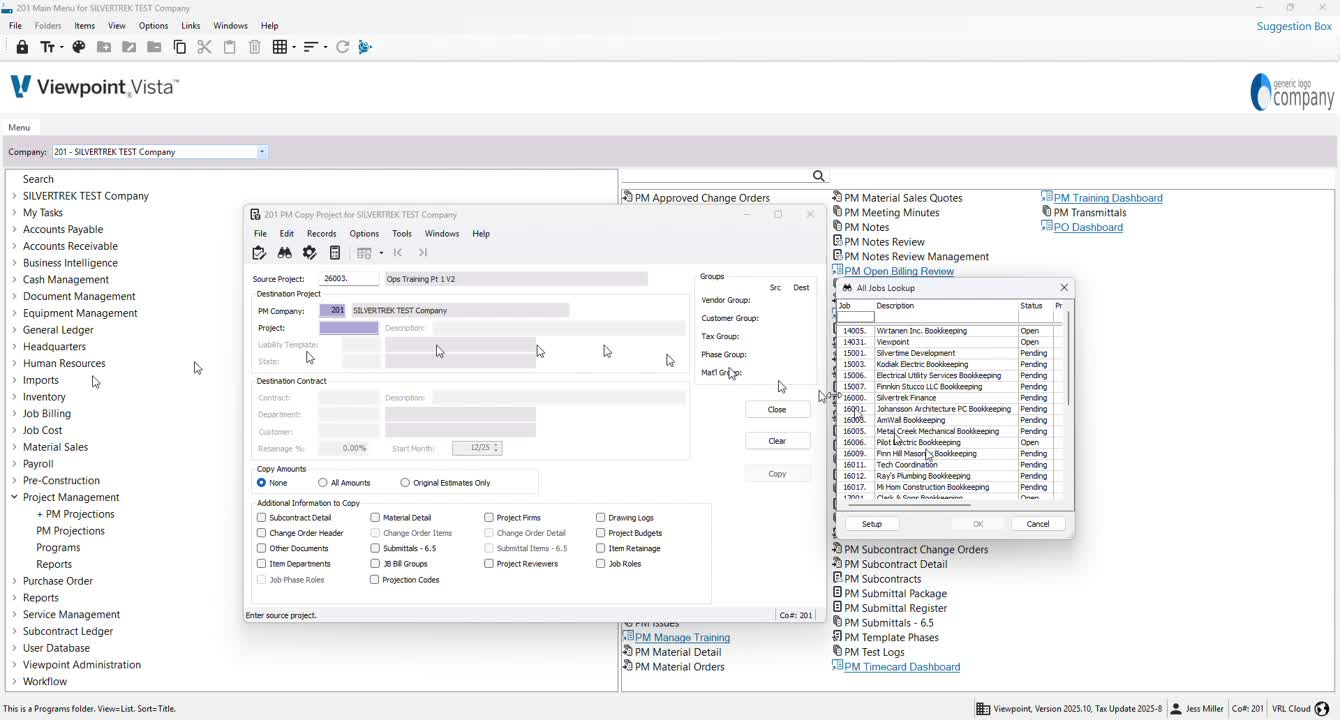
Press F4 to find your source project.
Choose the appropriate template job from the list.
3. Entering New Project Details 1:10
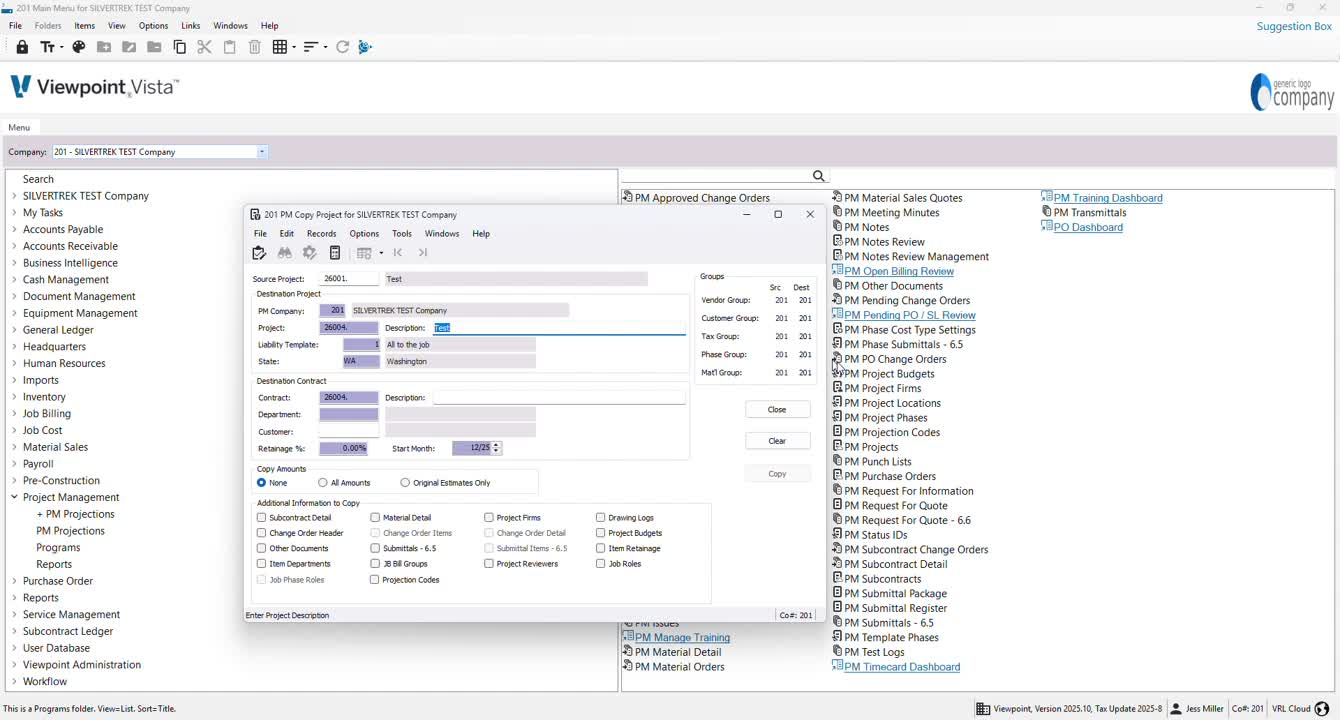
Input the new project number.
Provide a description for the new project (it will auto-default to the template).
4. Setting Up Project Parameters 1:33
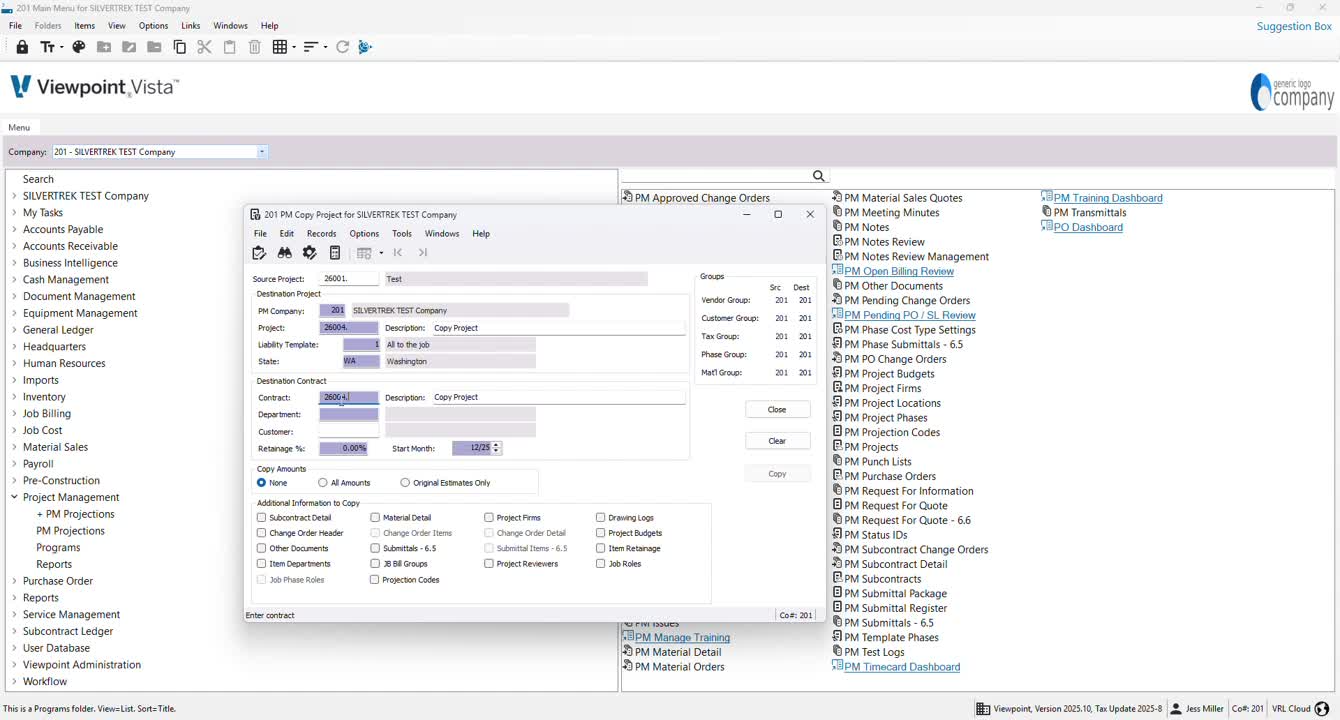
Confirm the liability template and state are correct.
Select the destination contract.
Choose the department for the job.
Specify the customer.
5. Inputting Additional Project Information 1:59
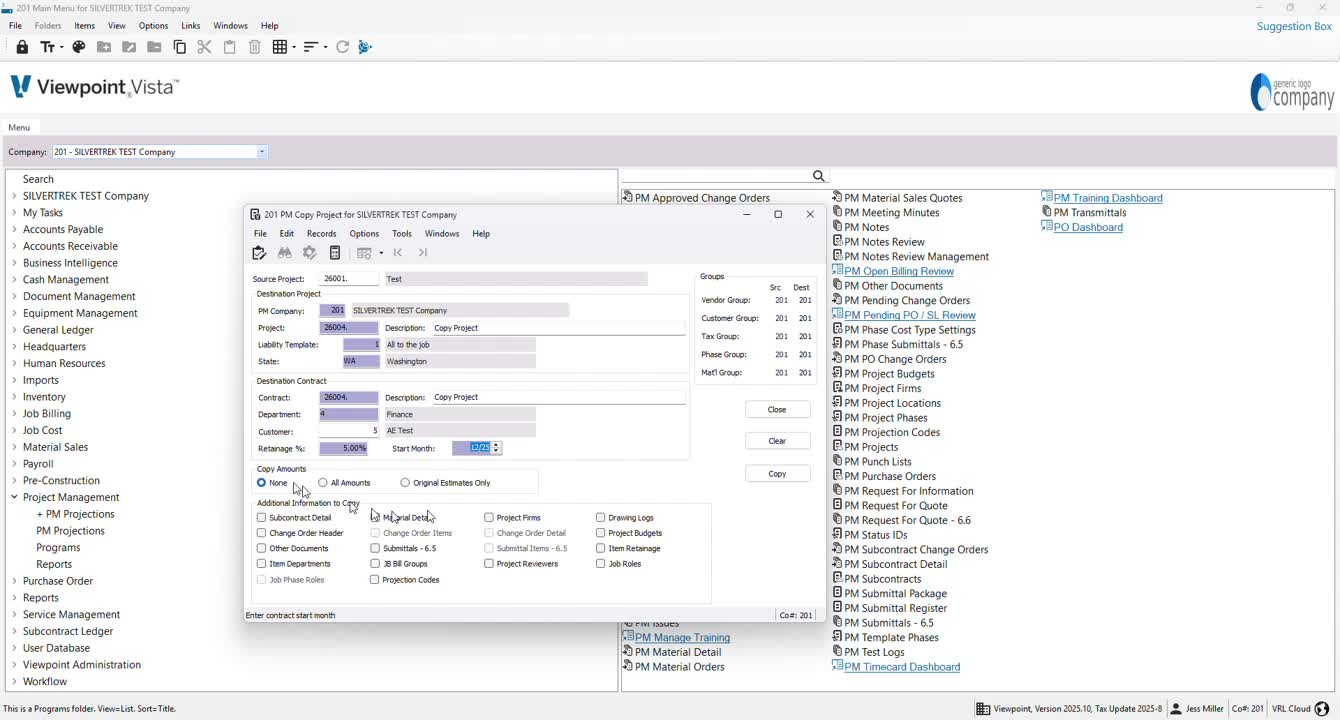
If applicable, enter the retainage amount.
Specify the start month for the project.
6. Choosing Amount Copy Options 2:06
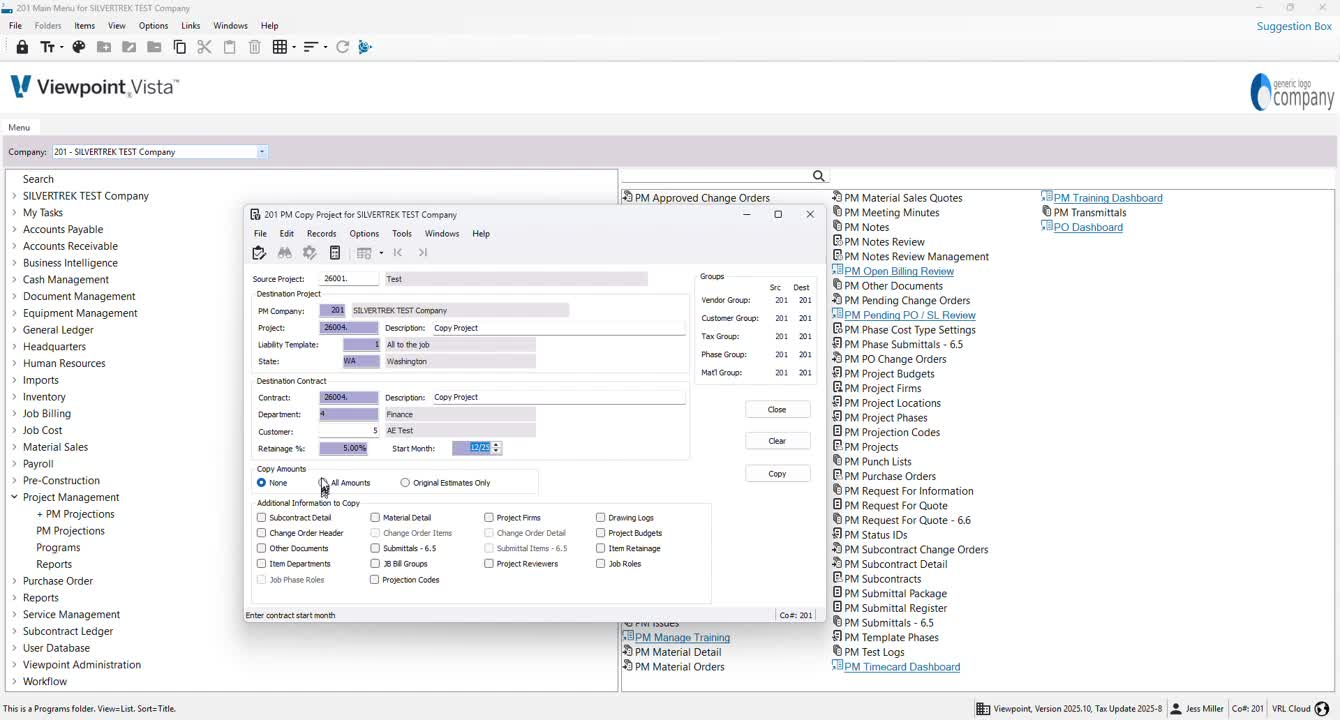
Decide whether to copy amounts:
None (recommended)
Original estimates only
All amounts.
7. Adding Project Details 2:17
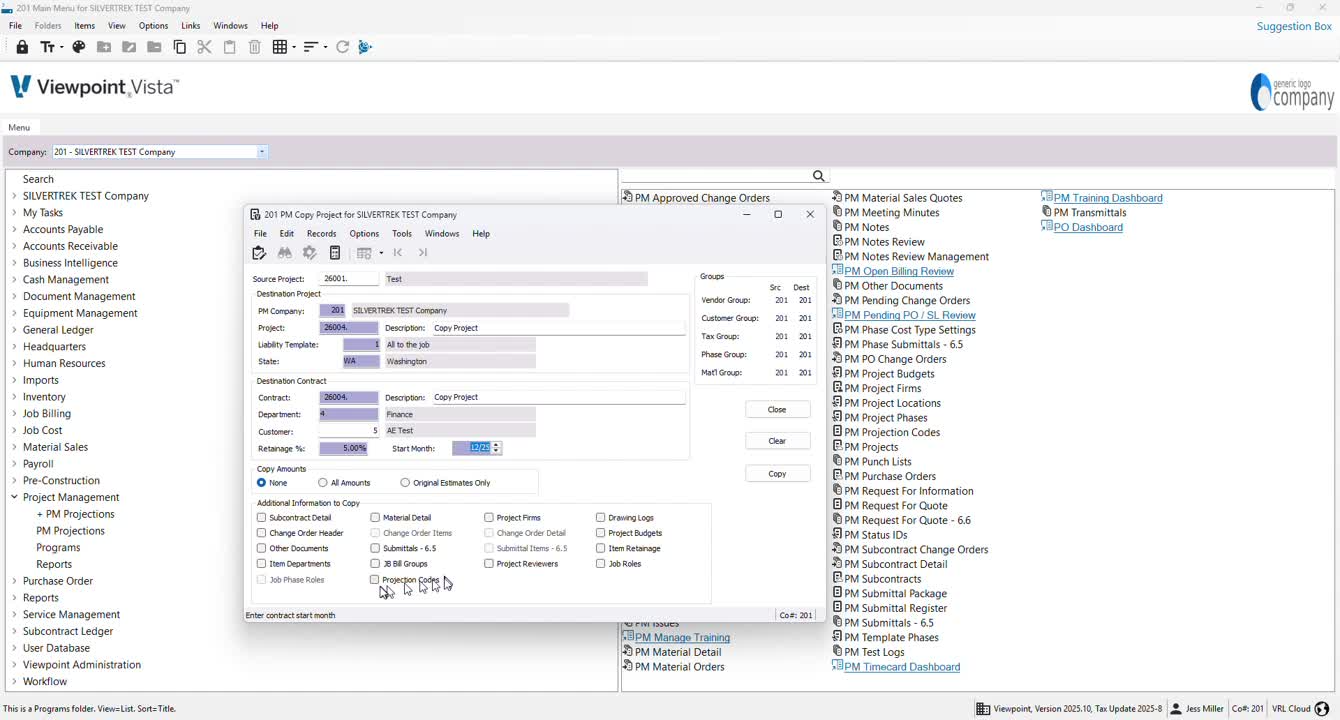
Select additional details to copy:
Projection codes
Change order headers
Contract items
Change order items
Job phases
Project budgets.
8. Completing the Copy Process 2:33
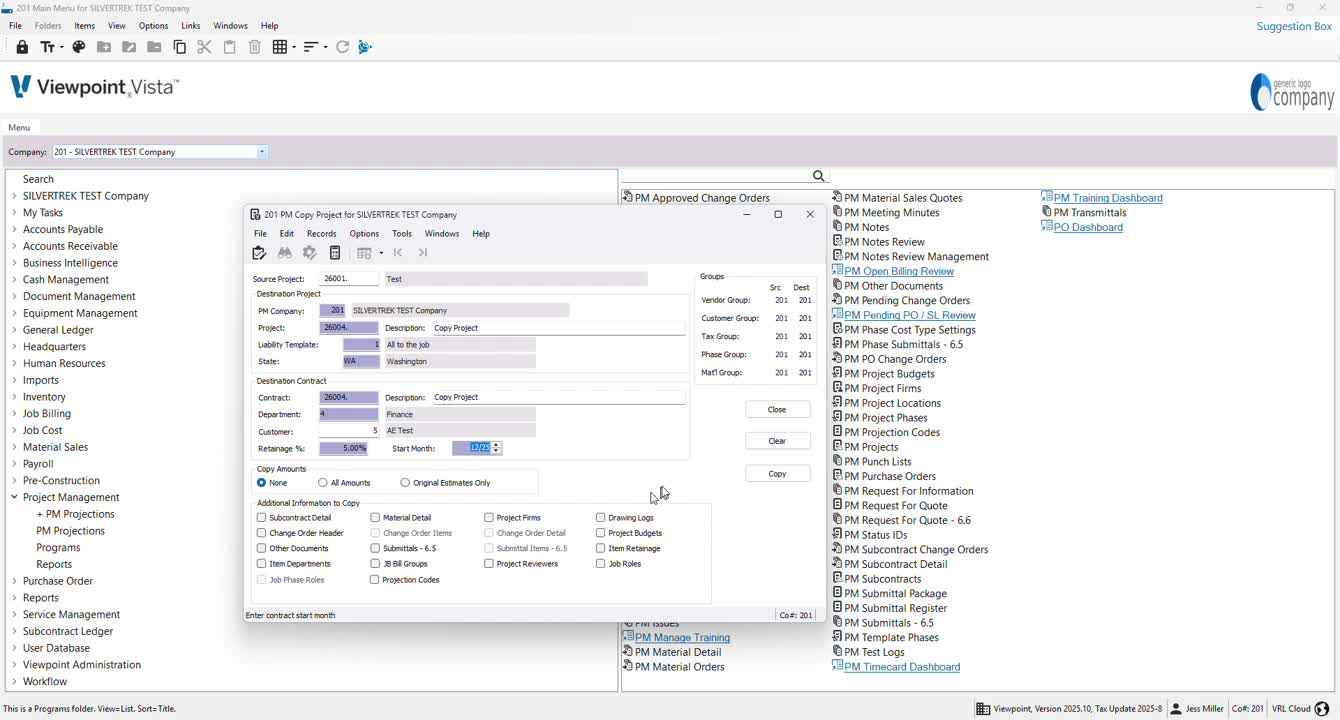
Click Copy to initiate the process.
Wait for confirmation that the project has successfully copied.
9. Finalizing the Process 2:47
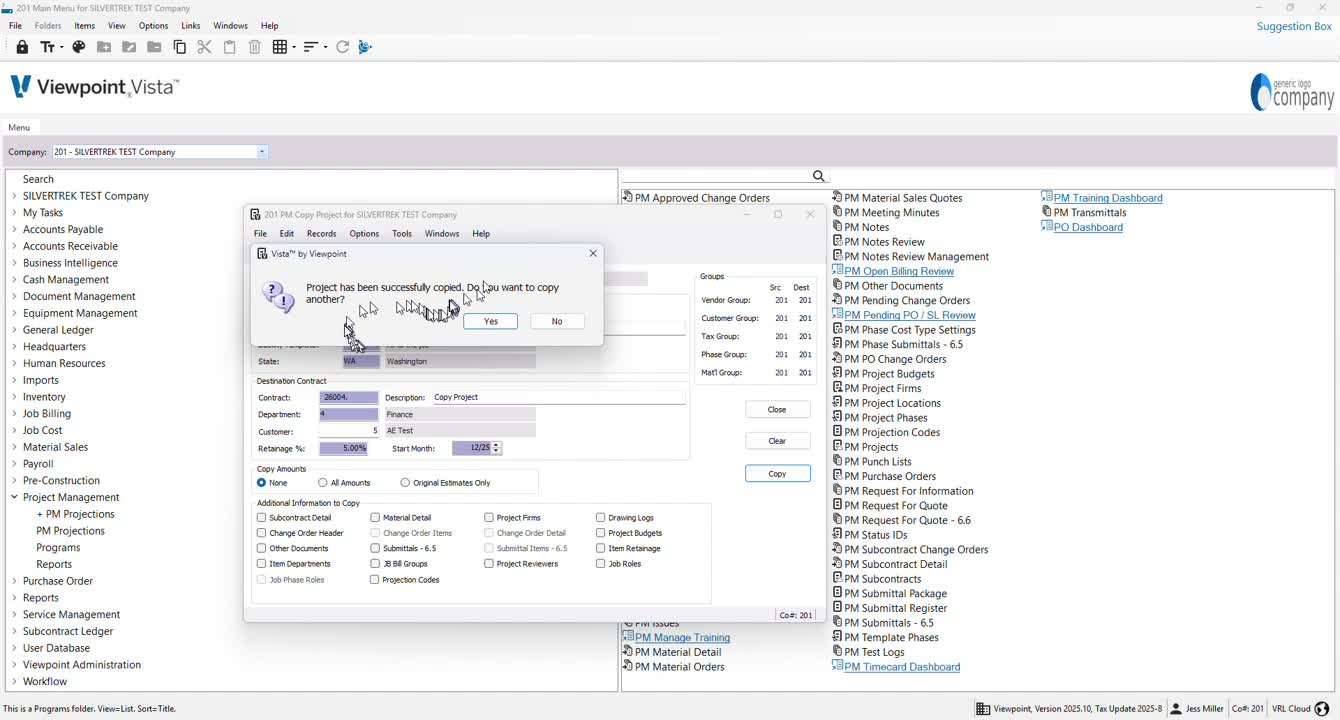
When prompted, choose No to copy another project.
Cautionary Notes
Ensure that the correct template job is selected to avoid errors in project setup.
Double-check all entered information before finalizing the copy to prevent discrepancies.
Tips for Efficiency
Familiarize yourself with commonly used templates to speed up the selection process.
Keep a checklist of required fields to ensure nothing is missed during project setup.
Link to Loom
https://loom.com/share/105dd44cbea34b25a910a27b9e790883
Was this article helpful?
That’s Great!
Thank you for your feedback
Sorry! We couldn't be helpful
Thank you for your feedback
Feedback sent
We appreciate your effort and will try to fix the article