Creating PM Contracts Standard Operating Procedure
Objective
This SOP outlines the steps to create and manage PM contracts effectively within the project management system.
Key Steps
1. Accessing PM Contracts 0:00
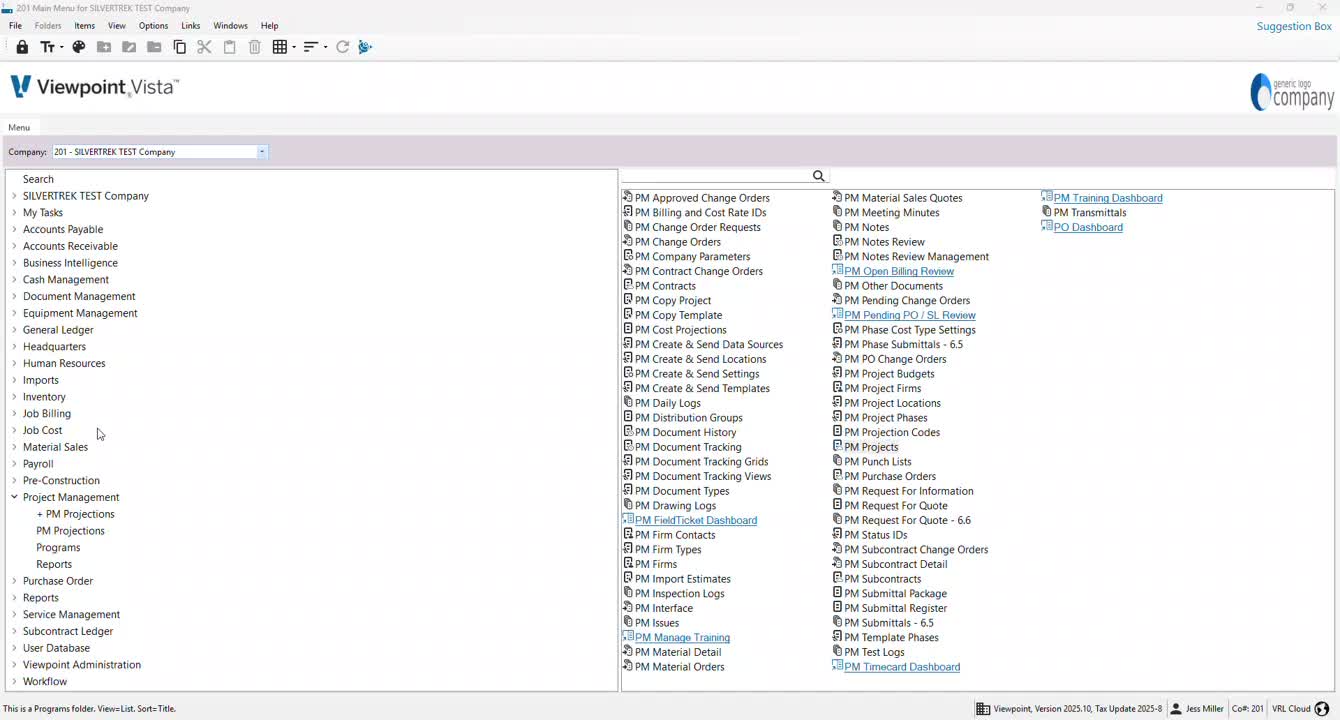
Navigate to the PM Contracts section in the project management system.
Ensure that all project details are correctly entered.
2. Creating a New Job 0:19
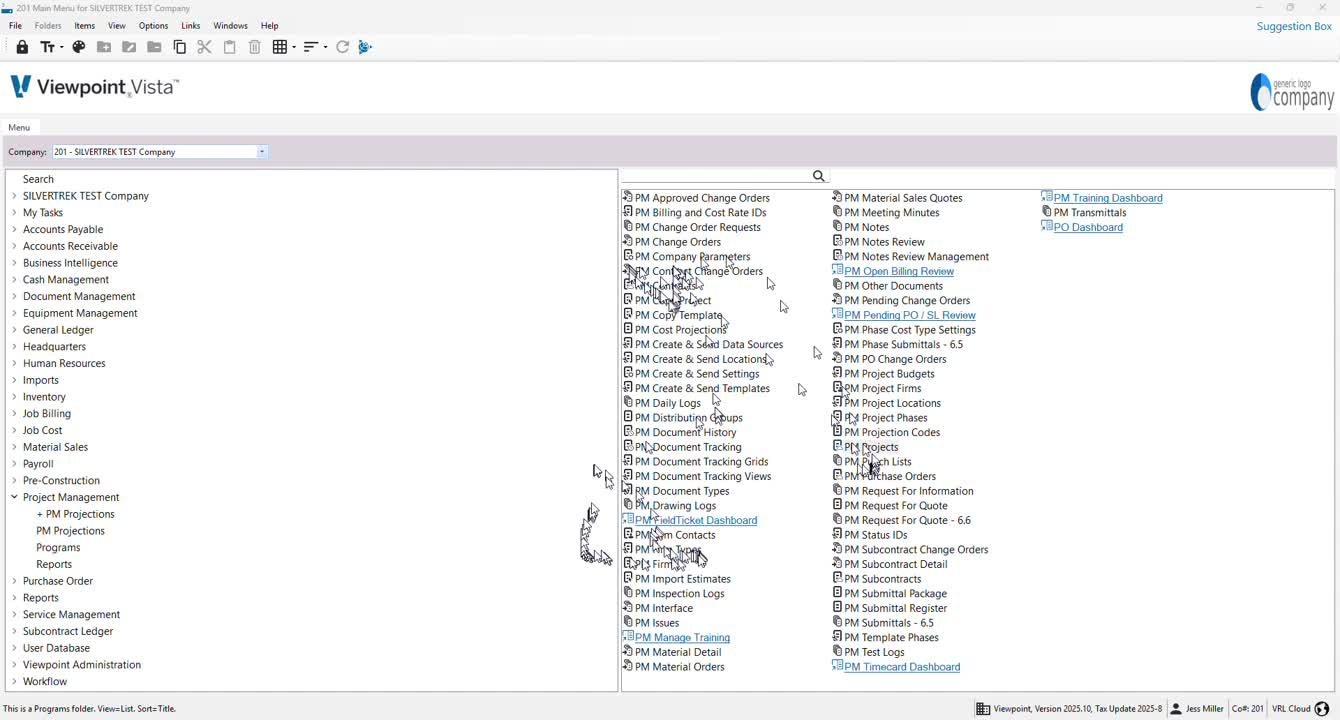
If creating a new job manually, start by setting up PM projects first.
This will auto-generate a basic contract ensuring all connections are made.
3. Contract Setup for Large Contracts 0:55
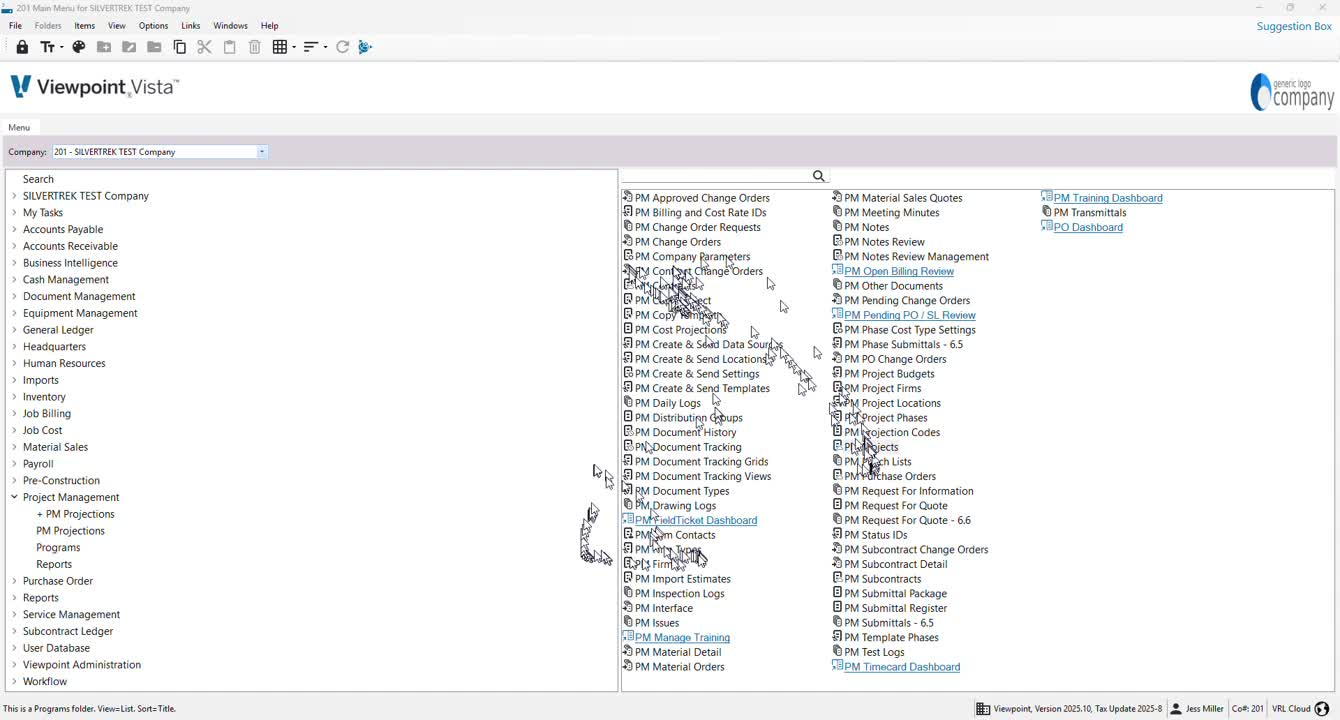
If you have a large contract with multiple divisions or departments, create the contract first to track individual projects.
4. Selecting the Project 1:03
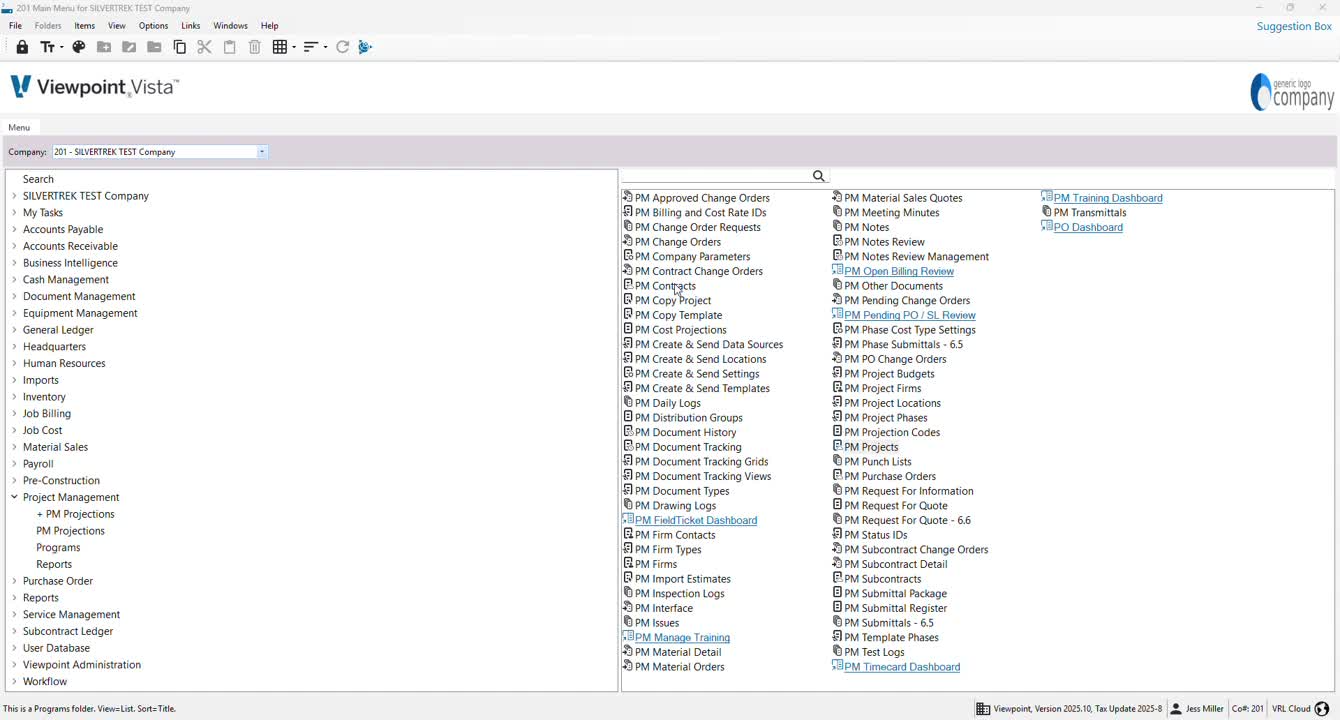
In the PM Contracts section, go to the Grid view.
Locate and select the copied project from the grid.
5. Job Number Creation 1:23
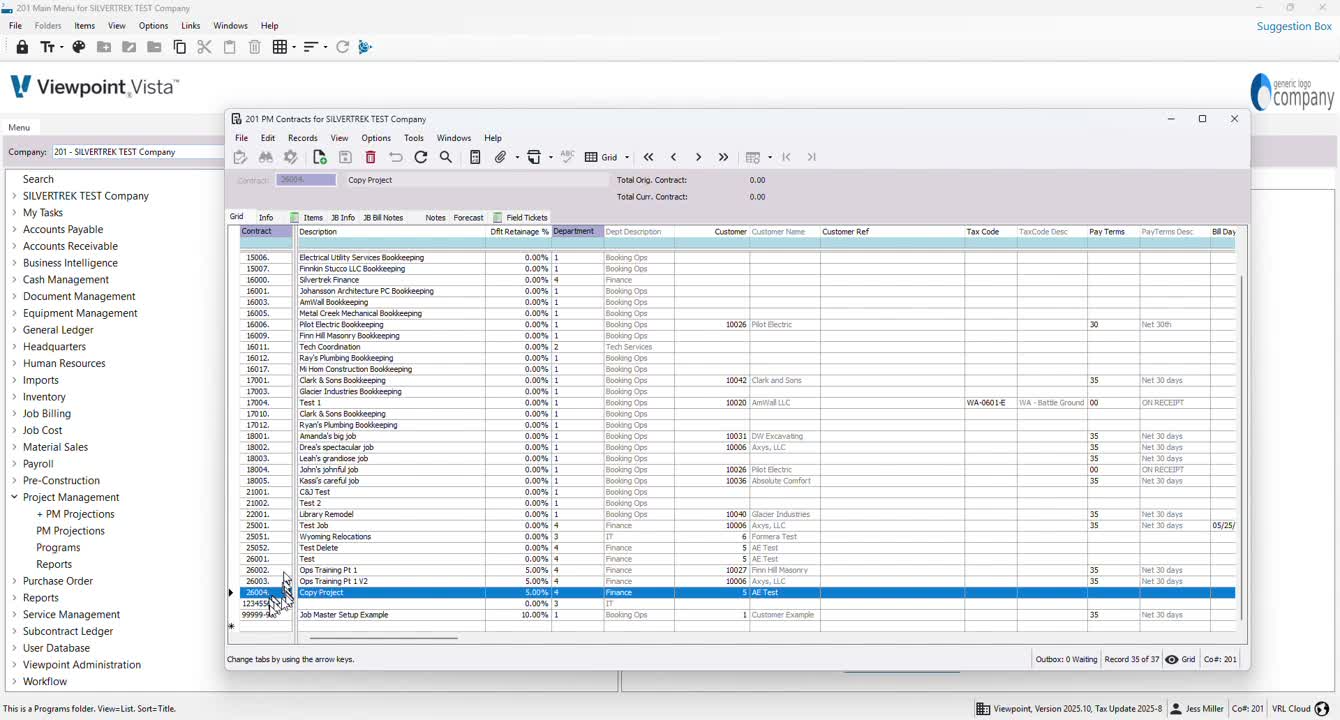
Create the next job number if doing a manual setup.
If using a copy project, find the same job number from the grid.
6. Info Tab Setup 1:42
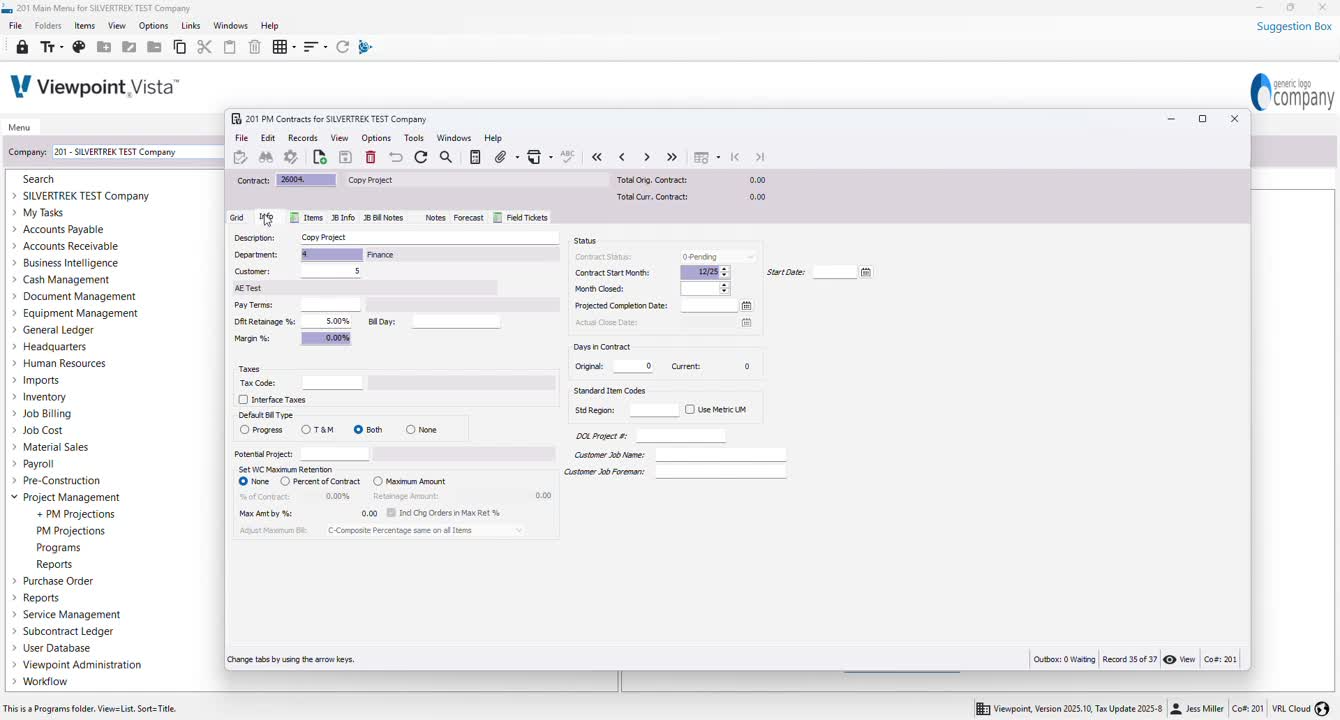
Click on the Info tab to set up the project details.
Ensure department, customer, and retainage are filled out.
7. Selecting Department and Customer 1:49
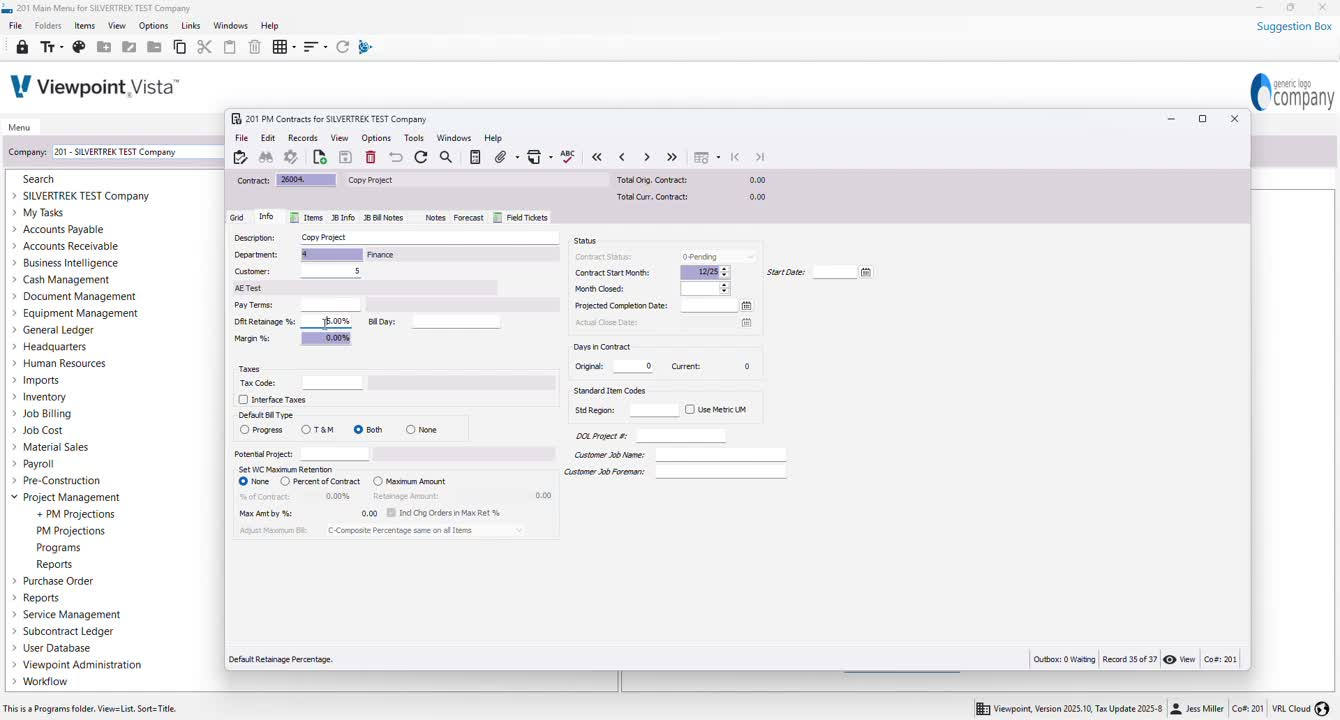
Use F4 to select the department and customer.
If specific pay terms exist, they should auto-populate.
8. Setting Pay Terms and Tax Codes 2:00
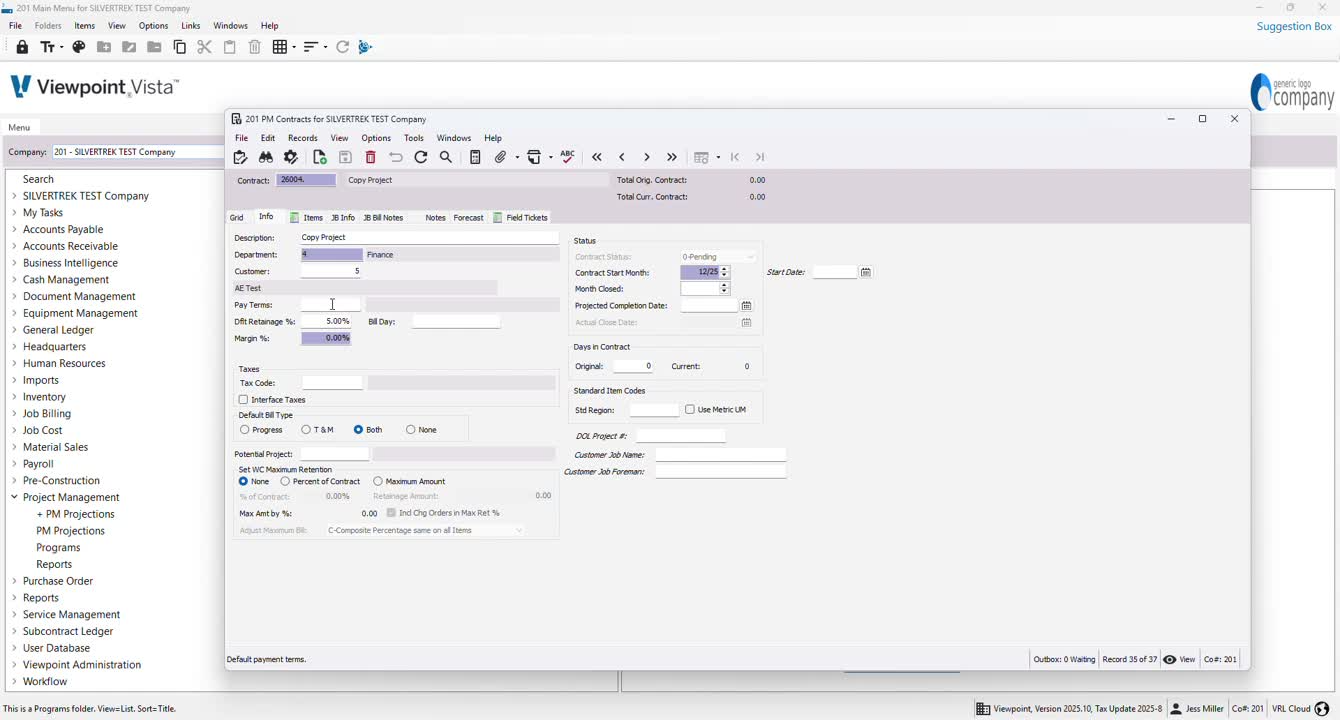
If no AR customer pay terms are set, use F4 to select appropriate pay terms.
Set default retainage and tax codes as needed.
9. Default Bill Type Selection 2:22
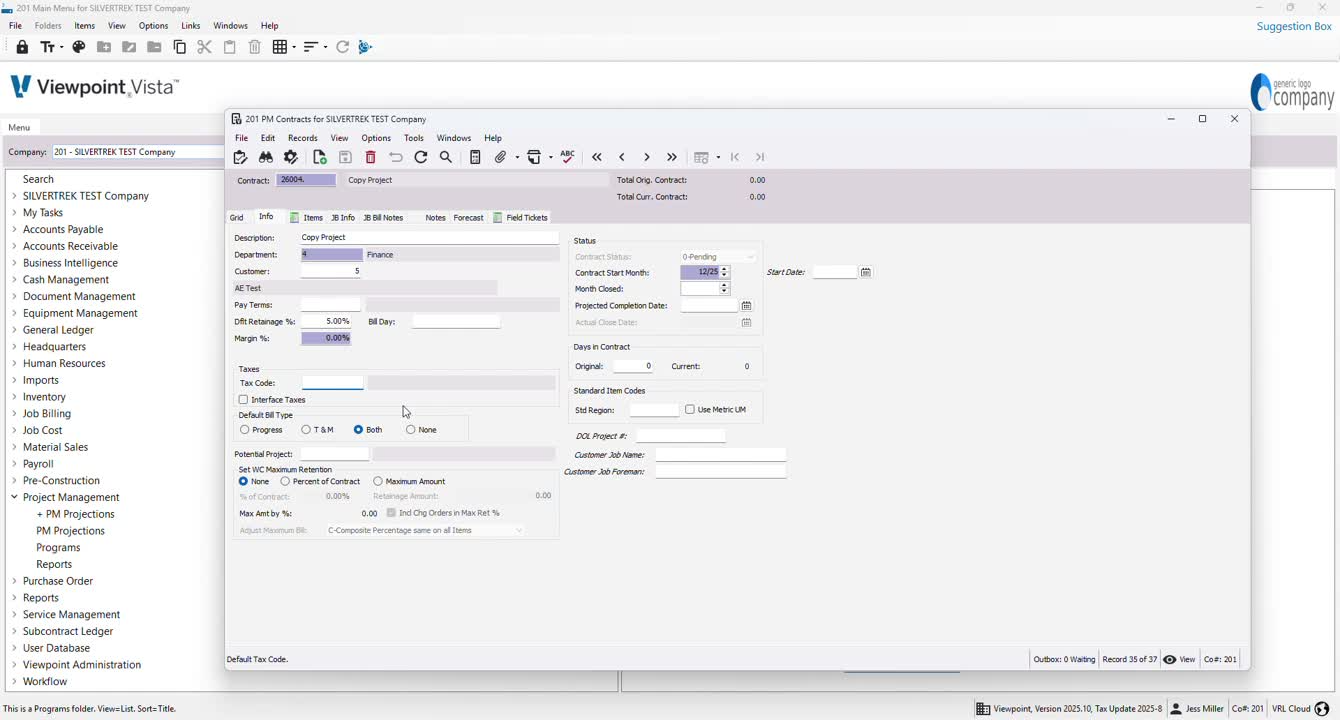
Choose both Progress and TM for flexibility in billing processes.
10. Contract Start and Close Dates 2:40
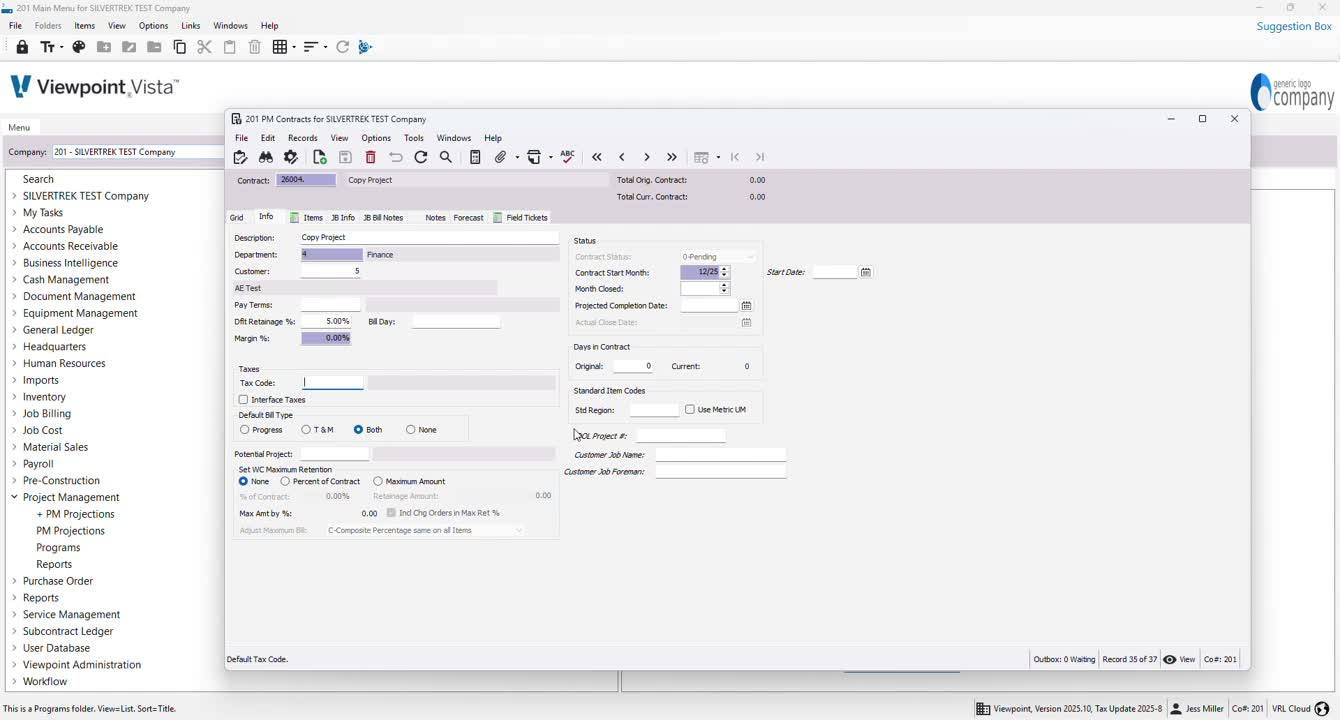
Enter the anticipated start month and month closed for the job.
These can be adjusted later as needed.
11. Custom Fields Setup 2:57
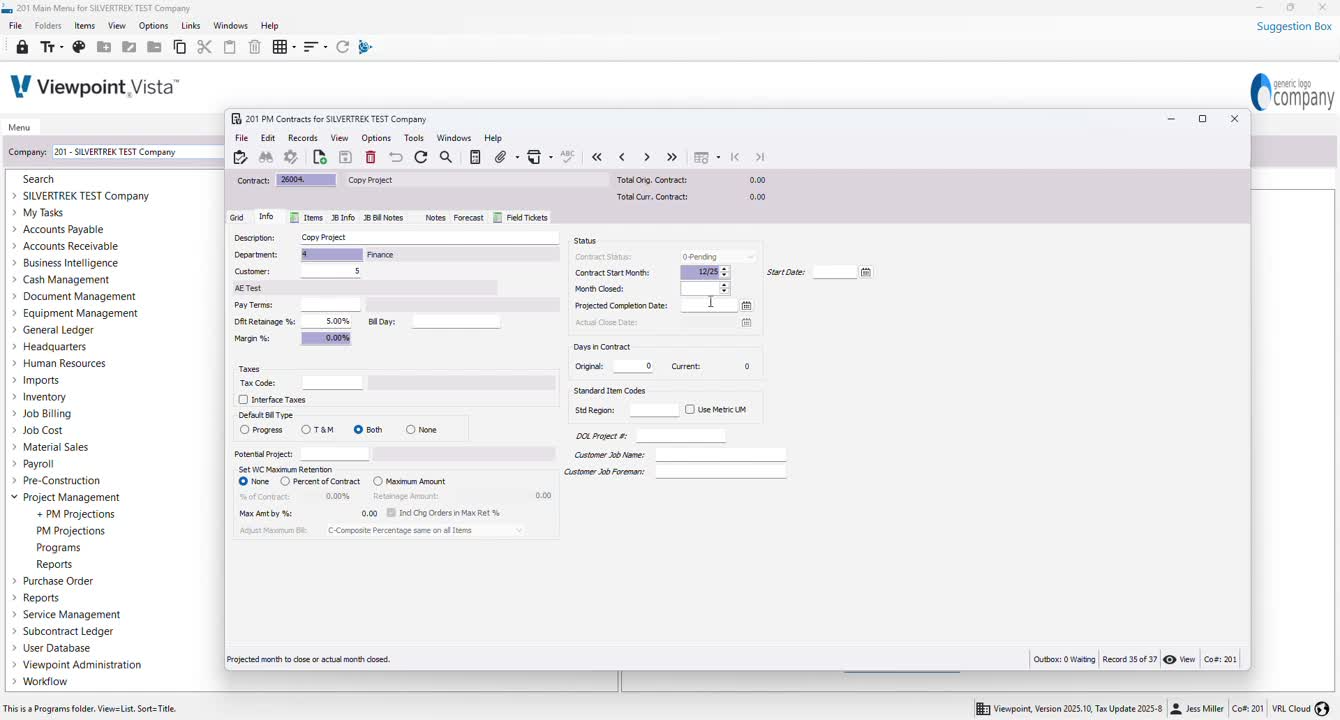
Identify and create any custom UD fields as necessary.
12. Contract Status Check 3:06
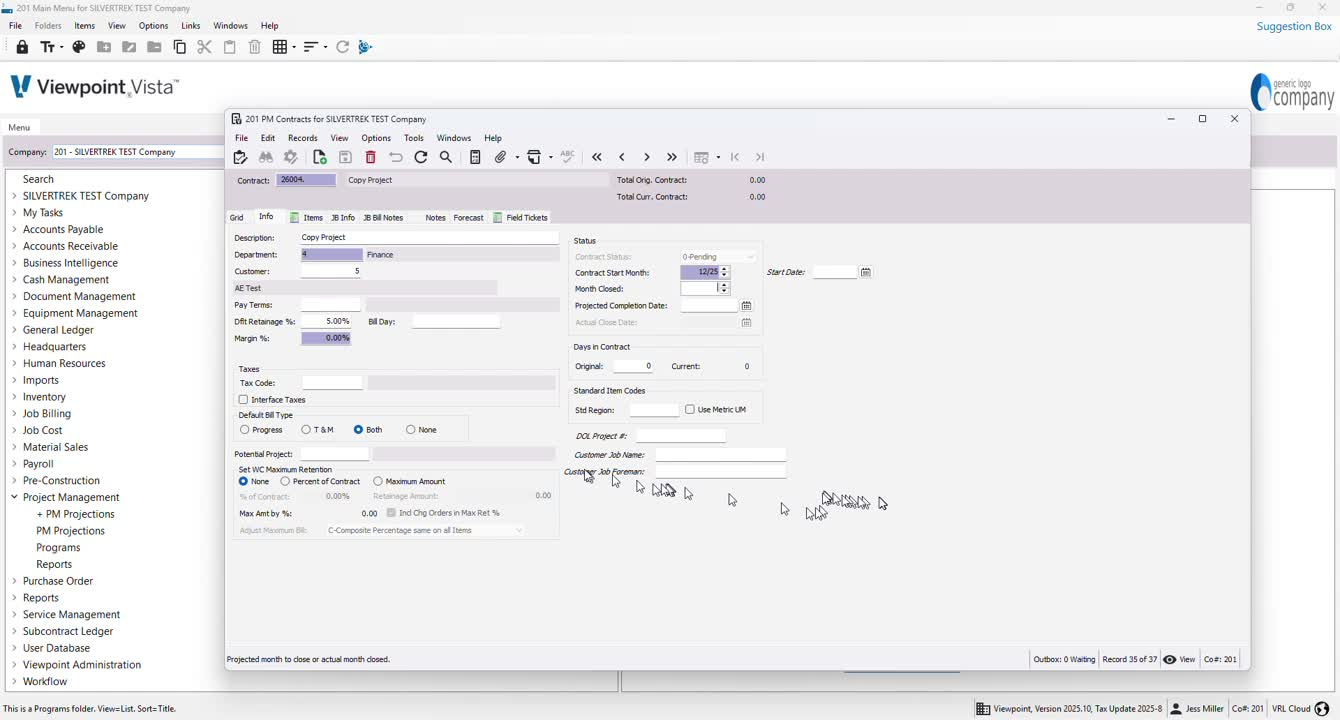
Ensure the contract status is set to pending until interfaced with NPM.
13. Adding Contract Items 3:16
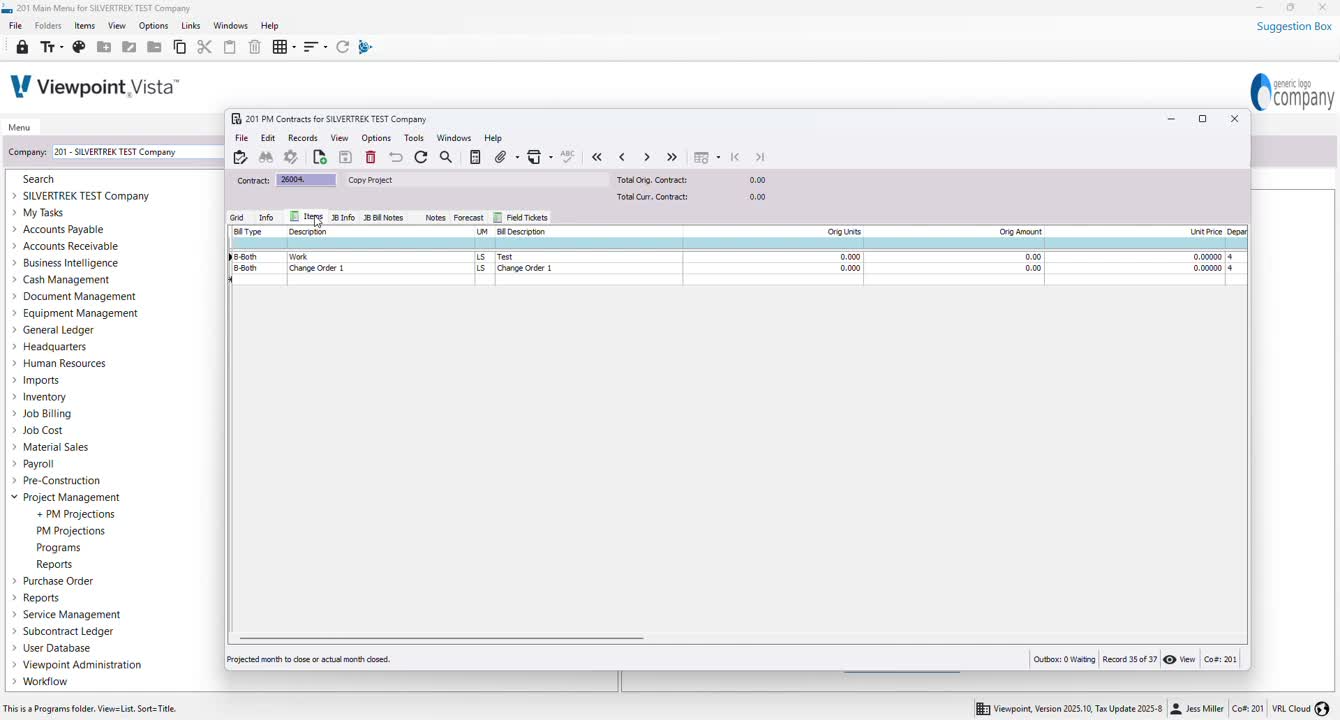
Go to the items section to create all necessary contract items for billing.
Specify whether items are lump sum or other unit measures.
14. Customizing the Grid View 3:34
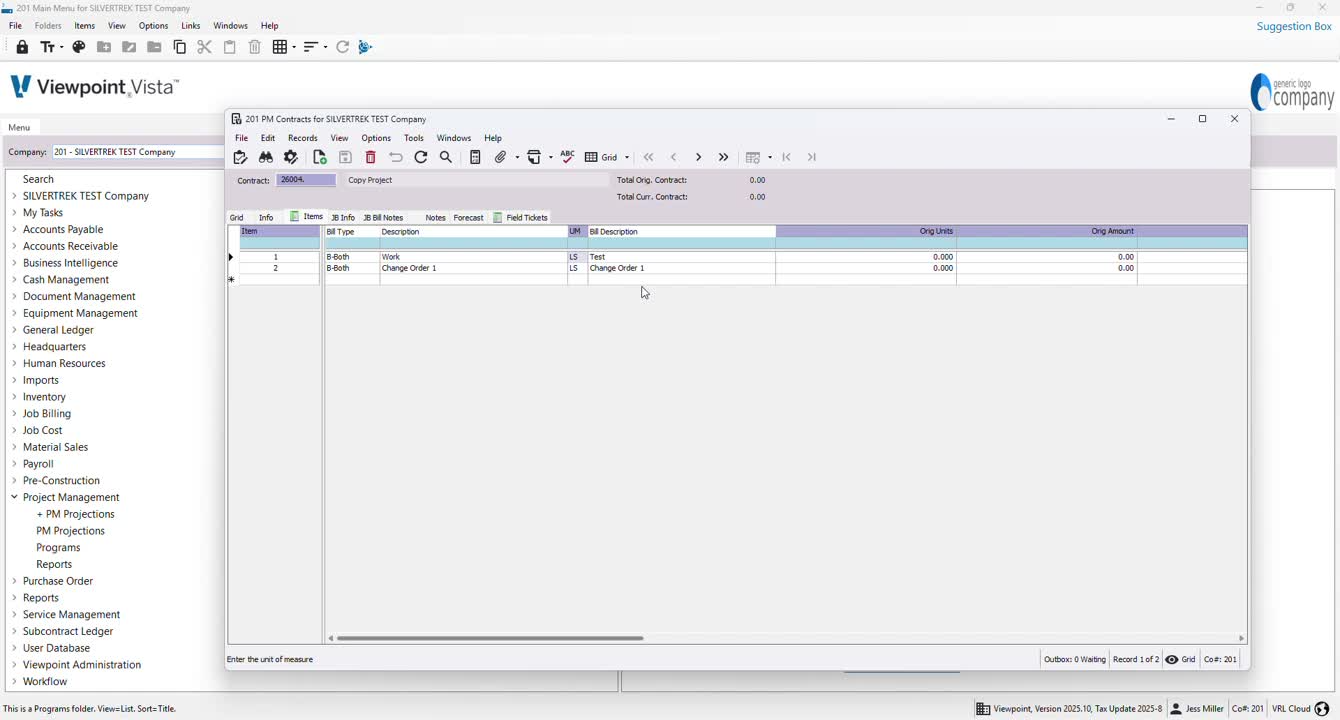
Unlock the grid and adjust column order as needed for better visibility.
15. Updating Bill Descriptions 4:00
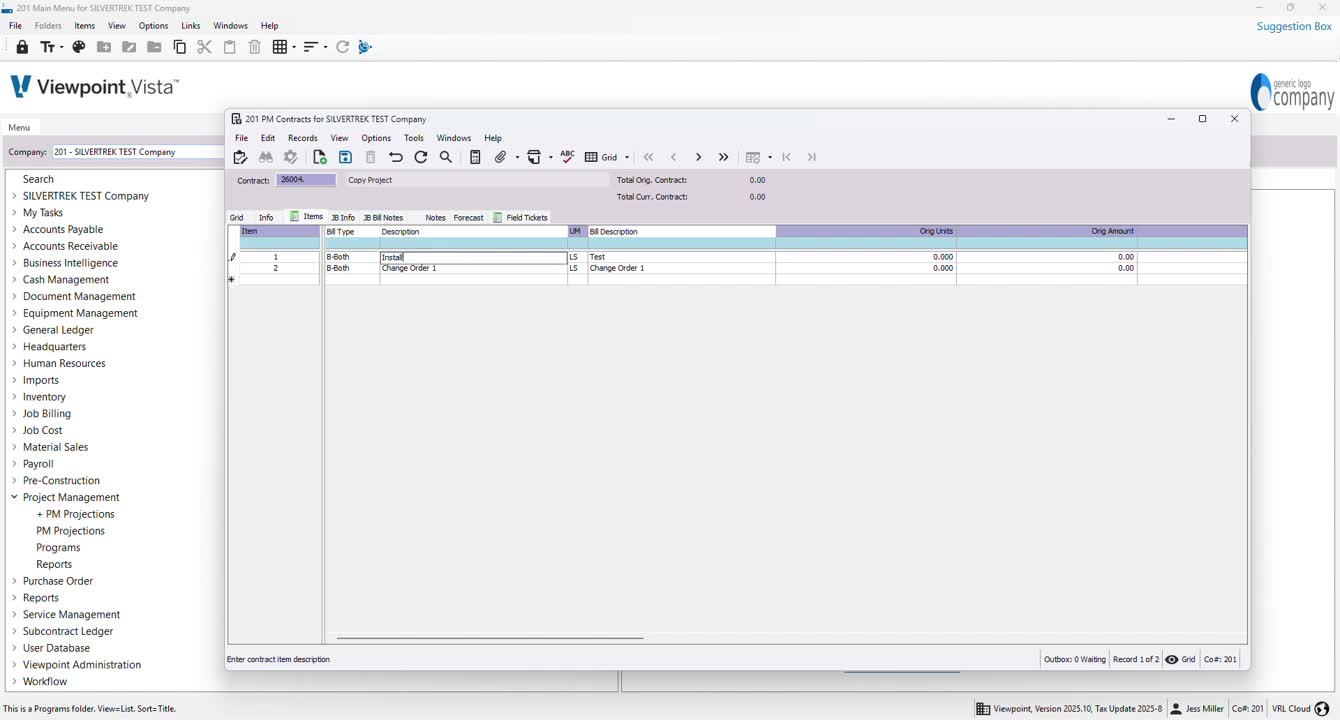
Ensure that bill descriptions are updated to reflect accurate information for invoices.
16. Saving Contract Items 4:13
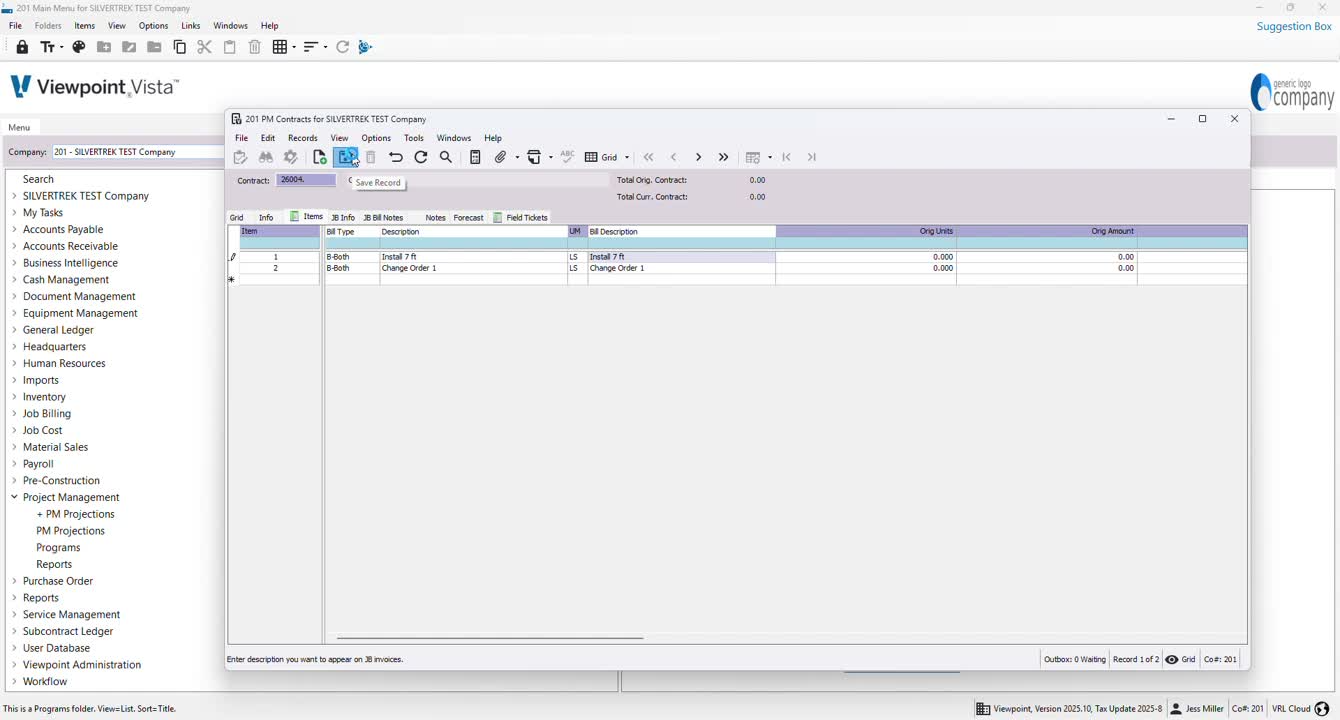
After setting up all contract items, click save.
17. Adding Job Information 4:30
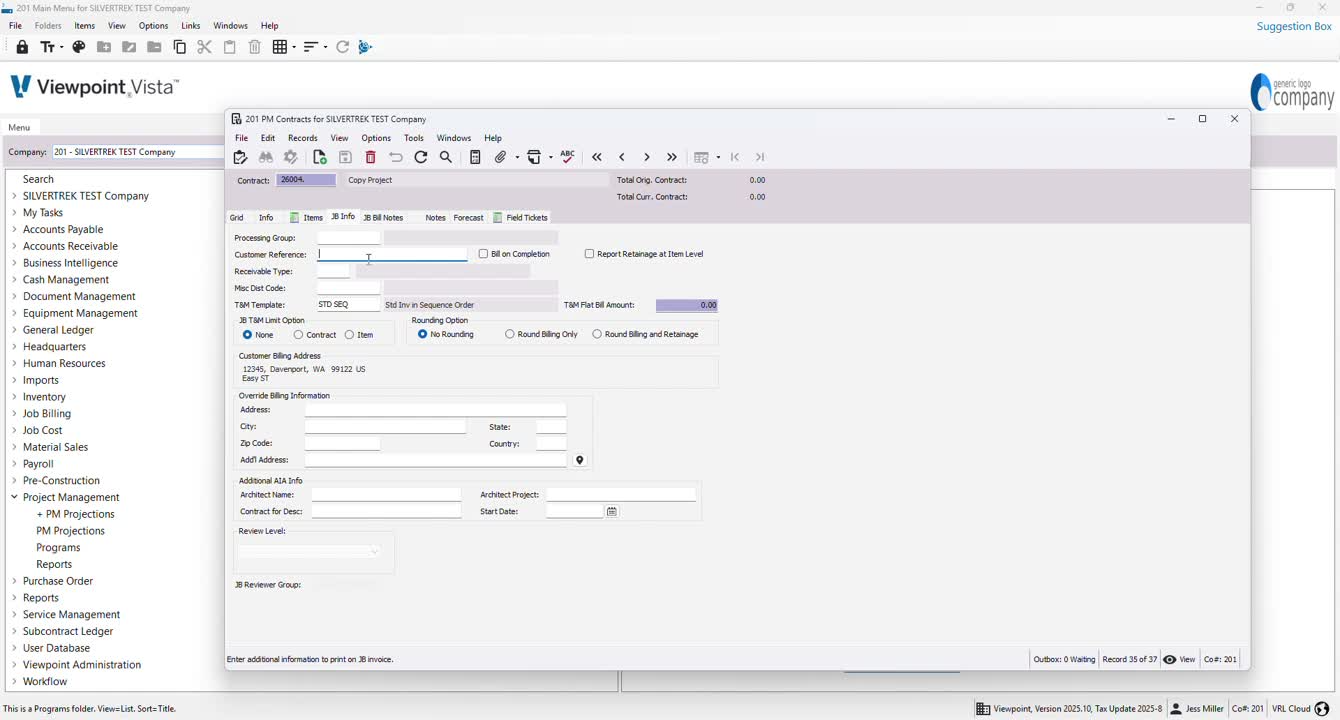
Go to JB info to input customer references, such as PO numbers.
18. Billing Information Override 4:38
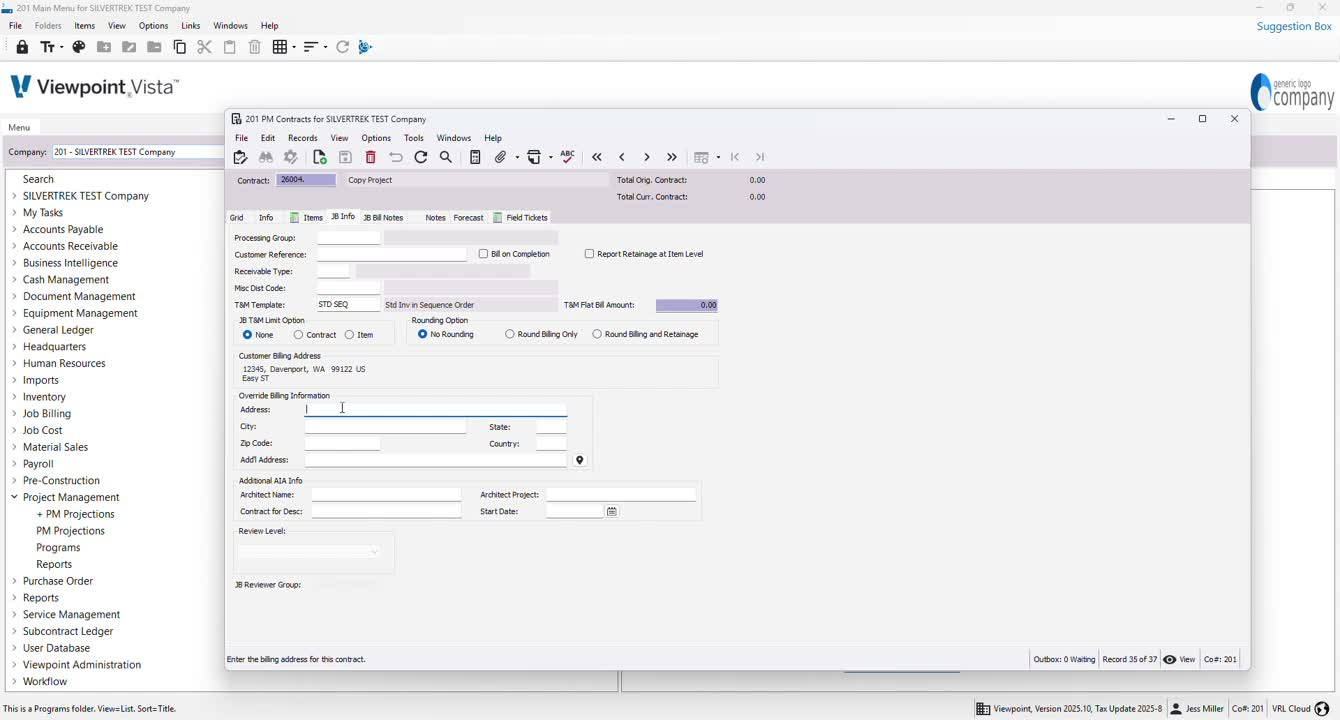
If necessary, override billing information for the specific job.
Cautionary Notes
Always double-check that all fields are filled out correctly to avoid billing issues.
Ensure that the contract status is updated to reflect its current state.
Tips for Efficiency
Use project templates whenever possible to streamline the setup process.
Regularly review and update custom fields to ensure they meet current project needs.
Link to Loom
https://loom.com/share/3764f40a118548a696c6380eef59b2ee
Was this article helpful?
That’s Great!
Thank you for your feedback
Sorry! We couldn't be helpful
Thank you for your feedback
Feedback sent
We appreciate your effort and will try to fix the article