Creating PM Project Phases
Objective
This SOP outlines the steps to create and manage PM project phases in the project management system.
Key Steps
Step 1: Access PM Project Phases 0:12
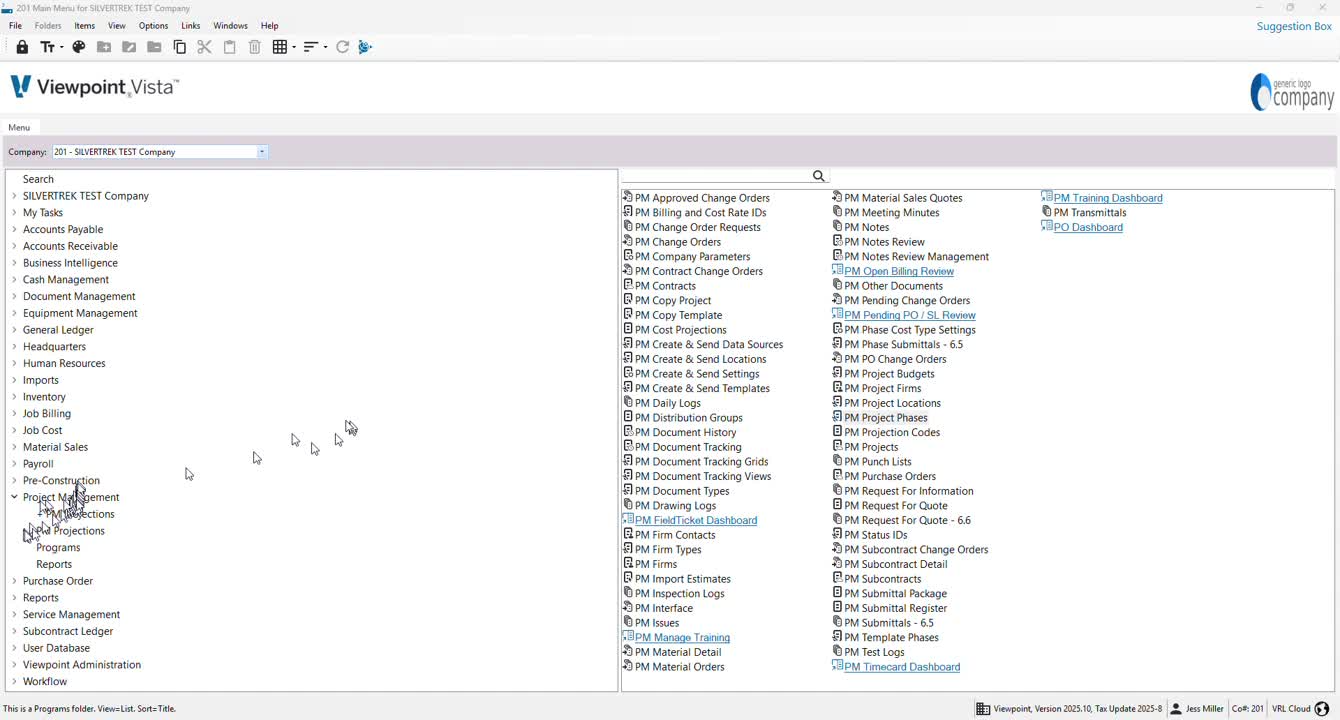
Navigate to Project Management.
Select Programs.
Click on PM Project Phases.
Double-click to open the program.
Step 2: Connect Jobs with Project Phases 0:32
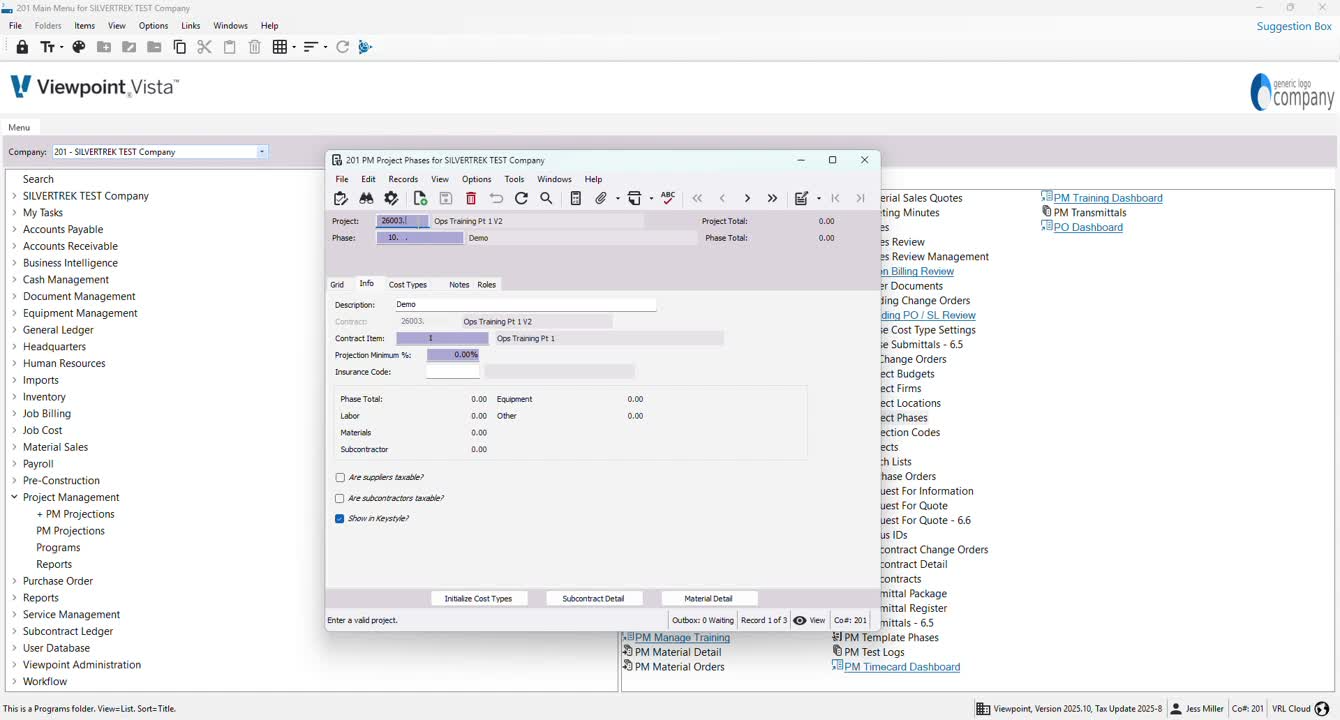
Review the list of project phases.
Use this feature to create job copy templates for different divisions or plants.
Step 3: Select or Confirm Job 1:07
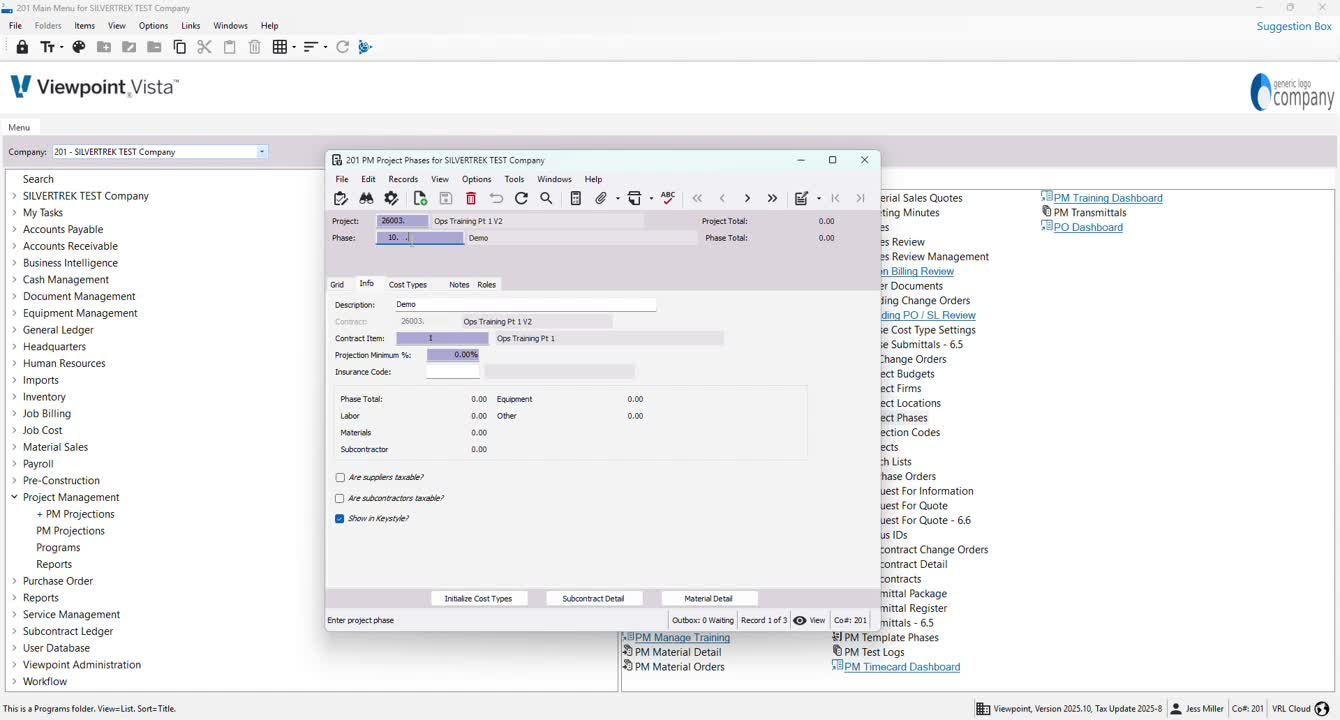
Press F4 to select your job.
If the job is correct, proceed to the next step.
Step 4: Add Phase Numbers 1:18
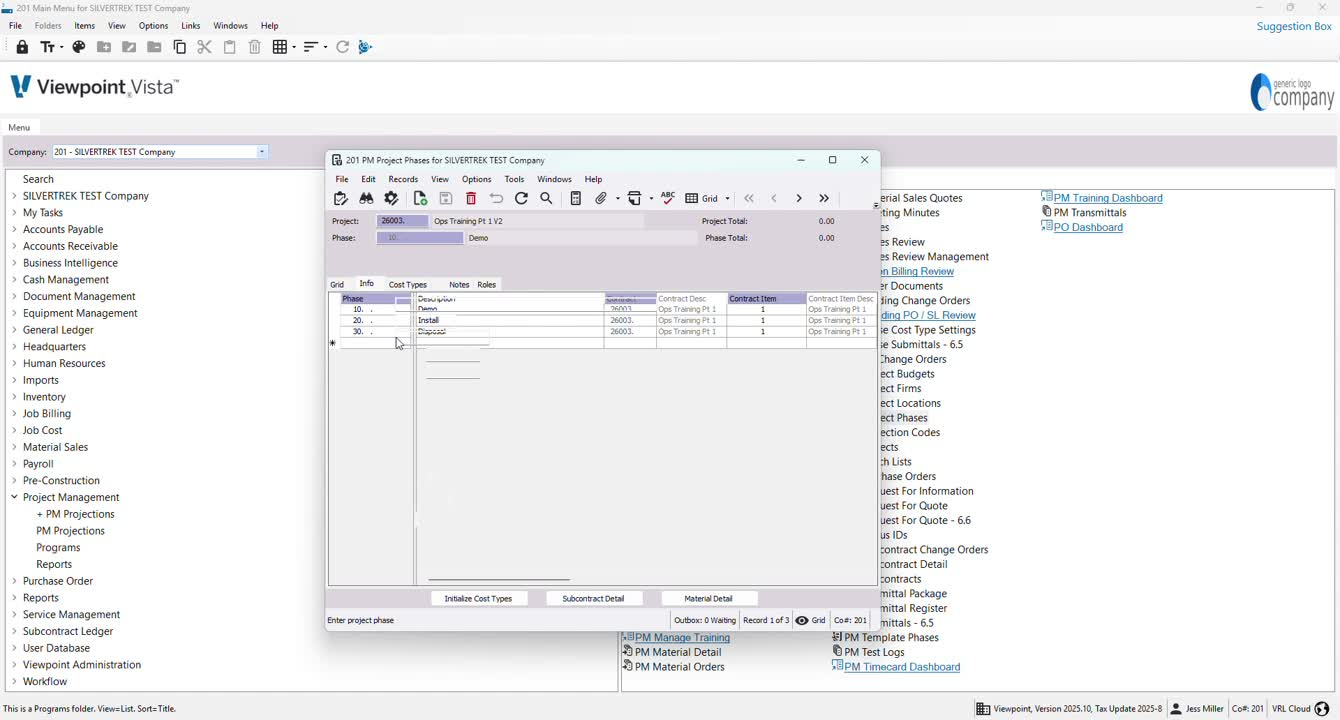
Enter the phase numbers in the designated field.
Check the grid to ensure the numerical format is consistent.
Step 5: Create a New Phase 1:27
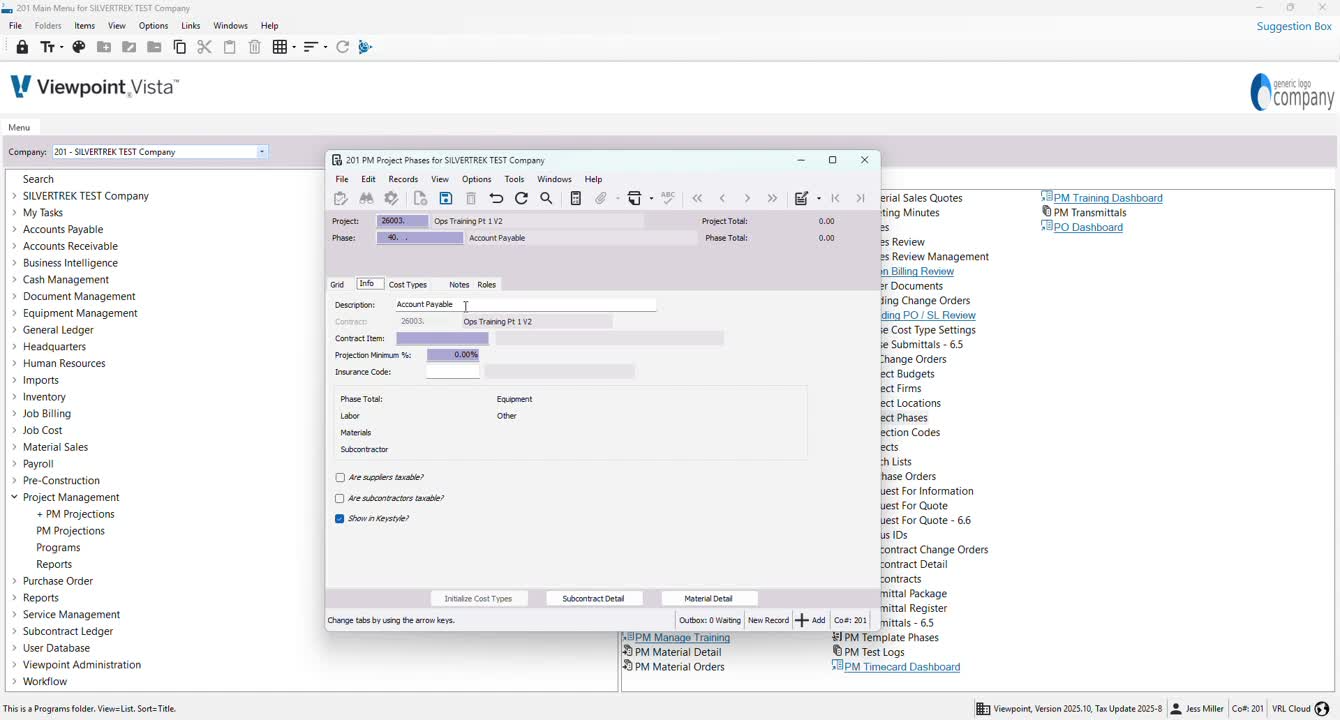
Go to the Info section.
Create a new phase (e.g., enter 40).
Save the new phase.
Step 6: Connect Contract Item 1:41
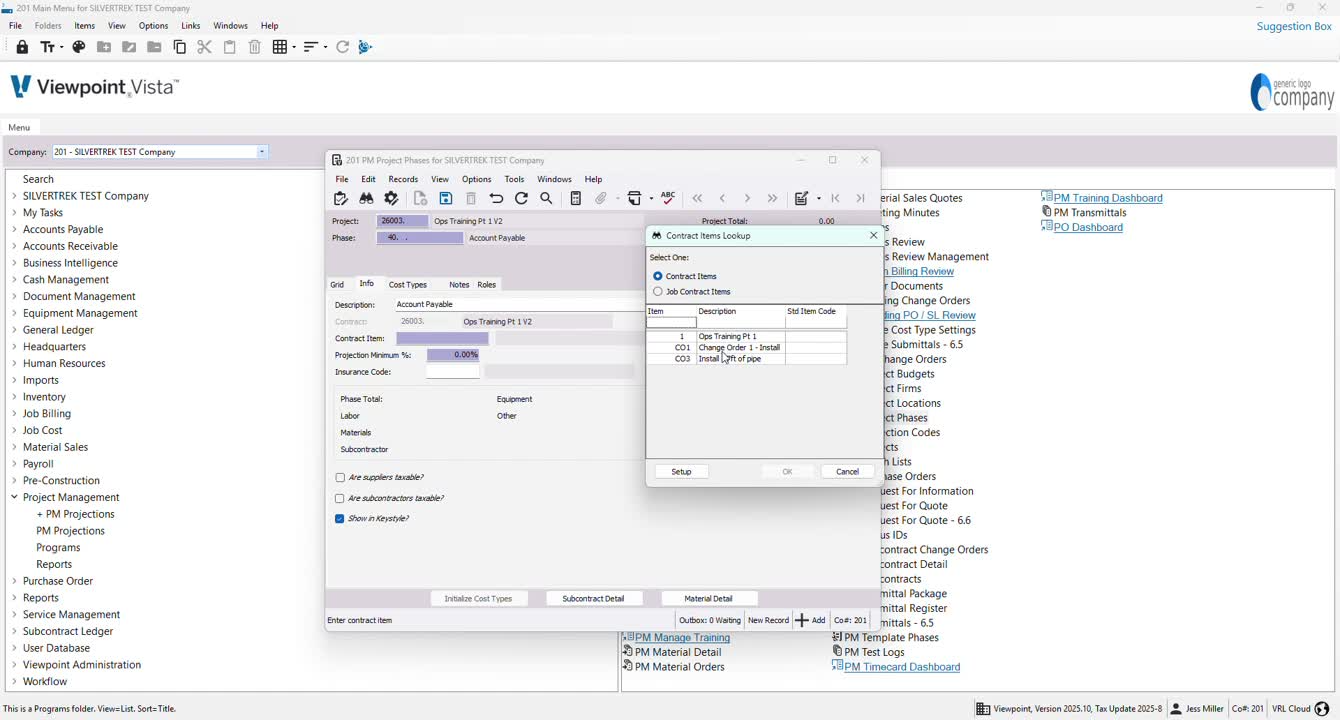
Select the appropriate contract item to connect with the phase.
Save the changes.
Step 7: Initialize Cost Types 2:00
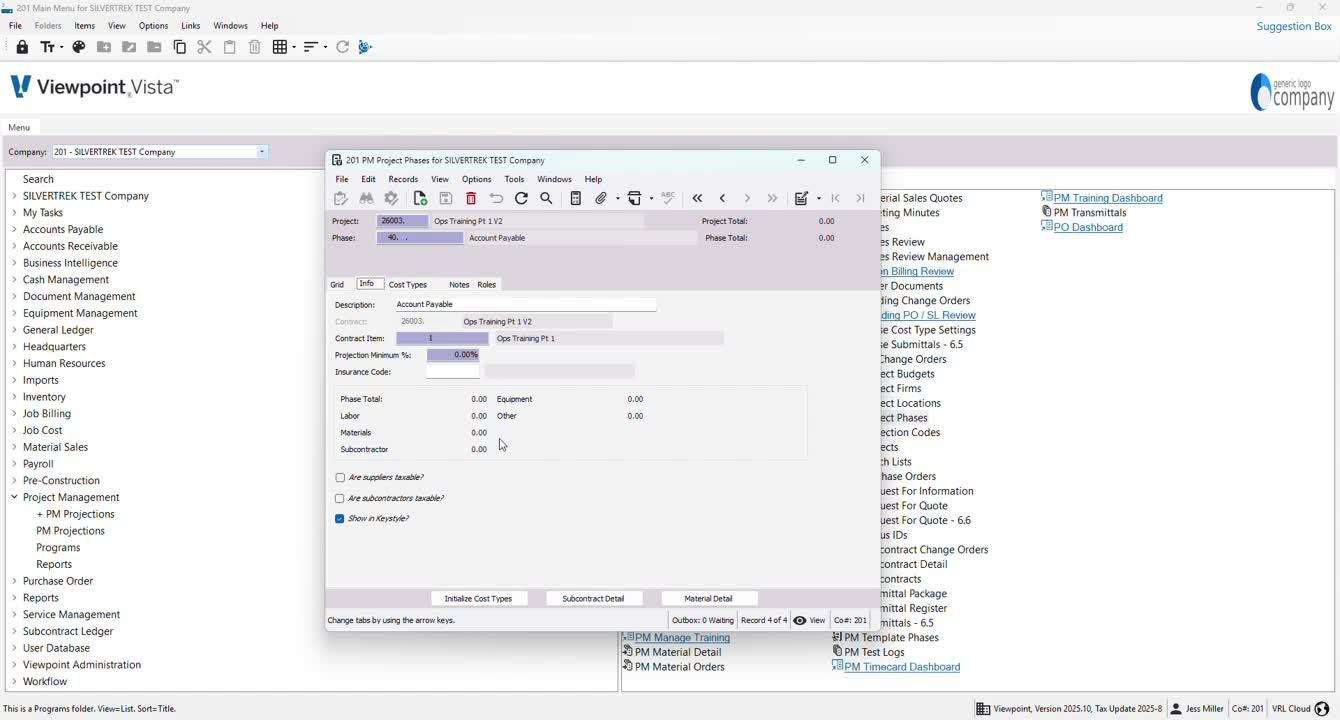
Use the Initialize Cost Types feature to automatically add all relevant cost types to the phase.
Cautionary Notes
Ensure that all phase numbers are unique to avoid confusion.
Double-check the contract item selection to ensure it aligns with the project requirements.
Tips for Efficiency
Use job copy templates to save time when creating phases for different divisions or plants.
Regularly review and update the list of project phases to maintain accuracy.
Link to Loom
Was this article helpful?
That’s Great!
Thank you for your feedback
Sorry! We couldn't be helpful
Thank you for your feedback
Feedback sent
We appreciate your effort and will try to fix the article