EM Fuel Posting is used to record and track fuel usage for equipment. It allows companies to enter fuel quantities and costs, update equipment fuel history, and allocate fuel expenses to the appropriate equipment and jobs. This helps monitor fuel consumption, track operating costs, and maintain accurate equipment and job cost records.
TABLE OF CONTENTS
Initalize Fuel Usage
1-Go to Equipment Management>Programs>EM Fuel Posting
2-Select the Batch Month for the cost to be posted to
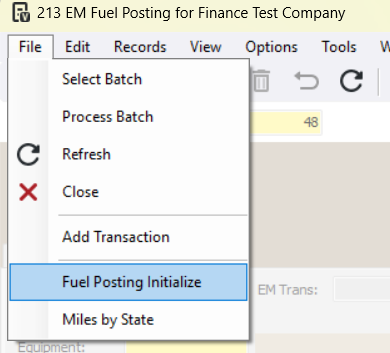
3-Go to File>Fuel Posting Initialize
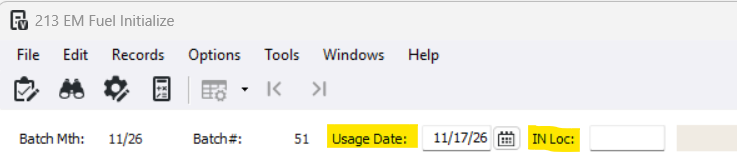
3-Enter the Usage Date, the date to which fuel usage will be posted for all equipment in this batch and enter the Inventory location that provided the fuel for equipment in this batch, leave the location blank to include all locations
4-Enter at least one filter in the Post Fuel To equipment Assigned To section. The more criteria you enter, the more restrictive the selection will be.

5-Press Refresh. The grid will be populated with all equipment meeting the selected criteria.

6-In the Units field, enter the fuel usage units

7-In the New Odo field, enter the odometer reading at the time of refueling

8-In the New Hrs field, enter the hour meter reading at the time of refueling

9-Press Close

10-Review the transactions in the batch
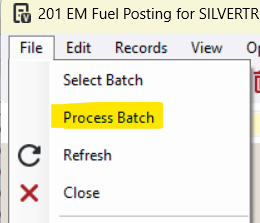
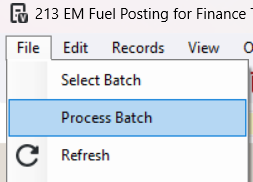
11-Go to File>Process Batch
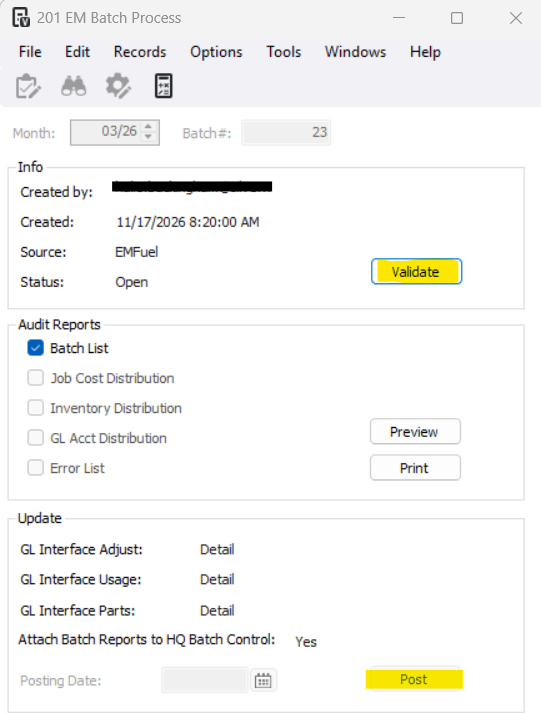
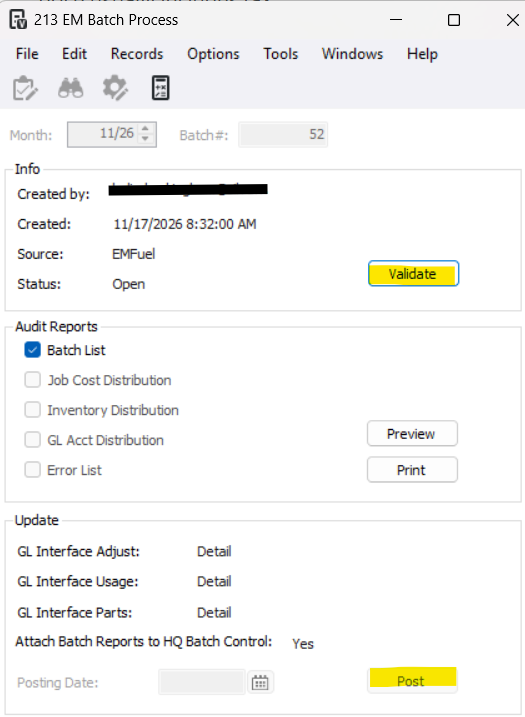
12- Press Validate and Post
Enter Fuel Usage Manually
1-Go to Equipment Management>Programs>EM Fuel Posting
2-Select the Batch Month for the cost to be posted to
3-Enter the Equipment, EM Cost Code, and EM Cost Type
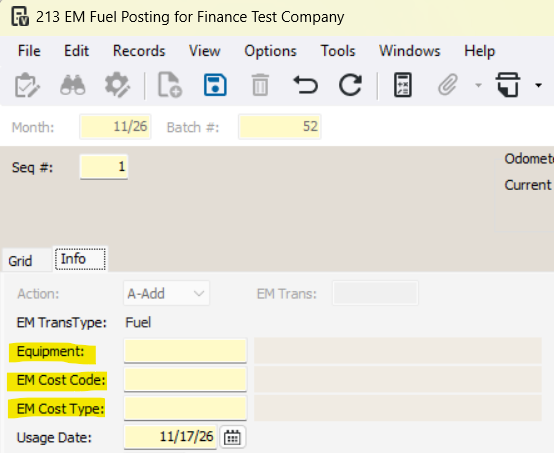
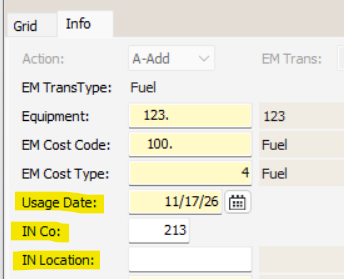
4-Enter the Usage Date, the date to which fuel usage will be posted for all equipment in this batch and enter the Inventory location that provided the fuel for equipment in this batch, leave the location blank to include all locations
5-Enter the Fuel Matl Code
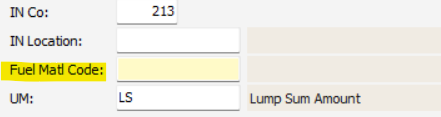
6-Enter the units of fuel used

7-Enter the New Odo (odometer) and New Hours readings at the time of refueling
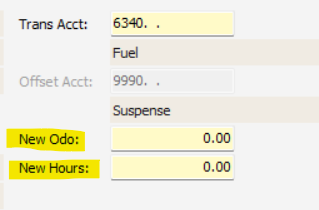
8-Review the batch
9-Go to File>Process Batch
10- Press Validate and Post
Was this article helpful?
That’s Great!
Thank you for your feedback
Sorry! We couldn't be helpful
Thank you for your feedback
Feedback sent
We appreciate your effort and will try to fix the article