Note: If you calculate depreciation using a third-party depreciation package, do not use the EM Depreciation Posting program. Instead, import your depreciation data using the Imports (IM) module. The Imports module provides a series of programs that allow you to set up import templates and cross-references, import your depreciation data, edit or delete the imported data as necessary, then update the data to EM and GL.
1. Introduction to EM Depreciation Processing 0:00
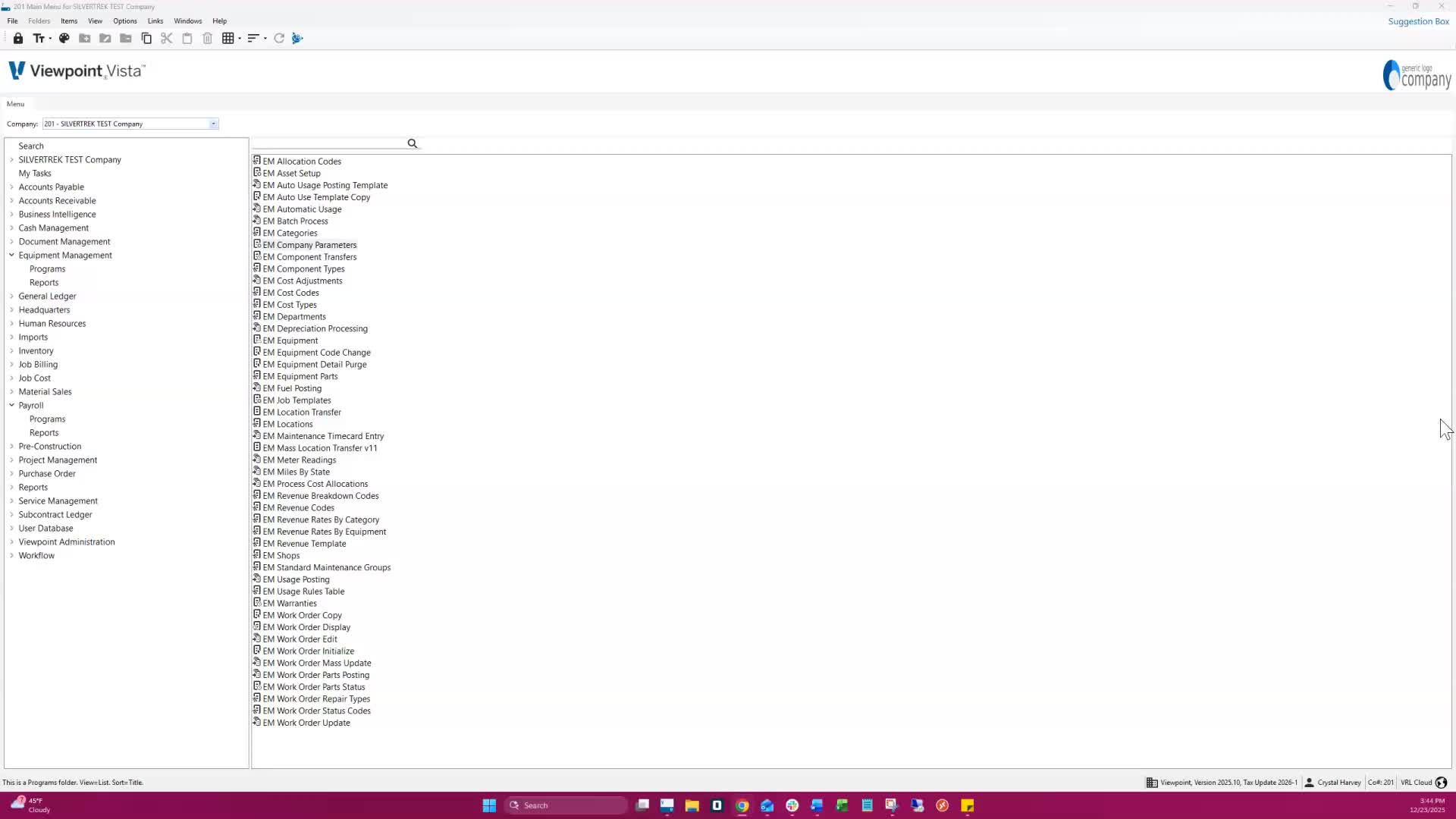
The EM depreciation processing form is used to post depreciation on any schedule (monthly, quarterly, yearly).
It can be applied to one or all assets.
2. Asset Setup Requirements 0:12
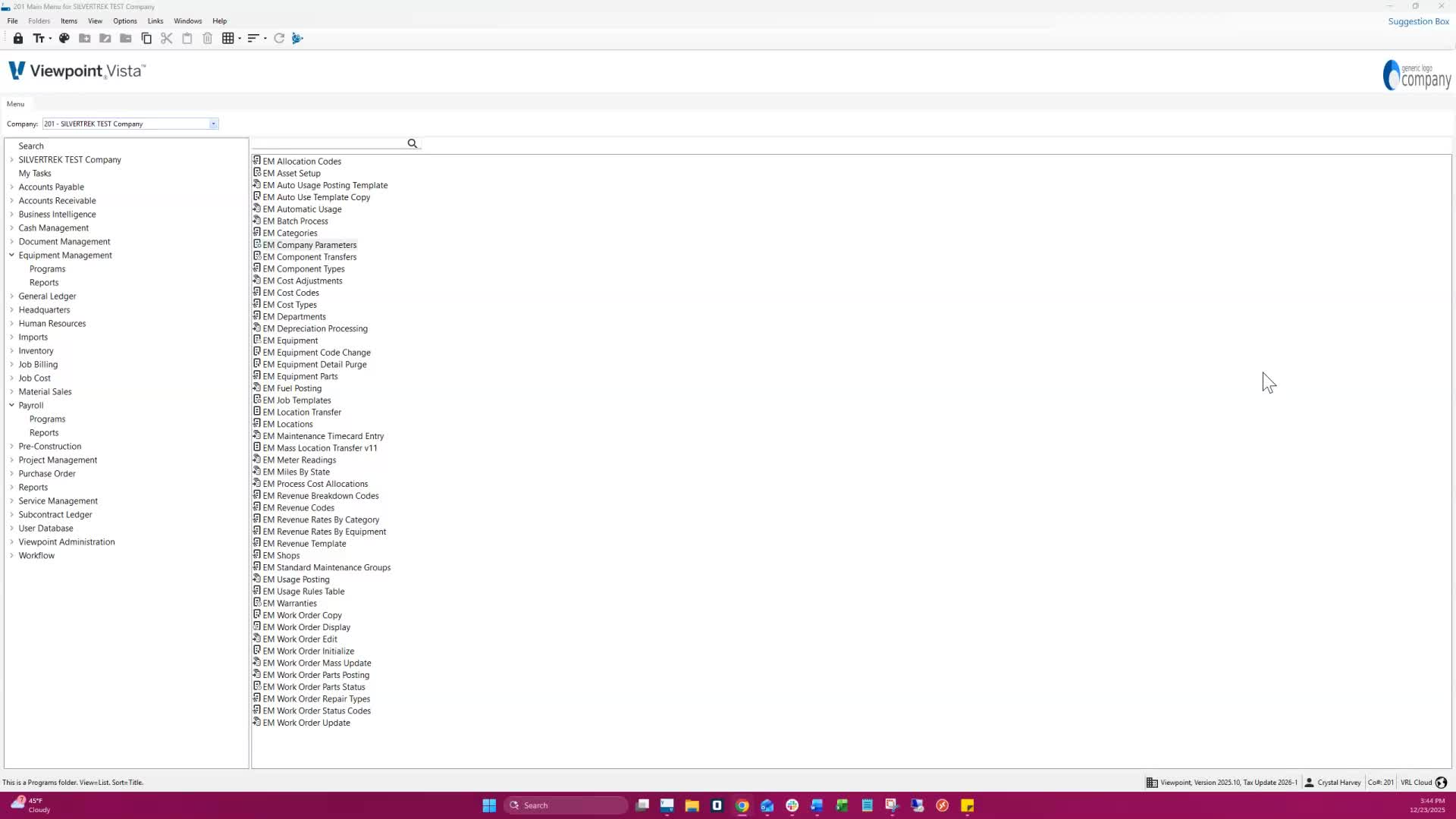
Ensure assets are set up with calculated schedules in EM Asset Setup.
The system uses each asset's amount to calculate current depreciation.
3. Pre-Processing Requirements 0:36
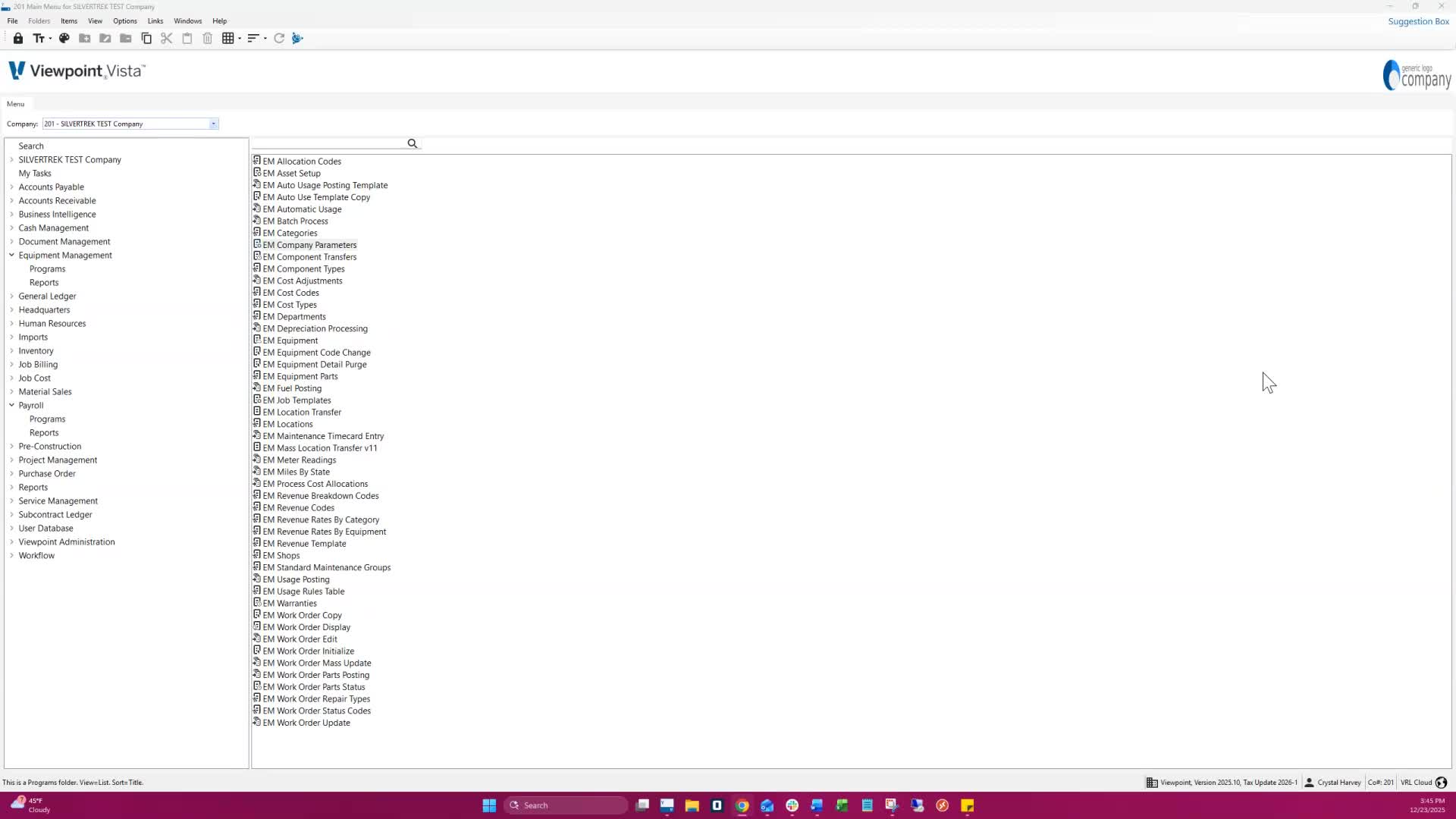
Assign a depreciation cost code and cost type in EM Company parameters.
Set the last month calculated field in EM Company parameters before the first run.
4. Running Depreciation 1:08
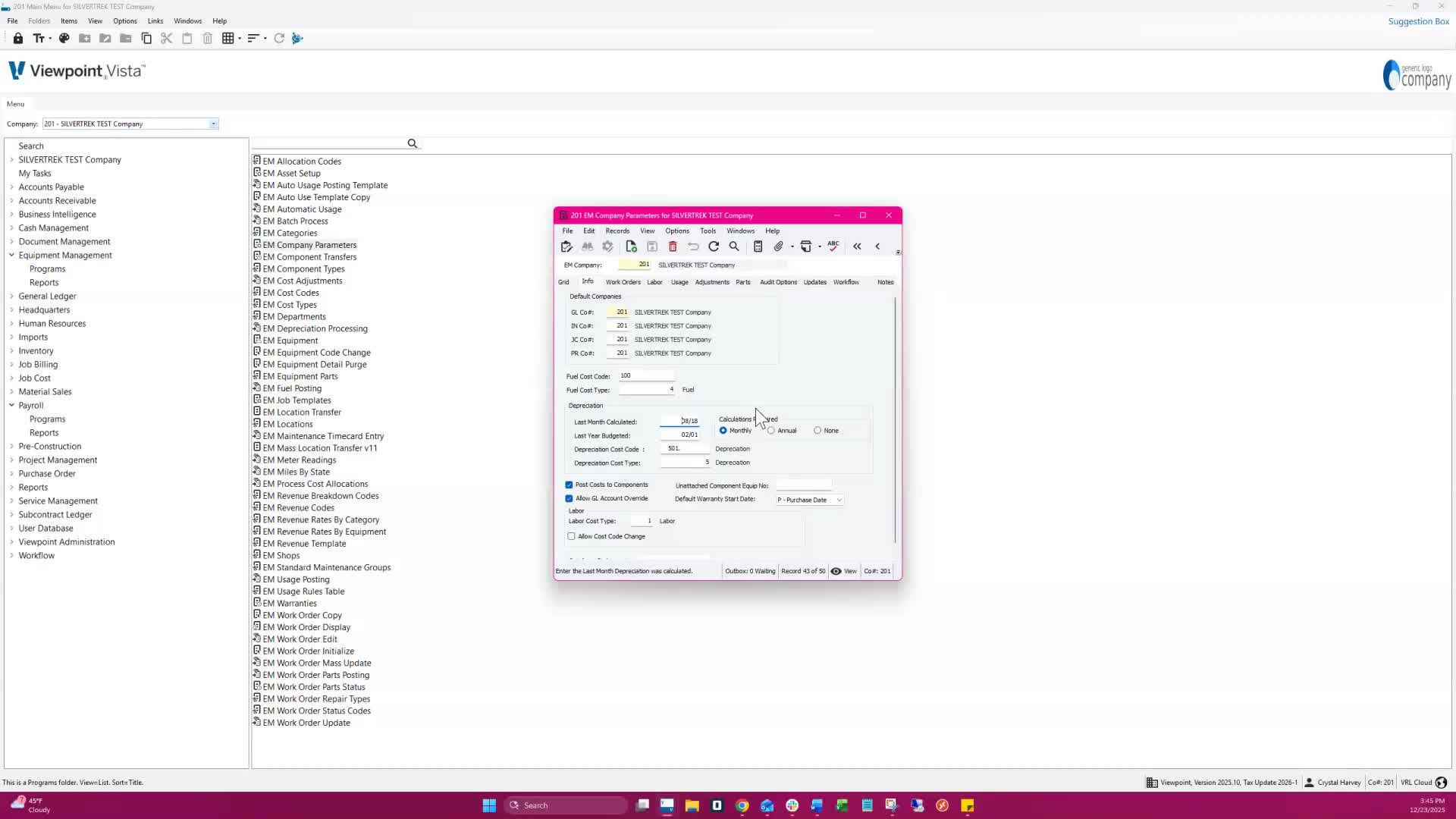
You do not need to run depreciation every month, but it must be processed through period 12 before closing the fiscal year.
The system will catch up on missed months automatically.
5. Handling Inactive Equipment 1:20
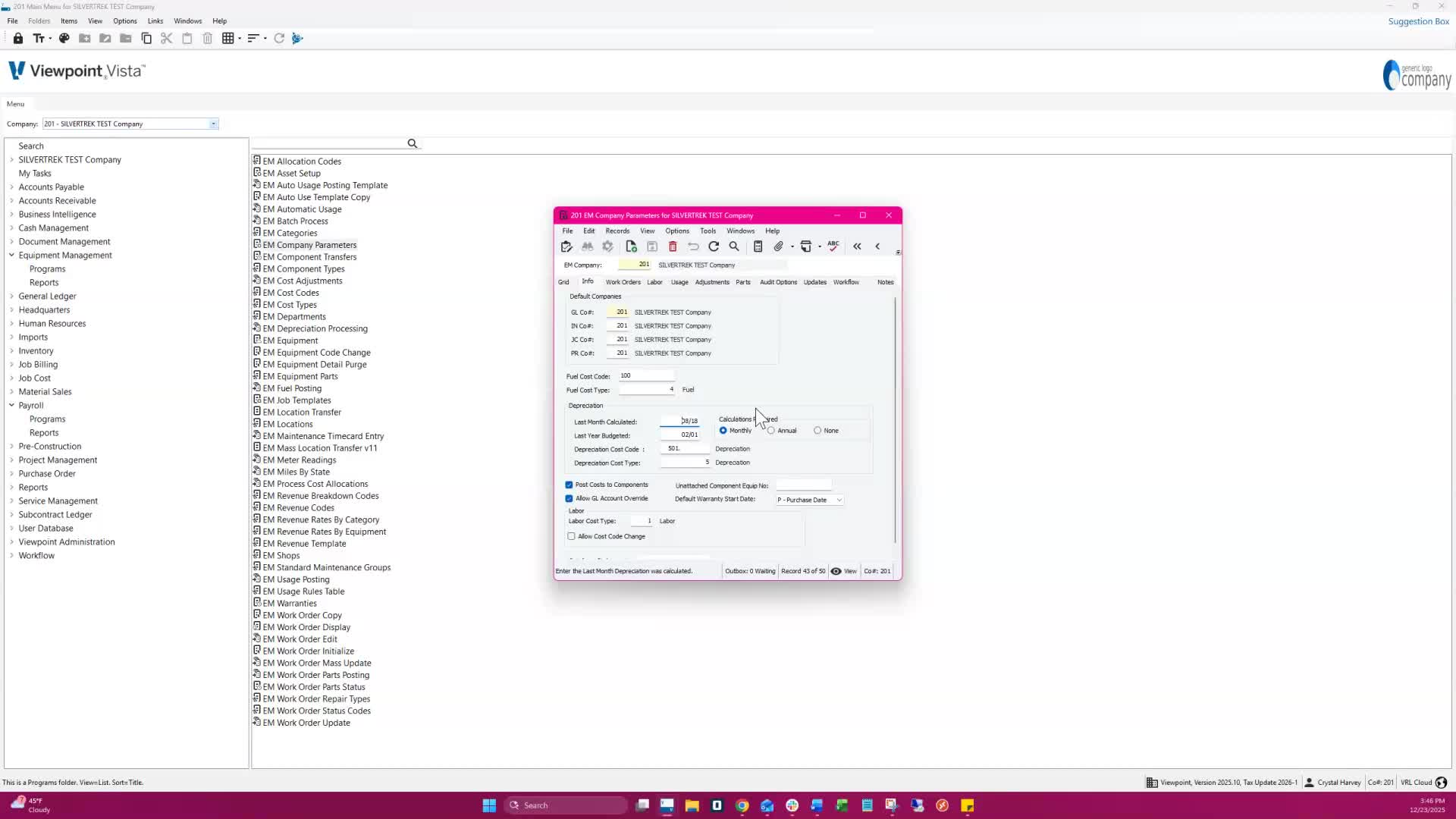
Depreciation can still be posted for inactive equipment.
A warning will display when running for a single item.
6. Accessing the EM Depreciation Processing Form 1:46
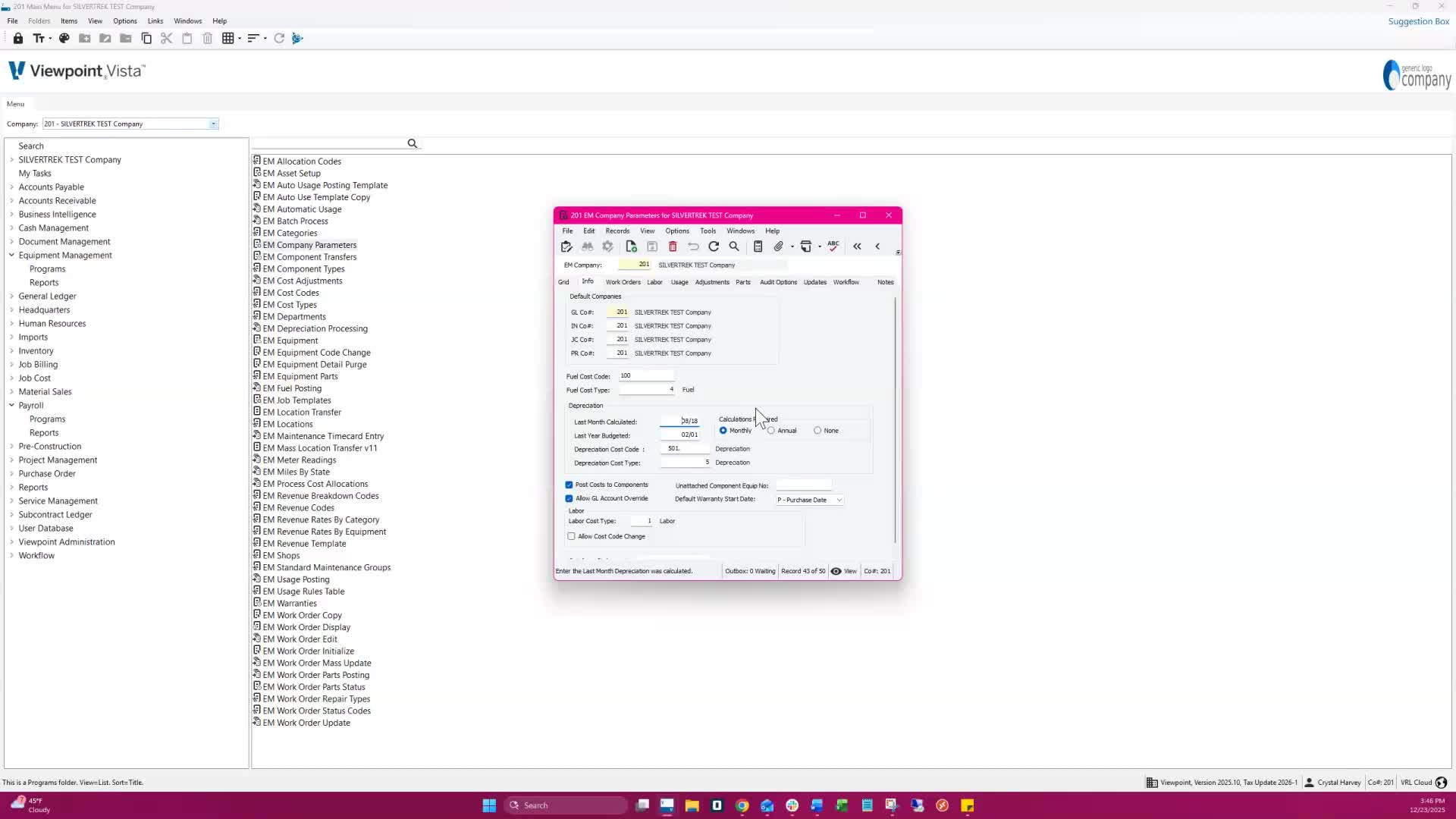
Navigate to Equipment Management Programs and select EM Depreciation Processing.
7. Creating a New Batch 2:02
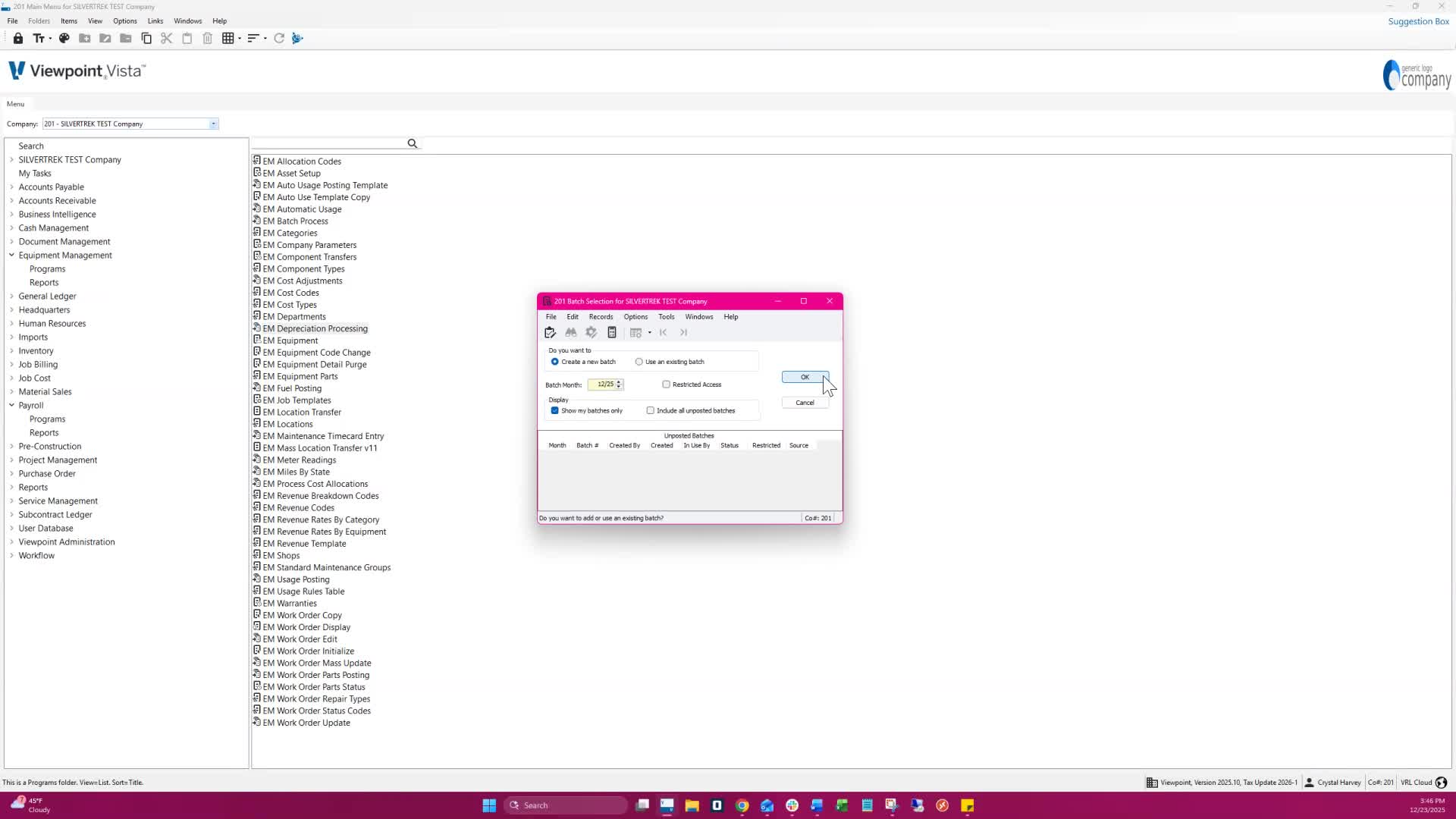
Click OK to create a new batch.
Enter the posting date for all depreciation transactions.
8. Selecting Assets for Depreciation 2:11
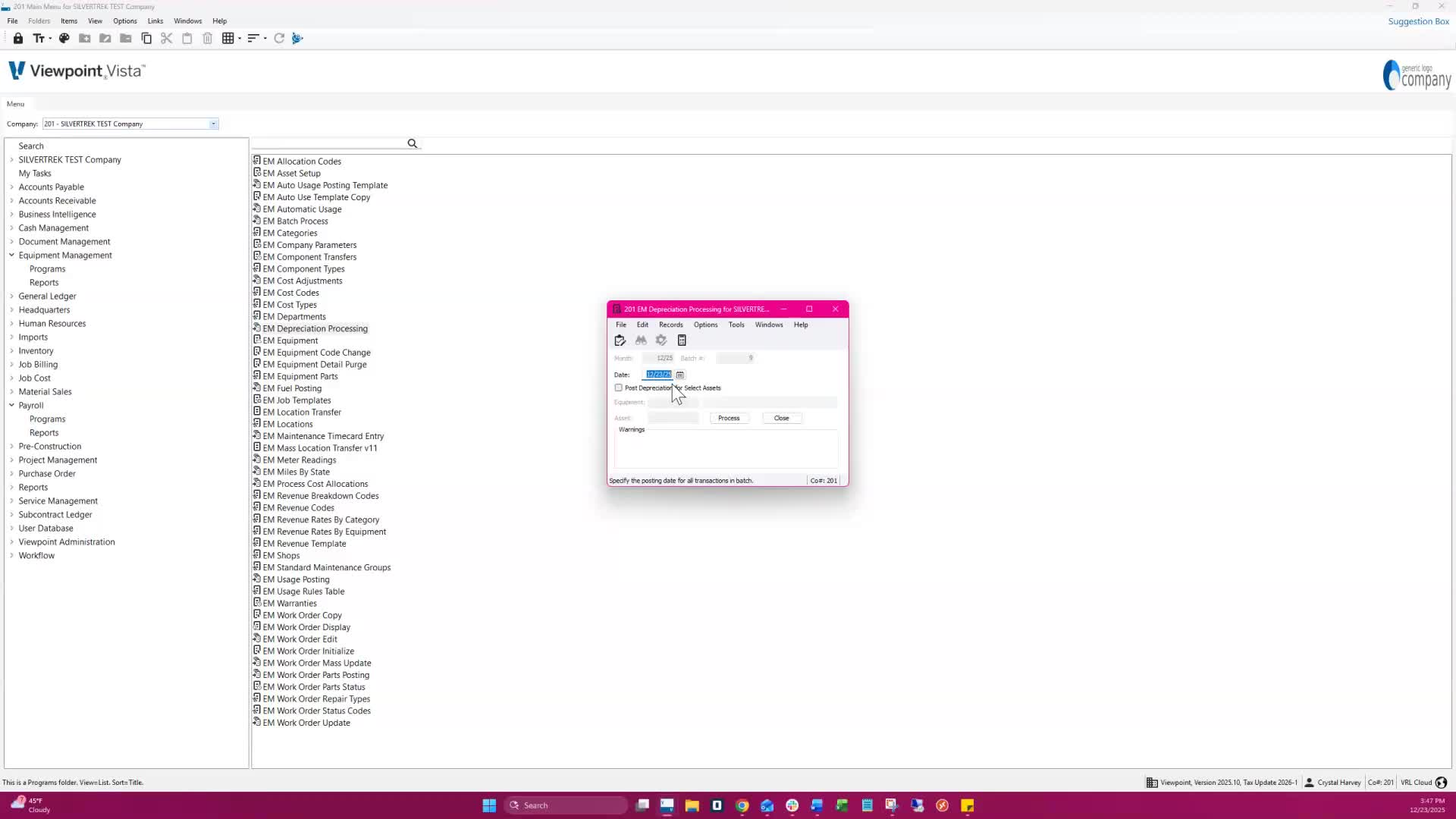
Choose to post depreciation for select assets or run for all assets.
9. Processing Depreciation 2:19
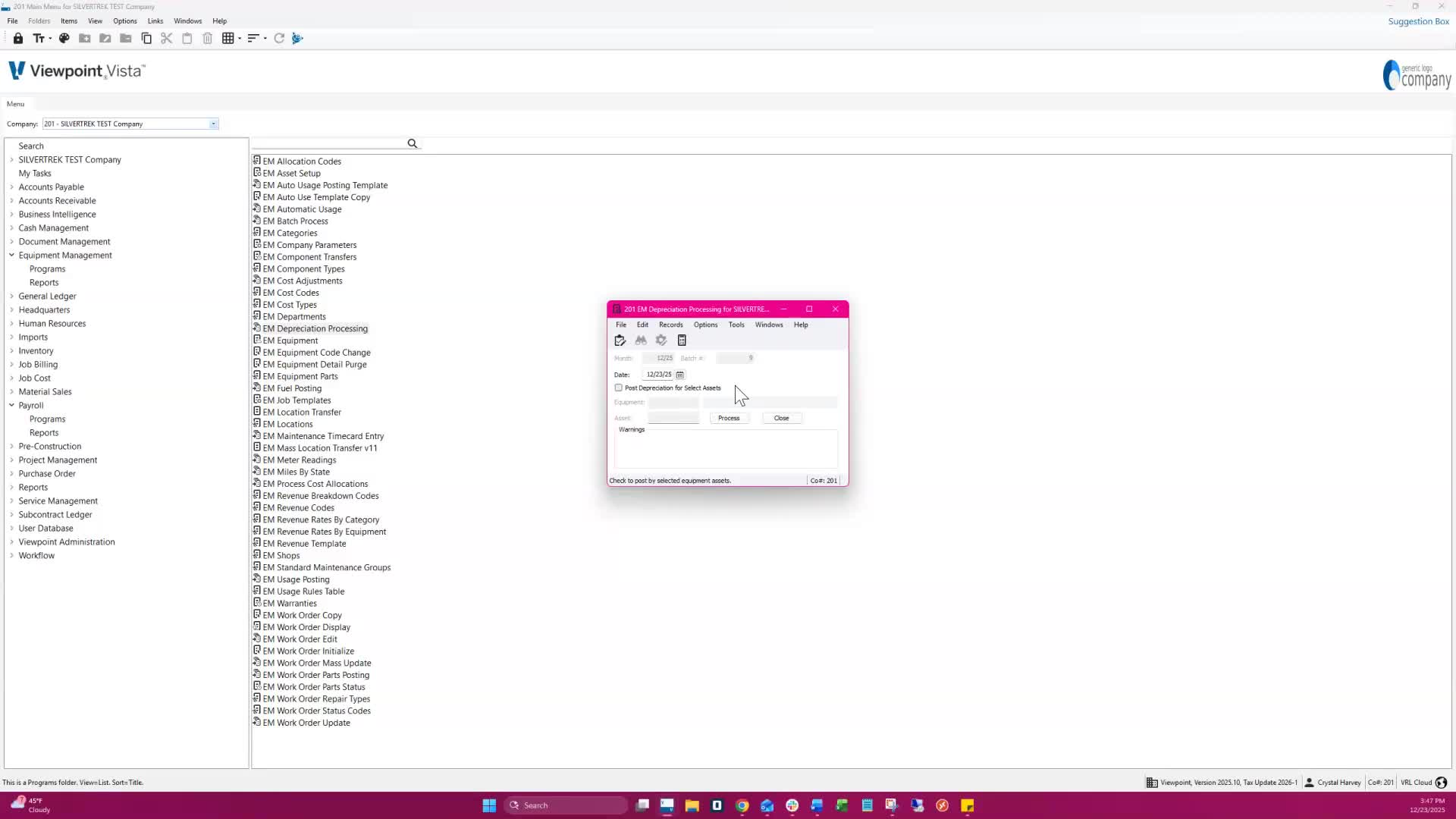
Click Process to run the depreciation.
A message will confirm that depreciation records have been added to your batch.
10. Editing Entries 2:32
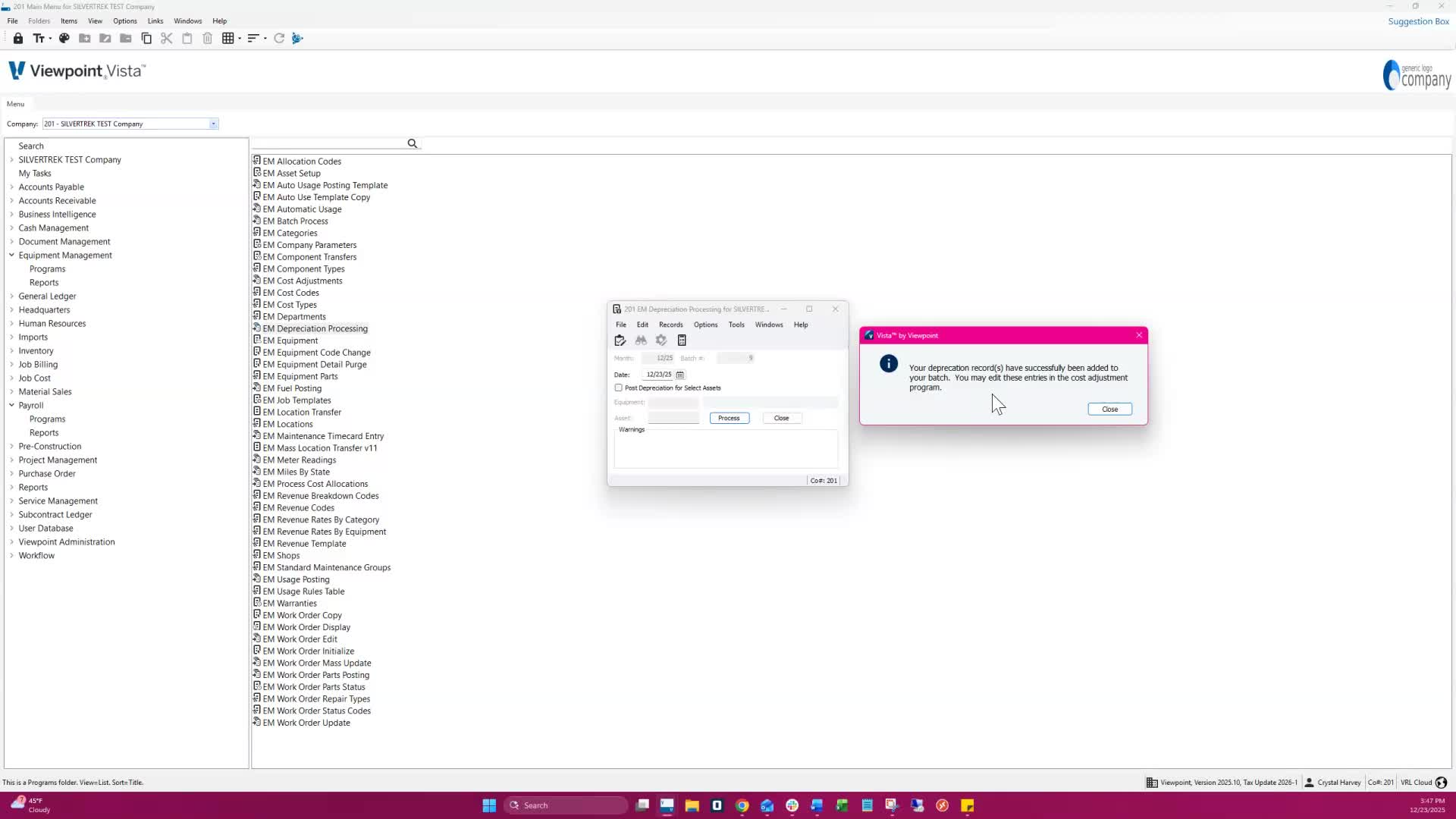
You may edit these entries in the Cost Adjustment Program.
11. Validating and Posting 2:50
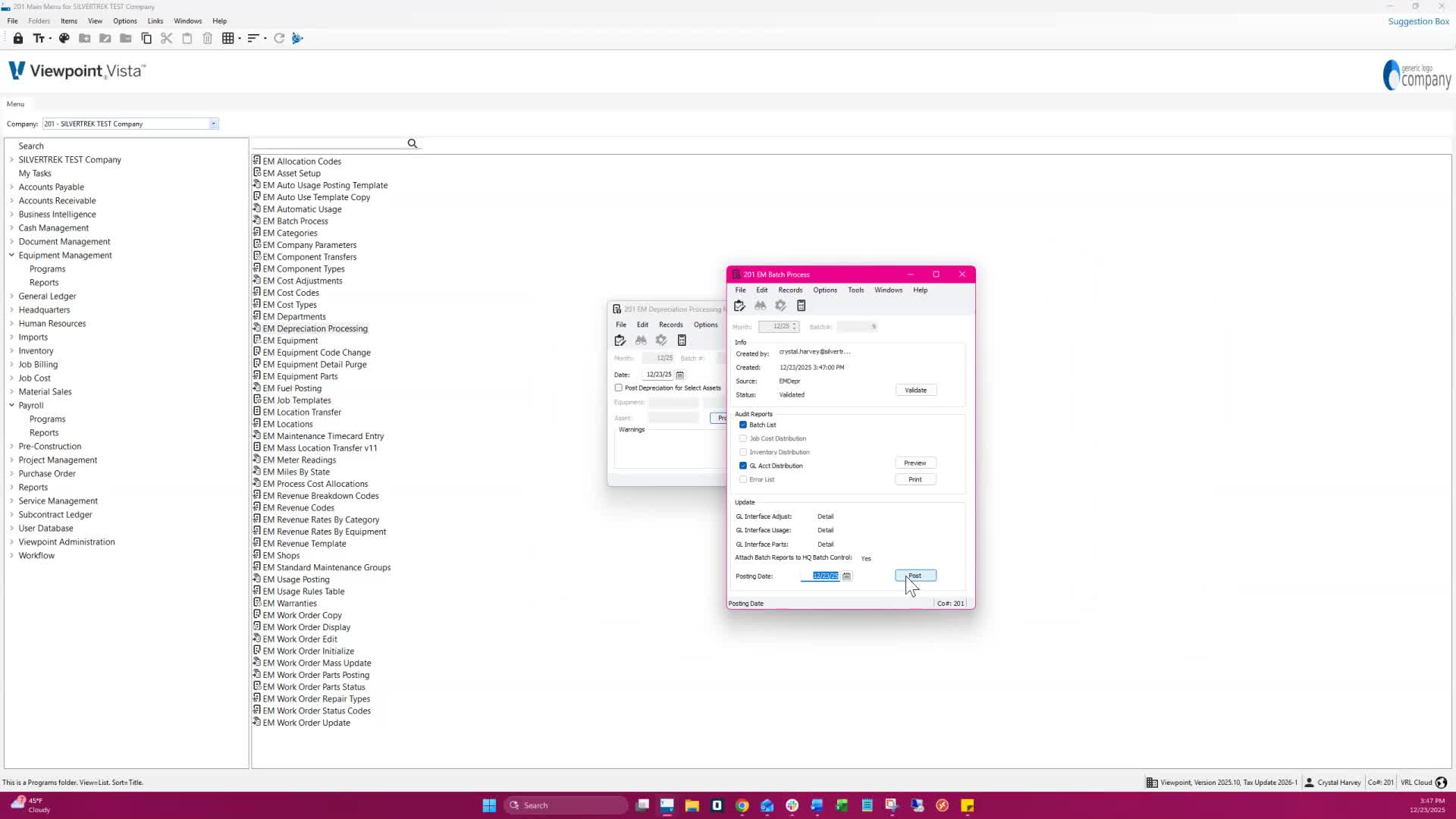
Validate, preview, and post the batch.
A message will confirm that the batch was successfully updated.
Cautionary Notes
Ensure all asset schedules are correctly set up before processing.
Always check for warnings when processing for individual items.
Tips for Efficiency
Regularly review and update asset schedules to avoid missed depreciation.
Keep track of the last month calculated to ensure timely processing.
Link to Loom
Was this article helpful?
That’s Great!
Thank you for your feedback
Sorry! We couldn't be helpful
Thank you for your feedback
Feedback sent
We appreciate your effort and will try to fix the article