JC Cost Allocations are used to distribute shared costs, such as labor, materials, equipment, and overhead, across multiple jobs. This helps ensure costs are accurately assigned to the appropriate jobs, reduces manual entries, and improves job cost reporting.
Setting up an Allocation Code
1-Go to Job Cost>Programs>JC Allocation Codes
2- Enter a numeric allocation code and a description for the code
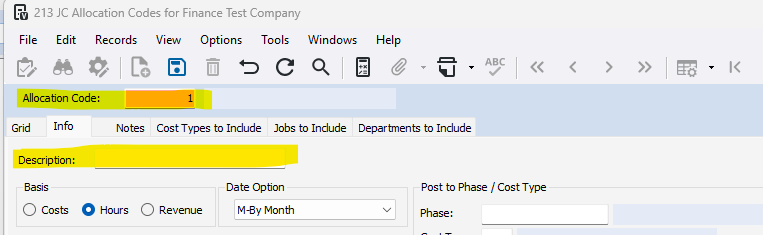
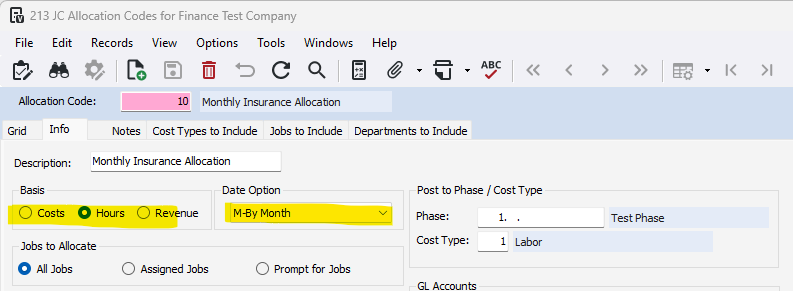
3- Determine the basis for this code
- Cost - Calculates cost based off total dollars posted to the basis cost types (defined on 'Cost Types to Include' tab)
- Hours - Calculates cost based off total hours posted to the basis cost types (defined on 'Cost Types to Include' tab)
- Revenue - Calculates cost based on a job's total revenue dollars
4- Determine the Date Option:
- M-By Month - Calculate based on dollars, hours, or revenue for the month
- R-By Actual Date Range - Calculate based on dollars, hours, or revenue for a range of 'actual' dates (invoice dates)
- P-By Posted Date Range - Calculate based on dollars, hours, or revenue for a range of 'posted' dates (date transactions entered)
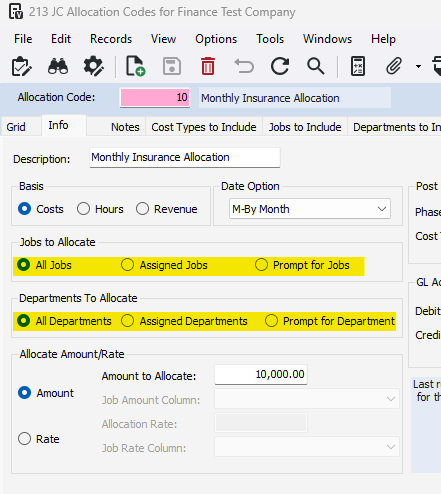
5-Determine the Jobs and Departments To Allocate
- All - allocation will be based on and applied to all jobs
- Assigned - allocation will be based on and applied to selected jobs/dept (specified on the Jobs/dept to Include tabs)
- Prompt for - prompt for the job/dept when running allocations
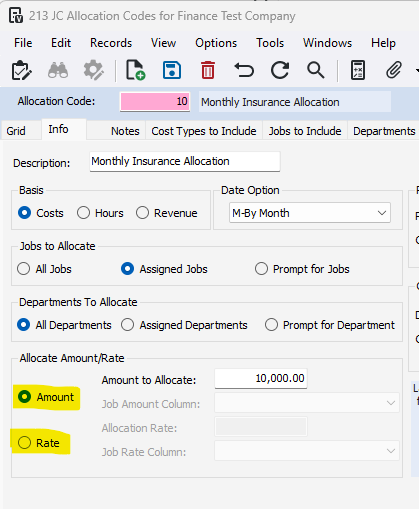
6- Determine whether to allocate based on Amount or Rate. Then enter the amount/rate.
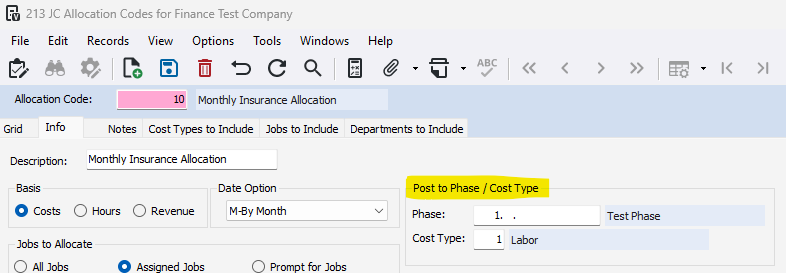
7- If your basis is revenue; phase and cost type are required. Enter the phase to which allocated costs will be posted on each job. If field is left blank (Costs or Hours basis only), allocated amounts will be posted to each phase used as the basis.
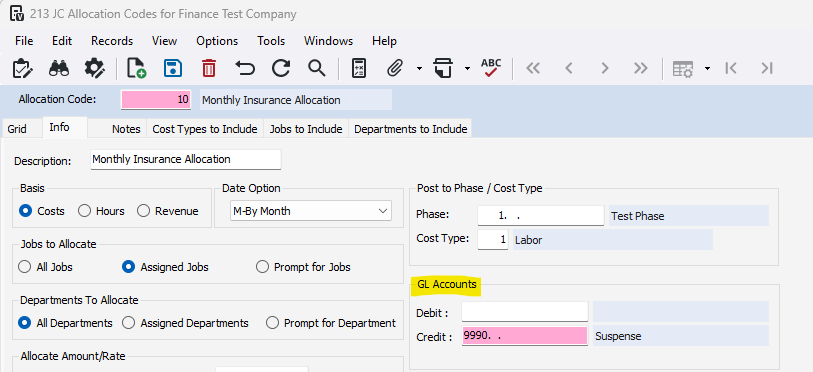
8- Enter the Debit and/or Credit GL Accounts
- Debit - Optional, enter the override GL account. Leave blank to use the GL account specified for the cost type in JC Departments
- Credit - Specify the GL account to credit when posting allocations
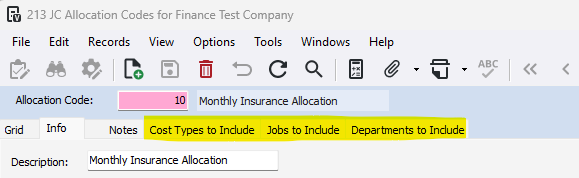
***If you chose 'Assigned Jobs', 'Assigned Departments', or a cost or hours basis you will need to define the cost types, jobs, and/or departments.
1- Click on the tab you need to define
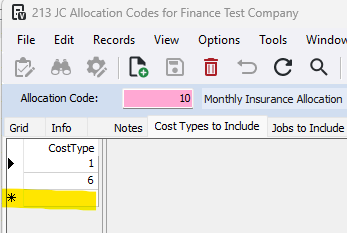
2- In the field with an asterisk, enter or press F4 to select
9- Once the code is setup, press save
Posting Allocations
1- Go to Job Cost>Programs>JC Process Cost Allocations
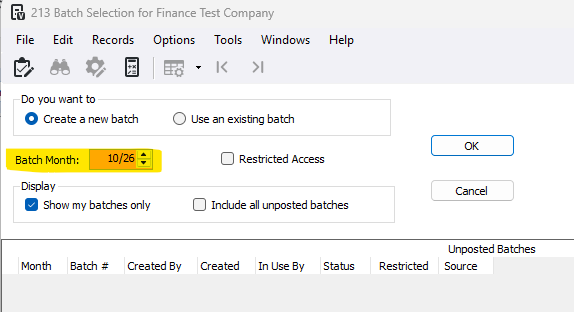
2- Open the batch for the month you want allocations to be posted to
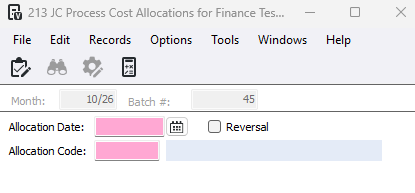
3- Enter the Allocation Date, this becomes the 'actual date' for the allocation transactions
4- Enter the Allocation Code, press F4 to view the list of codes
5- Check the reversal box IF all transactions should be set up for reversal in a future month
6- Make any necessary changes
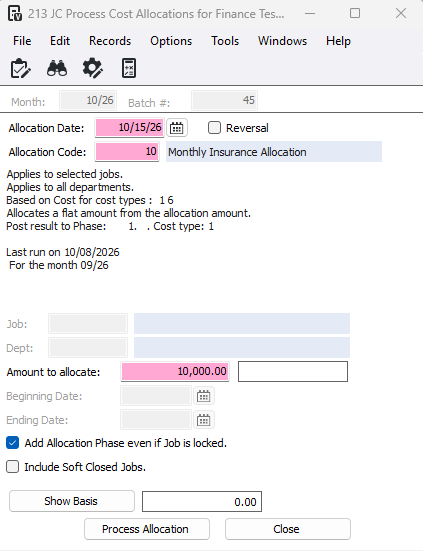
7- Press Process Allocation button
Was this article helpful?
That’s Great!
Thank you for your feedback
Sorry! We couldn't be helpful
Thank you for your feedback
Feedback sent
We appreciate your effort and will try to fix the article