Creating JC Original Estimates
Objective
This SOP outlines the steps to create JC original estimates in the job cost module, ensuring accurate budgeting for projects.
Key Steps
1. Accessing JC Original Estimates 0:01
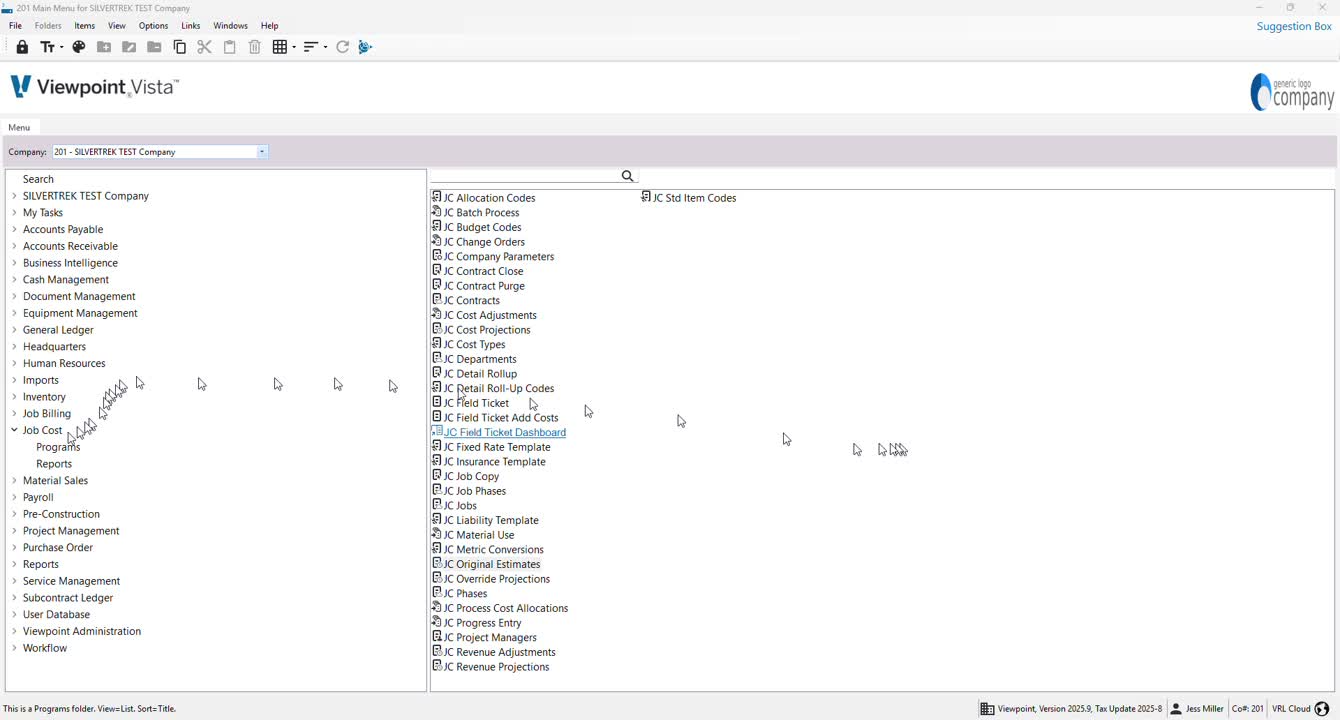
Open the job cost module.
Navigate to the 'Programs' section.
Select 'JC Original Estimates'.
Double-click to open the program.
2. Selecting a Job 0:17
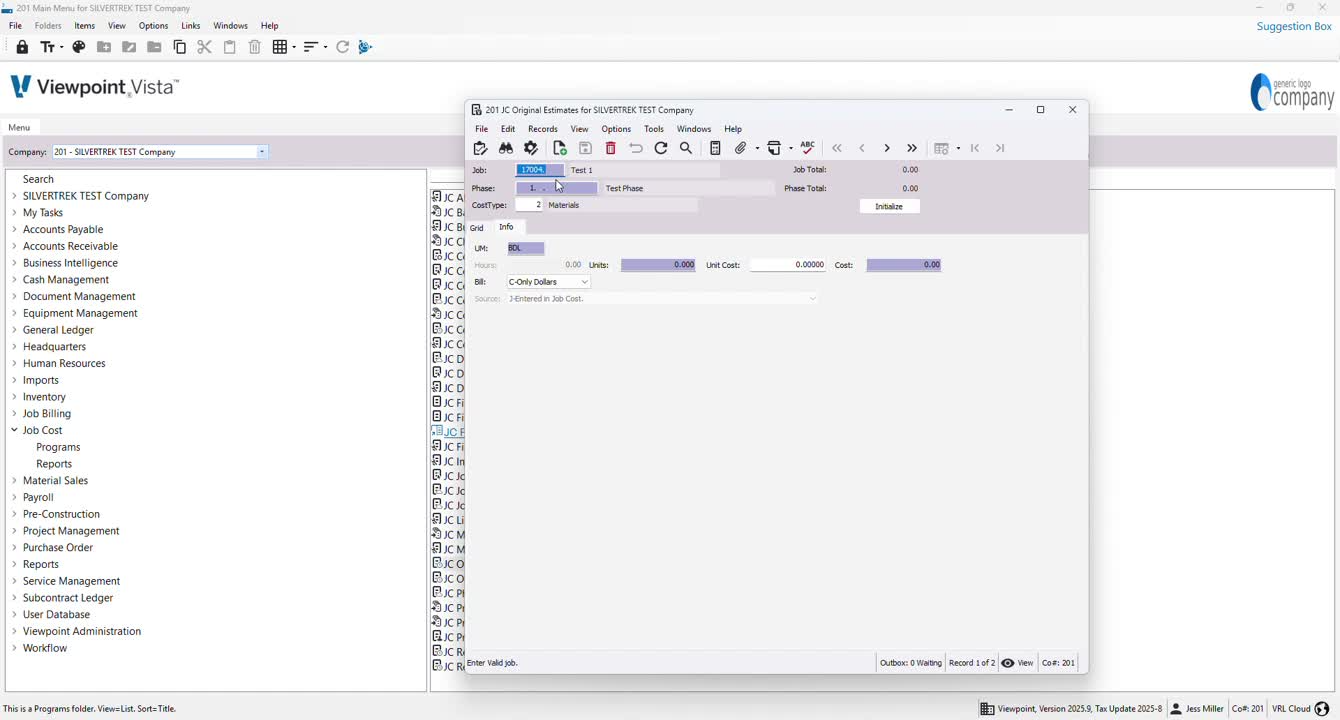
Press 'SF4' to select a job.
Choose the desired job from the list for your estimates.
3. Analyzing Cost Types 0:27
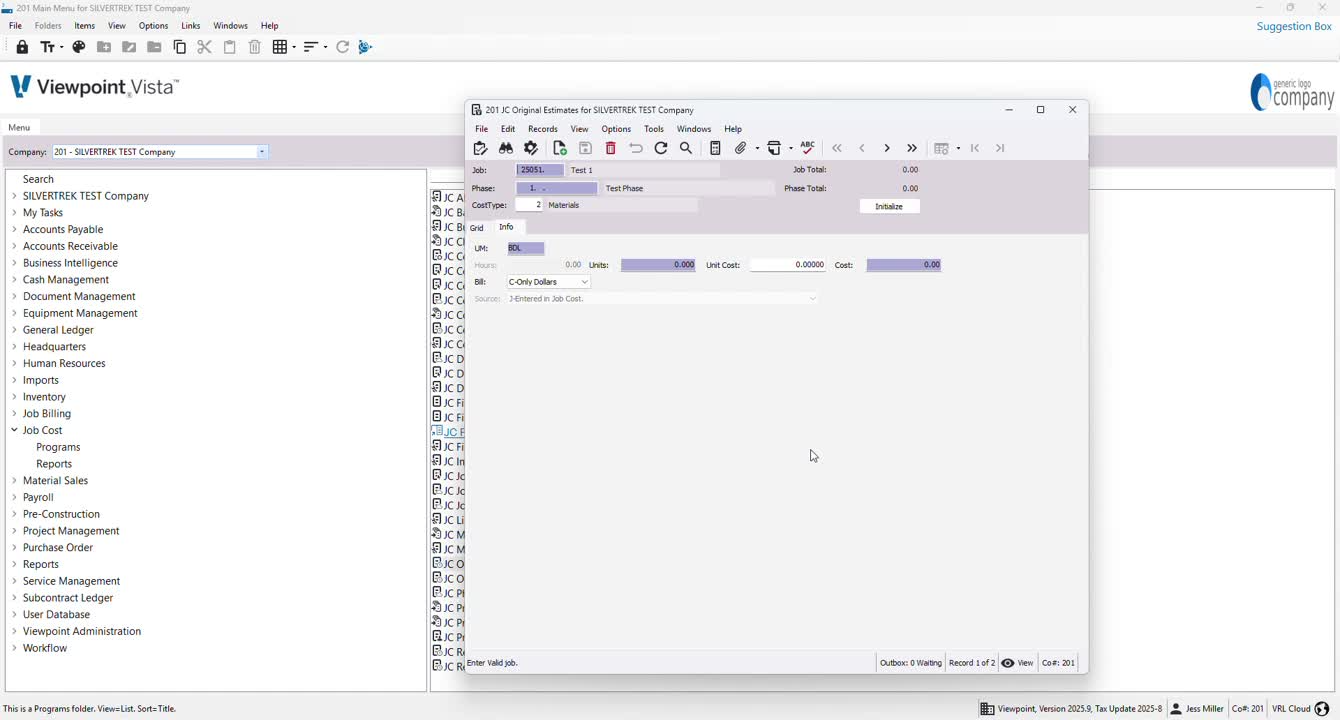
Review the phases and associated cost types for the selected job.
To analyze cost types, click on 'Initialize' to attach all cost types to the phases.
4. Entering Original Budget 1:03
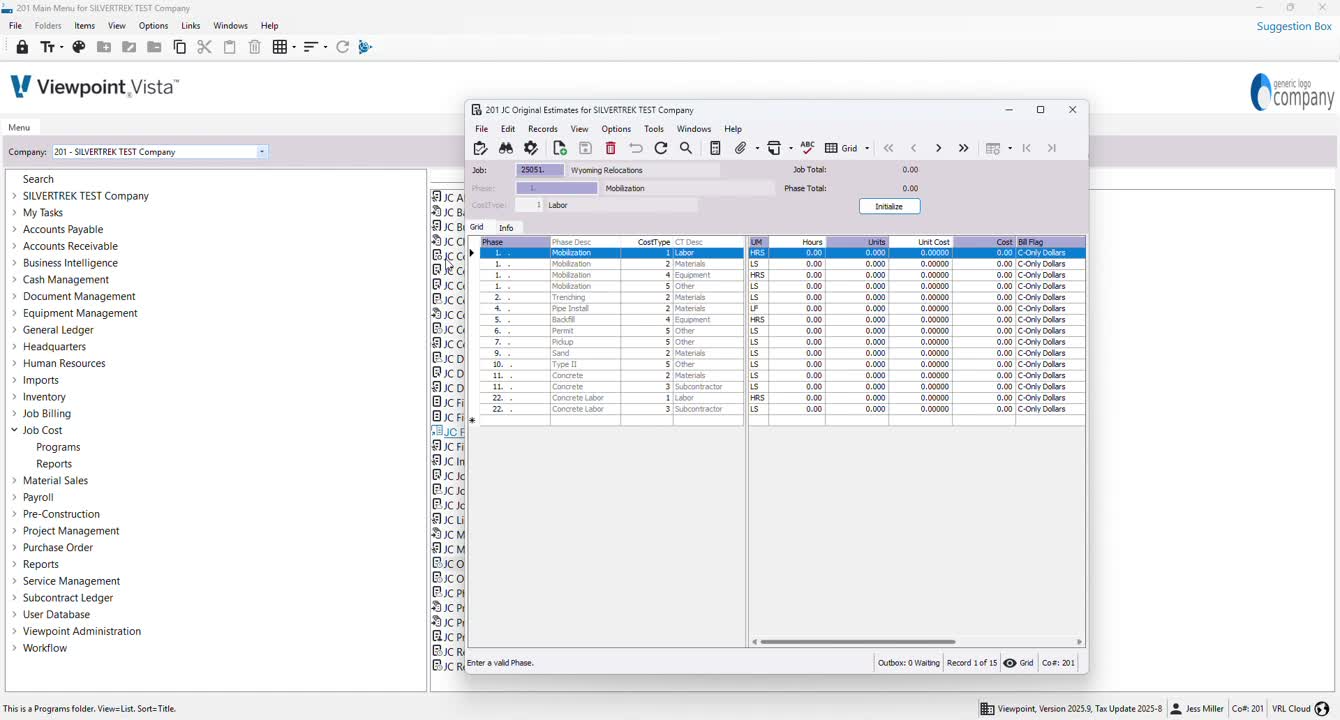
For each phase, you can:
Use the 'Info' tab to enter budget details one phase at a time.
Switch to 'Grid View' for bulk entry of original budget amounts.
Cautionary Notes
Ensure that all cost types are initialized before entering budget amounts to avoid discrepancies.
Double-check the selected job to confirm it is the correct one before proceeding with estimates.
Tips for Efficiency
Familiarize yourself with the grid view for quicker data entry.
Regularly save your progress to prevent data loss.
Link to Loom
https://loom.com/share/6e30f85efa324416b55f5bb8fee8d8fa
Was this article helpful?
That’s Great!
Thank you for your feedback
Sorry! We couldn't be helpful
Thank you for your feedback
Feedback sent
We appreciate your effort and will try to fix the article