Standard Operating Procedure for JC Change Order
Objective
This SOP outlines the steps to create a JC change order in the job cost module, ensuring accurate tracking of contract amounts and change orders.
Key Steps
Step 1: Access Job Cost Module 0:02
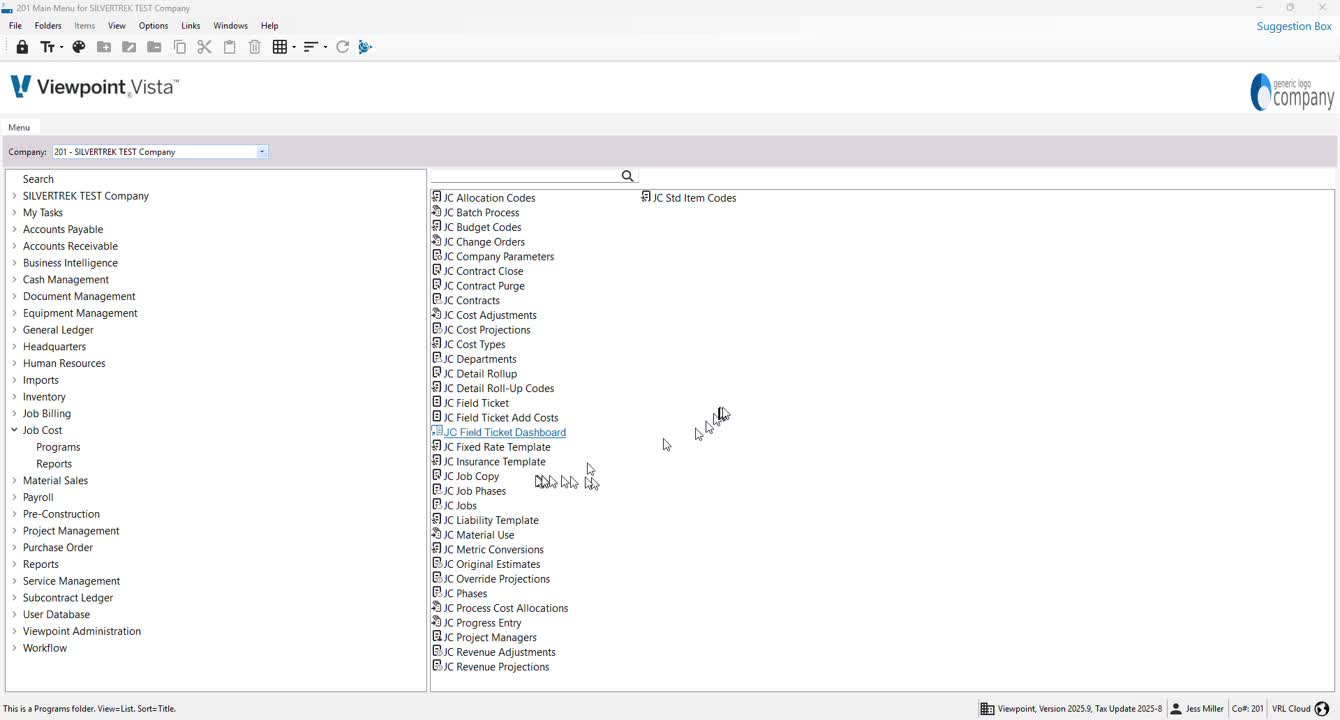
Navigate to the job cost module.
Select 'Programs' for program-related tasks and 'Reports' for report-related tasks.
Step 2: Open JC Contracts 0:17
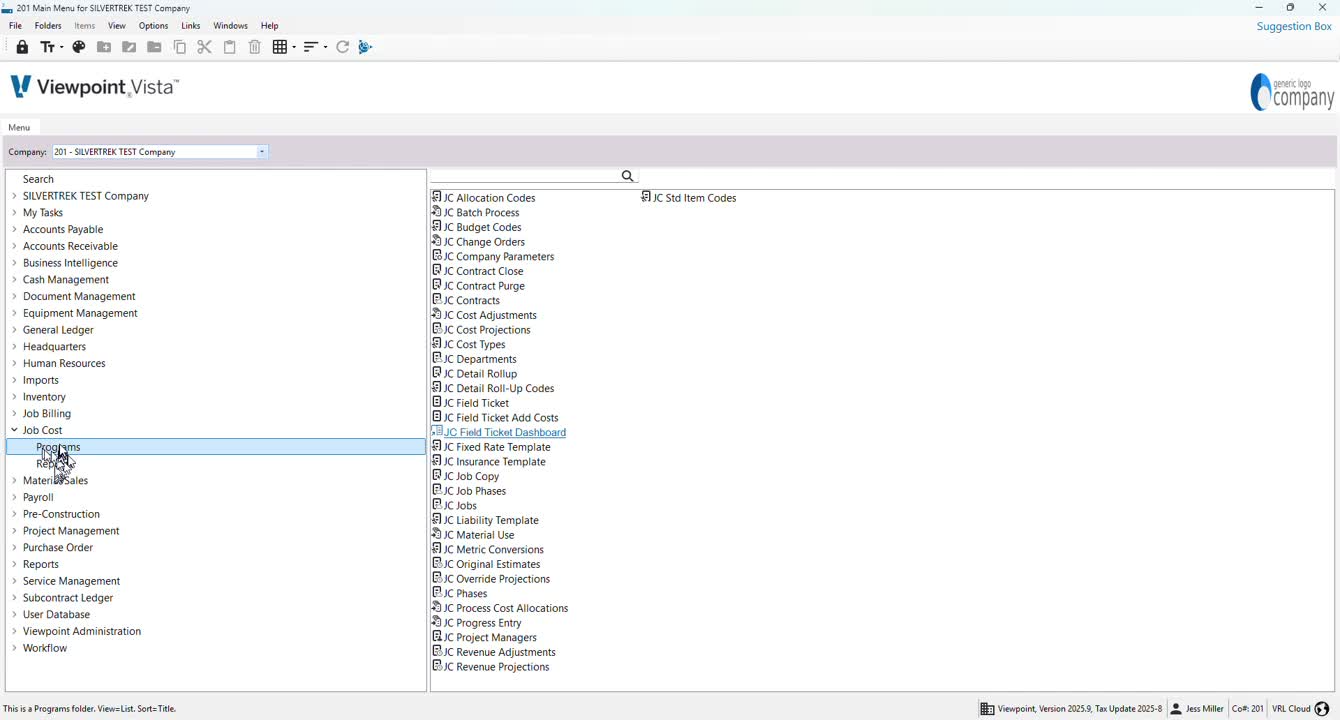
In the 'Programs' section, double-click on 'JC Contracts' to open it.
Step 3: Select the Contract 0:32
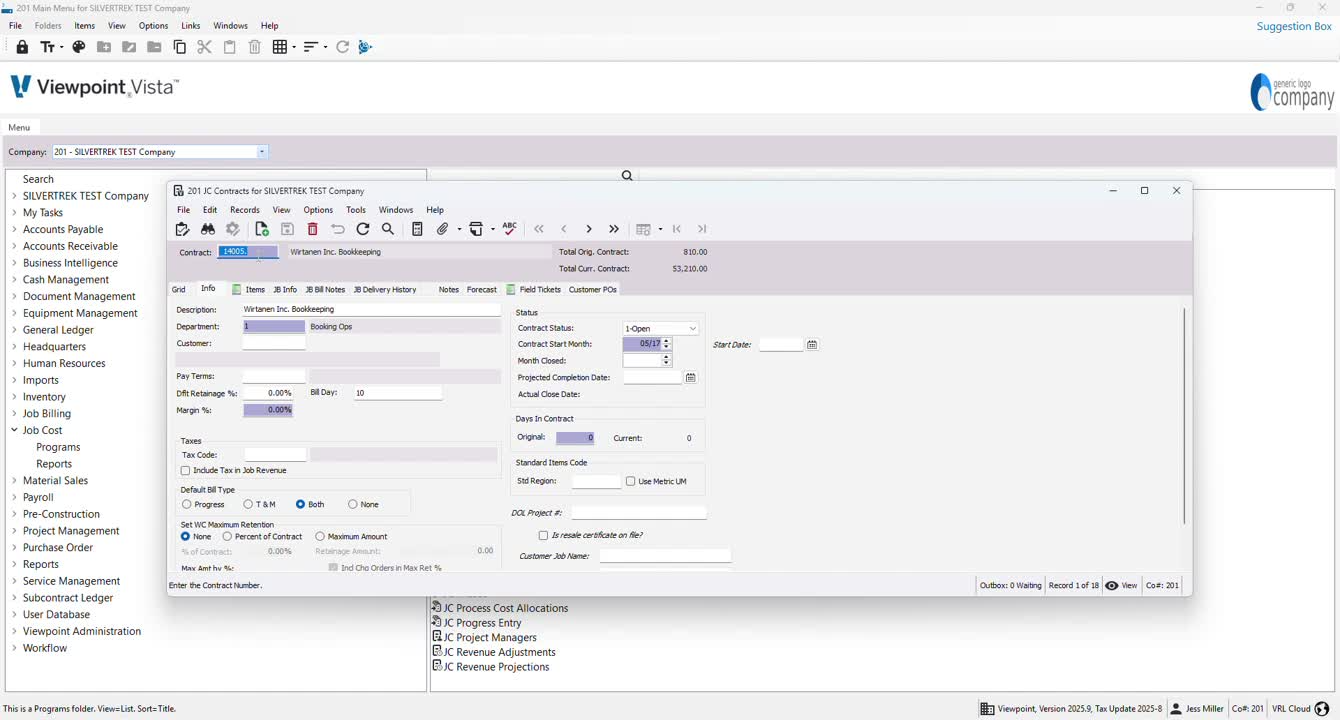
In the grid, find and select the correct contract number (e.g., 26001).
Proceed to the 'Items' tab.
Step 4: Enter Change Order Details 0:51
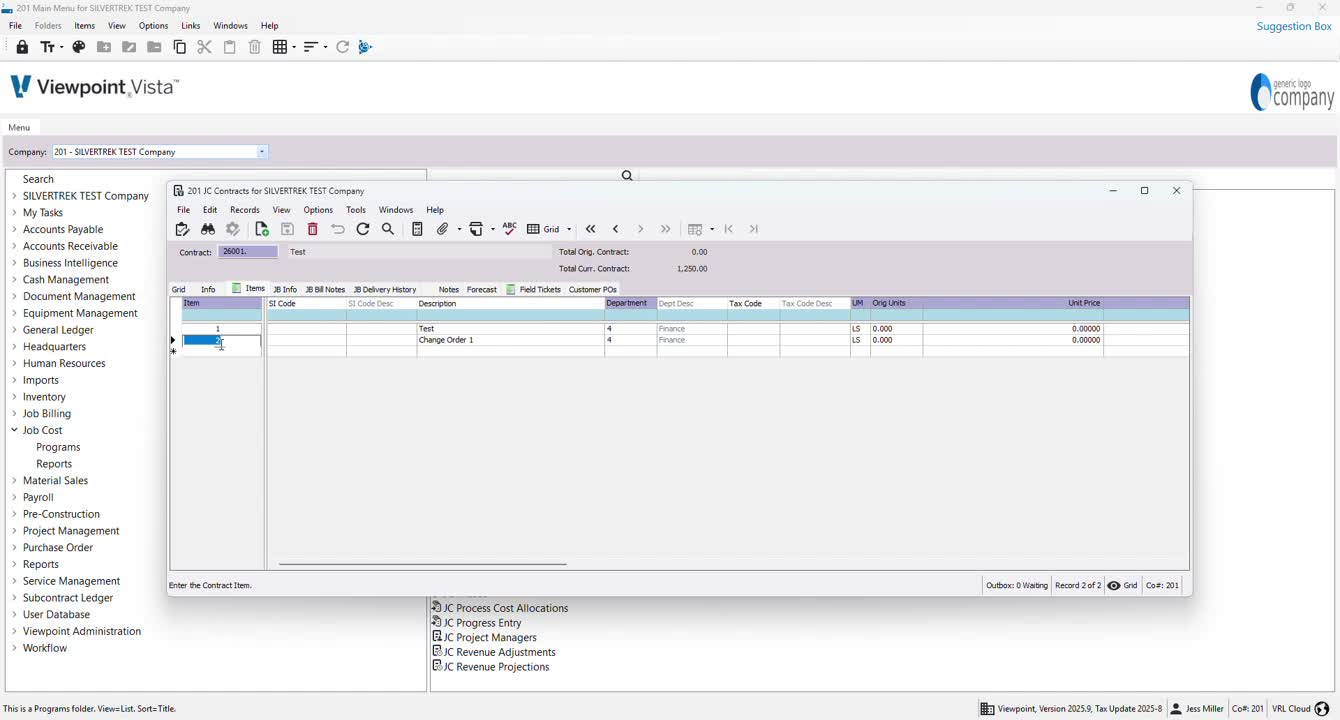
Input the change order number and description.
Ensure the amount is set to zero before exiting.
Step 5: Access JC Change Orders 1:02
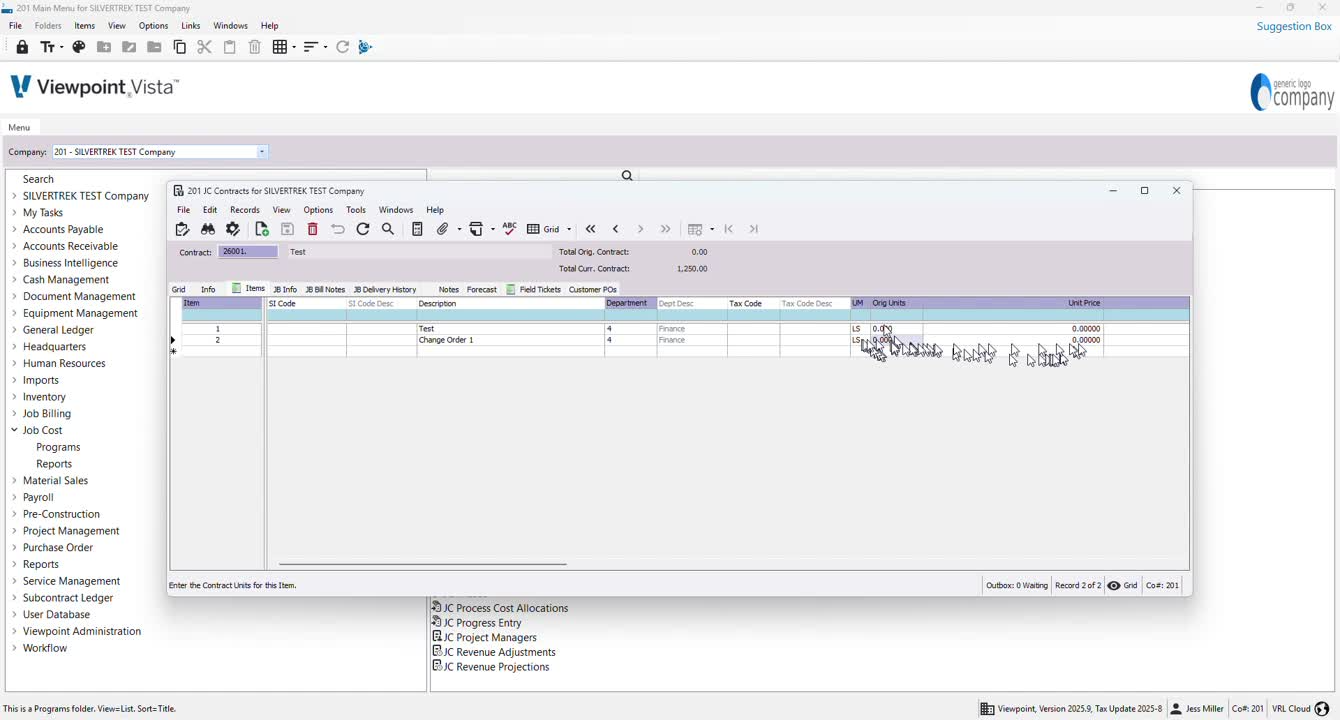
Navigate to 'JC Change Orders'.
Press F4 to select the job or use the grid (not recommended).
Step 6: Fill in Change Order Information 1:23
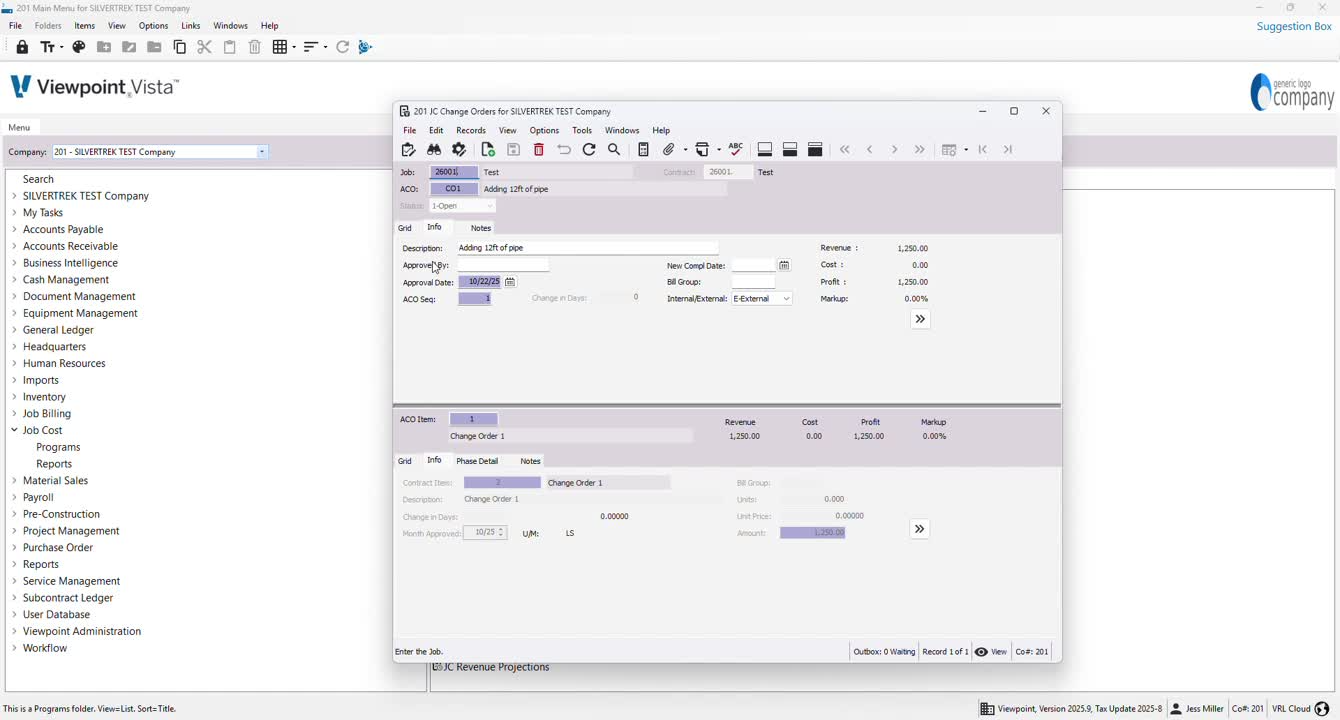
Enter the change order title (e.g., CO1) and description (e.g., adding 12 feet of pipe).
If applicable, select an approver using F4.
Step 7: Set Approval Date and Item Number 1:51
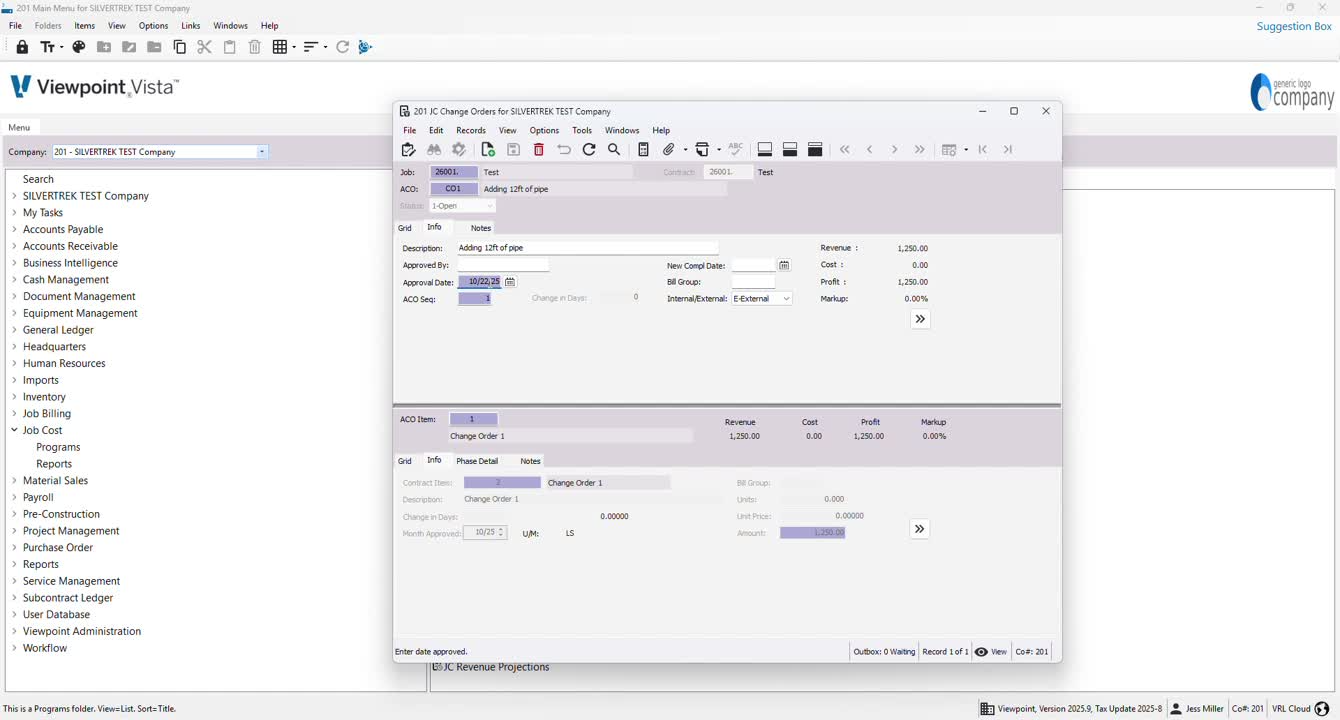
Input the approval date.
Enter the item number and specify amounts (single or multiple items).
Step 8: Check Unit of Measurement 2:15
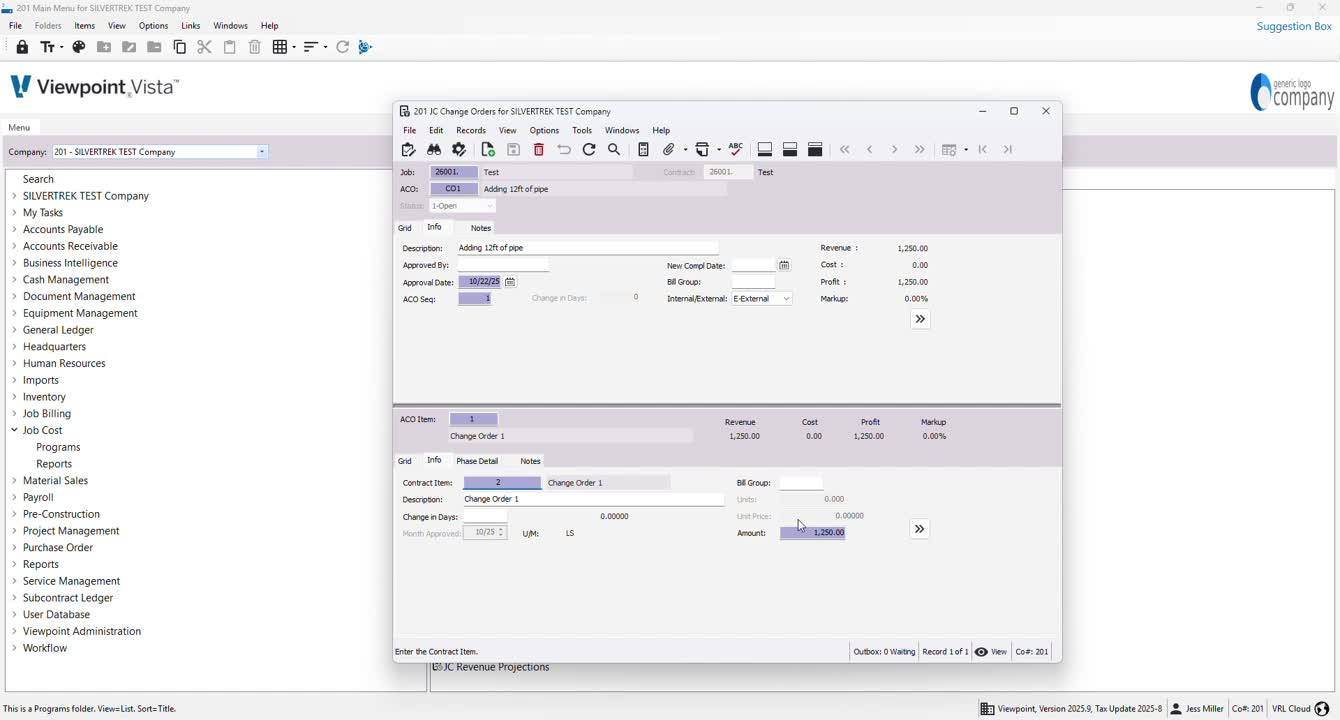
Ensure the unit of measurement is set to 'units' and not 'lump sum'.
Update if necessary.
Step 9: Add Phase Details (if applicable) 2:34
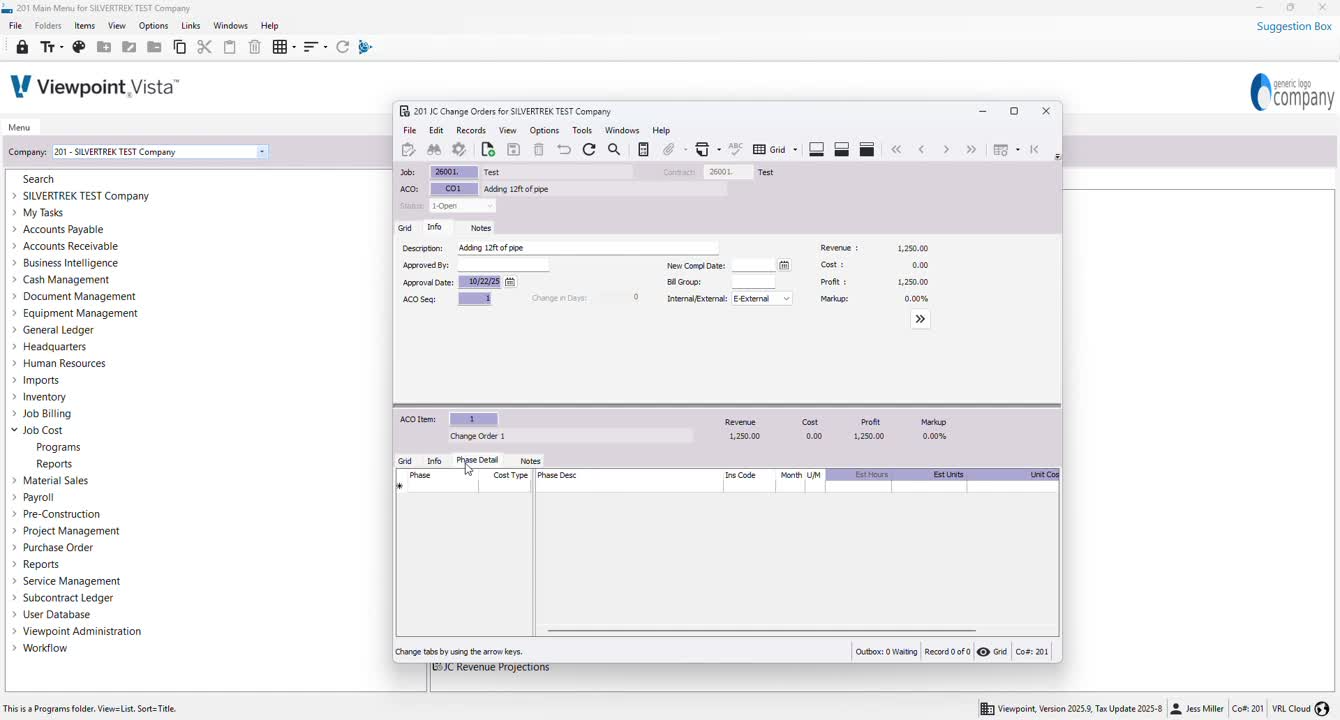
If there are phases to add, press F4 to select them and choose the cost type.
Step 10: Input Budget Information (if applicable) 2:48
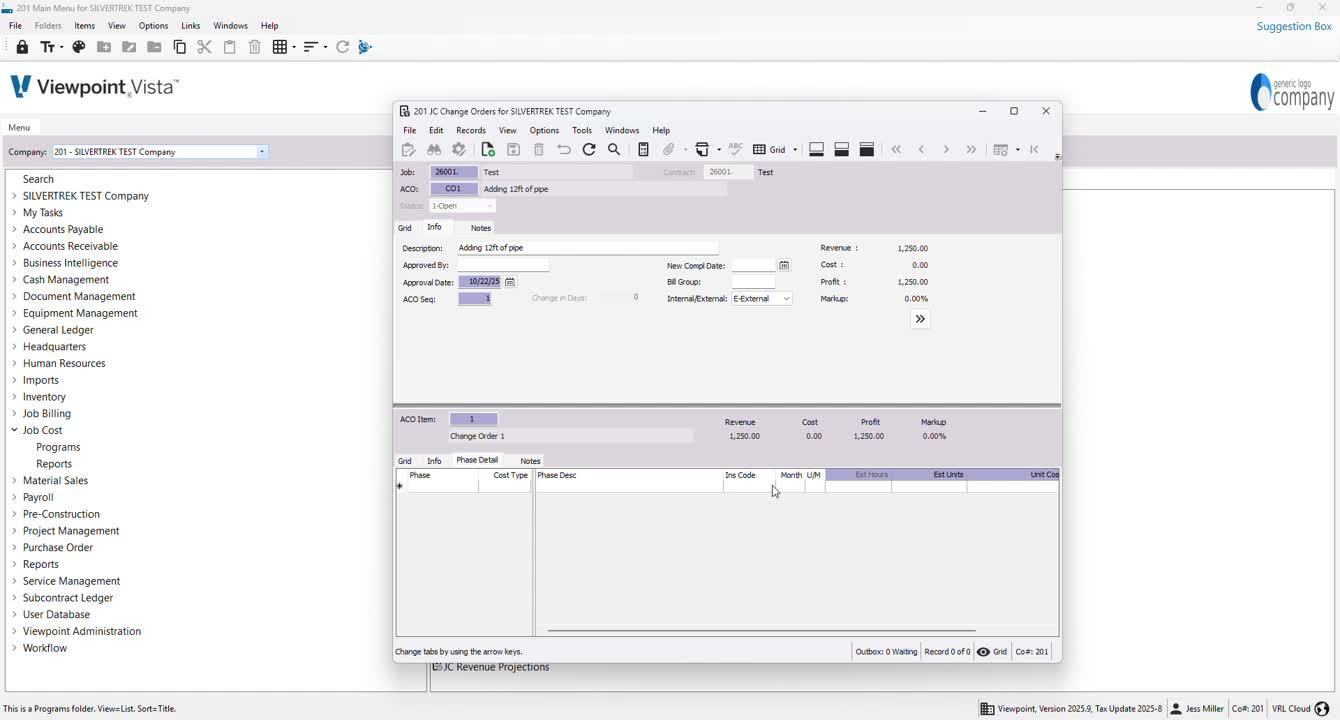
Enter any relevant insurance codes, months, or budget information.
Step 11: Save Changes 3:01
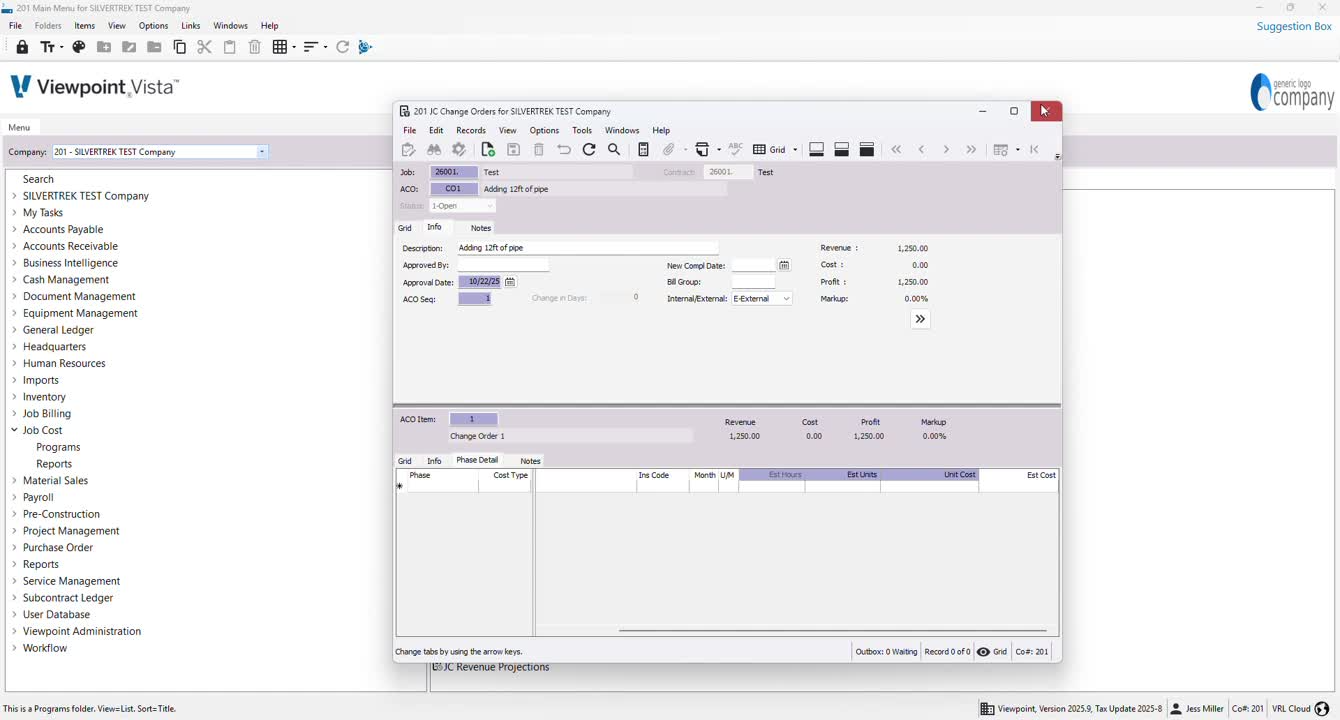
Return to the contracts section to verify the contract amount.
Save the contract amount (e.g., $50,000).
Step 12: Review Change Order Impact 3:41

Confirm that the change order reflects correctly in the total current contract amount.
Step 13: Final Review 4:07
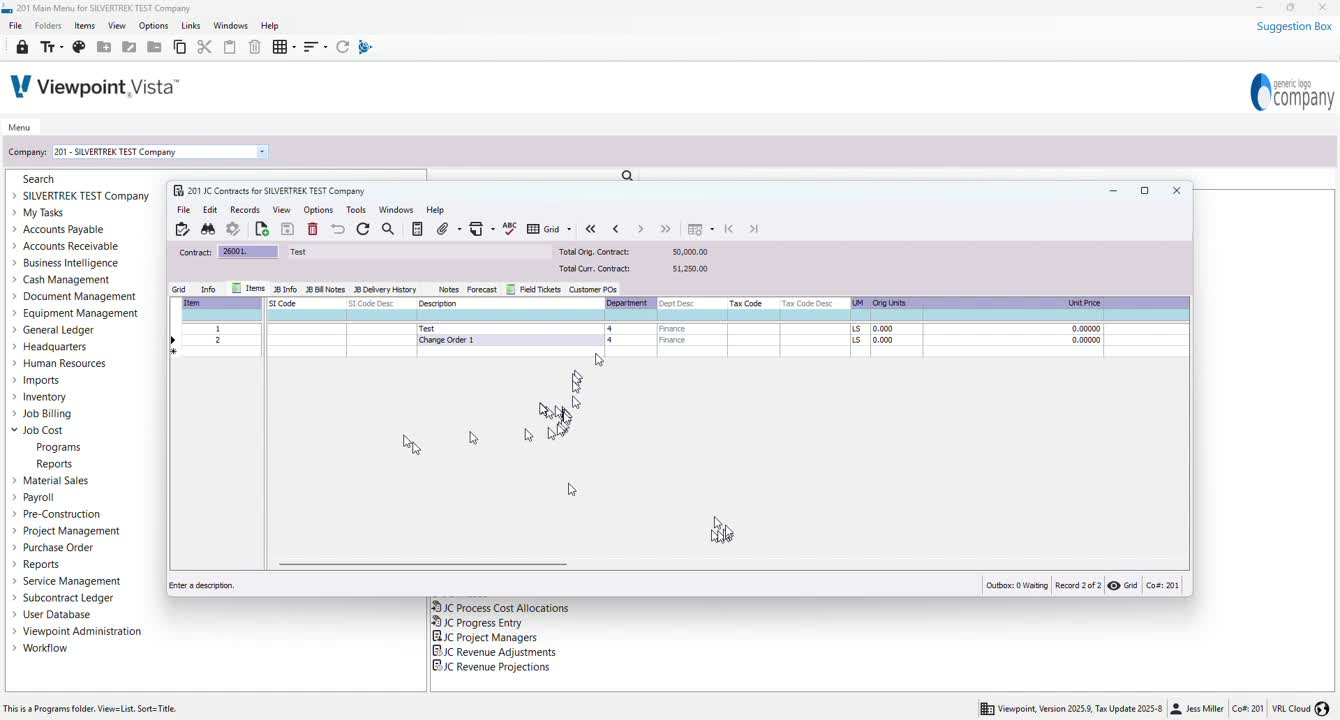
Ensure all details are accurate and saved before finalizing the change order.
Cautionary Notes
Always double-check the contract number and details before saving.
Ensure that the unit of measurement is correctly set to avoid discrepancies.
Tips for Efficiency
Familiarize yourself with the keyboard shortcuts (e.g., F4) to speed up the process.
Keep a checklist of required information to streamline data entry.
Link to Loom
https://loom.com/share/9e63a9e6ddce4a36b698a8273d5dfd4c
Was this article helpful?
That’s Great!
Thank you for your feedback
Sorry! We couldn't be helpful
Thank you for your feedback
Feedback sent
We appreciate your effort and will try to fix the article