Standard Operating Procedure for Setting Up JC Contracts
Objective
This SOP outlines the steps to create and manage JC contracts within the job cost program, ensuring all necessary details are accurately captured.
Key Steps
1. Review JC Contracts 0:00
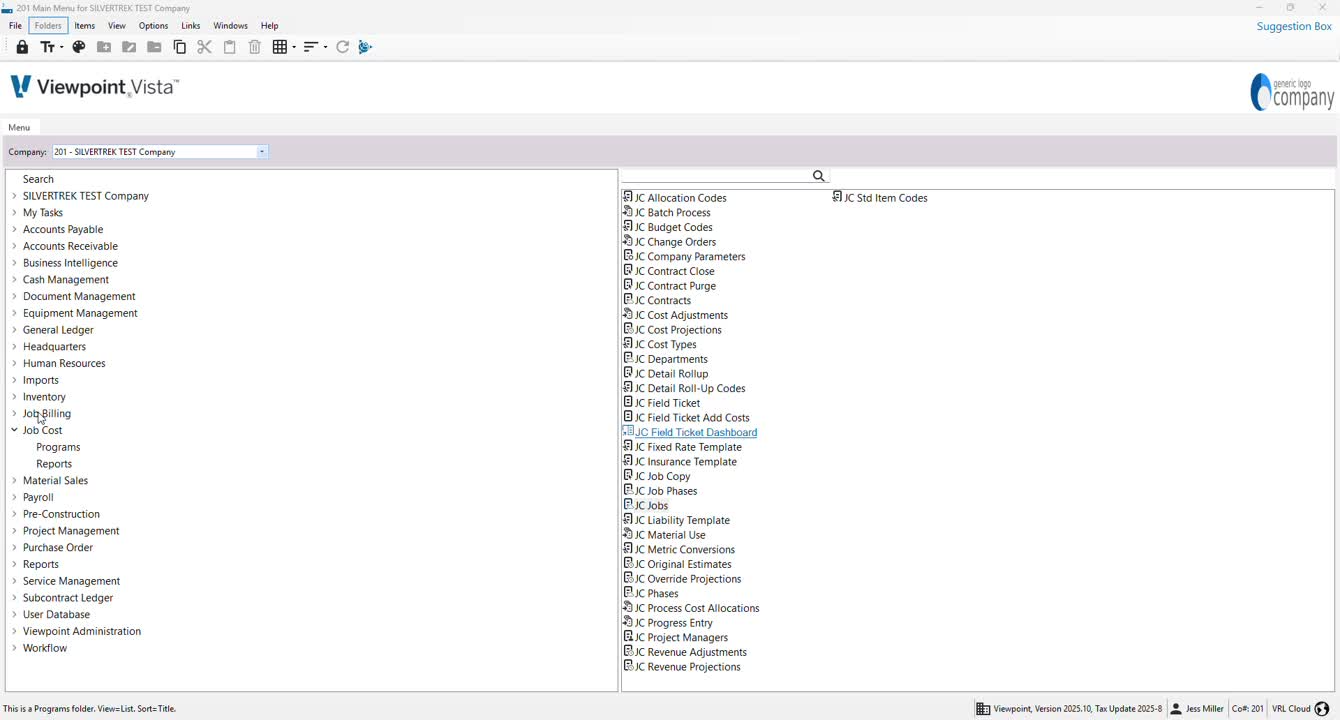
Begin by reviewing the JC contracts in the job cost program.
Ensure you have completed the JC job copy process before proceeding.
2. Create Job First 0:21
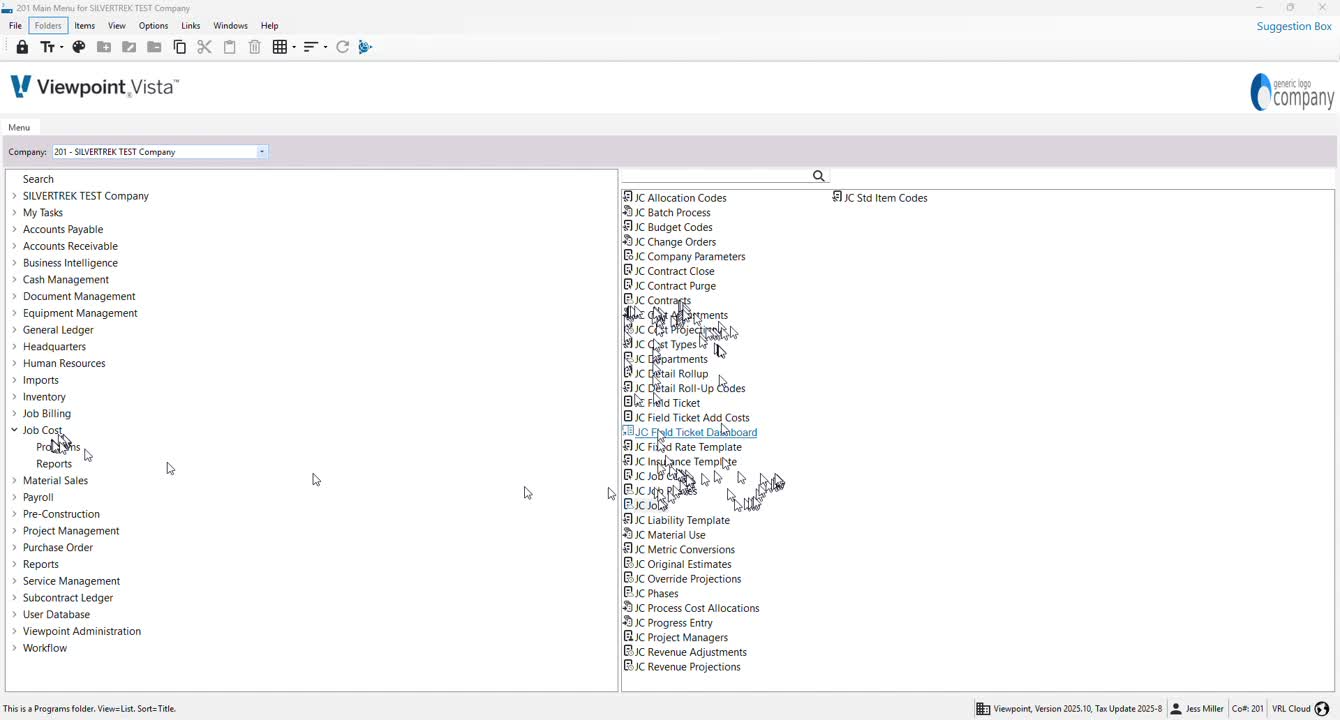
It is recommended to create the job first before moving on to contracts.
If you have multiple jobs tied to a single large contract, you may start with the JC contracts.
3. Access Grid View 0:48
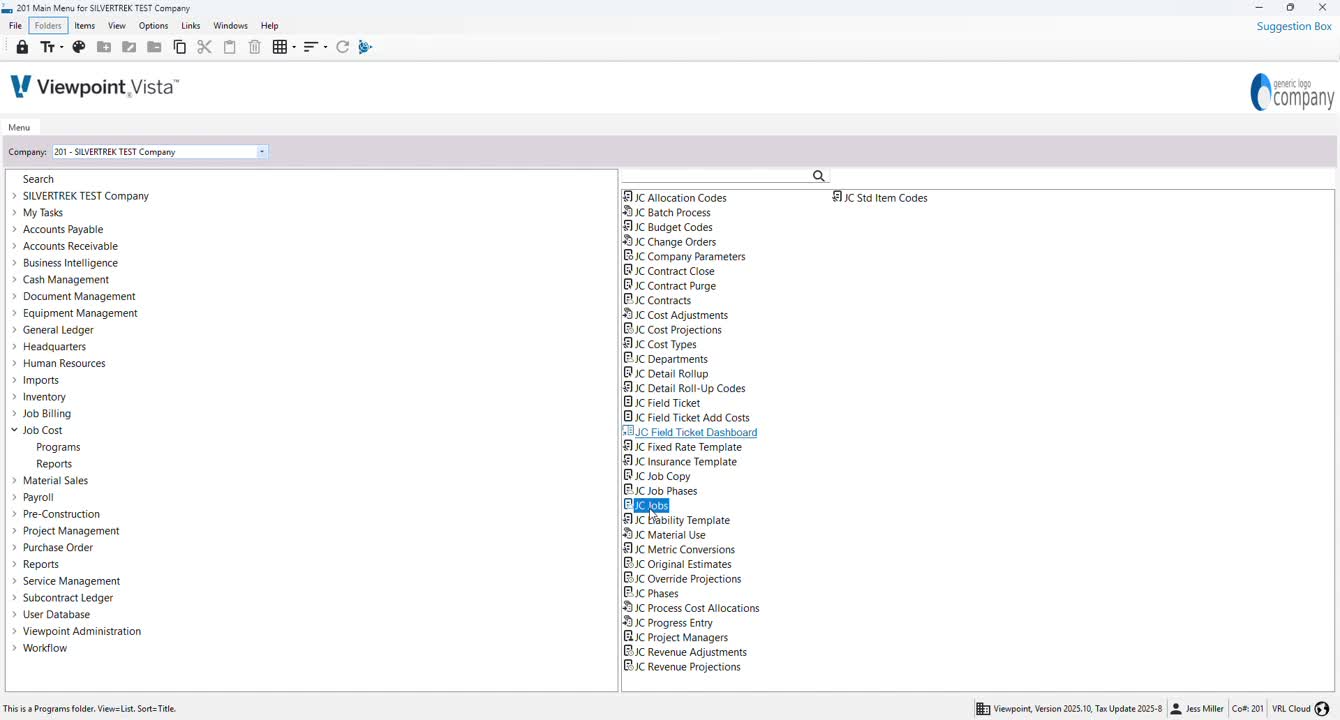
Navigate to the grid view to locate the job you created.
Use the info tab to create a separate contract number if necessary.
4. Verify Job Details 1:22
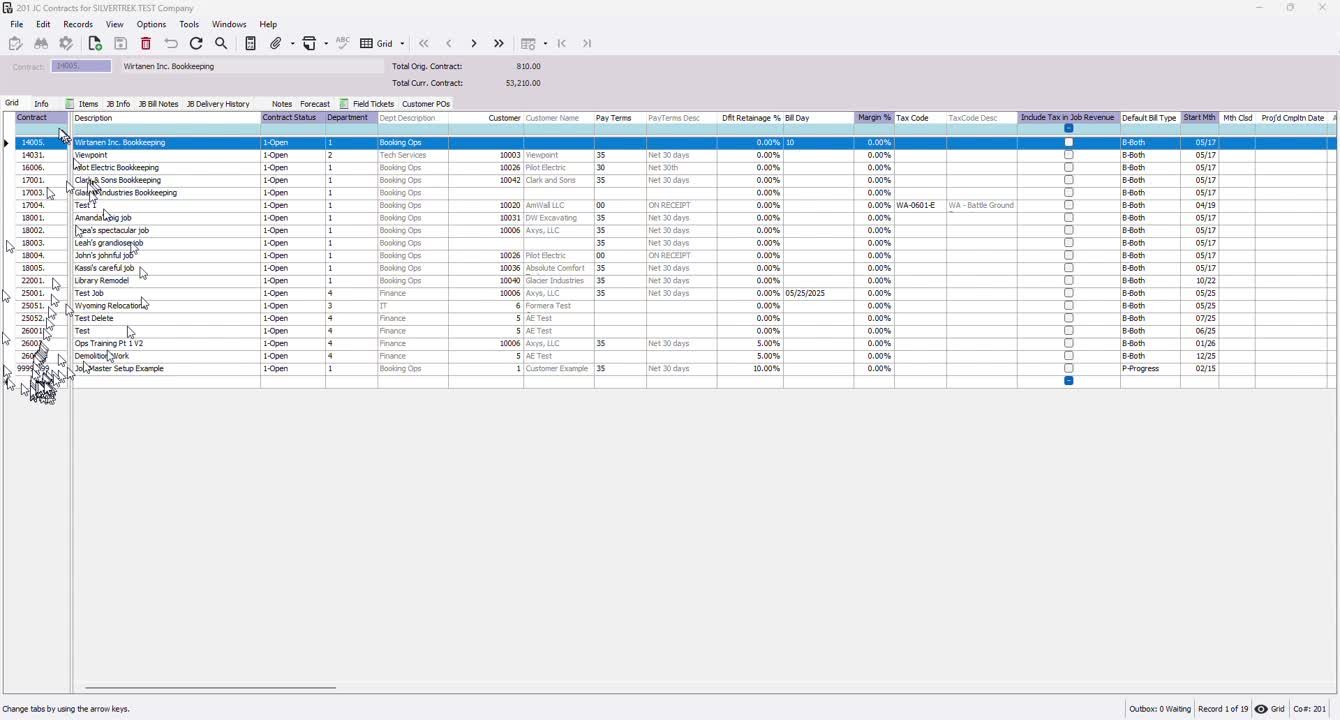
Check the job description, department, and customer details.
Use the F4 key to search and confirm all details are correct.
5. Set Payment Terms 1:45
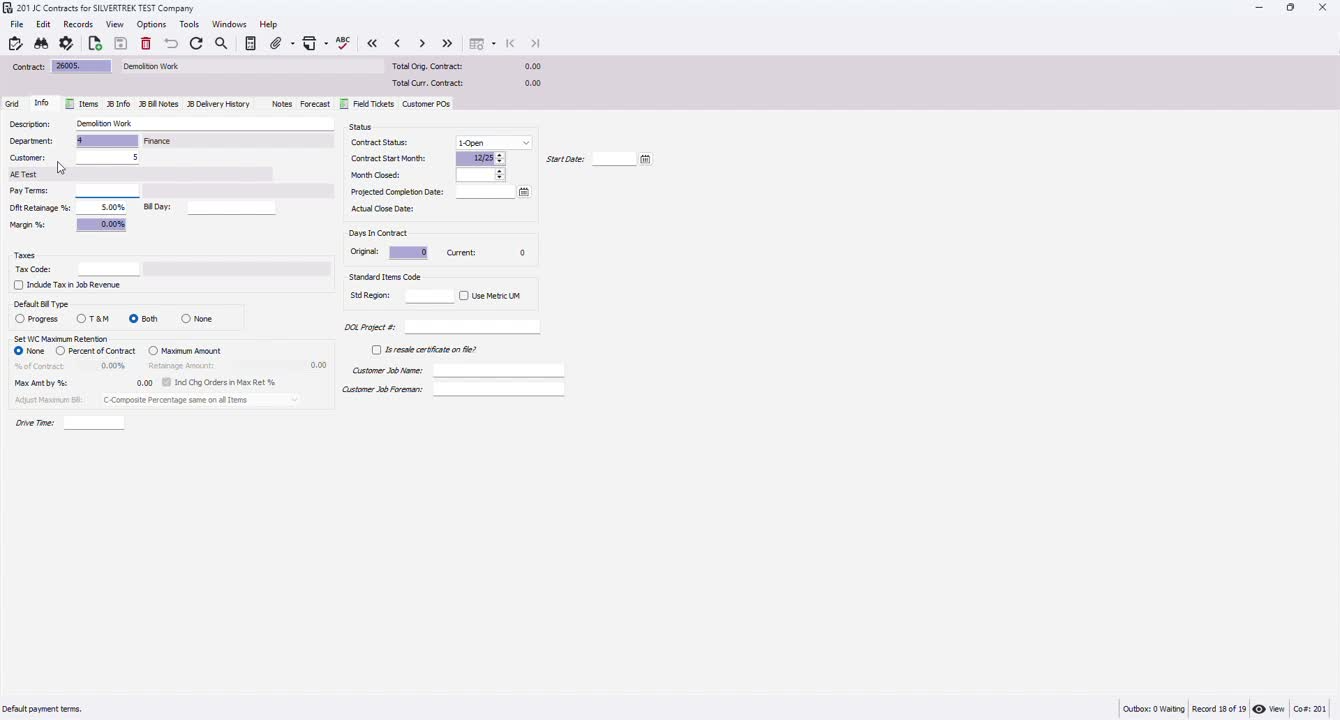
Ensure any accounts receivable (AR) customer payment terms are set up correctly.
Modify any details as needed using the F4 key.
6. Add Retainage and Tax Codes 1:52

Input default retainage/retention amounts if applicable.
Add any necessary tax codes for job revenue.
7. Select Billing Type 2:12
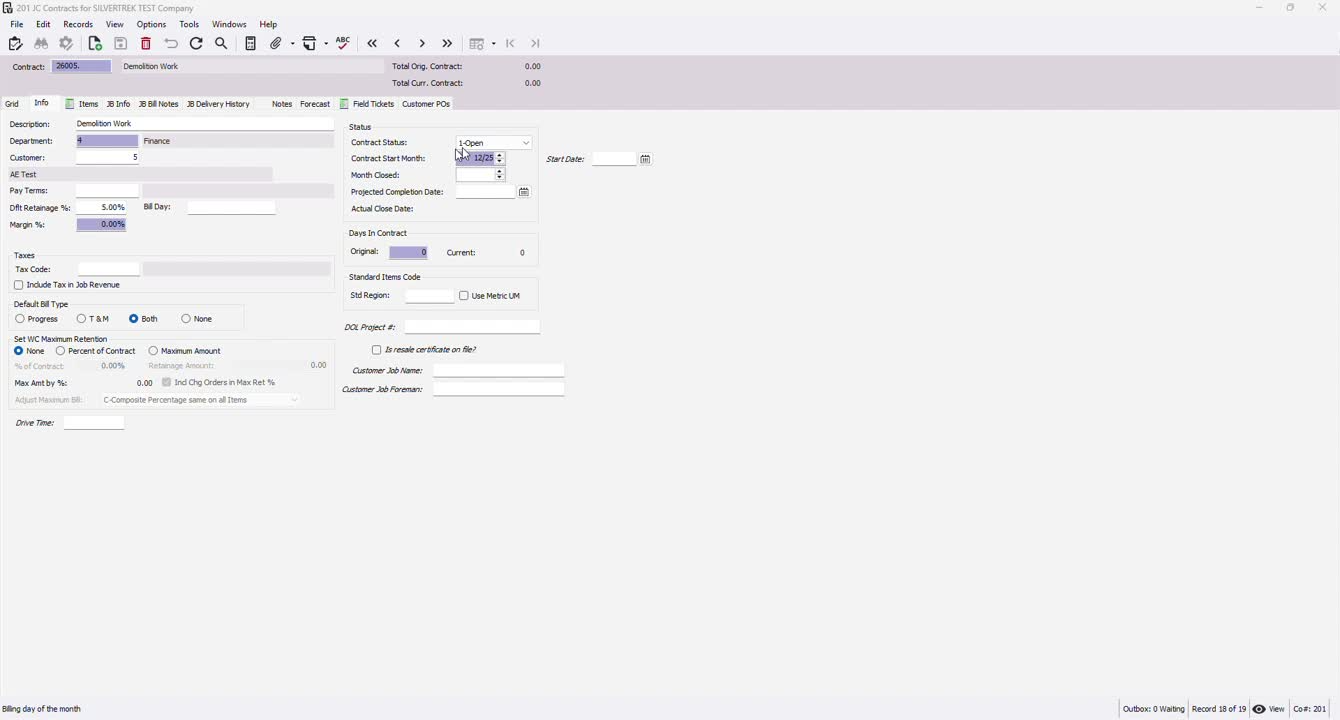
Choose the default billing type (progress, time and materials) and select both for flexibility.
8. Review Contract Status 2:24
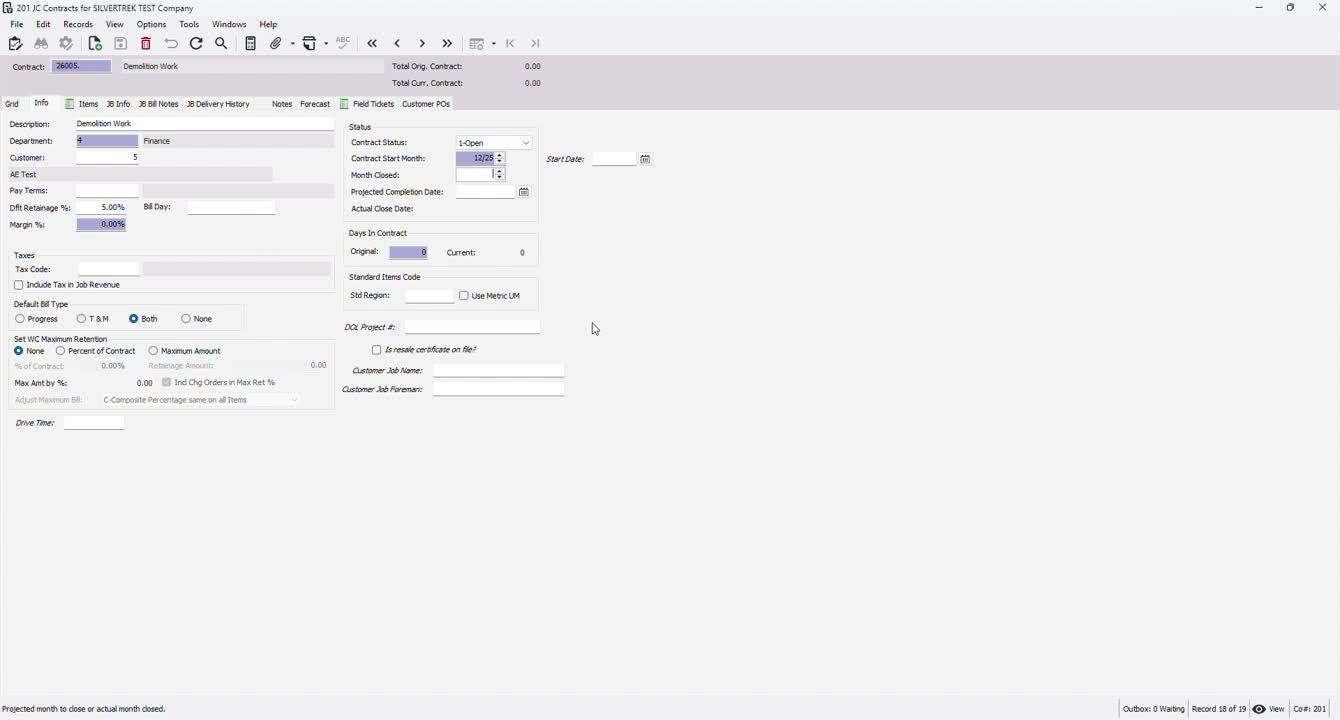
Check the contract status (open, soft close, hard close) and the contract start month.
9. Add Billing Items 2:32
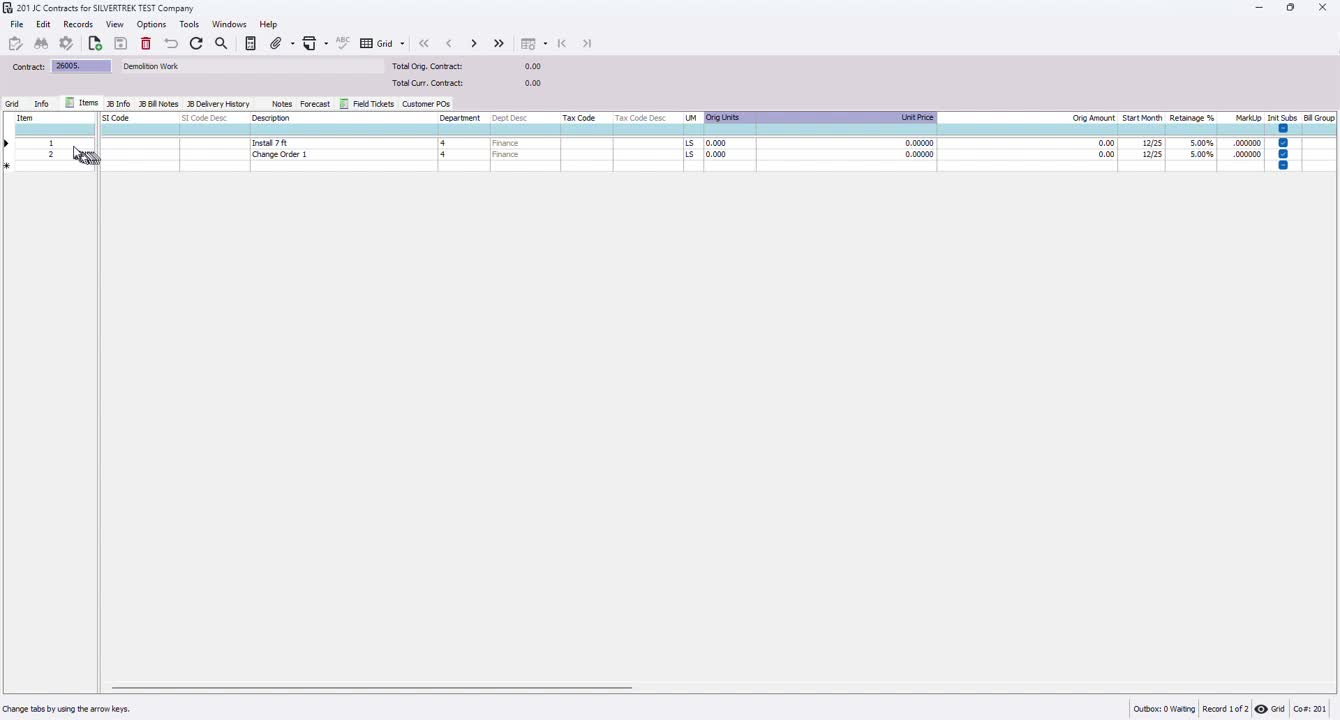
Enter billing items including description, deposit, department, unit of measurement, and pricing.
10. Update Bill Description 3:05
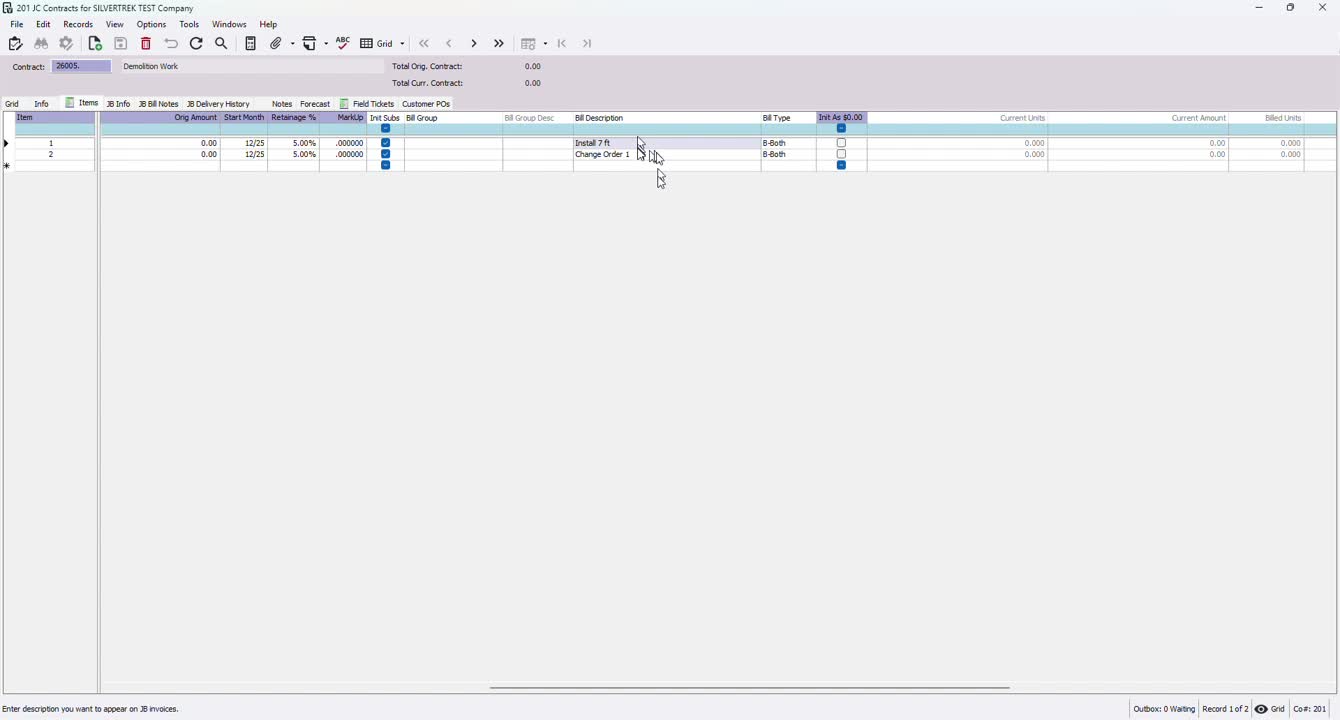
Ensure the bill description matches the main description for accurate invoicing.
11. Input Customer References 3:20
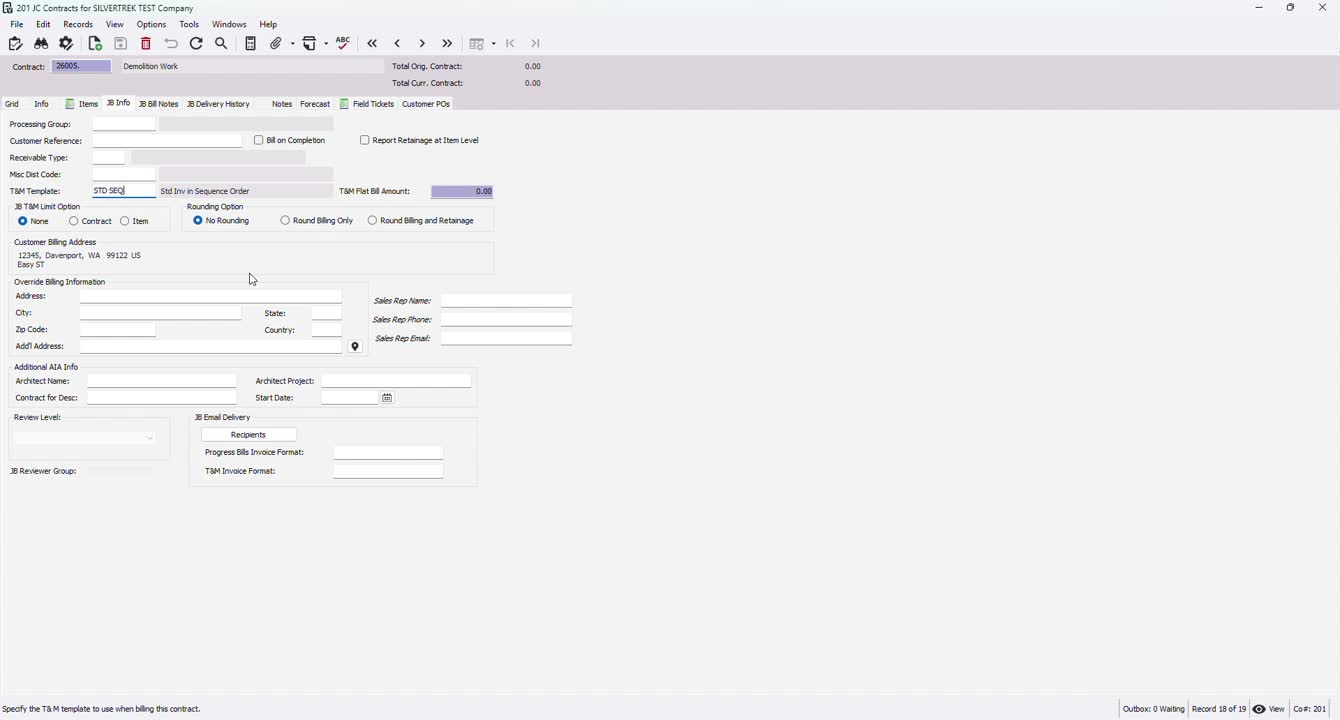
Add any customer purchase orders or T&M templates as needed.
12. Override Billing Information 3:37
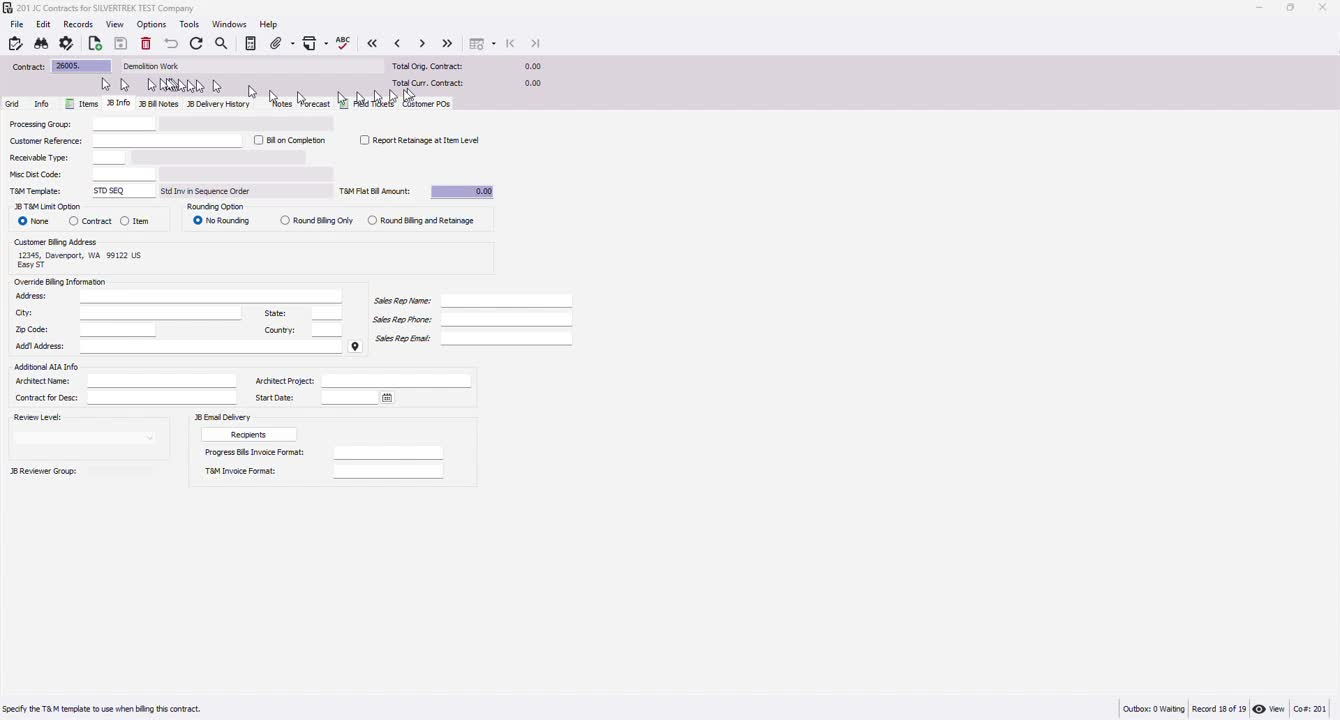
If necessary, input any specific billing information that overrides the default settings.
Cautionary Notes
Always double-check all entries for accuracy before finalizing the contract.
Ensure compliance with company policies regarding contract management.
Tips for Efficiency
Utilize keyboard shortcuts (like F4) to speed up the process of searching and modifying entries.
Keep a checklist of required fields to ensure nothing is overlooked during setup.
Link to Loom
https://loom.com/share/67b1a21184884de5b67402f02e7892f6
Was this article helpful?
That’s Great!
Thank you for your feedback
Sorry! We couldn't be helpful
Thank you for your feedback
Feedback sent
We appreciate your effort and will try to fix the article