Job Cost Adjustments are used to post job costs that cannot be entered or corrected in other modules (such as AP or Payroll) and interfaced to Job Cost.
Common uses include:
Correcting costs posted to the wrong job/phase after a module is closed (e.g., Payroll)
Posting costs that don’t go through AP (e.g., insurance)
Creating month-end accruals to reverse later
Adjusting costs created by Cost Allocations
Entering beginning job cost balances during setup
Selecting the Adjustment Type
All adjustments post with the source JC CostAdj, but the JC Type identifies the original source and controls available fields.
Choose the appropriate type:
JC – Job Cost
CA – Cost Allocations
AP – Accounts Payable
EM – Equipment
MO – Material Orders
MS – Material Sales
PR – Payroll
IC – Intercompany
Related tabs (AP, Equipment, Material, Payroll) allow entry of reference details for reporting only—they do not update the original module.
Transaction vs. Posting Dates
Transaction Date: Actual date the cost was incurred (entered per line)
Posting Date: Date the batch is posted (same for all lines)
Both dates are stored in JC Cost Detail (JCCD) and are used for reporting.
Offset Account
Not required if the batch nets to zero
Required if the batch does not net to zero
Reversing Status:
- 0-Regular- Transaction will not be reversed
- 1-Auto reversal- Transaction will be reversed using JC Initialize Reversals
- 2-Reversal- Cannot set manually, automatically assigned to reversing entries after initializing reversals
- 3-Reversed- Cannot set manually, automatically assigned after reversing entries are processed
- 4-Cancel Reversal- Can only be assigned to transactions with status of 2-Reversal
Reversing JC Cost Adjustment:
- Open batch in the month after the original reversing entry
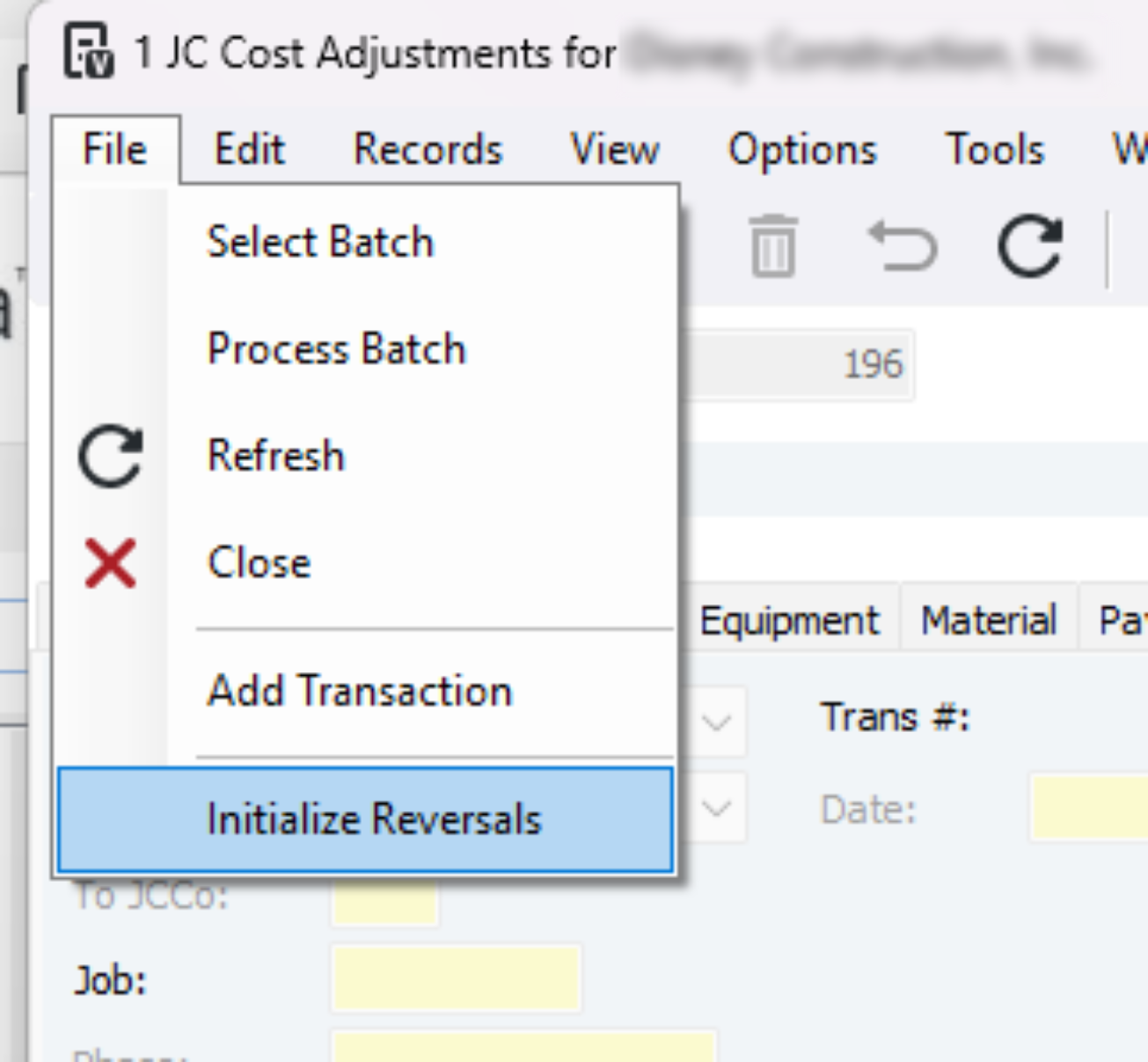
- Go to File>Initialize Reversals
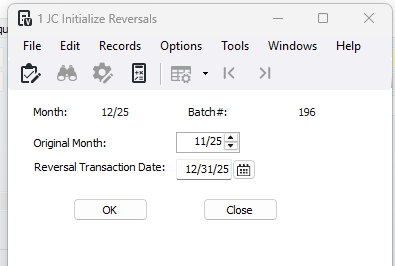
- Pop up, verify the original month is current and update the reversal transaction date
- Review reversal entries
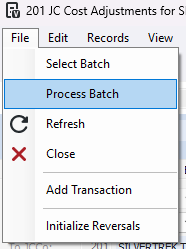
- To post go to File>Process Batch
Was this article helpful?
That’s Great!
Thank you for your feedback
Sorry! We couldn't be helpful
Thank you for your feedback
Feedback sent
We appreciate your effort and will try to fix the article