SOP: Configure Report Security for AP Reports
Objective
This SOP explains how to grant report access to a security group for Accounts Payable (AP) reports. Follow these steps to filter the report list, initialize access, and verify that the assigned user can run the reports.
Key Steps
1. Confirm the Security Group Setup 0:00
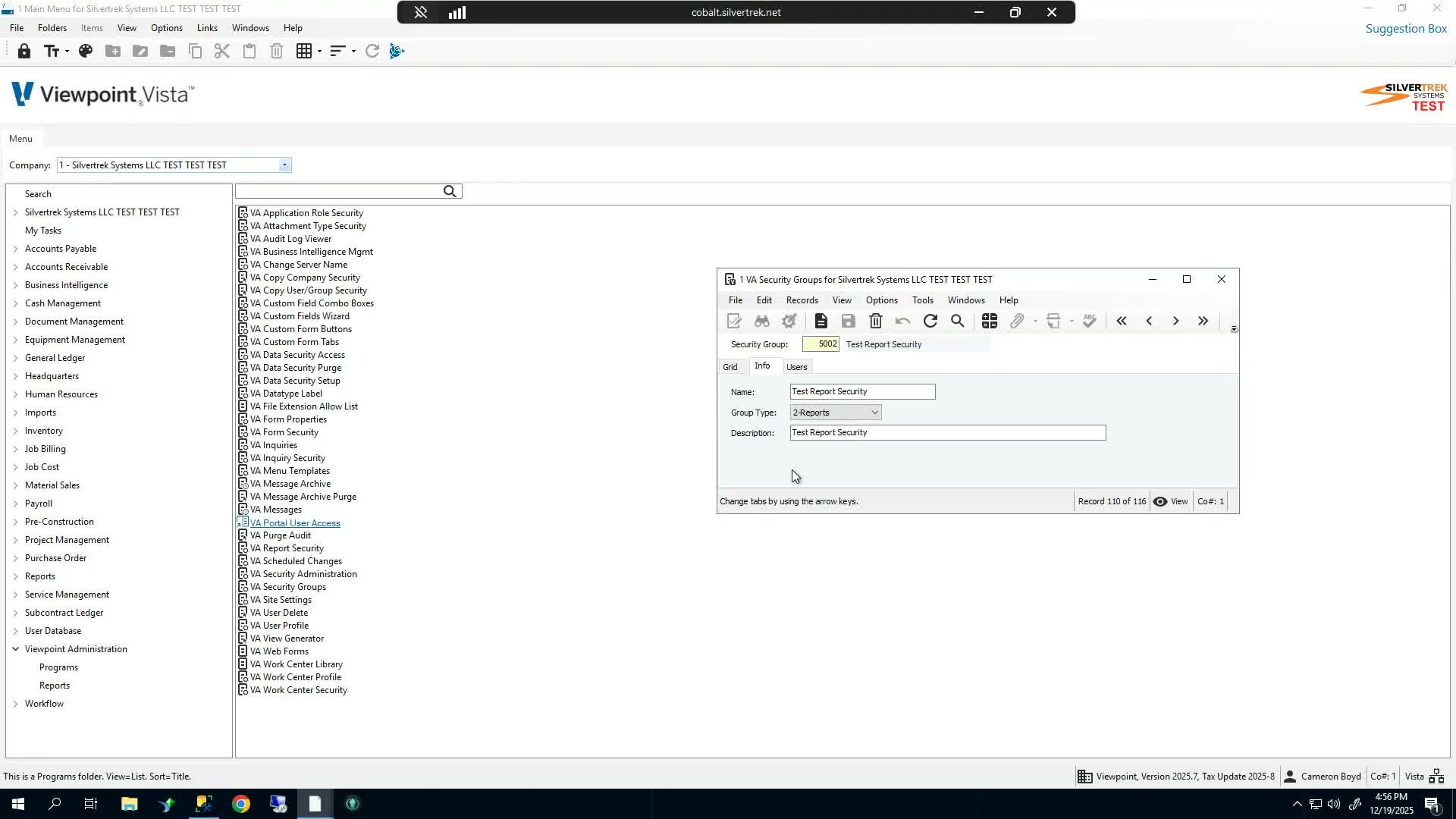
Verify that the correct security group exists for reports.
Confirm the user is assigned to the report security group (example shown: group 5002).
Ensure the group type is configured for reports before making access changes.
2. Open VA Reports and Select the Scope 0:26
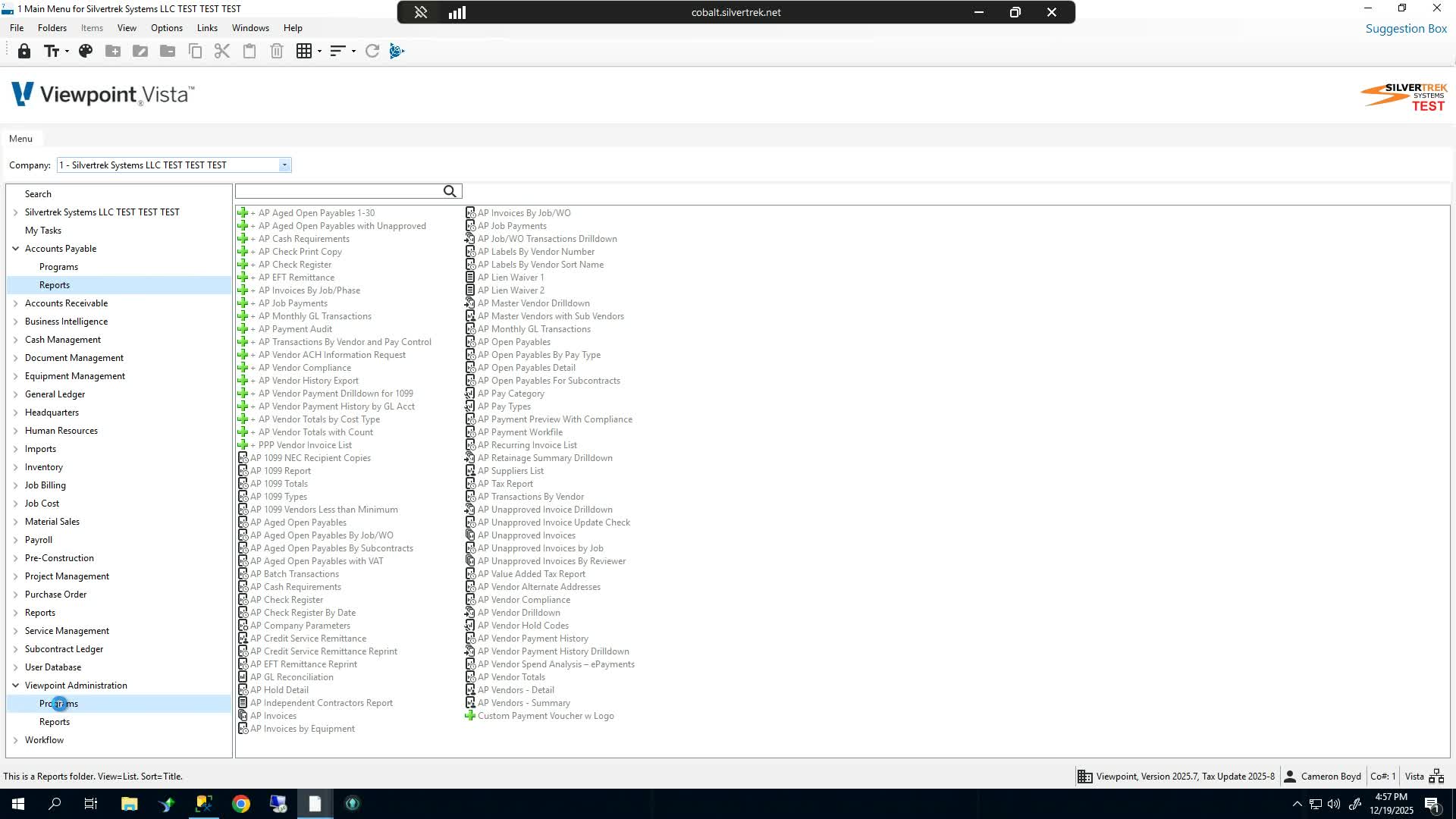
Navigate to VA Reports.
Select the appropriate company scope:
Choose Global if the access should apply broadly.
Select specific companies if needed for a narrower setup.
Choose the AP module to display Accounts Payable reports.
3. Filter the Report List by Security Group 0:37
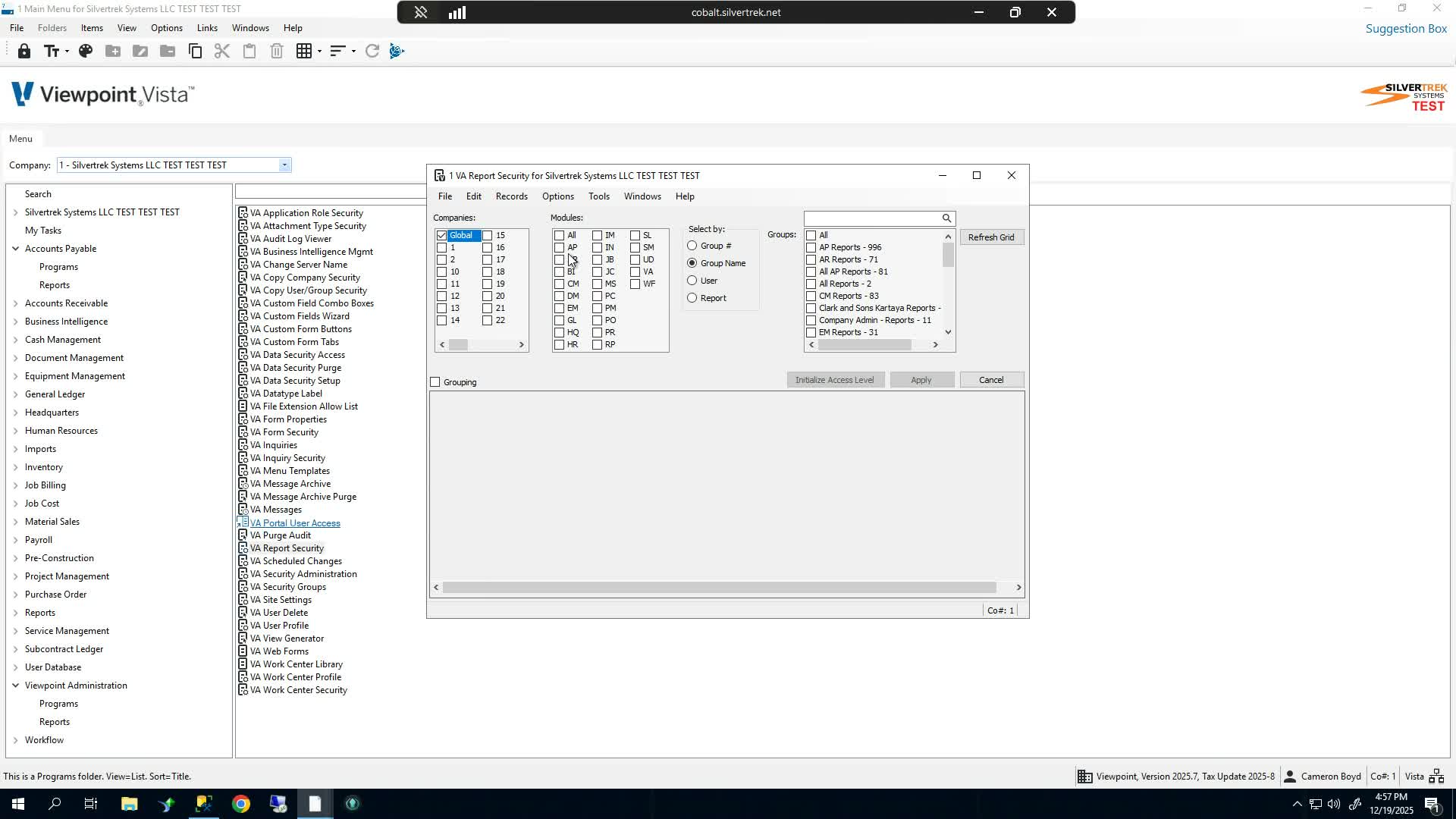
Filter the report list by group number.
Enter the security group number and refresh the grid.
Review the filtered results to confirm the reports associated with that group.
4. Review Available AP Reports 0:48
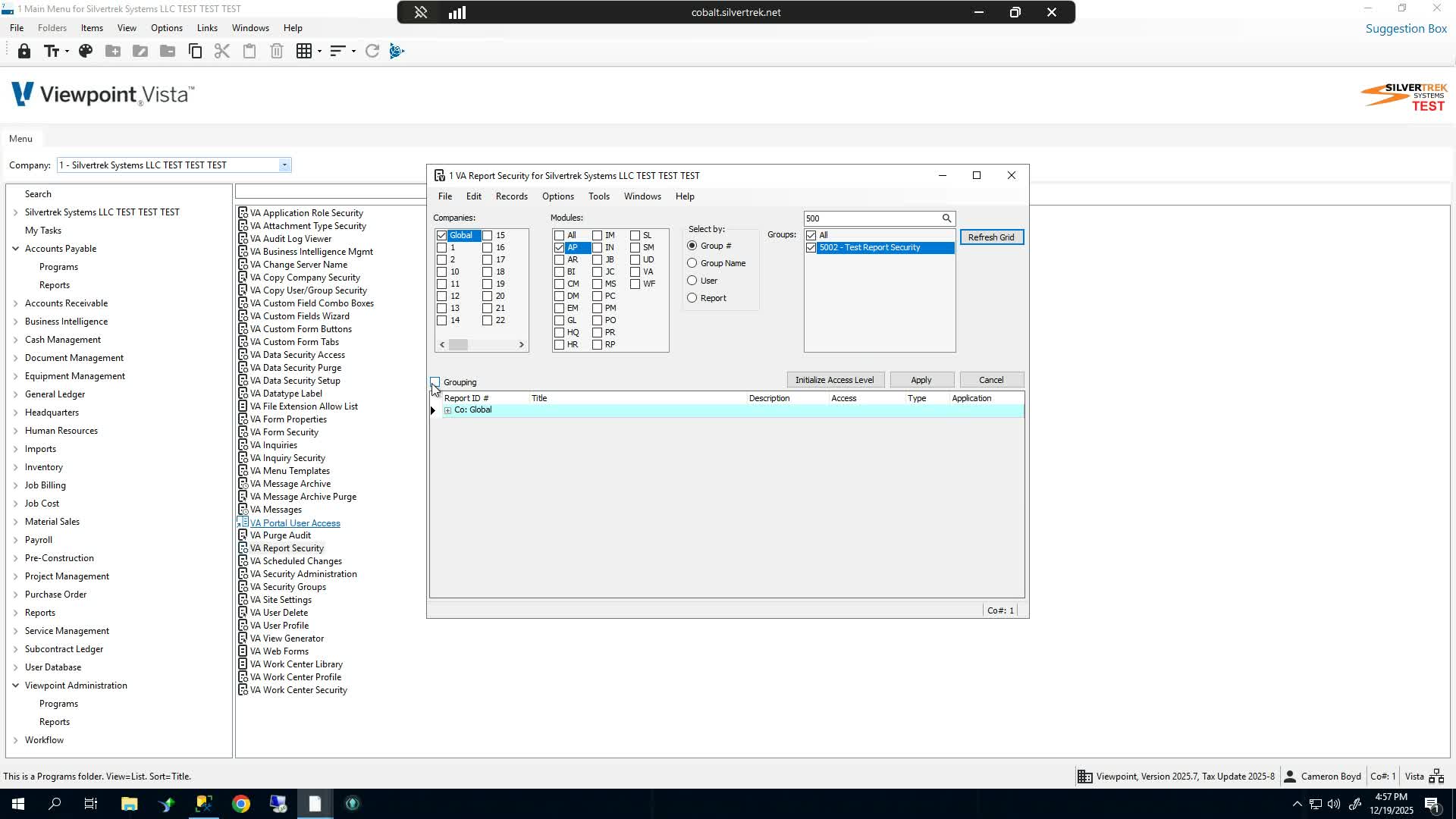
Expand the report list if you want to review items individually.
Use the grouping button if you prefer to view all reports in the grid at once.
Identify which AP reports need access assigned.
5. Grant Access to the Reports 0:59
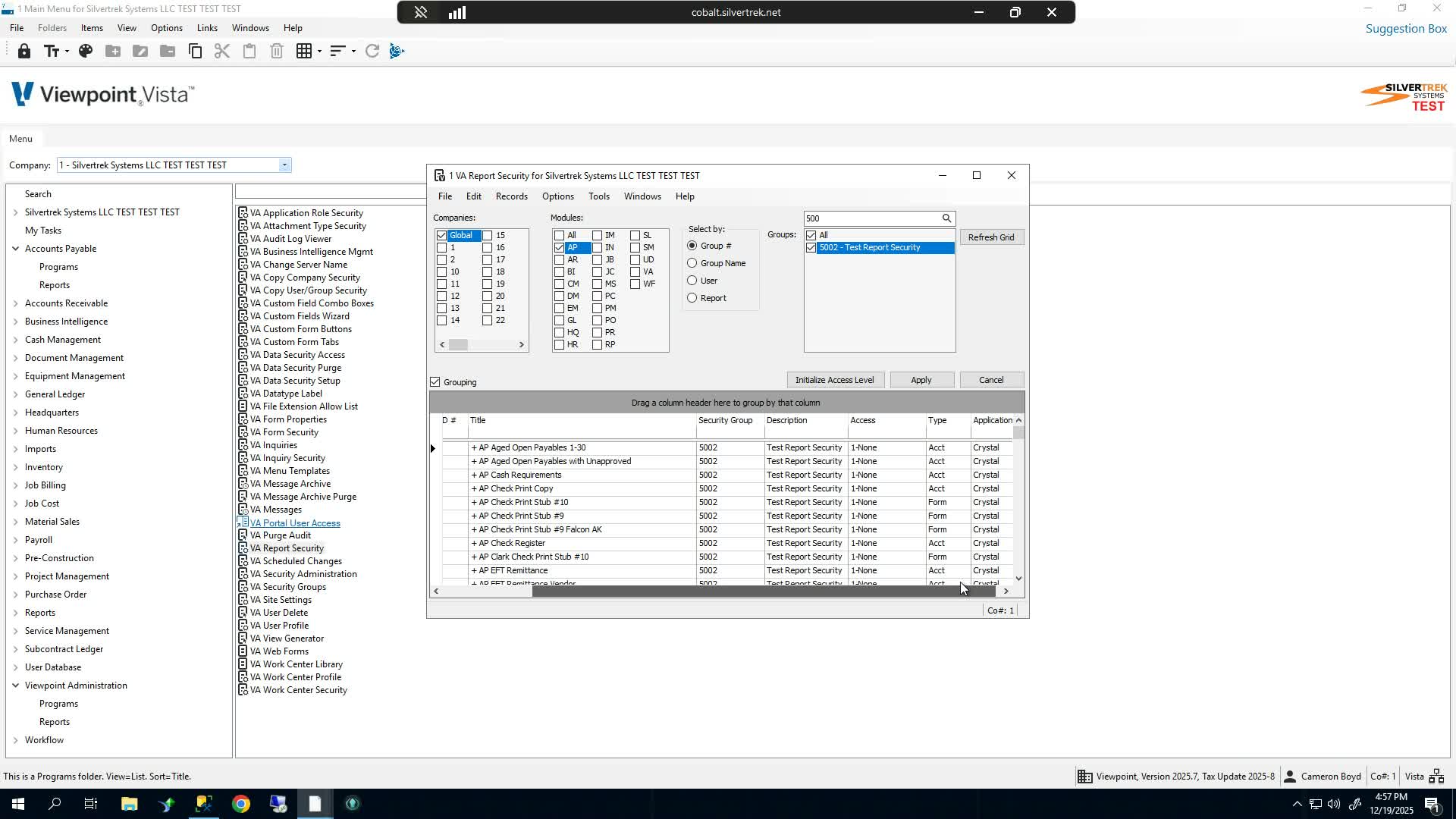
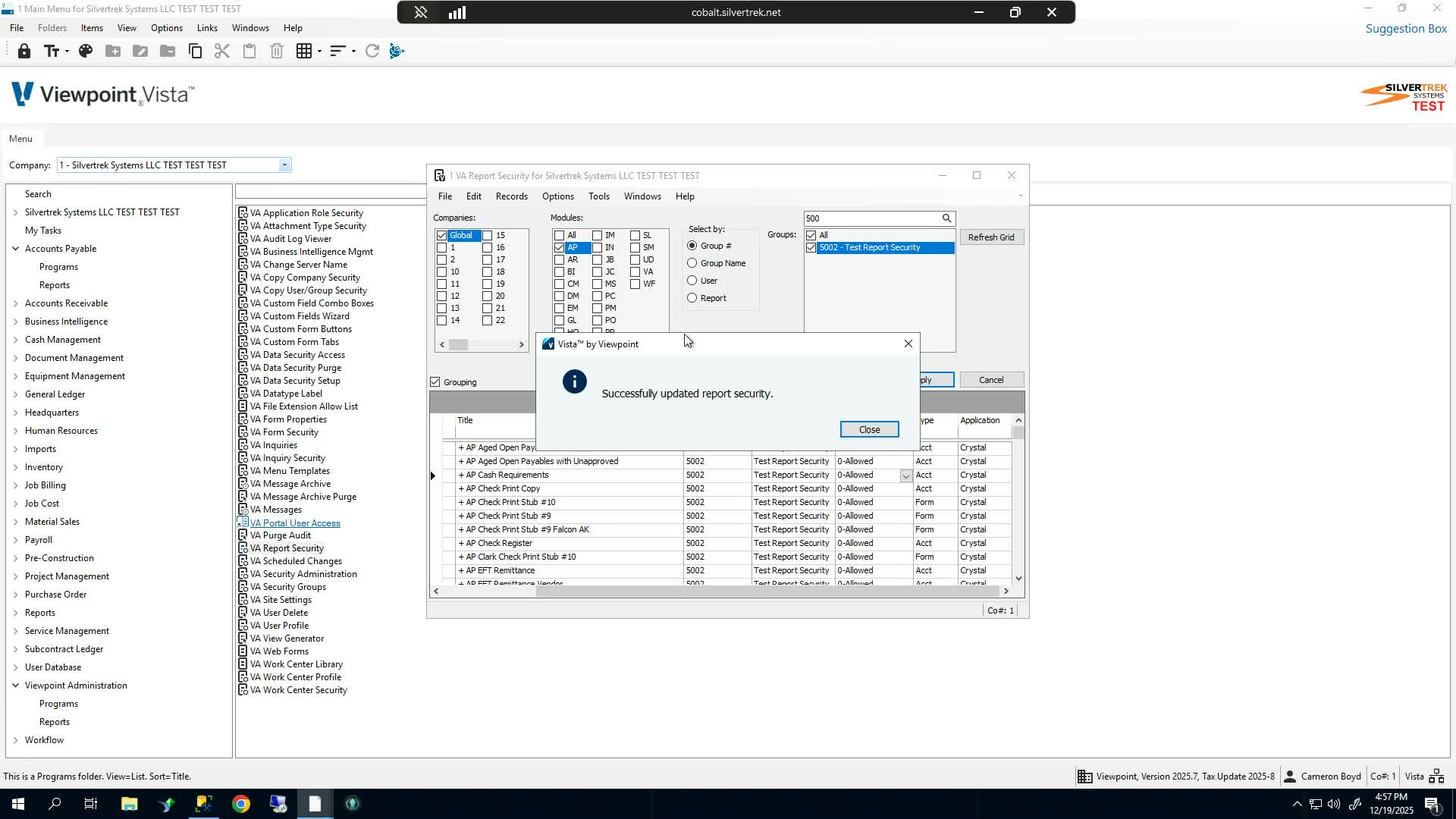
Set access to Allowed for each report manually, or use the bulk initialization option.
To apply access in bulk:
Click Initialize Access.
Choose Allowed.
Select Apply.
Confirm by clicking Yes when prompted.
Apply the changes on the final screen.
6. Verify Report Access 1:12
Go to the AP reports area.
Run one or more AP reports to confirm access is working.
If the reports open successfully, the security configuration is complete.
Cautionary Notes
Only assign report access to the intended security group to avoid exposing sensitive financial data.
Confirm the correct company scope before applying changes, especially if using Global access.
After using bulk initialization, verify the results to ensure no unintended reports were granted access.
If the user still cannot run reports, recheck the group assignment and report security settings.
Tips for Efficiency
Use the Initialize Access option when granting access to many reports at once.
Filter by group number to quickly locate the correct report set.
Use the grouping button to switch between a detailed and consolidated view of reports.
Test access immediately after changes to catch configuration issues early.
Link to Loom
Was this article helpful?
That’s Great!
Thank you for your feedback
Sorry! We couldn't be helpful
Thank you for your feedback
Feedback sent
We appreciate your effort and will try to fix the article