SOP: Configure User Access and Security in Vista
Objective
Set up a Vista user with the correct launch settings, permissions, employee linkage, and security group access so they can perform their job functions without unnecessary access. This SOP also covers copying security from an existing user when creating a similar role.
Key Steps
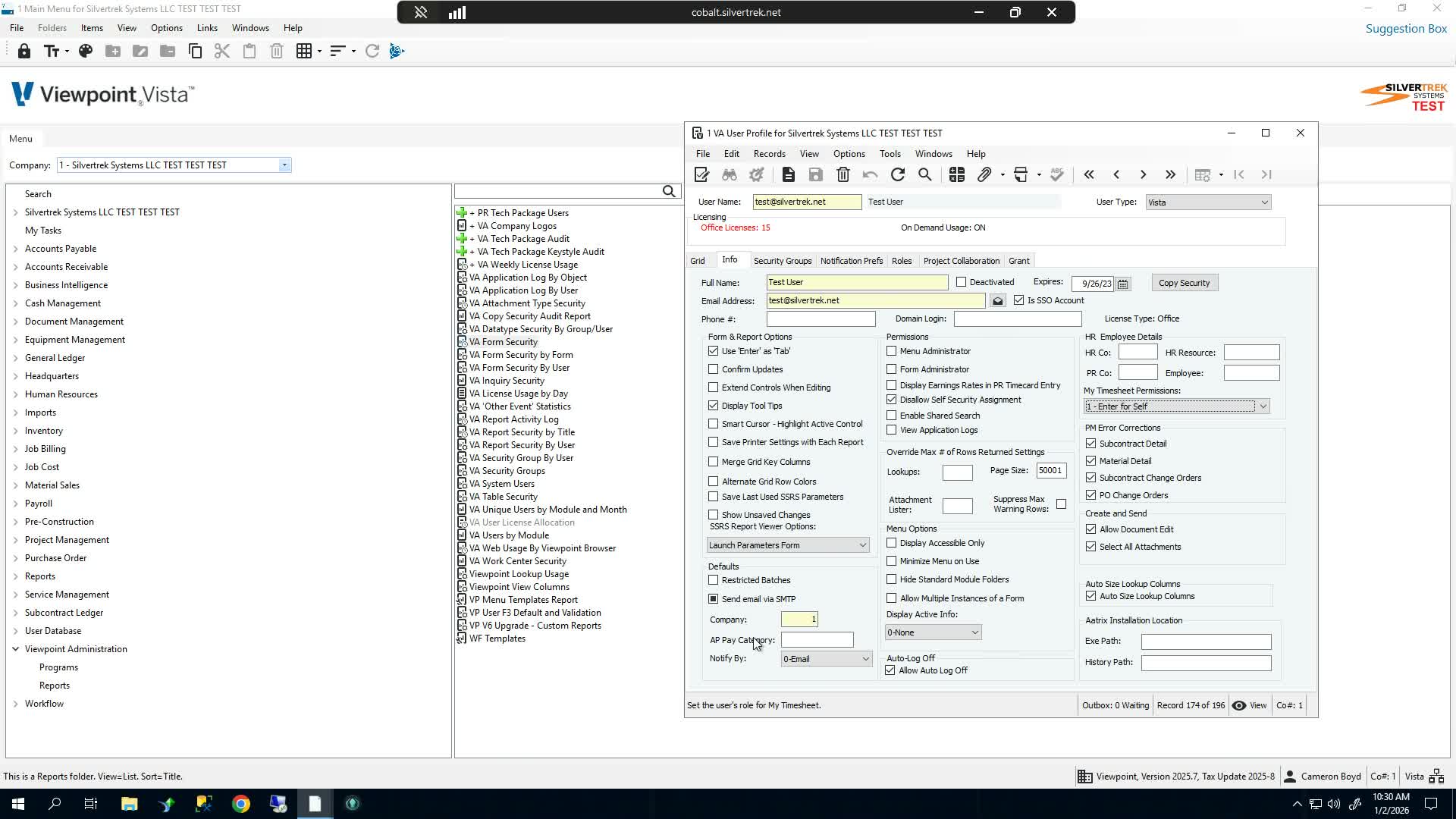
1. Open the user record and review the Info tab 0:00
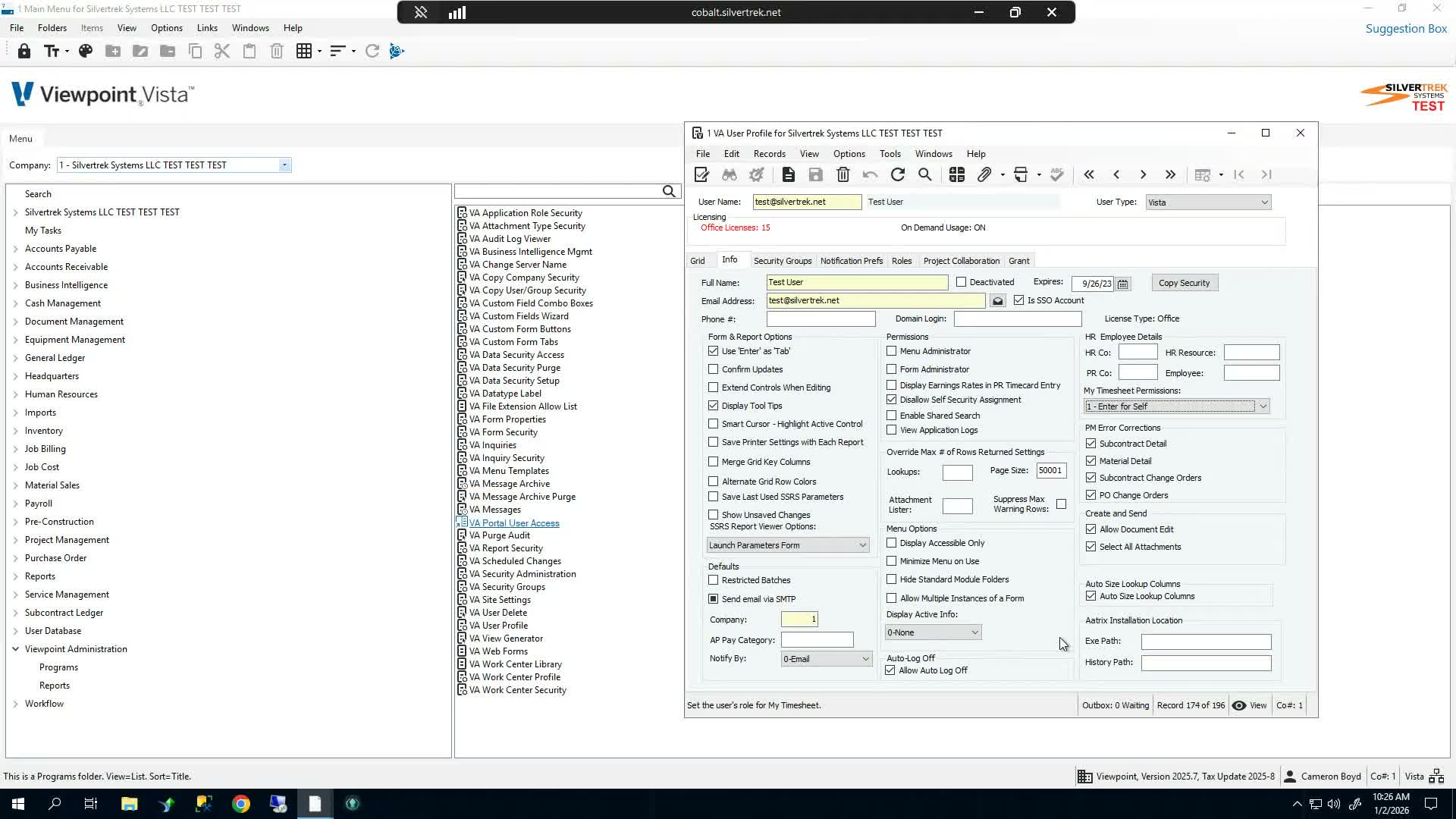
Open the target user in Vista.
Go to the Info tab.
Review the available settings and determine which access options are needed for the user’s role.
Focus on the settings that most commonly affect daily use and security.
2. Set SSRS report launch behavior 0:20
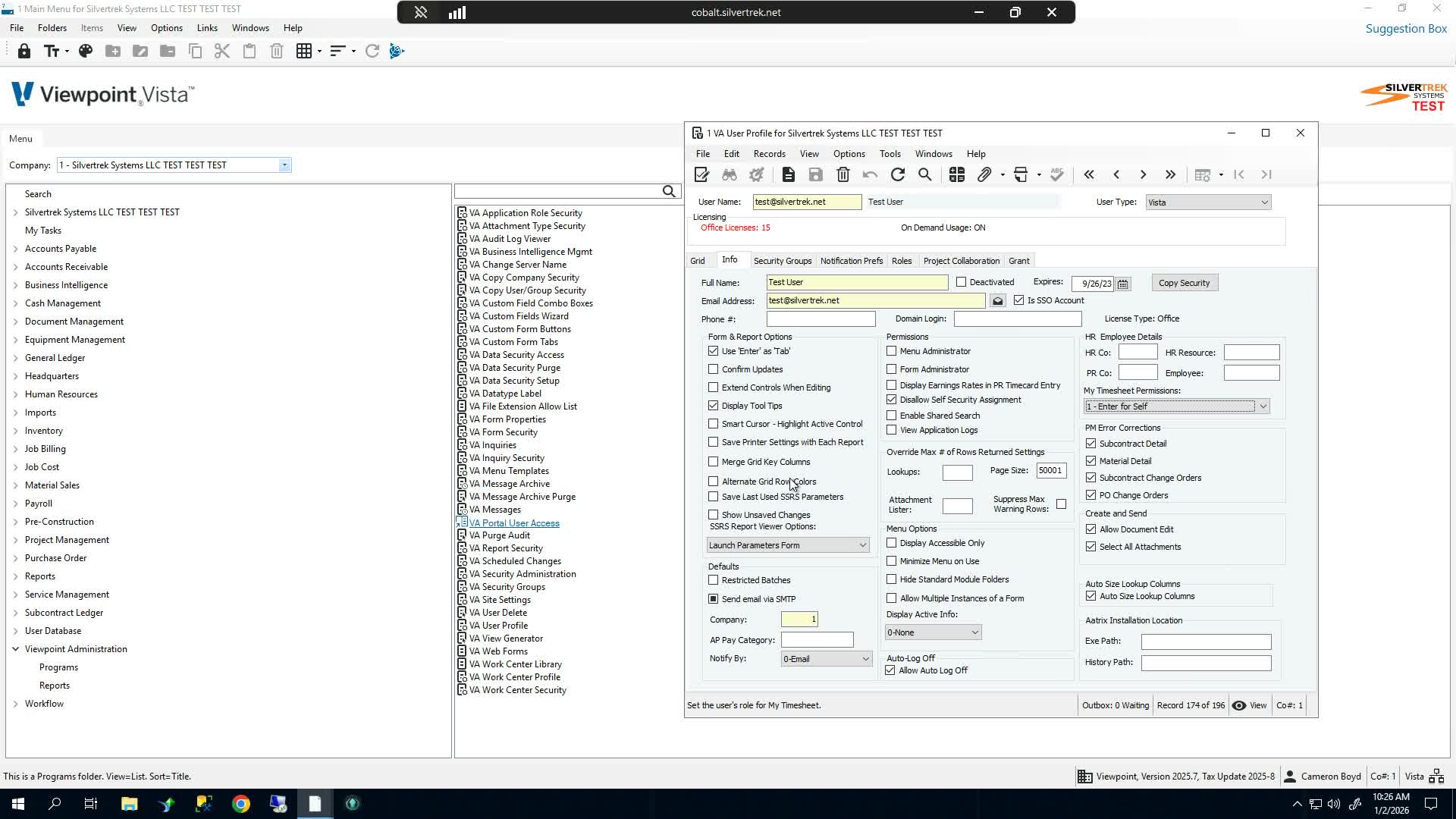
Locate Launch Parameters form for SSRS reports.
Set this to Launch Parameters form for most users.
Use this setting so SSRS reports open in a launcher window instead of directly in the browser.
Only use Launch in Browser if that behavior is specifically desired for the user.
3. Assign menu and form permissions when needed 1:04
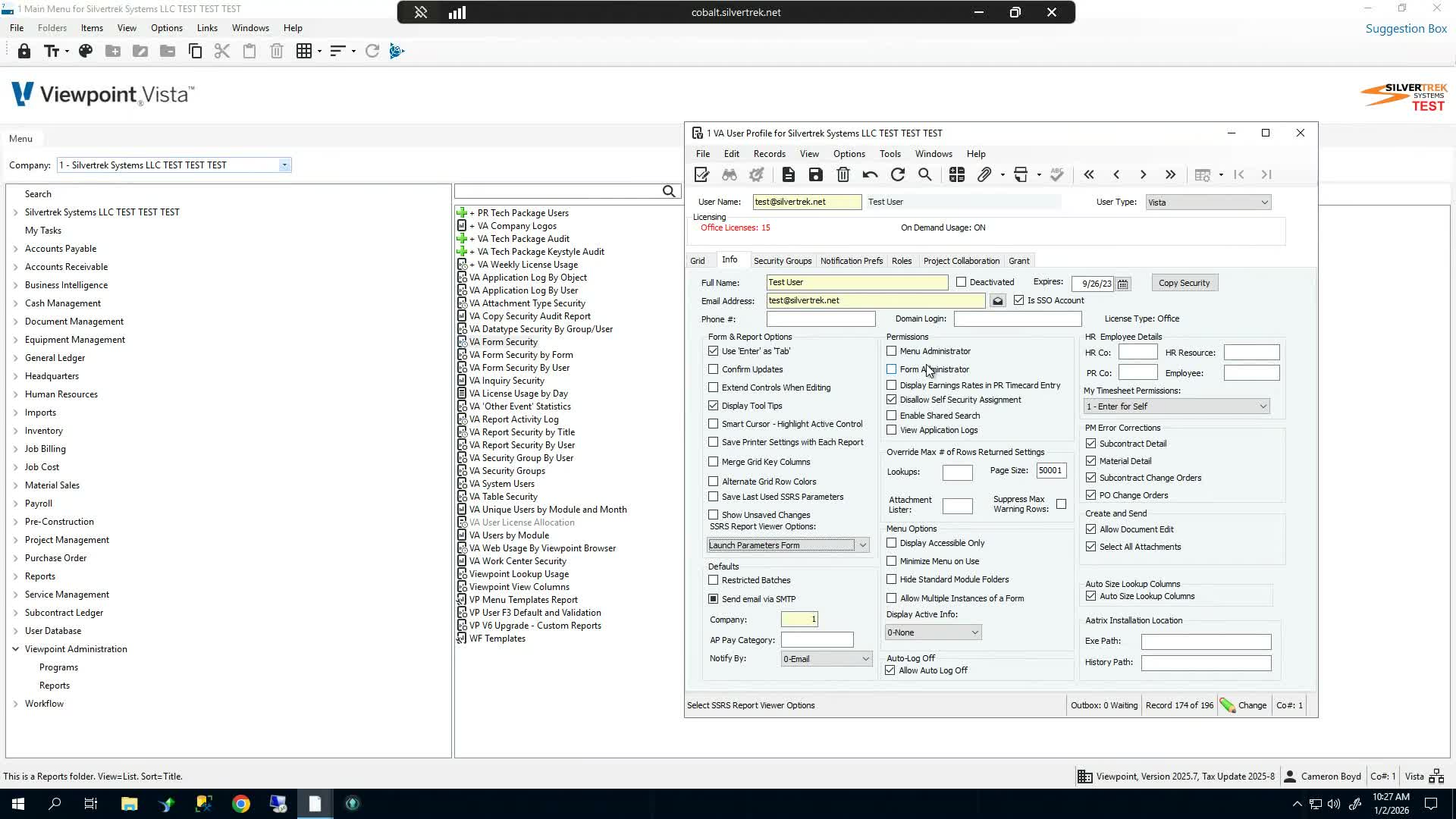
Find the Menu and Forms permission options.
Enable these for administrators or users who need to manage the interface.
These permissions allow actions such as:
Adding tabs
Adding custom tabs to forms
Moving custom tabs on forms
Leave these unchecked for standard users unless their role requires them.
4. Enable payroll rate visibility for payroll users 1:32
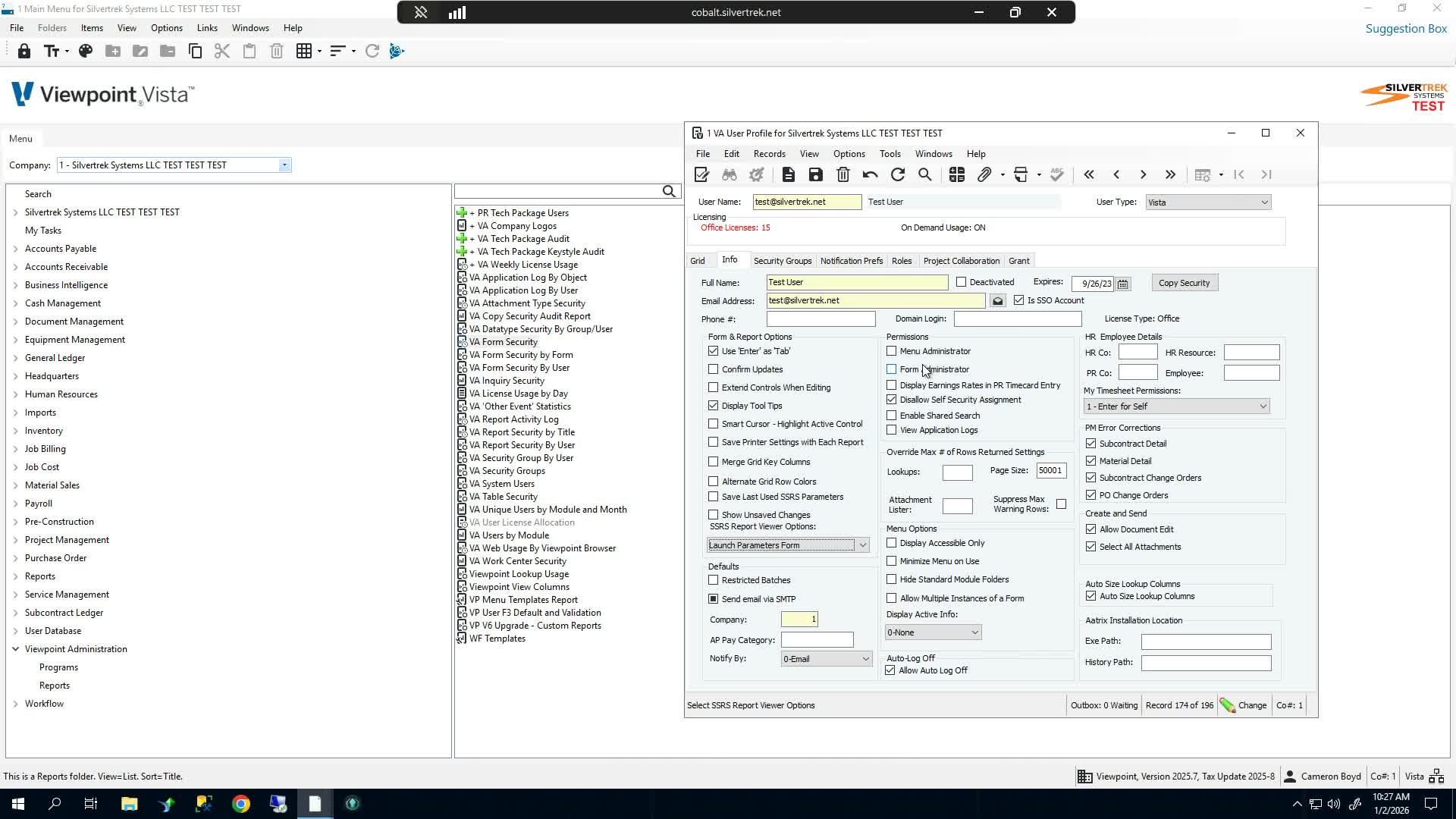
Locate Display earnings rates in PR Timecard Entry.
Check this option for payroll staff who need to view earnings rates.
Leave it unchecked for users who do not need payroll rate visibility.
Confirm the setting matches the user’s job responsibilities.
5. Control self-security assignment 1:59
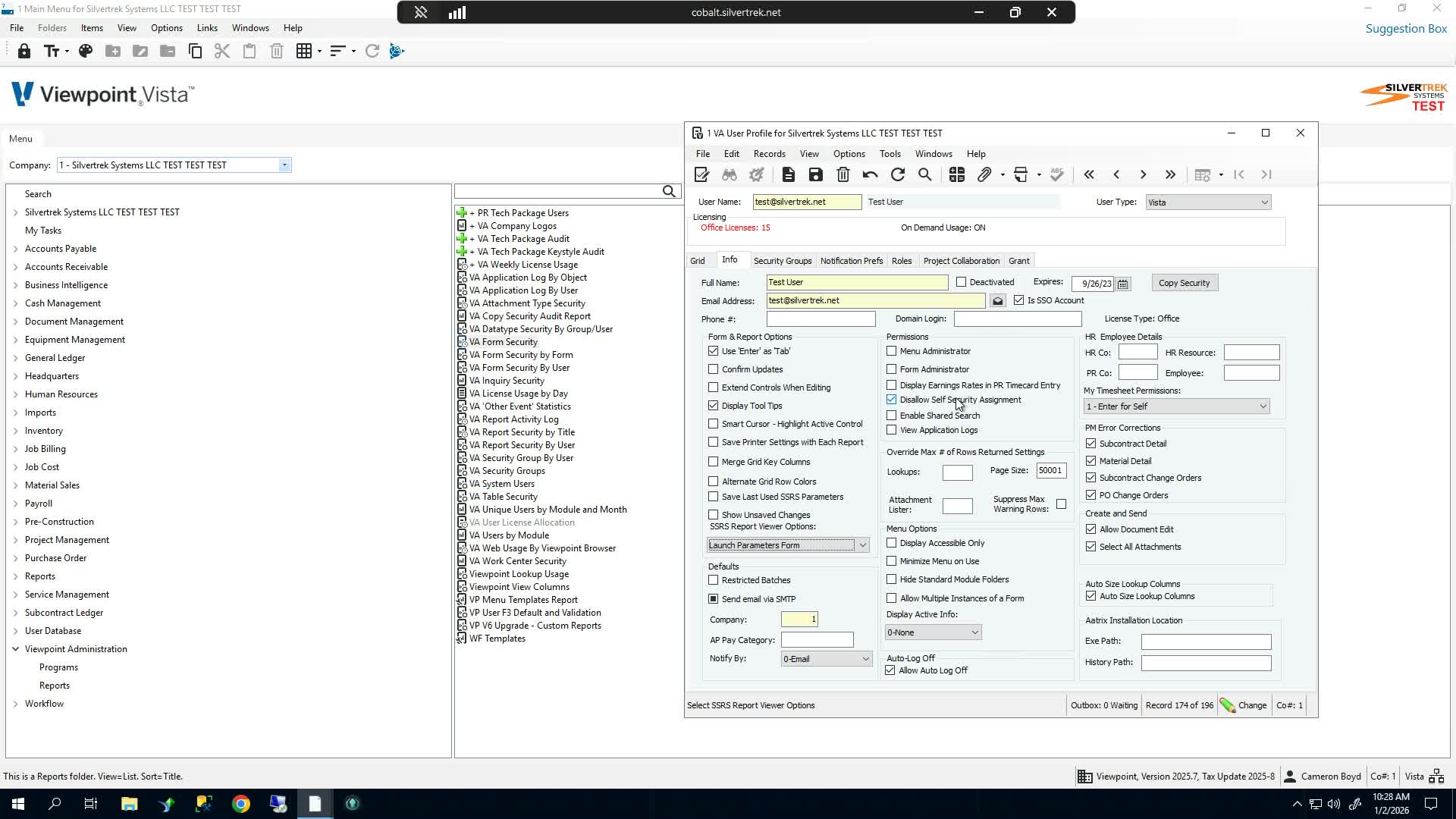
Review Disallow Self-Security Assignment.
Leave this checked for most users.
Uncheck it only for administrators who need to modify their own security settings.
Verify this setting before saving to avoid unnecessary access changes.
6. Grant access to application logs for troubleshooting 2:17
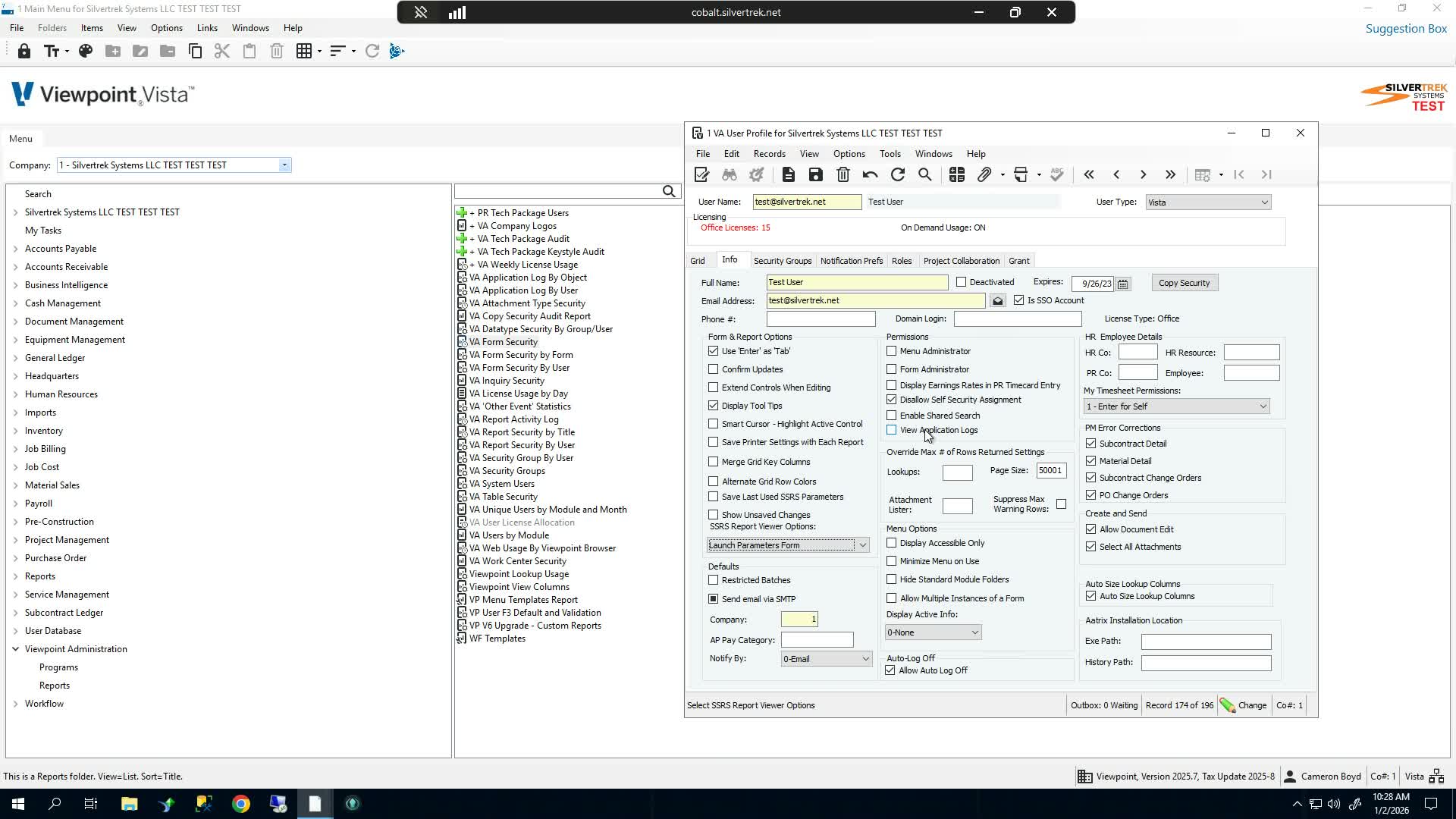
Locate View Applications Log.
Enable this for administrators or support users who may need to troubleshoot issues.
This allows access to detailed logs through Help > View Logs.
Use this setting when users may need to gather error details for support cases.
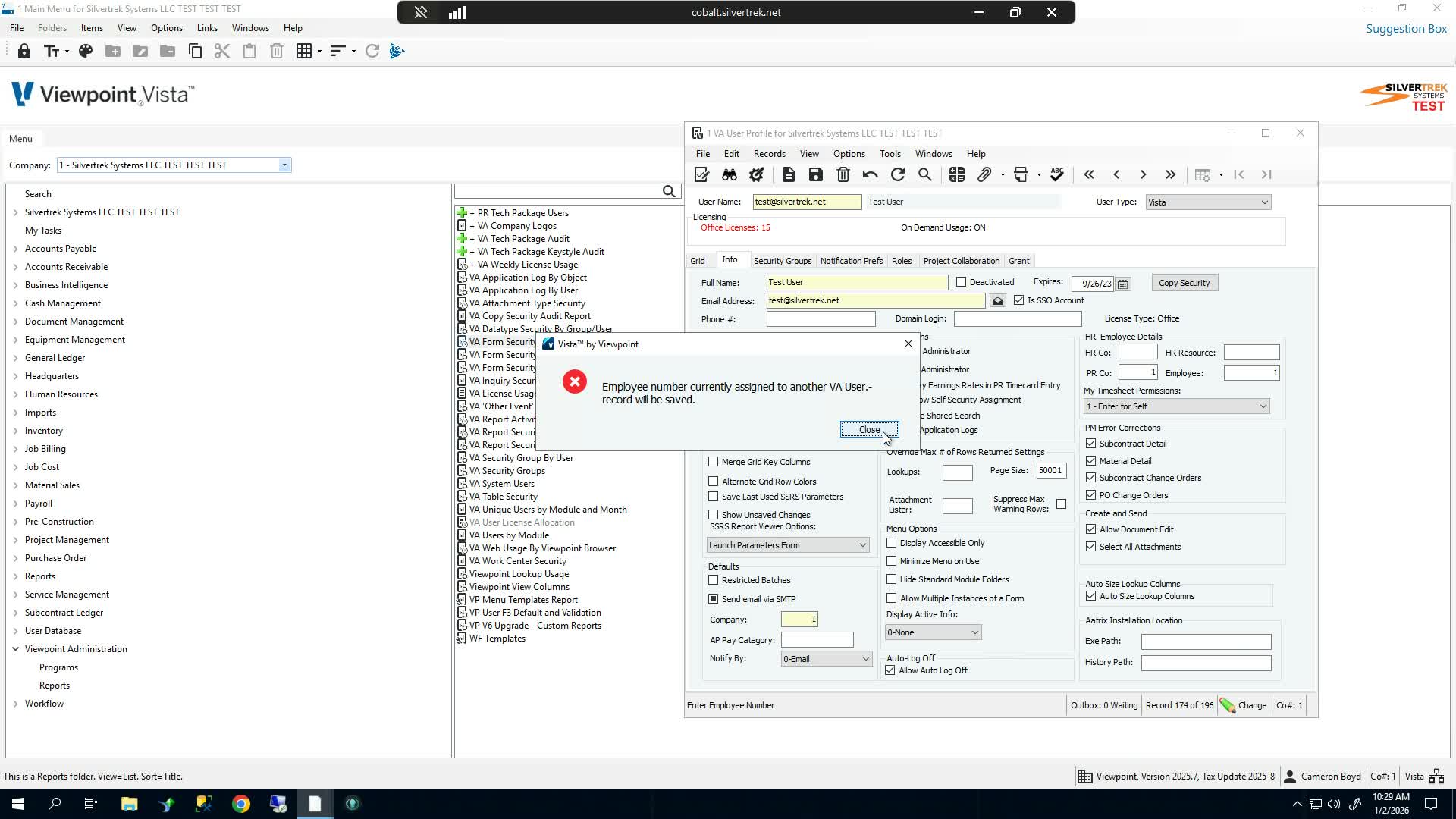
7. Link the Vista user to an employee record 2:45
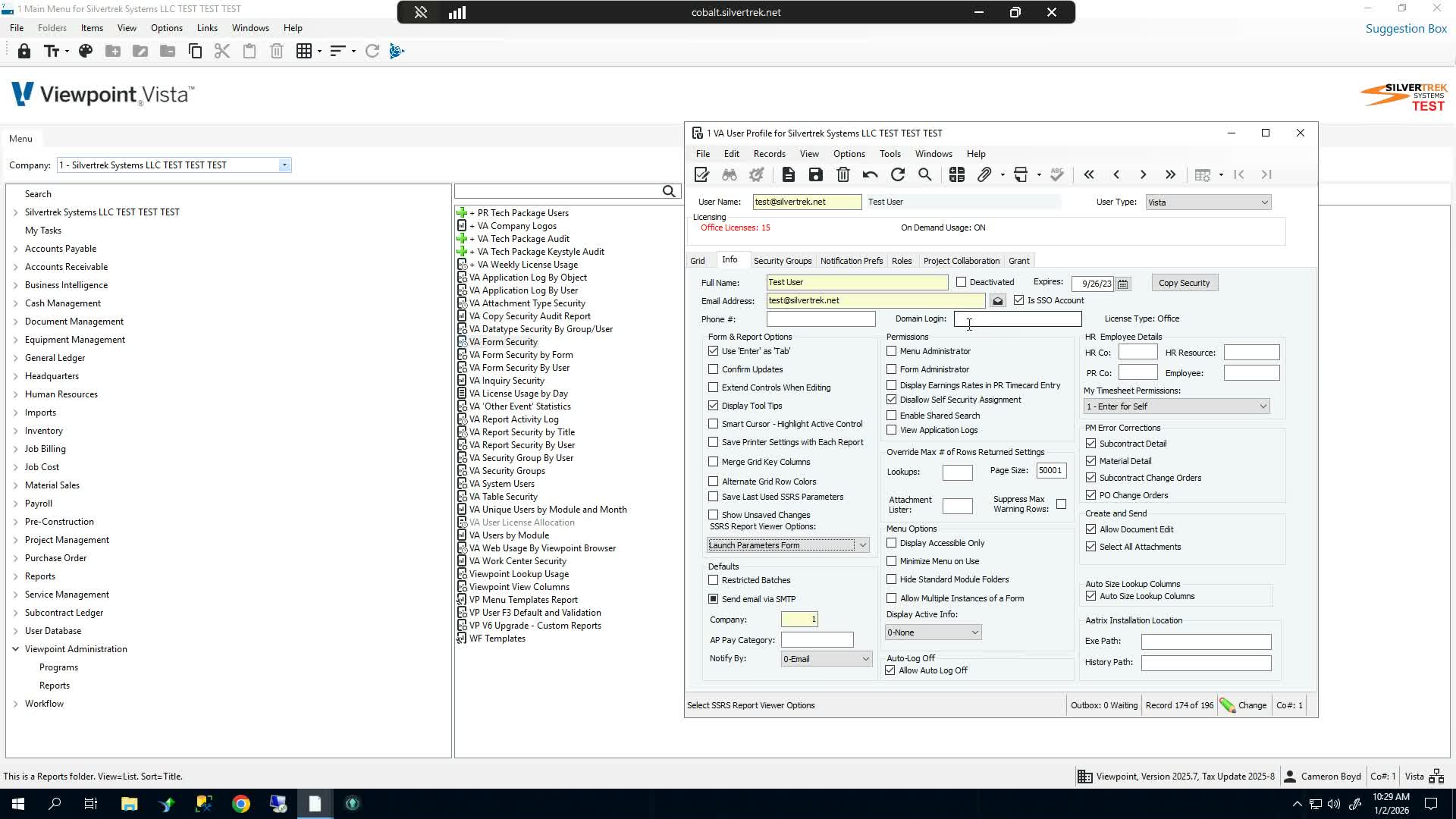
In the HR Employee Details section, assign the Vista user to the correct employee record.
Enter the company number and employee number.
Confirm the employee number is not already assigned to another Vista user.
If the employee number is duplicated, Vista will return an error.
Correct any overlap before continuing.
8. Review any additional optional settings 3:21
Review the remaining options on the user record.
Leave most settings unchanged unless there is a specific business need.
If unsure, research the option before modifying it.
Proceed only after confirming the user’s required access has been identified.
9. Assign security groups to the user 3:41
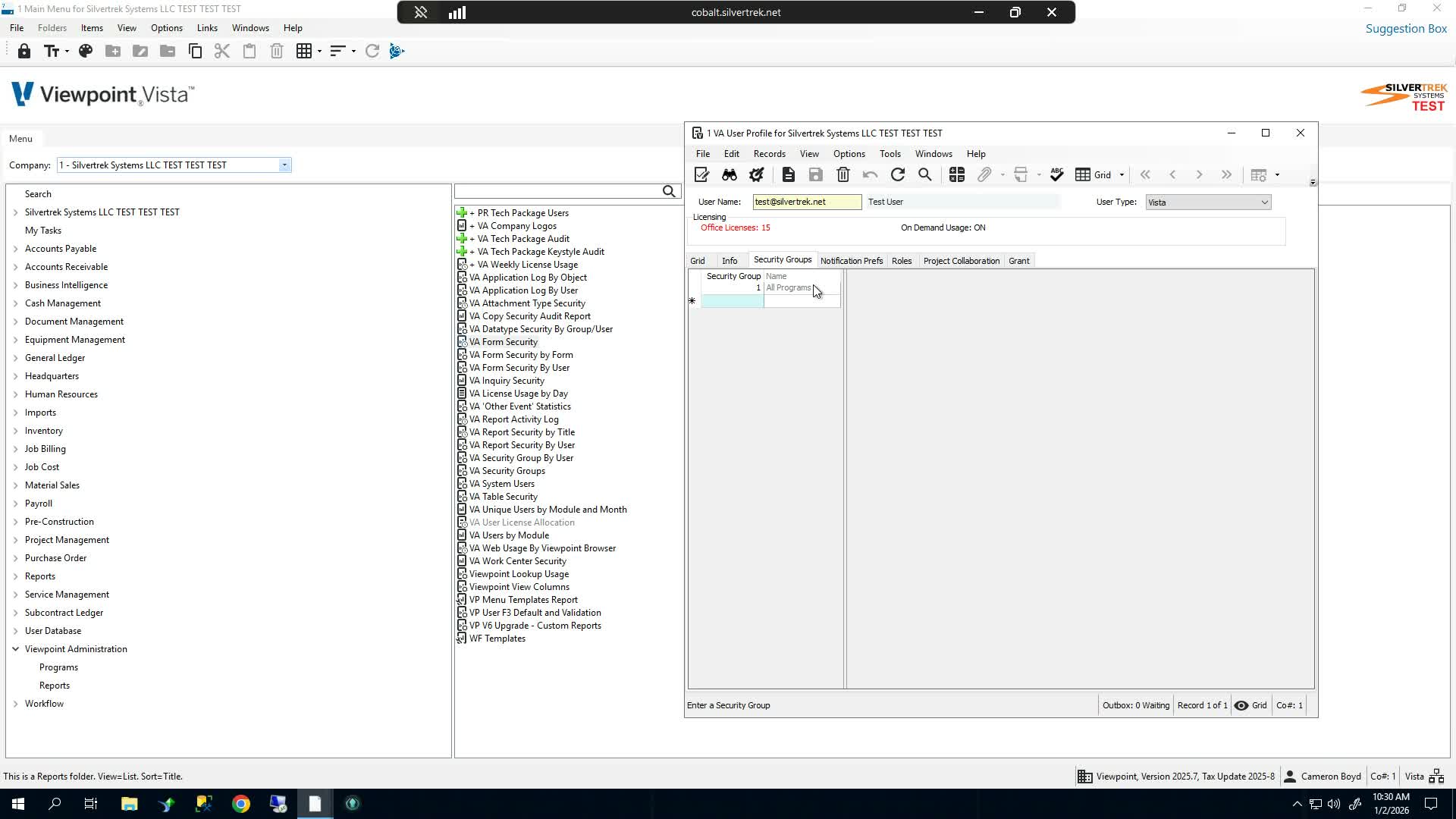
Go to the Security Groups section.
Add the appropriate security group(s) for the user.
Confirm the assigned group provides the correct program access.
Remember that security groups determine what programs and functions the user can access.
10. Copy security from an existing user when roles match 4:02
Use Copy Security when creating a new user with a similar role to an existing user.
Open the copy security window.
Use the lookup to find the source user.
Select the user and click OK.
Wait for Vista to copy the security settings into the new user record.
11. Verify copied security and save changes 4:45
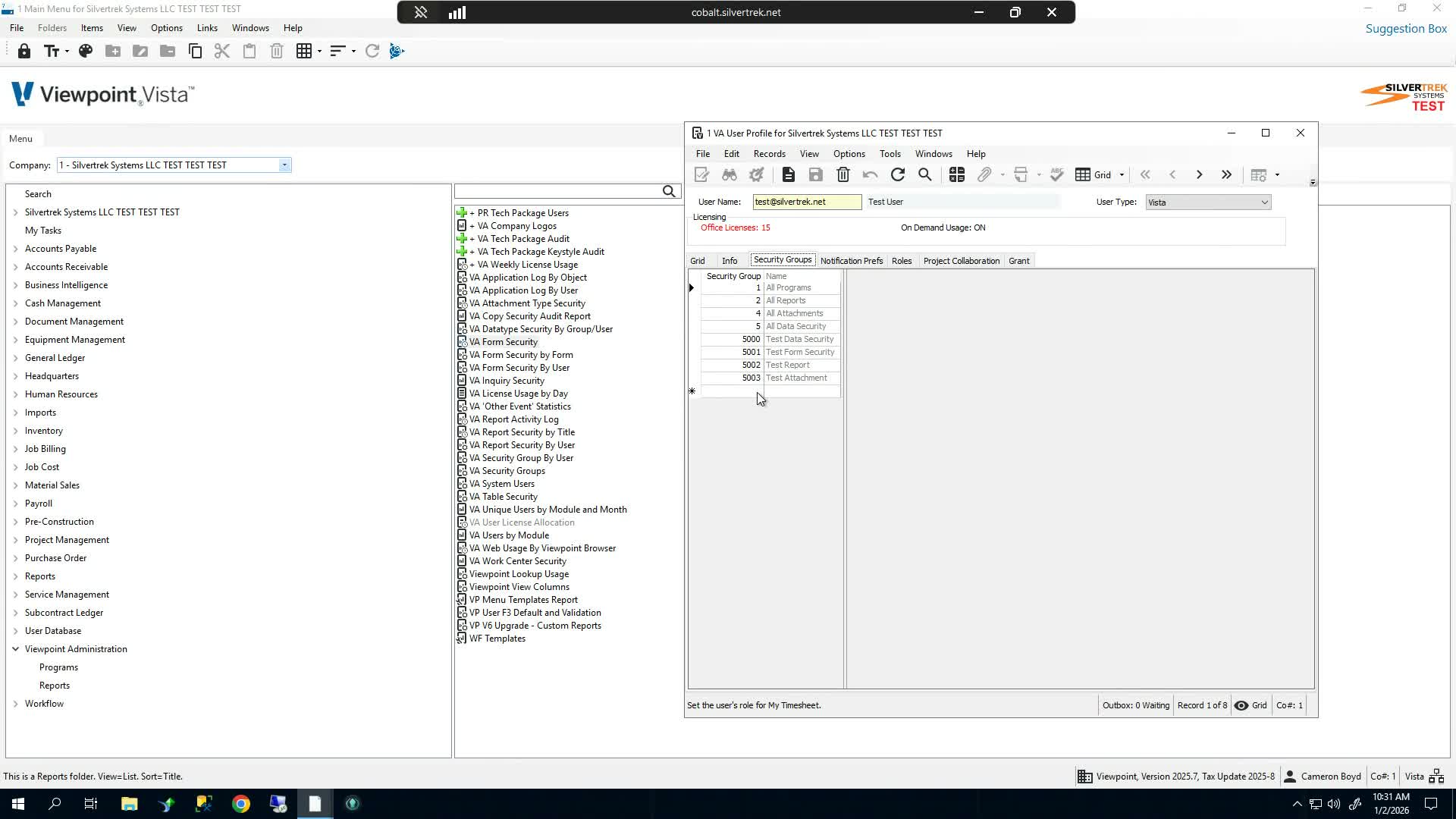
Review the copied security carefully.
Understand that copying security overwrites existing security groups on the target user.
Confirm no required security groups were removed during the copy.
Save the user record once all settings are correct.
Cautionary Notes
Do not assign the same employee number to multiple Vista users. This will cause an error.
Copy Security overwrites existing security rather than adding to it. Review the result before saving.
Only grant administrator-level permissions, log access, and self-security control to users who truly need them.
If you are unsure about an optional setting, verify the business requirement before changing it.
Tips for Efficiency
Use an existing user with the same role as a template to speed up setup.
Standardize common settings for user groups such as payroll staff and administrators.
Keep a checklist of required permissions by role to reduce setup errors.
Verify employee linkage and security group assignment before finalizing the record.
Link to Loom
Was this article helpful?
That’s Great!
Thank you for your feedback
Sorry! We couldn't be helpful
Thank you for your feedback
Feedback sent
We appreciate your effort and will try to fix the article