SOP: Configure Attachment Security for an Attachment Type
Objective
This SOP explains how to create an attachment type, assign security access to it, and verify that only users in the correct security group can open attachments of that type. Follow these steps to control attachment visibility and access in the system.
Key Steps
1. Create a secured attachment type 0:13
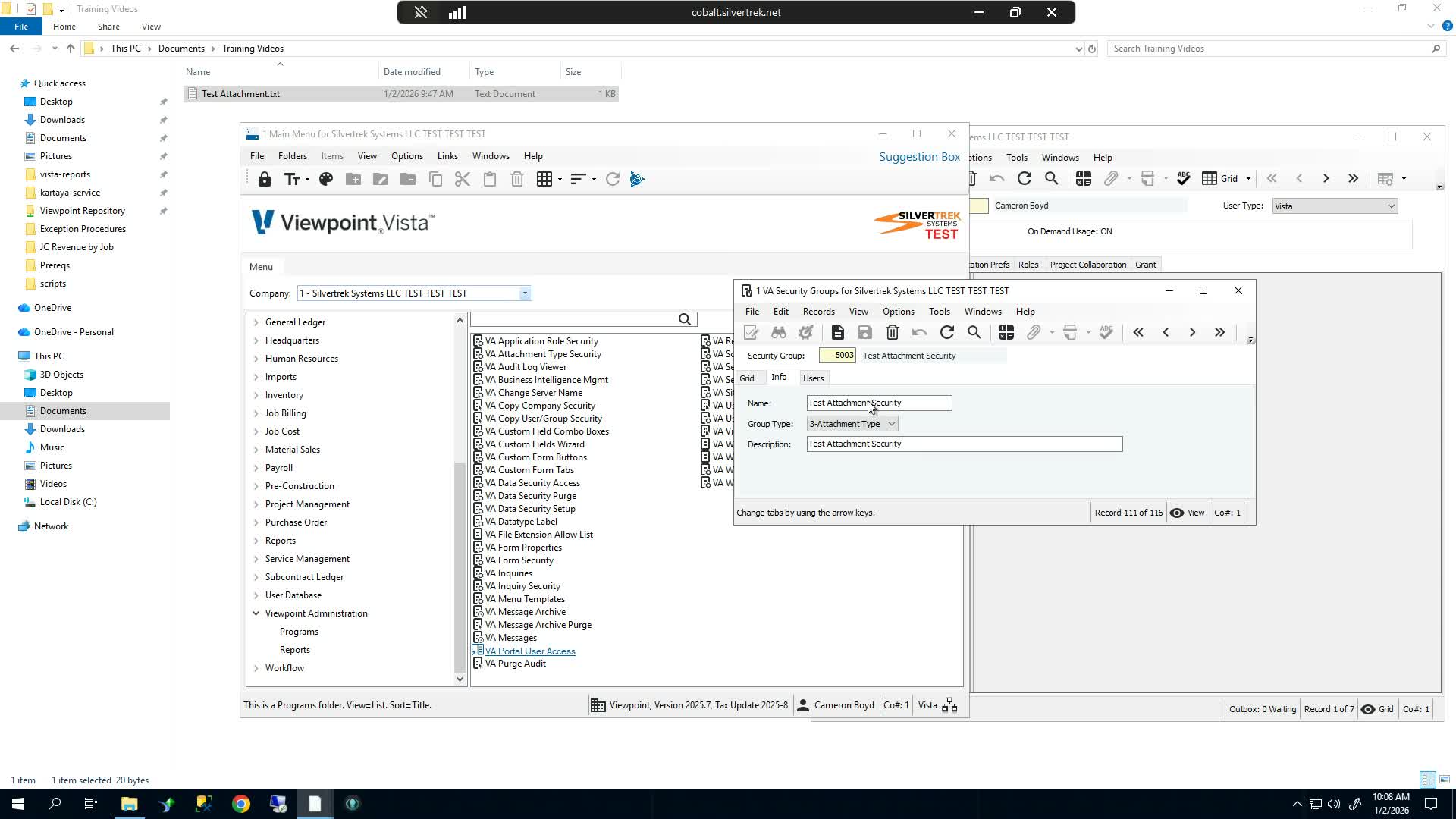
Navigate to Document Management Programs > DM Attachment.
Create a new attachment type for the files you want to secure.
Enter a clear name for the attachment type, such as Test.
Confirm the attachment type is marked as Secured by default.
Save the new attachment type.
2. Attach a file to a record for testing 0:42
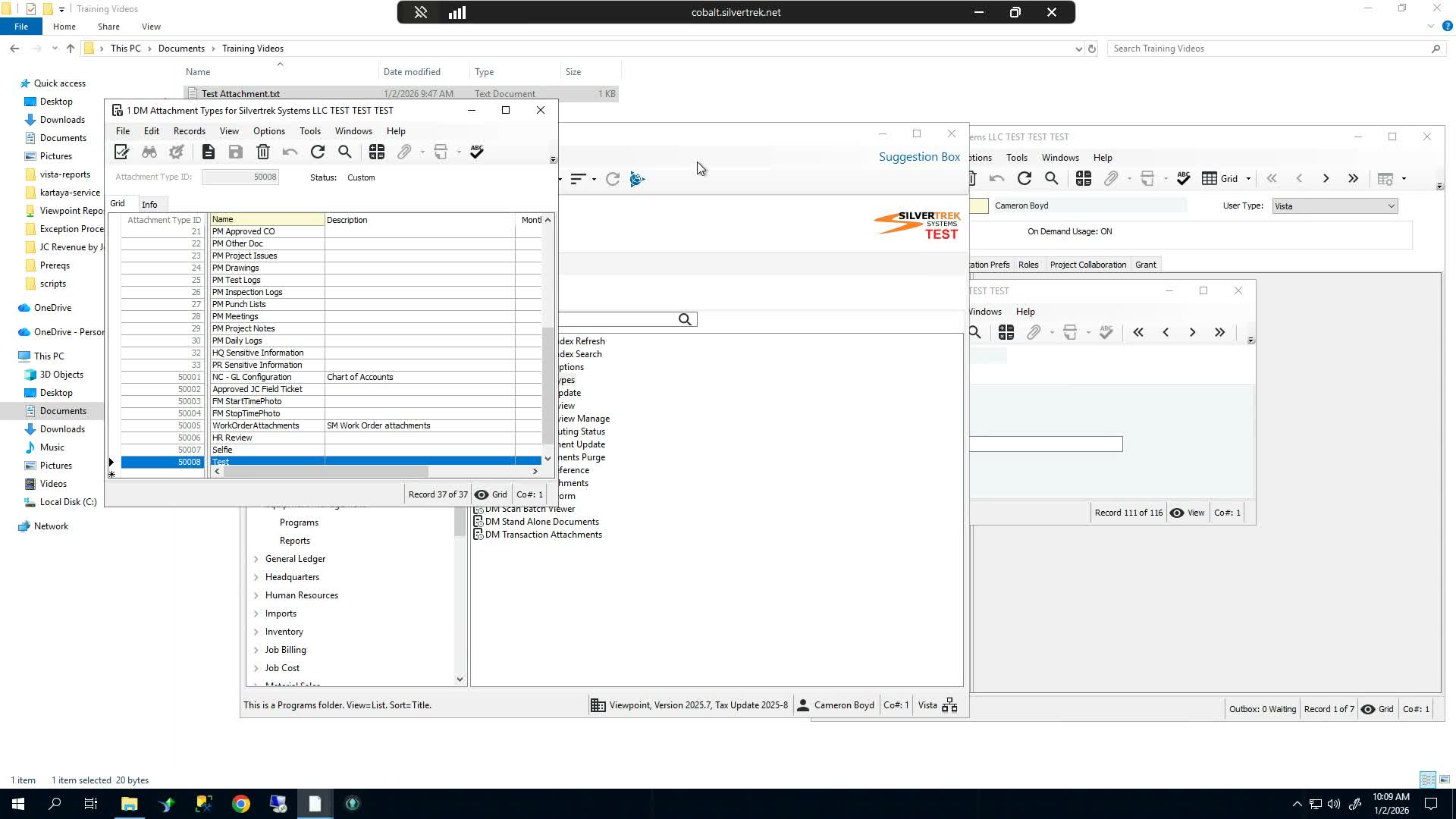
Open a record where you can test attachment access, such as an Equipment record.
Select a test file and attach it to the record.
Open the attachment list to confirm the file is attached.
At this stage, the file may still open if attachment security has not yet been configured.
3. Assign security access to the attachment type 1:20
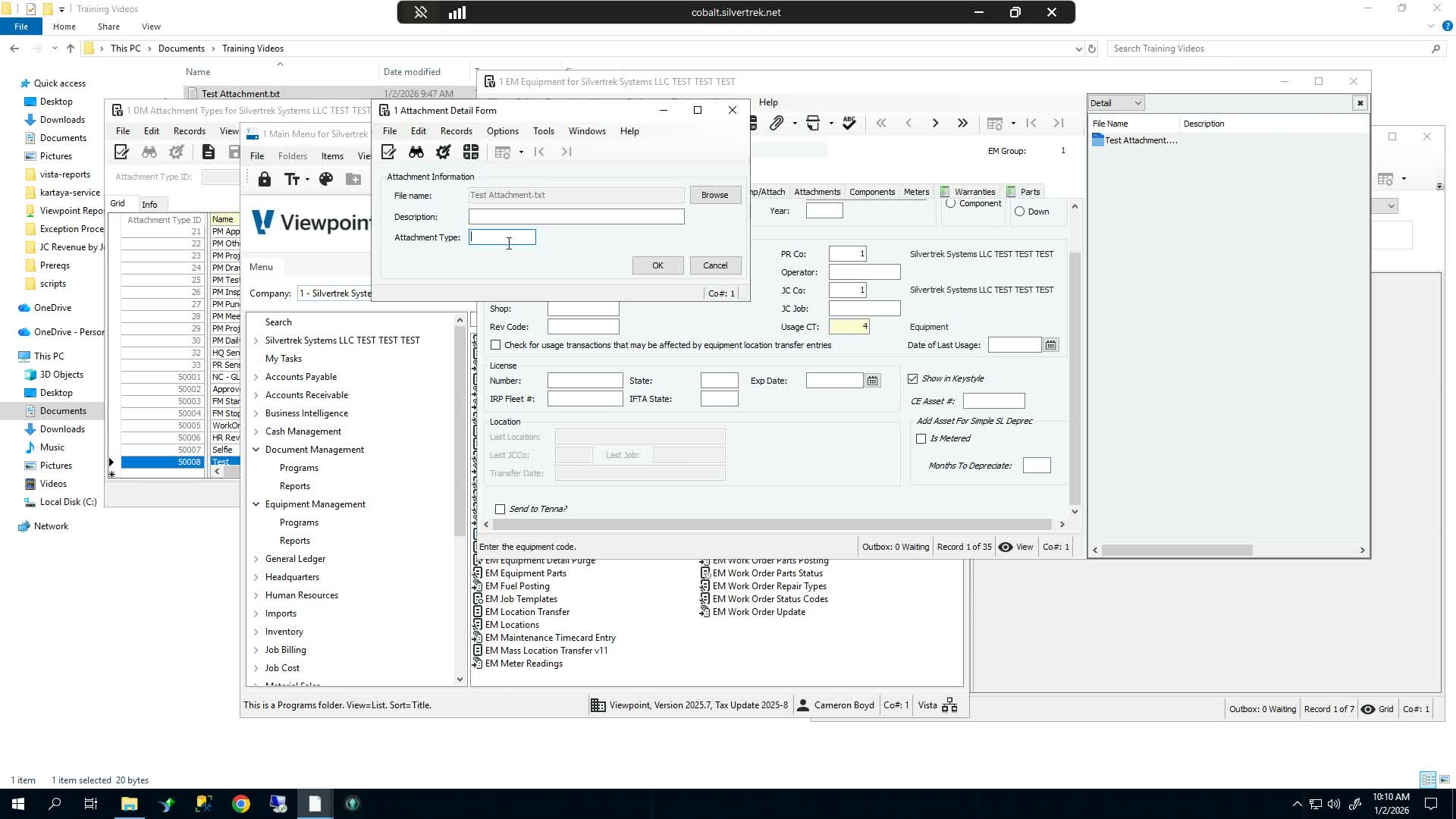
Go to Few Point Administration Programs > VA Attachment Type Security.
Select the attachment type you created, such as Test.
Locate the security group that should have access.
Change the security setting from None to Allowed for that group.
Save or refresh the setting so the access rule takes effect.
4. Apply the attachment type to the file 1:50
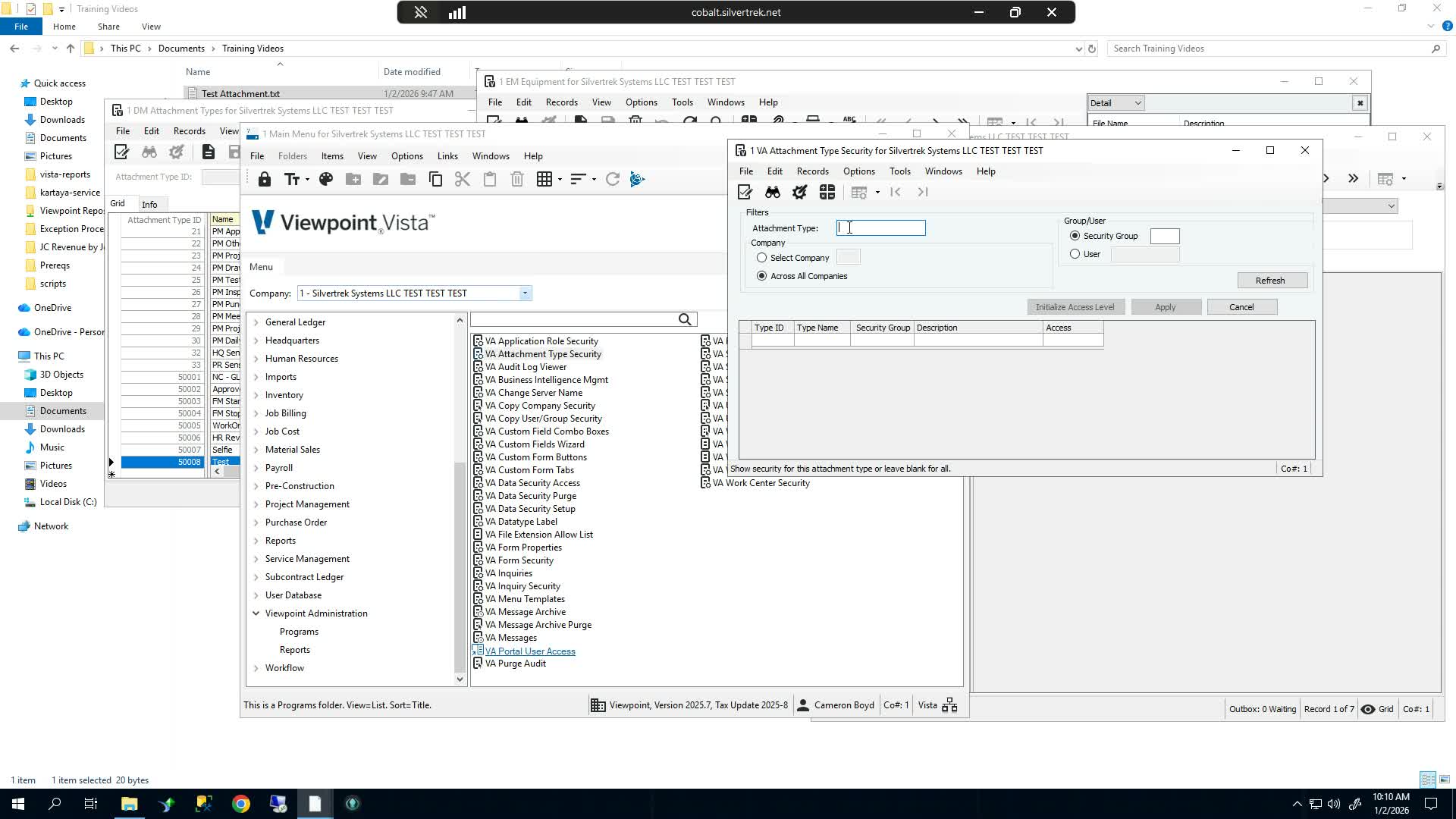
Return to the attached file and open Edit Attachment.
Use the Attachment Type lookup to select the secured attachment type.
Confirm the attachment type is now available in the lookup.
Save the attachment changes.
Verify the file is now associated with the secured attachment type.
5. Test access by removing unauthorized group membership 2:19
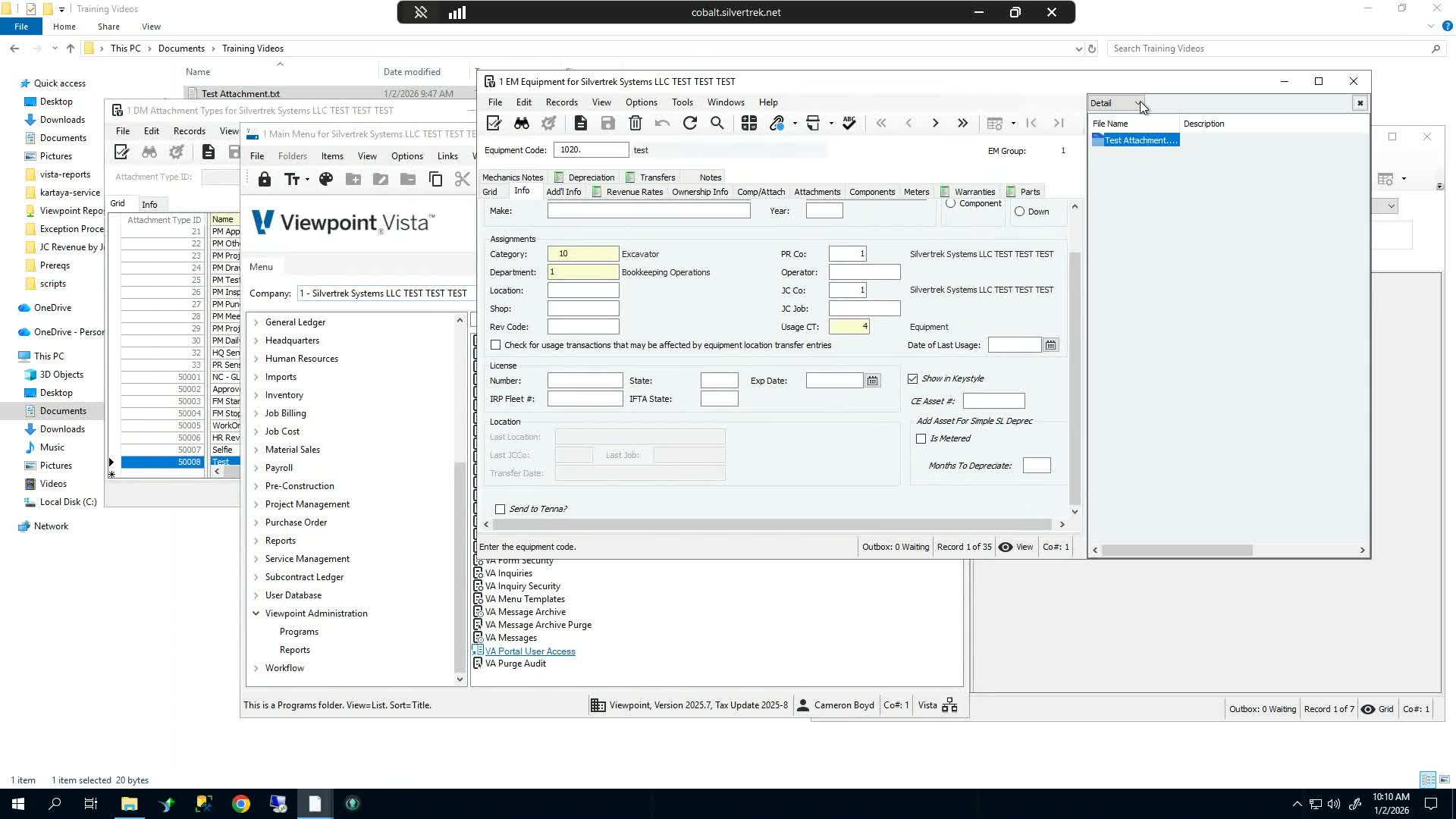
Open the user record for the test user.
Remove the user from any security group that currently grants access to the attachment type.
Save the user’s security group changes.
Attempt to open the attachment again.
Confirm the system blocks access and displays an error indicating the user does not have permission.
6. Restore access by granting the correct security group 2:44
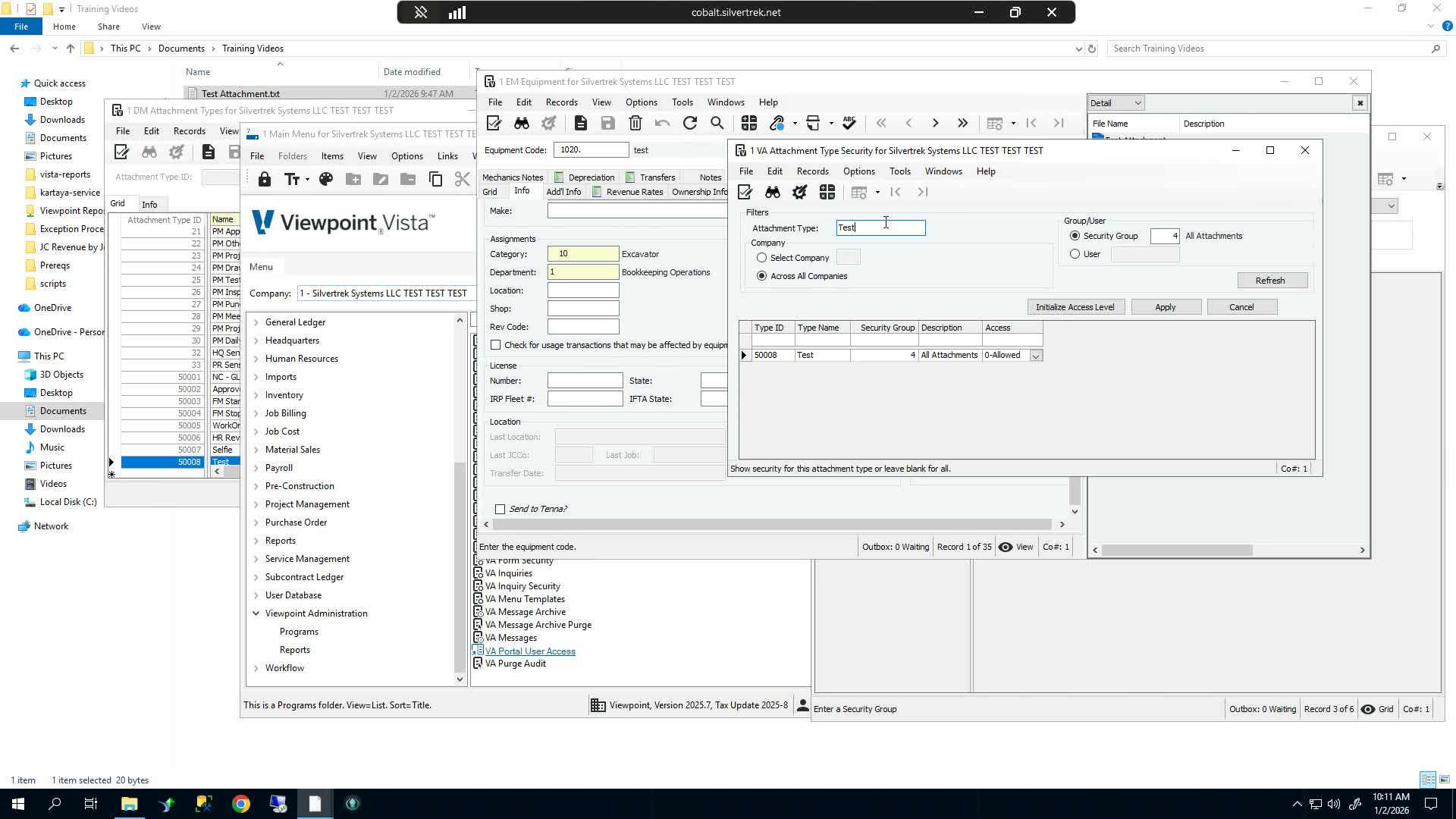
Return to VA Attachment Type Security.
Select the same attachment type.
Ensure the intended security group is set to Allowed.
Save or refresh the configuration.
Re-add the user to the authorized security group if needed.
Open the attachment again to confirm access is restored.
Cautionary Notes
Ensure the attachment type is created as secured before testing security rules.
A user may still be able to open an attachment if they belong to another group that already has access.
If the attachment type does not appear in the lookup, verify that security has been assigned in VA Attachment Type Security.
Always test with a user account that does not have overlapping permissions to confirm the security is working correctly.
Tips for Efficiency
Use a simple test attachment type name, such as Test, when validating the process.
Test security changes with a non-production user account to avoid affecting real users.
After changing security settings, refresh the screen or reopen the record to ensure the latest permissions are applied.
Keep a record of which security groups are allowed for each attachment type to simplify future maintenance.
Link to Loom
Was this article helpful?
That’s Great!
Thank you for your feedback
Sorry! We couldn't be helpful
Thank you for your feedback
Feedback sent
We appreciate your effort and will try to fix the article