EM Warranties in Vista is used to track and manage warranty information for equipment and its components, including warranty coverage, expiration dates, and other details to determine whether equipment repairs or replacements may be covered under warranty.
1-Go to Equipment Management>Programs>EM Warranties
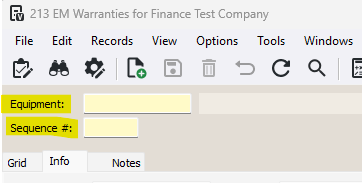
2-Enter the Equipment number and enter a + sign into Sequence #
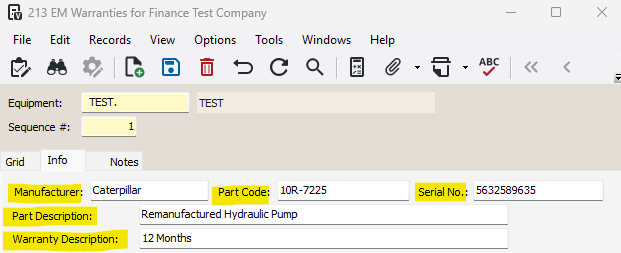
3-Enter the Manufacturer, Part Code, Serial Number, Part Description, and Warranty Description.
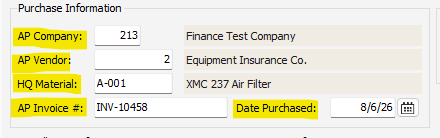
4-In the Purchase Information section, enter the AP Company, AP Vendor, HQ Material, AP Invoice #, and Date Purchased.
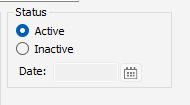
5-In the Status section, select the current status of this warranty. If Inactive, specify the date the warranty became inactive.
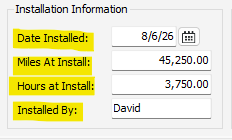
6-In the Installation Information section, specify the Date Installed, Miles At Install, Hours at Install, and Installed By.
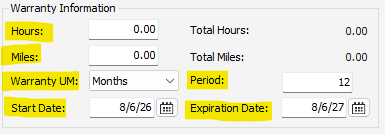
7-In the Warranty Information section, specify the warranty details. If there are Hours and/or Miles included in the warranty detail, add the amounts. In Warranty UM, select Days, Months, or Years and in Period enter the amount of UM. Enter in the day the warranty starts and ends in Start Date and Expiration Date.
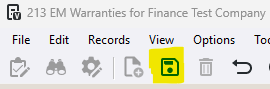
8-Press Save
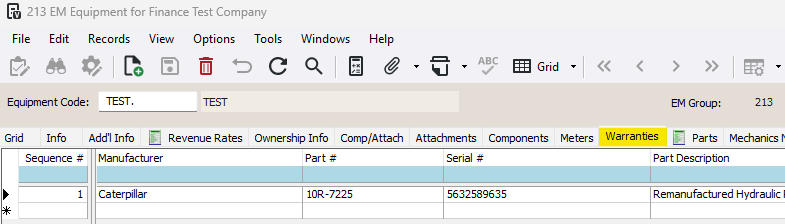
***You can also view/maintain warranties in Equipment Management>Programs>EM Equipment on the Warranties tab
Was this article helpful?
That’s Great!
Thank you for your feedback
Sorry! We couldn't be helpful
Thank you for your feedback
Feedback sent
We appreciate your effort and will try to fix the article