Assigning holds can be done in several ways depending on the situation. Holds can be applied directly to an invoice, to multiple invoices at once, or through a vendor. This flexibility allows you to prevent payments at different stages of the AP process until the hold is released.
TABLE OF CONTENTS
- Assign a Hold Code While Entering AP - AP Transaction Entry, AP Unapproved Invoice Entry, AP Recurring Invoices
- Assign a Hold Code on All Vendor Invoices - AP Vendor Hold Codes, AP Vendors
- Assign Hold Codes on a Batch of Invoices - AP Hold and Release
- Assign a Hold Code to a Specific Invoice or Line - AP Payment Workfile
- Helpful Reports - AP Hold Detail, AP Vendor Hold Codes
Assign a Hold Code While Entering AP
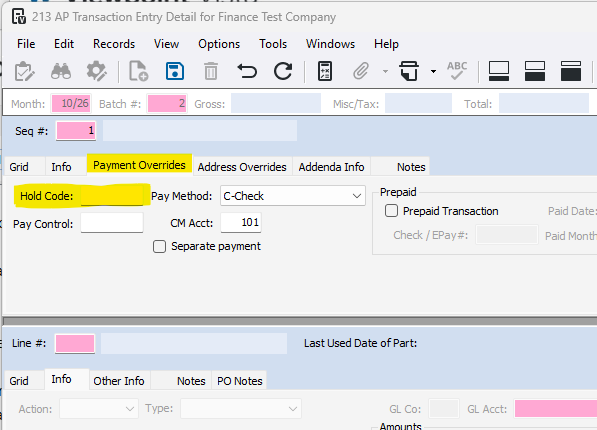
Accounts Payable>Programs>AP Transaction Entry
Go to the 'Payment Overrides' tab and add a Hold Code
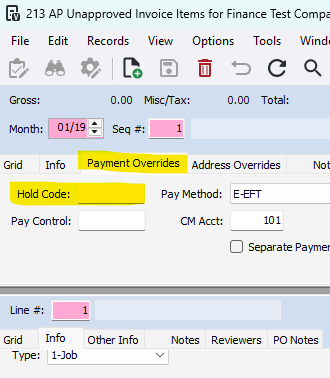
Accounts Payable>Programs>AP Unapproved Invoice Entry
Go to the 'Payment Overrides' tab and add a Hold Code
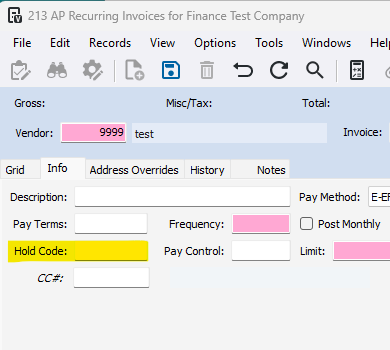
Accounts Payable>Programs>AP Recurring Invoices
On the Info tab, you can assign a hold code that will be assigned each time the recurring invoice is posted
Assign a Hold Code on All Vendor Invoices
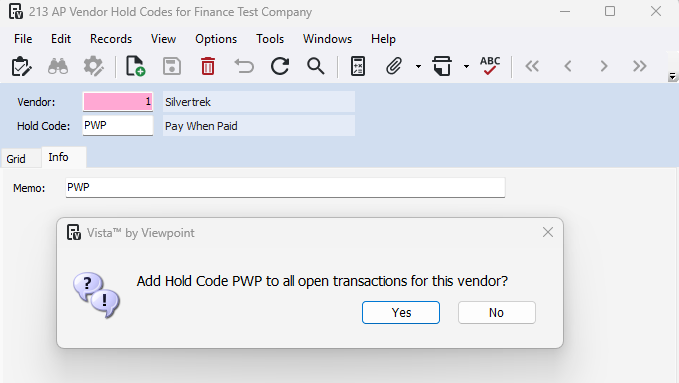
Accounts Payable>Programs>AP Vendor Hold Codes
1- Enter the Vendor and the hold code you want to assign
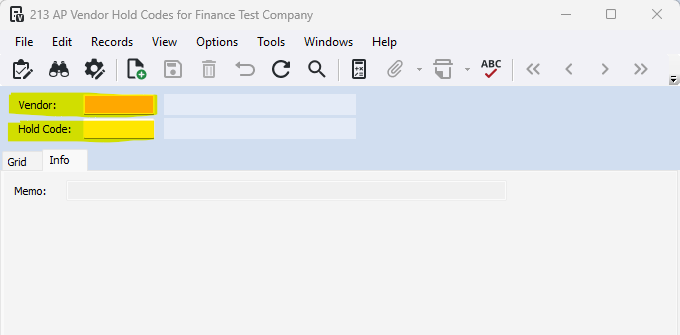
2- Add a Memo
3-Press Save
4- Select YES if you want to apply the hold code on all open invoices, press NO to apply only to future invoices
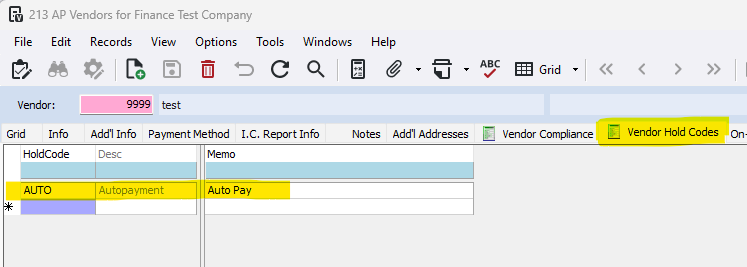
Accounts Payable>Programs>AP Vendors
***AP Vendor Hold Codes syncs to the Vendor Hold Codes Tab in AP Vendors and vice versa
1-Navigate to the vendor
2-Go to the 'Vendor Hold Codes' tab
3-Assign a hold code(s)
Assign Hold Codes on a Batch of Invoices
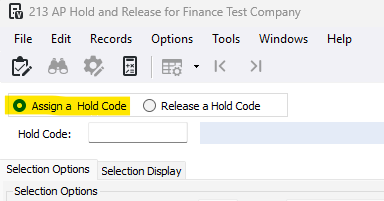
Accounts Payable>Programs>AP Hold and Release
1- Select 'Assign a Hold Code'
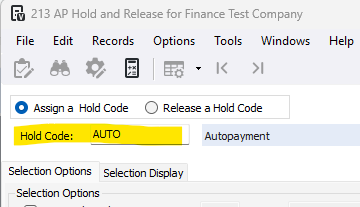
2- Enter in the Hold Code you want to assign
3- Use filters to narrow down the invoices you are assigning a hold code to
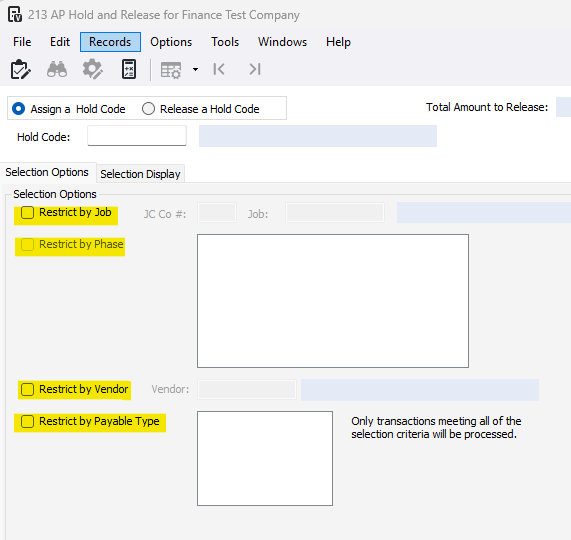
3- Press Update
Assign a Hold Code to a Specific Invoice or Line
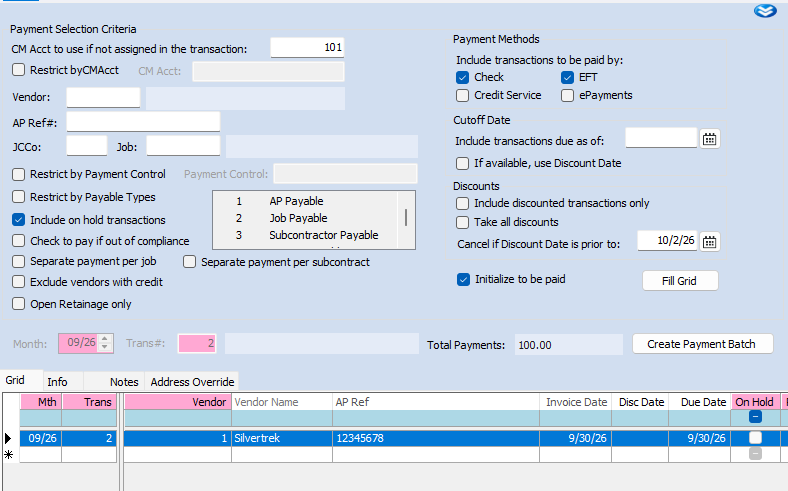
Accounts Payable>Programs>AP Payment Workfile
1-Use the filters to pull in the AP Invoice
2- Select the invoice that you want to put a hold code on
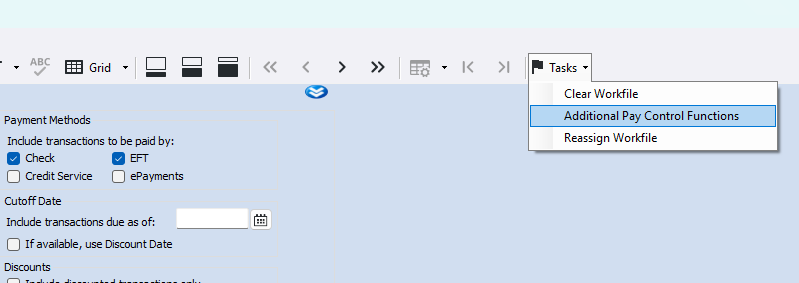
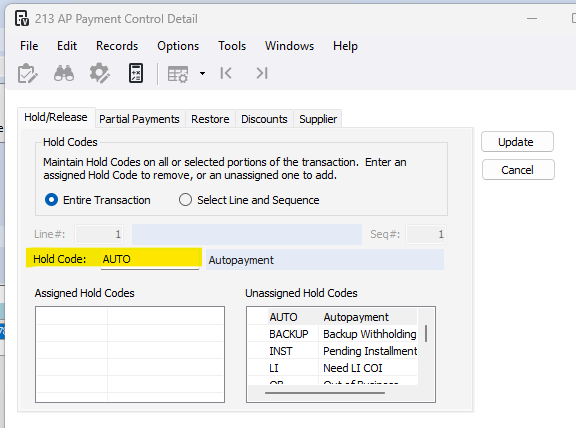
3- Go to the 'Tasks' flag and press 'Additional Pay Control Functions'
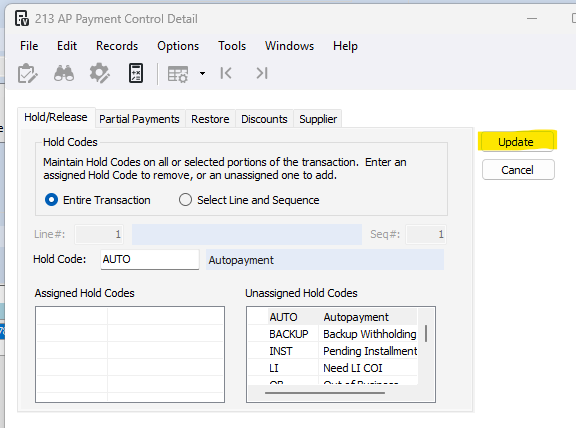
4- Select to put the hold code on the entire transaction or a particular line/sequence
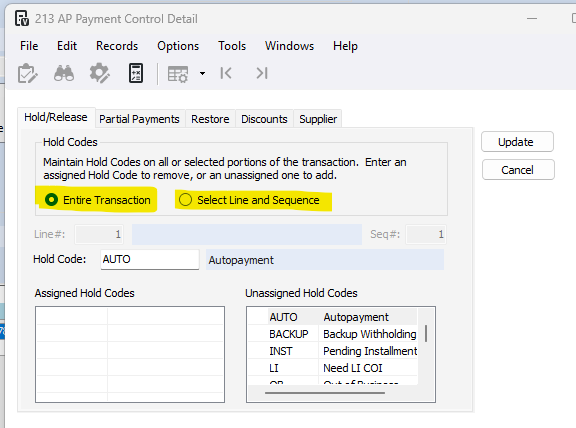
5- Enter the hold code you want assigned
6- Press Update
Helpful Reports
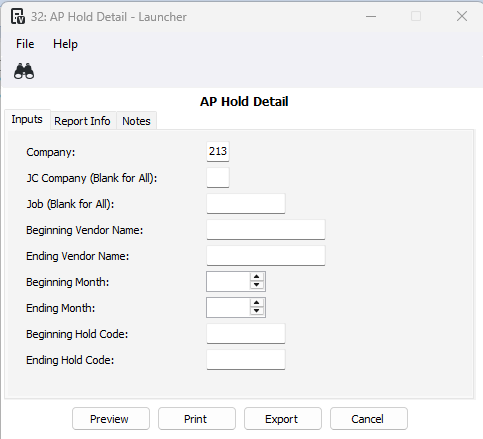
Accounts Payable>Reports>AP Hold Detail
Enter any filters to view specific information or pull as is to view every invoice on hold
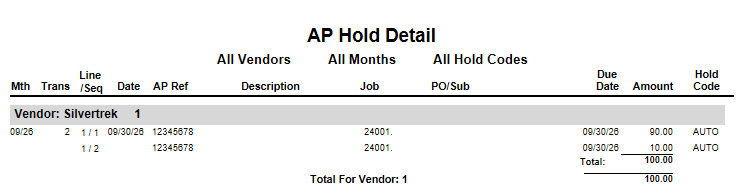
The report shows detailed information for AP transactions that have been placed on hold. The report shows the vendor, month, transaction number, line/sequence, date, AP reference, description, job, PO/subcontract, due date, amount, and hold code.
Accounts Payable>Reports>AP Vendor Hold Codes
Enter any filters to view specifc information or pull as is to view all hold codes assigned to vendors
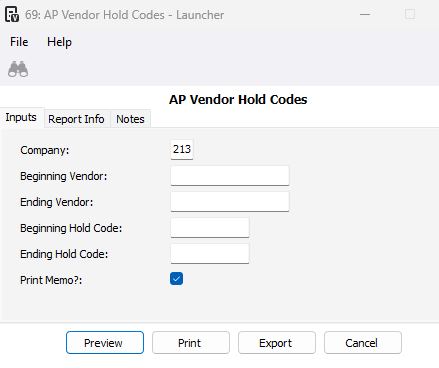
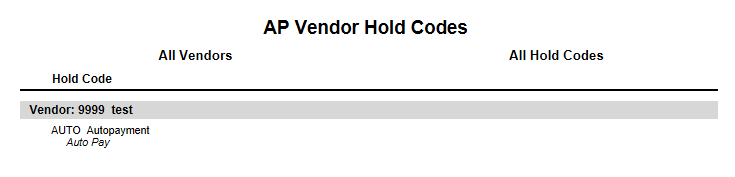
This report shows vendors that have hold codes assigned to them, including the vendor, hold code, and hold memo. It is useful for reviewing which vendors are currently on hold and identifying the reason payments or transactions for those vendors may be restricted.
Was this article helpful?
That’s Great!
Thank you for your feedback
Sorry! We couldn't be helpful
Thank you for your feedback
Feedback sent
We appreciate your effort and will try to fix the article