1-Go to Accounts Payable>Programs>AP Vendors
2-Navigate to the Vendor you are setting up for EFT payments
3-Go to the 'Payment Method' tab on that vendor
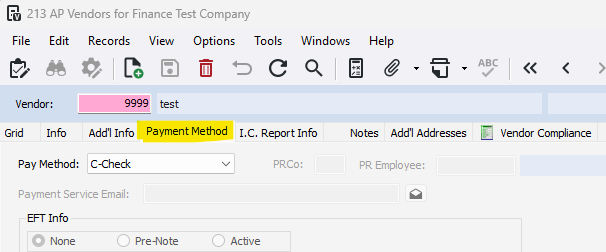
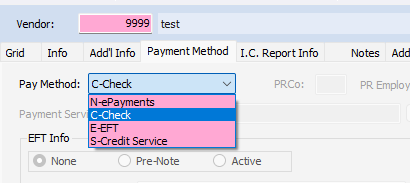
4- Change the Pay Method to E-EFT
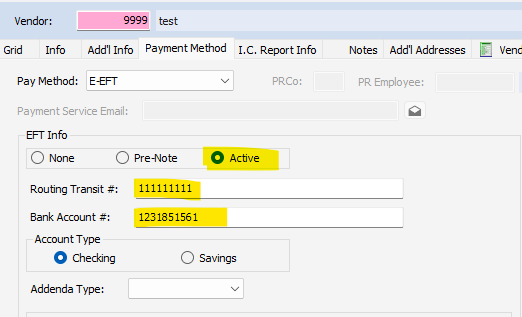
5- Check the Active box
6- Enter in the Routing Transit # and Bank Account #
7- Press Save
To Setup a Vendor for a Pre-Note
1-Go to Accounts Payable>Programs>AP Vendors
2-Navigate to the Vendor you are setting up for EFT payments
3-Go to the 'Payment Method' tab on that vendor
4- Change the Pay Method to E-EFT
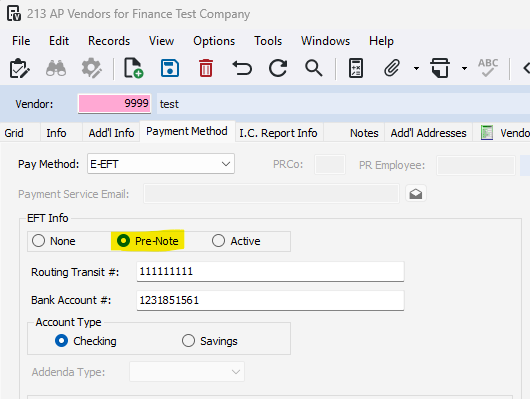
5-Check the Prenote box and enter in the Routing Transit # and Bank Account Number. Press save.
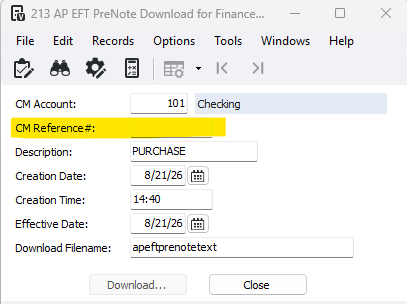
6- Go to Accounts Payable>Programs>AP EFT PreNote Download
7- Assign a CM reference. This will not create a payment, this is to ensure the EFT information will be routed to the correct bank.
8- Press Download and pick a folder and file name in your files.
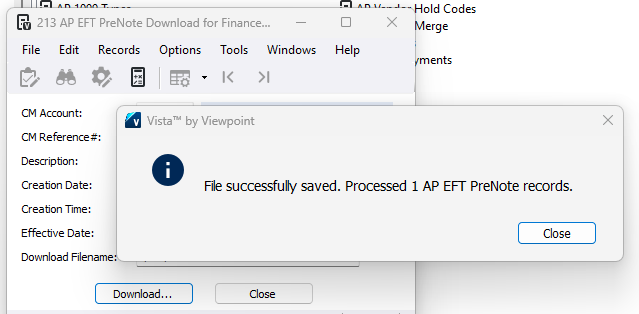
9- Once you receive this pop up, you can navigate to your files and open the NACHA file.
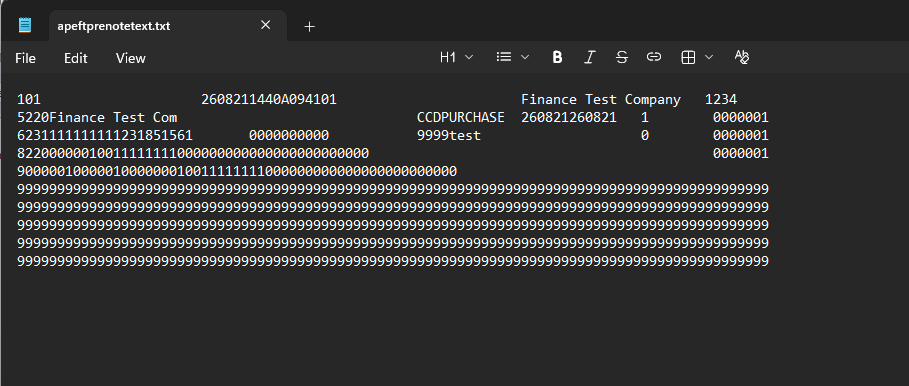
10- The file will be similar to the screenshot below, this will be uploaded to your bank
Was this article helpful?
That’s Great!
Thank you for your feedback
Sorry! We couldn't be helpful
Thank you for your feedback
Feedback sent
We appreciate your effort and will try to fix the article