Setting a Vendor for 1099 Reporting
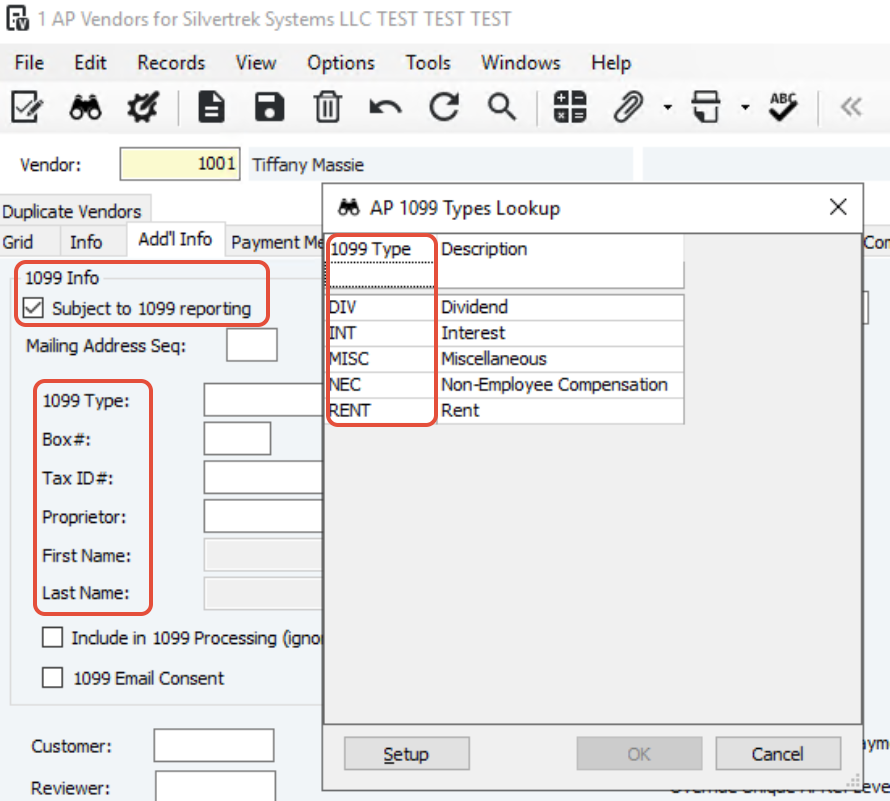
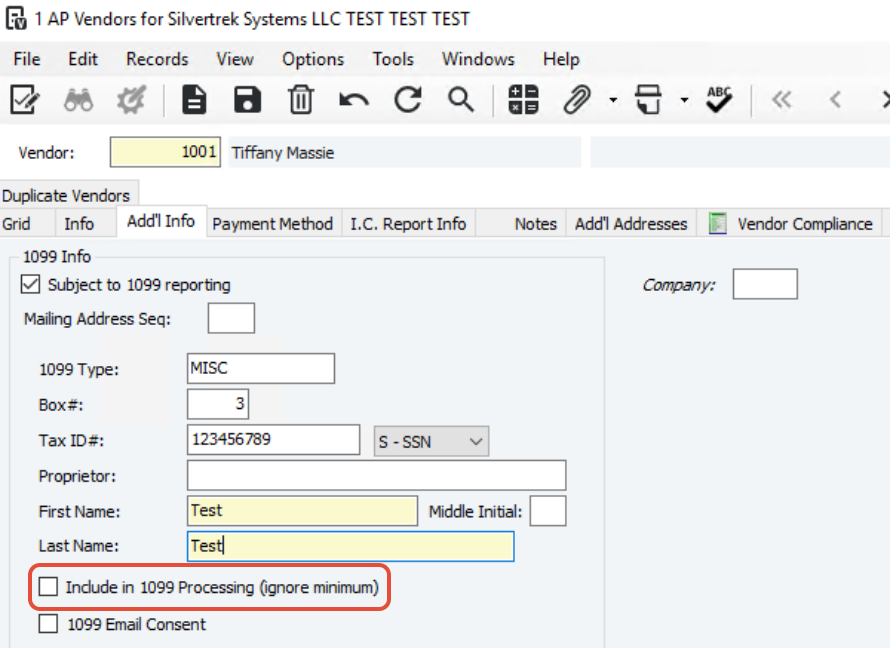
Check Subject to 1099 Reporting on the Add’l Info tab of the AP Vendors form.
This ensures all transactions for the vendor are flagged for 1099 totals.
Once checked, fields for 1099 Type, Box #, Proprietor, Include in 1099 Processing, and Mailing Address Seq are enabled.
Enter the 1099 Type to track amounts for this vendor (press F4 for a list).
Note:
Only 1099 types MISC, NEC, INT, or DIV can be used if the vendor’s amounts should appear on printed or electronic 1099s.
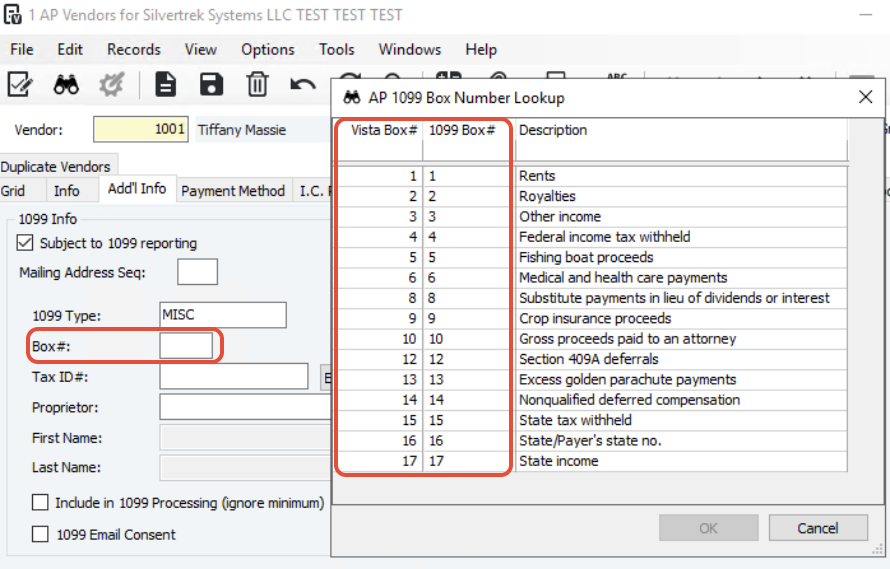
After selecting the type, choose the box number. F4 lookup will show only boxes valid for that type.
Tax ID#
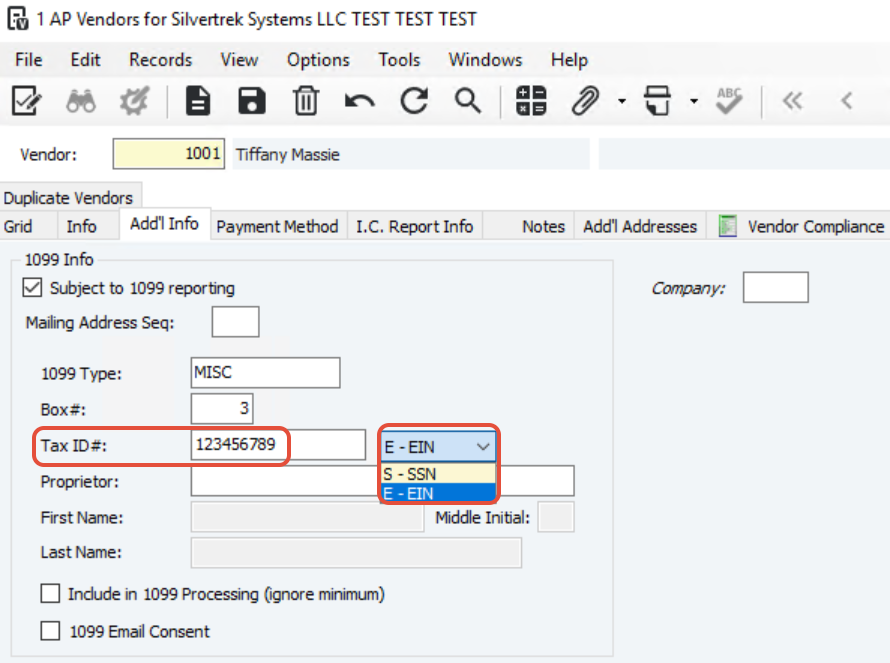
Enter the vendor’s SSN or EIN (federal tax ID) for the 1099 form.
Use the drop-down to specify which type of number you entered.
Proprietor Name
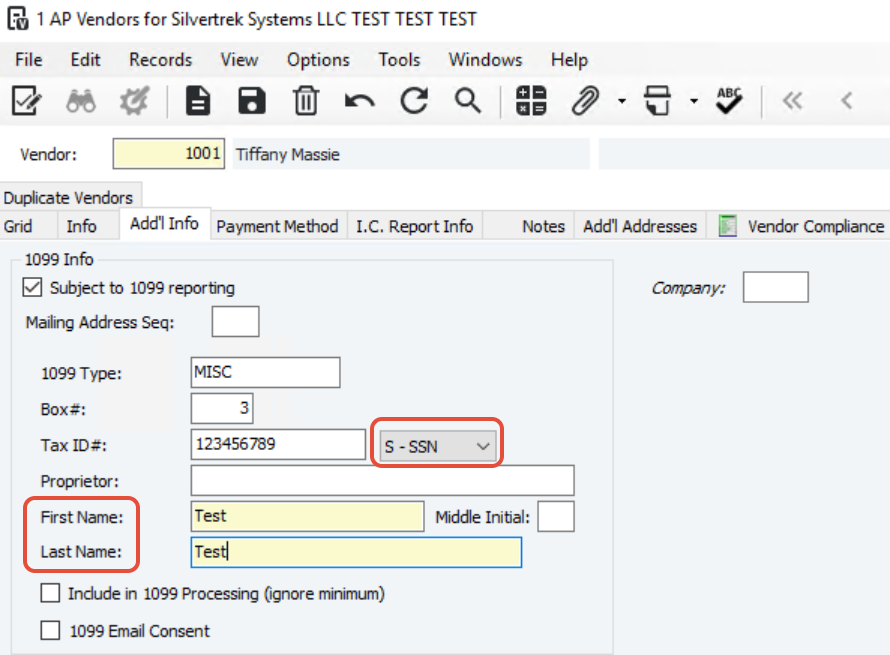
Enter the owner’s name as “Last Name, First Name” for 1099 filing.
Used with the vendor name to reconcile the Tax ID#.
First and Last Name fields must be filled if using the SSN option.
Include in 1099 Processing
Check this box to include the vendor’s totals in 1099s even if payments are below the minimum.
Note:
If the box isn’t checked, 1099s are printed only if payments meet or exceed the Minimum Payment Amount.
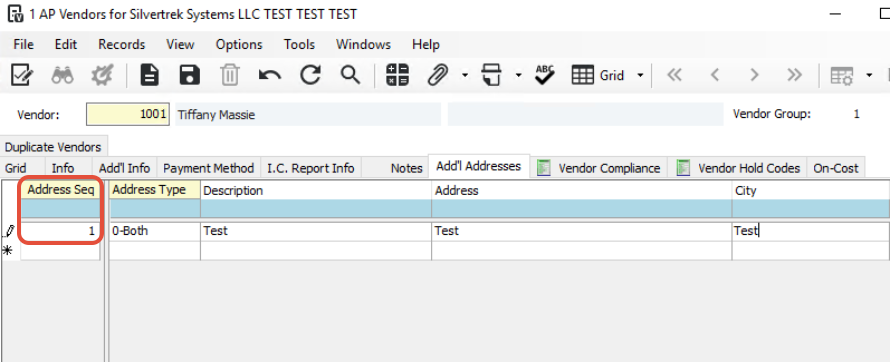
Mailing Address Seq:
Enter a sequence or press F4 to select an address other than the vendor’s payment address.
The system uses this address for printed or electronic 1099s.
1099 Setup Complete
All new invoices for this vendor will follow the 1099 settings you selected.
Note:
Changes made later do not affect existing invoices.
To update existing invoices, you must do so manually in AP Transaction Entry, AP Unapproved Invoice Entry, or AP 1099 Processing.
Was this article helpful?
That’s Great!
Thank you for your feedback
Sorry! We couldn't be helpful
Thank you for your feedback
Feedback sent
We appreciate your effort and will try to fix the article