Standard Operating Procedure for JC Job Phases
Objective
This SOP outlines the steps to access and manage JC job phases within the job cost module, ensuring accurate tracking and linking of job phases to contract items.
Key Steps
1. Accessing JC Job Phases 0:01
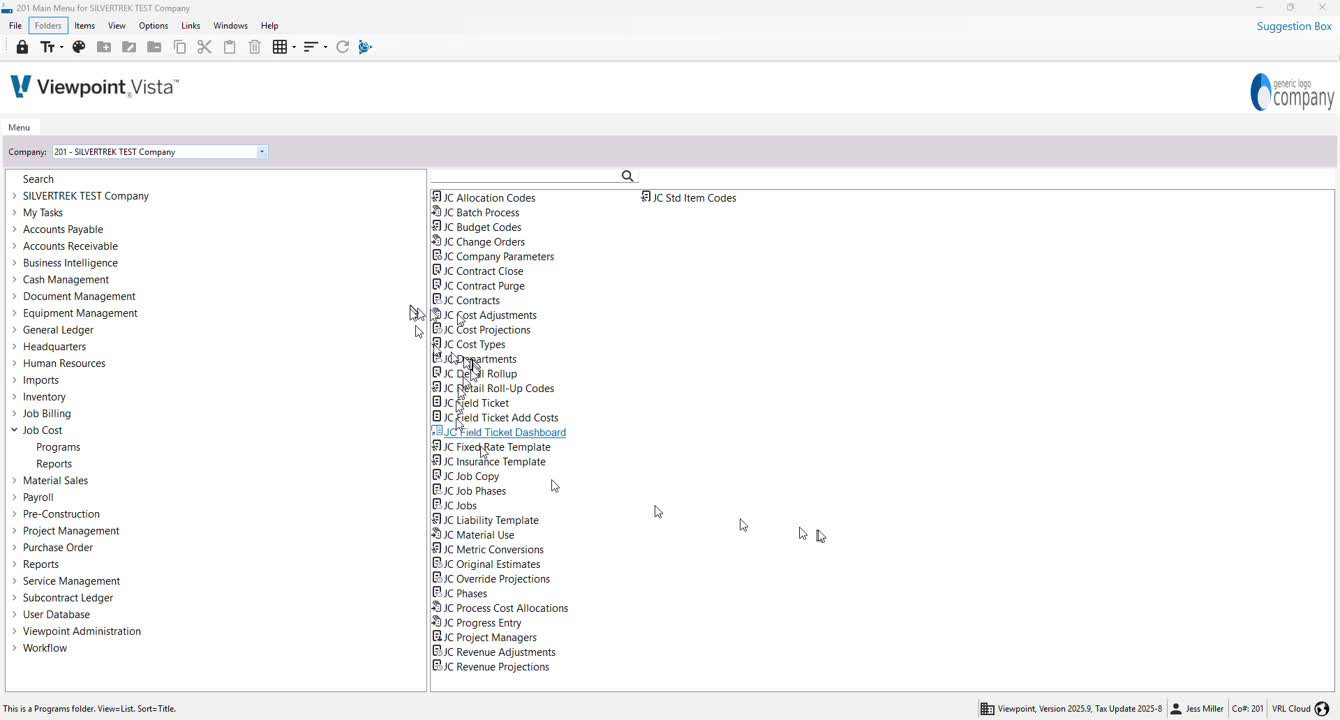
Navigate to the job cost module in the programs section.
Locate the JC jobs option.
Click on the phases tab to view existing phases.
2. Opening the JC Job Phases Form 0:11
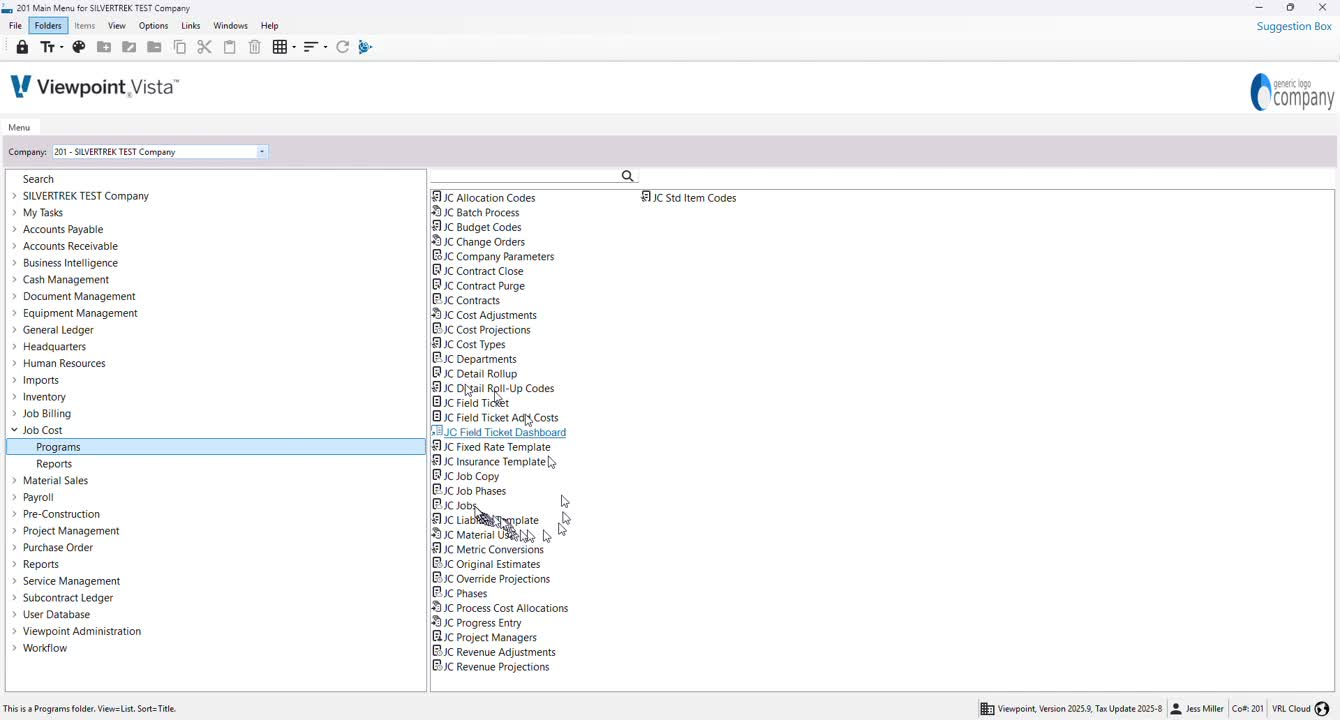
Double-click on the phases tab to open the JC job phases form.
Here, you can view and manage job phases.
3. Adding New Phases 0:25
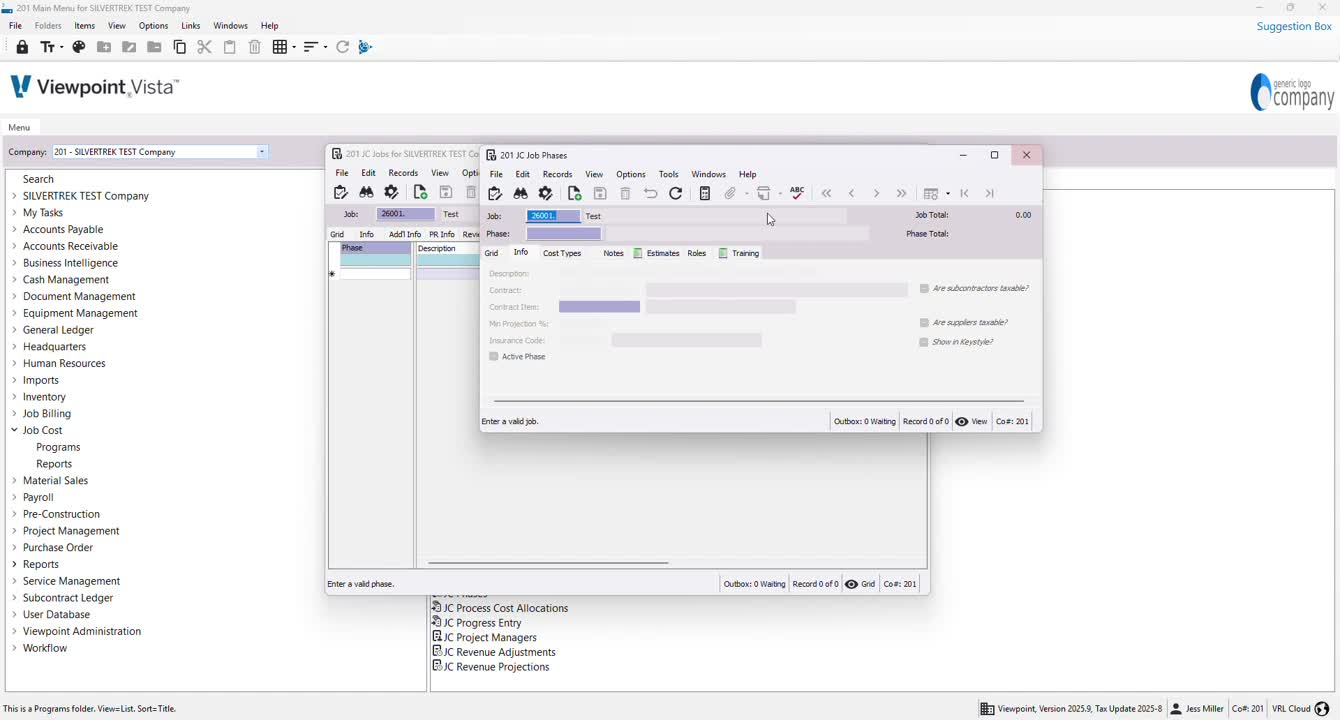
In the JC job phases form, select your job.
Click on the phase option to add any new phases as needed.
4. Linking Phases to Contract Items 0:40
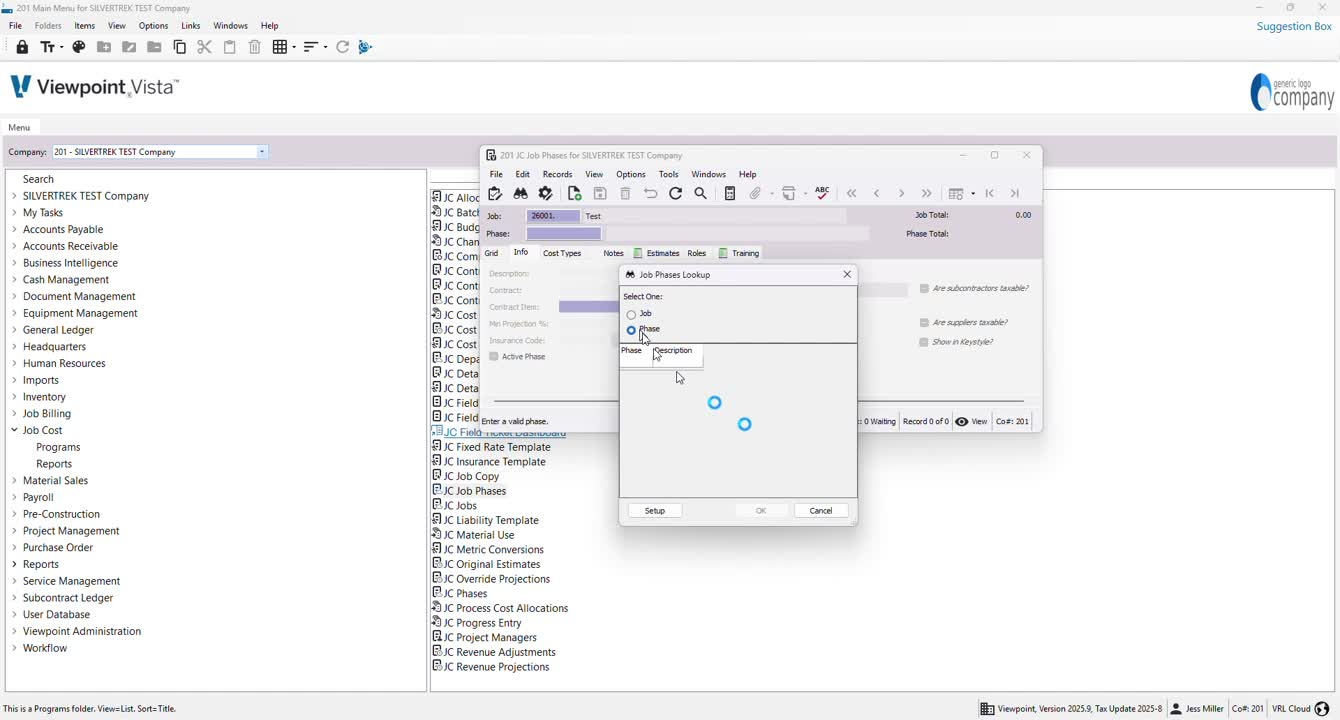
Ensure that each new phase is linked to the appropriate contract item.
5. Using Grid View for Efficiency 0:57
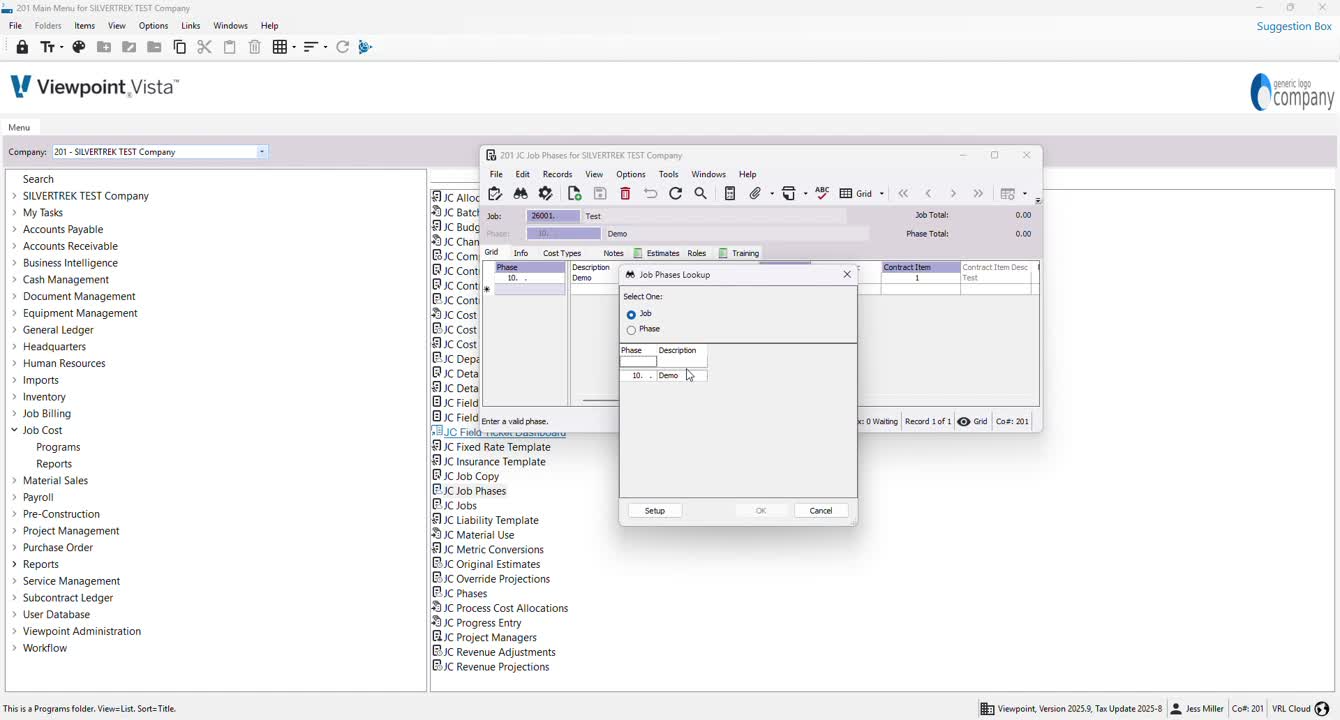
Switch to grid view for faster data entry.
Input phase numbers directly into the grid.
6. Adding Contract Numbers 1:12
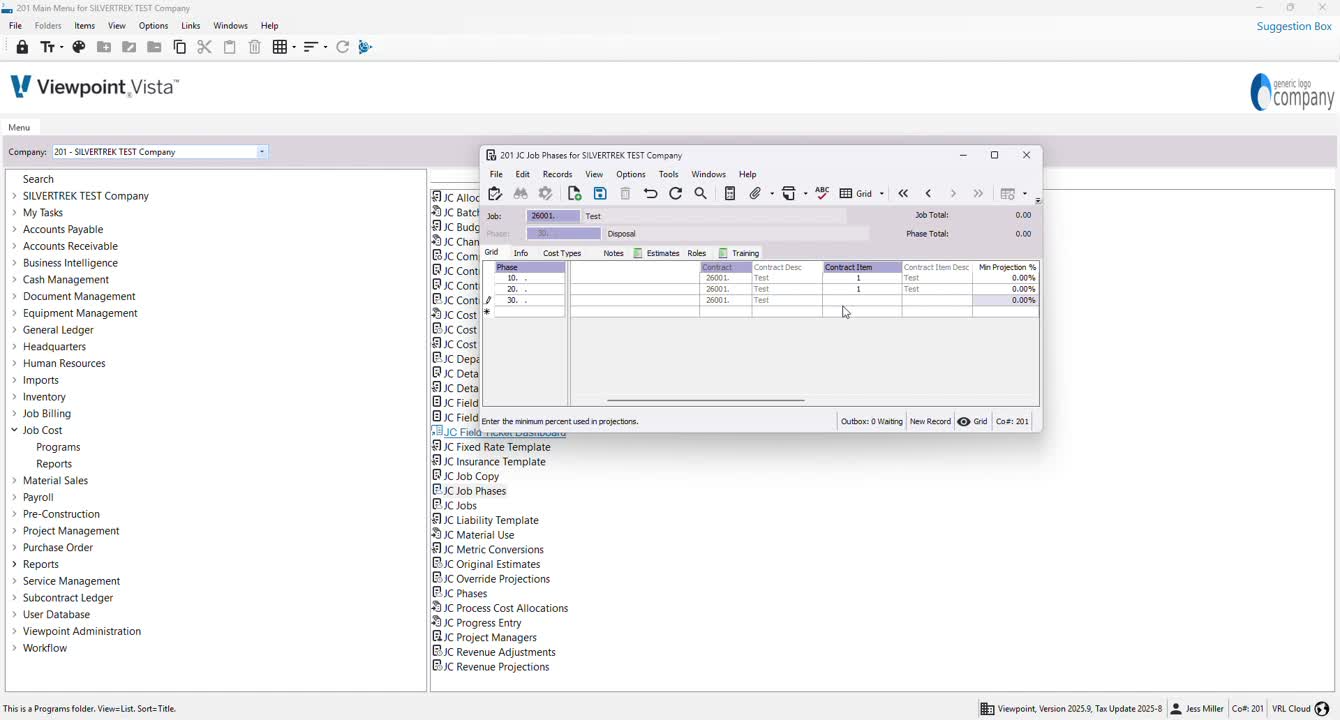
Enter the corresponding contract number for each phase in the grid.
7. Adding Cost Types 1:31
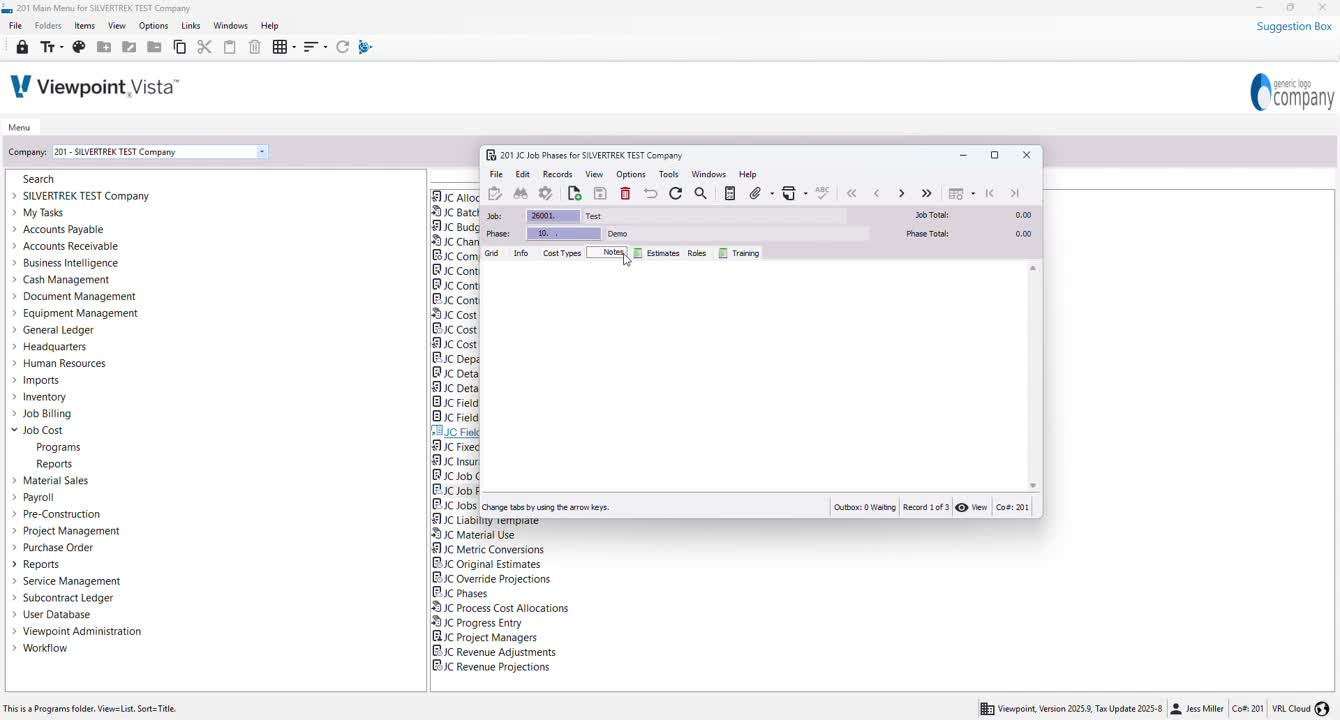
Navigate to the cost types section to add any necessary cost types to the phases.
8. Adding Budgets 1:44
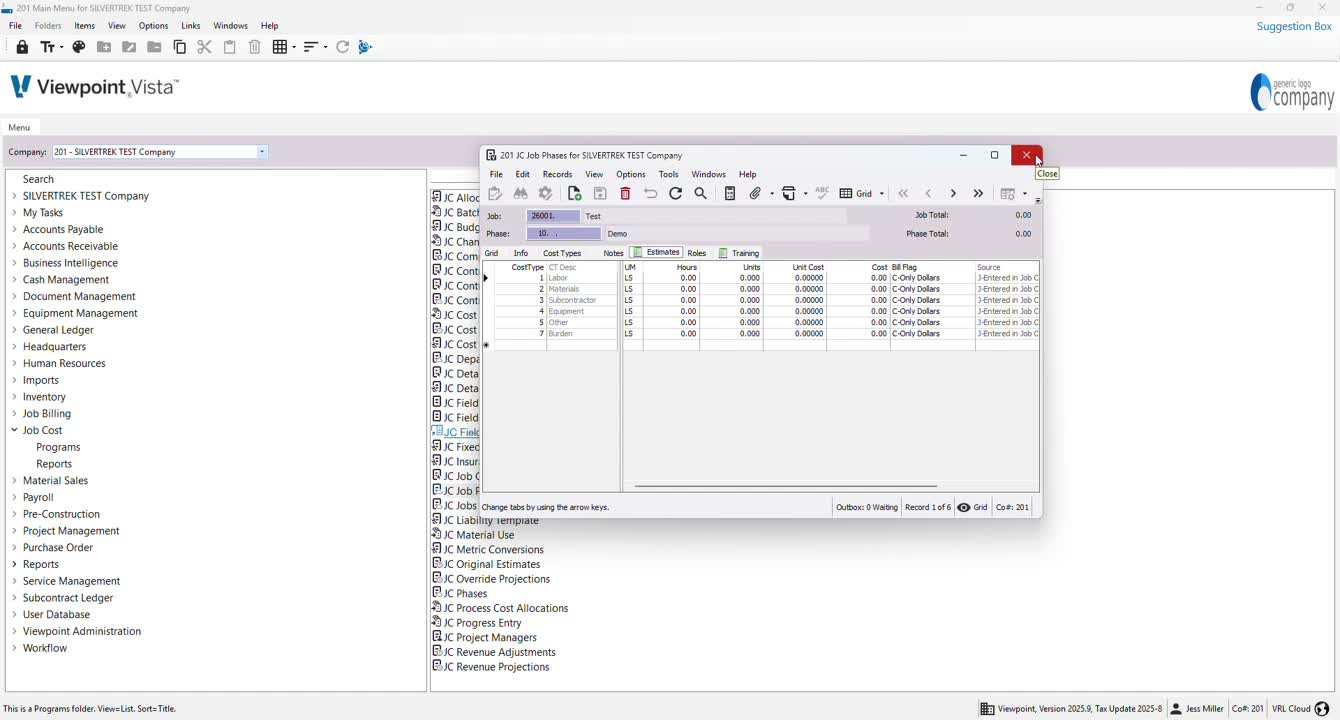
Go to the estimates section to add any budgets related to the job phases.
Cautionary Notes
Always double-check that phases are correctly linked to contract items to avoid discrepancies.
Ensure that all entries are accurate to maintain the integrity of job costing.
Tips for Efficiency
Use grid view for bulk data entry to save time.
Keep a list of common phase numbers and contract items handy for quick reference.
Link to Loom
https://loom.com/share/a983ce890c6e4b05bf7aa0dda506c124
Was this article helpful?
That’s Great!
Thank you for your feedback
Sorry! We couldn't be helpful
Thank you for your feedback
Feedback sent
We appreciate your effort and will try to fix the article