HQ Materials is used to set up and maintain materials used throughout Vista. It provides a centralized list of material codes, descriptions, units of measure, costs, and pricing to ensure consistency when purchasing, tracking inventory, and posting material costs to jobs or equipment.
Enter New Materials:
1-Go to Headquarters>Programs>HQ Materials
2-Enter a unique Material Code
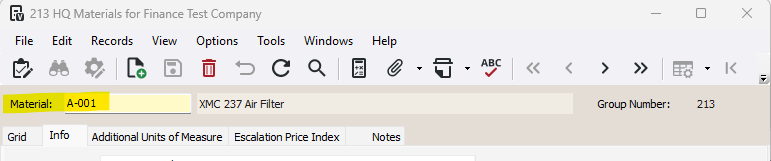
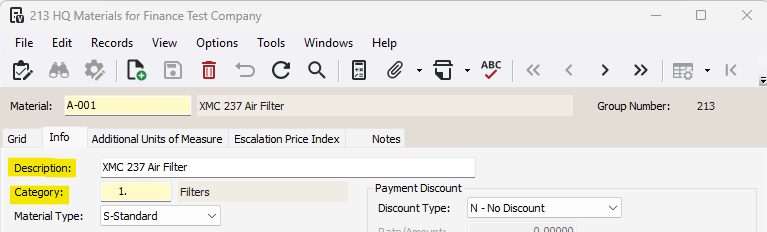
3-Enter the description of the material code and select a category
***See [HQ] HQ Material Categories article for more detail
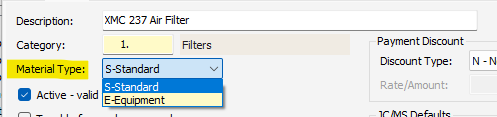
4-Select a Material Type
Standard-Used for jobs, purchase orders, subcontracts, expenses, etc
Equipment-Equipment related material; parts, repair, etc
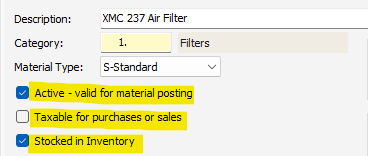
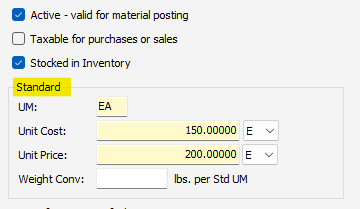
5-Check the checkboxes as they apply
Active - valid for material posting: Check this box to mark the material as active
Taxable for purchases or sales: Check this box if the material is taxable
Stocked in Inventory: Check this box if this is a stocked material (For use with the Inventory Module)
6-In the Standard section, specify the unit of measure (UM), unit cost and unit price
E: Per Each
C: Per Hundred
M: Per Thousand
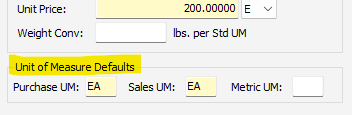
7-In the Unit of Measure Defaults section, specify the default UM.
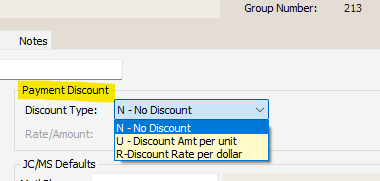
8-In the Payment Discount section, select the discount and the Rate/Amount
N-No Discount: No discount allowed
U-Discount Amt per unit: Discounts calculated based on an amount per unit
R-Discount Rate per dollar: Discounts calculated on a rate (%) of material total
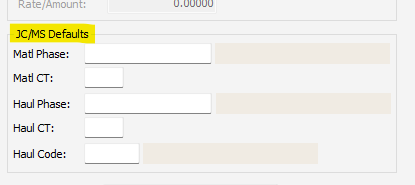
9-In the JC/MS Defaults section,
Matl Phase and CT: Specify the default phase/cost type when costing this material to a job or leave blank if there is no standard
Haul Phase/CT: Specify the default phase/CT when posting haul charges to a job from Material Sales or leave blank to post charges to the same phase as material
Haul Code: Enter default haul code from MS Haul Codes to be used to calculate haul charges. May be overriden.
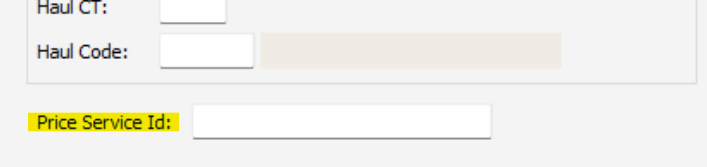
10-If you subscribe to a pricing service, enter the identification number for this material in the Price Service Id field
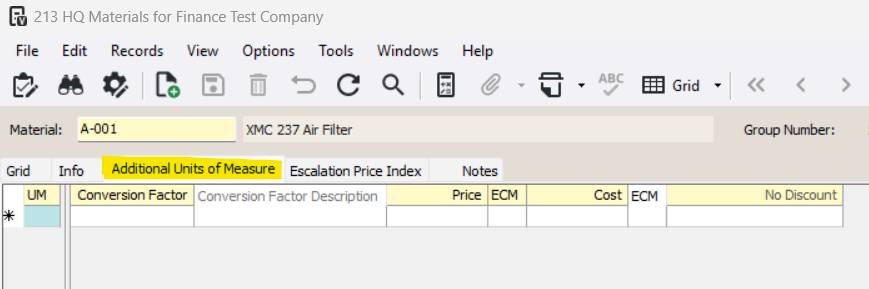
11-Go to the Additional Units of Measure tab to set up any additional measures
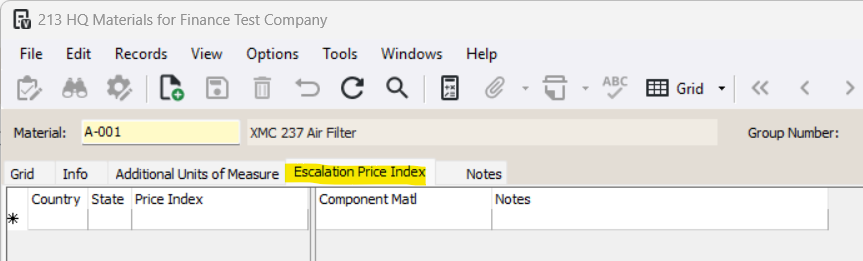
12-You can use the Escalation Price Index tab to assign indexes to a finish material. You will only use this feature for finished good materials having component materials that are eligible for price escalation adjustments.
***See [HQ] HQ Escalation Index article for more detail
Initializing Material
1-Go to Headquarters>Programs>HQ Materials
2-Navigate to the Material you want to initalize
3-Press Initialize Inventory button OR go to File>Initialize Inventory

4-Specify the destination Inventory Company. The company must share the same material group as the current company
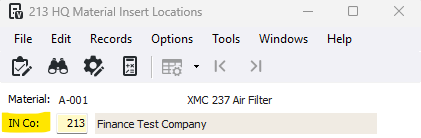
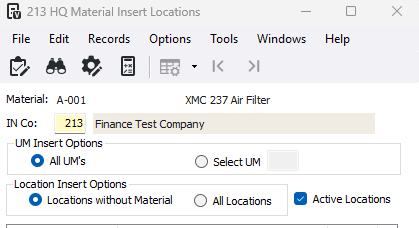
5-In the UM Insert Options and Location Insert Options sections, select filters for locations
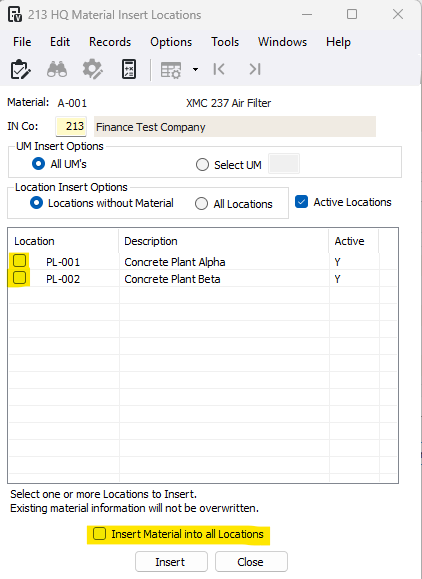
6-Check the box to select the Location or check the Insert Material into all Locations checkbox to select all locations listed in the grid
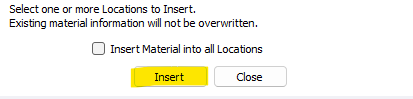
7-Press the Insert button
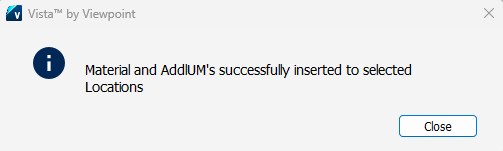
8-Materials were successfully added
Was this article helpful?
That’s Great!
Thank you for your feedback
Sorry! We couldn't be helpful
Thank you for your feedback
Feedback sent
We appreciate your effort and will try to fix the article