GL Auto Reversal Entry is used to create journal entries that automatically reverse in a future month. This is commonly used for accruals and temporary adjustments to ensure expenses and revenue are recorded in the correct accounting period without requiring manual reversing entries.
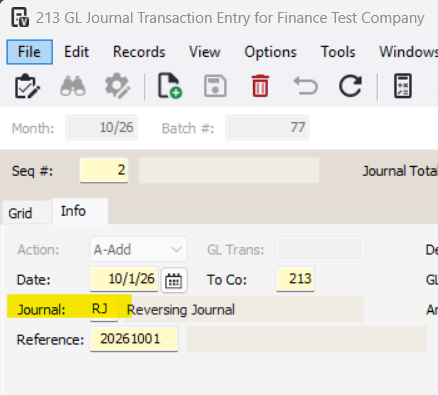
Before using GL Auto Reversal Entry, you must first create and post a journal entry in GL Journal Transaction Entry using a reversing journal. Once the original entry is posted, GL Auto Reversal Entry can be used to generate the reversing entry in the appropriate accounting month.
1-Go to General Ledger>Programs>GL Auto Reversal Entry
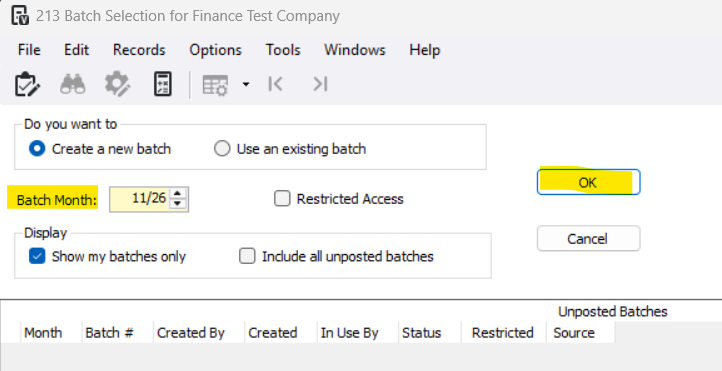
2-Choose the month you want to post the reversing entry in. Press OK
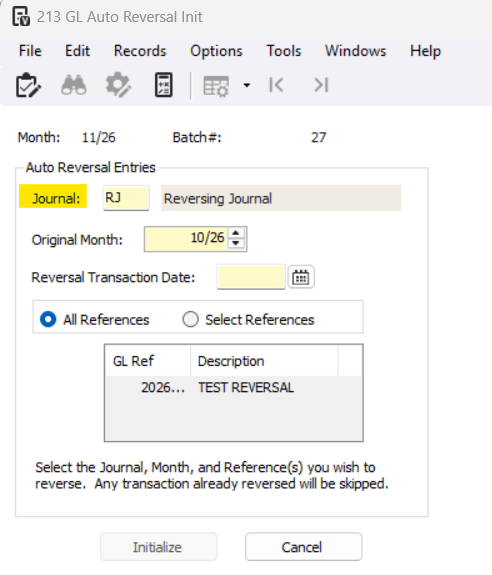
3-Enter the reversing journal
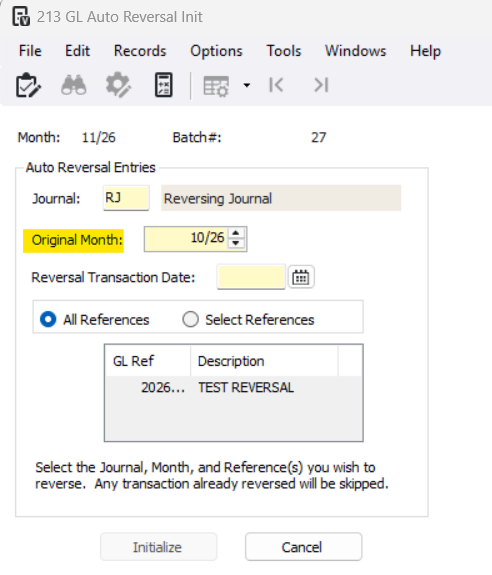
4-Enter the Original Month
5-Enter the date for the reversing transaction
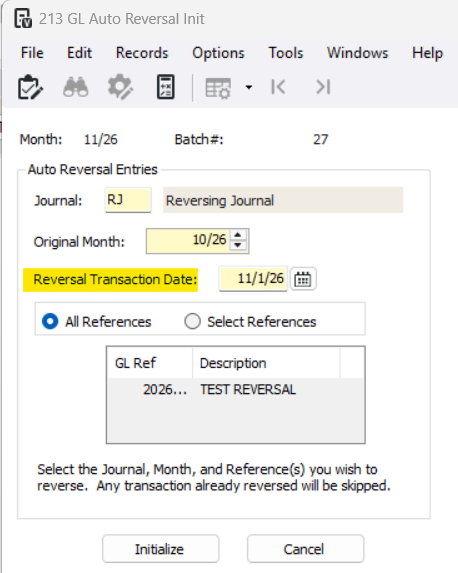
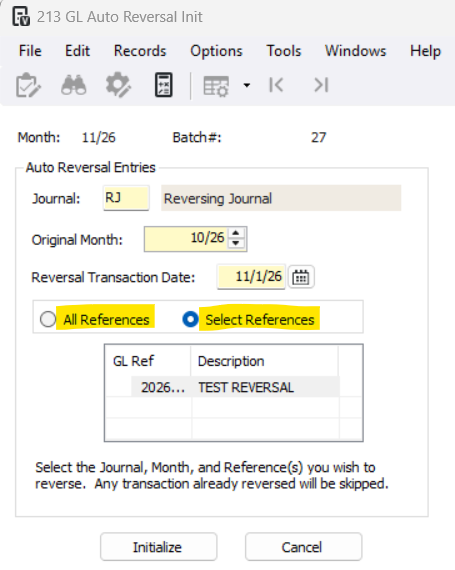
6-Check to post All References or Select References
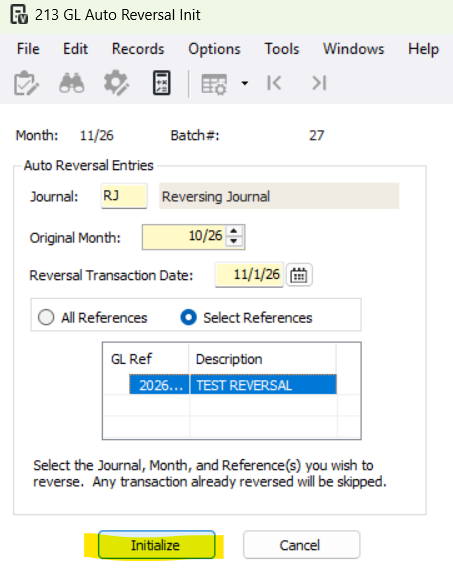
If you press Select References, make sure to click on the GL Ref you want to post (it will highlight blue)
7-Press Initalize
8-Review your reversing entries. You make make any changes you need to now.
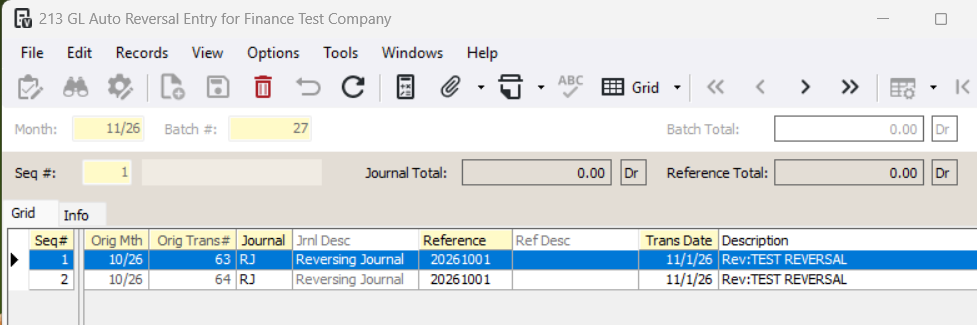
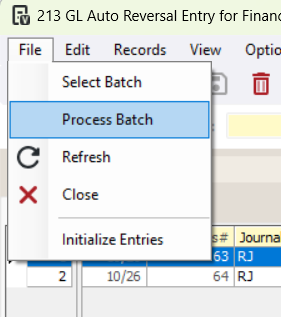
9-Go to File>Process Batch
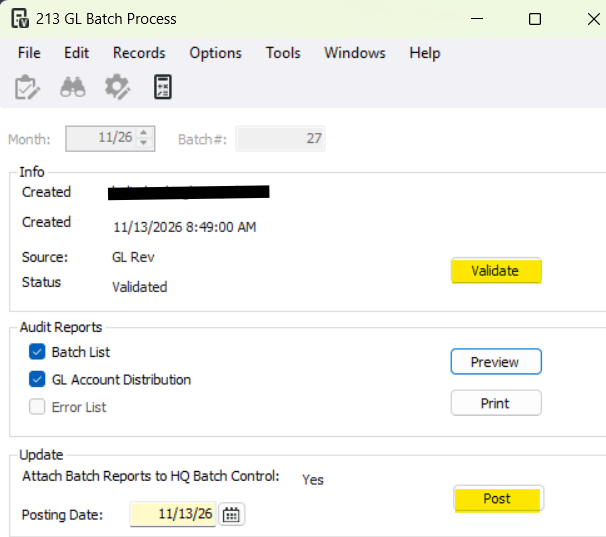
10-Press Validate and Post
Was this article helpful?
That’s Great!
Thank you for your feedback
Sorry! We couldn't be helpful
Thank you for your feedback
Feedback sent
We appreciate your effort and will try to fix the article