HQ Compliance Groups in Vista allow you to group multiple compliance codes together and assign them to jobs, subcontracts, and purchase orders. This simplifies compliance tracking by automatically applying a standard set of requirements, such as insurance certificates, signed contracts, and safety documentation, to help ensure all required documents are received and maintained.
1- Go to Headquarters>Programs>HQ Compliance Codes
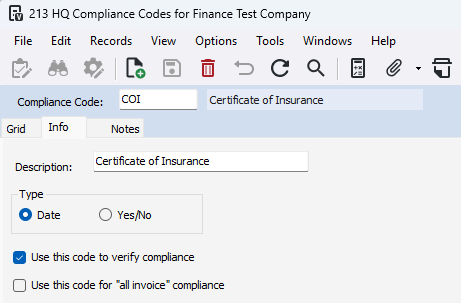
2- Setup a compliance code
-Enter a unique code
-Enter a description for the code
-Clarify the type:
Date-There will be a expiration date on the compliance
Yes/No-There is a one time compliance
-Uncheck 'Use this code to verify compliance' IF this compliance is informational only
-Uncheck 'Use this code for "all invoice" compliance IF this compliance is used for PO and SL only
3- Go to Headquarters>Programs>HQ Compliance Groups
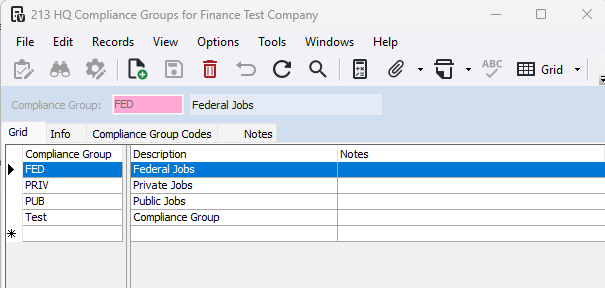
4- Setup a compliance group
-Enter a unique group code
-Enter a description for the group
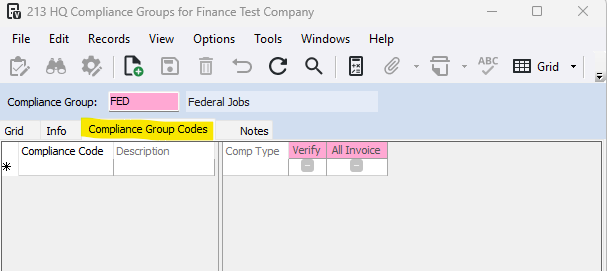
5- Go to the 'Compliance Group Codes Tab
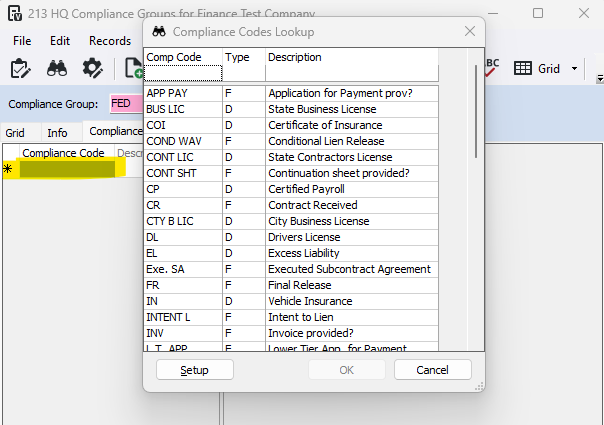
6- Add in all the compliance codes for the particular compliance group
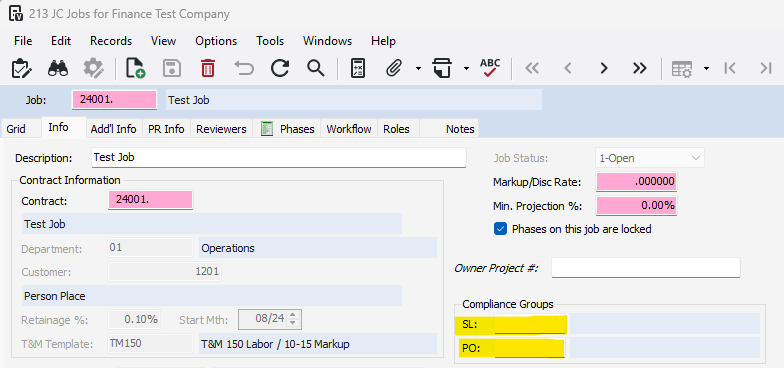
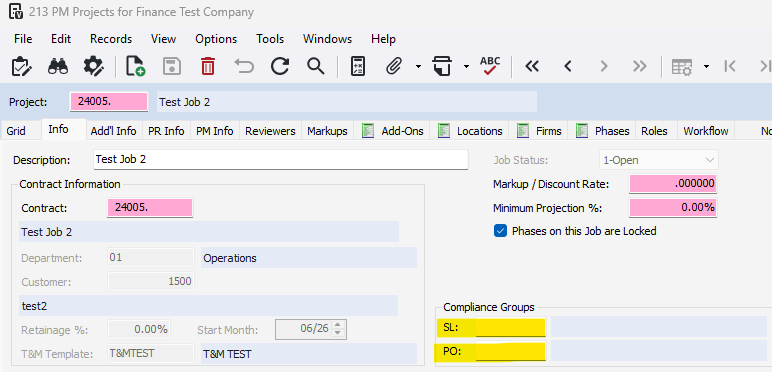
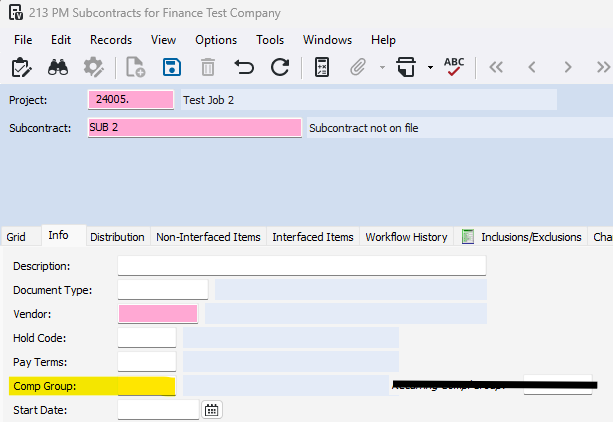
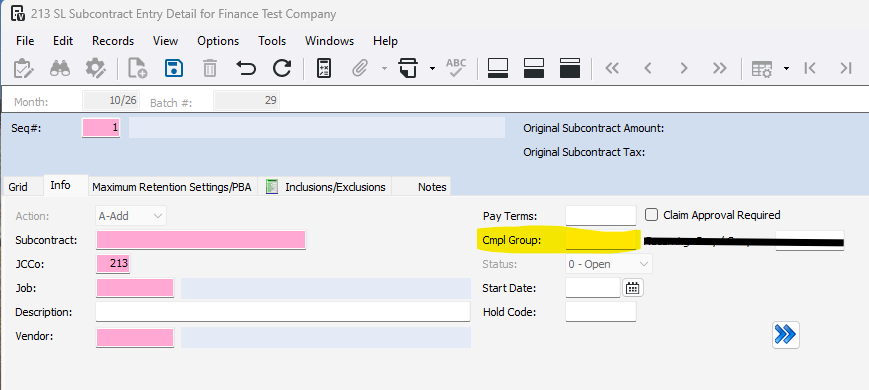
7- Assign the compliance group
On a job: Go to Job Cost>Programs>JC Jobs
On a project: Project Management>Programs>PM Projects
On a Subcontract: Project Management>Programs>PM Subcontracts
Subcontract Ledger>Programs>SL Subcontract Entry
On a Purchase Order: Purchase Order>Programs>PO Purchase Order Entry
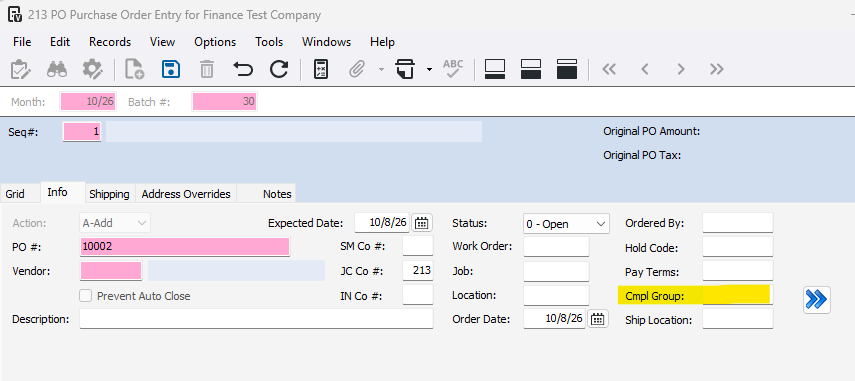
8- Maintain the compliance codes
Subcontracts: Subcontract Ledger>Programs>SL Compliance
Purchase Orders: Purchase Order>Programs>PO Compliance
Was this article helpful?
That’s Great!
Thank you for your feedback
Sorry! We couldn't be helpful
Thank you for your feedback
Feedback sent
We appreciate your effort and will try to fix the article