Use this process to void or clear payments during an AP check run when a payment needs to be canceled, removed, or reset before completing the payment process.
Once the CM Ref # and Paid Date have been entered and the payment is saved, Vista will gray out the transaction, preventing further changes. If you need to make changes to the payment, you must first Void/Clear the payment.
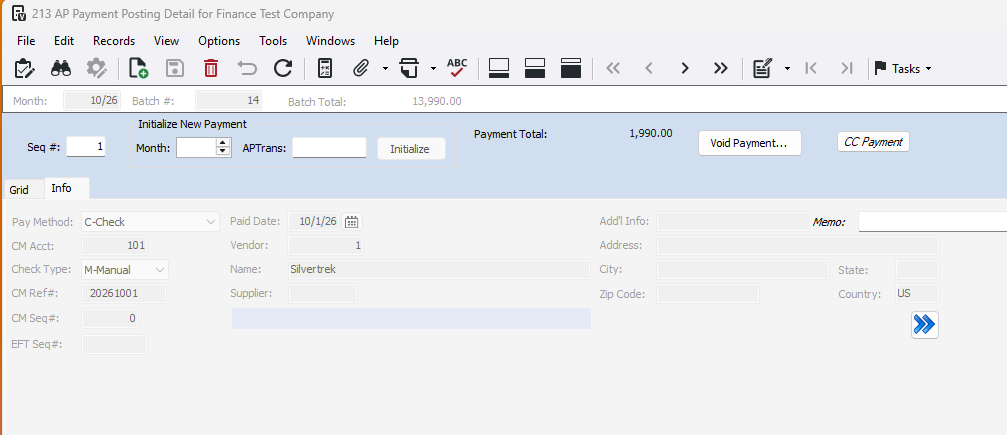
How to Void a Single Line:
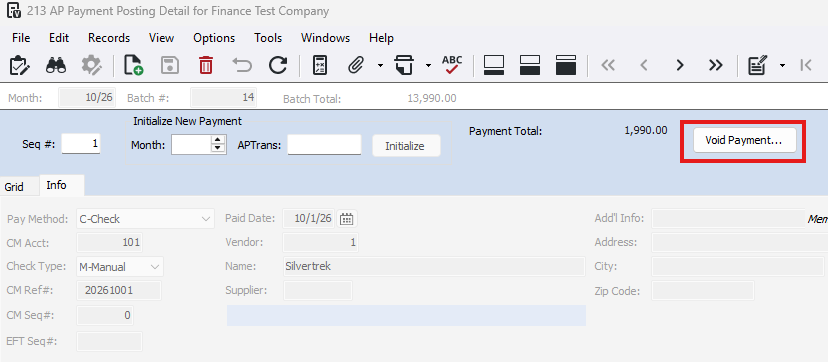
1- Select the transaction you want to void/clear, then click the 'Void Payment' button.
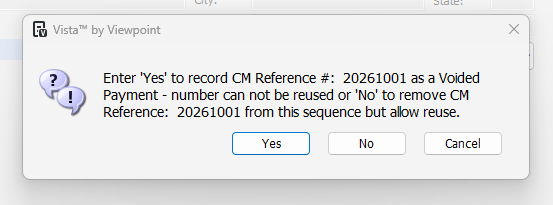
2- A pop-up will appear. Select:
Yes – Void Payment: The CM Ref # cannot be reused.
No – Clear Payment: The CM Ref # can be reused.
How to Void Multiple Lines:
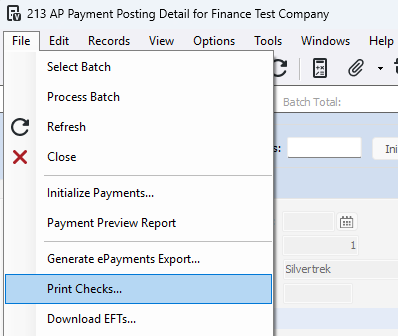
1- Go to File>Print Checks
2- Navigate to the 'Clear/Void' tab
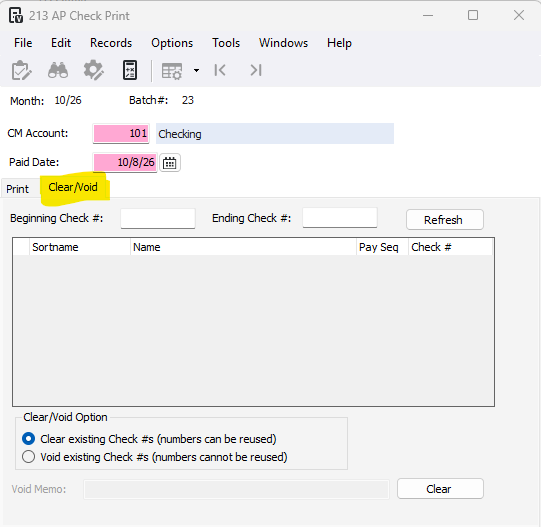
3- Enter the beginning and ending check # and press refresh OR just press refresh to pull in all the checks that have been generated in the current batch. Review the lines you are wanting to void or clear.
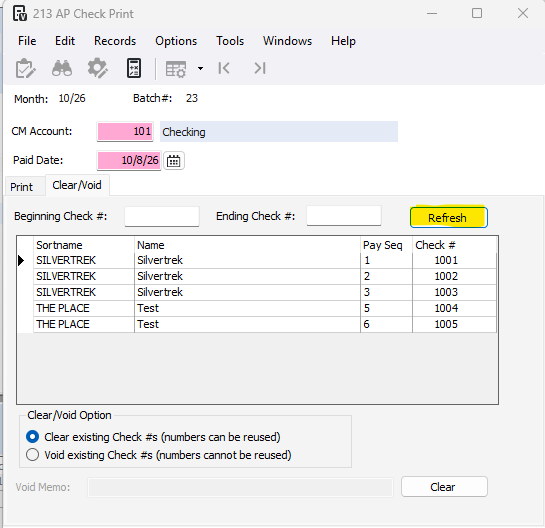
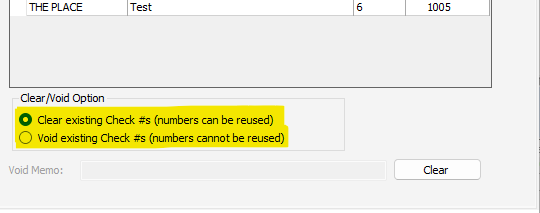
4- Clarify weather you want to void or clear.
Clear Payment: The CM Ref # can be reused.
Void Payment: The CM Ref # cannot be reused.
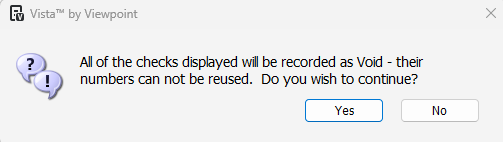
5- If you are clearing the checks, press Clear. This popup will show asking if you wish to continue.
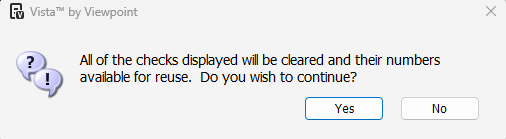
If you are voiding the checks, enter a Void memo (optional) and press void. This popup will show asking if you wish to continue.
Was this article helpful?
That’s Great!
Thank you for your feedback
Sorry! We couldn't be helpful
Thank you for your feedback
Feedback sent
We appreciate your effort and will try to fix the article