Moving an invoice to a different month in Vista allows you to change the accounting period in which the invoice is recognized. This is typically done to correct an invoice posted to the wrong month or to ensure AP and GL balances are reported in the proper accounting period.
1- Go to Accounts Payable>Programs>AP Transaction Entry
2- Open the batch for the month the original invoice was posted to
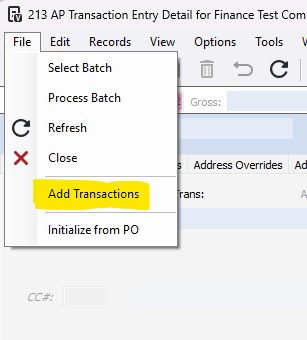
3- Go to File>Add Transactions
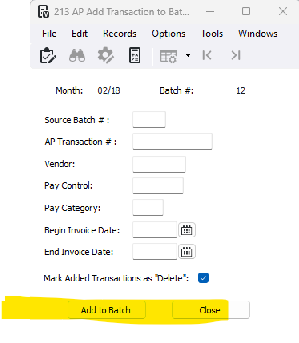
4- Use the filters to find your invoice and check the checkbox to delete, then press 'Add to Batch'
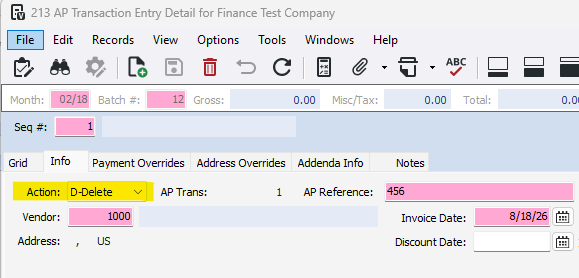
5- Double check that the action is set to D-Delete, if it is not, use the dropdown to set it to D-Delete
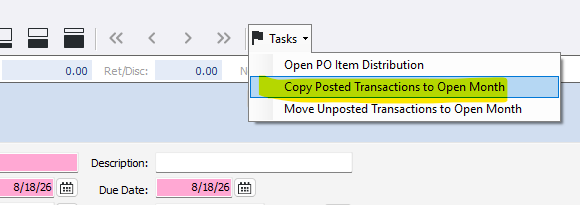
6- In the top ribbon, press the Tasks flag and 'Copy Posted Transactions to Open Month'
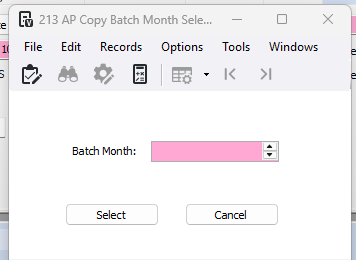
7- Type in the month that you want to move your invoice into and press 'Select'
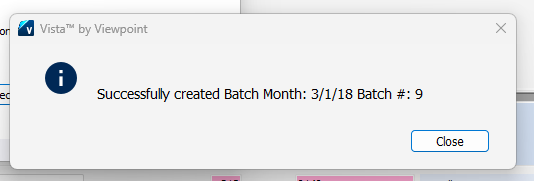
8- This popup means your invoice was created in the new month, press close
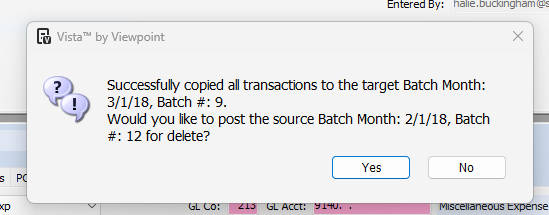
9- This popup is asking if you would like to process the deletion of your original invoice, press yes
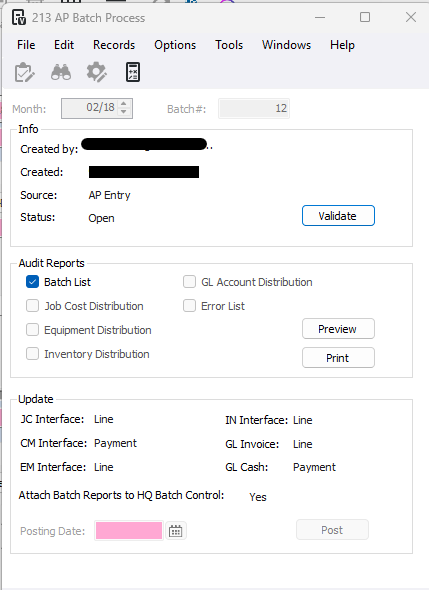
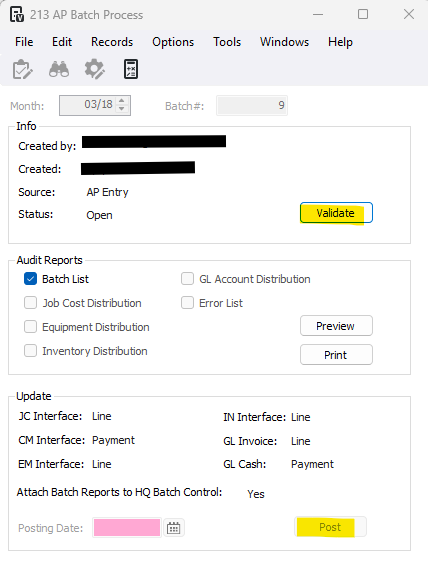
10- Go through the batch process, press validate and then post
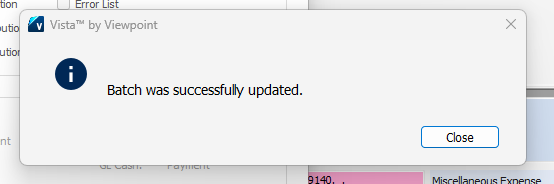
11- This popup means that the deletion was processed, press close
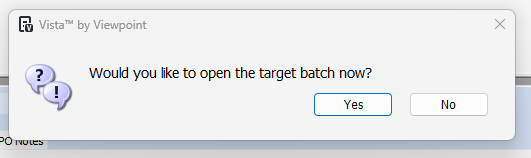
12- This popup is asking if you want to go to your new copied invoice, press yes
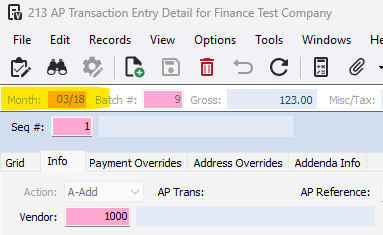
13- Notice that your invoice is now in the new month
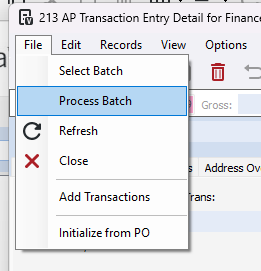
14- Next, press File>Process Batch
15- Then go through the batch process, press validate and post
Was this article helpful?
That’s Great!
Thank you for your feedback
Sorry! We couldn't be helpful
Thank you for your feedback
Feedback sent
We appreciate your effort and will try to fix the article