An EFT (Electronic Funds Transfer) payment in Vista is a way to pay vendors electronically instead of issuing a paper check. Vista processes the payment through AP and creates an electronic bank file, typically an ACH/NACHA file, that is uploaded or transmitted to the bank. The bank then transfers the funds directly from the company’s bank account to the vendor’s bank account.
1- Go to Accounts Payable>Programs>AP Payment Workfile
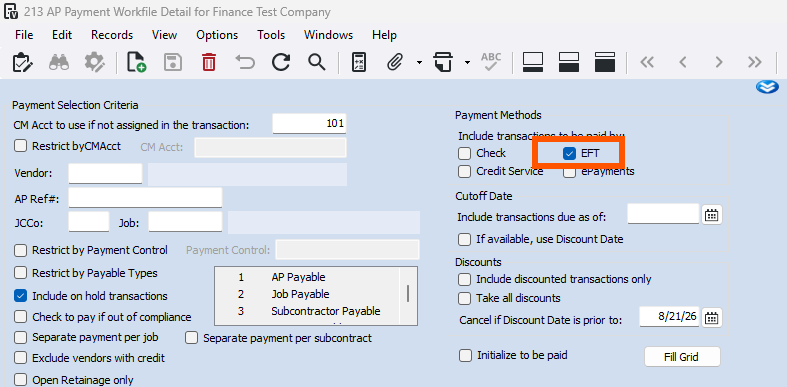
2- Create your payment batch. You can check only EFT to pull in all transactions assigned to the EFT pay method.
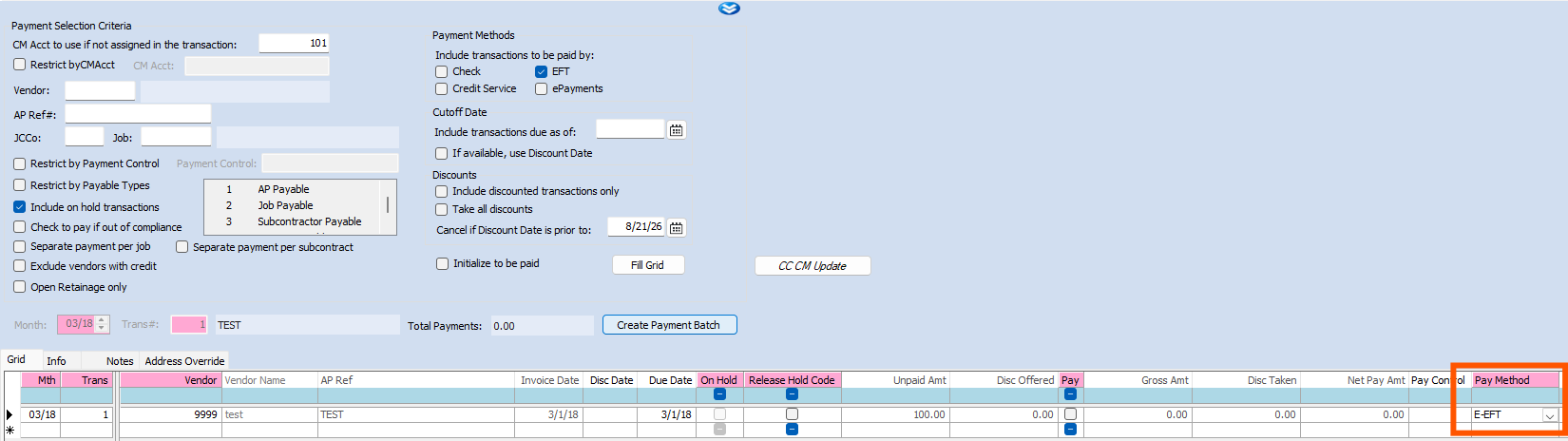
3- Ensure the Pay Method on the transactions are set to E-EFT
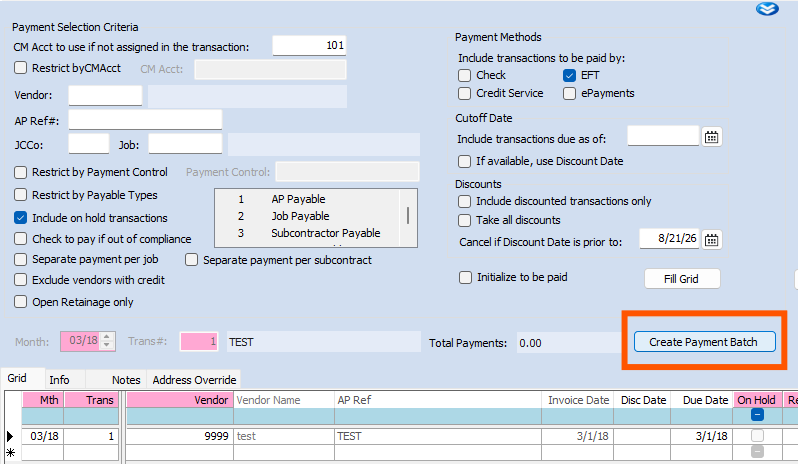
4- Press Create Payment Batch
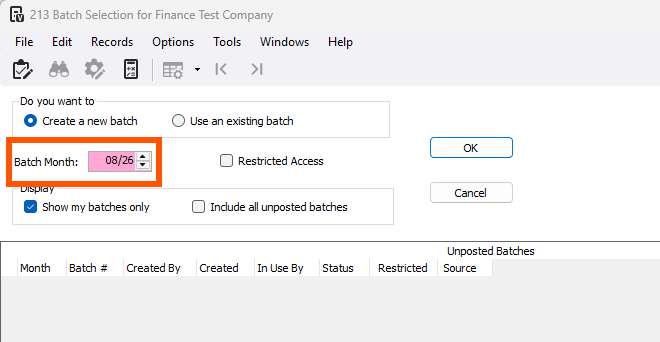
5- Set your batch month to the month the payments will be made in
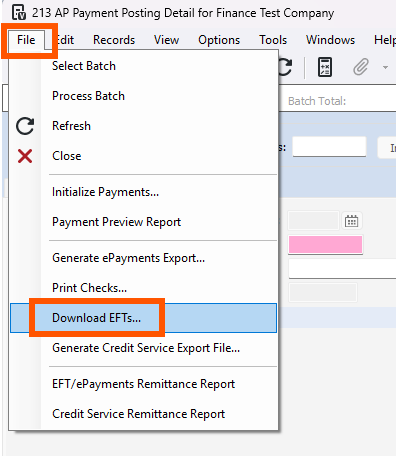
6- Go to File>Download EFTs
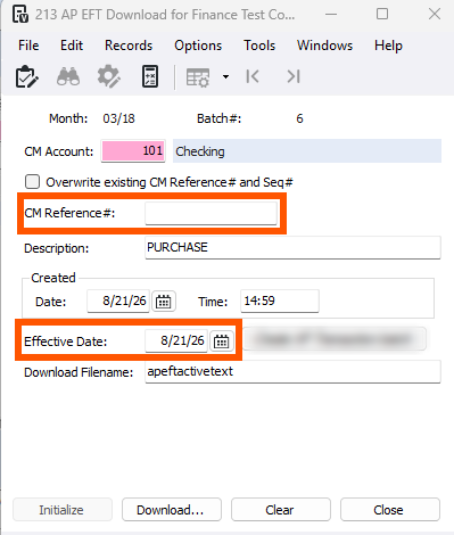
7- Ensure the CM Account is correct. Assign a CM reference and assign an Effective Date
Here is a Trimble article that provides definitions for each field in the AP EFT Download CLICK HERE
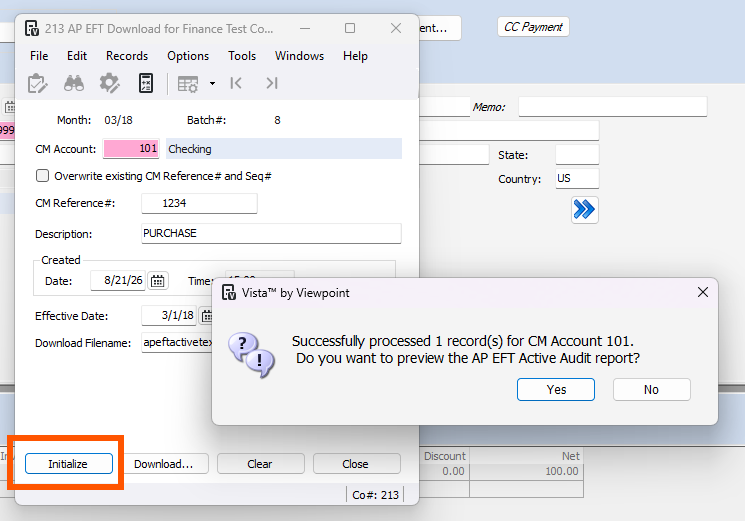
8- Once the required information is entered in, press Initialize.
9- There will be a pop up asking if you want to view the AP EFT Active Audit report.
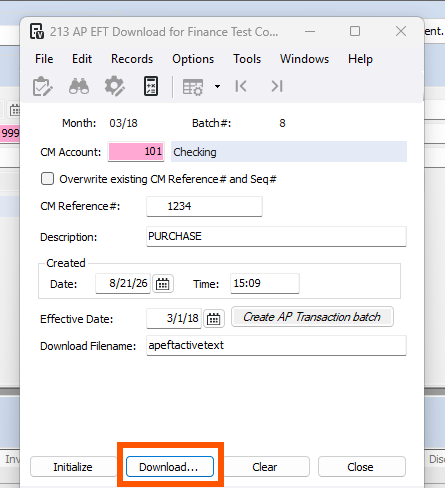
10- After Initializing, press download. Assign which folder you want the NACHA file to be saved under.
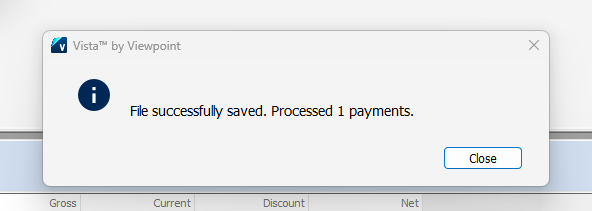
11- Once you see the pop up below, you can navigate to your files to view the NACHA file.
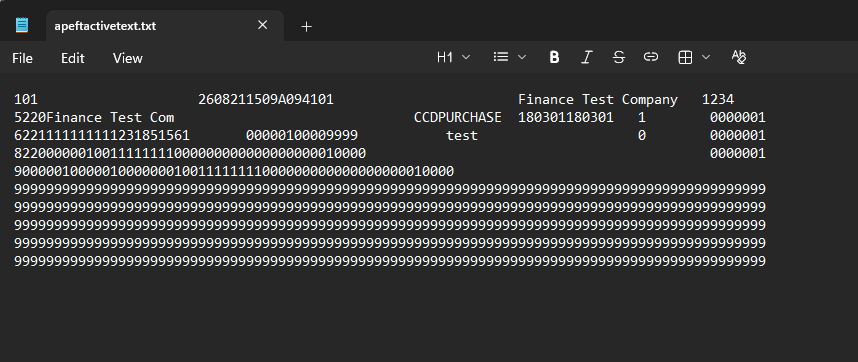
12- The file will be similar to the screenshot below. This will be the file you upload to your bank
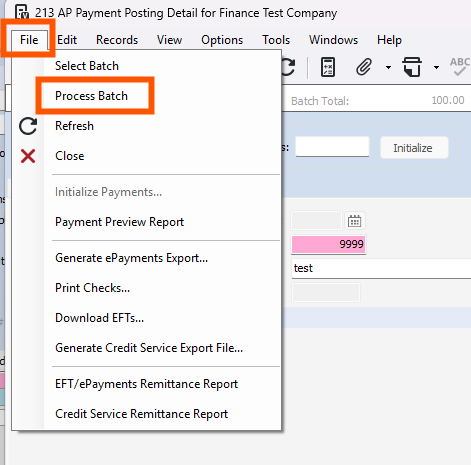
13- Once you're ready to post, go to File>Process Batch
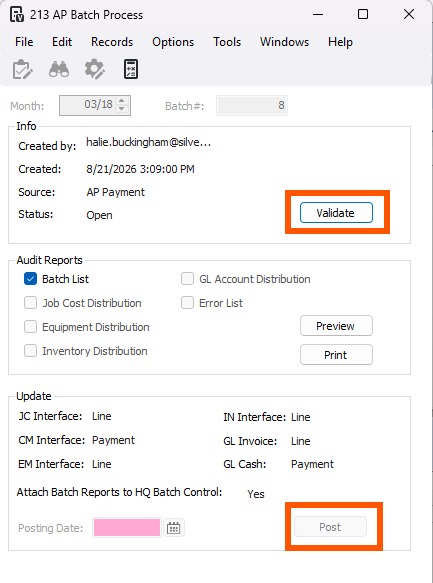
11- Press Validate and Post.
Was this article helpful?
That’s Great!
Thank you for your feedback
Sorry! We couldn't be helpful
Thank you for your feedback
Feedback sent
We appreciate your effort and will try to fix the article