Consultation & Setup of HQ Company Setup
Consultation & Setup of HQ Groups
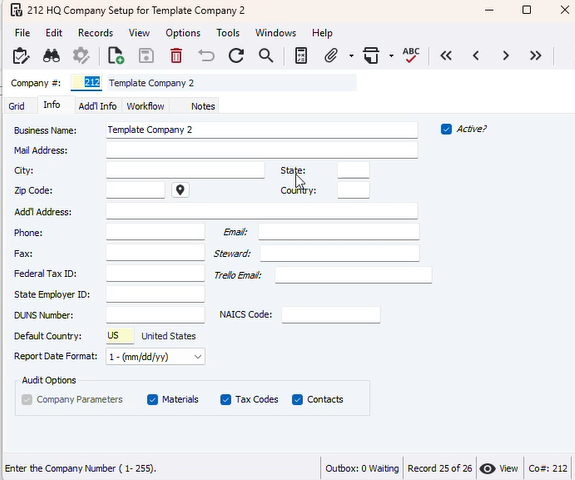
"Info Tab"
- Email, Steward, Trello Email are custom UD Fields disregard
- Fill in everything that you can up to the Federal Tax ID, if you have anything beyond that, you can add that for extra detail
"Addl Info"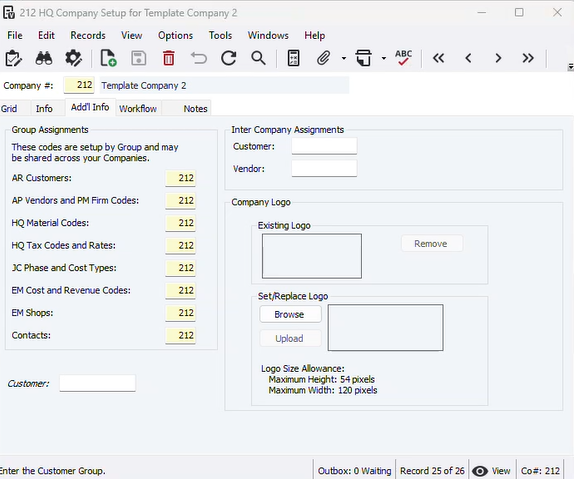 Typically "Group Assignments" will match the Company #
Special Circumstance is if multiple companies within the same large company want to share their AR Customers, AP Vendors, Etc, in that case you'll modify the company numbers as needed
Inter Company Assignments is for the Materials Sales module for the 'Create Intercompany Invoices' to be processed
For the Logo the developer completes that task
"Workflow" is a purchase order and subcontracts process handled separately
Consultation & Setup of GL Company Parameters
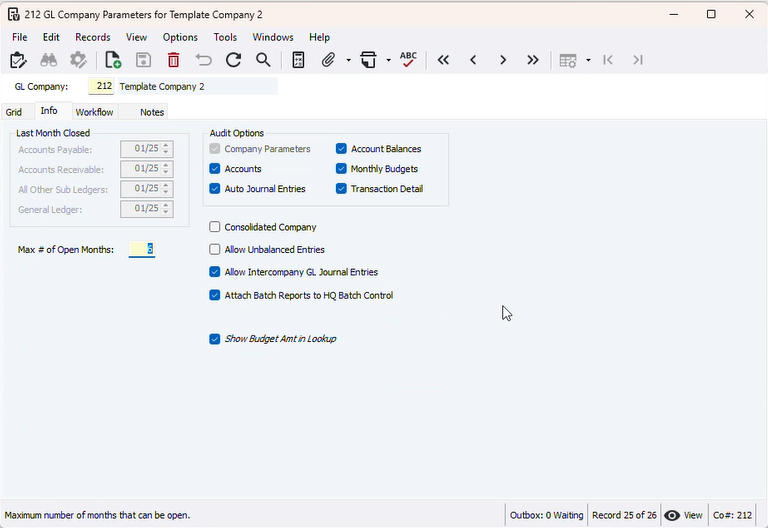
We only come in here and change Max # of Open Months as needed
"Last Month Closed" - This is from GL Month End Close
We check Consolidated Company if it's the Kangaroo Company we are creating, otherwise leave unchecked
Allow Unbalance Entries - always leave unchecked
Consultation & Setup of GL Fiscal Years
Definition of Fiscal Year
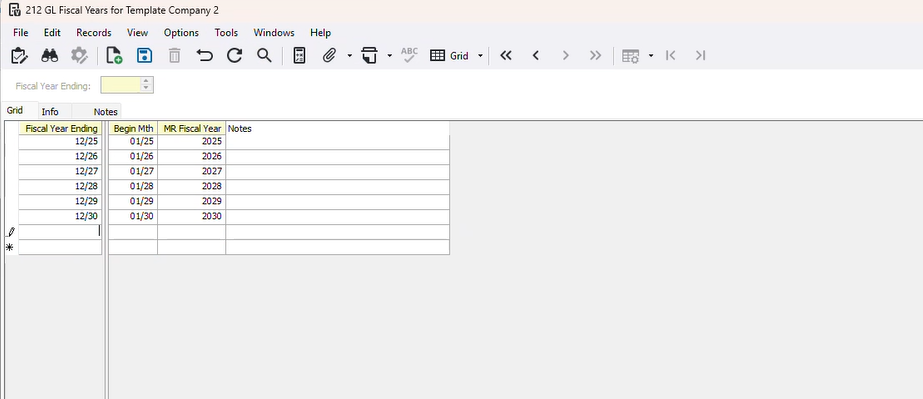 "Grid"
Put in Fiscal Year Ended, Beginning Month, MR Fiscal Year
In the case a Fiscal Year is different make sure the above are correct, see June example below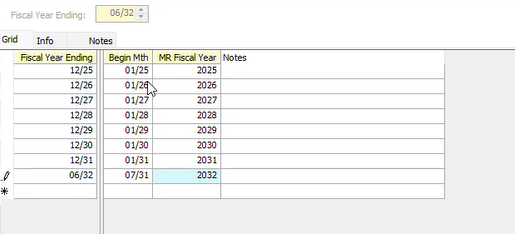
Consultation & Setup of GL Chart of Accounts - add any new accounts
At this point you already have the basic mapped chart of account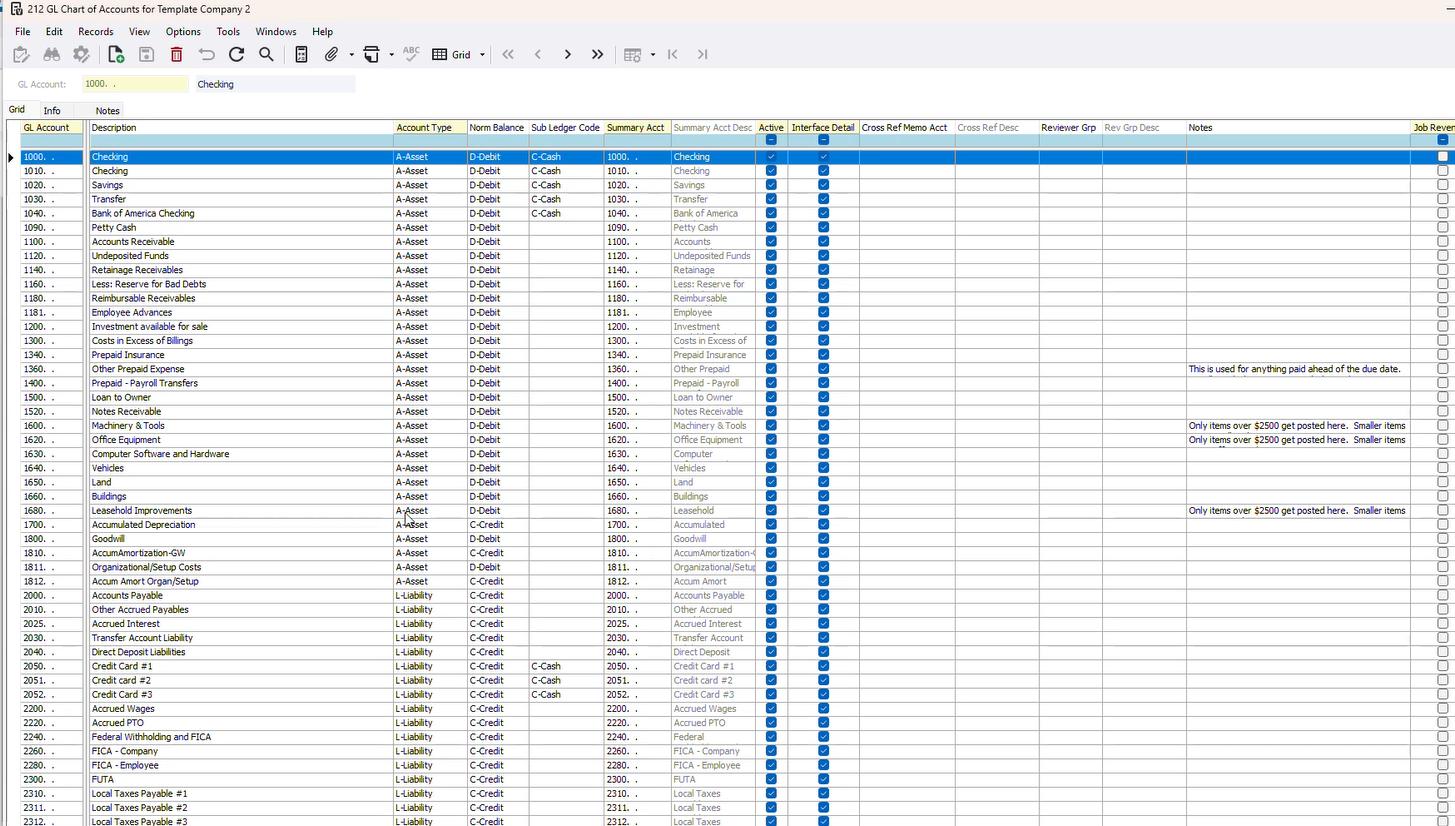
Grab the excel that is finalized
Manually delete on the grid the ones that need to be removed
Open the excel add a new tab
Create these columns to match
Create IM Template GL Chart of Accounts Template to match the excel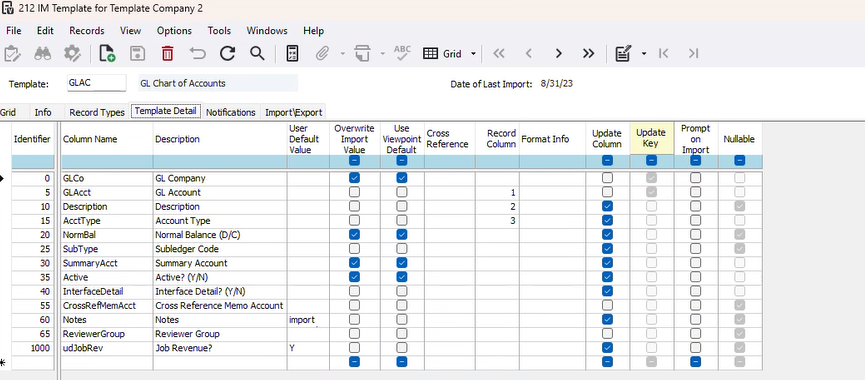 Design your excel tab to bring in the additional GL's not listed
Import the GL's using the IM Template with the additional excel tab
Go back into GL Chart of Accounts and review that everything was correctly brought in
Consultation & Setup of JC Dept Master
What want JC Department Number and Description
Open Rev Acct
Closed Rev Acct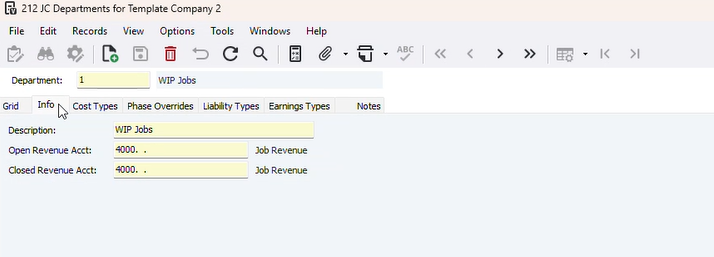
Cost Types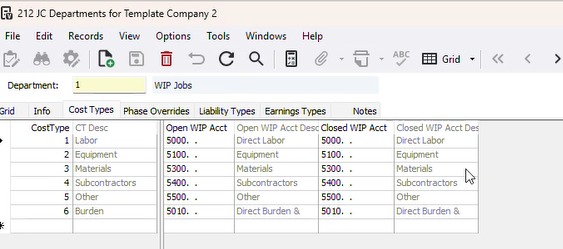
Bring in all Cost Types and Connect Correct GL's
These will need to be the same Open and Closed WIP Acct
We do not use Phase Overrides
Liability Types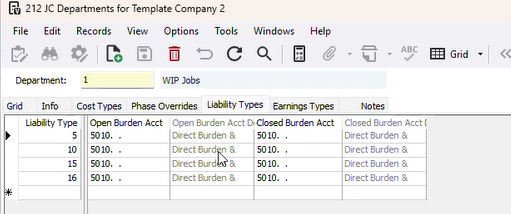
These are setup for Burden and Fringe
Earnings Types
No setup needed as it's direct labor
Consultation & Setup of JC Phase Master
Importing Phases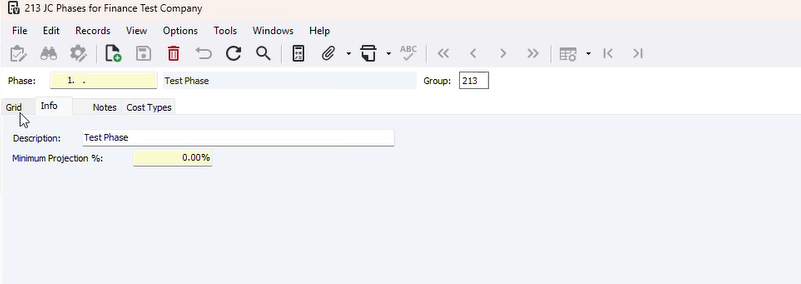
Verify Phases look correct
"Cost Types"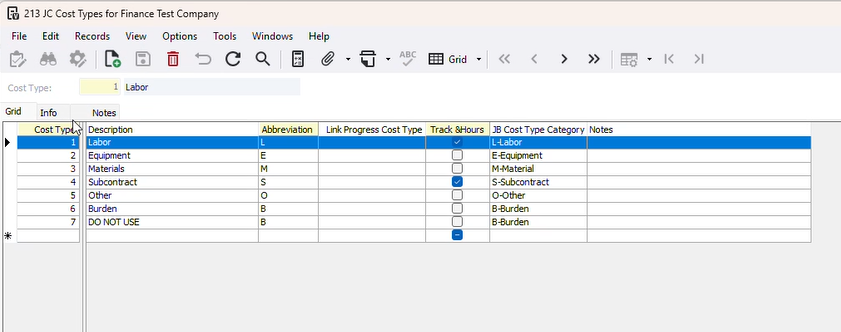 You'll connect the correct Cost Types into each phase, sometimes it's clear. If it's unclear, just add all cost types.
Consultation & Setup of CM Company Parameters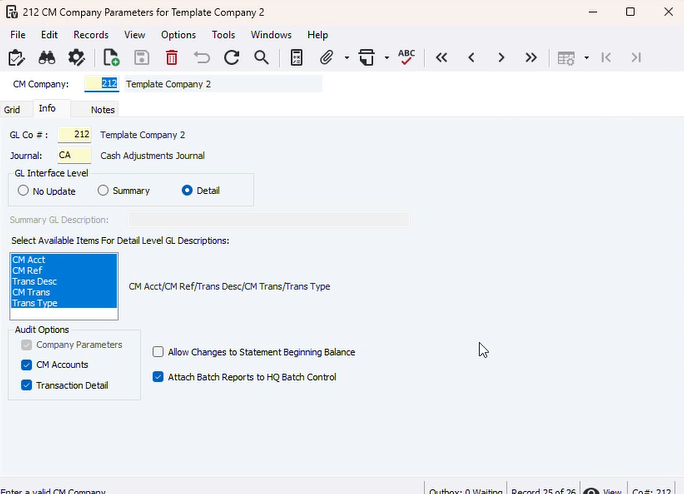
Ensure CM and GL Company Match
Everything on this image should be on the company with correct CM Company and GL Co numbers
Consultation & Setup of CM Accounts
Review Chart of Account and see what CM Accounts need to be set up (bank accounts, savings, credit cards, line of credits)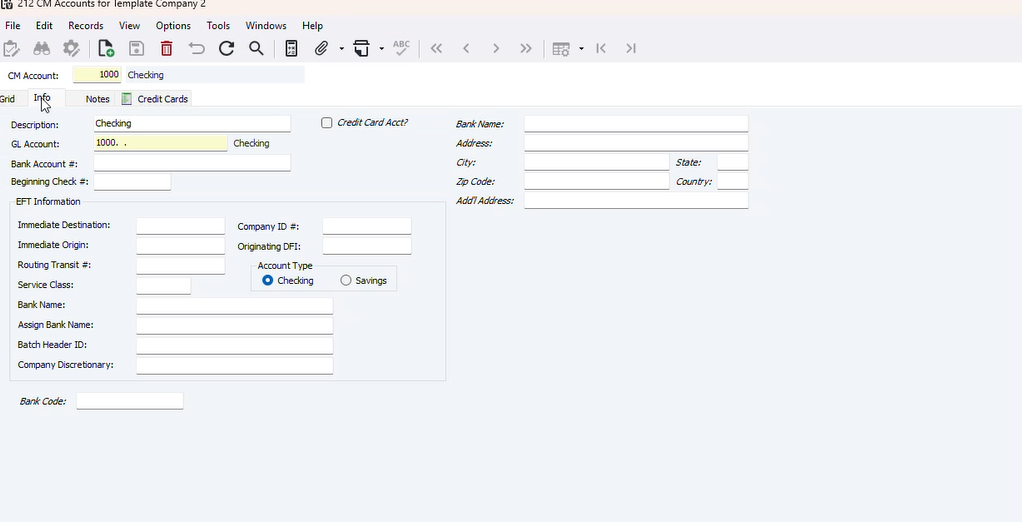 If they will be doing any ACH/Payroll have them coordinate with their bank to get the credentials to produce a NACHA File
If we are doing the blank check stock these UD fields need to be filled
If they will be cutting check off of blank check stock we must have the Bank Account and Routing Number
Info needed for bank accounts that will be printing checks using blank check stock 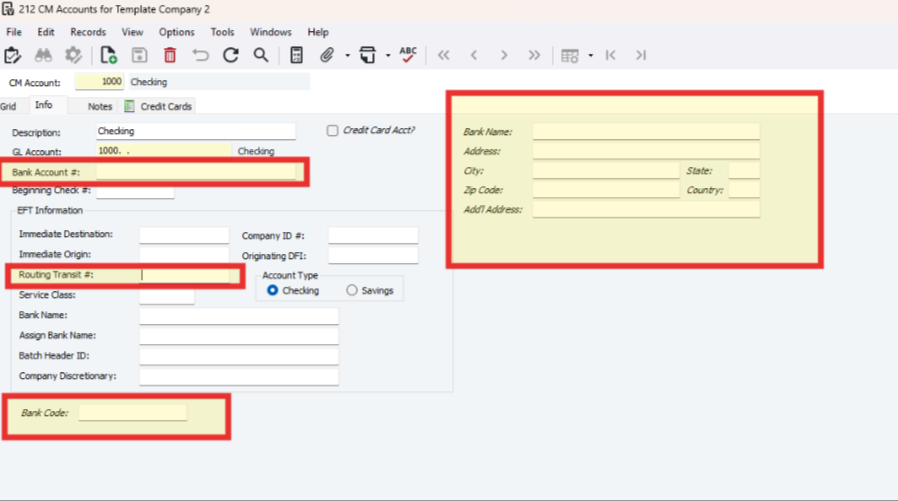
Set up custom check in AP Company Parameters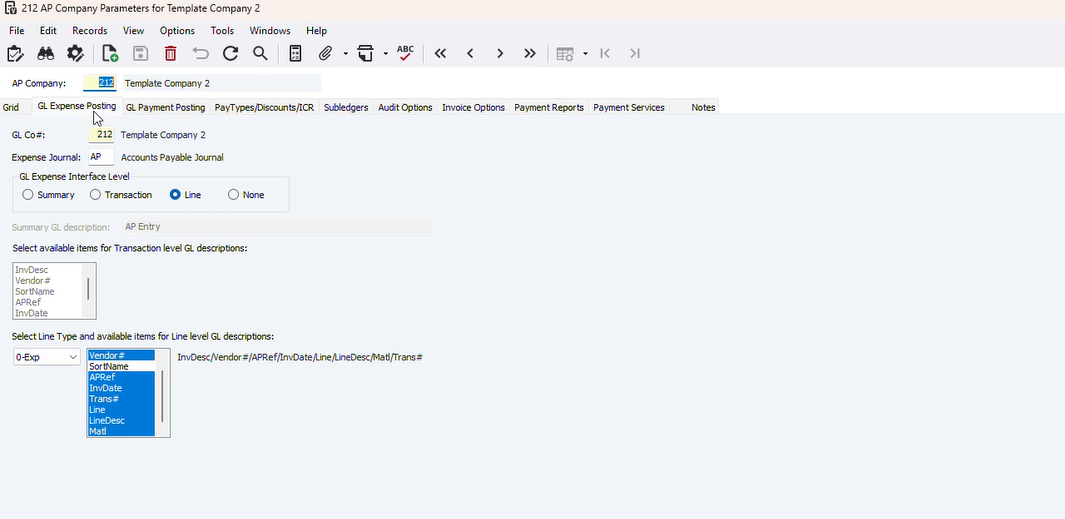
Verify this tab matches in Company
"GL Payment Posting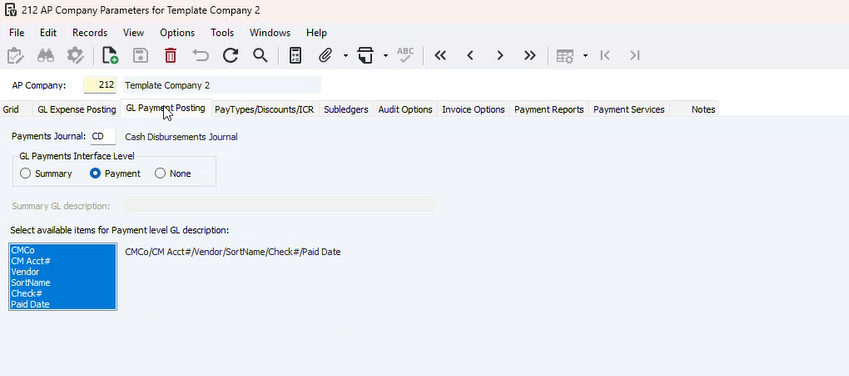
Verify this tab matches in Company
"Pay Types"
Consultation & Setup of AP Payable Types
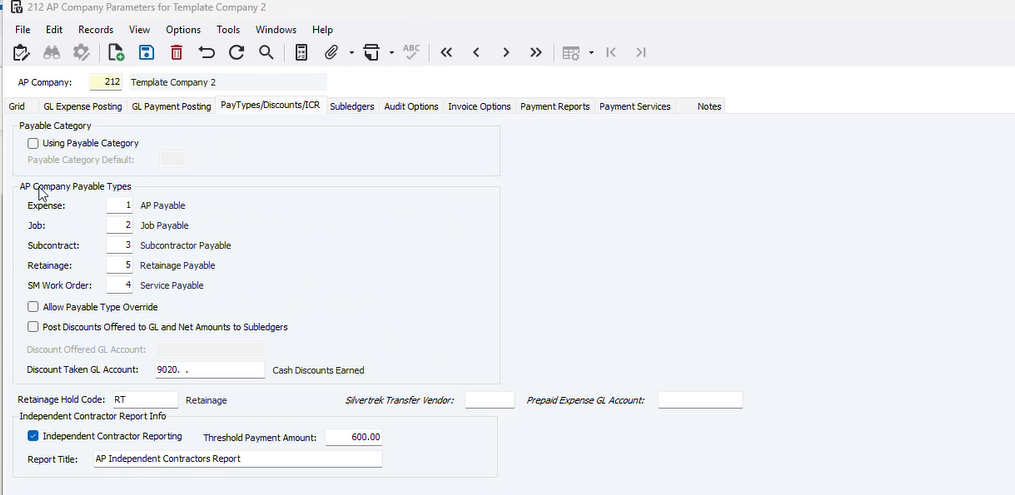
Verify this tab matches in Company
Discount Taken GL Account - we need to know that GL is, if this is unknown put to suspense and get this information to update this
Subledgers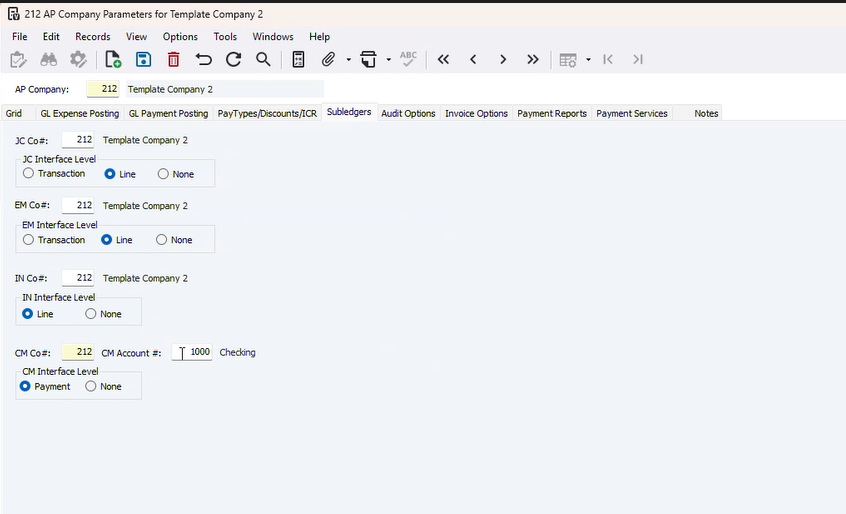 Verify this looks correct, CM Account is typically the one you're cutting checks from
Audit Options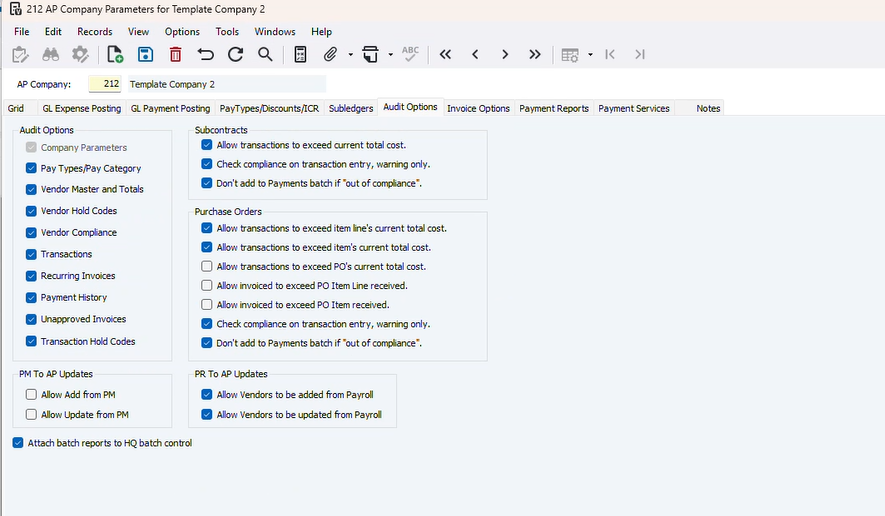
Verify this looks correct
Invoice Options
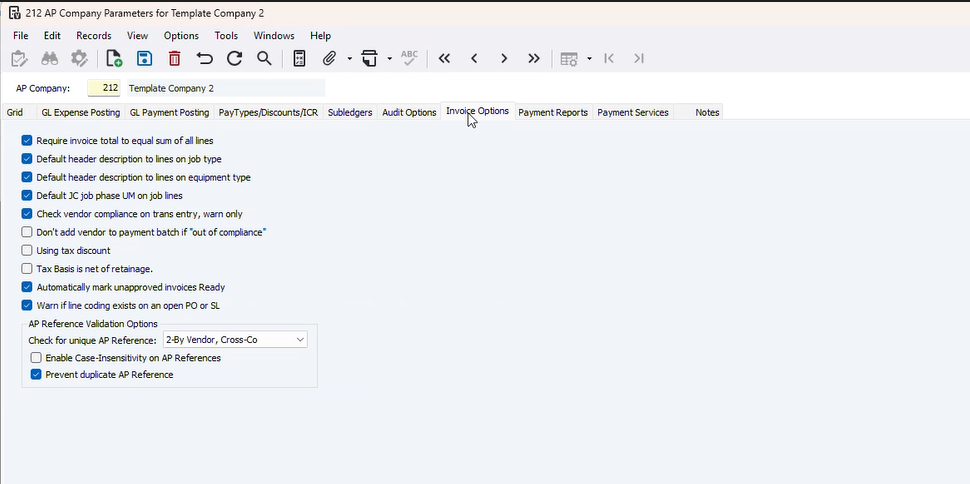
Verify this looks correct
Payment Reports
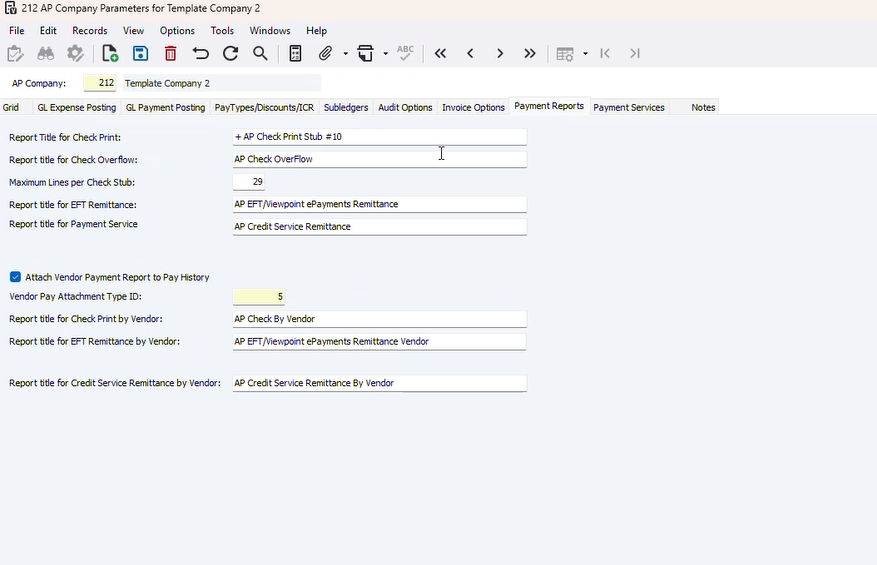 Review this tab with developer and make sure the details are accurate to the reports needed and overflow lines (maximum lines per check stub)
Payment Services
This is relevant for things like Corpay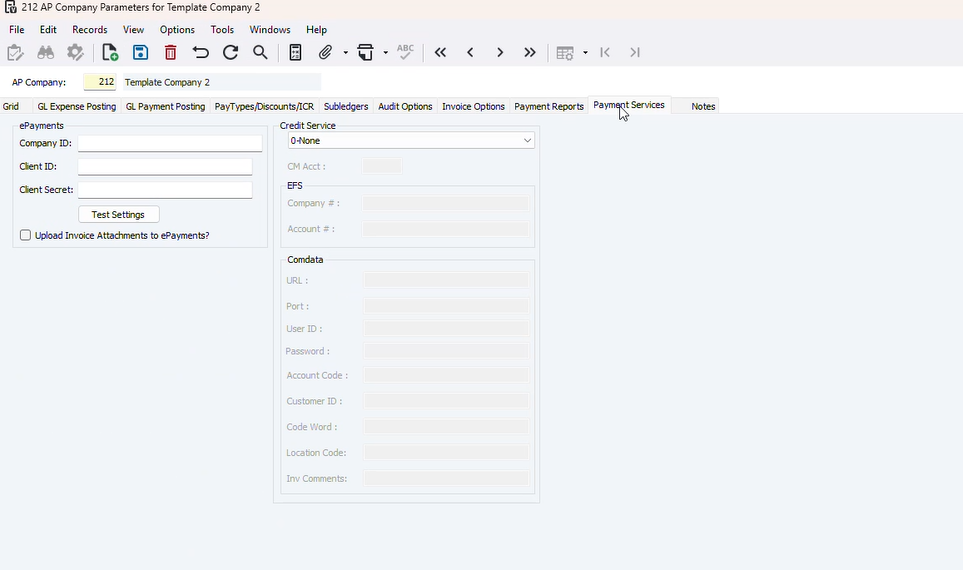
Consultation & Setup of AP Payable Types
Go to the Grid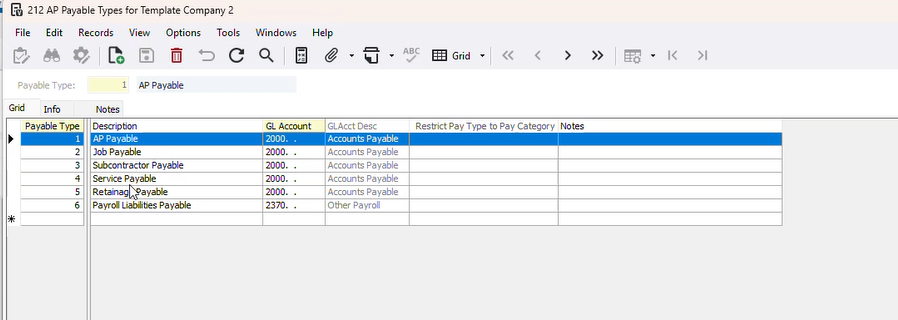
These are defaulted, update the GL Accounts
Verify if they have any separate GL Accounts
Consultation & Setup of AP Vendor Compliance
We don't set this up with companies, we review this with them during discovery
Reviewed during training and customers can maintain setup
Consultation & Setup of AP Recurring Invoices
We don't set this up with companies, we review this with them during discovery
Reviewed during training and customers can maintain setup
Consultation & Setup of AR Company Parameters
Info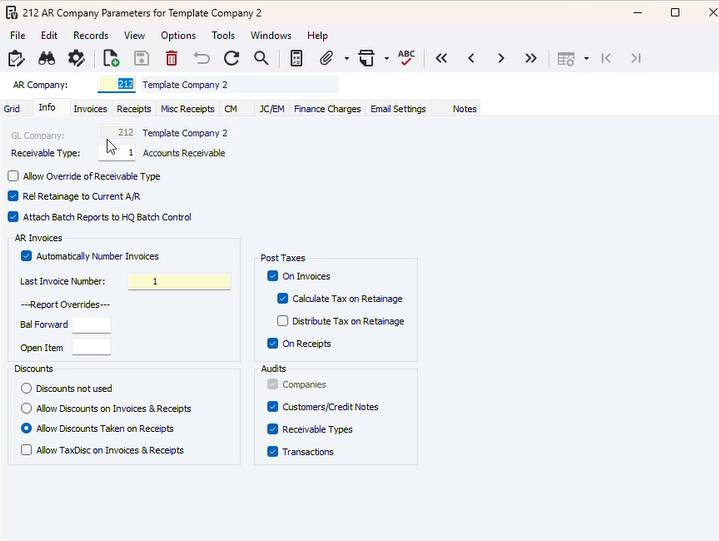
Verify this looks correct, Last Invoice Number is specifically to be updated at Go Live
Under Report Overrides - Open Items select F4 Default to the +AR Account Statement Usually 10059
Some items may need to be changed based on discovery
Invoices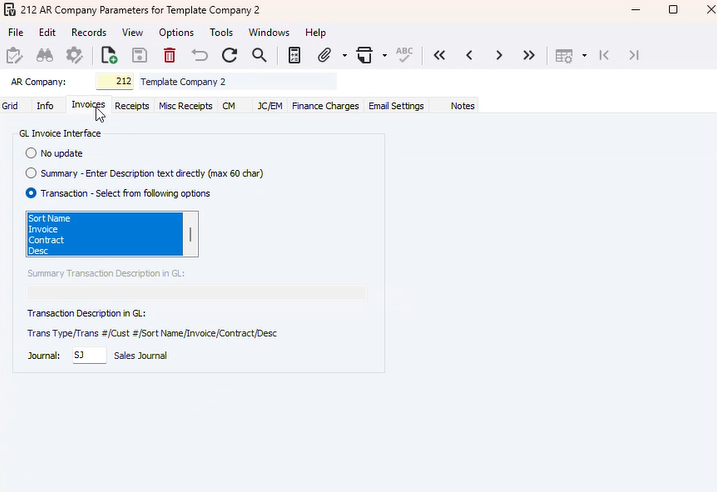 Verify Checked the same as the template Company
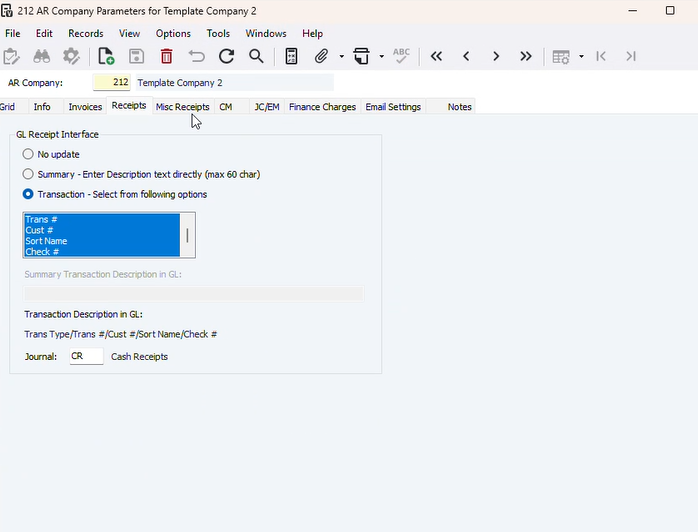 Verify Checked the same as the template Company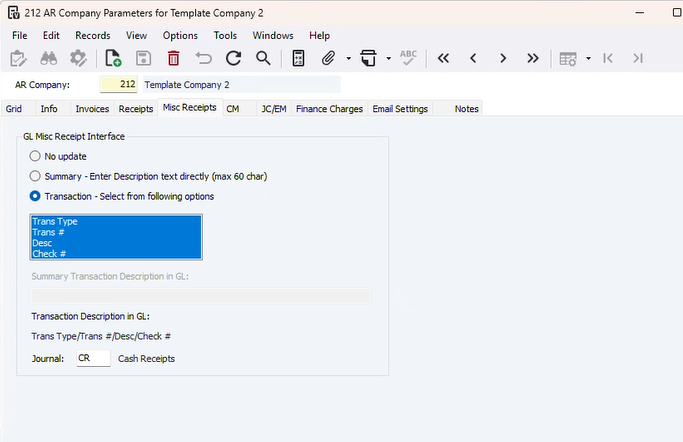
Verify Checked the same as the template Company 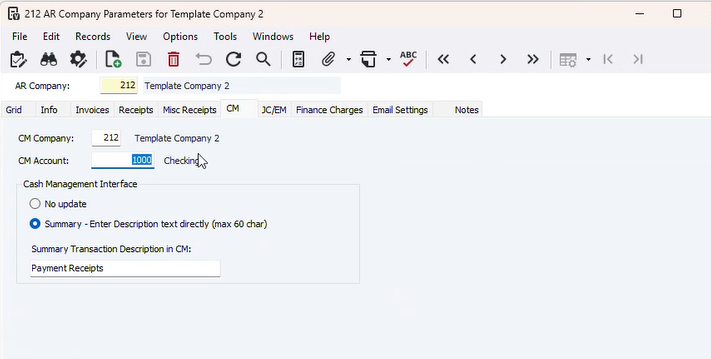 Update CM Account to main account cash is received
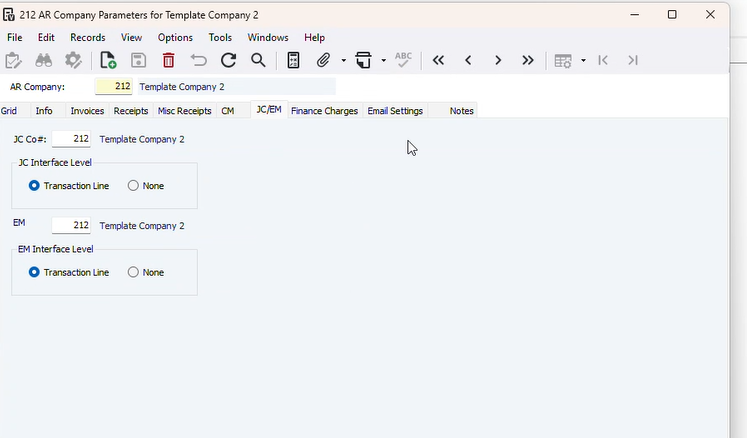 Verify company numbers are correct and transaction line is selected
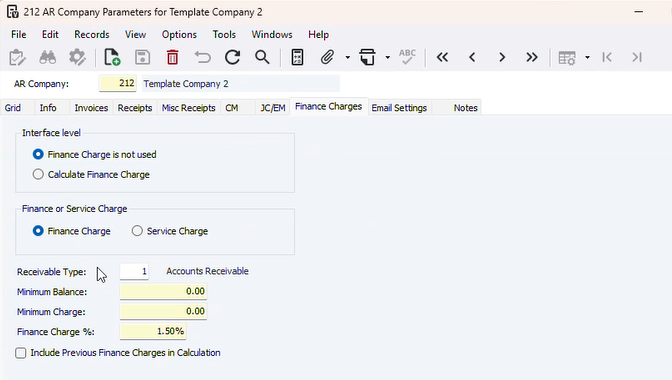 Verify this looks correct
Email Settings
This From Address: Requires a business domain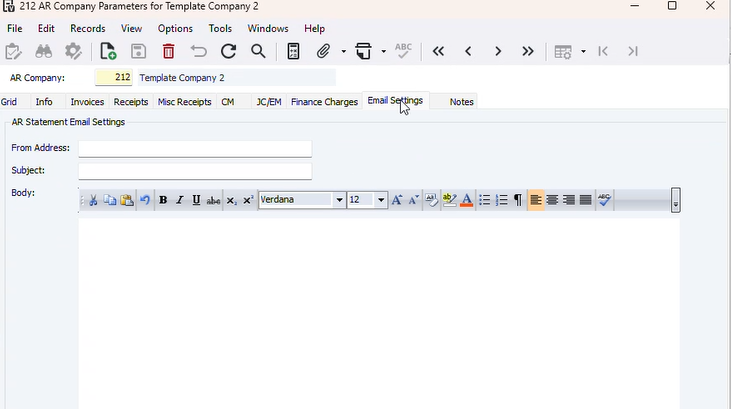 This can be setup once we have the email and if it is needed
Consultation & Setup of AR Receivable Types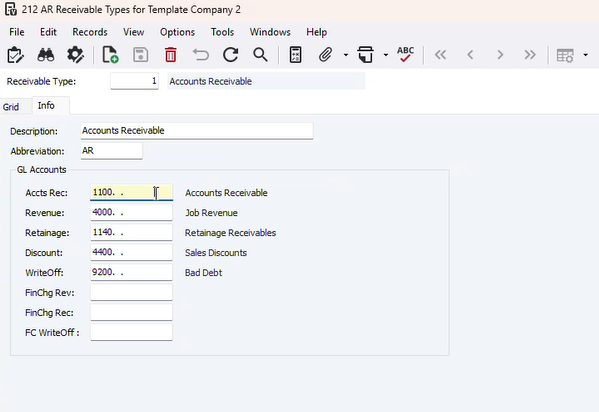 Review that these GL Accounts are setup correctly, Accounts Receivable Types Revenue usually just goes by this
if they don't have retainage we leave this as accounts receivable
If they don't have discount or write offs we leave blank
Consultation & Setup of AR Misc Distribution Codes
We typically check this off without doing anything
We have only used this one time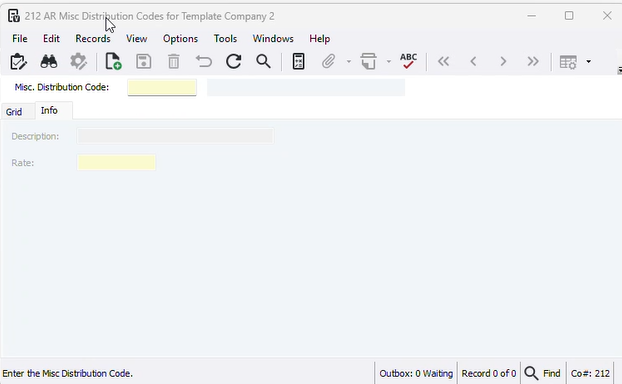 We have used this for invoice commissions, you can put a description and a rate here
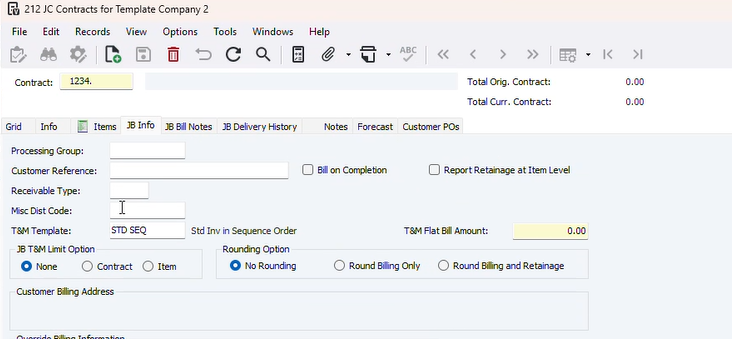
This would then added to a job
 See reports attached with setup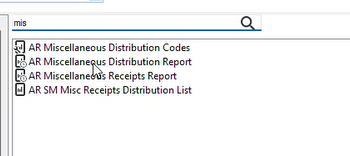
Consultation & Setup of AR Customers
We review that the AR Customers look good from Developer imports, and we add any additional setups found from discovery (statement delivery, material sales, etc)
Consultation & Setup of HQ Tax Codes
If they are not a WA state company, you can go into SQL and delete these out, the get the companies state tax code needs and figure out if they need to be single or level. Then you'll get them imported once you have the appropriate list.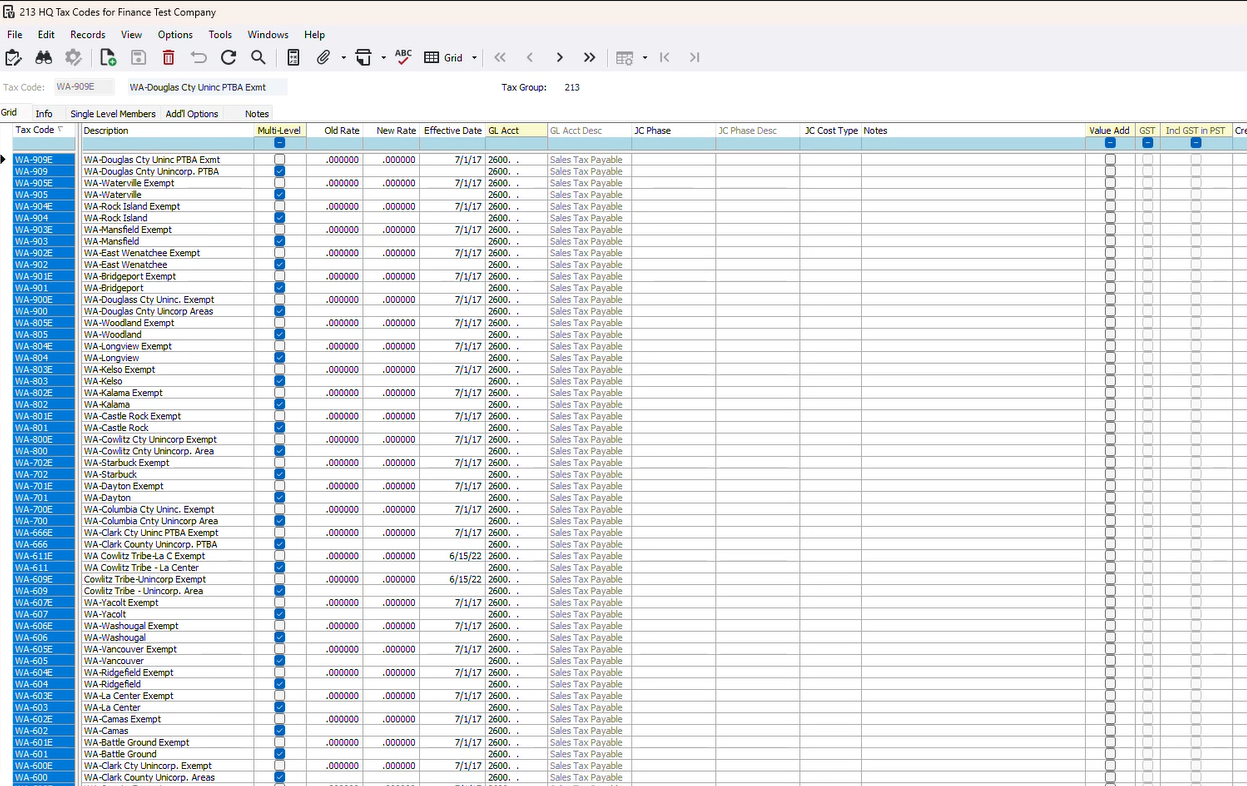
Consultation & Setup of HQ Reason Codes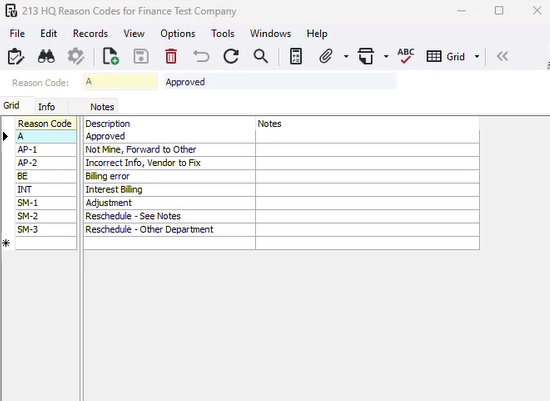 This usually stays with this setup, these are currently used in (AP, AR, MS)
Consultation & Setup of HQ Reviewers
See article for instructions [AP] Setting up AP Approver Groups and Linking to Online Portal
Consultation & Setup of HQ Reviewer Group
See article for instructions [AP] Setting up AP Approver Groups and Linking to Online Portal
Set up Auto AP in team.viewpoint.com
team.viewpoint.com
If you don't have a login go to Admin Center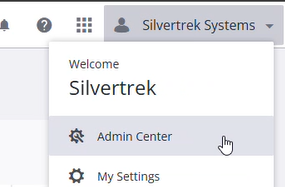
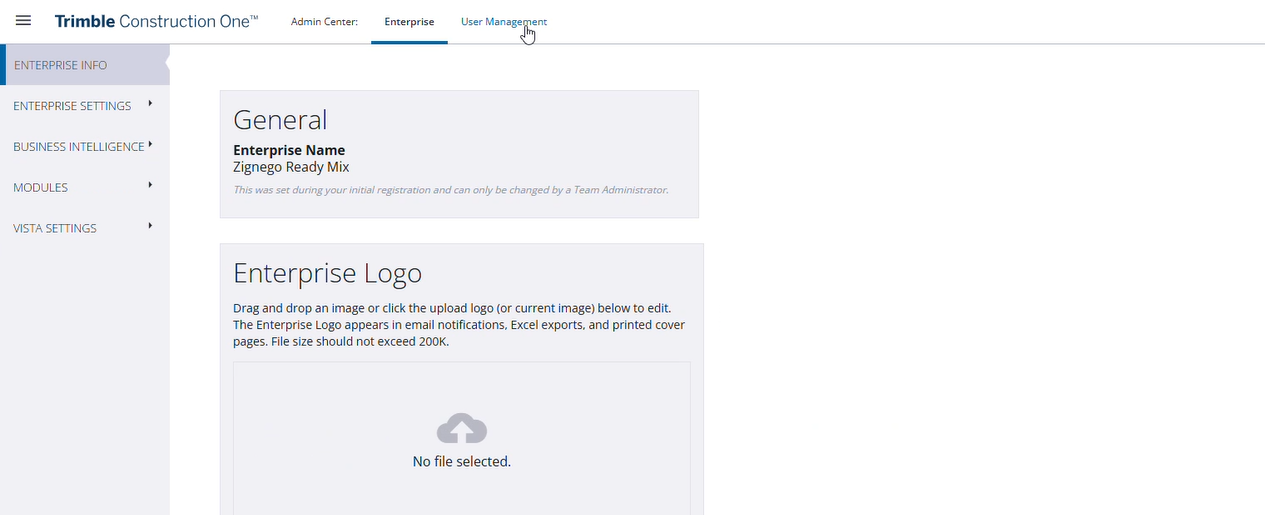
Go into User Management
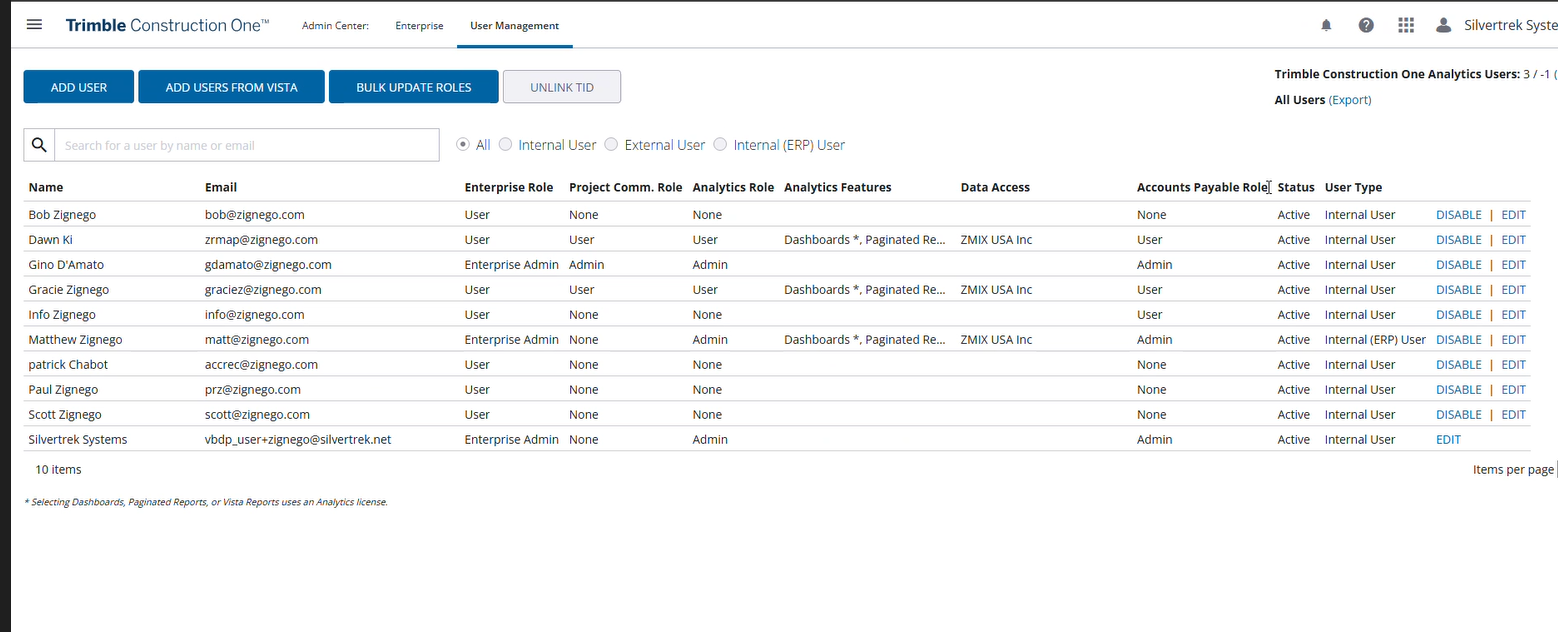
This will show if we are in here, or we have the company setup our account first, then we can go in and edit as needed once setup as an admin
Now you can log in
Once logged in
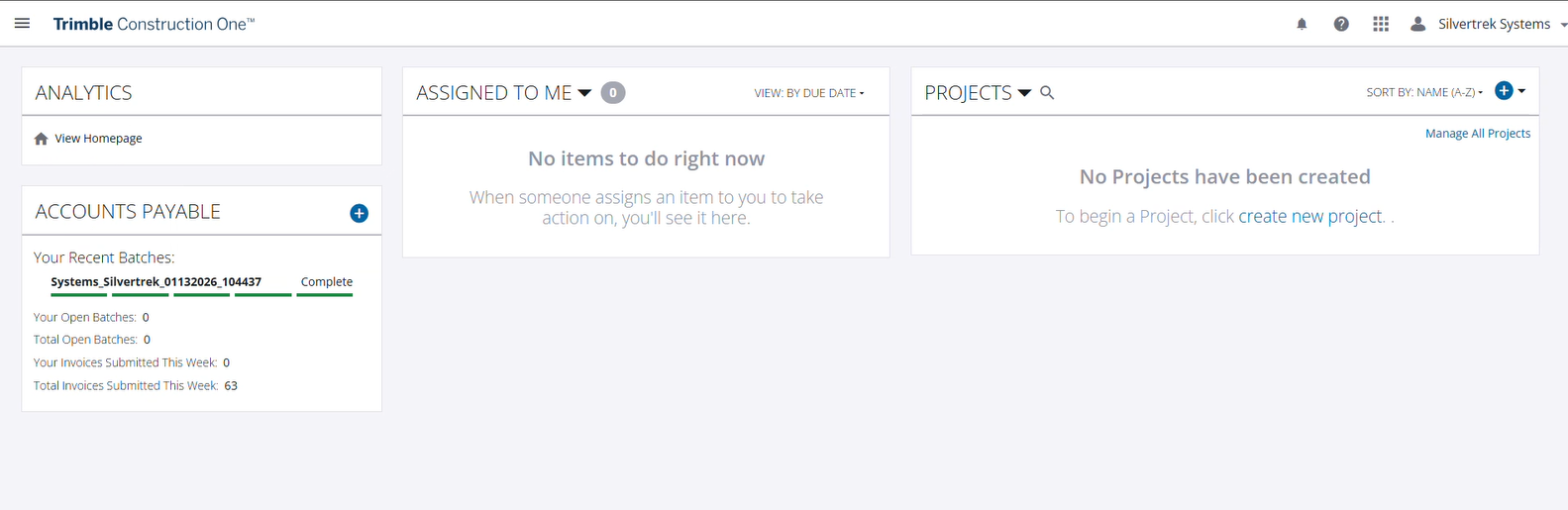
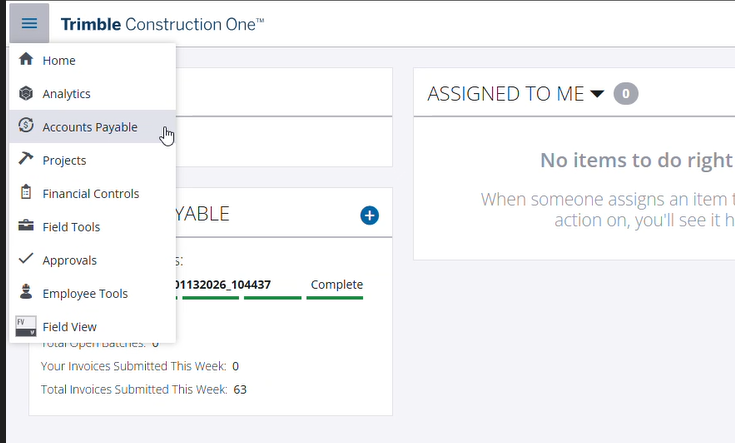
Go into Accounts Payable
Go into a new batch and verify that the companies are in there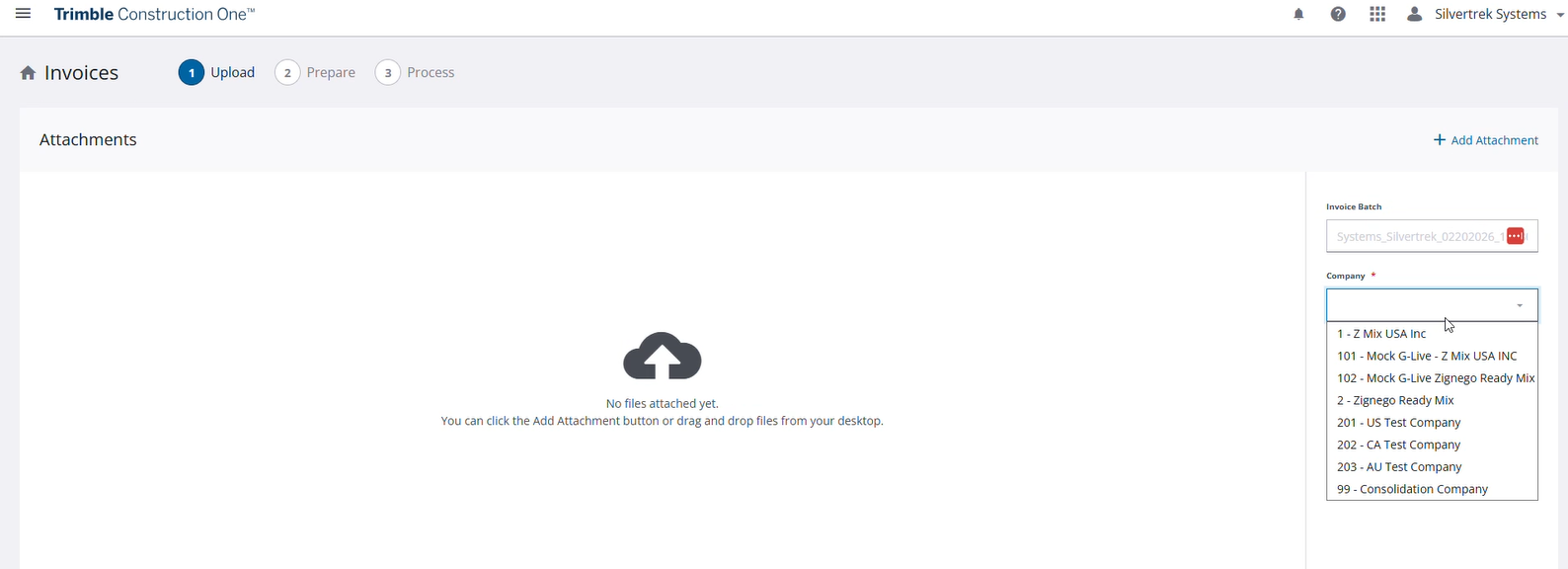
When it shows these - it requires a support ticket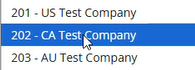
The last step would be if we want any inboxes setup for the AP invoices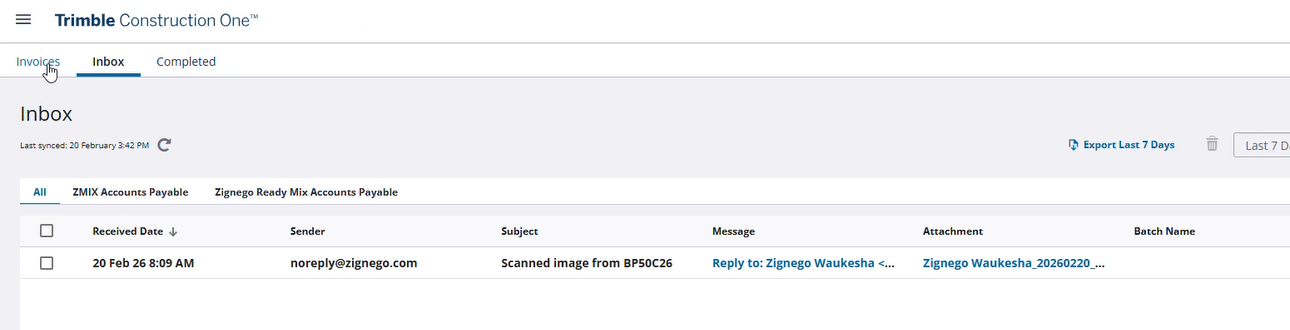
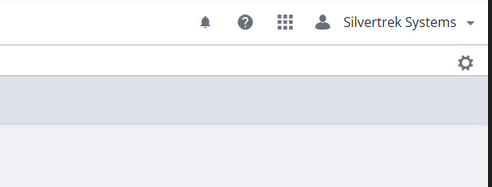
Press this gear button to setup the inbox
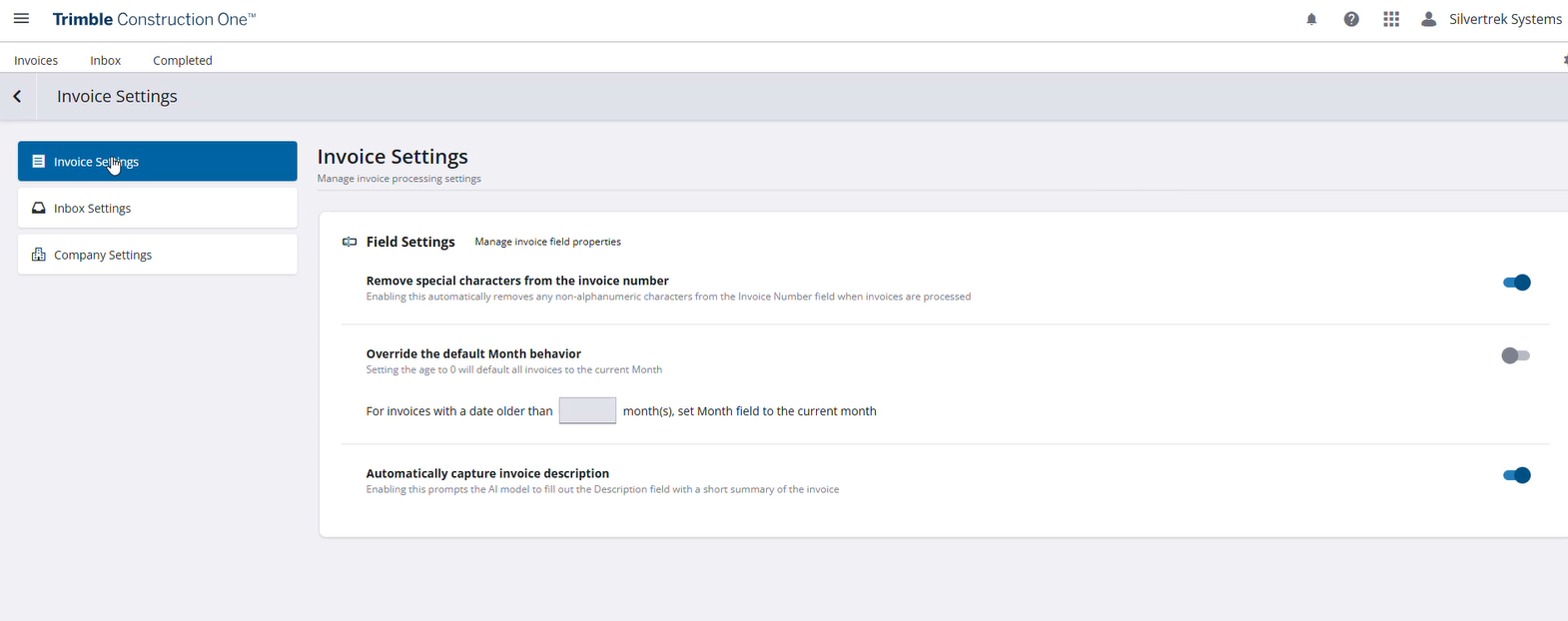
Go into Invoice Settings
Switch to Inbox Settings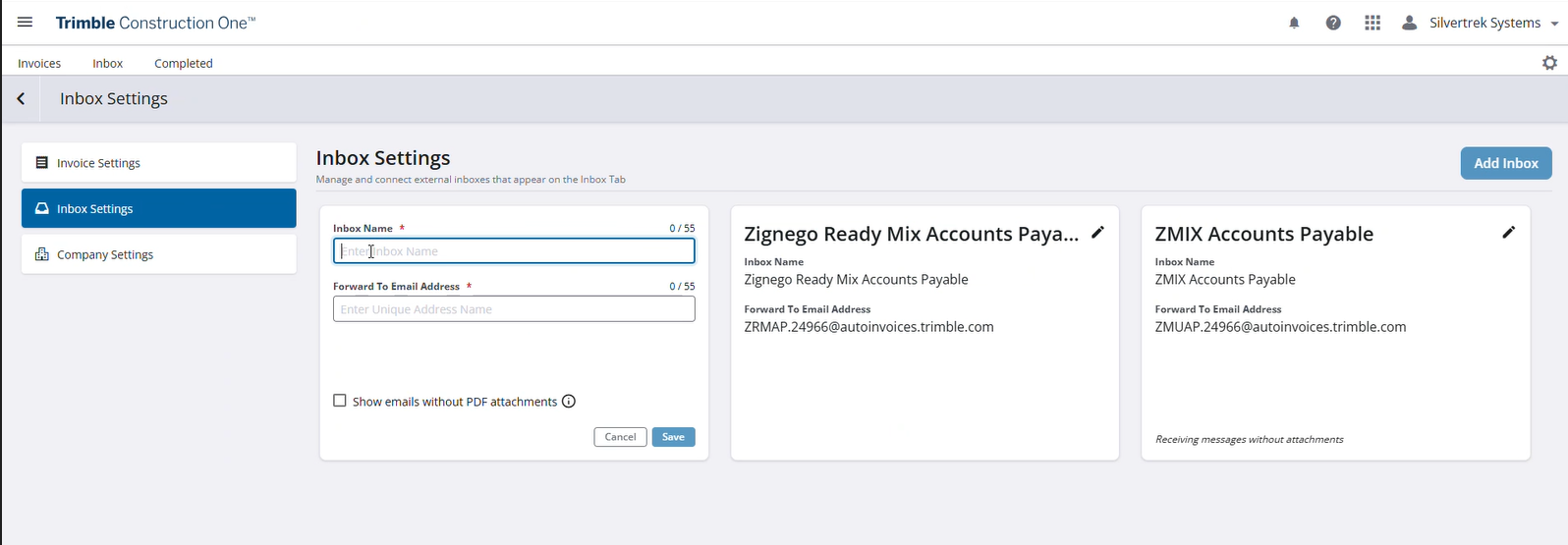
Click add inbox and add inbox name and what forward to email address (usually just do the test) setup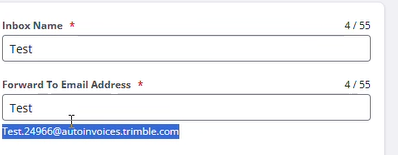
Once setup it will show up in the main inbox tab
If there are multiple companies go into company settings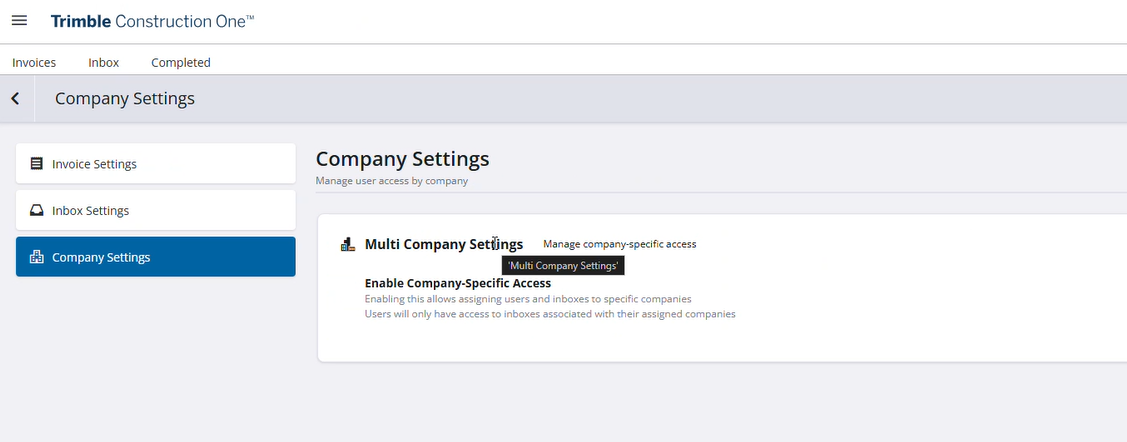
Toggle the Multi Company Settings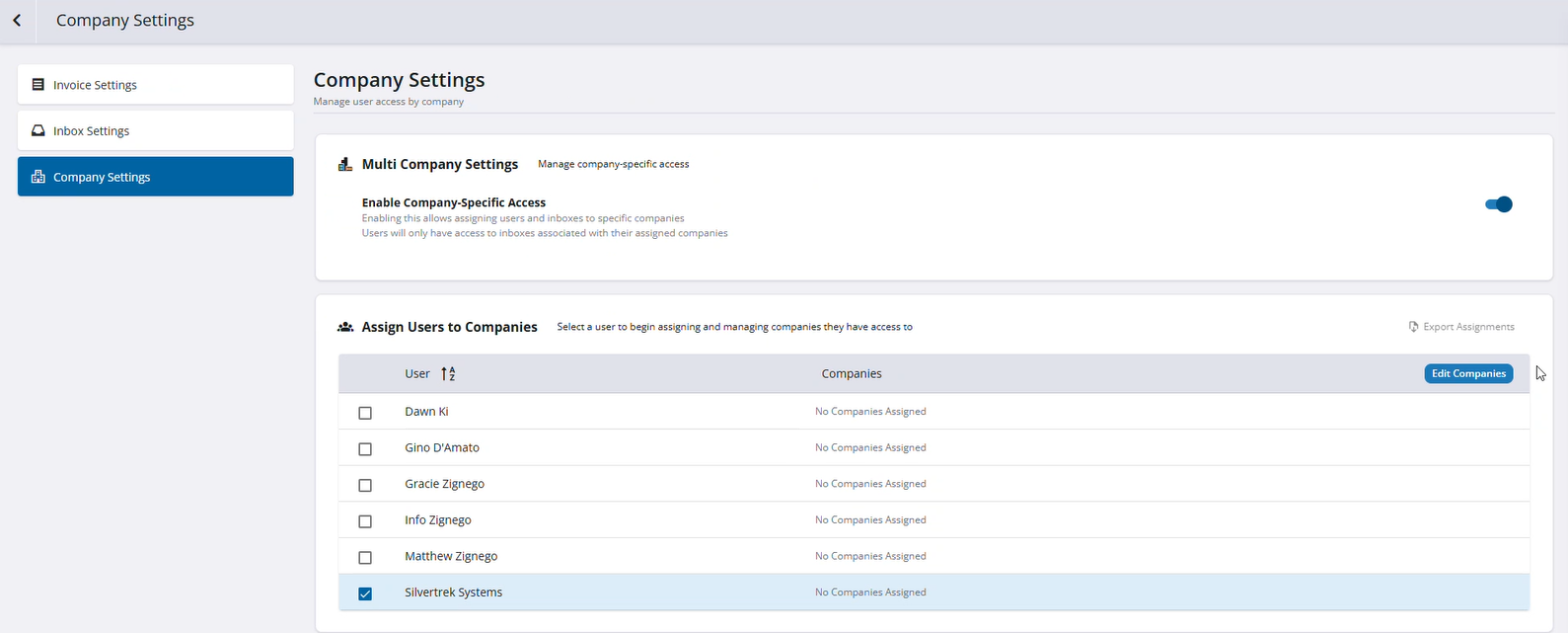
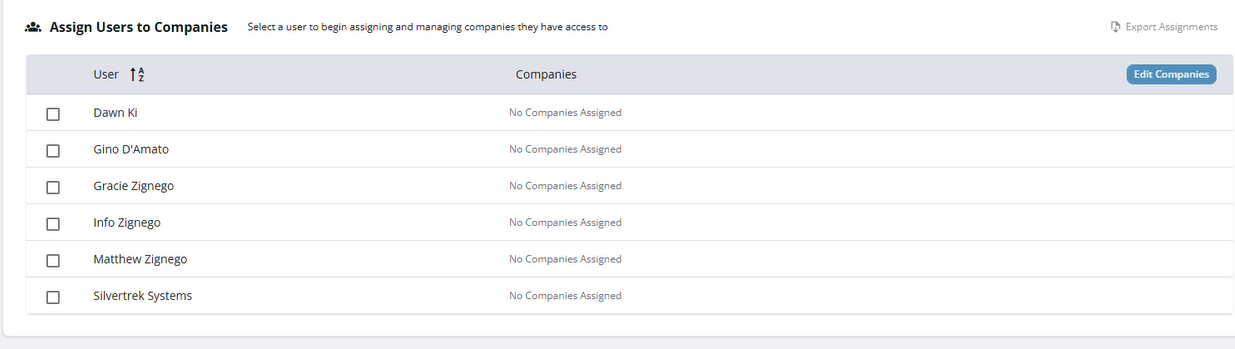 Select your user and edit companies
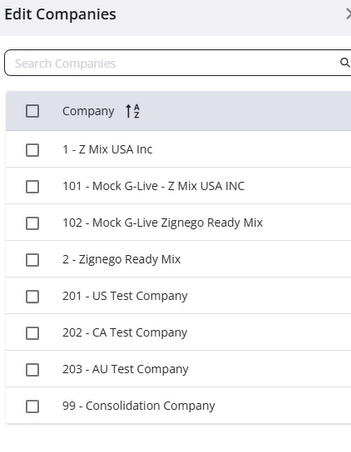 Then you can select the companies they have access to
Was this article helpful?
That’s Great!
Thank you for your feedback
Sorry! We couldn't be helpful
Thank you for your feedback
Feedback sent
We appreciate your effort and will try to fix the article