Creating VA Menu Templates in Viewpoint Administration
Objective
This SOP outlines the steps to create VA menu templates in Viewpoint Administration to enhance internal workflows.
Key Steps
1. Accessing VA Menu Templates 0:00
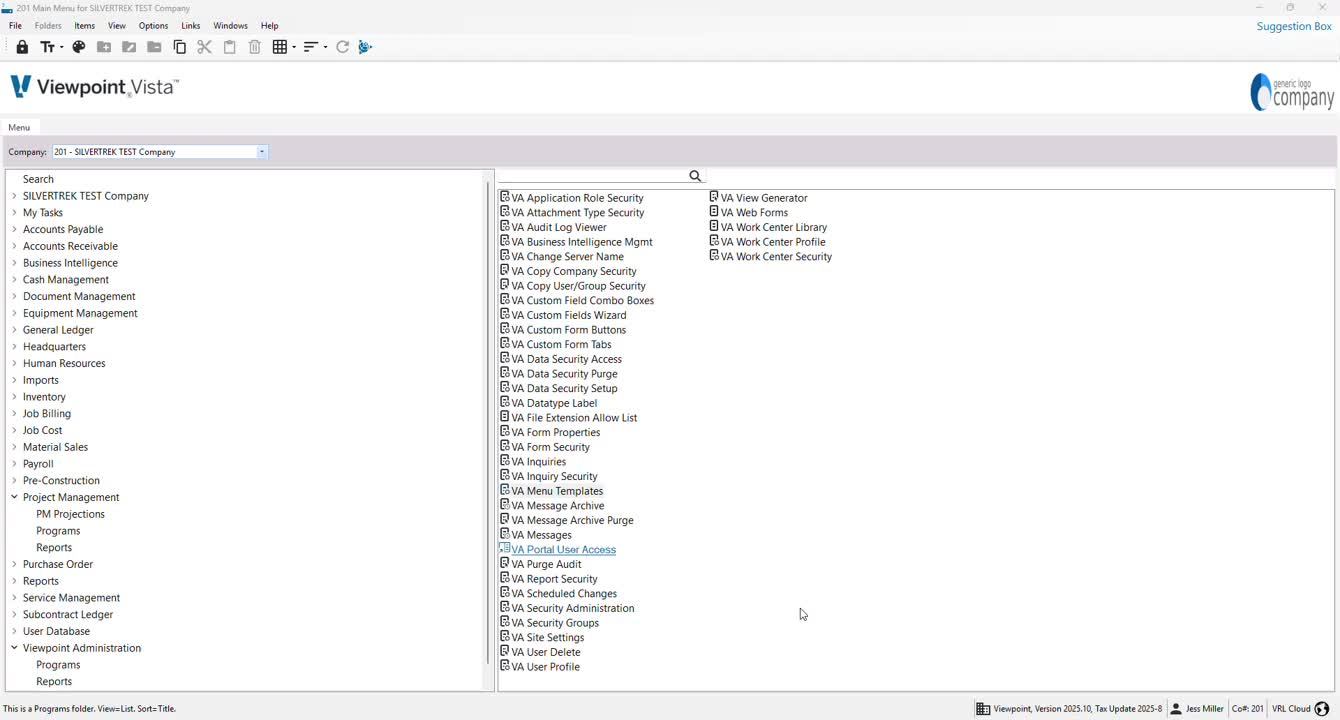
Open Viewpoint Administration Programs.
Navigate to VA Menu Templates.
2. Creating Folders for Workflow Management 0:14
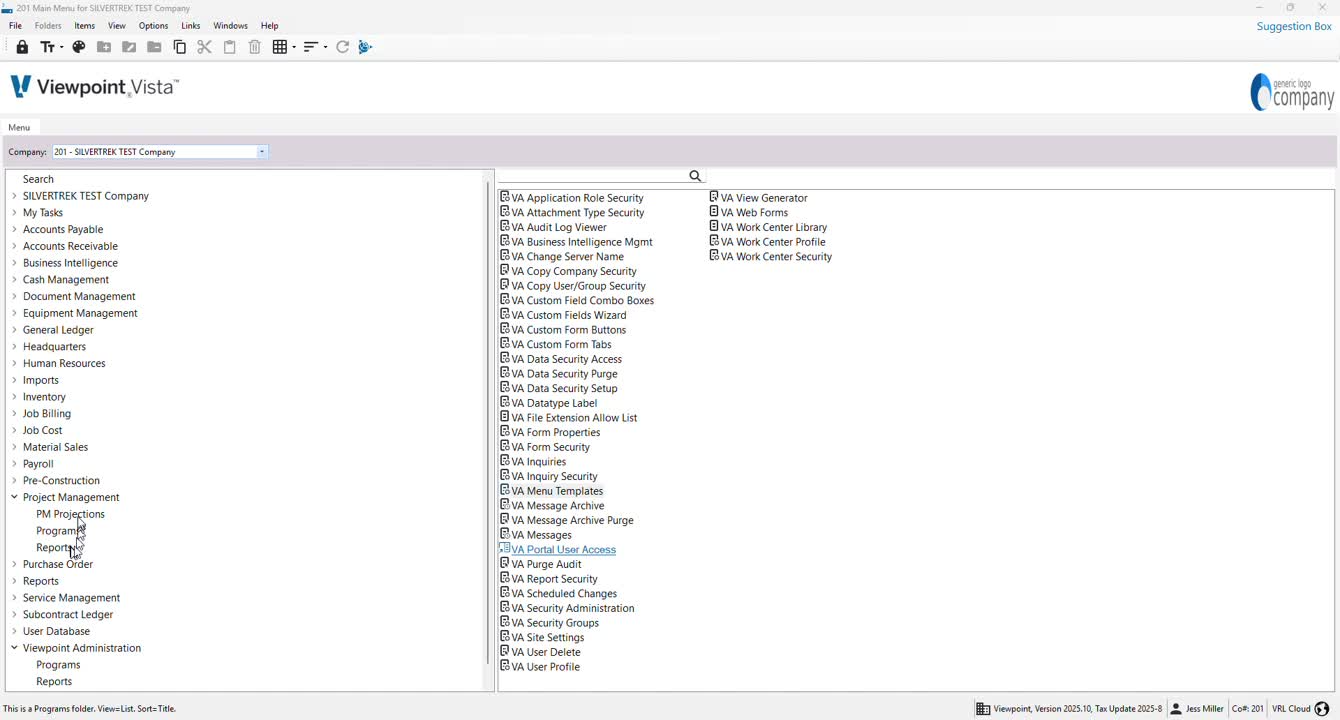
Right-click in the VA Menu Templates area.
Select 'New' to create a new folder.
3. Differentiating Menu Templates 0:29
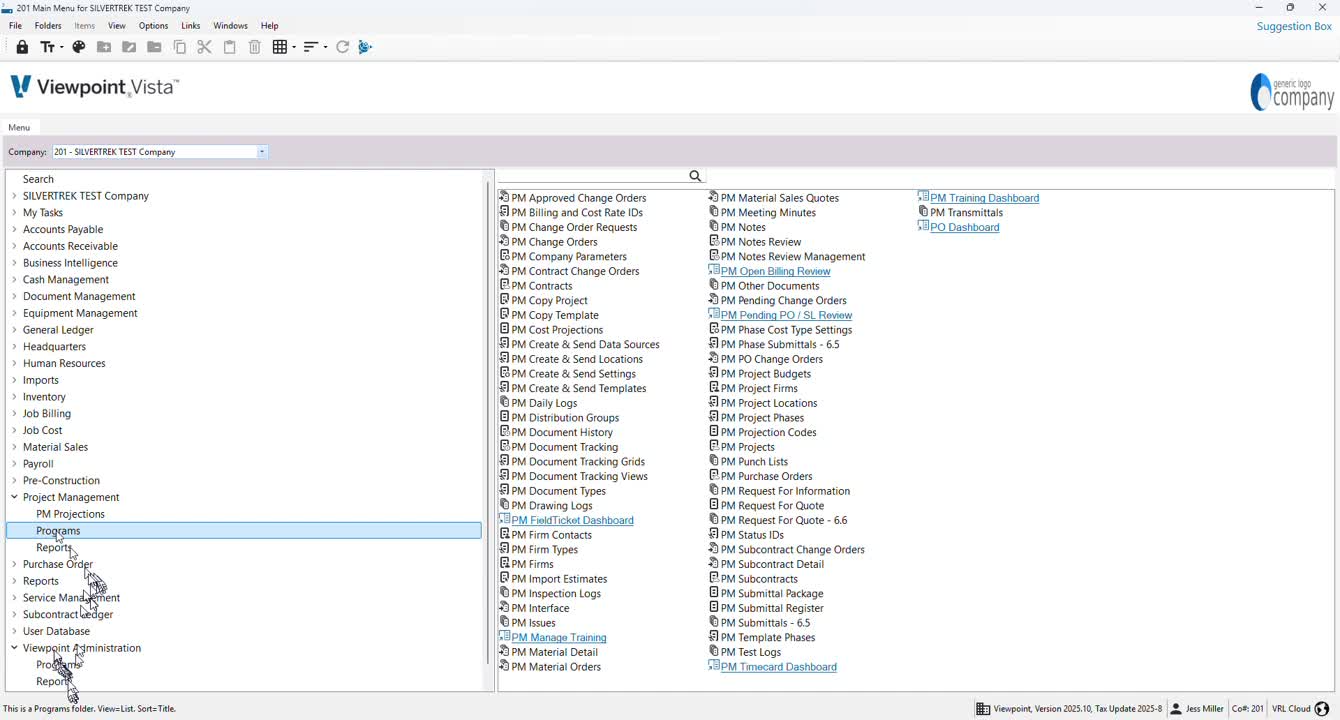
Use the Grid view to identify auto-created templates.
Inactivate or keep active templates based on your needs.
4. Example of a Workflow Template 0:44
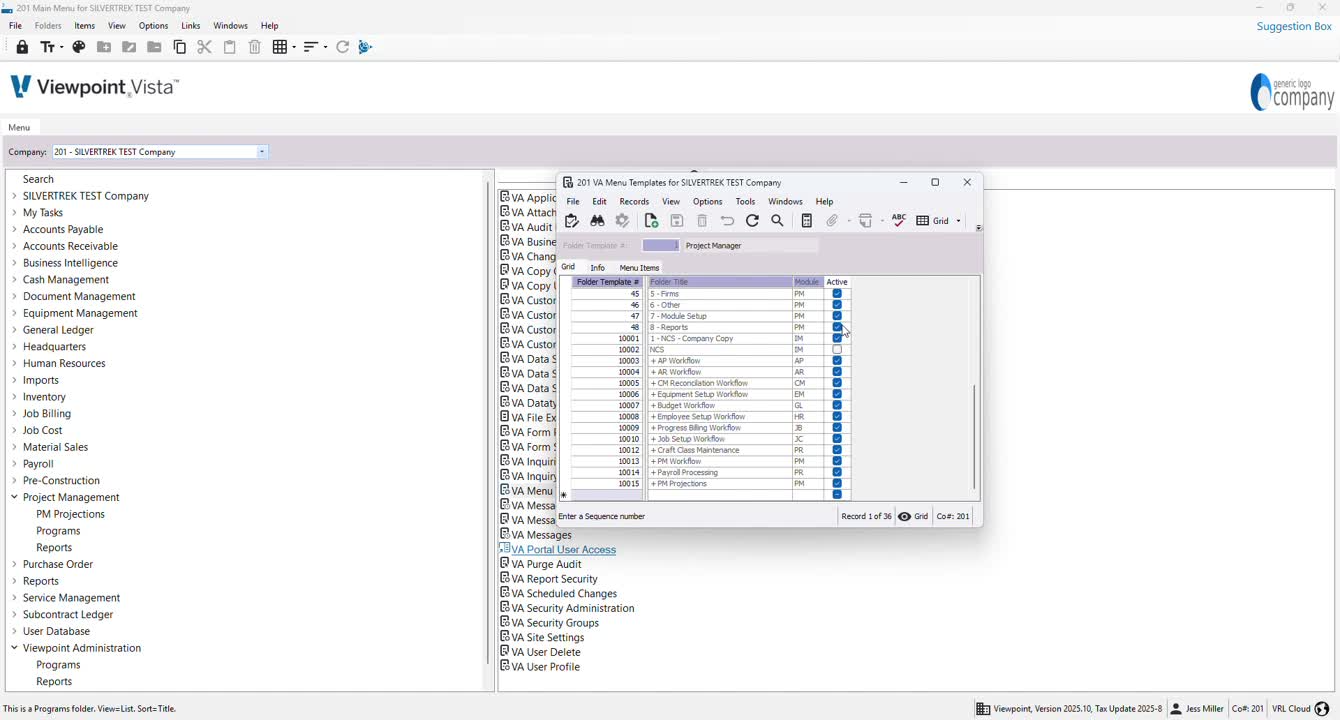
Select the PM projections folder as an example.
Review the folder template created on the server.
5. Naming Your Folder 1:10
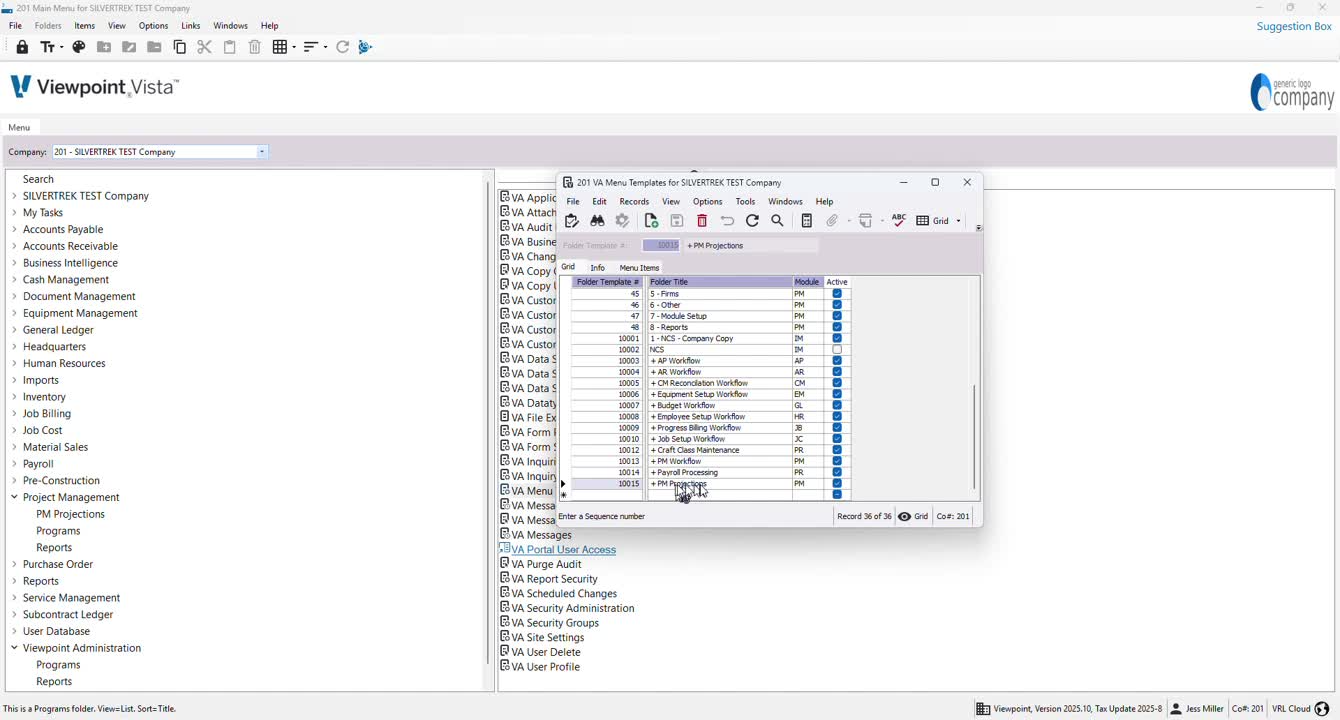
Use the format '+ [Folder Name]' for internal folders.
Ensure the folder title is clear and descriptive.
6. Adding Menu Items 1:20
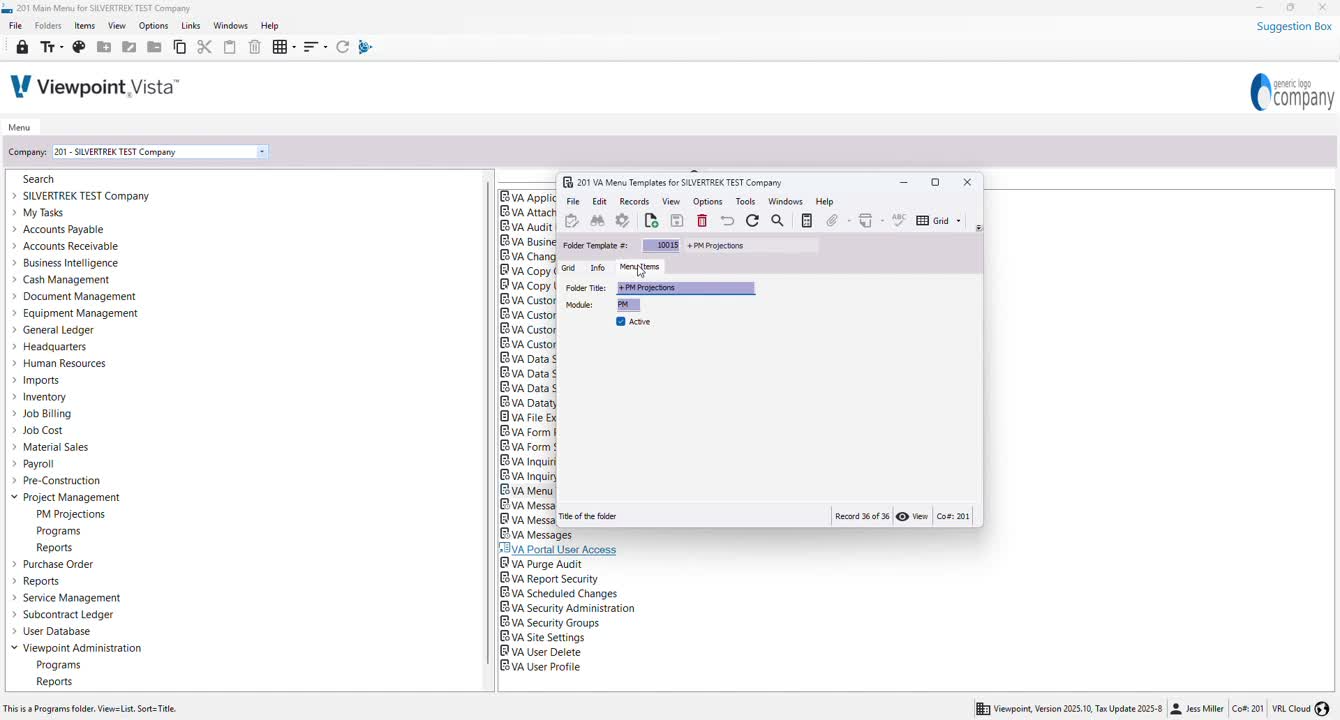
Go to the Info section to confirm folder title and module connection.
Select menu items such as PM projection code and PM cost projections.
7. Selecting Menu Items 1:32
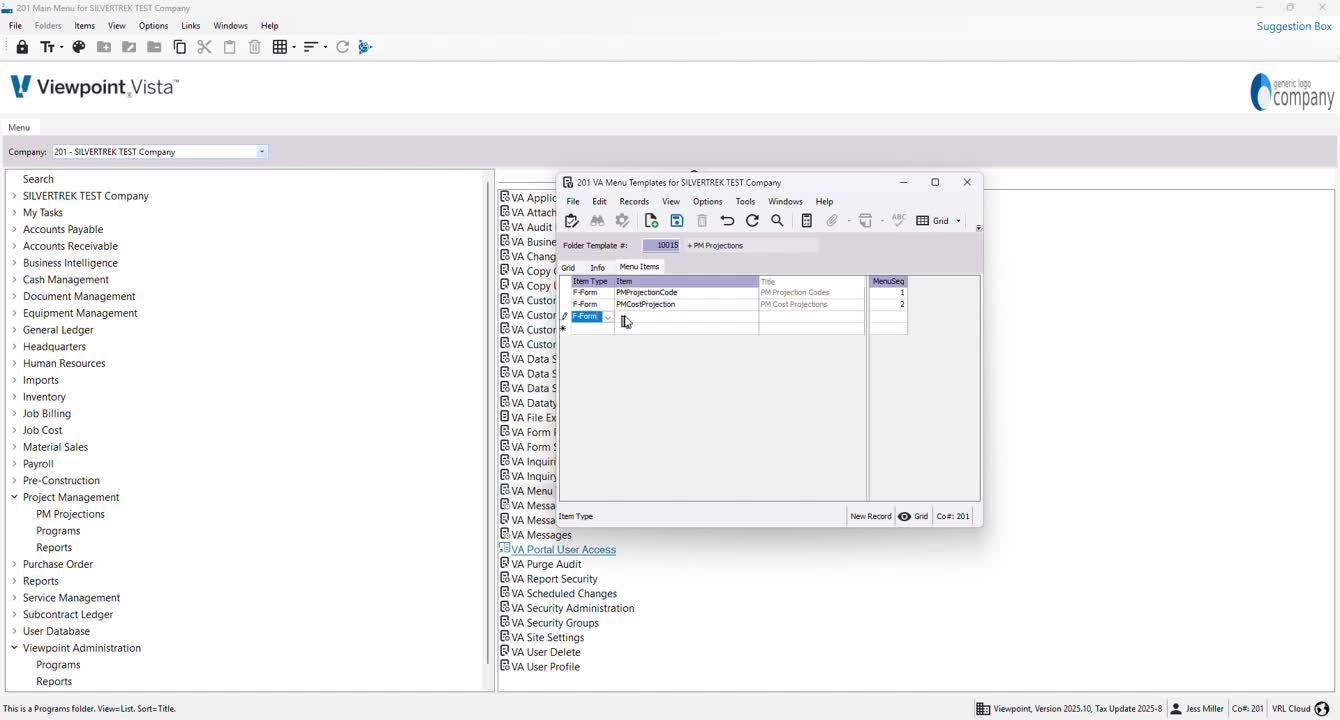
Choose whether to add a form or report.
Use F4 to view available options.
8. Filtering Menu Items 1:45
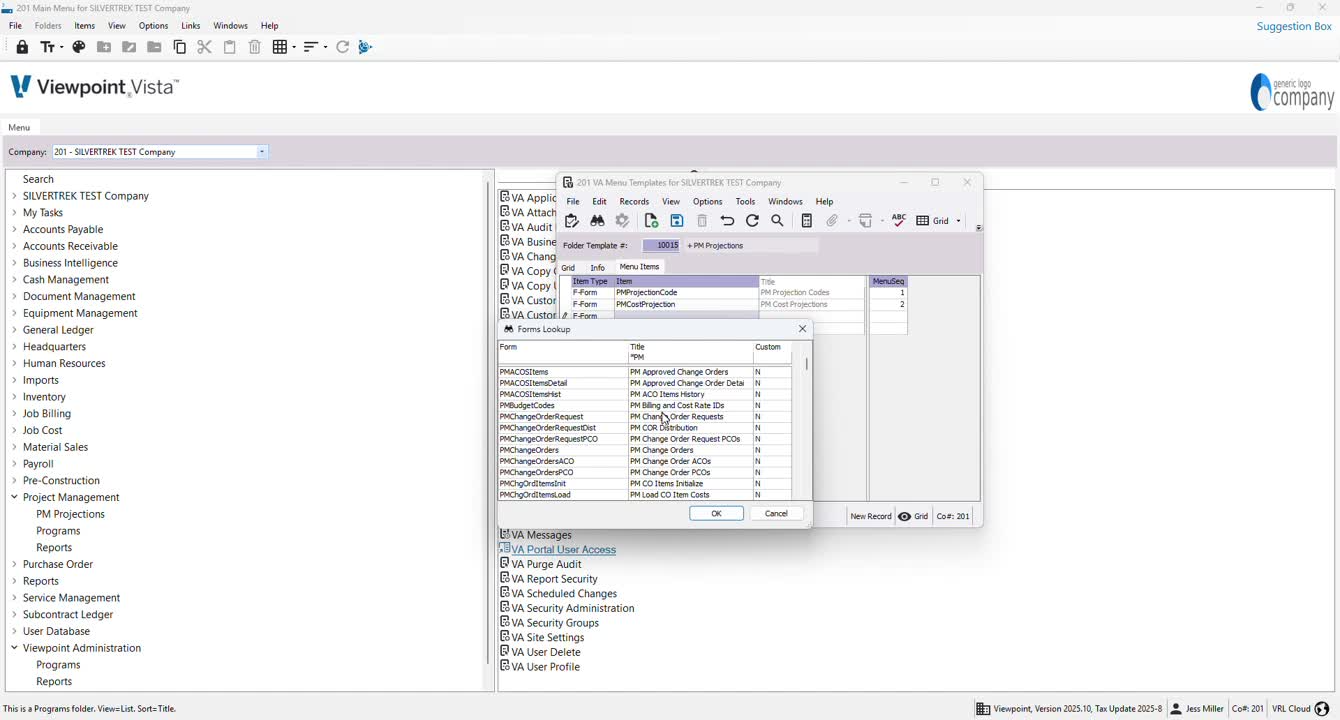
Use the asterisk symbol (*) followed by 'PM' to filter relevant items.
9. Setting Menu Sequence 1:59
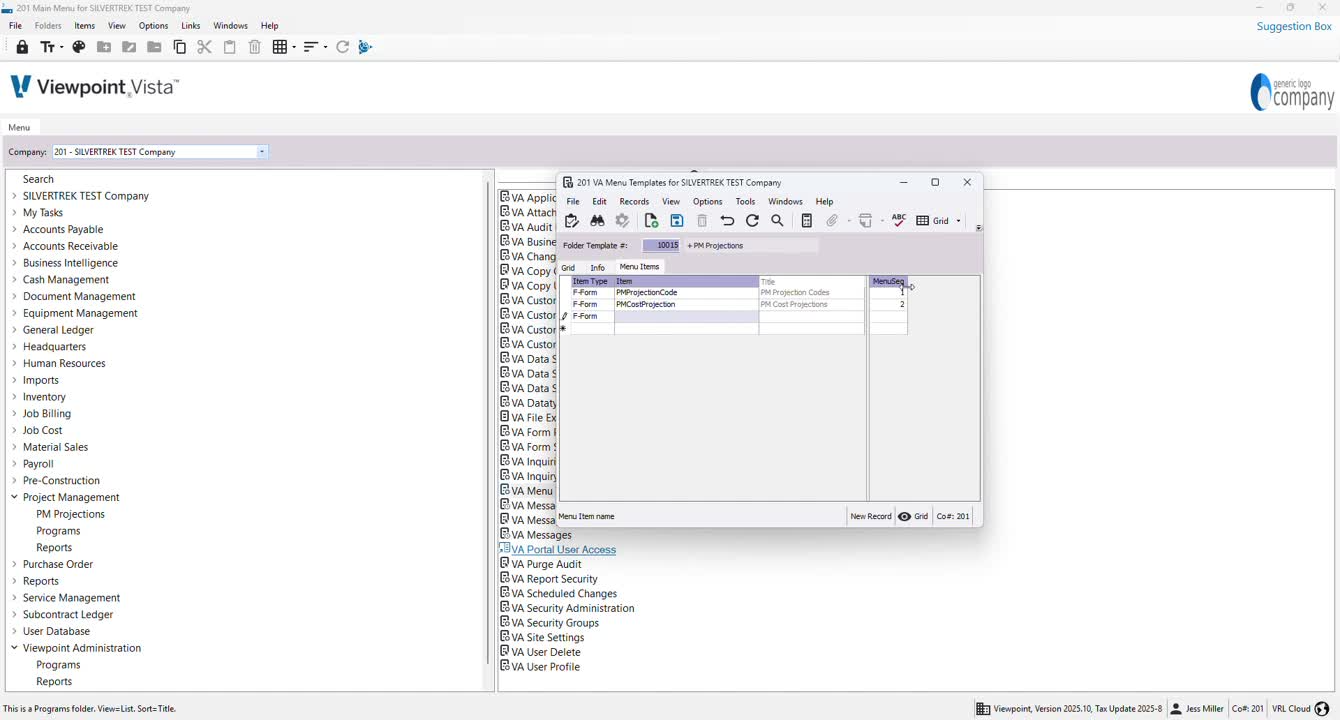
Assign a sequence number to determine the order of items in the folder.
10. Finalizing the Folder Structure 2:10
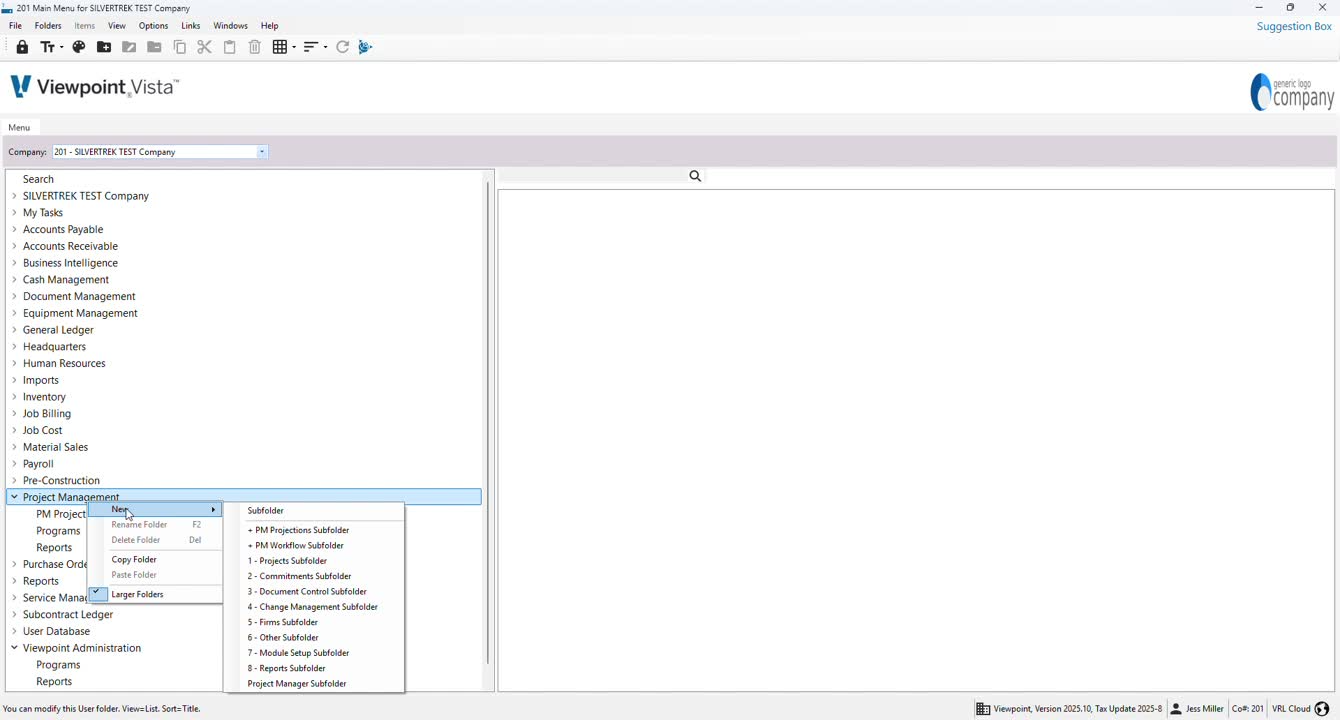
Navigate to the created subfolder to view the workflow items.
Cautionary Notes
Ensure that folder names are unique to avoid confusion.
Regularly review and update menu templates to keep them relevant.
Tips for Efficiency
Use consistent naming conventions for easy identification.
Regularly back up your templates to prevent data loss.
Link to Loom
Was this article helpful?
That’s Great!
Thank you for your feedback
Sorry! We couldn't be helpful
Thank you for your feedback
Feedback sent
We appreciate your effort and will try to fix the article