Step 1: Create a New GL Account
Open the GL Chart of Accounts module:
General Ledger > Programs
This is the first step to set up accounts for use in the Income Statement and Balance Sheet reports.
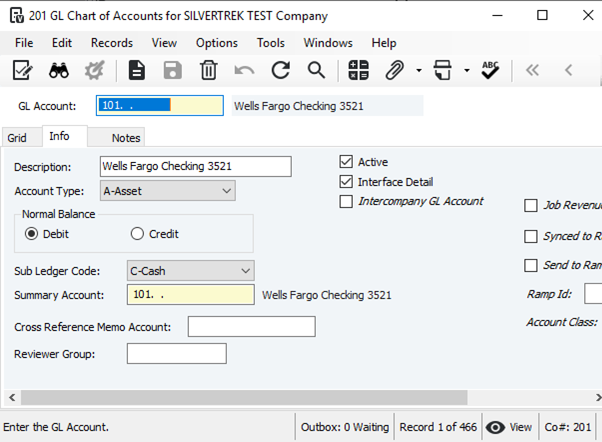
Open the GL Chart of Accounts form.
Enter a New GL Account Number within your assigned range.
Enter a Description (up to 30 characters) for reports.
Check Active if the account will be used; leave unchecked if inactive.
You cannot post to inactive accounts.
Interface Detail:
Check the box to include full transaction detail.
Leave unchecked to use the company’s module-level summary settings.
Enter the Account Type:
A = Asset
C = Capital
E = Expense
H = Header (no posting)
I = Income
L = Liability
M = Memo (not included in standard report totals)
P = Profit/Loss (used once for retained earnings)
Set the Normal Balance Type: Debit or Credit
Not available for Header accounts (H).
Assign a Subledger Code if the account is limited to certain entries:
J = Job
E = Equipment
I = Inventory
C = Cash
P = Payables
R = Receivables
S = Service
Leave blank if not restricted.
Note: Service (S) is for labor, miscellaneous, and purchase lines on SM work orders; equipment must be E or blank, inventory must be I or blank.
Setting Up for Balance Sheet and Income Statement
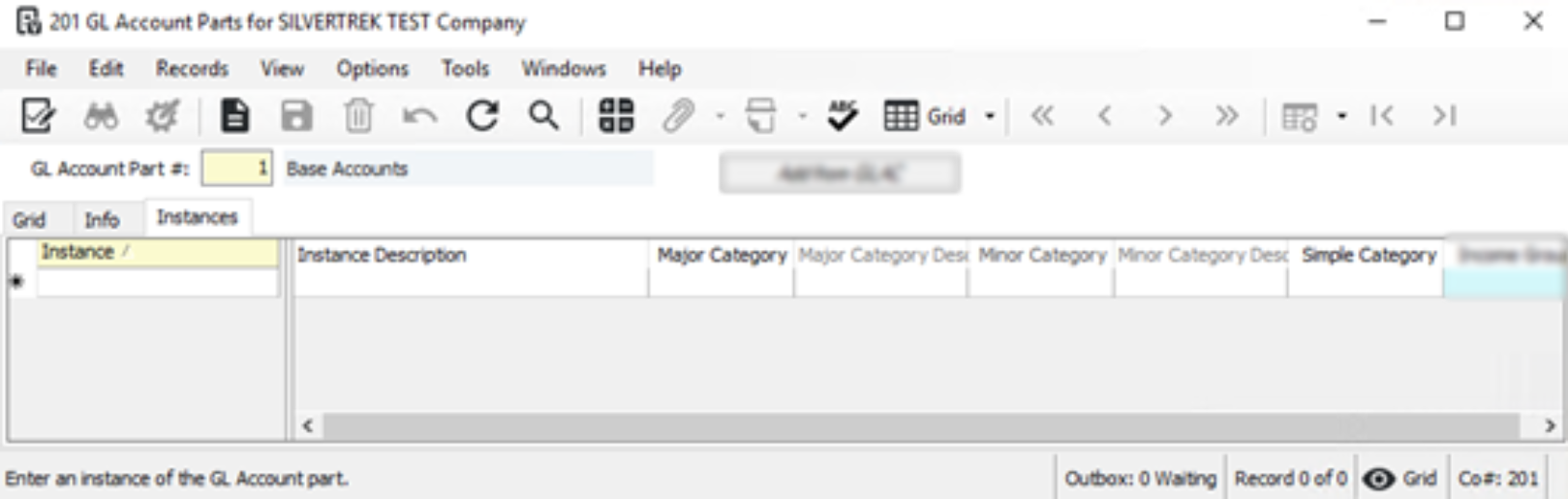
Go to GL Account Parts and ensure the new account is copied with the correct GL # and GL Name.
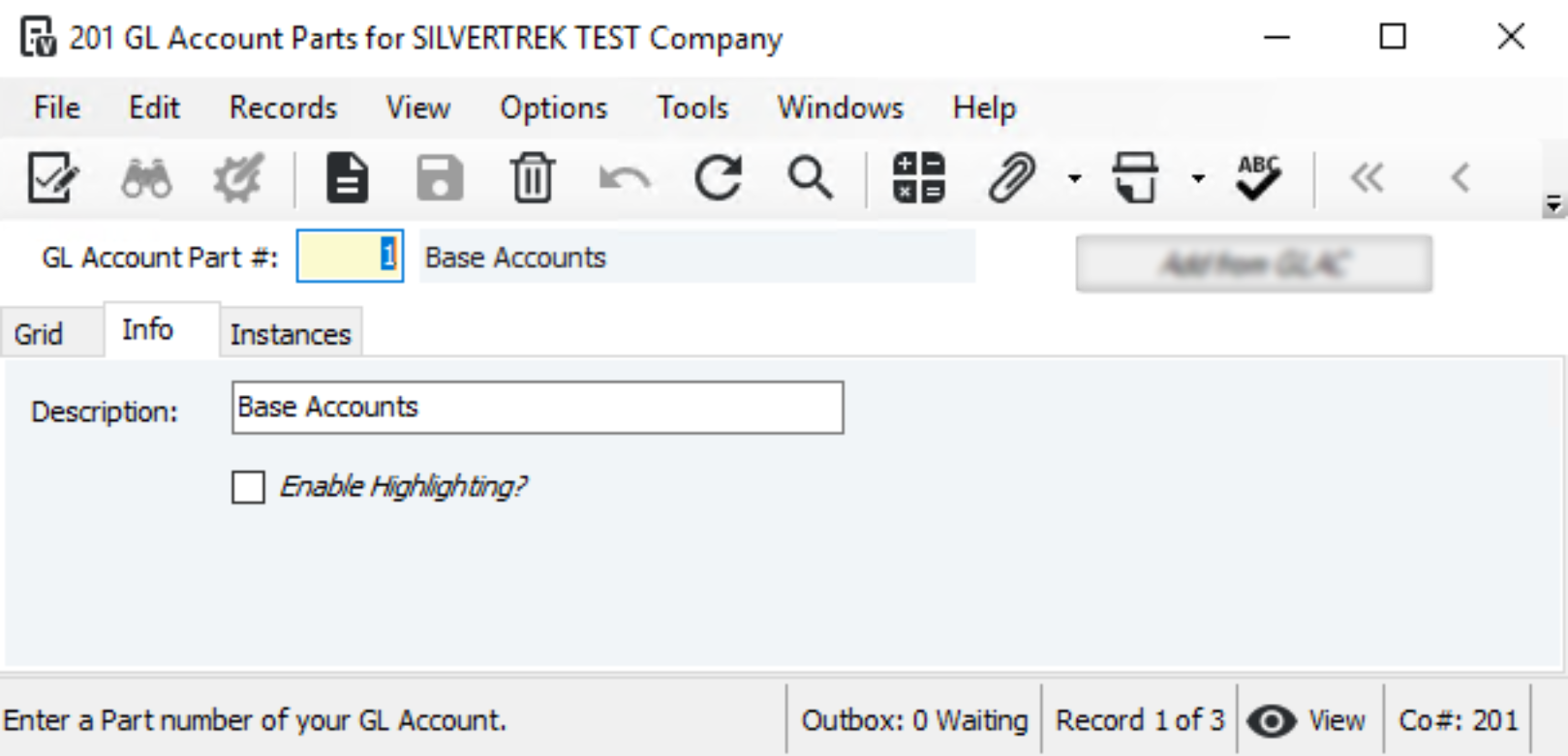
2. Inside of GL Account Parts, Add Major Category to the new account
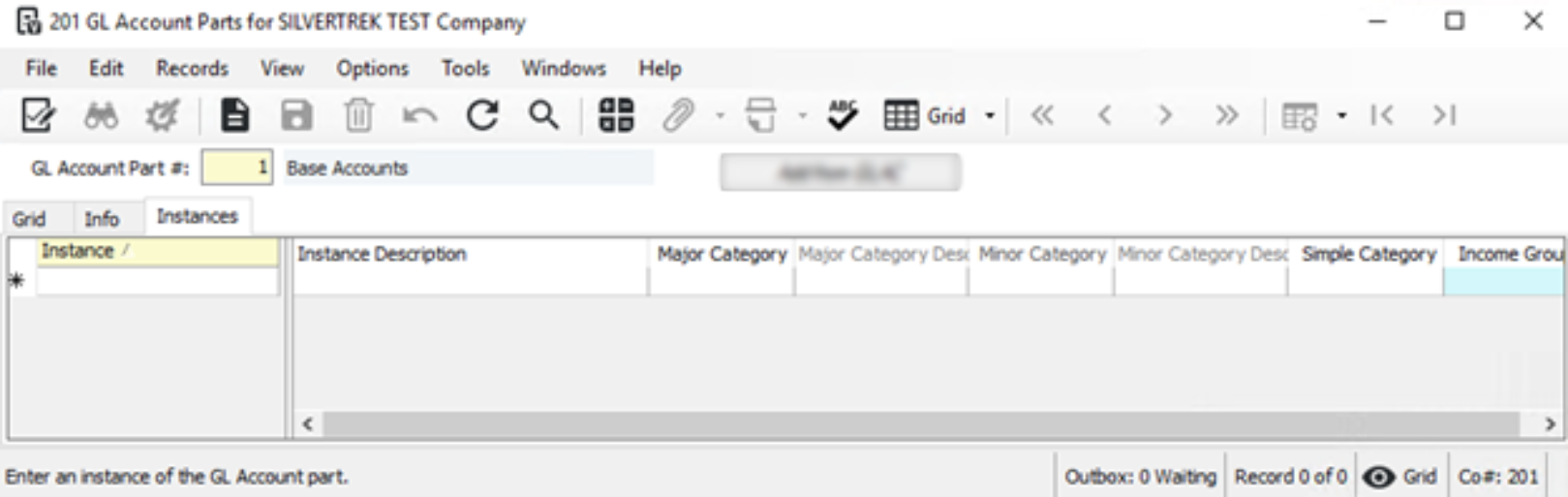
3. Go To GL Report Categories, select the proper major category and then select the minor category tab.
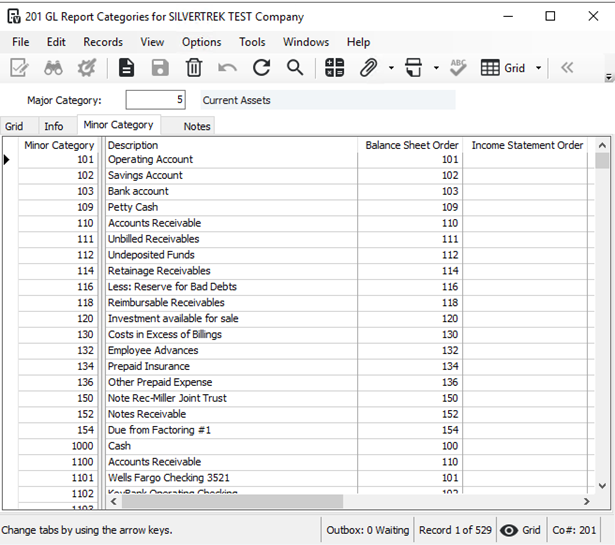
Add a New Minor Category
Combine the Company Number and GL Account (e.g., Co 1, GL 1010 → 11010).
Set Balance Sheet and Income Statement Order
a. Balance Sheet GL Accounts
Balance Sheet Order: GL Account #
Income Statement Order: Leave blank
b. Income Statement GL Accounts
Balance Sheet Order: Always 4000 (creates current year income/loss line on the balance sheet)
Income Statement Order: GL Account #
3. Update GL Account Parts
After creating the Minor Category inside the Major Category, go back to GL Account Parts and assign the new Minor Category to the account.
Was this article helpful?
That’s Great!
Thank you for your feedback
Sorry! We couldn't be helpful
Thank you for your feedback
Feedback sent
We appreciate your effort and will try to fix the article