This guide outlines the best practices and steps for updating multiple employee benefit rates after an open enrollment period.
- If updating all employees after Open Enrollment: Start in the HR Benefit Code form.
- If updating select employees: Start in the HR Resource Benefits form.
This procedure ensures benefit rates are accurately updated and validated before being posted to Payroll (PR).
Step 1: Update Benefit Codes and Push Rates to Resource Benefits
1. Open the HR Benefit Code Form
- Go to HR > Benefit Code.
- Select the Benefit Code that needs new rates or effective dates.
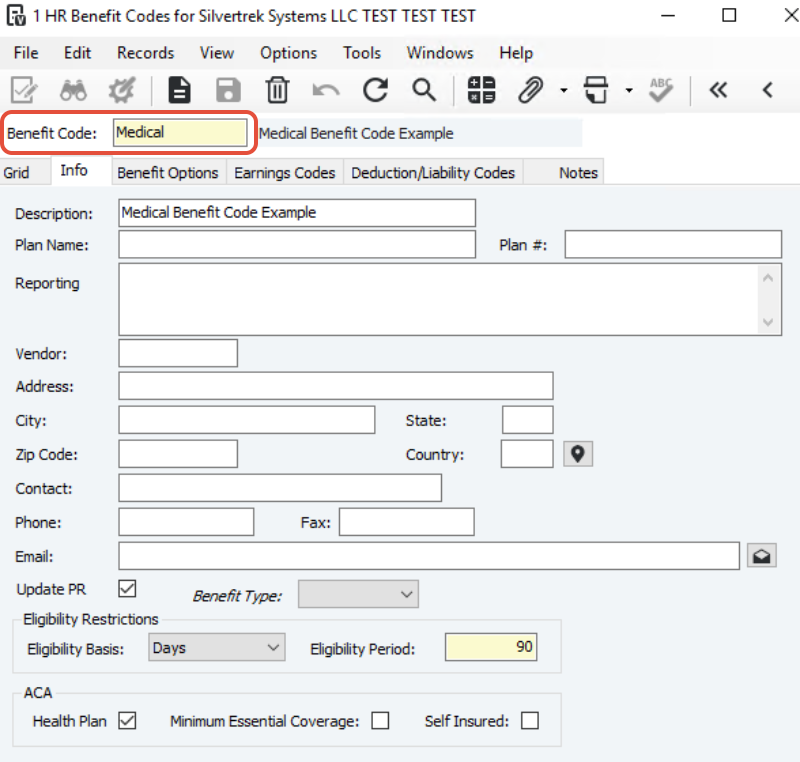
2. Move Old Rates
- Navigate to the Deduction/Liability Codes tab.
- From the menu bar, select:
- File > Move New Rates to Old
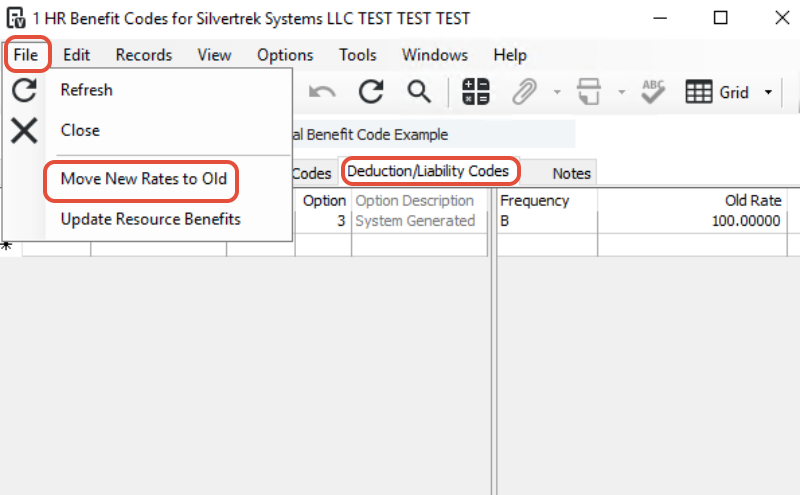
- File > Move New Rates to Old
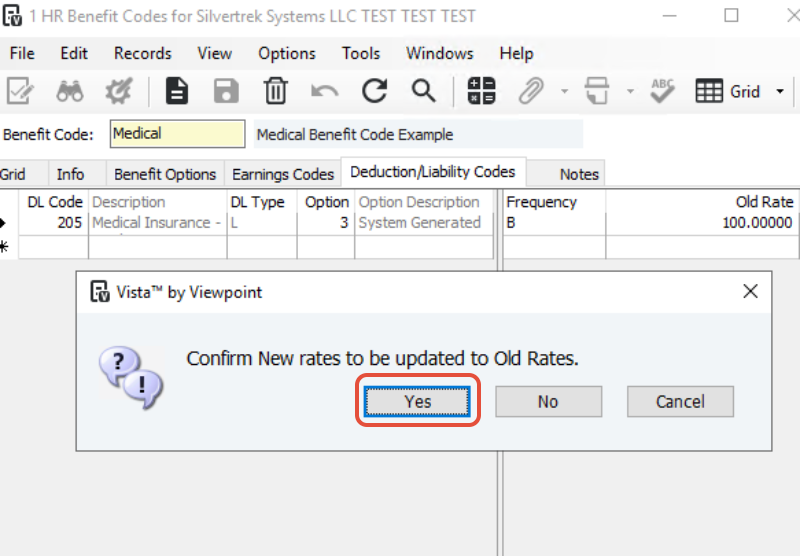
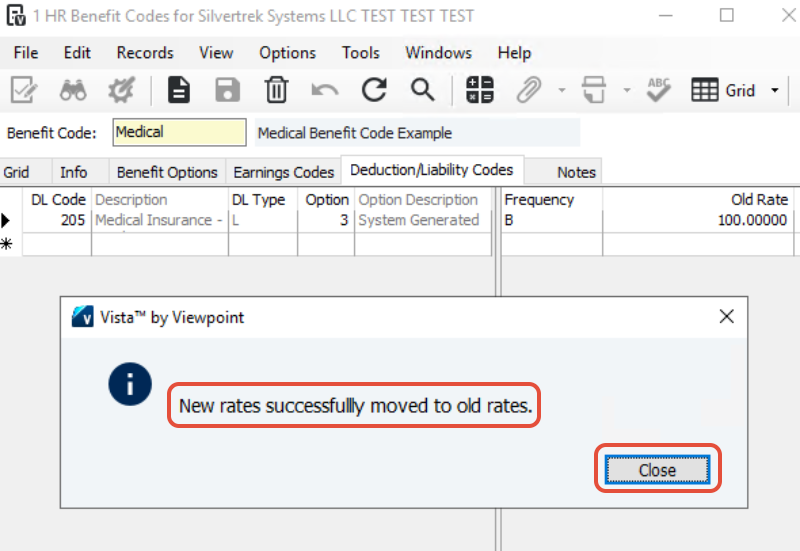
- Two pop-up messages will appear:
- Popup 1: Confirm New Rate to be updated to Old Rate → Click Yes.
- Popup 2: Rates have been moved → Click OK.
3. Add New Rates
- Enter the New Rate(s) and Effective Date for the updated benefits.
Tip: The effective date determines which rate is applied when adding this benefit to a Resource.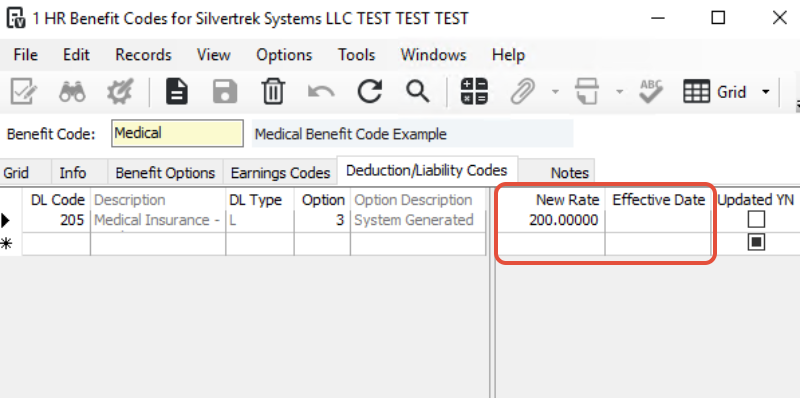
Important: The Updated (Y/N) box should remain empty at this point. This is correct.
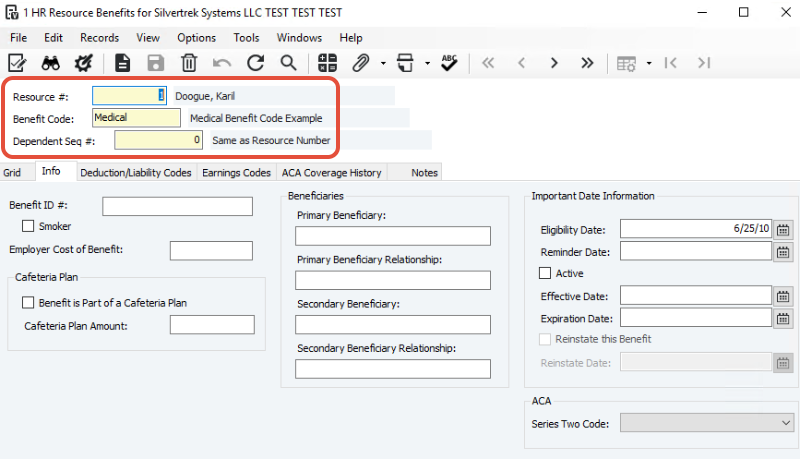
4. (Optional) Adjust Employee Benefit Options
If some employees have changed their benefit elections:
- You can update their information in the HR Resource Benefits form now or wait until after Step 1 is complete.
- You’ll perform an audit in Step 2 to confirm all updates before pushing data to PR.
5. Update Resource Benefits
- In the HR Benefit Code form, go to:
- File > Update Resource Benefits
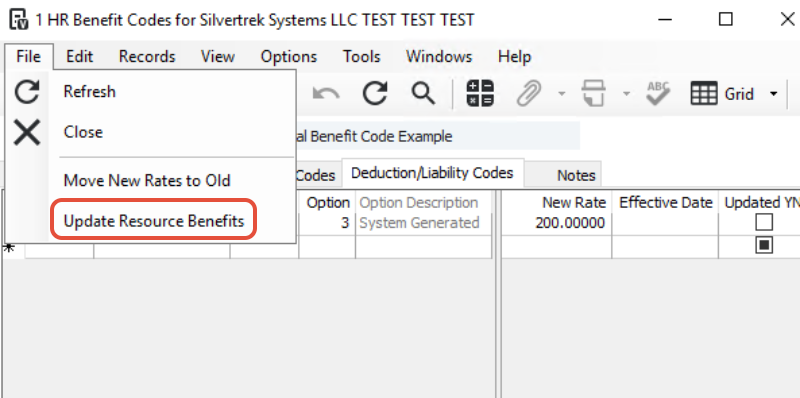
- File > Update Resource Benefits
- The HR Benefit Update form will open.
- Enter:
- Benefit Code to update
- Check Include Inactive Resources if needed
- Check Only Update Matching Rates (recommended to leave at default)
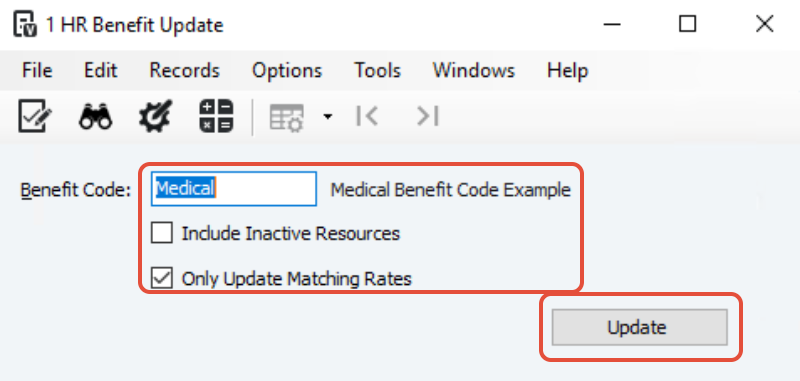
- Confirm the pop-up message:
“New rates updated to HR Resource Benefits.”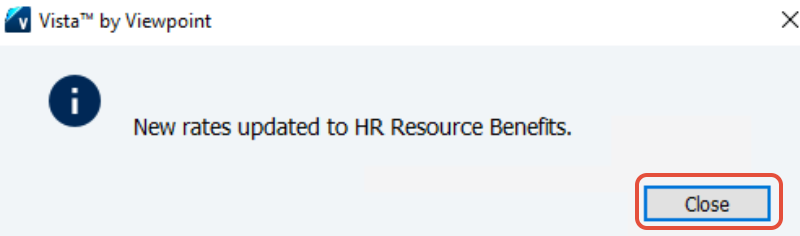
- Repeat for additional Benefit Codes as needed.
After completion, the Updated (Y/N) box will now show Y (Yes), indicating the new rates have been moved to Resource Benefits.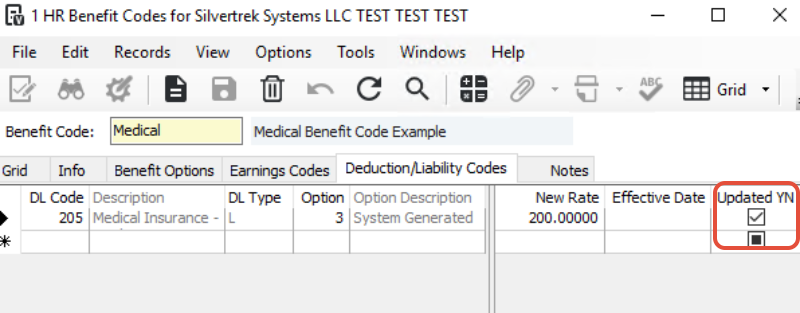
Close the HR Benefit Code form.
Step 2: Verify Data in HR Resource Benefits Form
1. Open HR Resource Benefits
- Go to HR > Resource Benefits.
Everything in this step ensures your data is accurate before updating Payroll.
2. Verify Employee Data
- Switch to Grid View.
- Filter by the Benefit Code you updated.
- Confirm the Active box is checked for all applicable employees.
3. Confirm Updated Rates
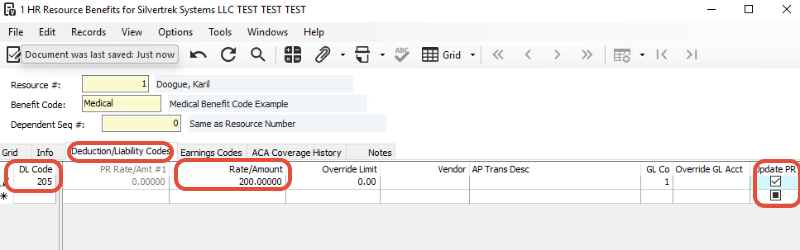
- Select the Deduction/Liability Codes tab.
- Review the updated Rates.
- Ensure the Update PR box is checked.
Note: The Effective Date shown on the Info tab is not the same as the one entered in HR Benefit Code.
This field is only used to indicate when the benefit becomes active for that employee/dependent.
If the benefit is defined as an ACA health plan, the Effective Date will also appear on the ACA Coverage History tab.
Once data is verified and complete, close this form.
Step 3: Push Benefit Rates to Payroll (PR)
Timing is critical.
Do not complete this step until:
- The pay period when new benefit rates should start is open or ready to be created.
For example:
If new rates are effective January 1st, don’t run the update until:
- The final pay period of the previous year is closed, or
- The Payroll Processing form for that period has been run.
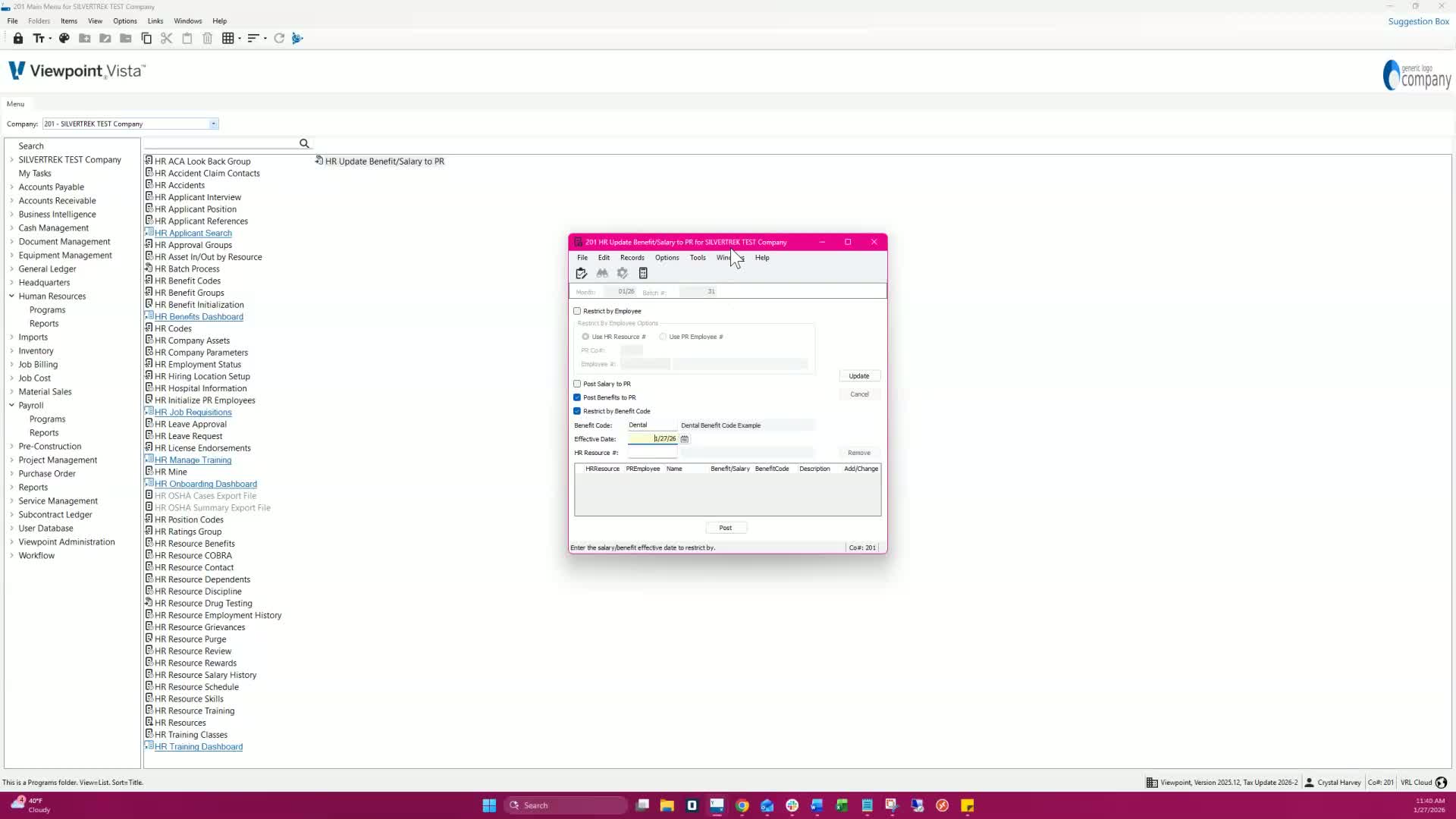
1. Open HR Update Benefit/Salary to PR Form
- Go to HR > Update Benefit/Salary to PR.
2. Create a New Batch
- Click New Batch.
- Check the box Post Benefits to PR.
- Enter:
- Effective Date (only updates changes effective on/before this date)
- Benefit Code to be updated
- Click Update.
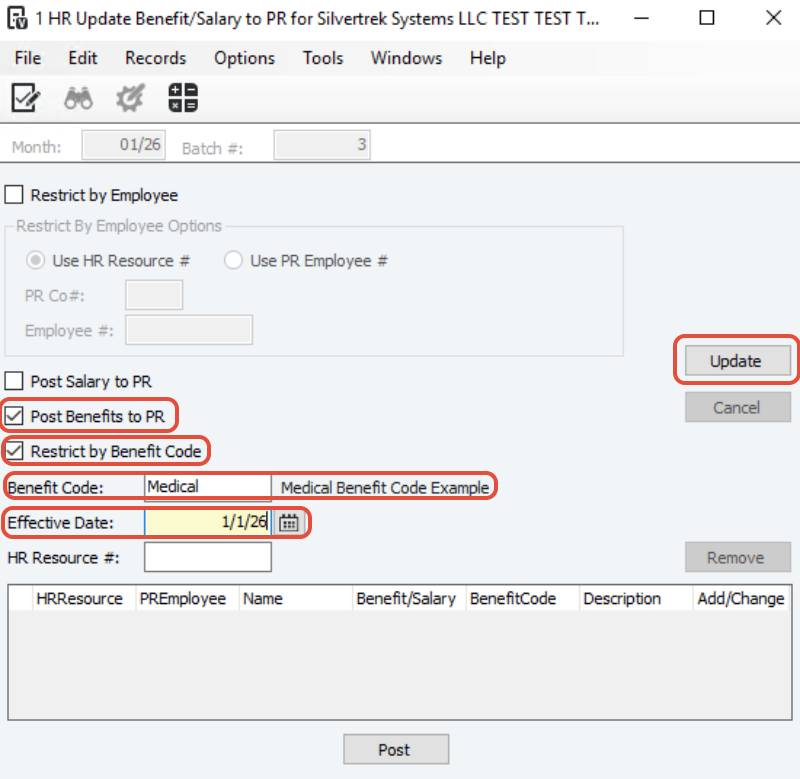
You should now see Resources populate in the grid.
3. Review and Finalize
- Review the Resources listed.
- To remove any employee from the update:
- Enter their Resource ID in the HR Resource # field and click Remove.
Once you’re satisfied with the data:
- Click Post, then Validate and Process the batch.
Benefit rates are now successfully updated in Payroll.
Summary Checklist
- Step Task Completed
- Move old rates, add new rates in HR Benefit Code
- Update Resource Benefits
- Verify rates and active status in HR Resource Benefits
- Post new rates to Payroll (PR)
- Validate and process batch
Best Practices
- Always back up data before processing rate updates.
- Keep a record of all rate changes and effective dates.
- Run updates only after payroll periods are confirmed closed/open as appropriate.
- Verify results in both HR and PR modules before finalizing payroll.
HR Update Benefit Salary to Payroll Procedure
Objective
This SOP outlines the steps to update benefit rates and push them to payroll using the HR Update Benefit Salary to Payroll form.
Key Steps
1. Open HR Benefit Codes 0:10
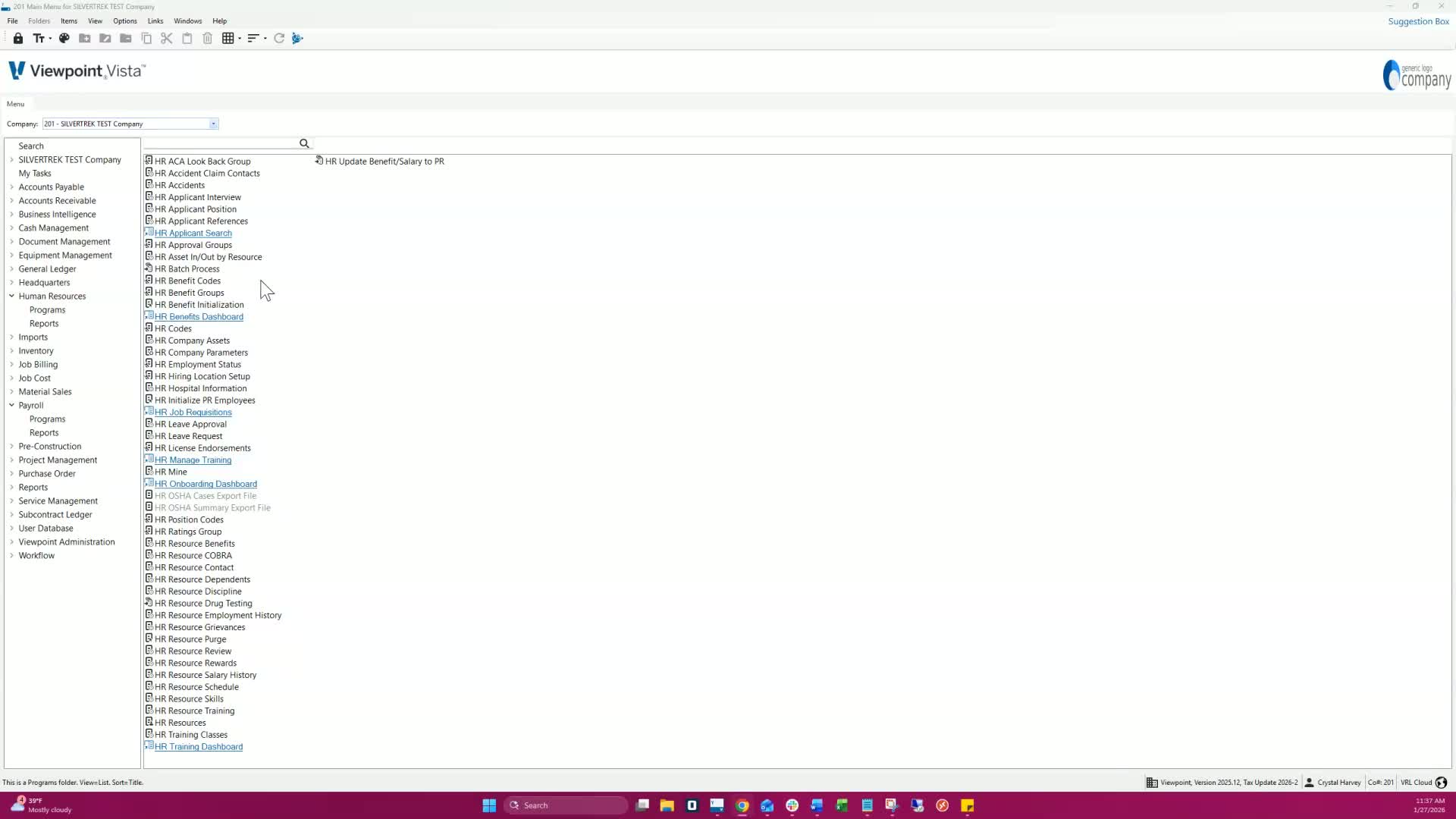
Access the HR Benefit Codes section.
Select the benefit you wish to update.
2. Update Deduction Liability Codes 0:24
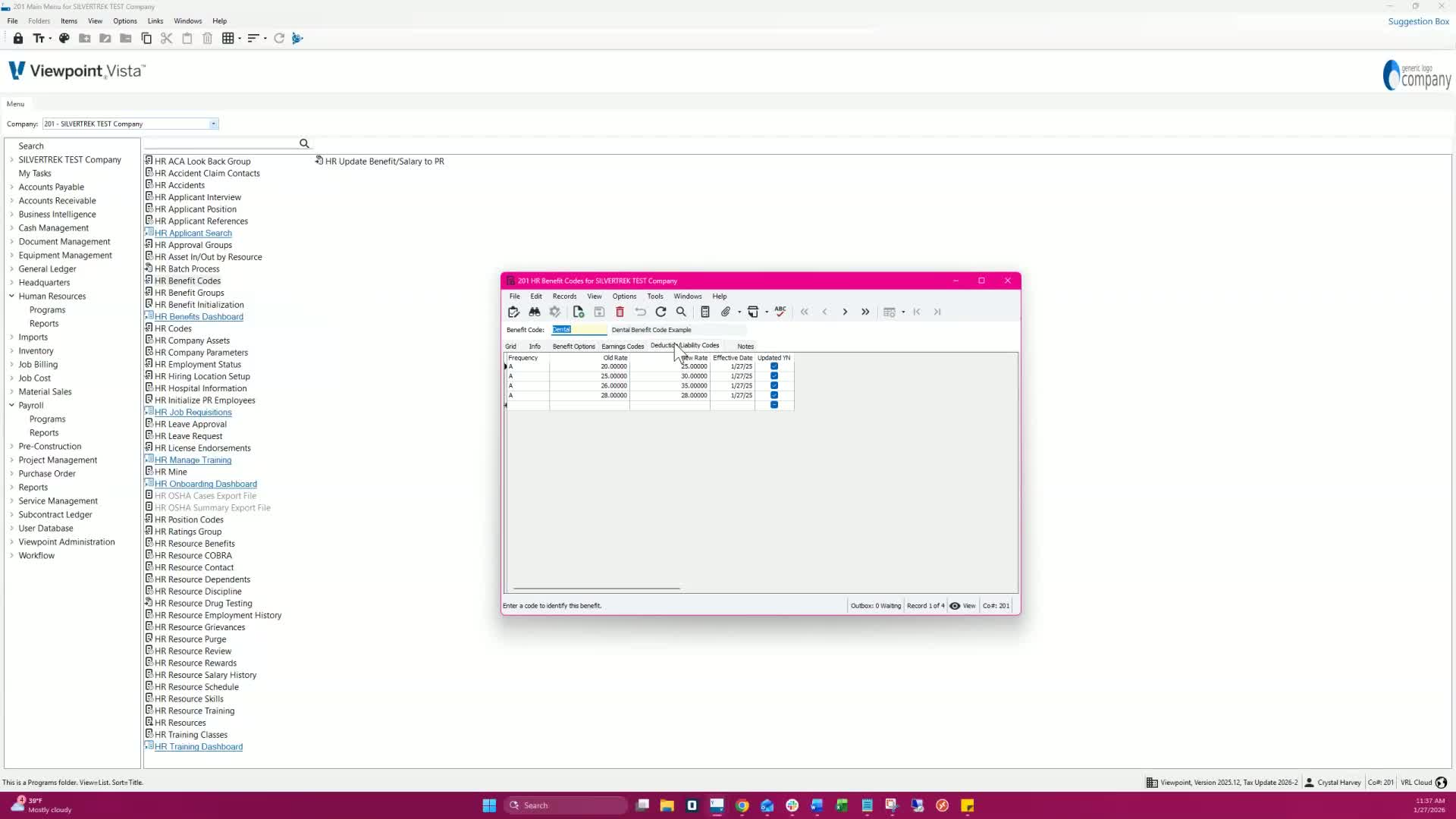
Navigate to the Deduction Liability Codes tab.
Select 'File'.
Move new rates to old and confirm both prompts.
3. Enter New Rates 1:01
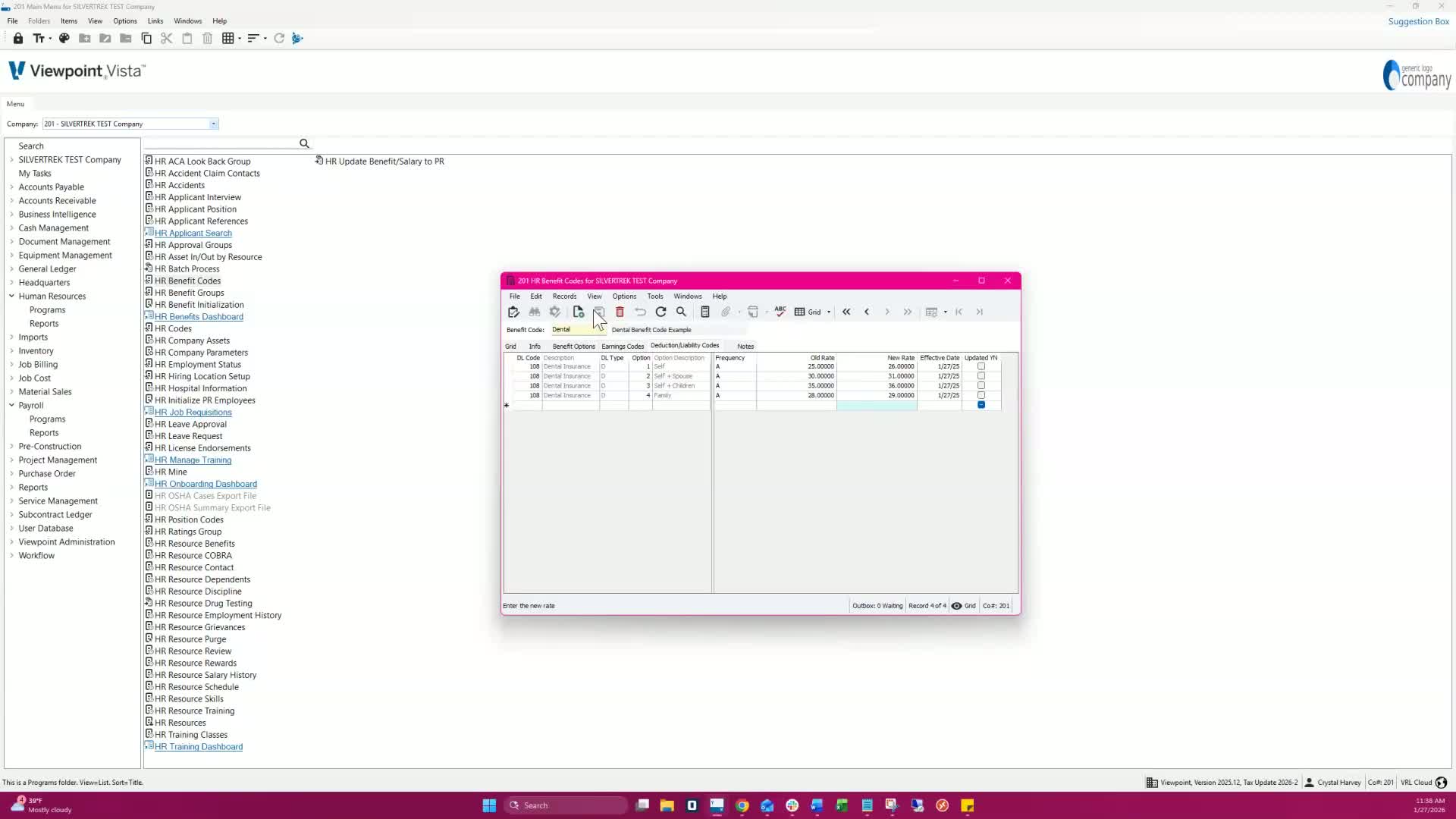
Input the new rates and the effective date.
Note: The effective date is only necessary when adding the benefit to employees.
4. Update Resource Benefits 1:12
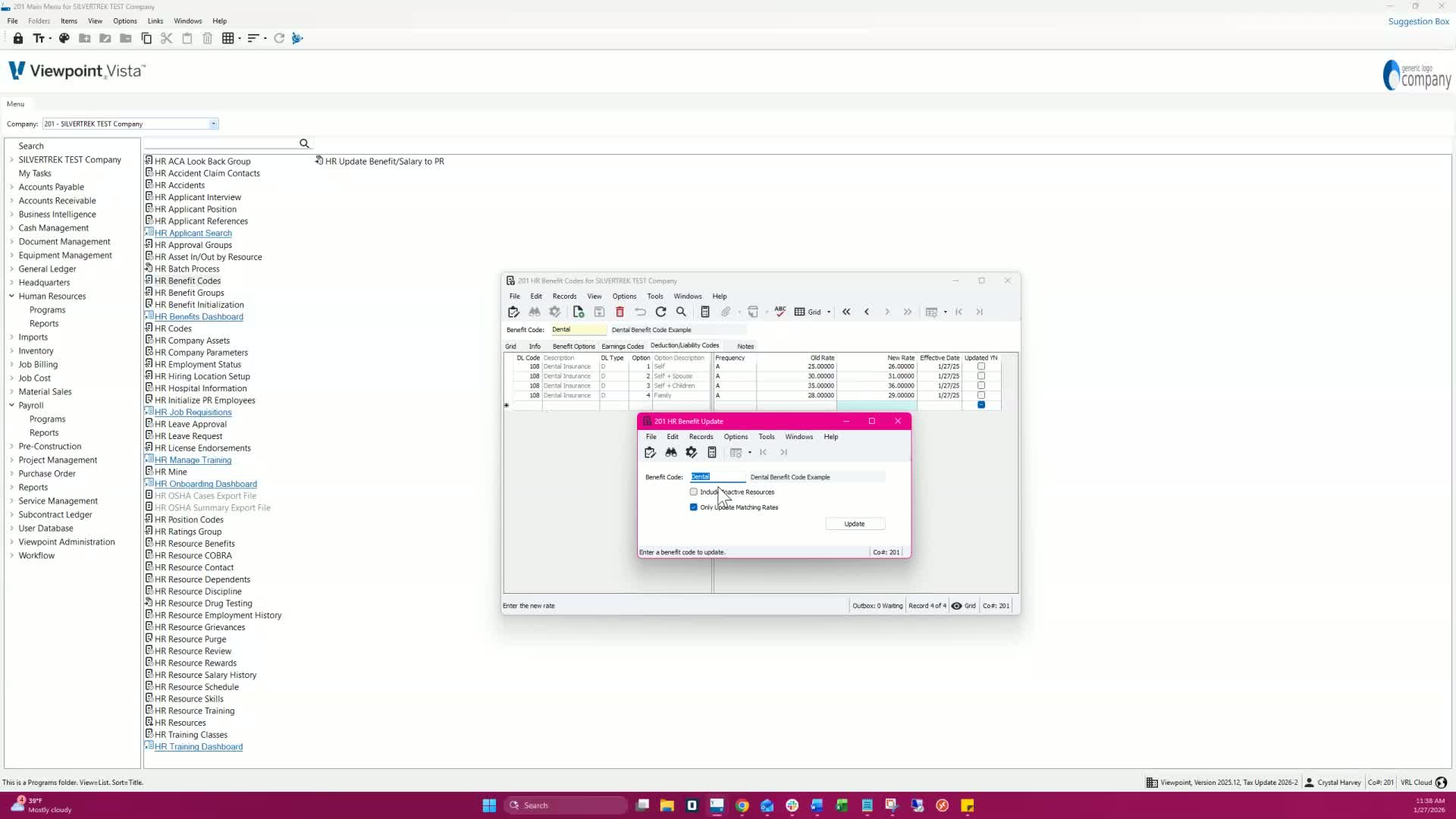
Select 'File' and then 'Update Resource Benefits'.
In the Update form, enter the benefit code.
Optionally check 'Include in Active Resources' and leave 'Update Matching Rates' checked.
Confirm the update message.
5. Verify Employee Benefit Data 1:31
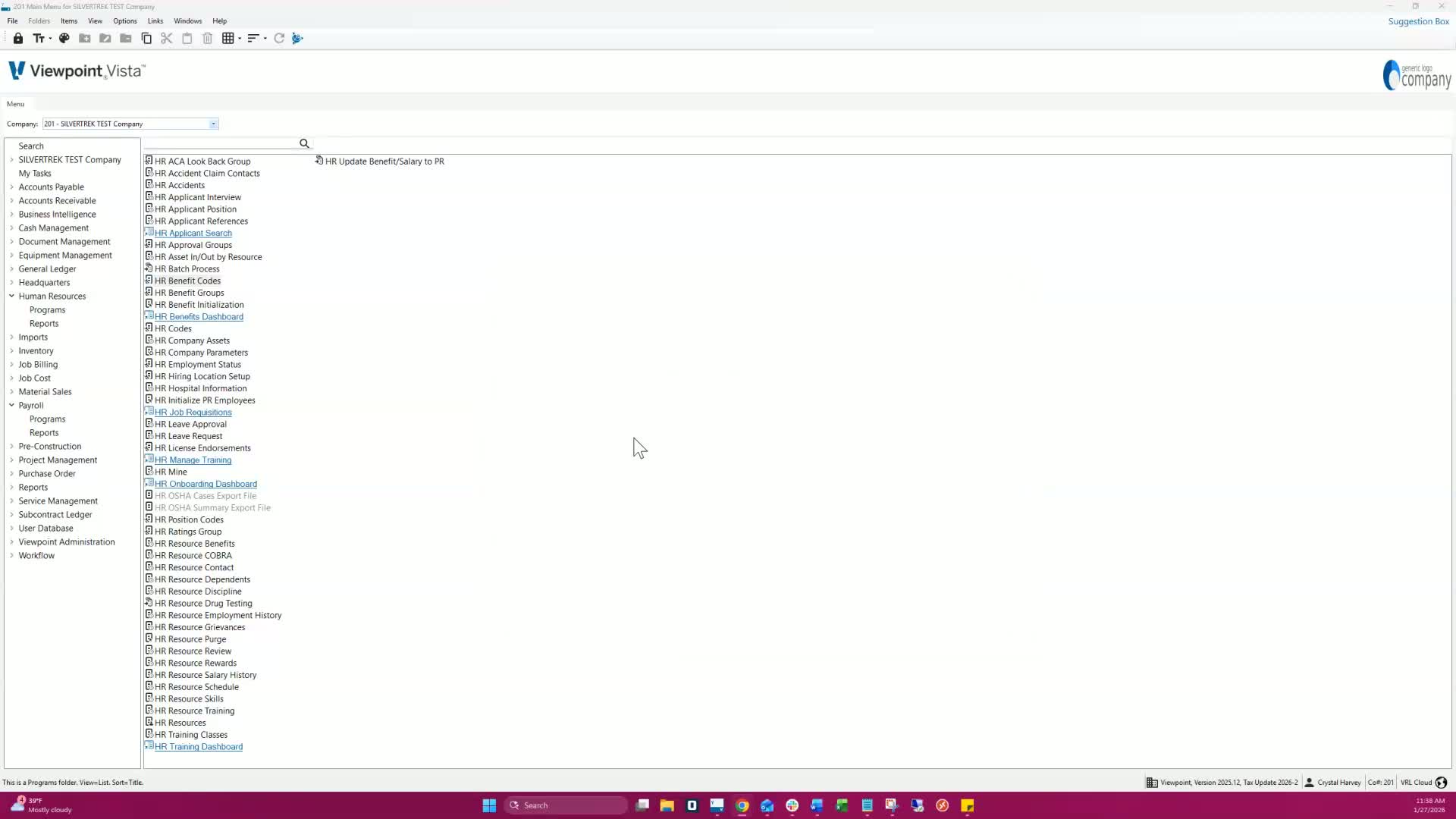
Review the Employee Benefit Data to ensure accuracy.
Check that the active checkbox is selected for applicable employees.
Verify rates on the Deduction Liability Codes tab and ensure 'Update to Payroll' is checked.
6. Close the Form 2:00
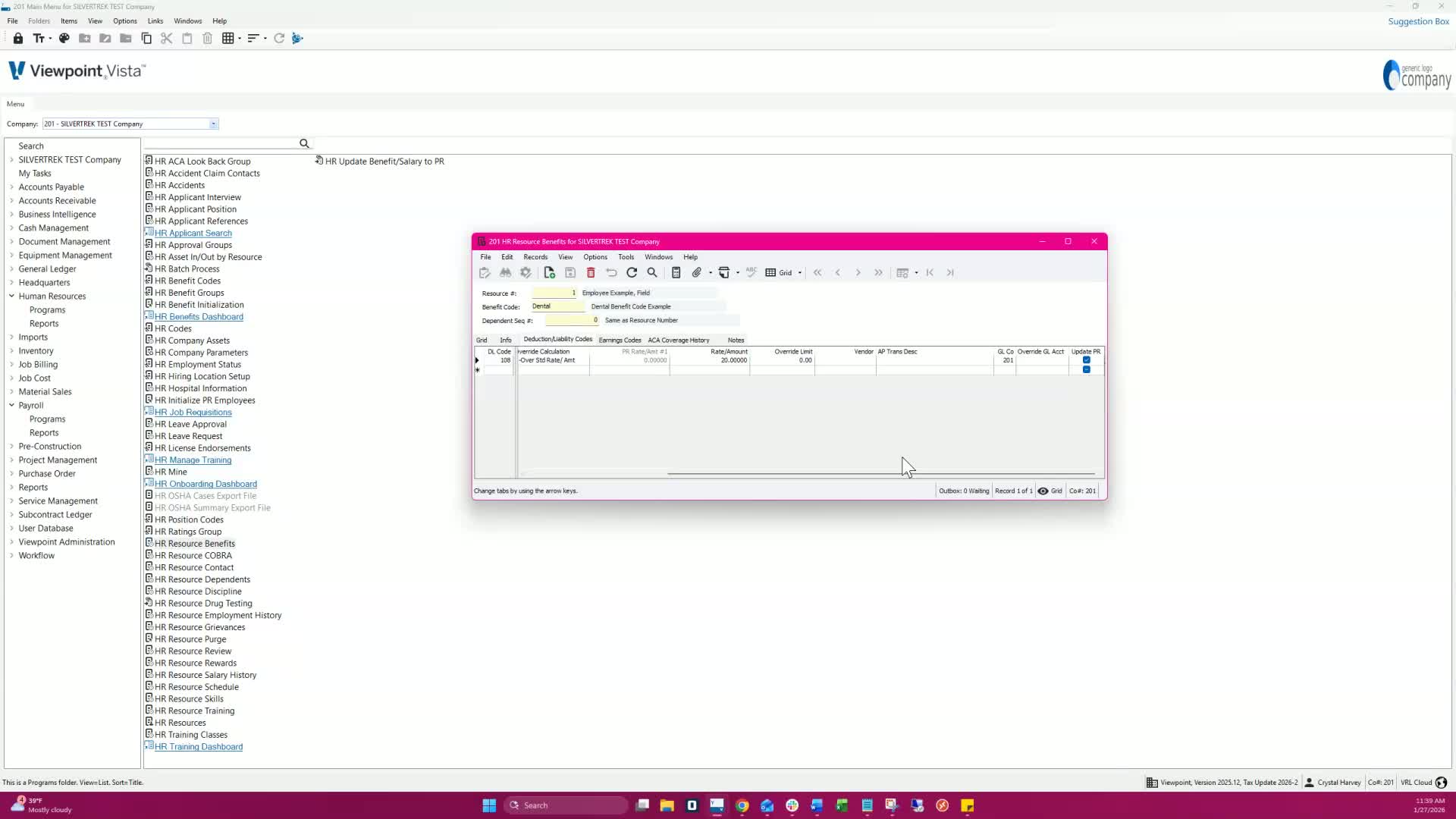
Ignore the effective date on the Info tab as it does not control payroll updates.
Close the form once all information is verified.
7. Push Benefits to Payroll 2:11
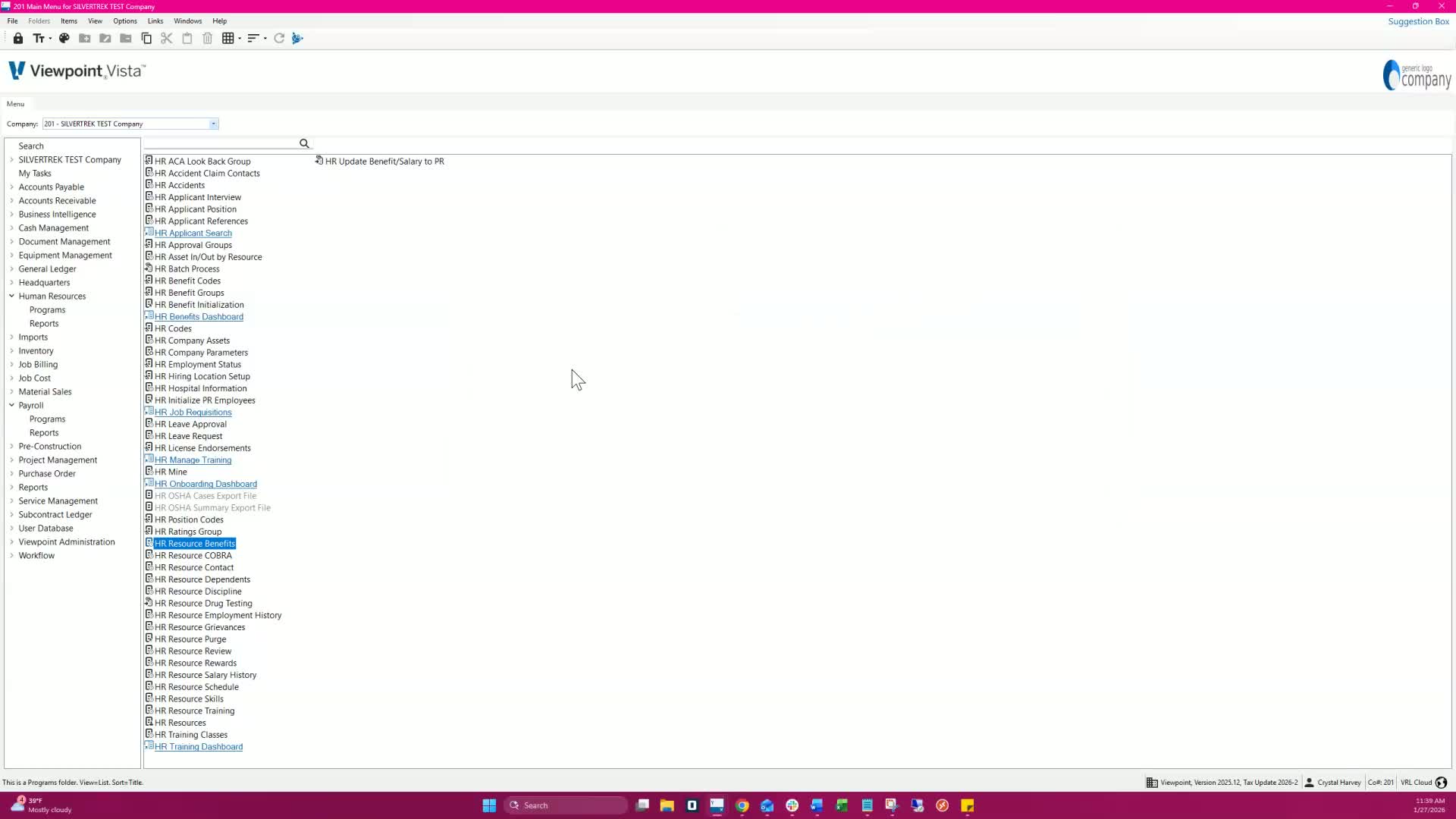
Open the HR Update Benefits Salary to Payroll form only when the pay period for new rates is open.
8. Create a New Batch 2:22
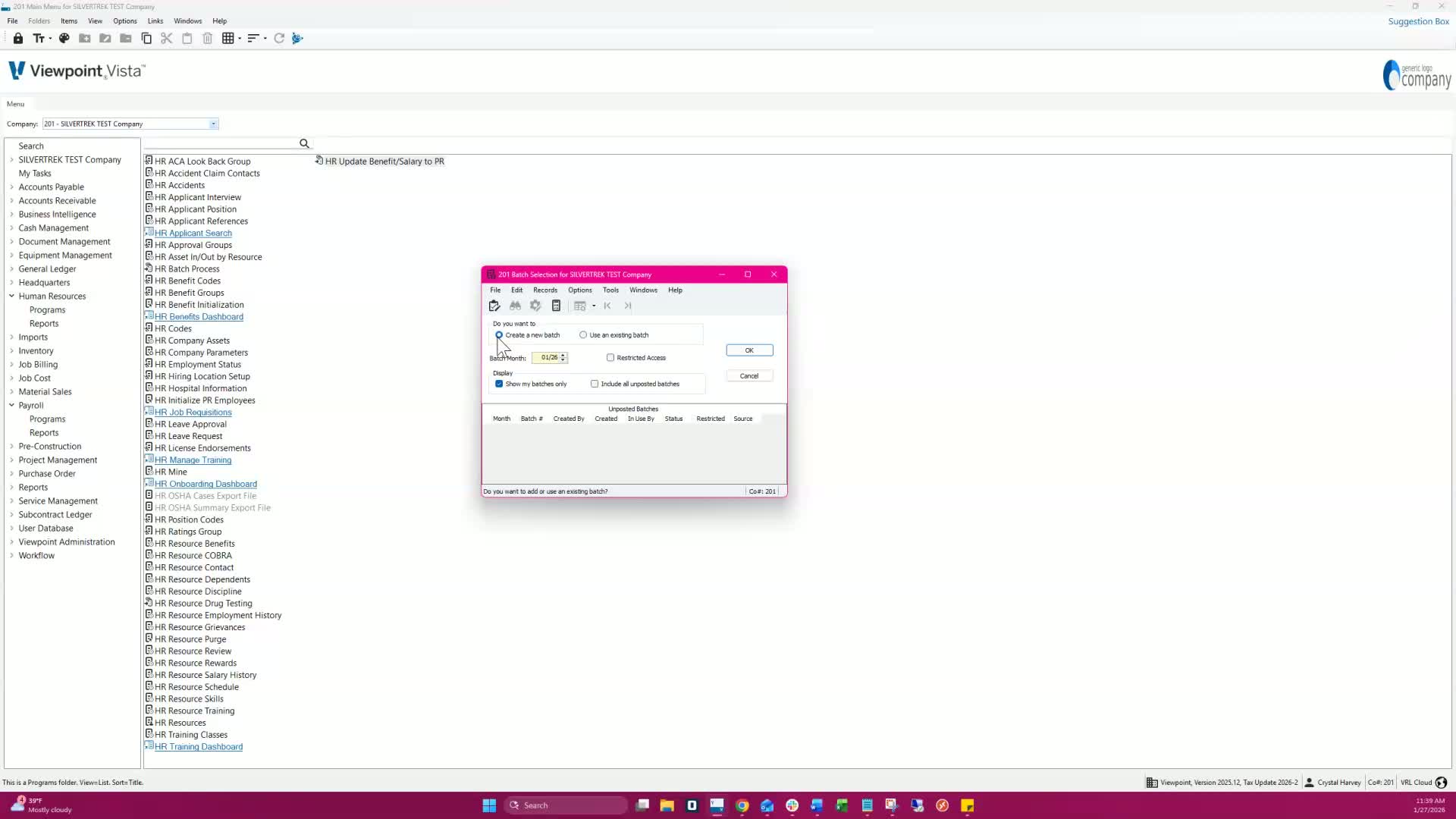
Create a new batch.
Check the 'Post Benefits to Payroll' button.
Enter the effective date and benefit code, then click 'Update'.
9. Review and Validate Batch 2:43
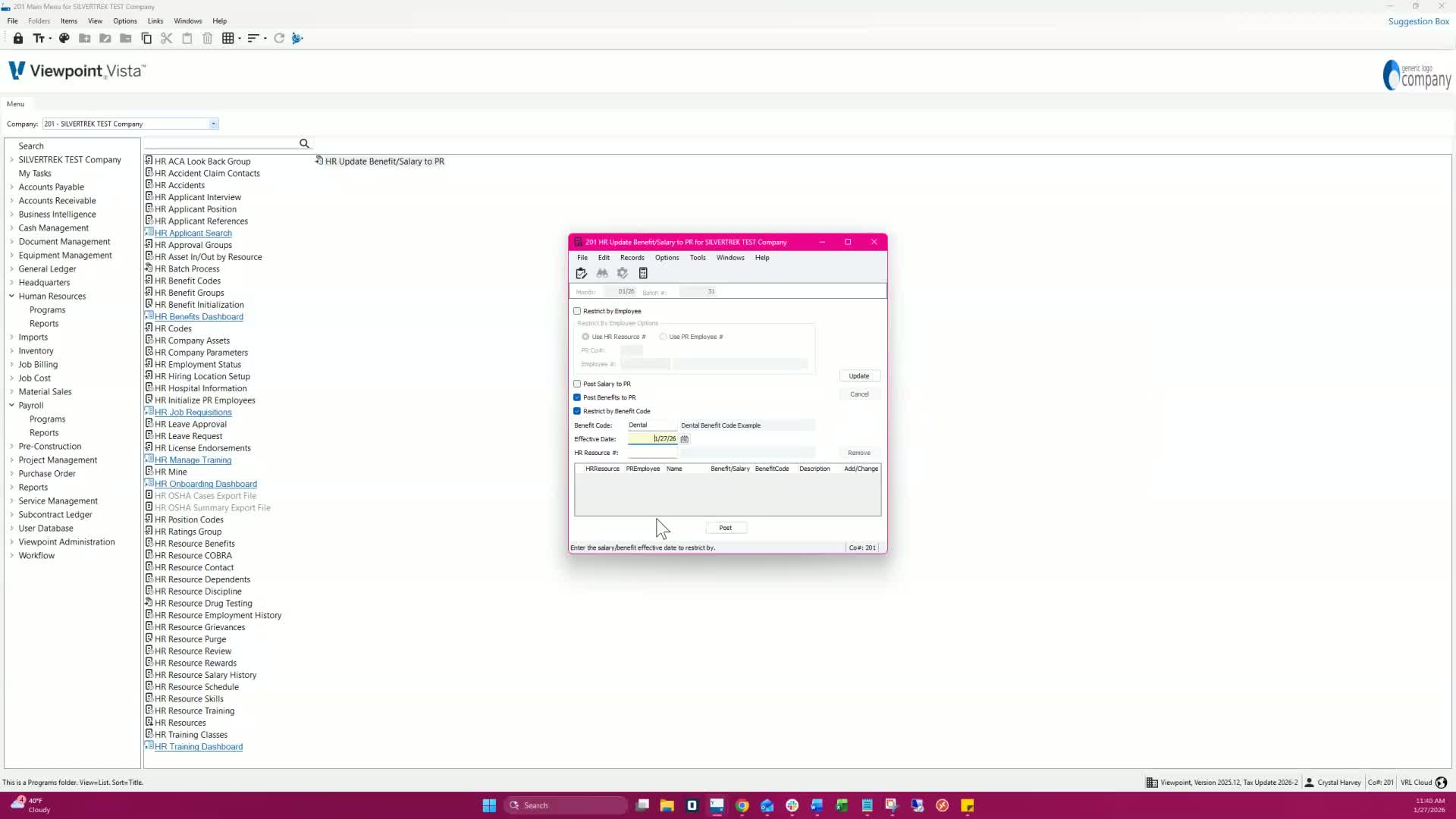
Review the grid and remove any employees not to be included.
Validate the batch, then post it.
10. Understand Effective Dates 2:52
Remember that once pushed from HR, new rates apply immediately without an effective date for benefit rates.
Cautionary Notes
Ensure that the pay period for the new rates is open before pushing benefits to payroll.
Double-check all entries to avoid errors in benefit rates.
Tips for Efficiency
Familiarize yourself with the HR Benefit Codes and Deduction Liability Codes tabs to speed up the process.
Use keyboard shortcuts for navigation where possible to save time.
Link to Loom
Was this article helpful?
That’s Great!
Thank you for your feedback
Sorry! We couldn't be helpful
Thank you for your feedback
Feedback sent
We appreciate your effort and will try to fix the article