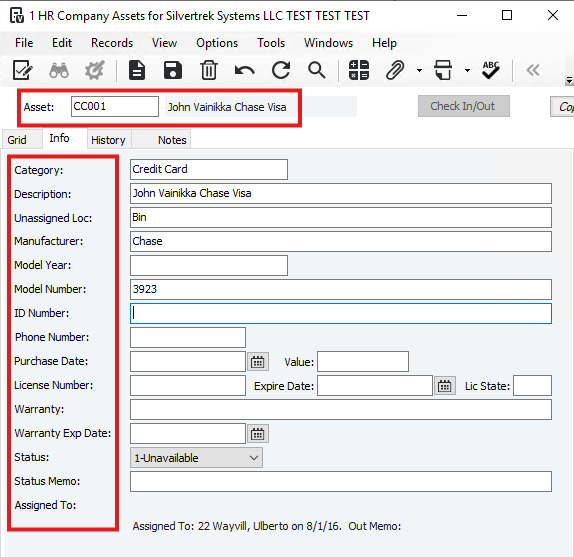
- The HR Company Assets form is used to track company assets (e.g., laptops, phones, vehicles) and manage check-in/check-out by resources. It allows you to record asset details, track assignments, and monitor status.
Steps to Set Up an Asset:
-
Open the HR Company Assets form from the Human Resources module.
-
In the Asset field, enter a unique code for the asset and press Enter.
-
Fill out the Info tab fields:
-
Category (optional): Used for reporting.
-
Description: Short description of the asset.
-
Unassigned Location: Where the asset is stored when not in use.
-
Manufacturer, Model Year, Model Number, ID Number (e.g., serial or VIN).
-
Phone Number: For mobile devices.
-
Purchase Date and Value.
-
License Number, Expire Date, License State: For vehicles or licensed assets.
-
Warranty and Warranty Expire Date.
-
Select the asset Status:
-
O – Available: Ready for assignment.
-
1 – Unavailable: Checked out or unavailable.
-
2 – Disposed: Asset no longer in use (set manually).
-
Add notes in the Status Memo field if needed.
-
Review the Assigned To section to see the current or last assigned resource.
-
Click Save.
-
History Tab:
Tracks all previous assignments, check-in/check-out dates, and memos about condition, accessories, or other details.
Was this article helpful?
That’s Great!
Thank you for your feedback
Sorry! We couldn't be helpful
Thank you for your feedback
Feedback sent
We appreciate your effort and will try to fix the article