SOP for Updating Salary from HR to Payroll
Objective
This SOP outlines the steps required to update employee salary information from Human Resources to Payroll efficiently and accurately.
Key Steps
Step 1: Access HR Resources Form 0:11
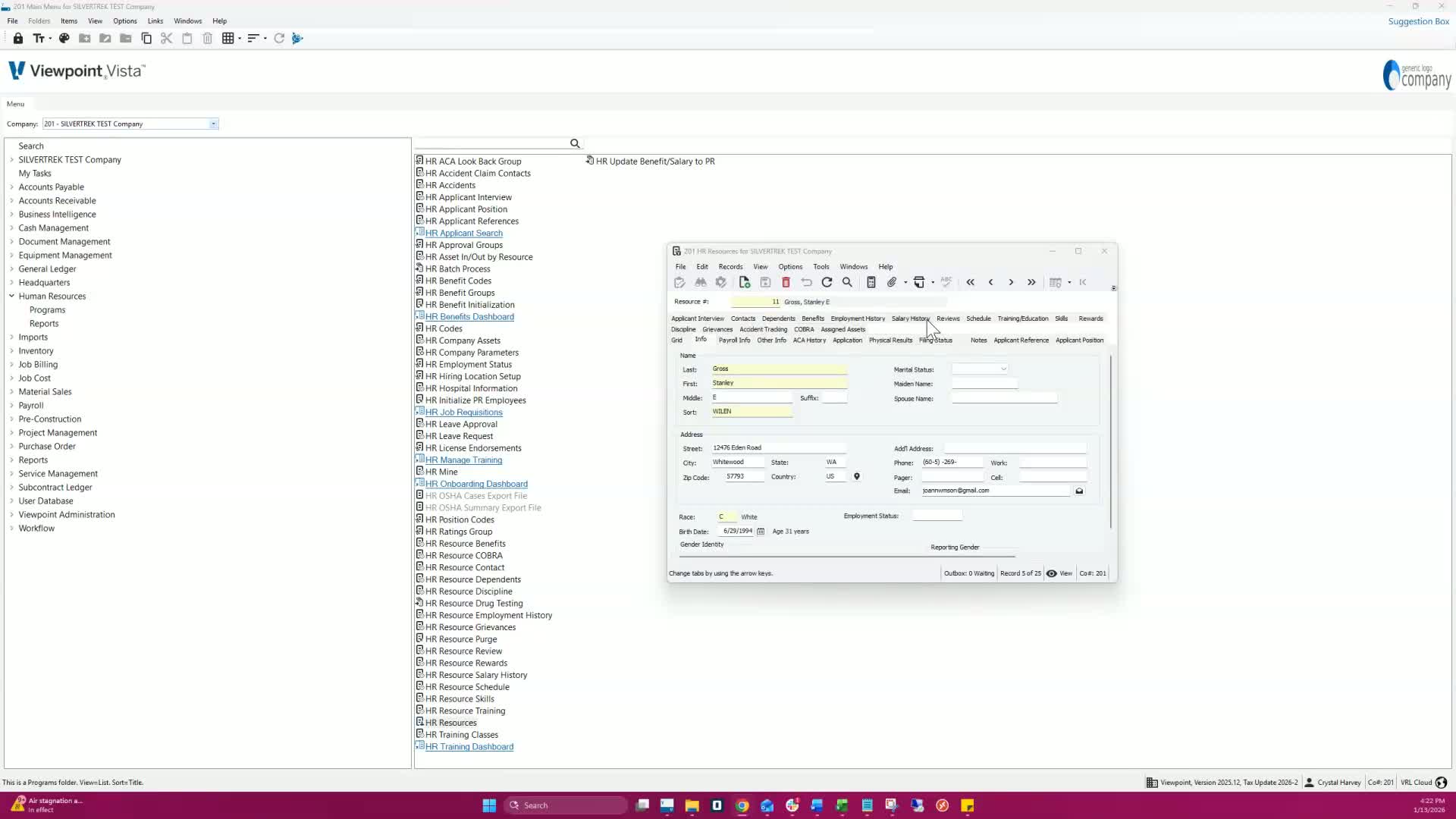
Go to the HR Resources form.
Navigate to the Salary History tab.
Enter the new salary for the employee.
Step 2: Save Changes 0:19
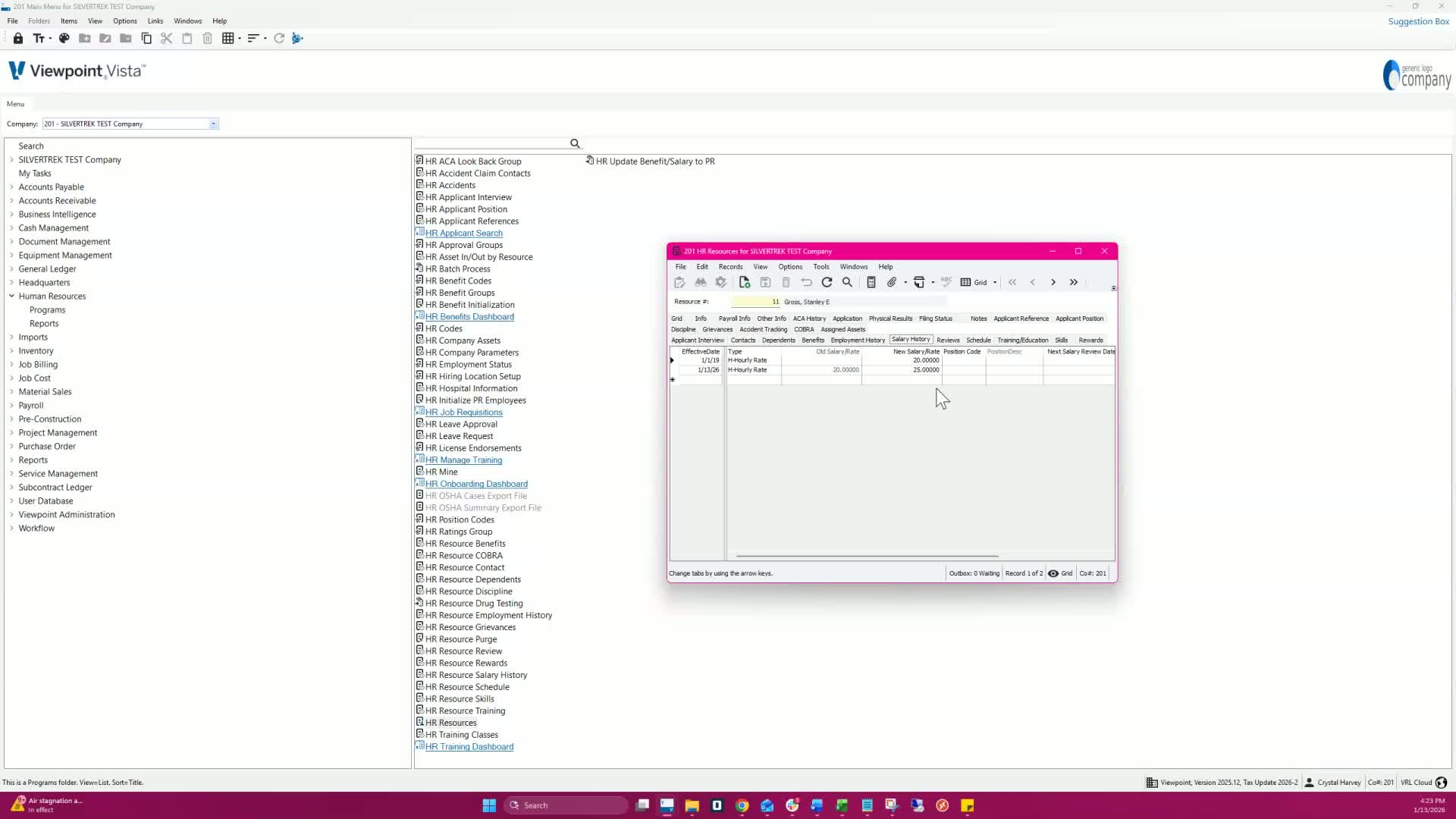
Ensure to save the changes made in the Salary History tab.
Step 3: Open HR Update Benefit Salary to Payroll 0:32
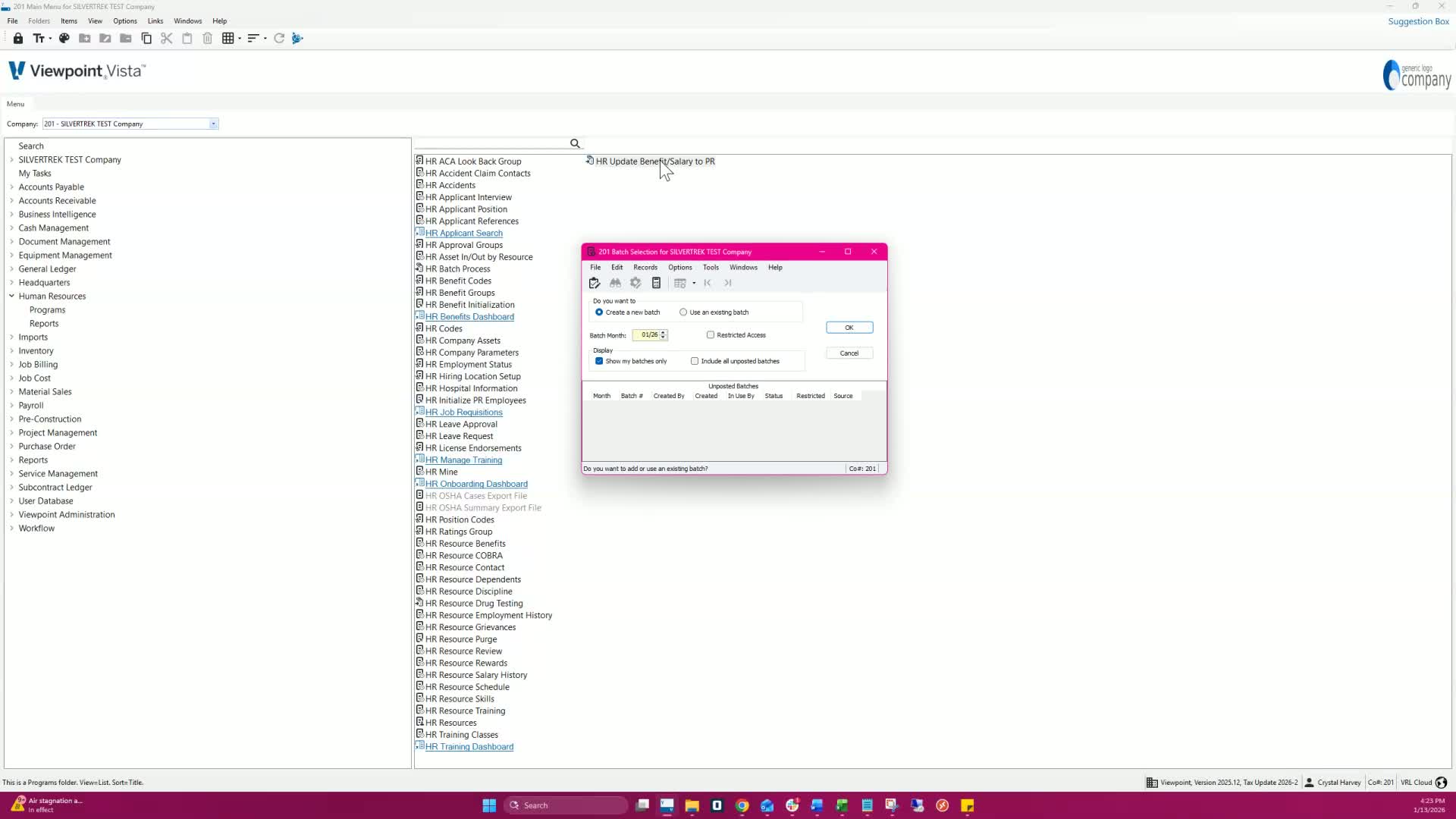
Open the HR Update Benefit Salary to Payroll section.
Step 4: Create a Batch 0:32
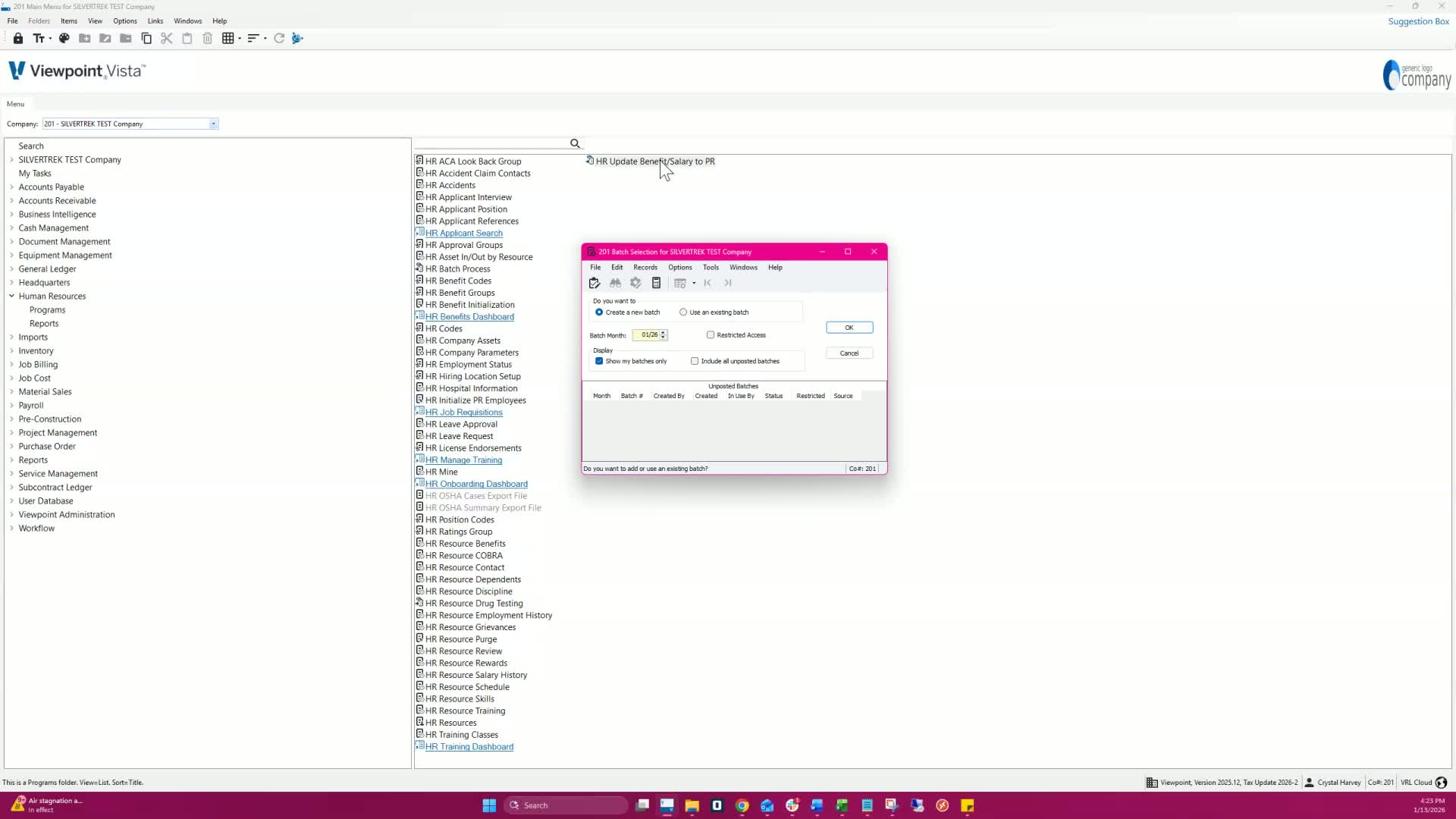
Create a new batch for salary updates.
Choose the employees to include:
All employees
A specific employee by HR Resource Number or Payroll Number.
Step 5: Post Salary to Payroll 0:47
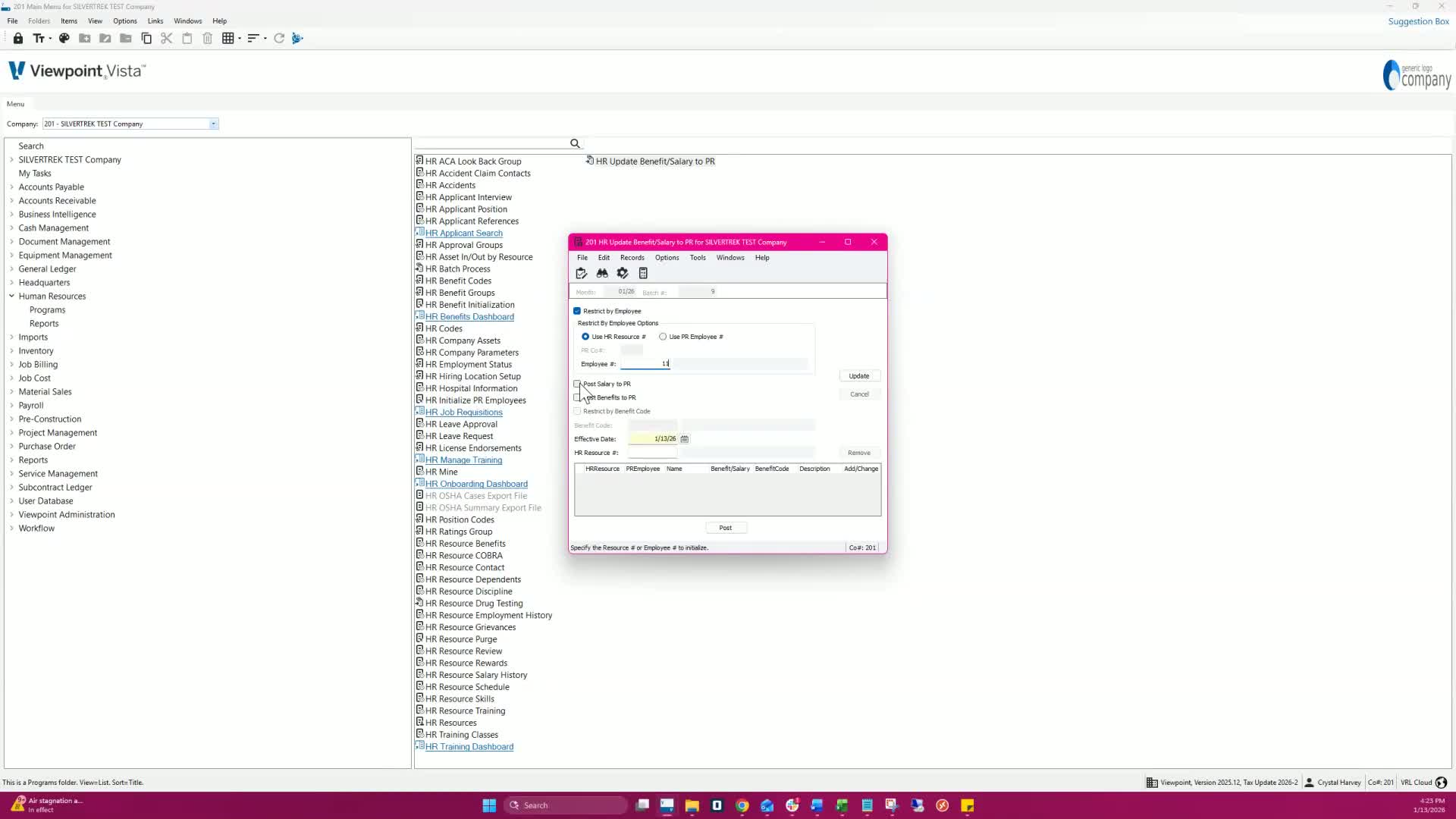
Select the option to Post Salary to Payroll.
Note: At least one option must be selected.
Step 6: Enter Effective Date 0:47
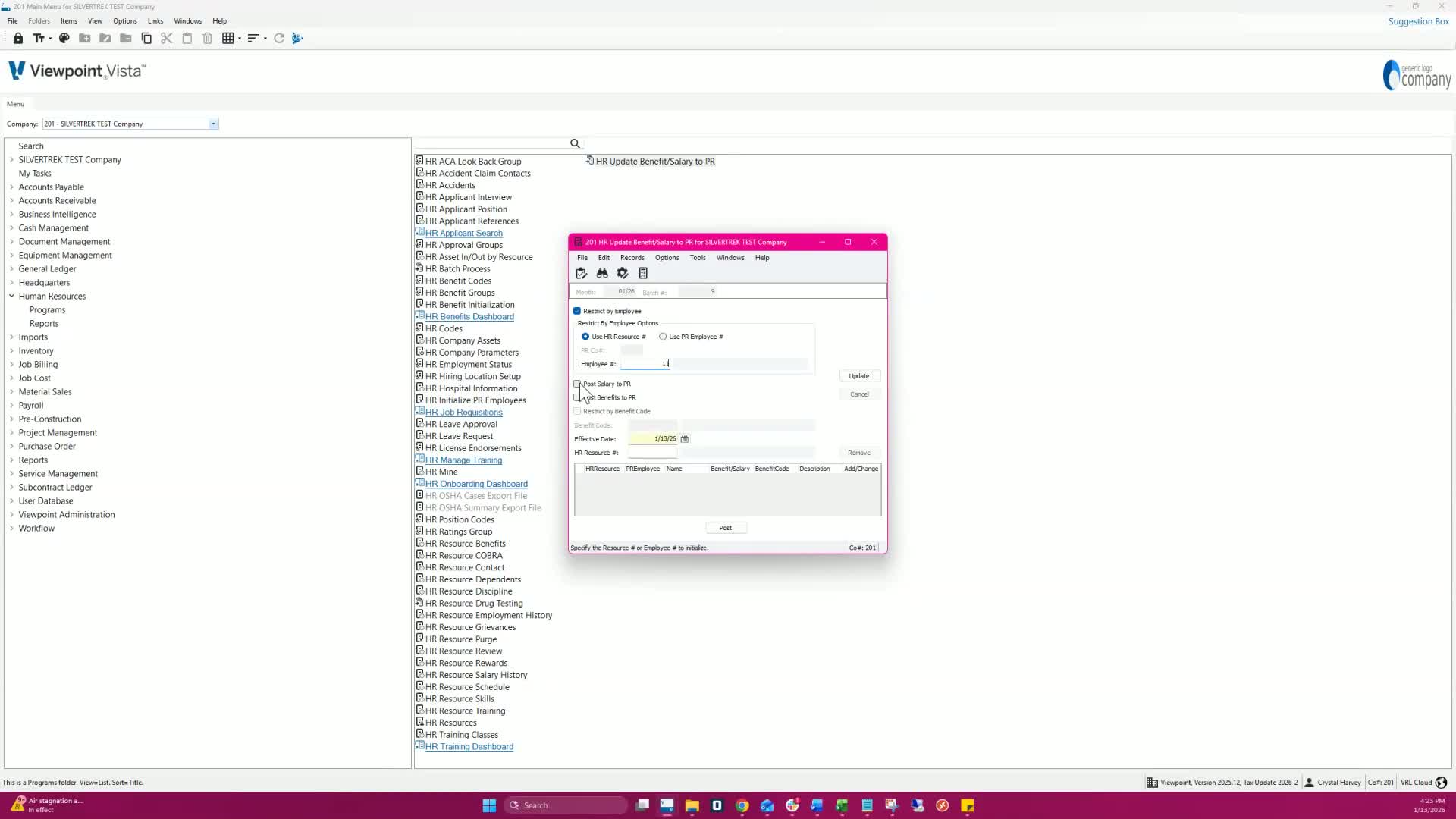
Enter an effective date for the salary change.
Only salary changes effective on or before this date will be included.
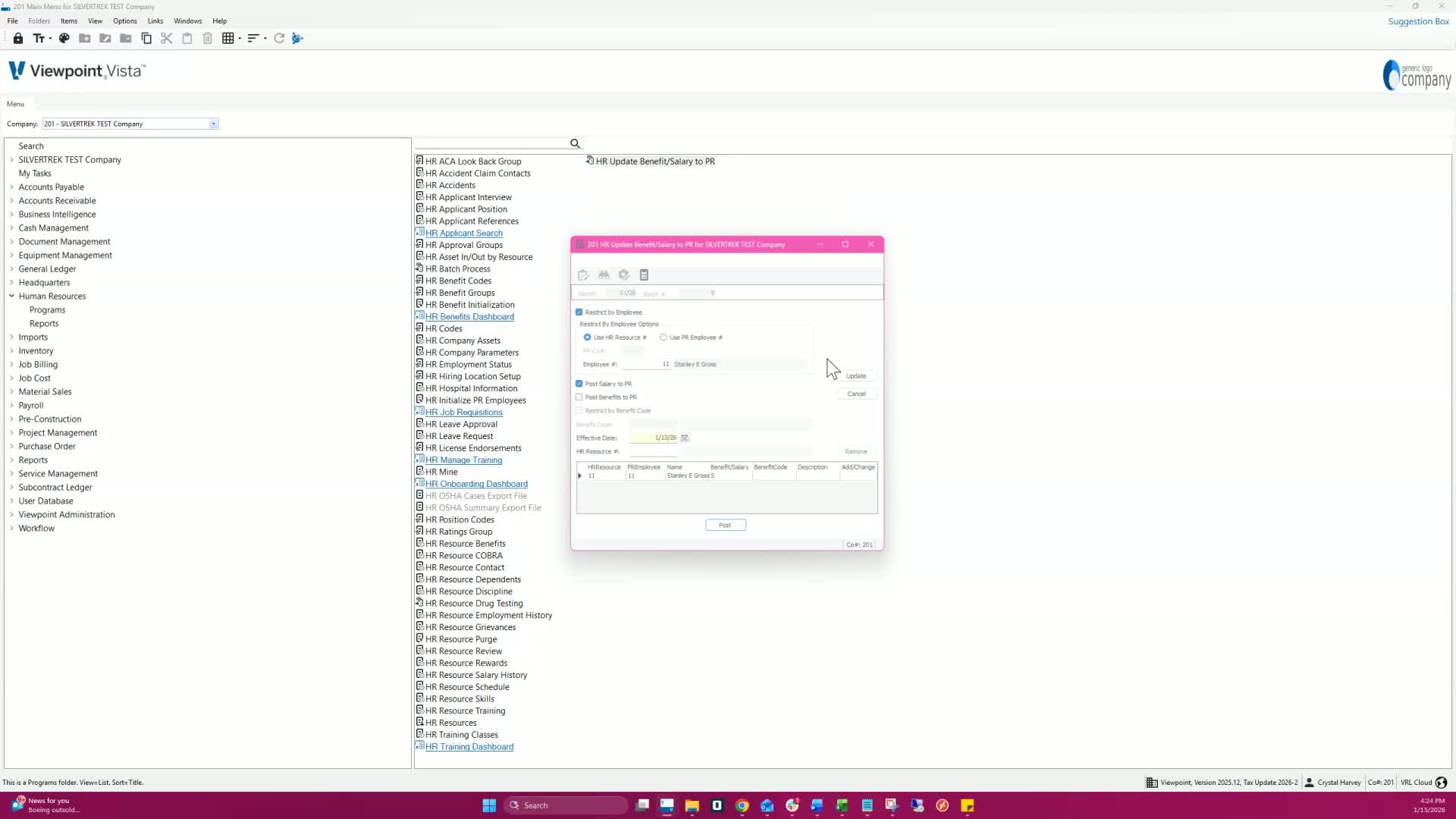
Step 7: Update Batch Records 1:03
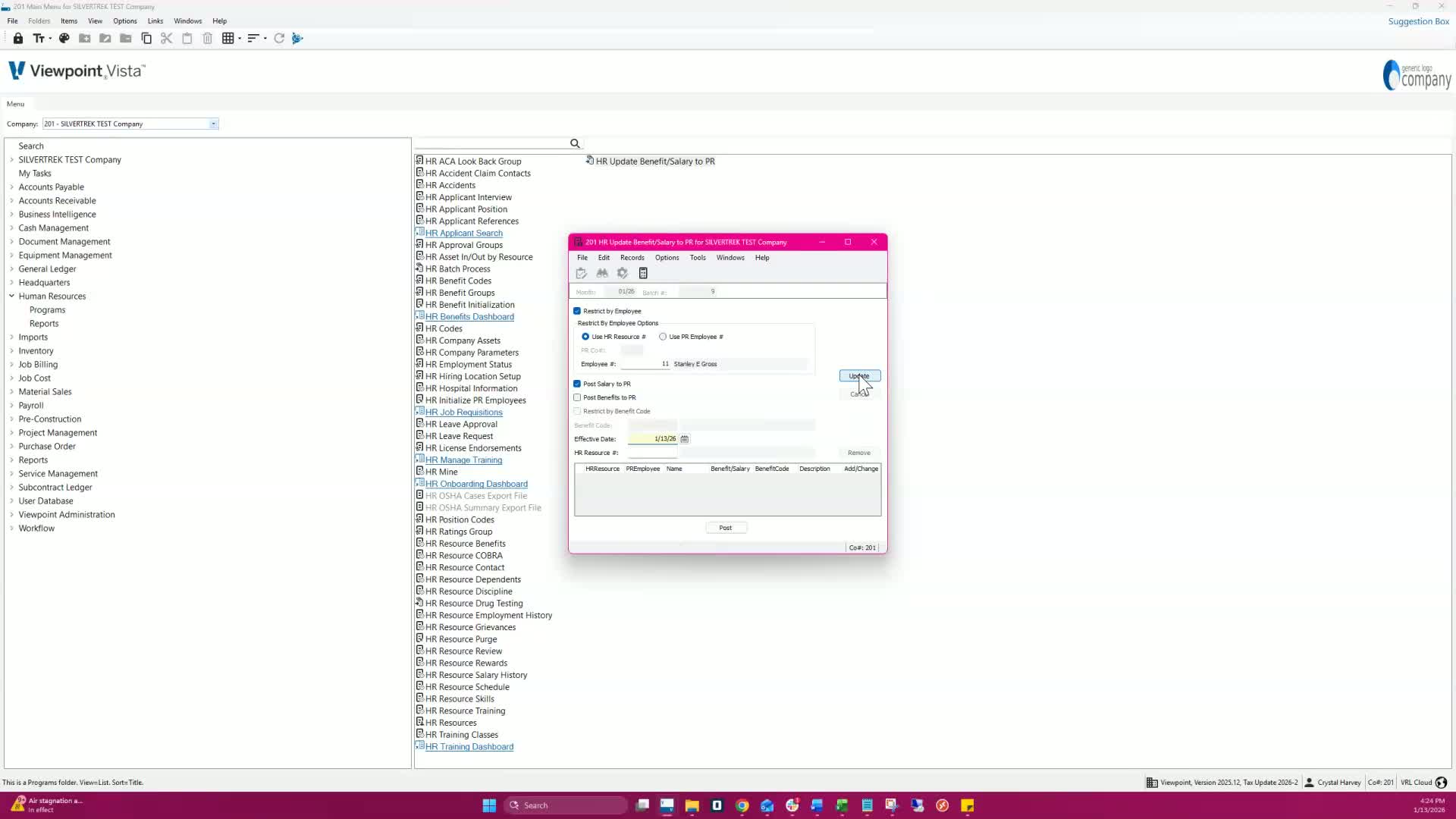
Click Update to load eligible records into the batch.
Remove any employees you do not wish to include.
Step 8: Post the Batch 1:18
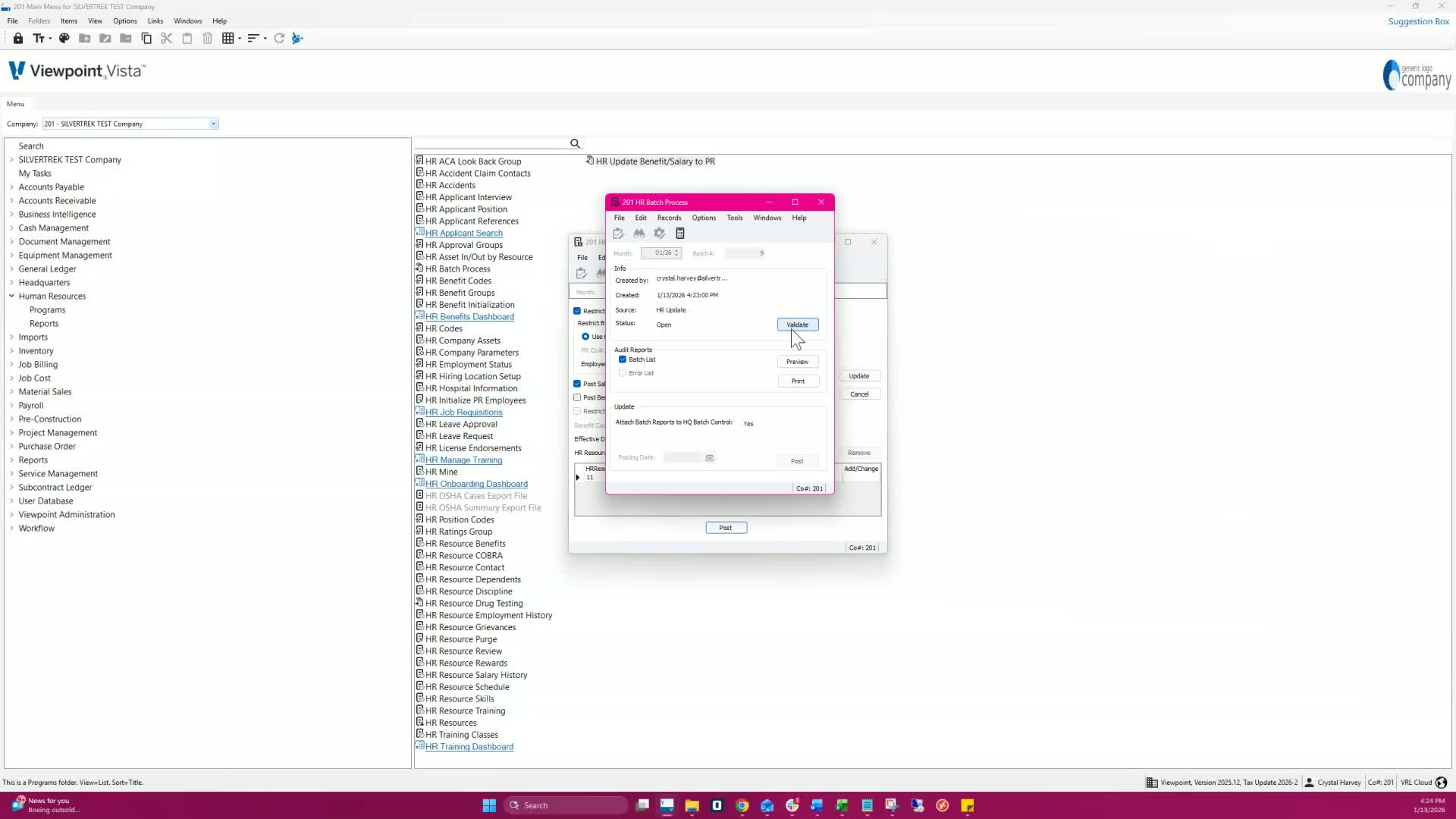
Click Post to finalize the batch update.
Optionally, click Validate and Preview before posting.
Step 9: Confirm Update Success 1:18
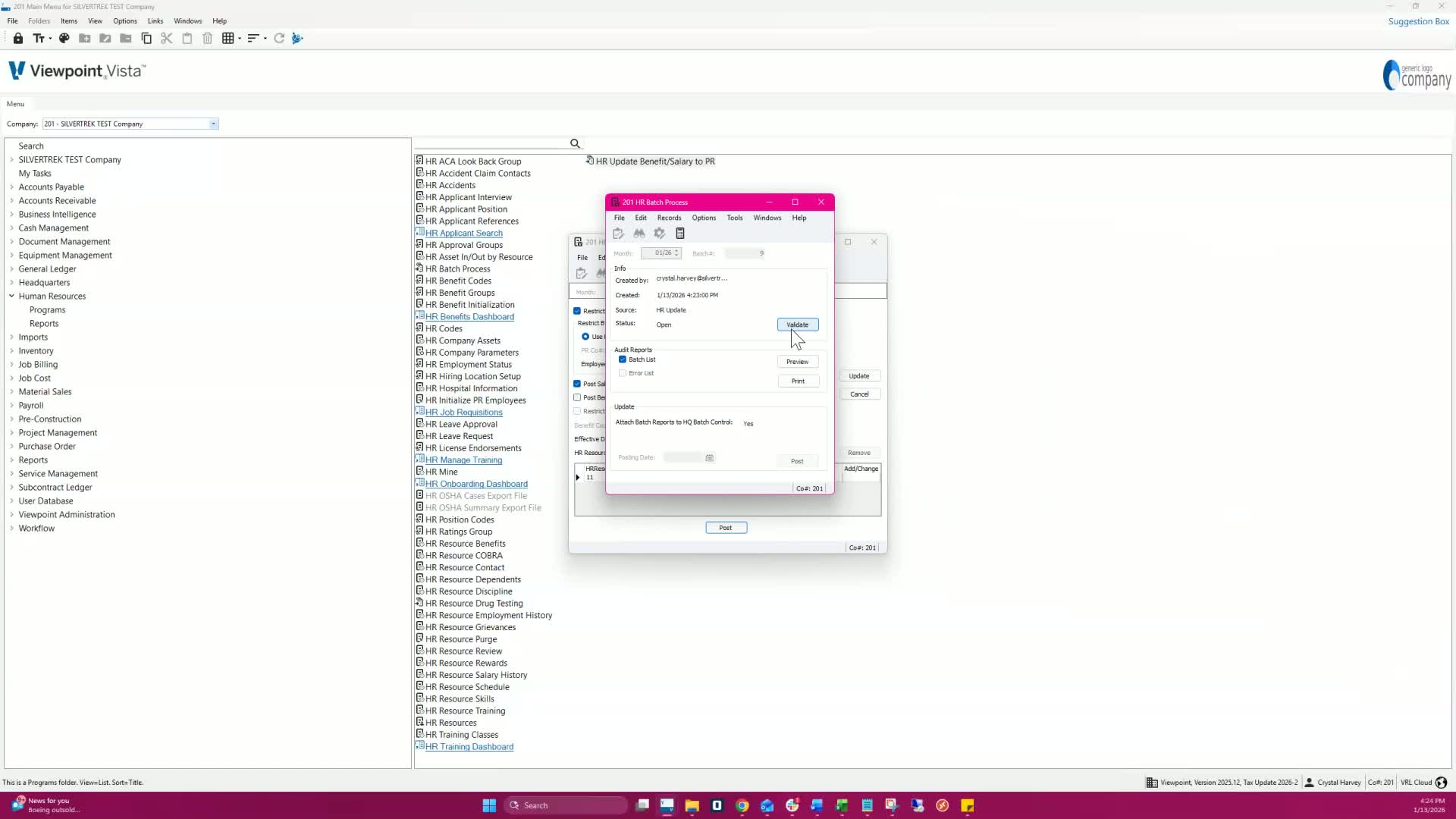
You will receive a message confirming that your batch was successfully updated.
Step 10: Check Updated Rates 1:39
Check PR Employees to see the updated salary rate.
Remember that only one pay type (salary or hourly rate) is updated.
Cautionary Notes
Ensure that the effective date is correct to avoid processing errors.
Only one pay type can be updated at a time; verify the employee's pay type before proceeding.
Tips for Efficiency
Double-check the employee details before creating the batch to minimize errors.
Use the Preview option to review changes before finalizing the update.
Link to Loom
Was this article helpful?
That’s Great!
Thank you for your feedback
Sorry! We couldn't be helpful
Thank you for your feedback
Feedback sent
We appreciate your effort and will try to fix the article