JC Job Copy Standard Operating Procedure
Objective
This SOP outlines the steps to effectively use the JC Job Copy program within the Job Cost Module to create and manage job copies.
Key Steps
1. Accessing the JC Job Copy Program 0:00
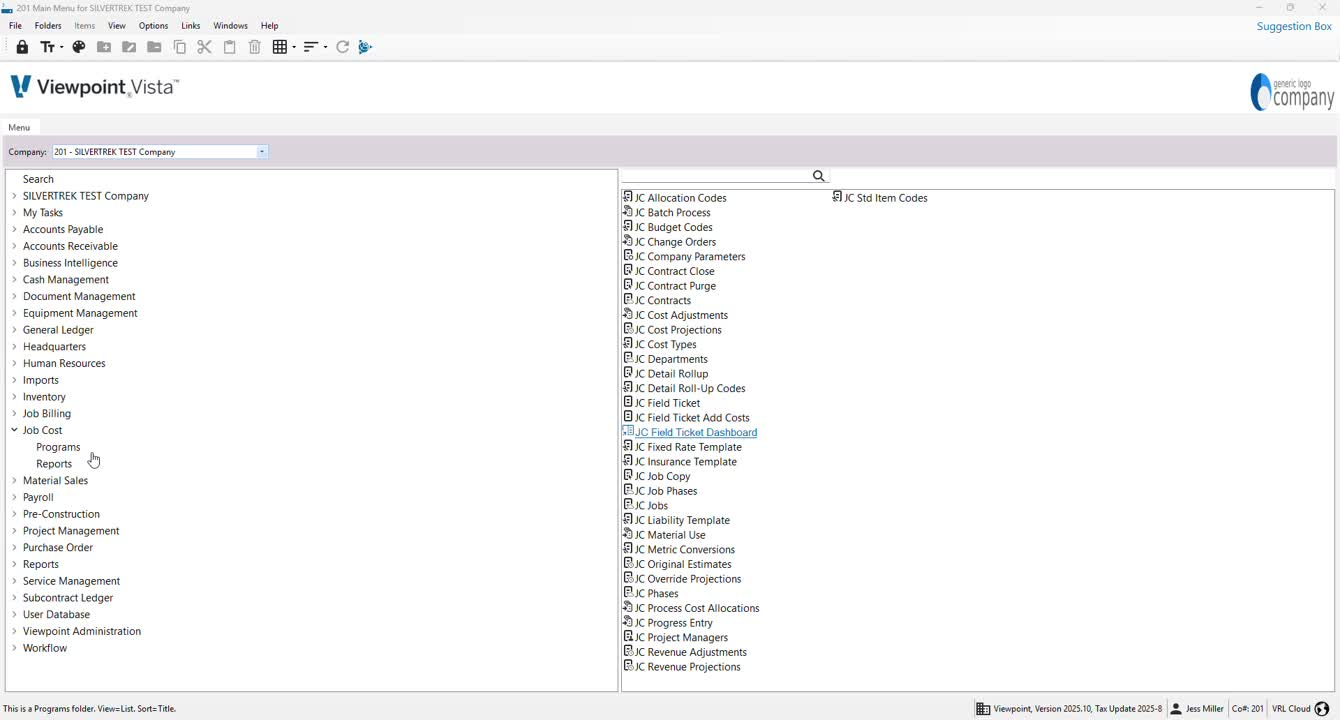
Open the Job Cost Module Programs.
Locate the JC Job Copy program and double-click to open it.
2. Finding Your Job 0:13
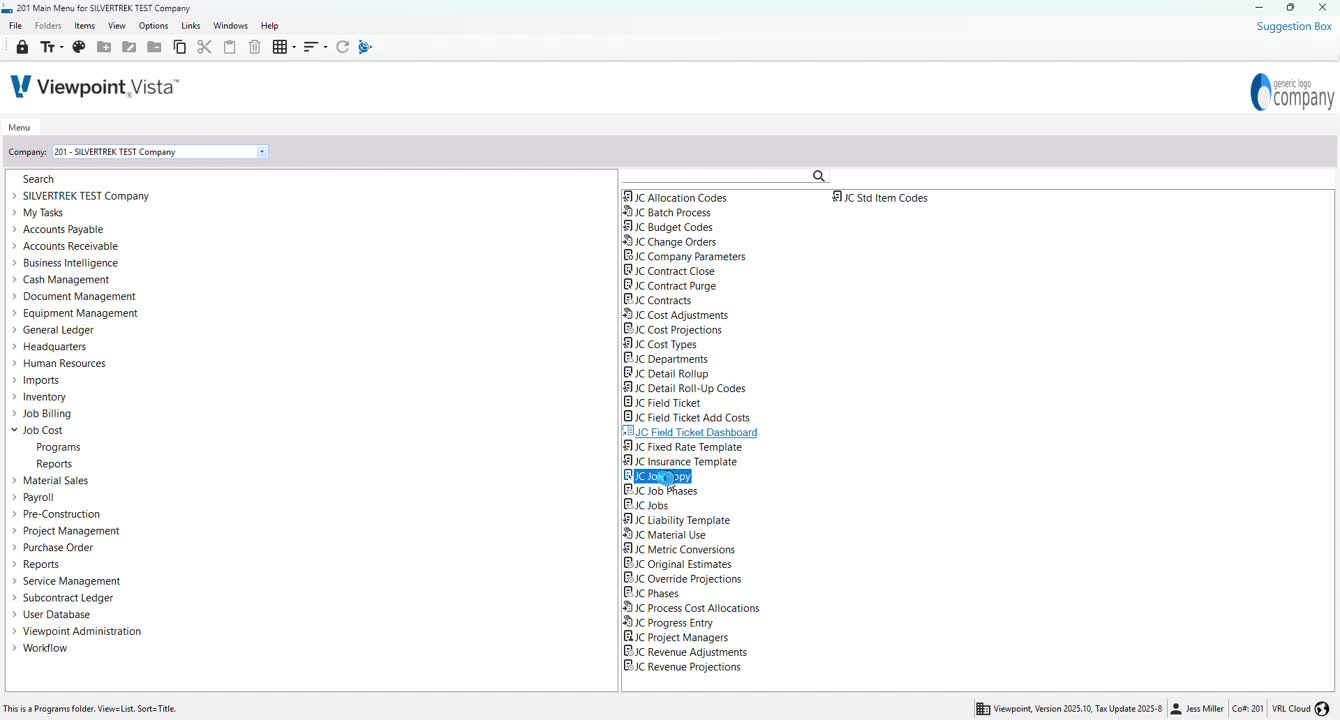
Press F4 to access the job list.
Select the appropriate job template you created.
3. Adding Job Number and Description 0:40
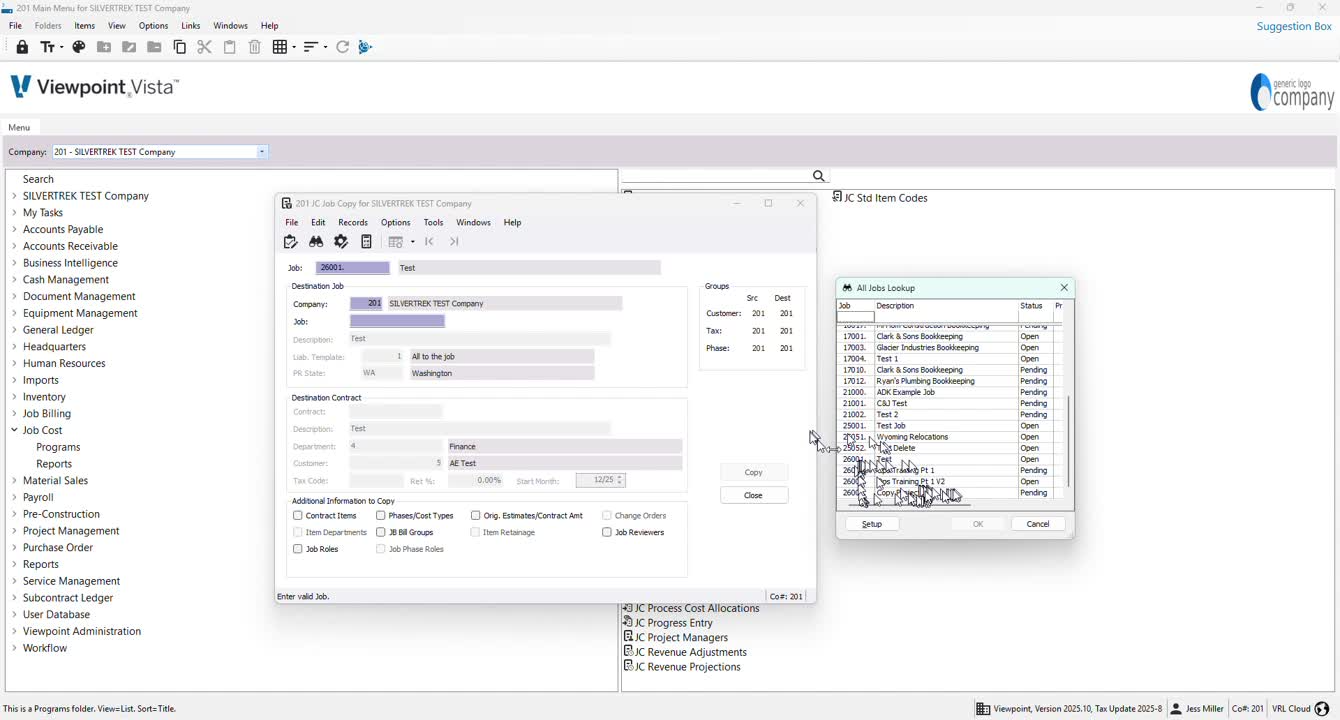
In the Job field, enter the next job number (e.g., 26005).
The description will auto-populate; update it if necessary.
4. Verifying Contract Details 1:39
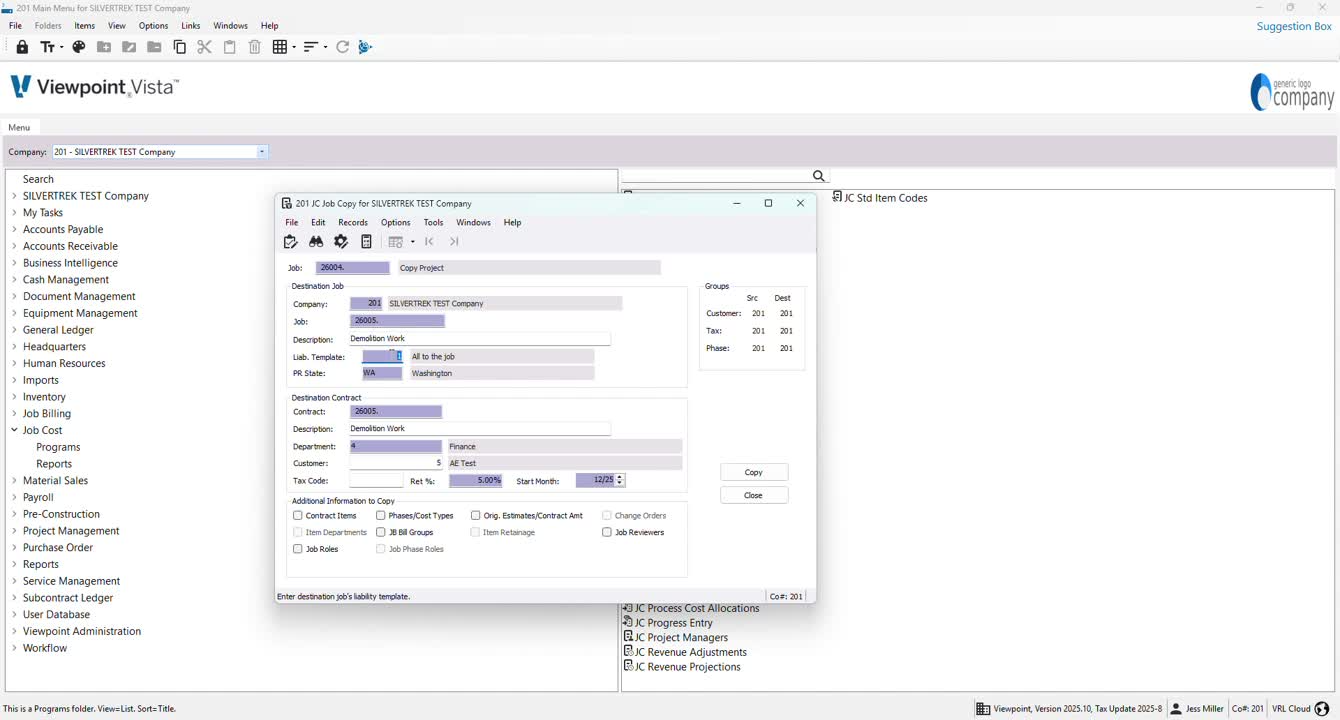
Ensure the liability template and contract number match the job number.
Use F4 to modify any details as needed.
5. Selecting Department and Customer 2:02
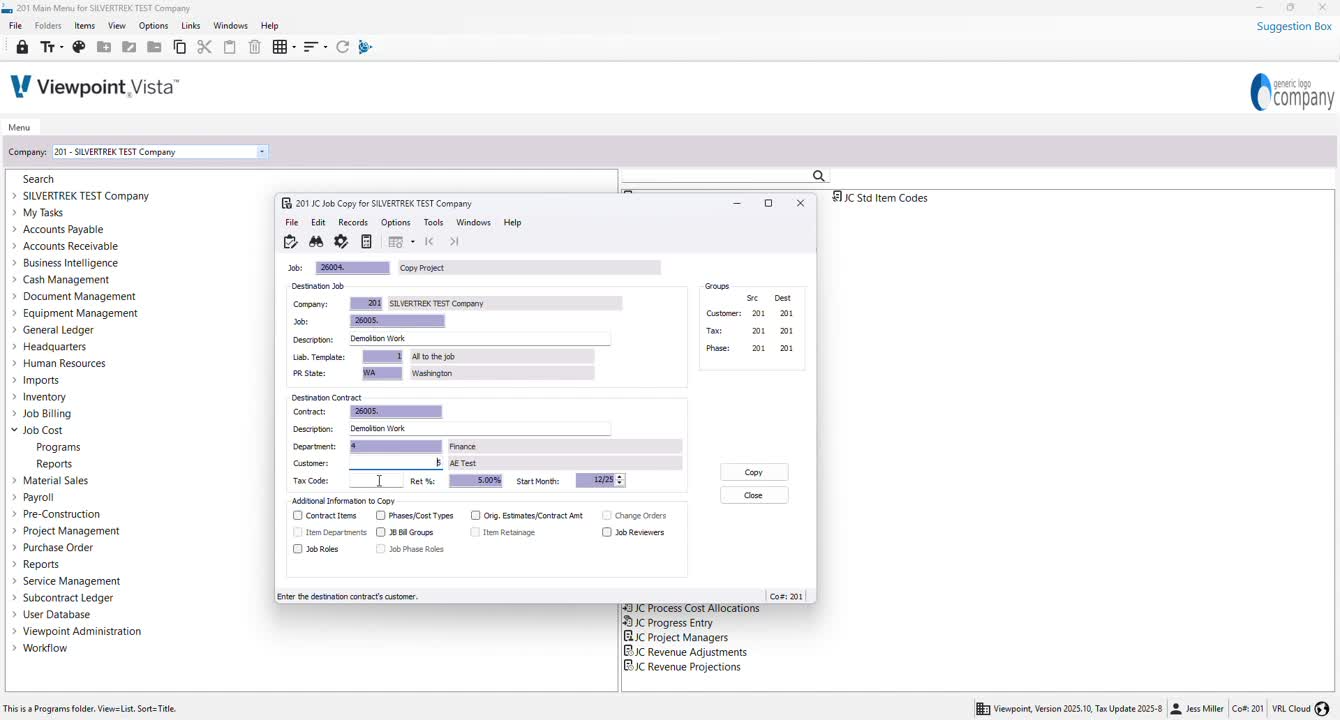
Hit F4 to select the appropriate department.
Hit F4 again to select the desired customer.
6. Setting Tax Code and Retainage 2:12
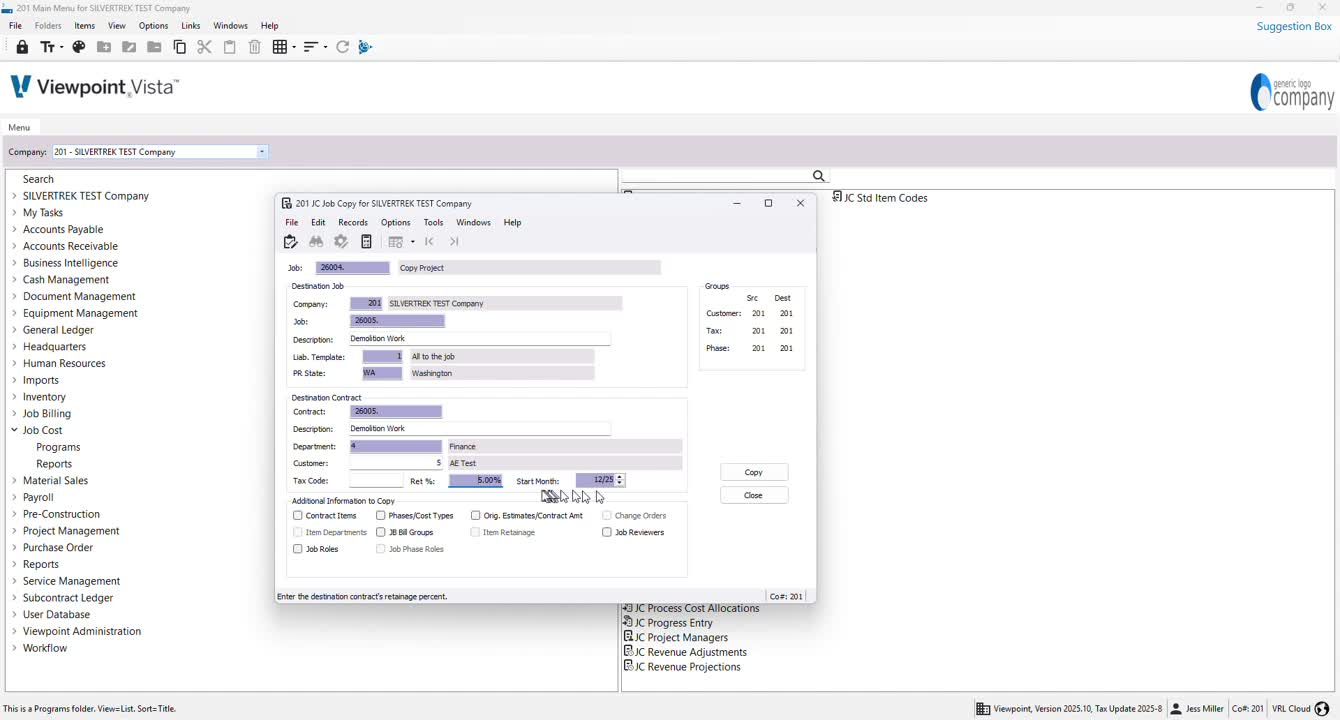
If applicable, hit F4 to select the tax code.
Specify the retainage amount for the job.
7. Defining Job Start Month and Coverage 2:12
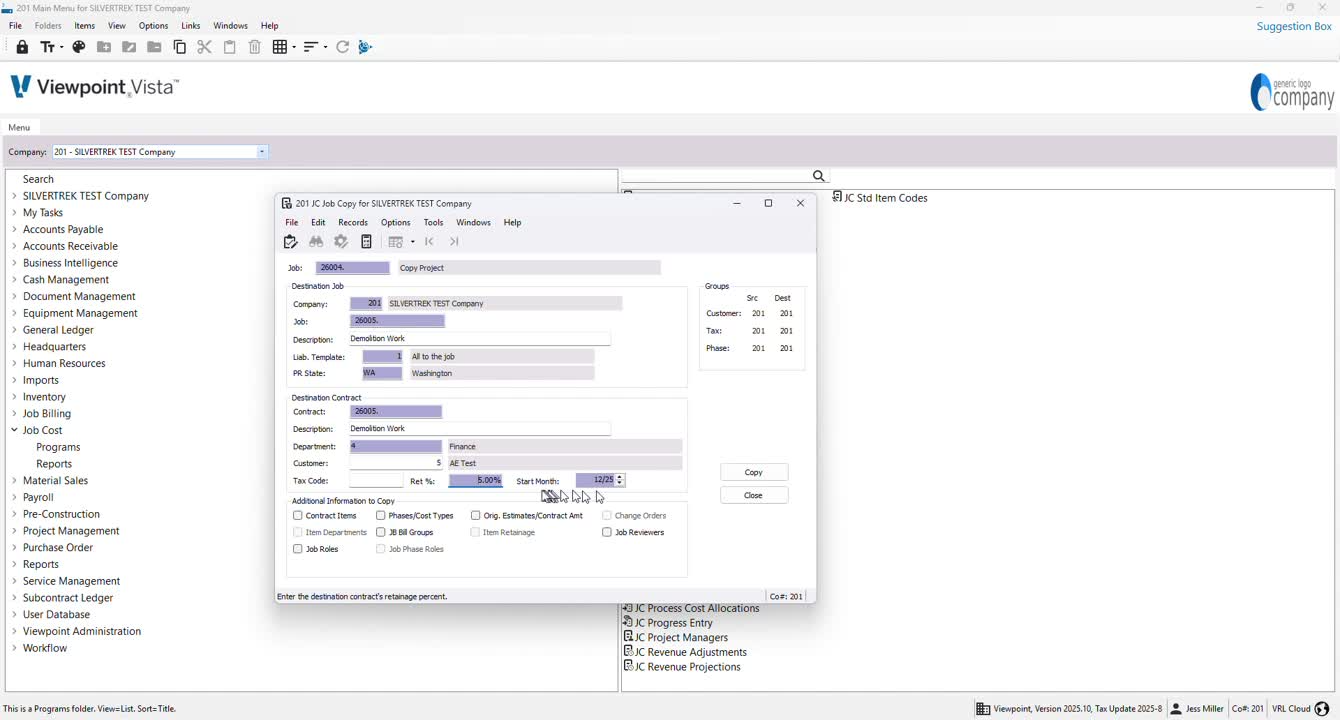
Enter the start month of the job.
Add any detailed information about the job if necessary.
8. Completing the Job Copy Process 2:36
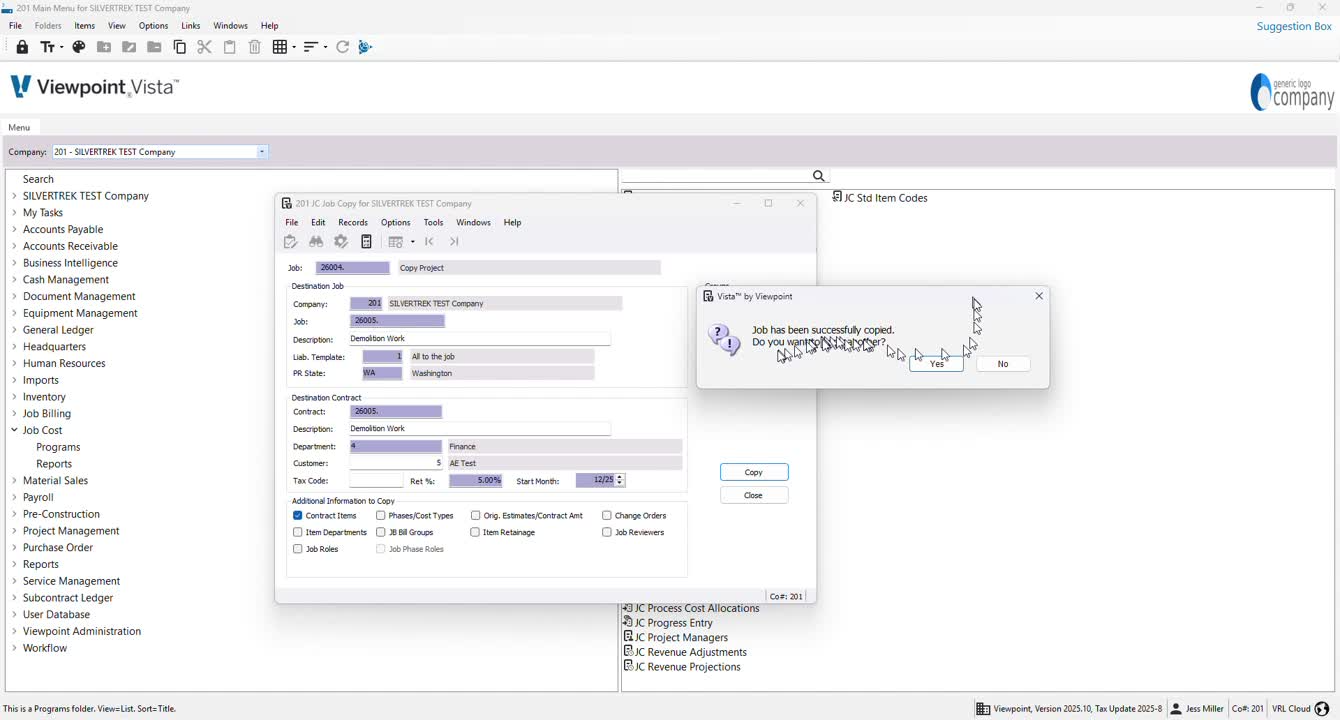
Click 'Copy' to finalize the job copy.
If prompted to copy another job, select 'Yes' or 'No' as appropriate.
Cautionary Notes
Ensure all job details are accurate before finalizing the copy to avoid discrepancies.
Double-check that the contract number matches the job number to prevent errors.
Tips for Efficiency
Use the F4 key frequently to access lists and options quickly.
Keep a record of your last job number to streamline the process for future job entries.
Link to Loom
https://loom.com/share/5f9965107b7c498ca3ac67ad432538c5
Was this article helpful?
That’s Great!
Thank you for your feedback
Sorry! We couldn't be helpful
Thank you for your feedback
Feedback sent
We appreciate your effort and will try to fix the article