Standard Operating Procedure for Entering Cash Receipts in Accounts Receivable
Objective
This SOP outlines the steps to enter a cash receipt in Accounts Receivable to accurately record customer payments and apply them to invoices.
Key Steps
Step 1: Log into Vista 0:10
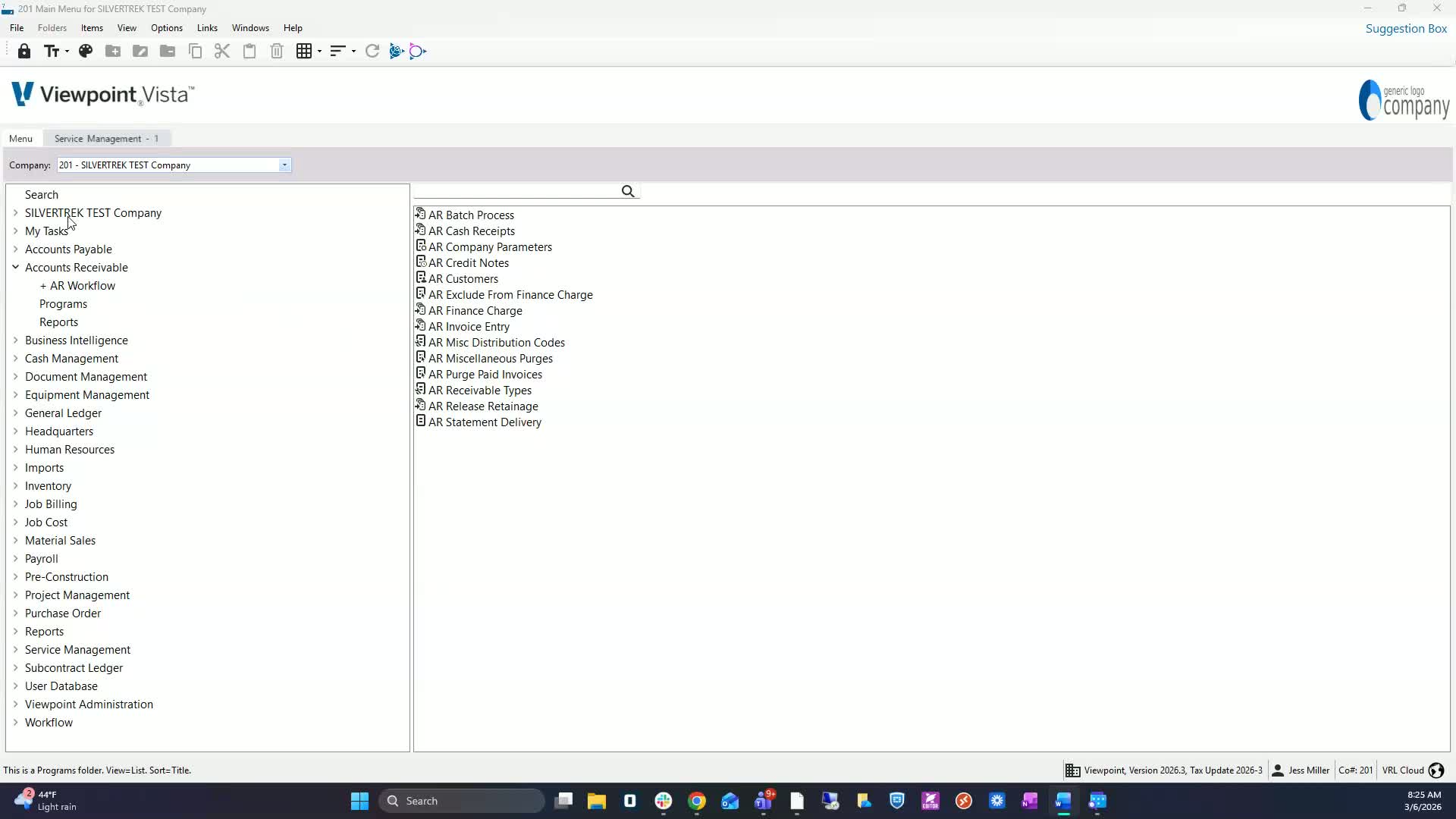
Access your login for Vista.
Navigate to Accounts Receivable Programs.
Select AR Cash Receipts.
Step 2: Create a New Batch 0:19
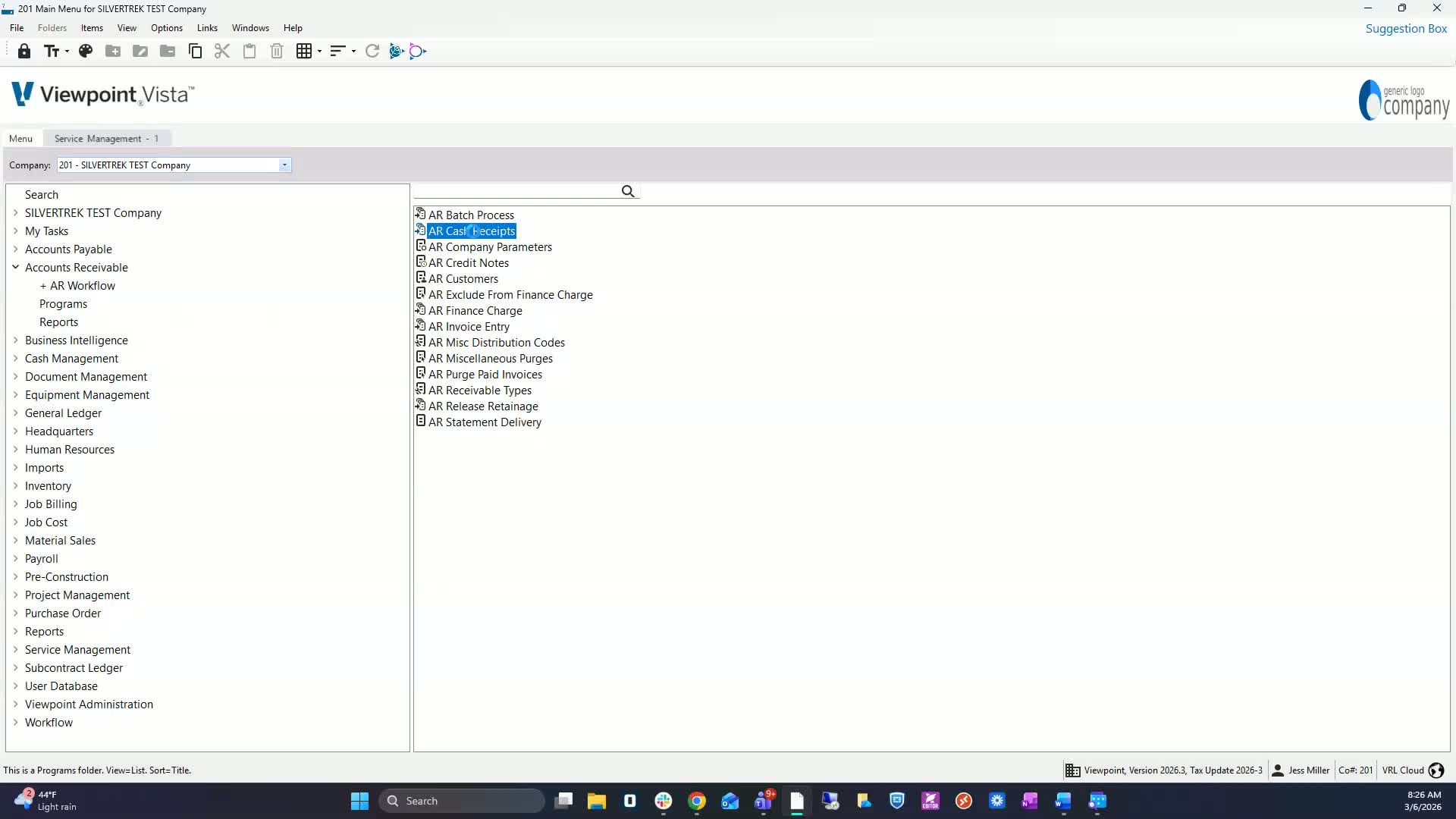
Double-click to open the AR Cash Receipts program.
Click on Create New Batch.
If needed, you can use an existing batch by unchecking Show My Batches Only and selecting Include All Unposted Batches.
Step 3: Set Batch Month and Sequence Number 0:41
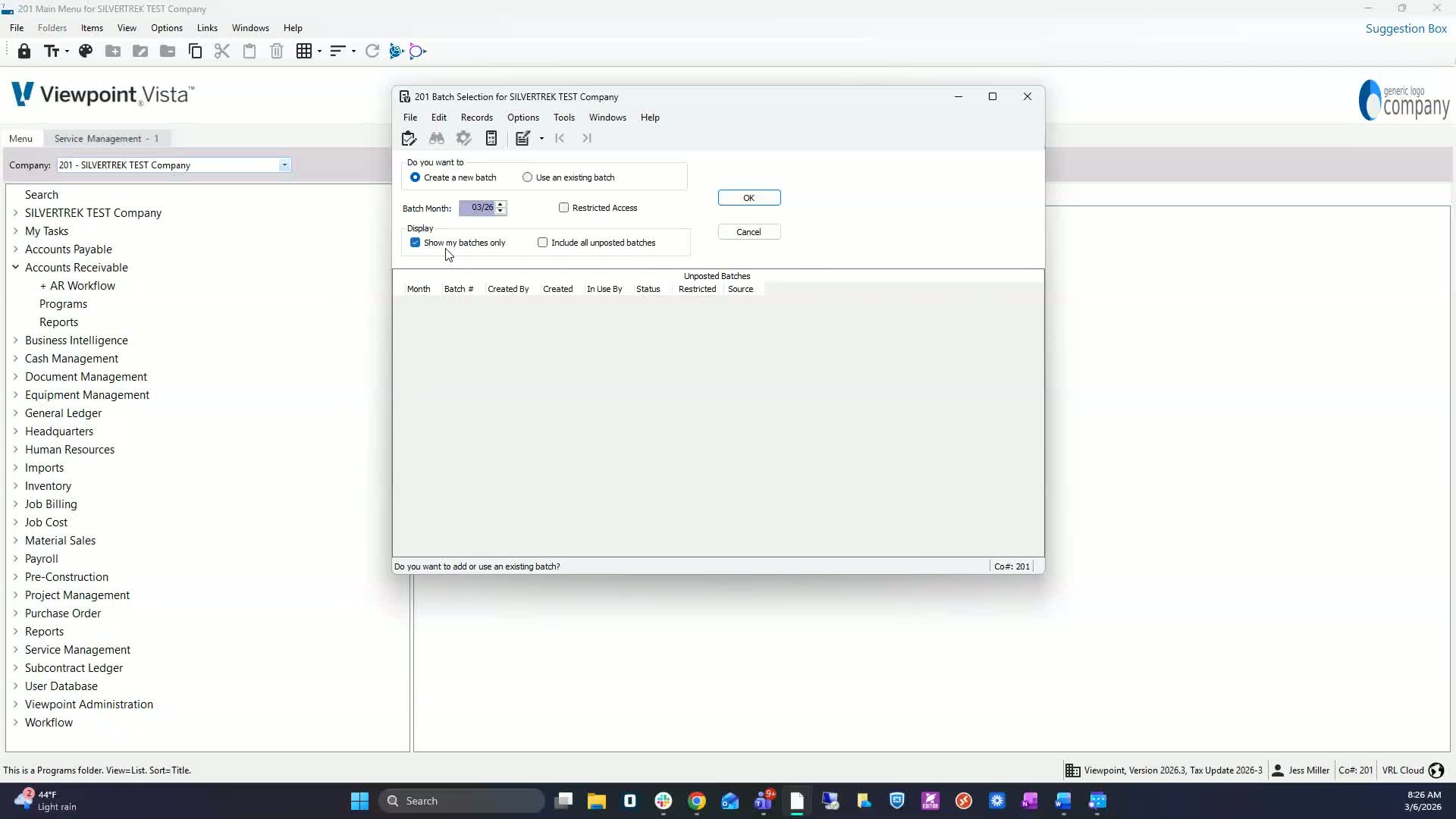
Choose the Batch Month and hit OK.
Create a sequence number by either hitting In, typing New, or clicking the plus symbol.
Step 4: Enter Customer Information 1:11
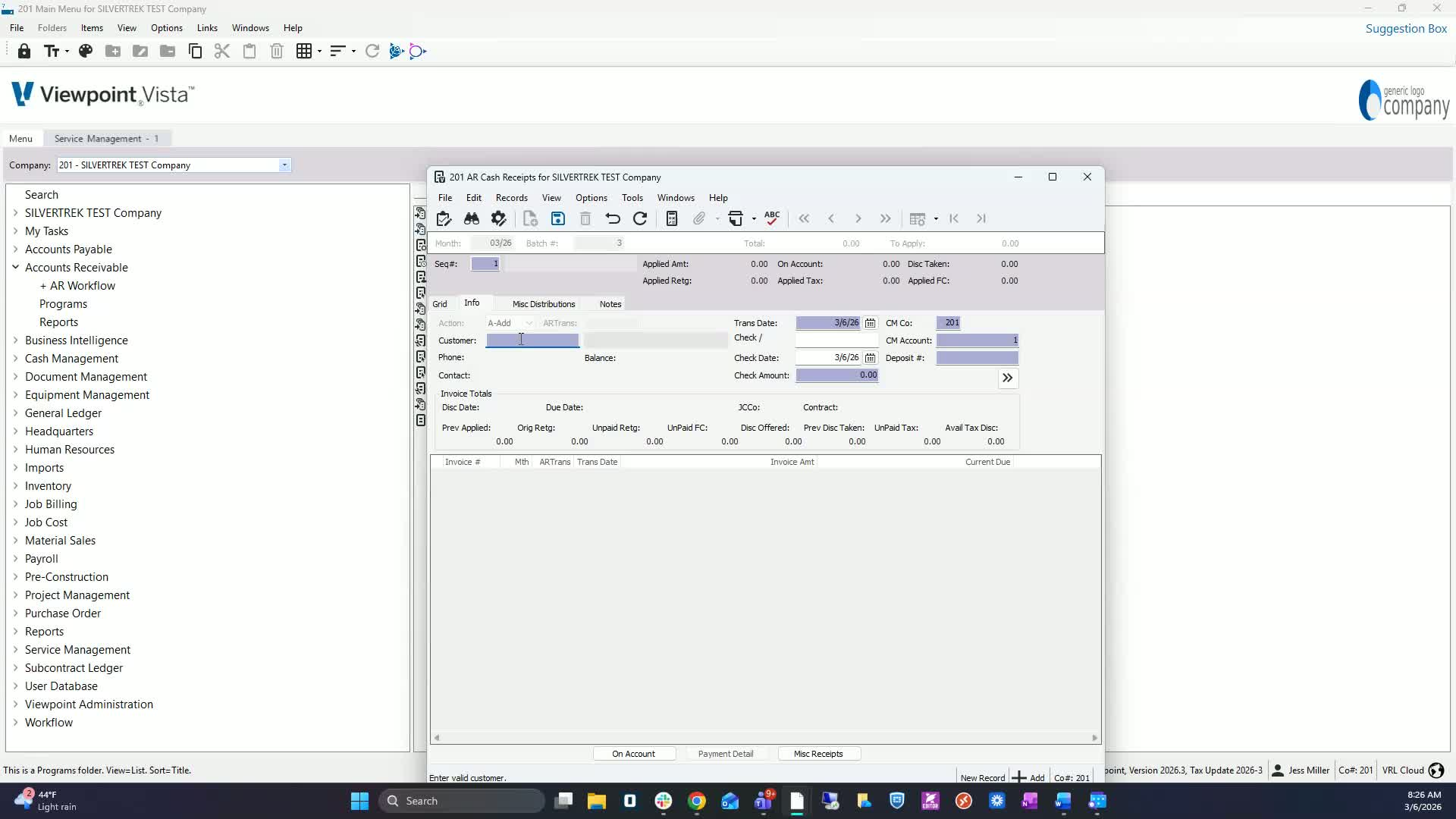
In the Customer field, hit F4 to select the customer.
Set the transaction date to the date the payment was deposited.
Step 5: Input Payment Details 1:28
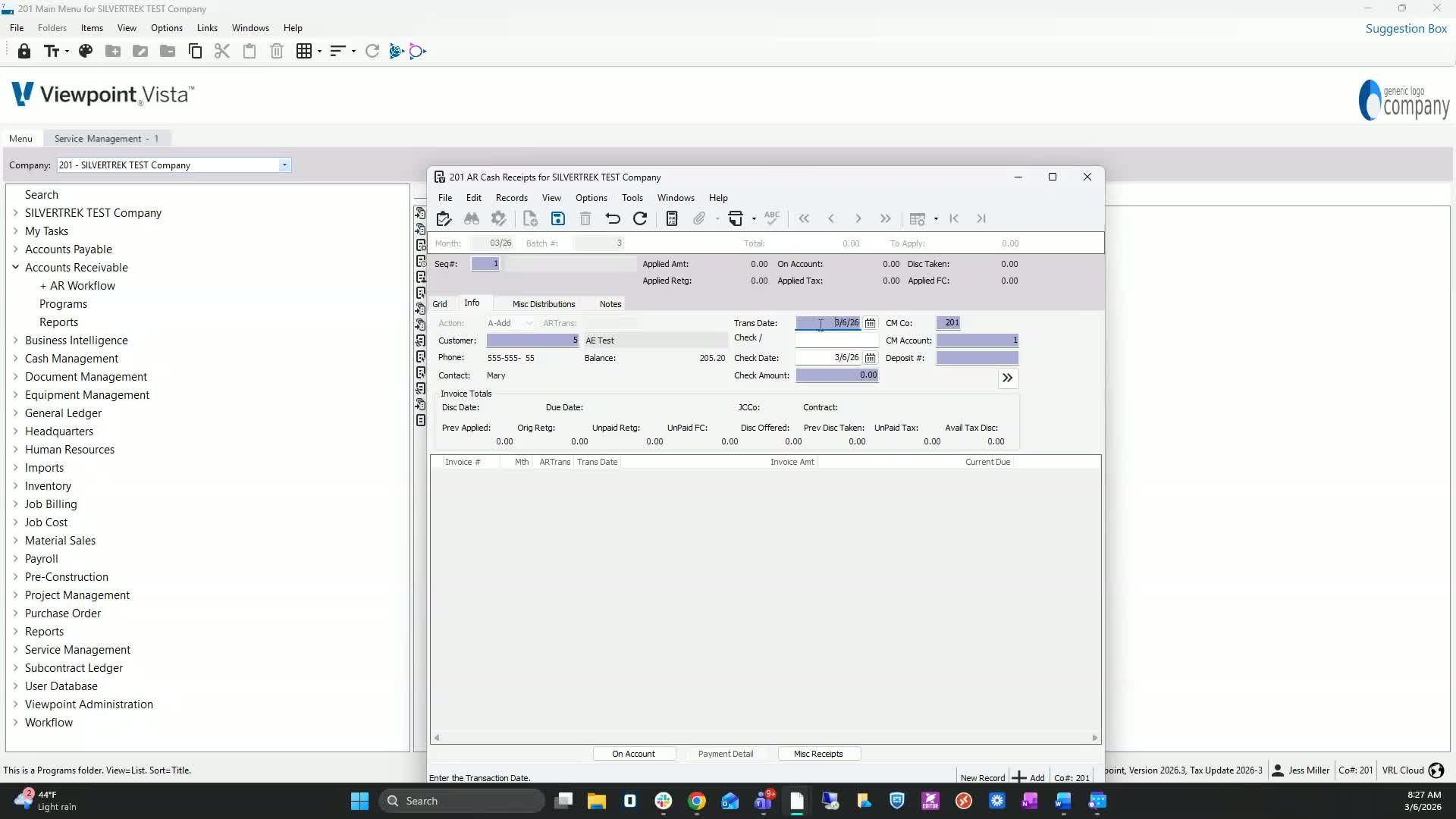
Enter the check number for reference.
Set the check date to the date on the check.
Confirm the check amount is defaulted.
Step 6: Select Bank Account and Deposit Number 1:52
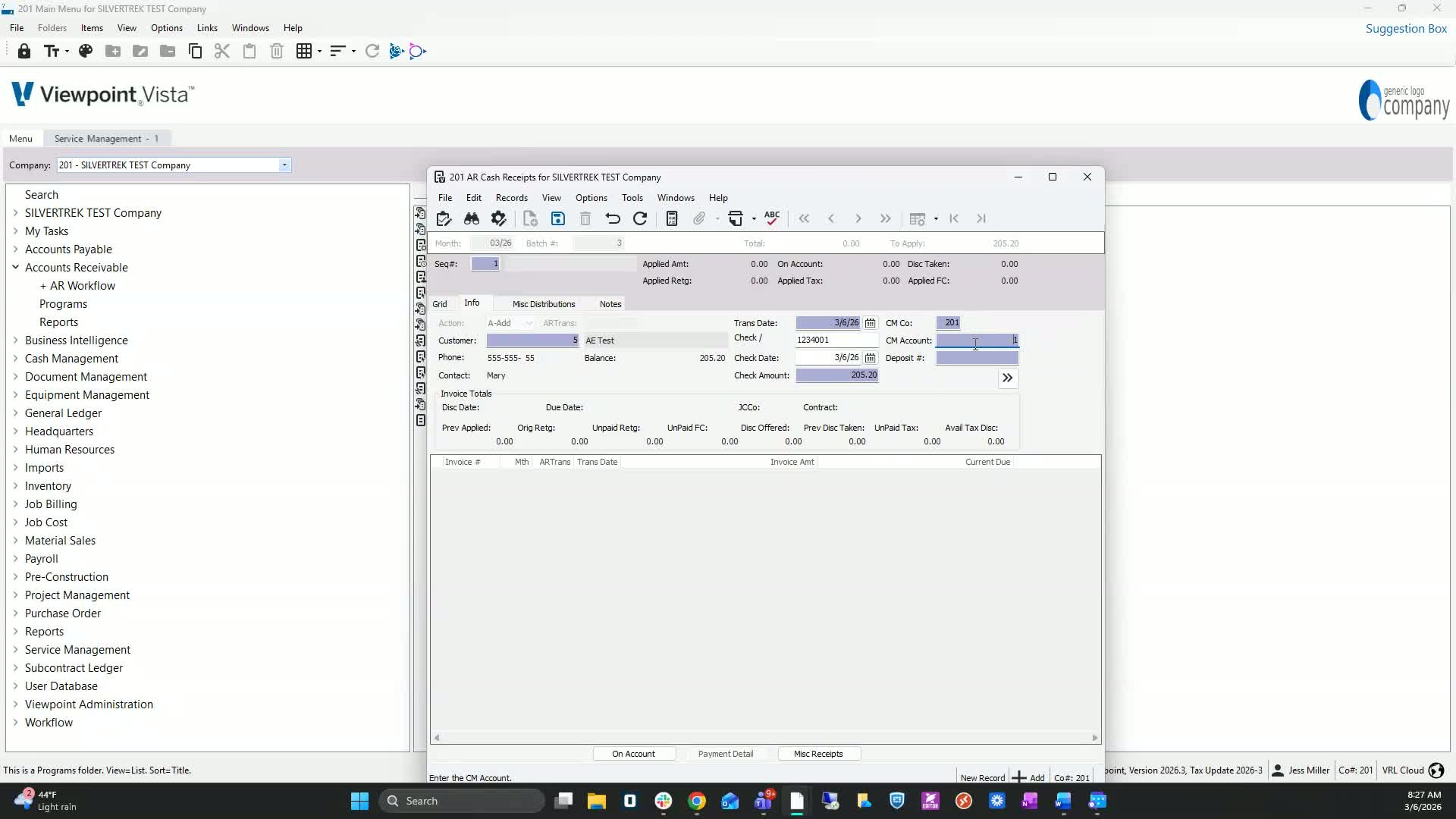
Ensure the CM account is defaulted by the AR customer CM account.
Hit F4 to select your bank account if necessary.
Enter a deposit number (e.g., check number or date).
Step 7: Finalize Batch Entry 2:40
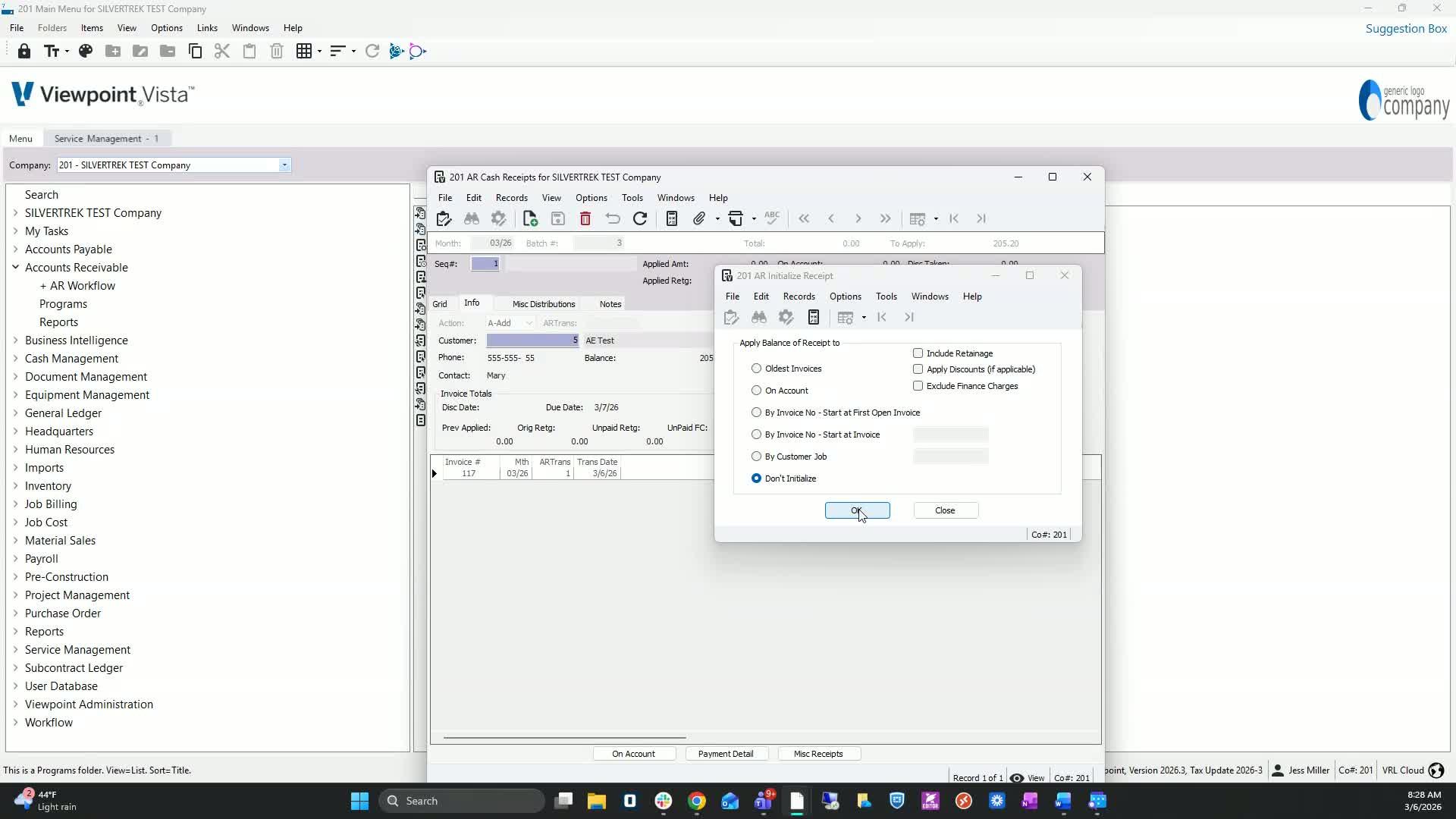
Do not initialize the two lines and hit OK.
Step 8: Apply Payment to Invoices 2:52
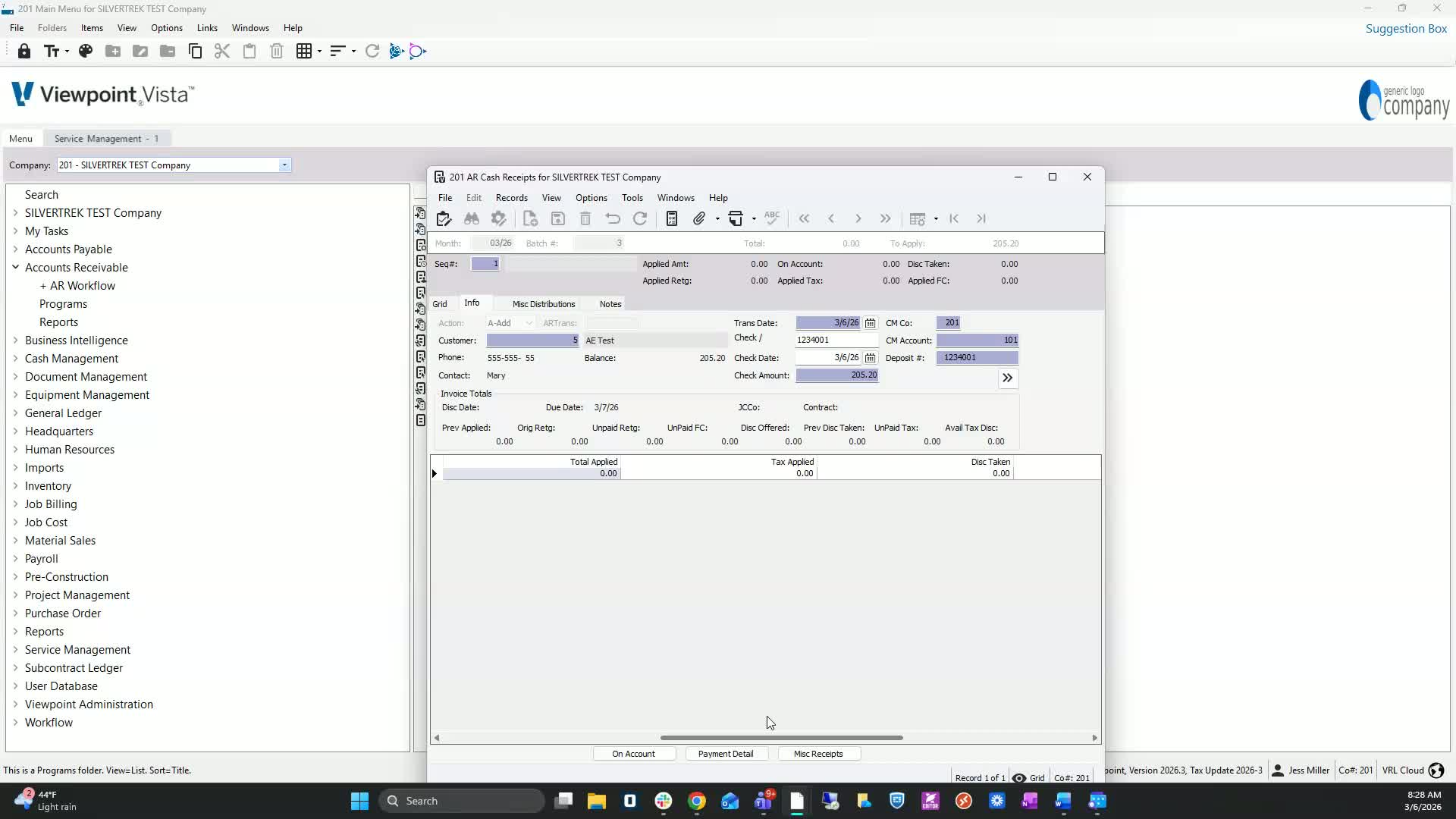
Review the invoice details.
Fill in the total applied, tax applied, discount taken, retainage applied, and finance charges applied as necessary.
Step 9: Save and Process Batch 3:19
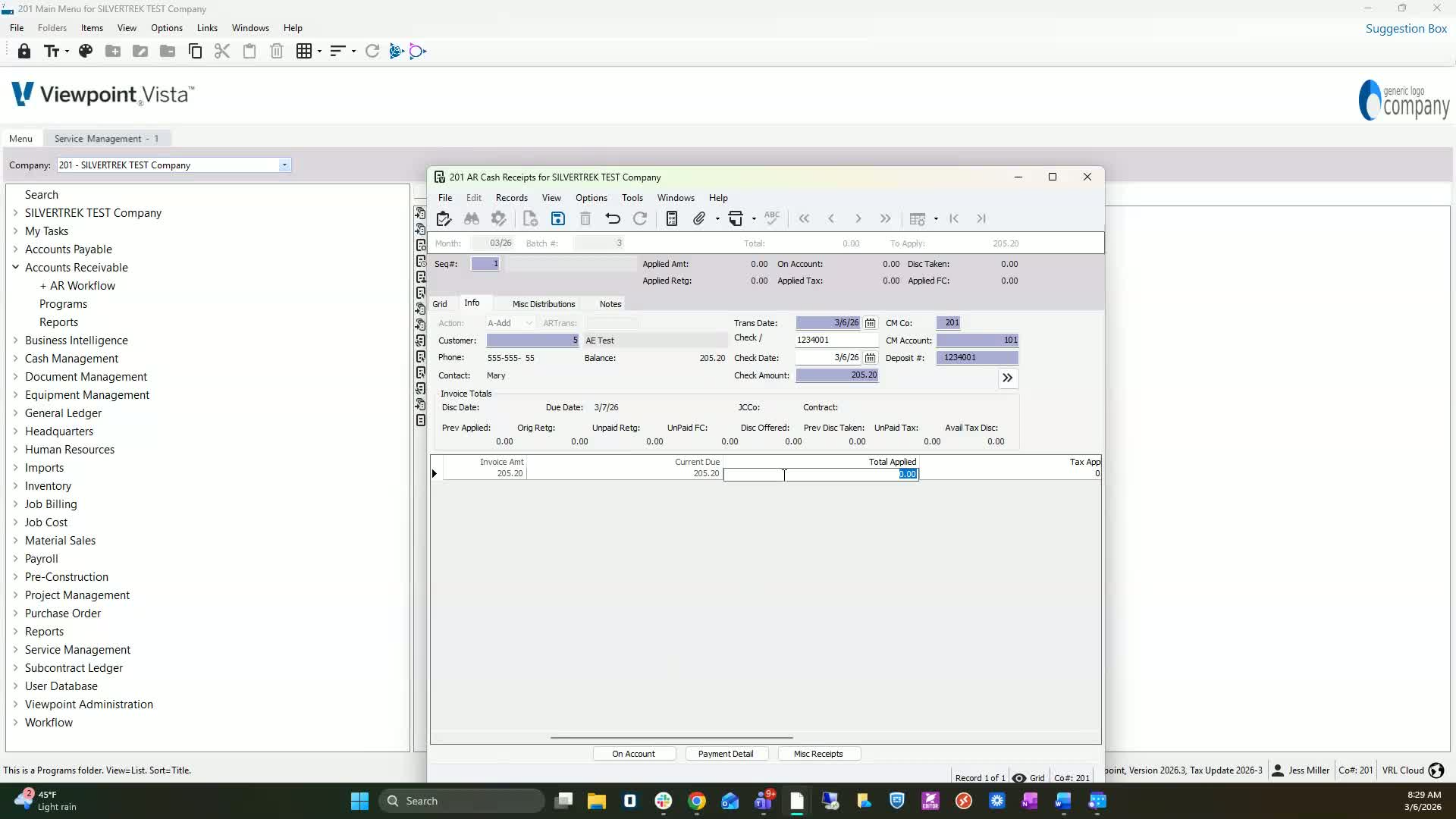
Click save.
Go to File, then Process Batch, and select Validate.
Step 10: Post the Batch 3:39
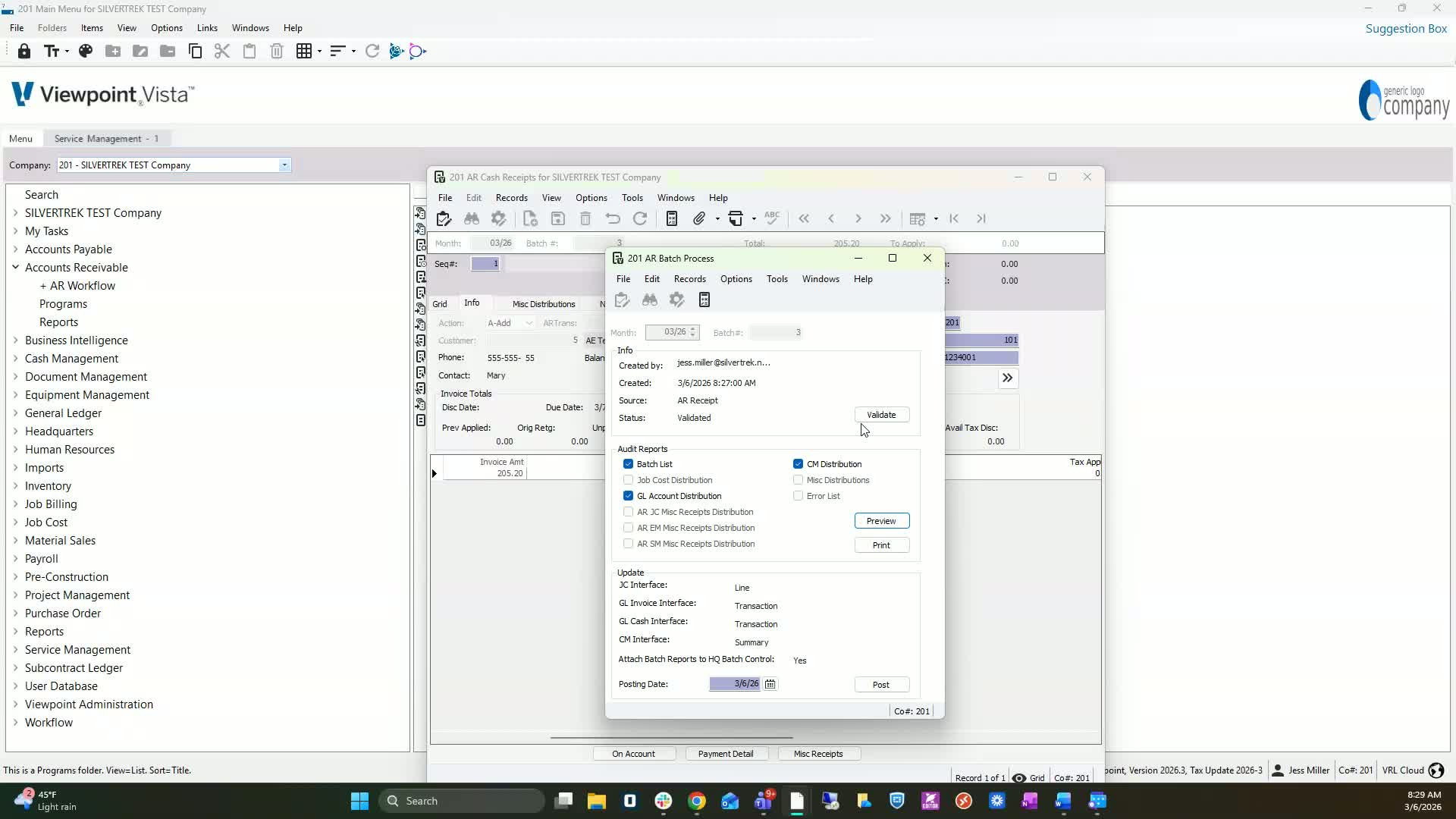
Review the distribution to JIL accounts and ACM entry distribution.
If satisfied, proceed to post the batch.
Step 11: Close the Program 4:00
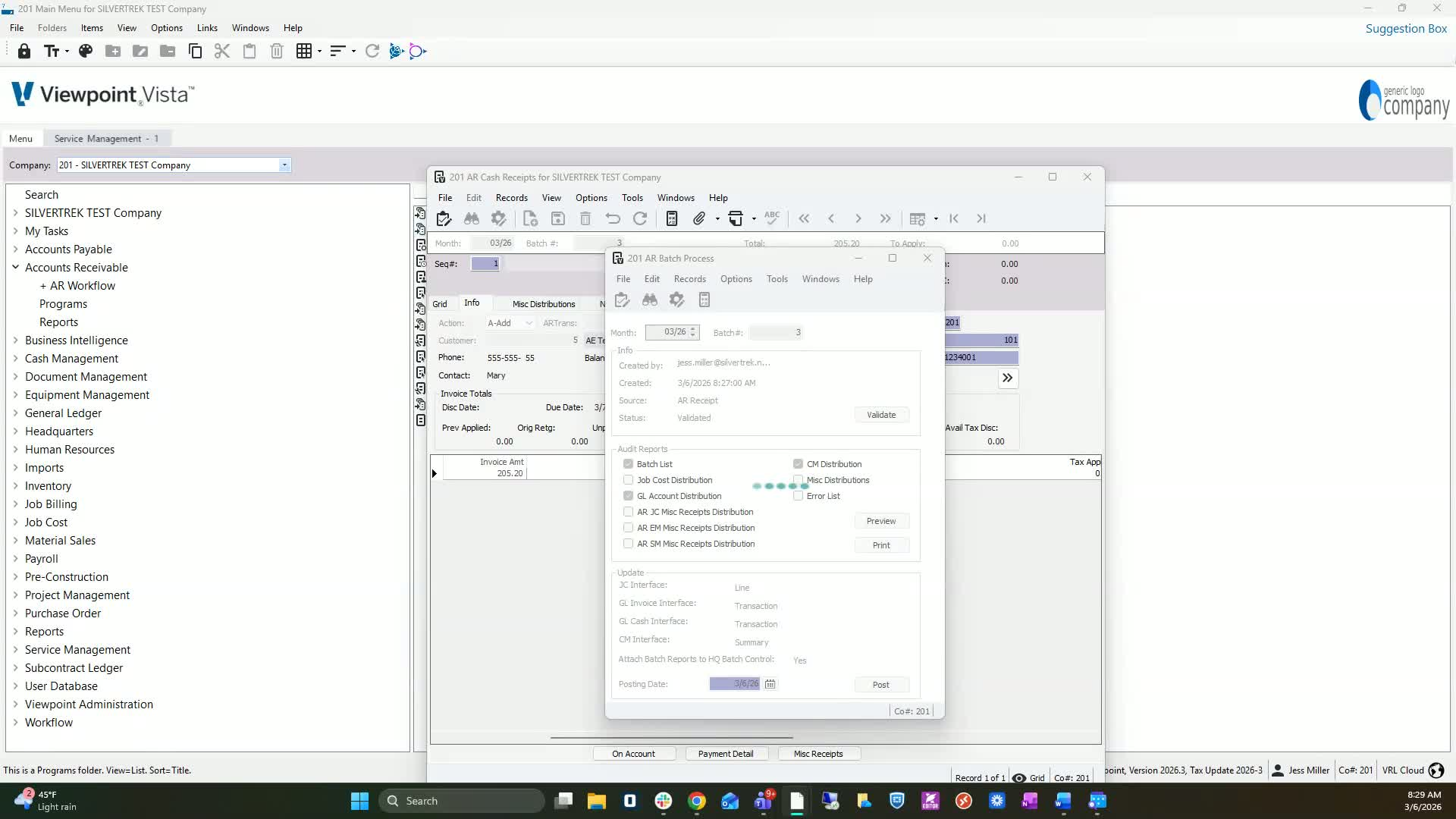
Confirm the update was successful.
Hit close to exit the program.
Cautionary Notes
Ensure all customer details are accurate before saving.
Double-check the transaction date and check number for correctness.
Tips for Efficiency
Use keyboard shortcuts (like F4) to speed up the selection process.
Keep a record of common deposit numbers for quick reference.
Link to Loom
Was this article helpful?
That’s Great!
Thank you for your feedback
Sorry! We couldn't be helpful
Thank you for your feedback
Feedback sent
We appreciate your effort and will try to fix the article