Applies to Vista Version: 2025.9 and above
Last Updated: 11/21/2025
Setting Up OAuth 2.0 SMTP for Office 365 Exchange Online for use with Vista
Requirements:
- You must be the Azure administrator for your company.
- You must have a subscription for Office 365 Exchange Online.
- Mailboxes used must be actual mailboxes that are licensed.
This guide outlines the basic steps to configure OAuth 2.0 for integration with Vista.
It includes:
- Registering an application in Microsoft Entra ID
- Assigning the necessary API permissions
- Generating a client secret
- Creating a service principal
- Adding mailbox permissions for specific mailboxes
- Ensuring the Exchange Mailbox has "Authenticate SMTP" checked
- Gathering the Client ID, Tenant ID, Client Secret, and Mailbox for sending emails
- Configuring Vista with new SMTP OAuth settings
- Testing Vista SMTP OAuth settings
- Reviewing Vista logs if "Send Test Email" fails
Note: Additional settings and permissions can be configured for more control. You may need to research online or contact Microsoft for further support. This guide focuses on the essential setup for Vista.
Step 1: Register an Application in Microsoft Entra ID
- Sign in to the Azure Portal (https://portal.azure.com/) using an administrator account to access the Microsoft Entra admin center.
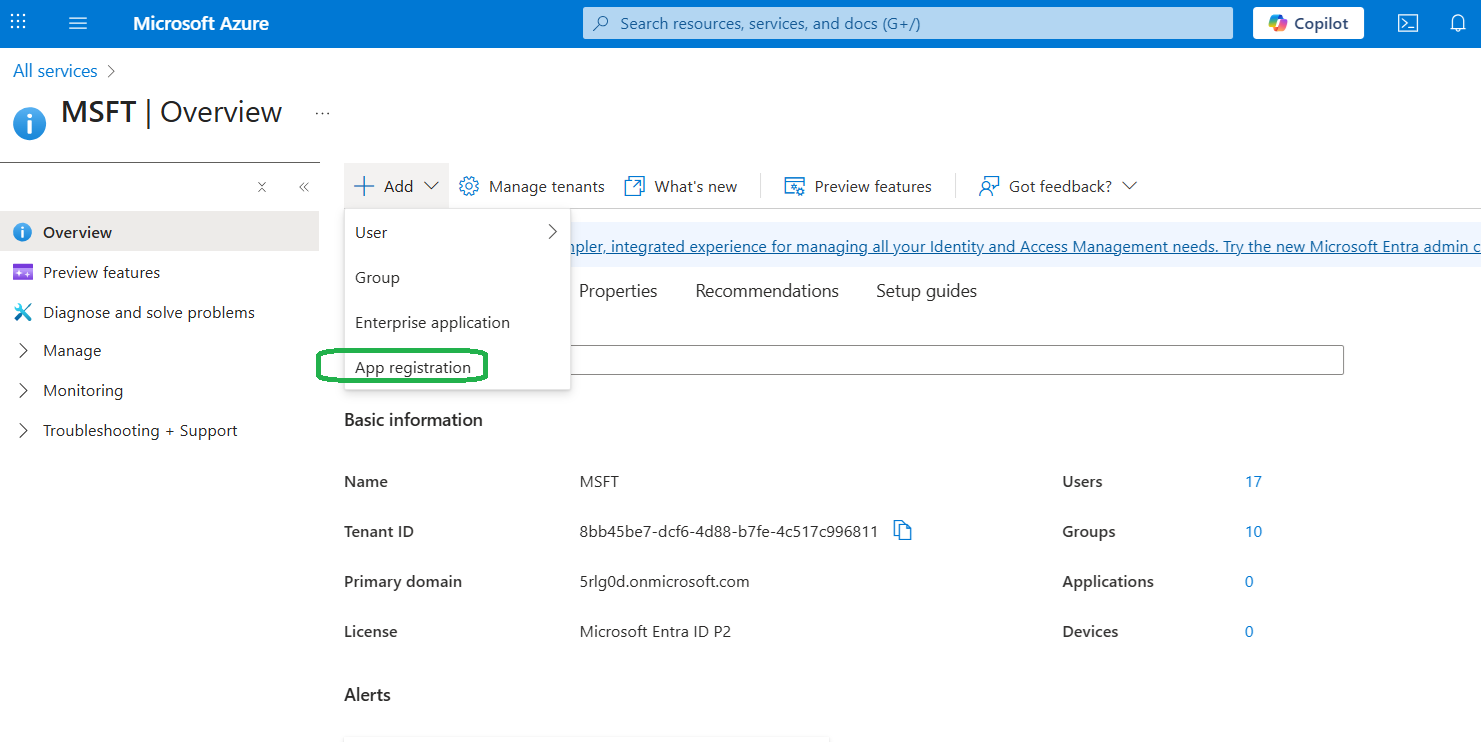
- Navigate to App Registrations by selecting Identity > Applications > App registrations from the left-hand menu.
- Click on + New registration.
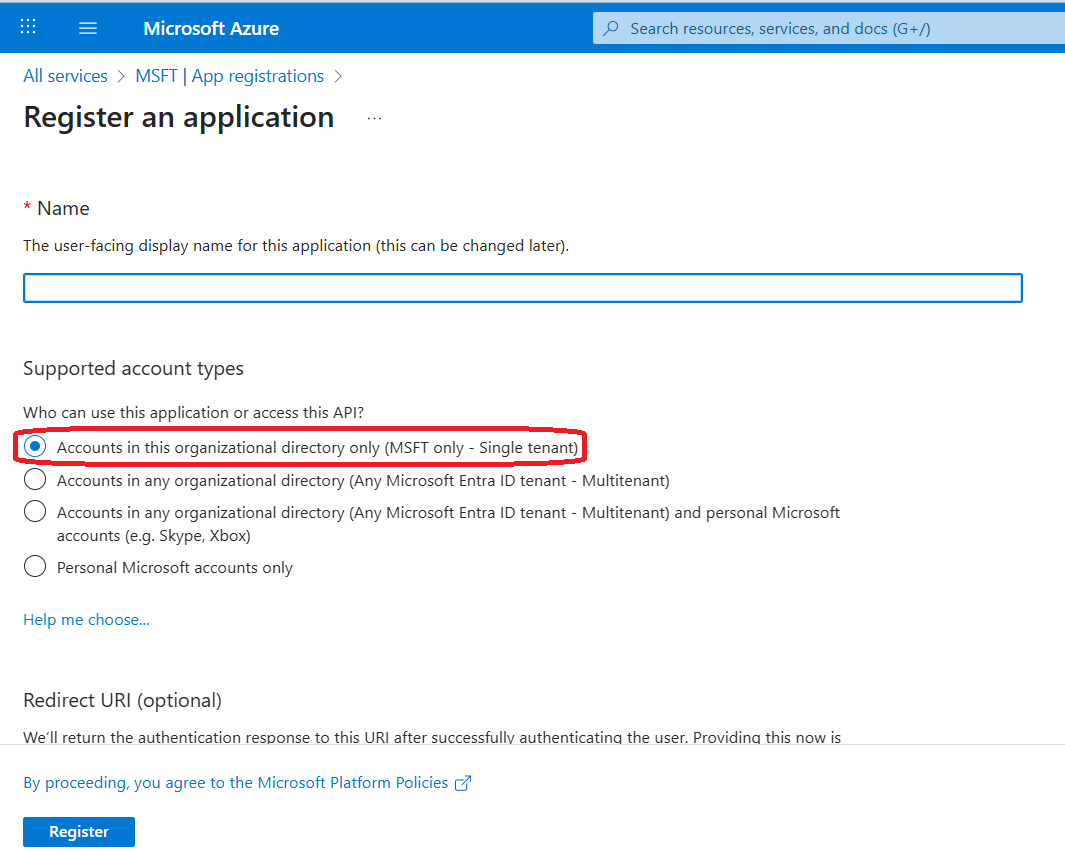
- Enter a descriptive name for the application and choose “single tenant application.”
- Click the Register button.
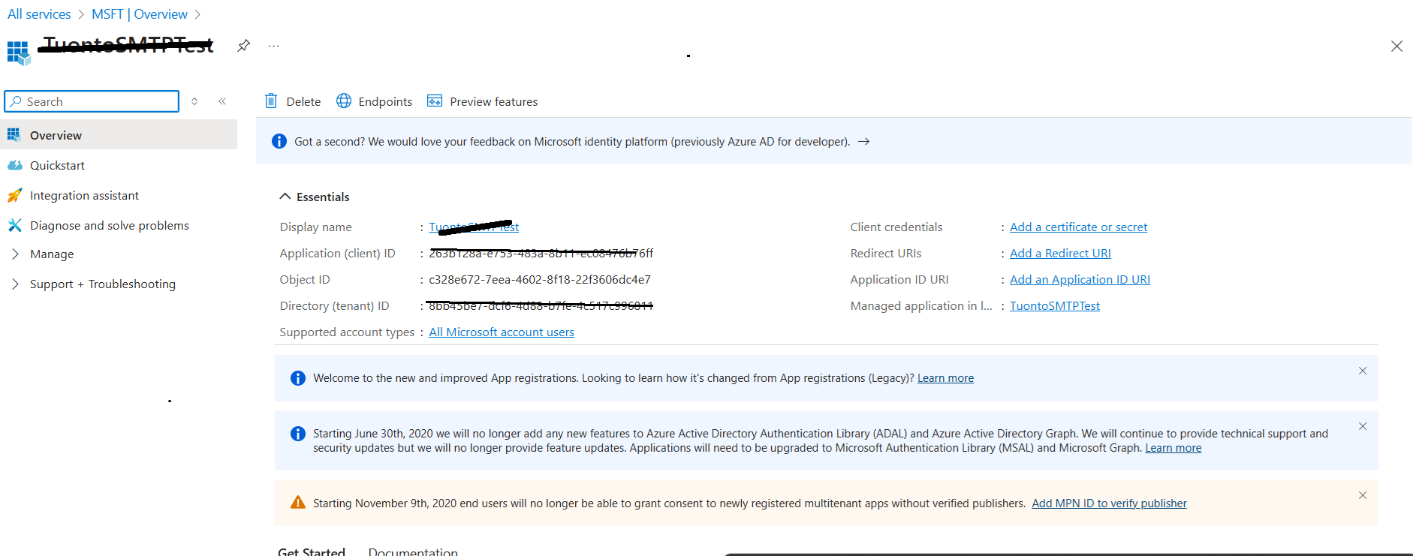
- After registration, note the Application (client) ID and Directory (tenant) ID from the app's Overview section. These will be needed later.
Step 2: Configure API Permissions
- In the app's management menu, under Manage, select API permissions.
- Click + Add a permission.
- Go to the APIs my organization uses tab, search for and select Office 365 Exchange Online.
- Choose Application Permissions, search for and add SMTP.SendAsApp
- Click the Grant admin consent button to approve the permissions for all users in your tenant. Confirm the action when prompted.
API permissions should look like this:
Step 3: Create a Client Secret
- In the app's management menu, under Manage, select Certificates & secrets.
- Under the Client secrets section, click + New client secret.
- Enter a description and select an expiration period (e.g., 24 months, or "Never" if it aligns with your security policy). Click Add.
- Immediately copy the generated secret value and store it securely. This value is only shown once and cannot be retrieved later.
Step 4: Configure Service Principal in Exchange Online
- Launch the PowerShell command prompt as Administrator.
- Enter the command: Set-ExecutionPolicy -Scope Process -ExecutionPolicy Bypass
- If not already installed, run: Import-module ExchangeOnlineManagement
- Connect to Exchange using the command: Connect-ExchangeOnline. A Microsoft Login window will appear. Log in with your Exchange Admin account.
- Register your Azure AD application as a service principal in Exchange Online using: New-ServicePrincipal -AppId "<Application_ID>" -ObjectId <Object_ID>
Note: Get Application ID and Object ID from the Enterprise Application page (not Application Registration page)
Step 5: Add Mailbox Permissions
To add mailbox permissions for specific mailboxes, use the following command: Add-MailboxPermission -Identity "<Mailbox Email Address>" -User "<ServicePrincipal Object_ID>" -AccessRights FullAccess
Note: Get Object ID from the Enterprise Application page (not Application Registration page)
Step 6: Ensure Exchange Mailbox has "Authenticate SMTP" Checked
- Log into https://admin.microsoft.com/
- Locate the Mailbox to be used for sending emails.
- Click on the Mail link and review settings.
- Click on “Manage Email App” link
- Ensure "Authenticated SMTP" is checked. If not, check it.
Step 7: Gather the Client ID, Tenant ID, and Client Secret
- Client ID and Tenant ID can be obtained from App Registration (See image).
- Client Secret was captured in Step 3 - Create a Client Secret.
- Mailbox can be obtained from Step 5 - Add Mailbox Permissions.
Step 8: Configure Vista with SMTP New OAuth Settings
- Open Vista VA Site Settings, Email Settings Tab.
- Check "Send email via SMTP".
- Click on the "Email Client" dropdown and choose "Office 365".
- Enter the Mailbox for sending in "Email Address".
Note: As of version 2025.9 (aka 2025.8), there’s a bug that requires the Mailbox to be entered in the UserName field as well. This is needed, otherwise, the Vista Notifier will fail to send emails.
- Enter the client ID, tenant ID, and client secret.
- Click OK to save settings.
Example Settings
Step 9: Test Vista SMTP OAuth Settings
- Open Vista VA Site Settings, Email Settings Tab.
- Click on “Send Test Email” button.
- Provide the recipient email to send to.
If Successful,
If Error,
Step 10: Review Vista Logs if "Send Test Email" Fails
- Open Vista Logs (Help->Systems->View Logs).
- Scroll to the right and locate the column "Log Procedure" and filter by TestSmtpServerConfigData.
- Review the “Displayed Msg” column for the error
- Re-check that all steps were performed. Also research on-line or reach out to Microsoft support to inquire about the specific error shown.
Note: If you have direct SQL Server access, you can use this query:
use [Viewpoint]
select top 10 * from dbo.vDDAL where [Procedure] = 'TestSmtpServerConfigData'
order by DateTime desc
If still failing, another step to check is
Exclude the user from a Conditional Access policy that blocks Legacy Authentication:
Sign in to the Azure portal as a Security administrator, Conditional Access administrator, or Global administrator.
Browse to Azure Active Directory > Security > Conditional Access.
In the policy that blocks Legacy Authentication, exclude the mailbox being used under Users and Groups > Exclude.
Select Save.