Standard Operating Procedure for PR Employees Form Setup
Objective
This SOP outlines the steps to enter and manage employee information using the PR Employees form, ensuring accurate payroll processing.
Key Steps
1. Introduction to PR Employees Form 0:00
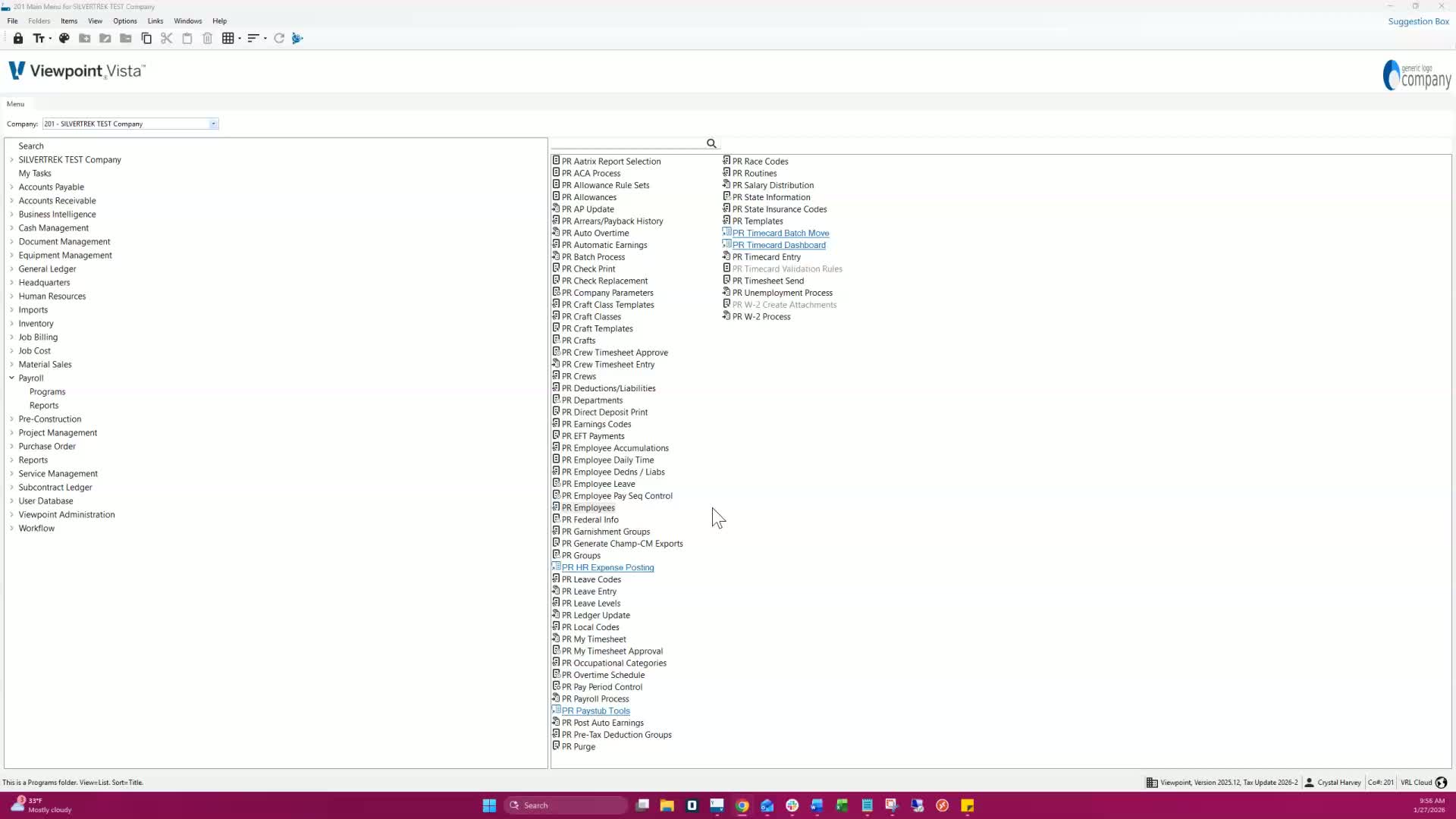
The PR Employees form is used to enter employee information after payroll setup is complete.
It stores basic and sensitive employee data, including:
Name, address, tax and insurance info
Social Security numbers, pay rates, salary, EEO information, and garnishments.
2. Setting Up Default Values 0:32
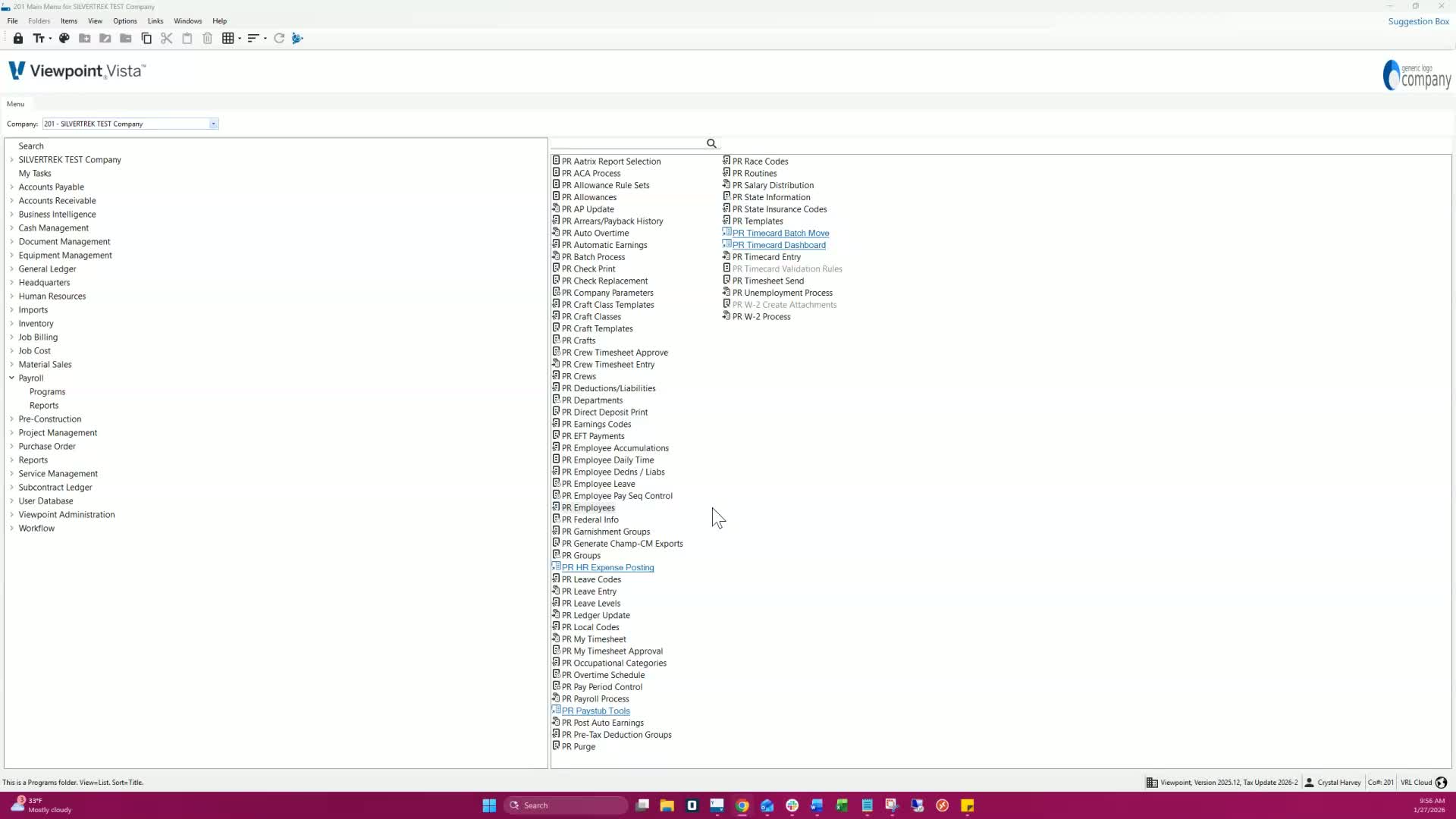
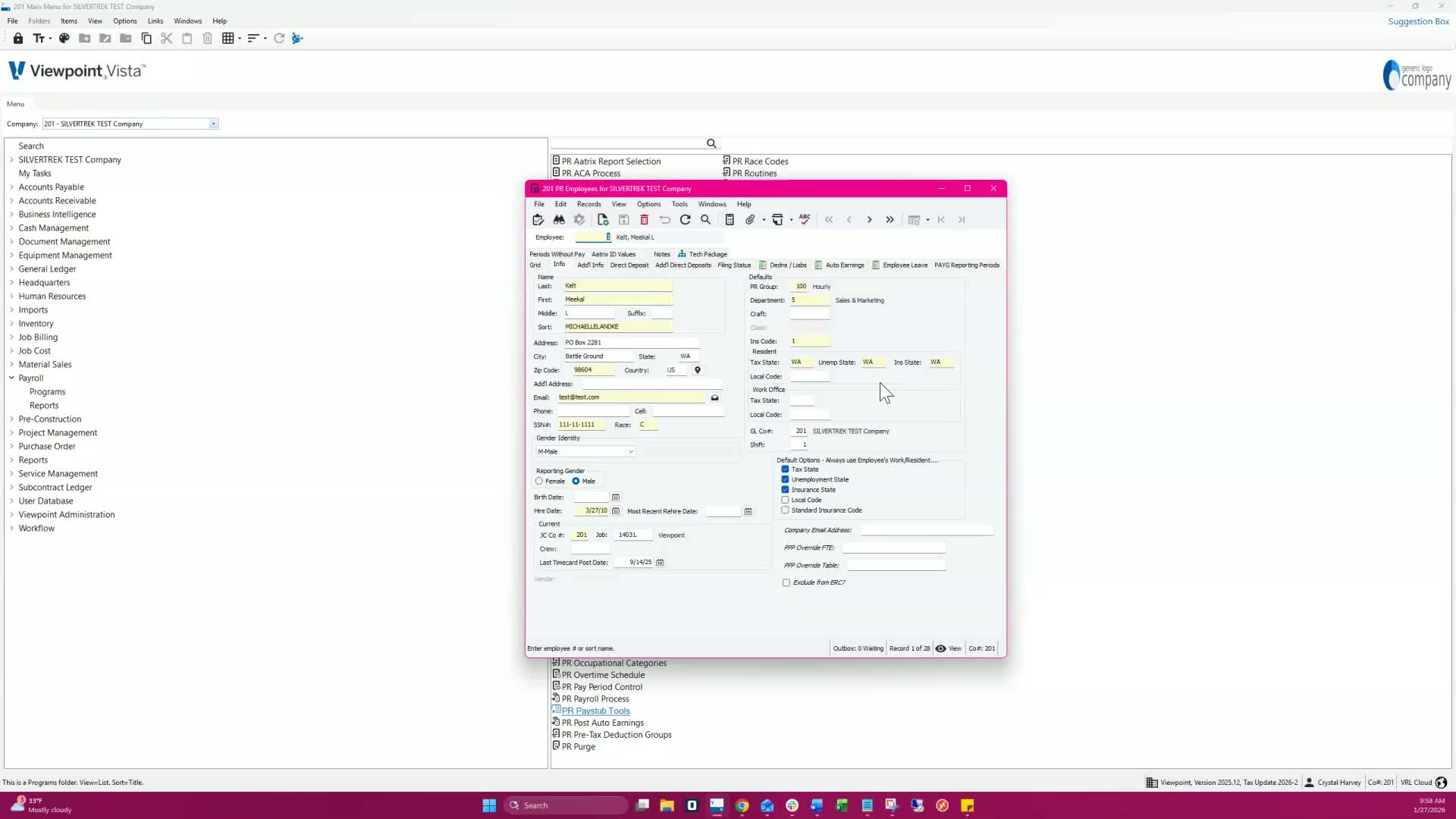
Default values for payroll can be set based on:
Employee's residence and work location.
Typical setup examples:
If the employee lives and works in the same state:
Enter in the following fields:
Resident Tax State
Resident Unemployment State
Resident Insurance State
Resident Local Code
If the employee lives in one state and works in another:
Enter Work Office Tax State and Local Code.
3. Handling Job Time Cards 2:00
For job time cards, defaults come from:
Job time cards for tax, unemployment, and insurance.
For non-job employees, defaults come from company parameters.
4. Employee Overrides 2:43
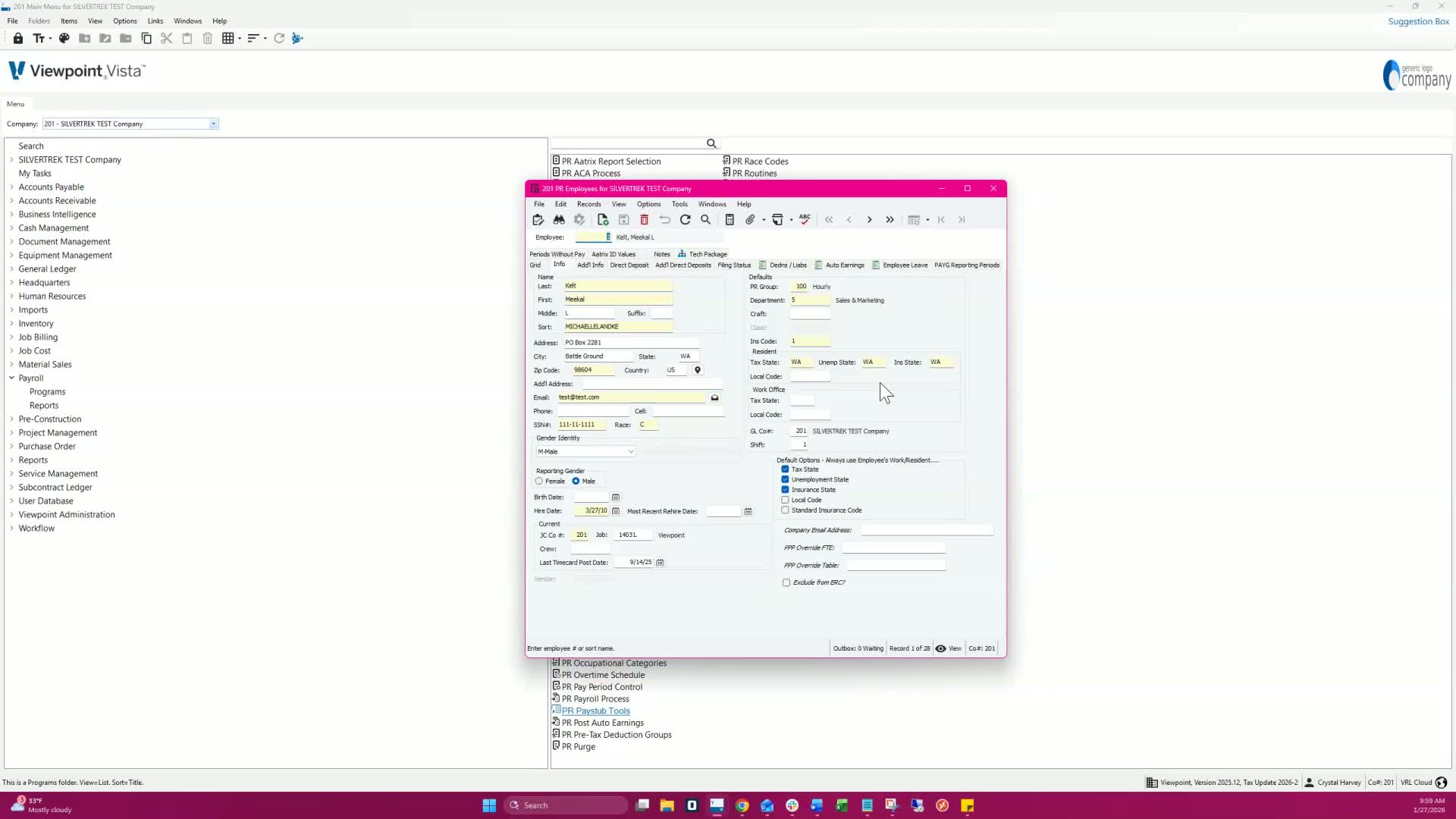
To override defaults for specific employees:
Go to PR Employees under Default Options.
Select 'Always Use Employees Work Resident' for specific employees.
5. Setting Up Pay Stubs and Direct Deposit 3:08
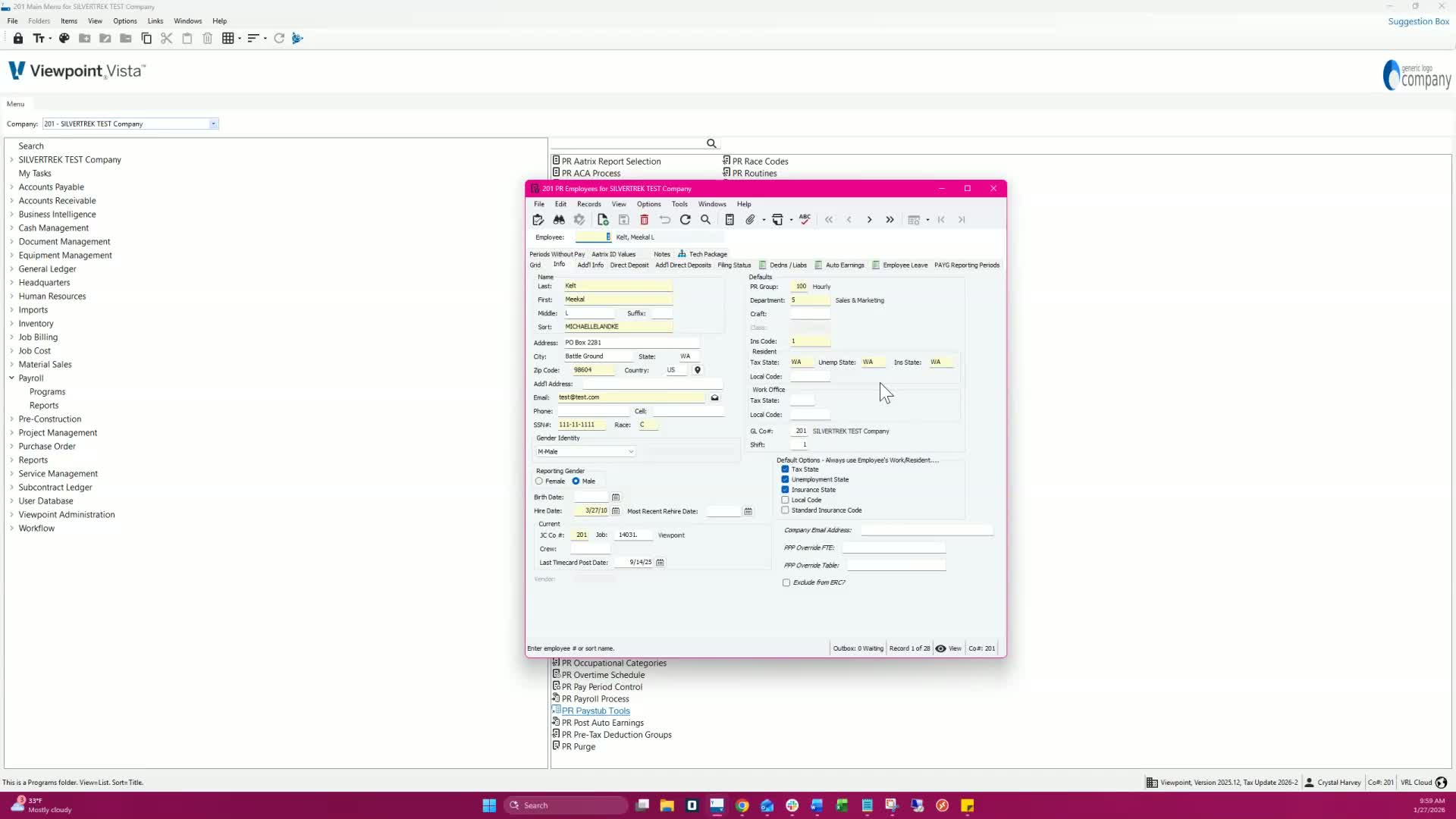
To set up email delivery for pay stubs:
Enter the employee's email address on the Info tab.
On the Additional Info tab, set the delivery method to 'A, email with attachment'.
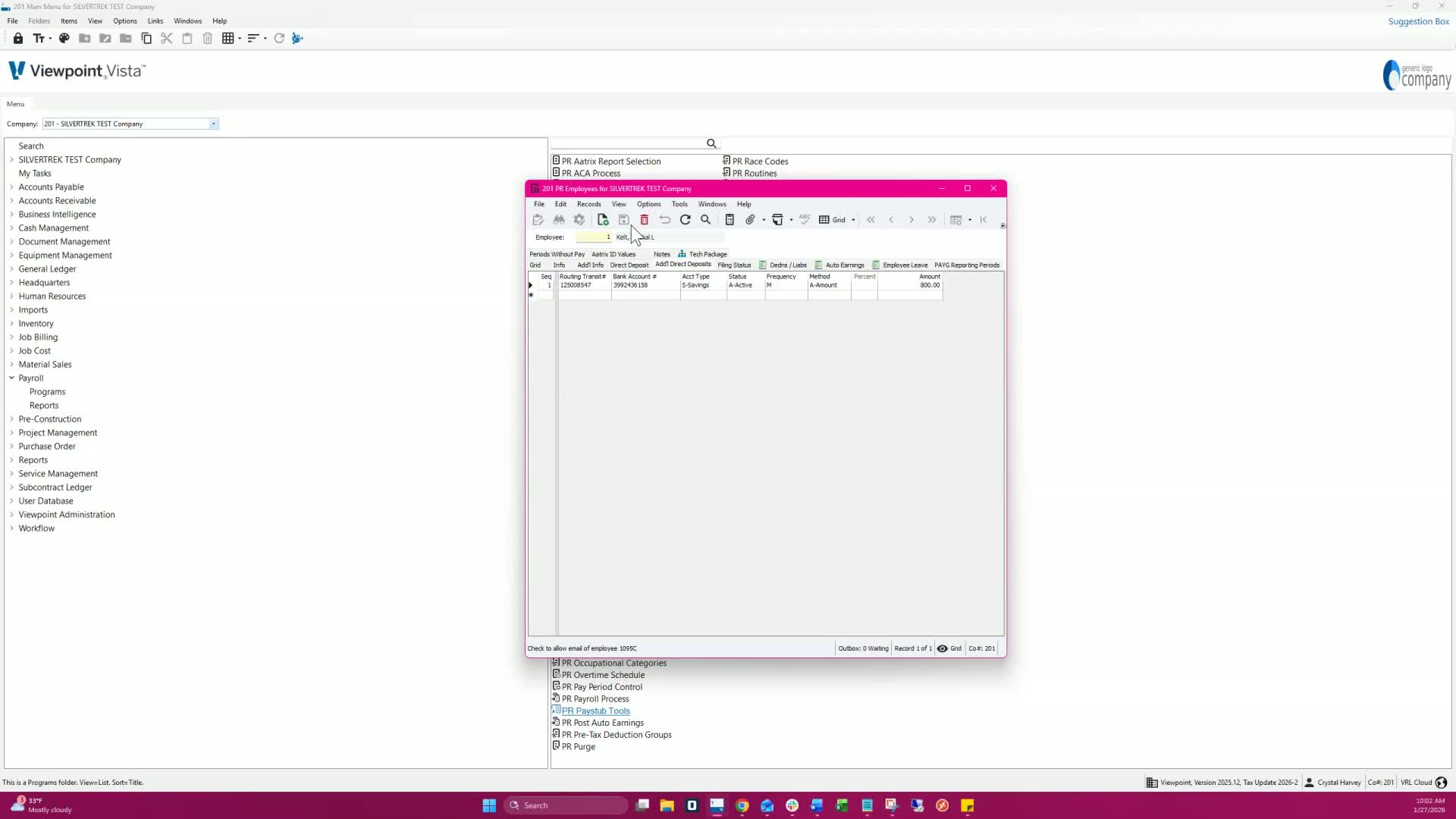
For Direct Deposit setup:
Use the Direct Deposit tab to enter bank information.
Pre-note process is recommended to validate bank details.
6. Tax Withholding Setup 5:07
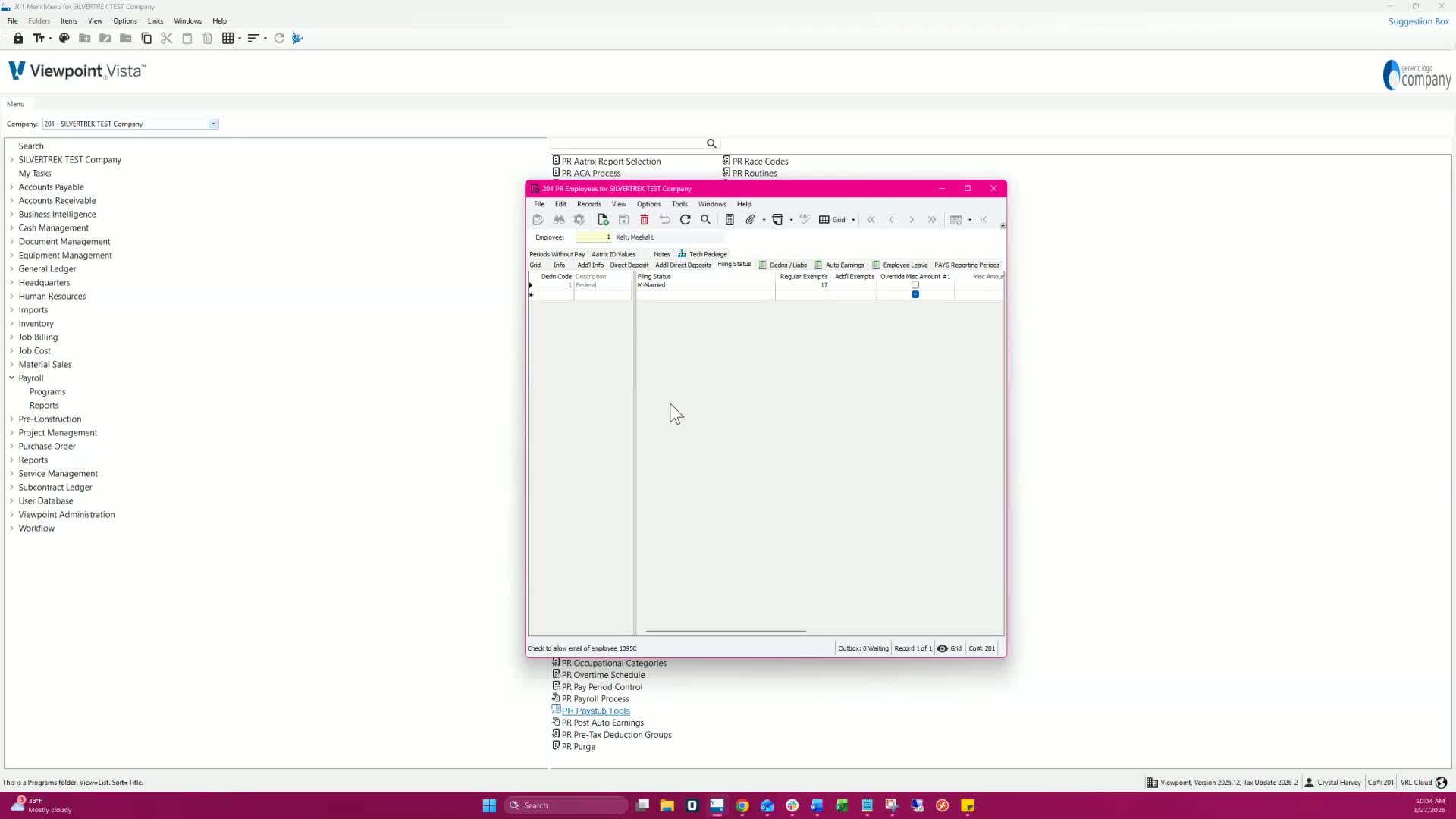
Use the Filing Status tab to set up tax withholding status and exemptions.
If no state filing status is entered, federal filing status is used by default.
7. Setting Exemptions 5:58
To set an employee as exempt from federal tax withholding:
Select the Additional Info tab.
Check the Federal Tax Exempt box and select Save.
8. Managing Deductions and Liabilities 6:09
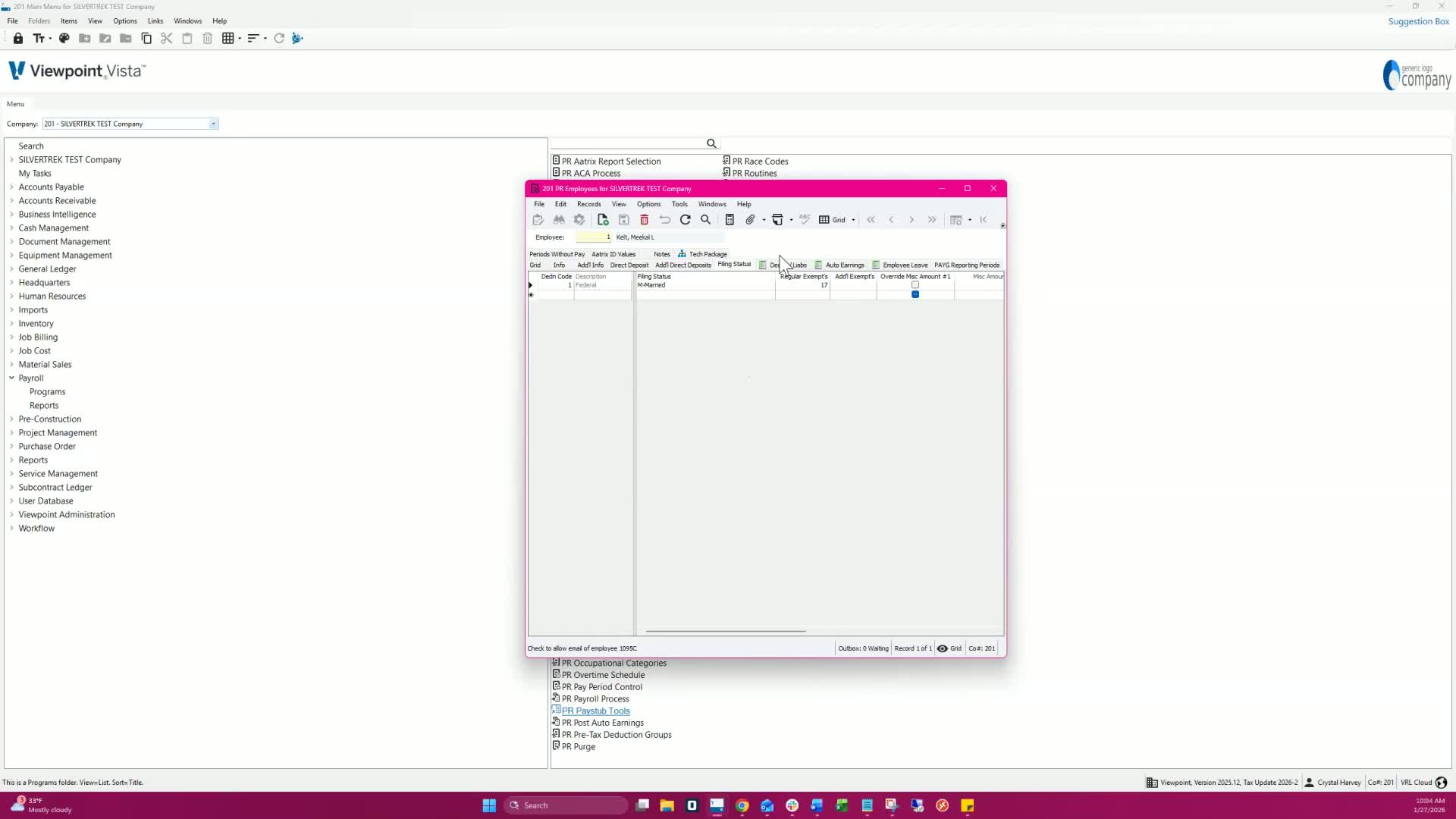
The Deductions and Liabilities tab shows all deductions and liabilities.
To add or edit deductions:
Double-click the grid to open PR employee deductions and liabilities.
Cautionary Notes
Ensure all sensitive data is handled securely to protect employee privacy.
Verify all entries for accuracy to avoid payroll discrepancies.
Tips for Efficiency
Use the F1 help feature for assistance with specific fields.
Regularly review and update employee information to maintain accuracy.
Link to Loom
Was this article helpful?
That’s Great!
Thank you for your feedback
Sorry! We couldn't be helpful
Thank you for your feedback
Feedback sent
We appreciate your effort and will try to fix the article