Export Your Grid
Go to the Grid tab in any form.
Click the Grid icon in the toolbar, then open the drop-down menu.
Note: If the icon is grayed out, the grid cannot be exported.
From the menu, select ExportGridToolStripMenuItem.
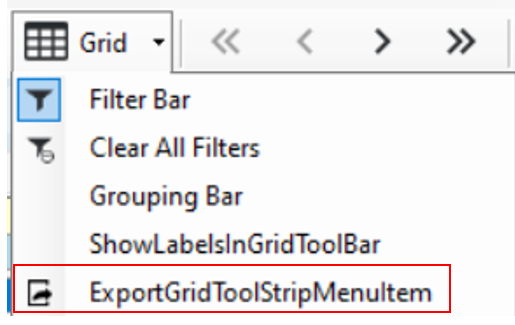
- This opens the True DB Grid Print/Export Options form.
Tip: The three main fields to set are Action, File Name, and Save Location (click the button with dots). All other fields are optional for refining the export.
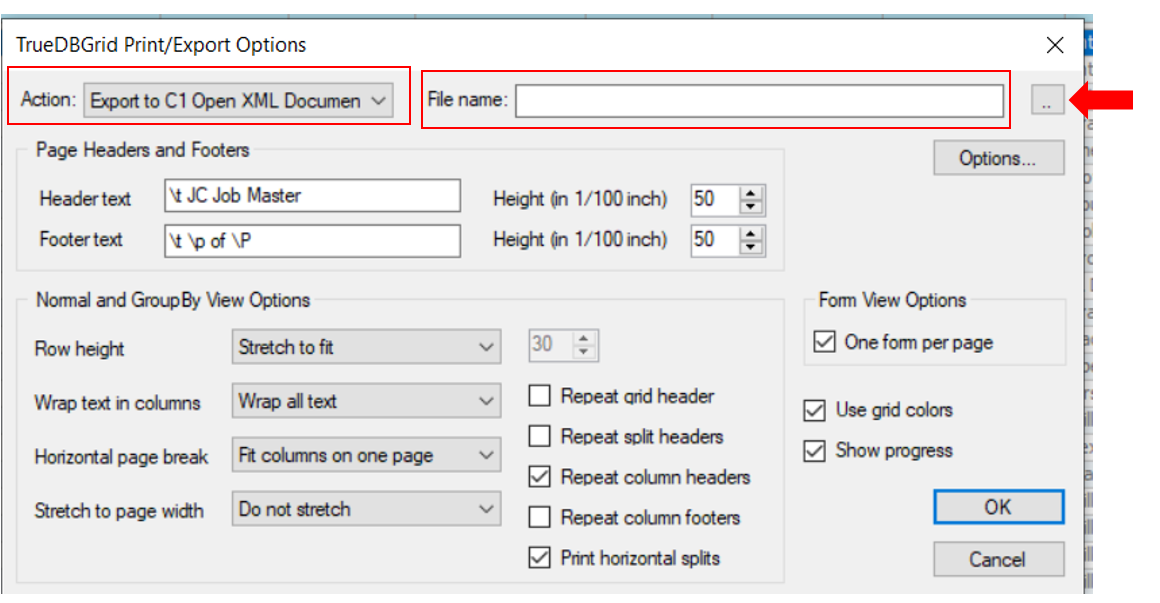
Steps for Exporting:
Action: Use the drop-down arrow to select the file format.
File Name: Enter a name, then click the box with dots to choose where to save the file.
Common Issues & Solutions:
Not enough memory: Filter the grid to reduce records and export in stages.
File name/location missing: Click the browse button (3 dots) to select a location and name the file before clicking OK.

Note: When exporting to Excel, choose Open XML Excel (.xlsx) instead of Microsoft Excel (.xls). The older .xls format (Excel 97-2003) can take 10–15 times longer to export.
Two common problems when exporting Vista grids:
Not enough memory to complete the export.
No file name or location specified.
Was this article helpful?
That’s Great!
Thank you for your feedback
Sorry! We couldn't be helpful
Thank you for your feedback
Feedback sent
We appreciate your effort and will try to fix the article