W2P1. Open up Vista
W2P2. Open up 2024 W2 Reconciliation Excel File
W2P3. Go into Payroll> Programs> PR W-2 Process
W2P4. Open EDL Code Review card in Trello
W2P5. Add any items from the Trello card that are not listed in Vista. If you add anything, reinitialize the header.
W2P6. Once W-2 Process is done make sure that W-2 Process Vista Window matches with the Trello Card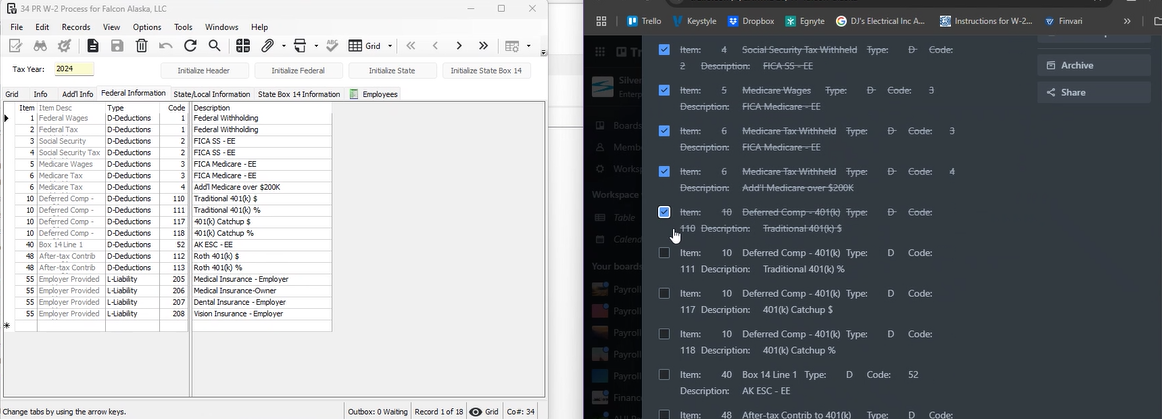
W2P7. Go to tasks and launch Aatrix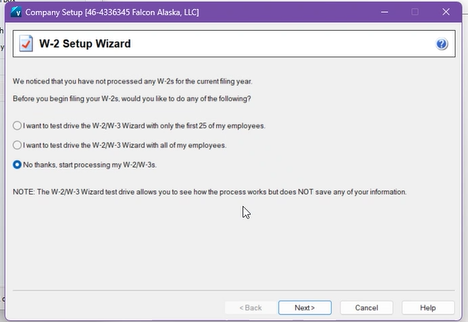
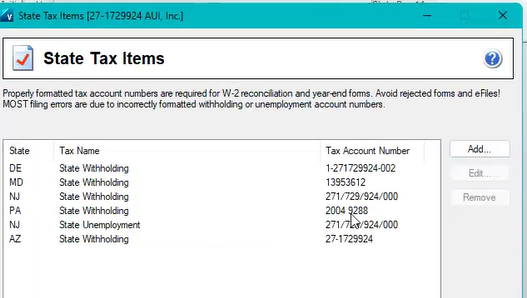
W2P8. It is CRITICAL these Tax Account Numbers are correct, these go on the State W-2's and will cause Employee filing issues.
W2P9. Make sure to thoroughly review what needs to be checked.
If this is the last year a business is open - Business Terminated this year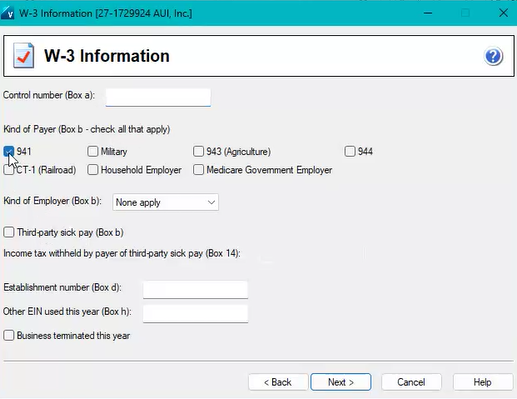
W2P10. Unless Customer is specifying "no truncation."
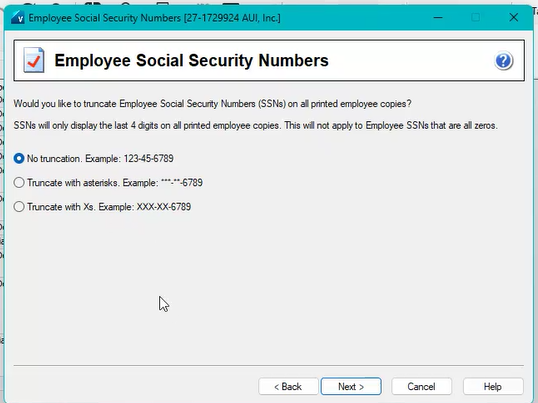
W2P11. This will tell you what to do, hit Ok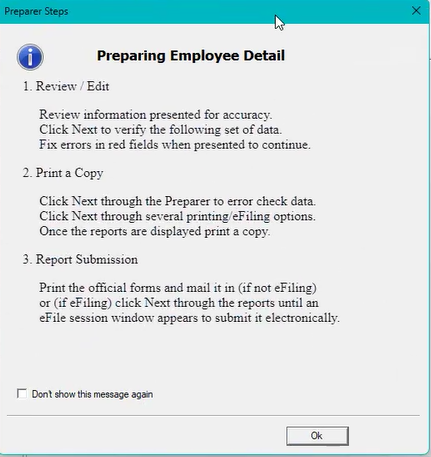
W2P12. W-2 Process
Blue Section is verifying Employee Information
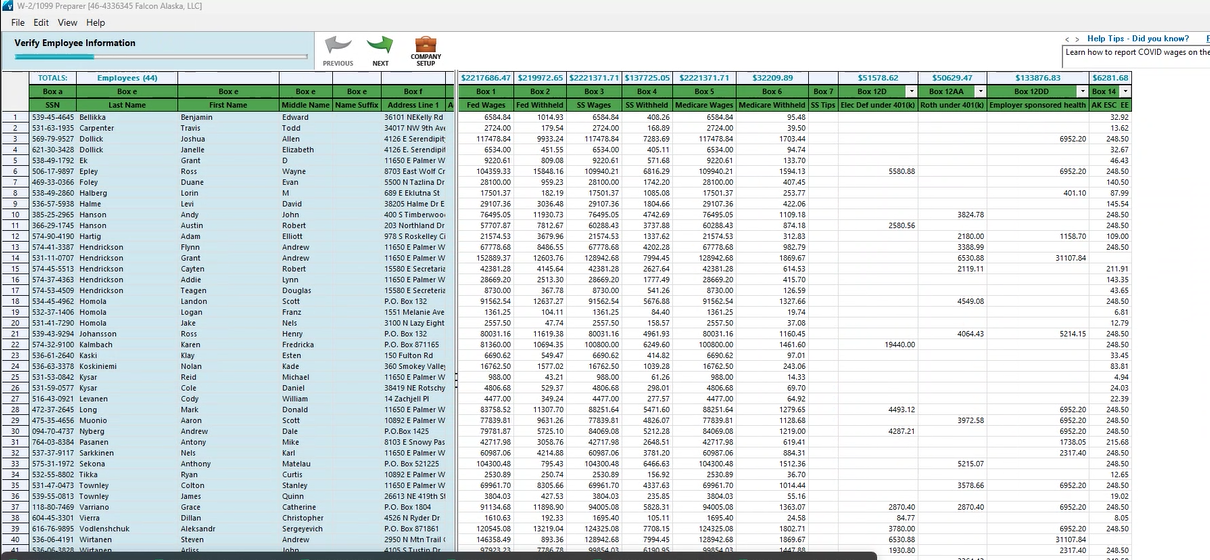
W2P13. Use this with your W-3 Rec
Pull W-2 Wages and input into W-2 Process Column to put wages in on excel
Once information is verified hit next, continue to verify each prompt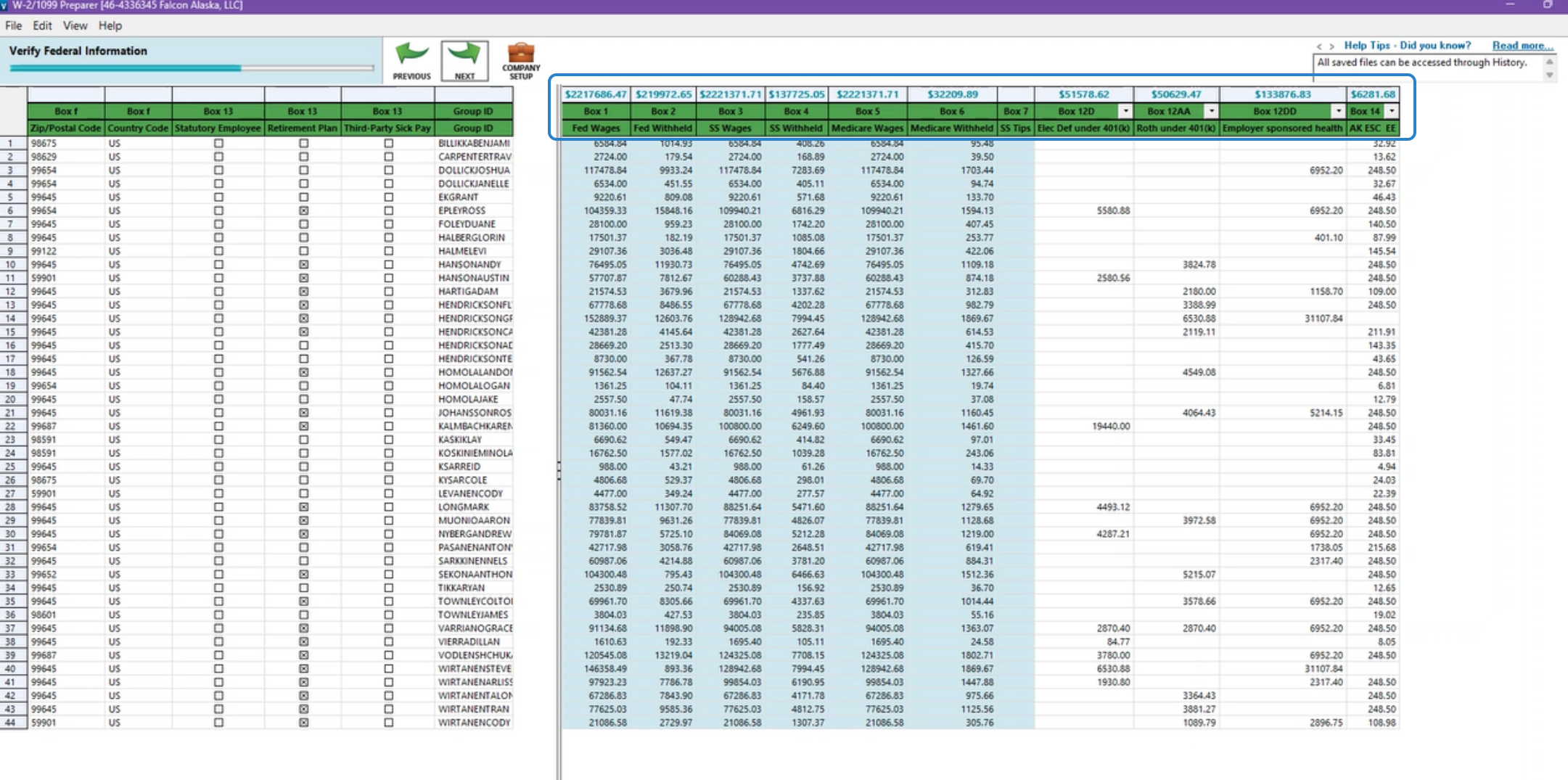 W2P14. If any invalid characters are in the name, hit OK go back and correct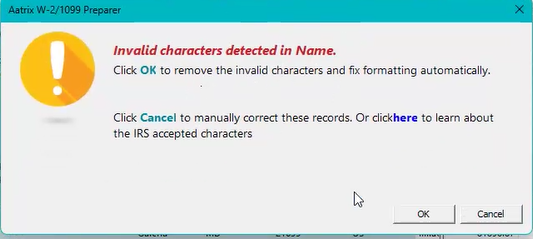
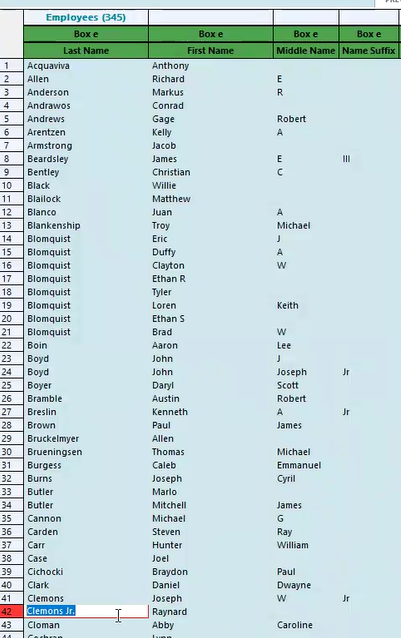
Example is there a Jr.? Delete the . if there's a Jr is the Suffix as well, delete the Jr in Box E "Last Name"
W2P15. Save a detailed List and saved in your Year End folder, create Aatrix Errors folder and save
If you're aware of errors move past this and continue.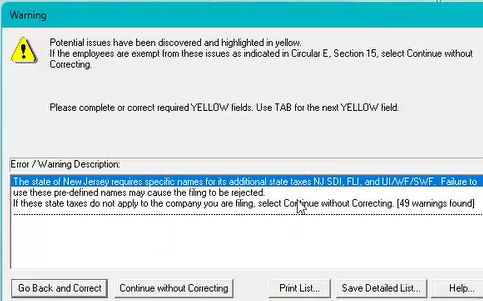
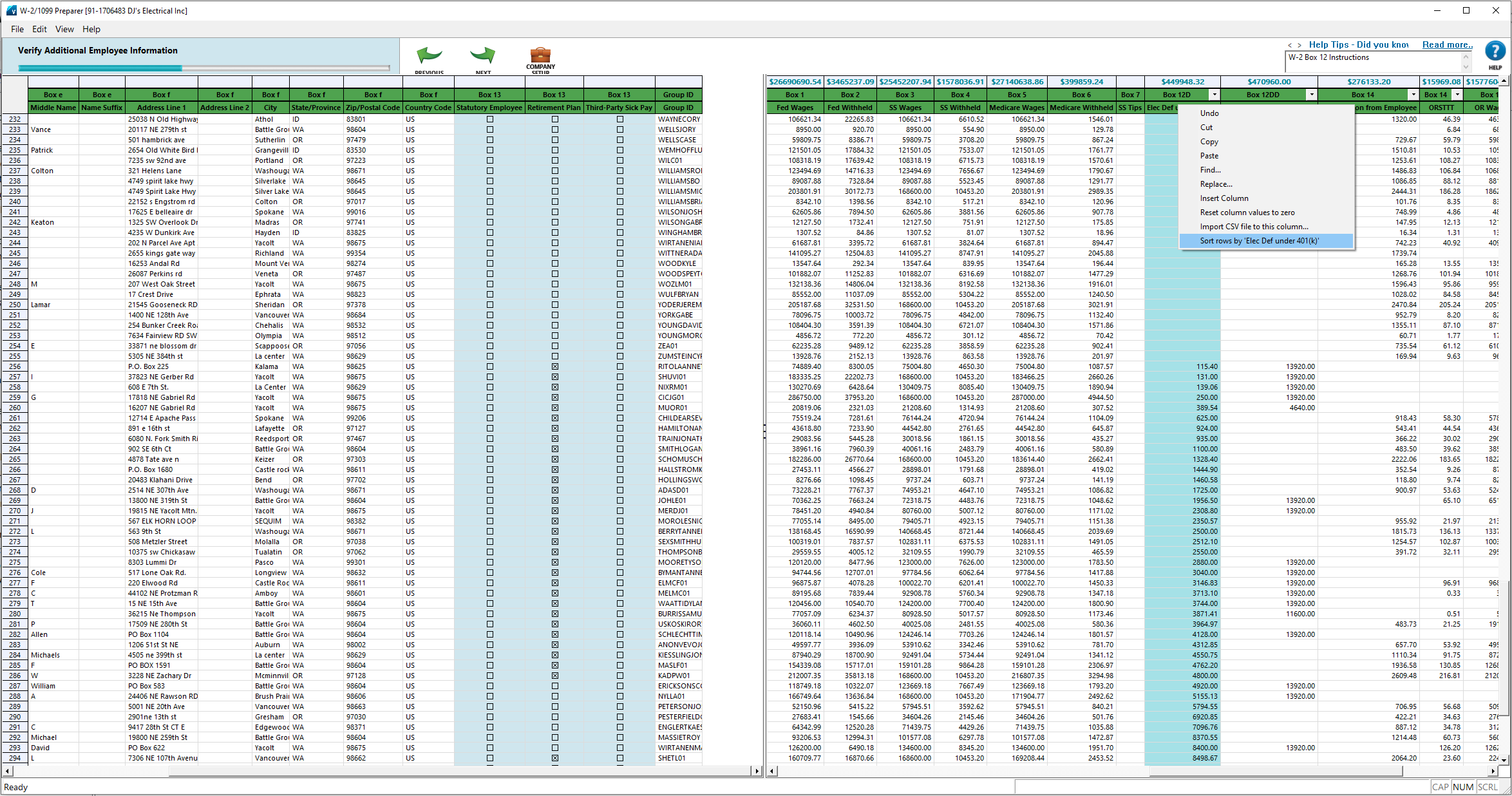
W2P16. When verifying Roth & 401k align these items and make sure the correct boxes are checked
Verify any employees that have Roth or 401k it's checked, if they don't make sure it's unchecked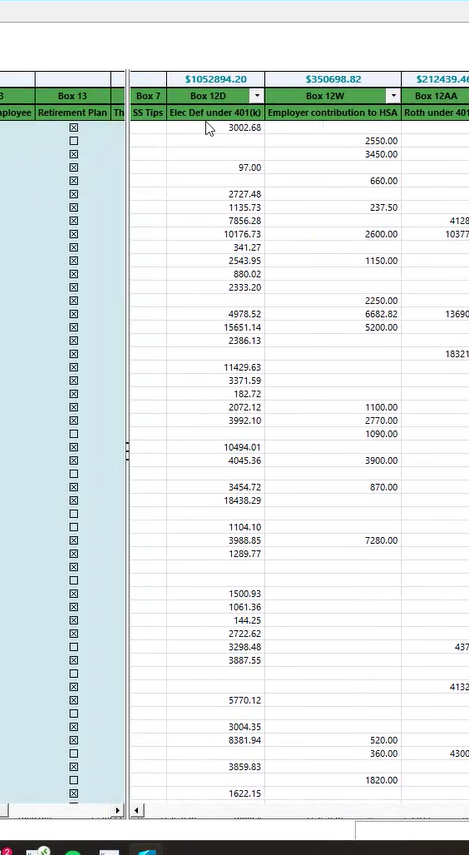
W2P17. Right click the column and sort by the 401k codes to make checking the boxes easier.
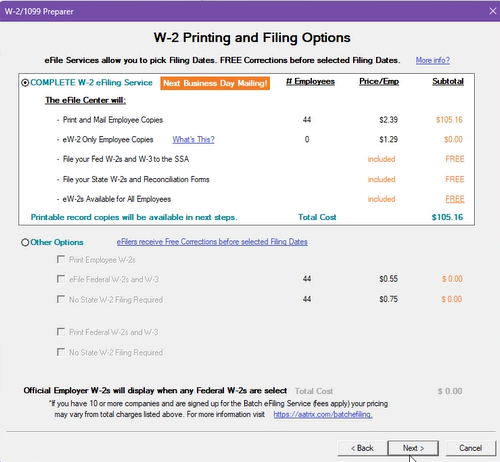
W2P18. W-2/1099 Preparer
Hit Next
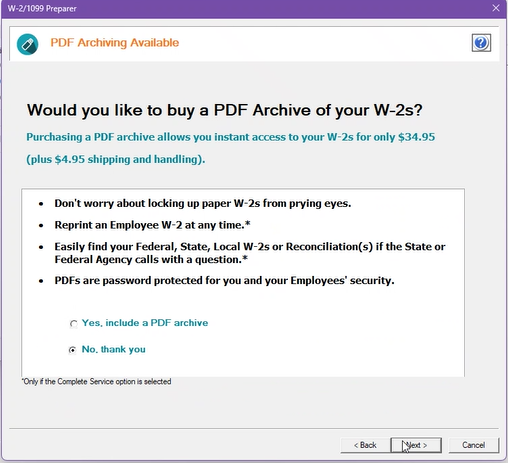
W2P19. Select No, Thank you
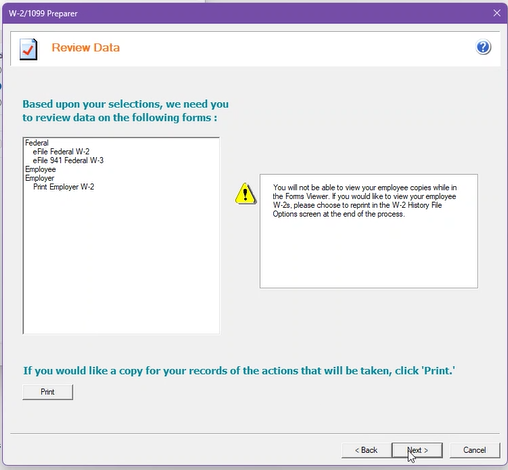
W2P20. Verify
Review Data, print and save
"YYYY what Aartix Filed for us"
Hit Next
W2P21. Click & Print through all W-2 folders
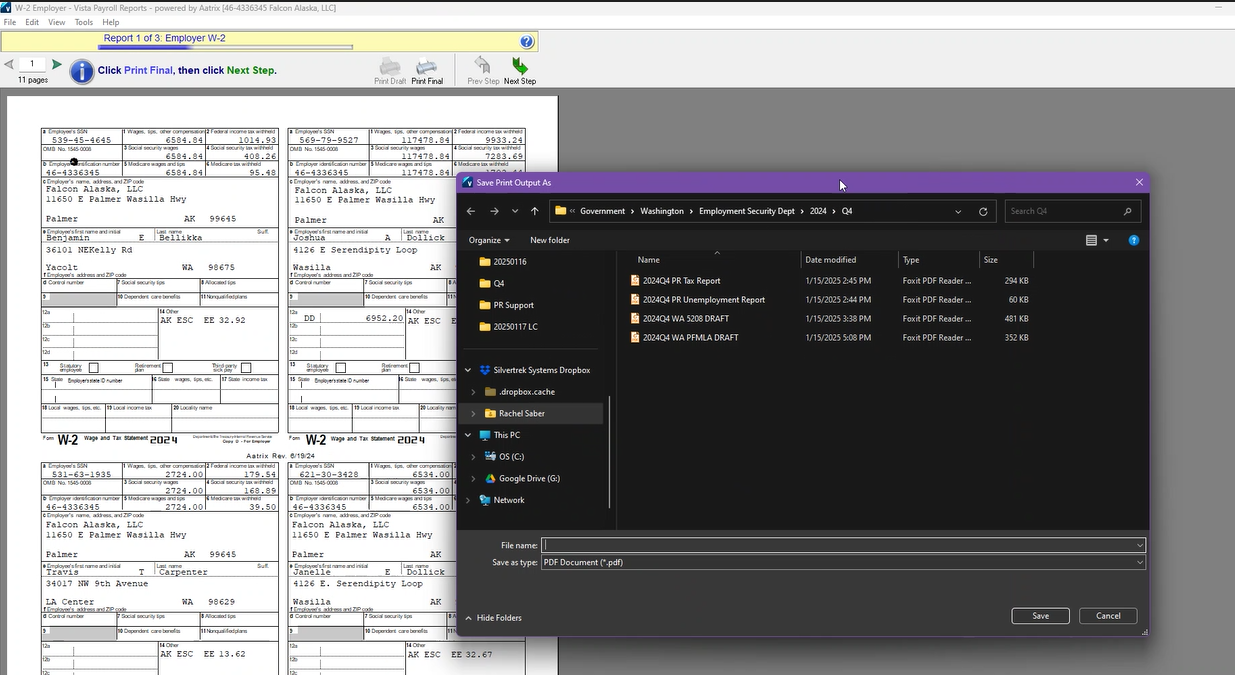
W2P22. Name of Report is at the top "Employer W-2"
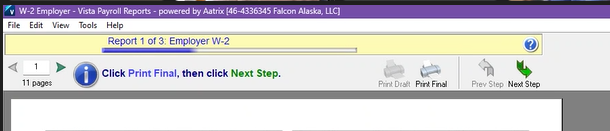
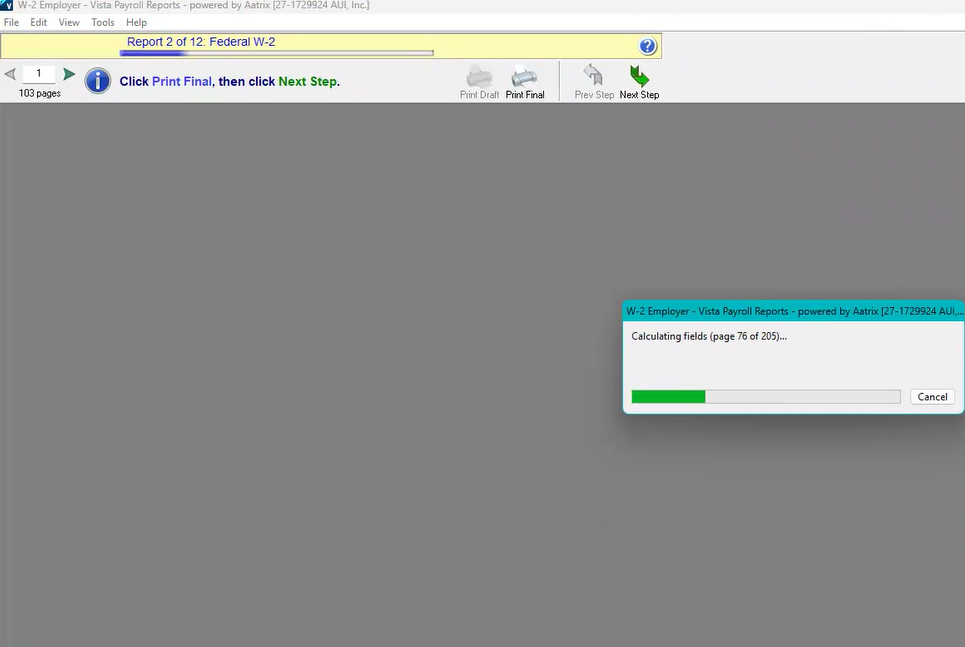
W2P23. Save next Report - Federal W-2
W2P24. Save Report 941 Federal W-3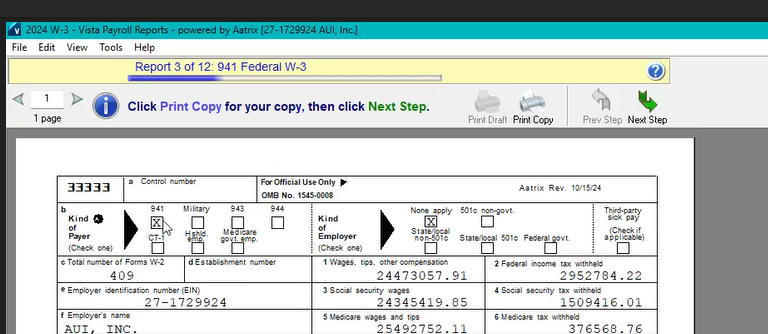
W2P25.Save each report after for State W-2's
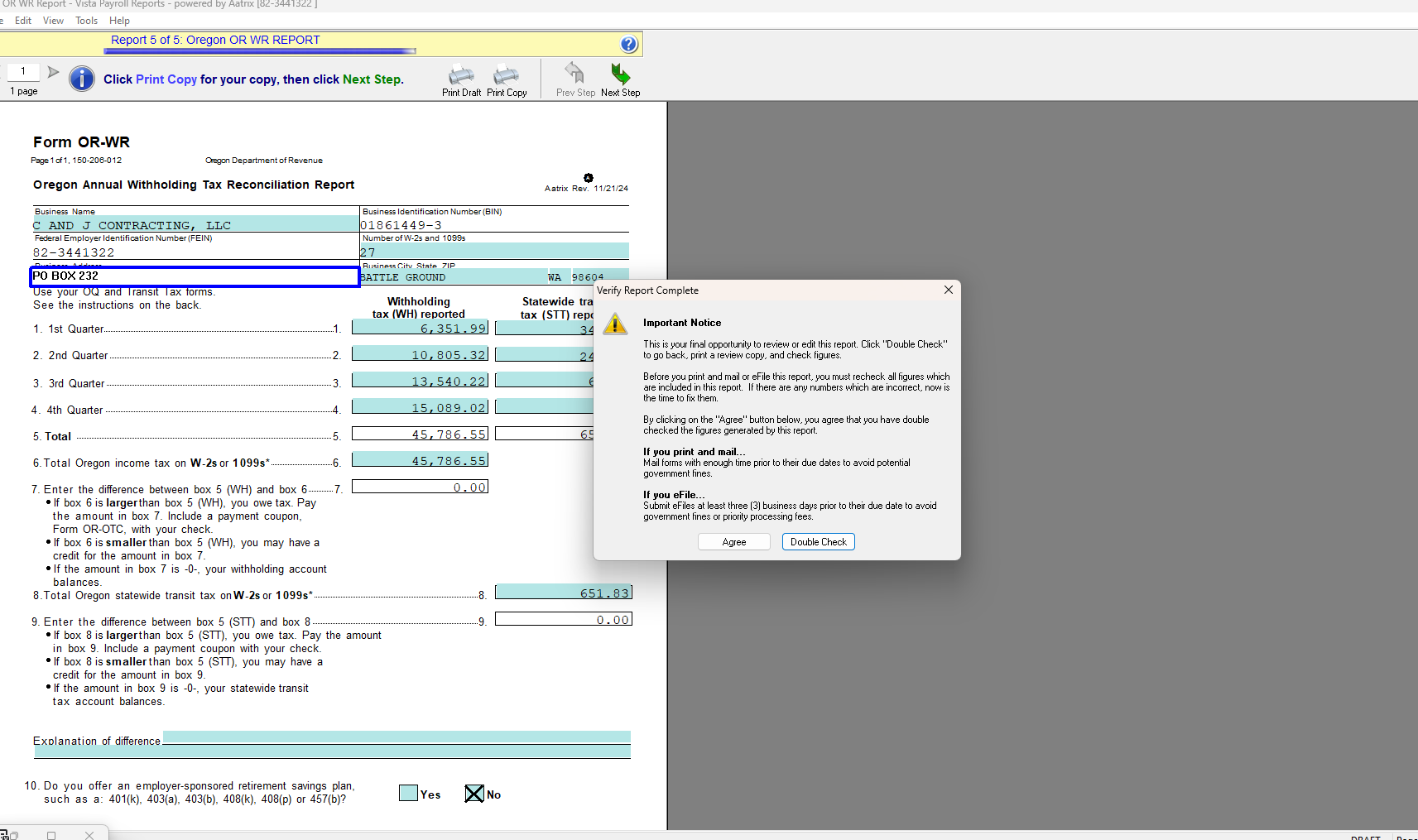
Once you reach the last report listed. Here we're on 5 of 5. You will receive this pop-up. Click agree to continue. This will shut down the PDF reader and open Aatrix login.
STOP HERE AND ASK FOR PDF'S TO BE REVIEWED.
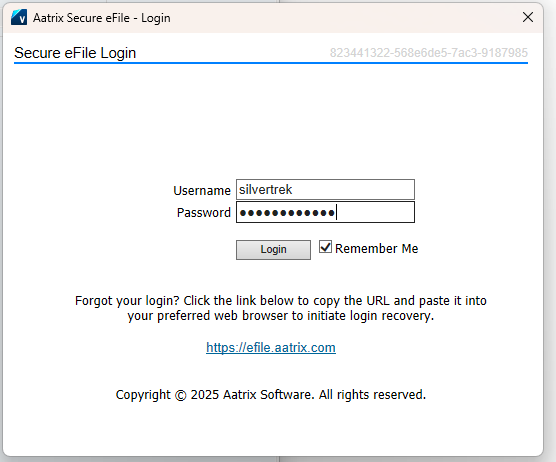
W2P26. Use LastPass to navigate to Silvertrek Aatrix login password. Copy and paste.
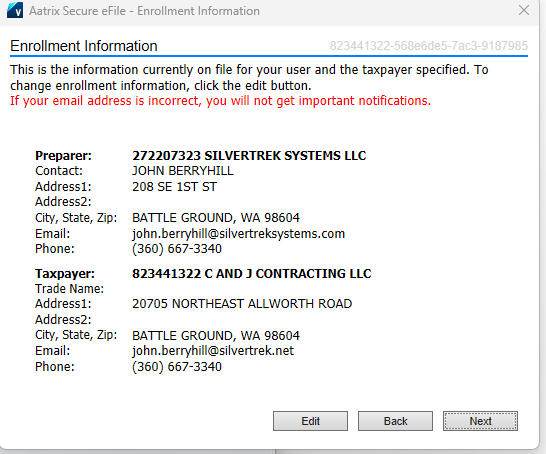
W2P27. Confirm Aatrix enrollment information
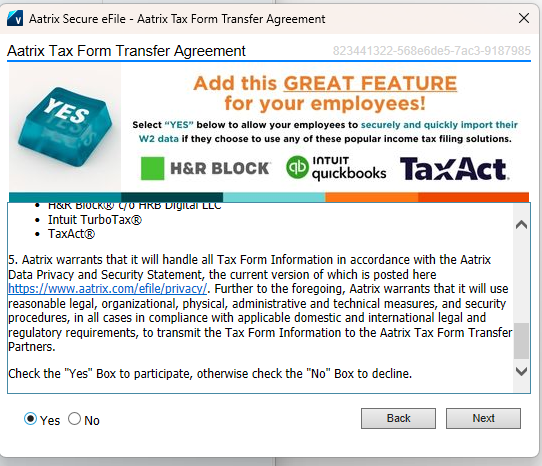
W2P28. Fill in the bubble for YES. Click Next.
W2P29. Payment screen. Be sure to save a copy of this to use when for your Finvari report. 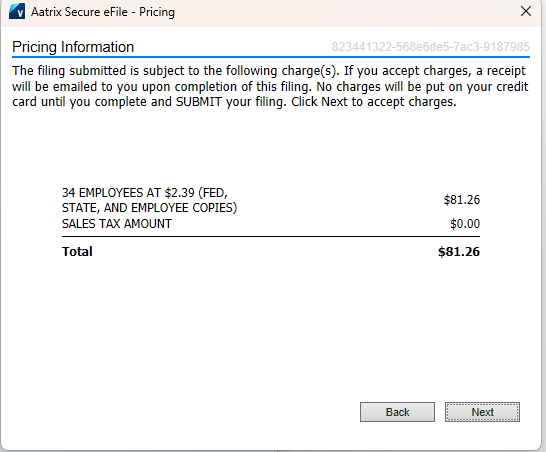
W2P30. Press NO.
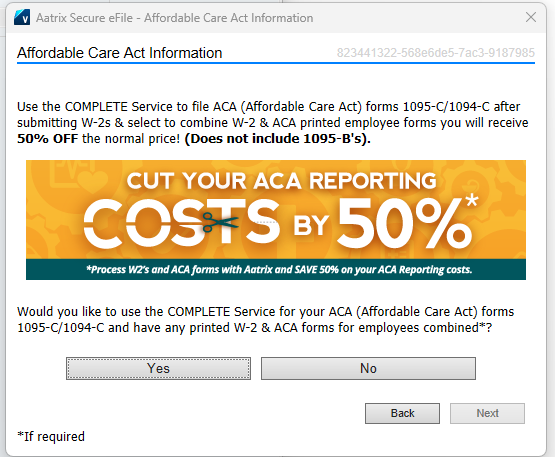
W2P31. Save this in your company Dropbox along with all the other W-2 files.
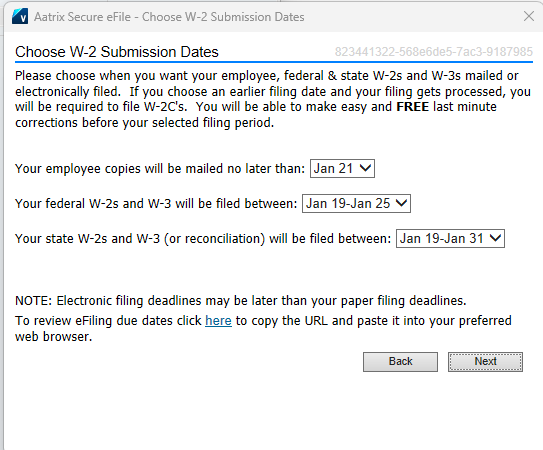
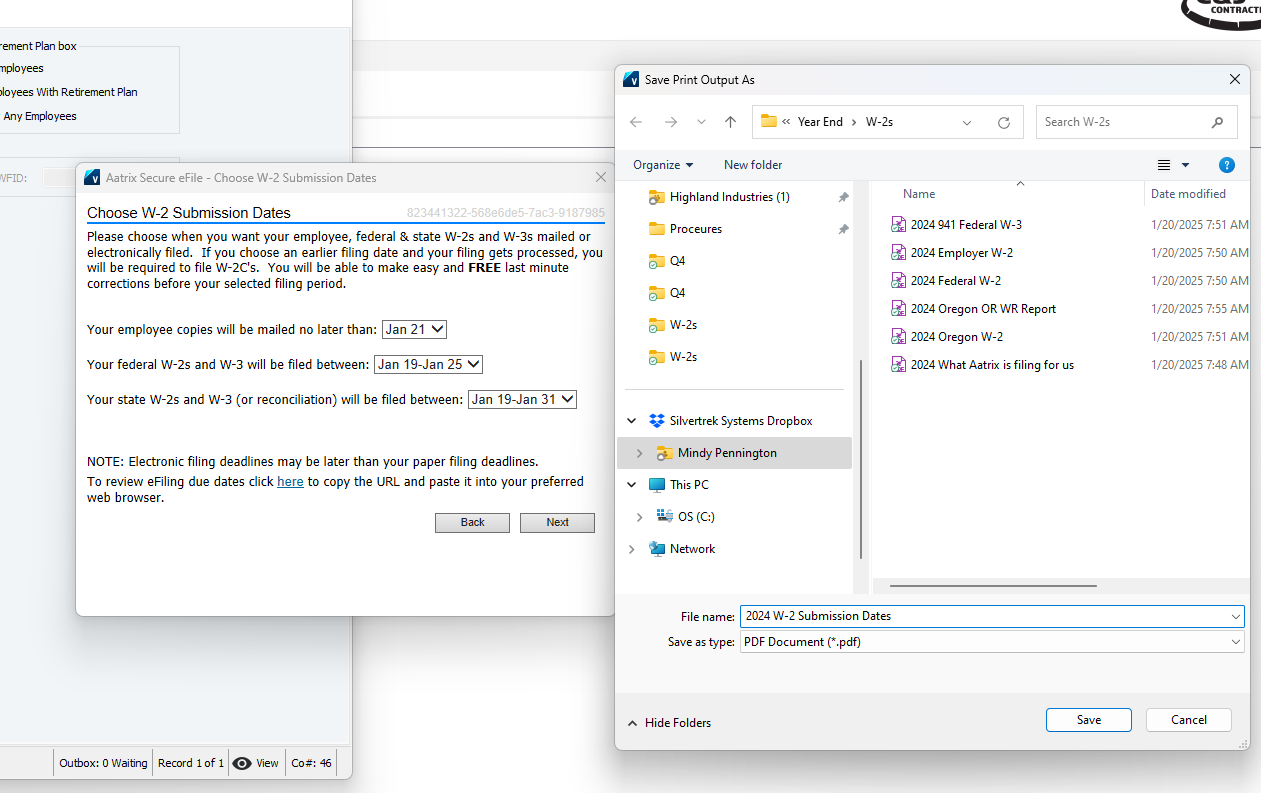
W2P32. Complete payment information
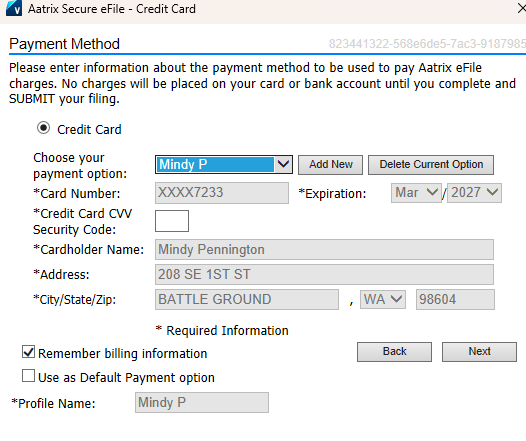
W2P33. Save as CONFIRMATION. Then Submit.
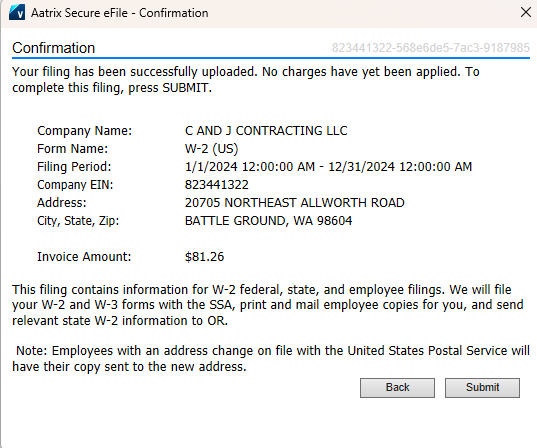
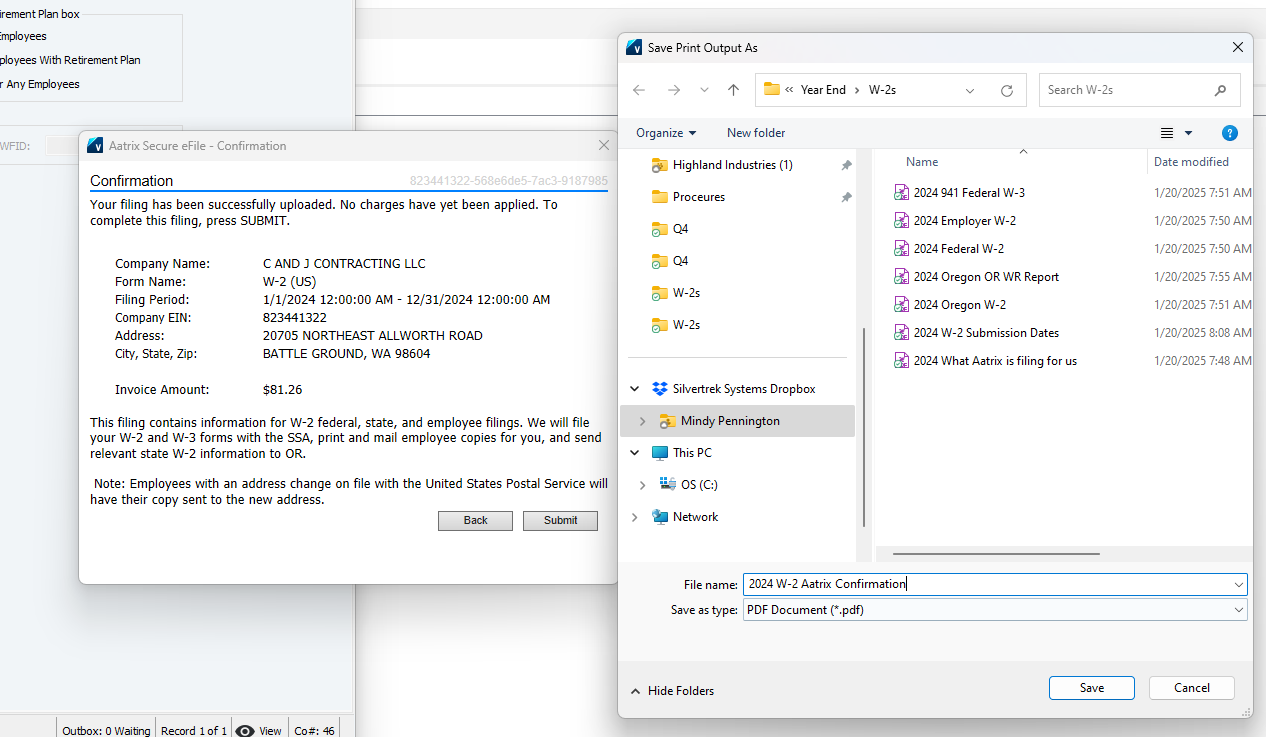
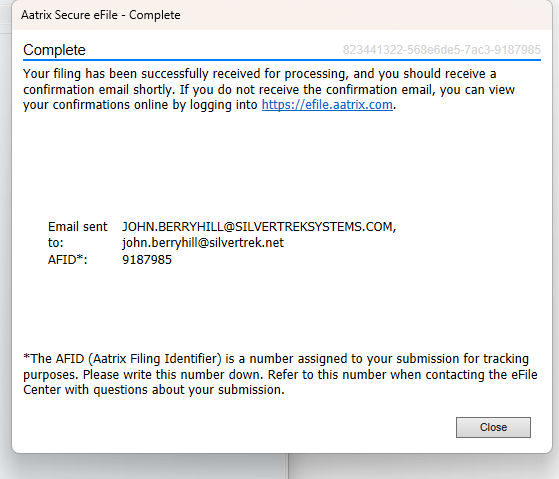
W2P34. Save as AFID
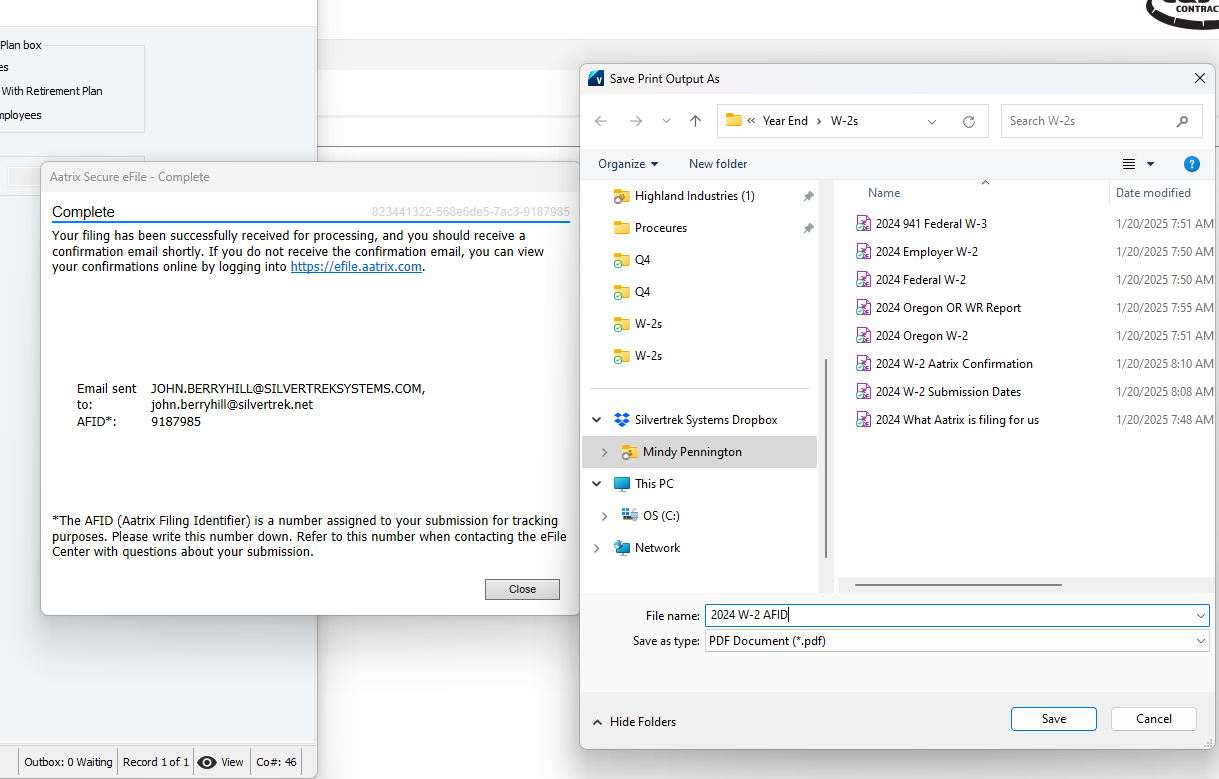
W2P35.Unless you have specific instructions from the company and have worked with IT to import and align employee emails for email delivery you will choose: No. I will do this later.
Next 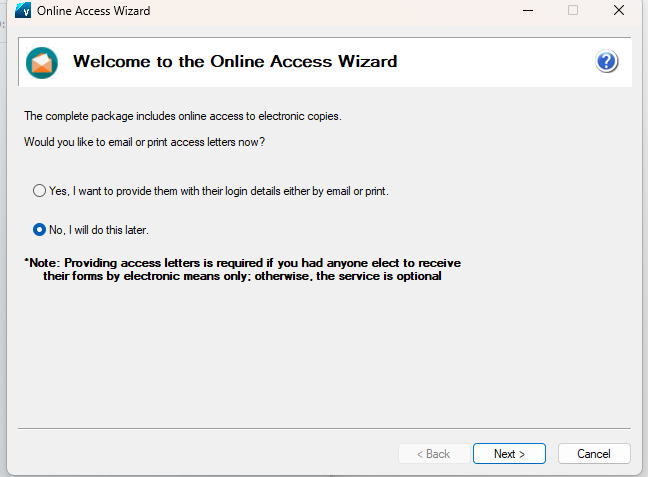
W2P36. FINISH
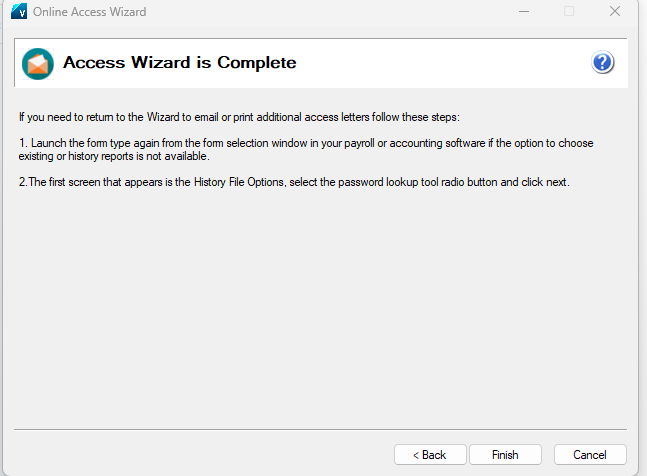
W2P37. It is important that you go through these screens and save a PDF copy of employee W-2's to Dropbox.
Right now the file only exists on the computer that ran the process.
We want it in a shared place of any questions are asked.
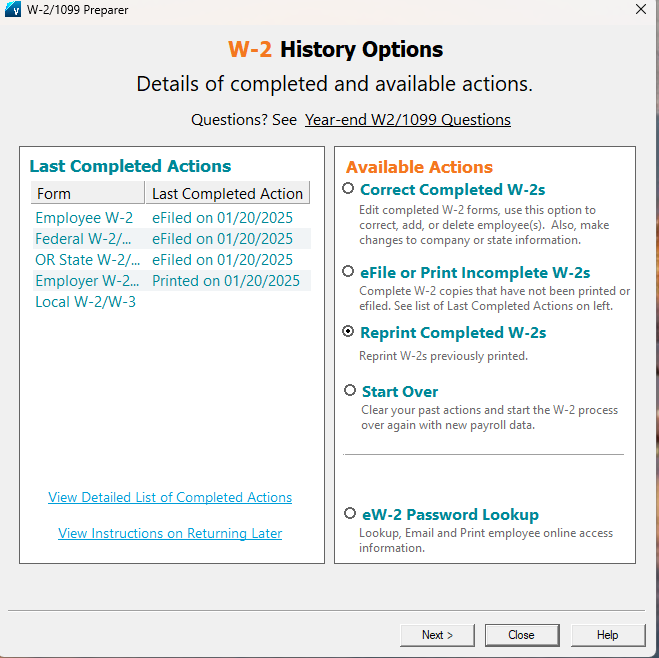
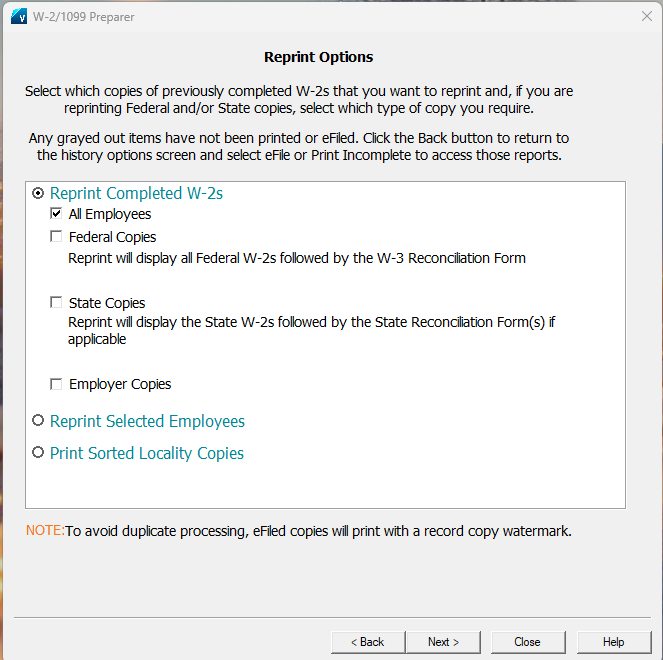
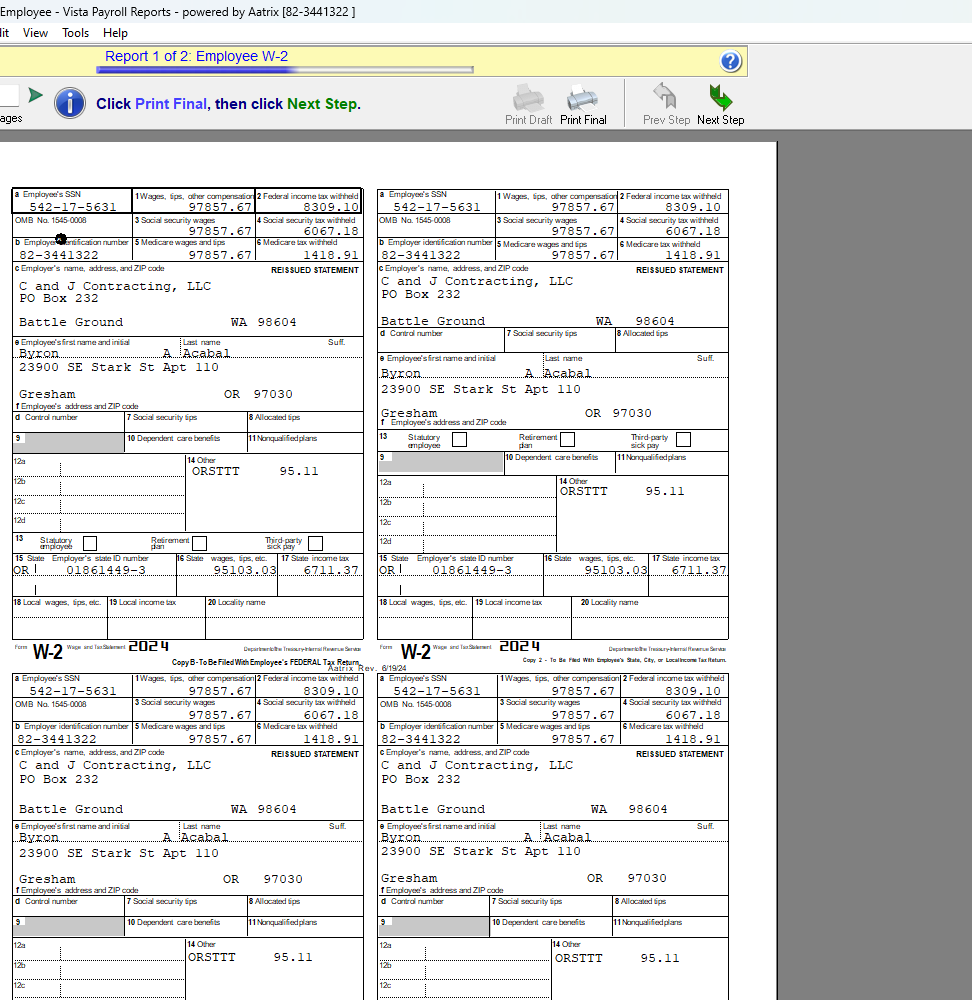
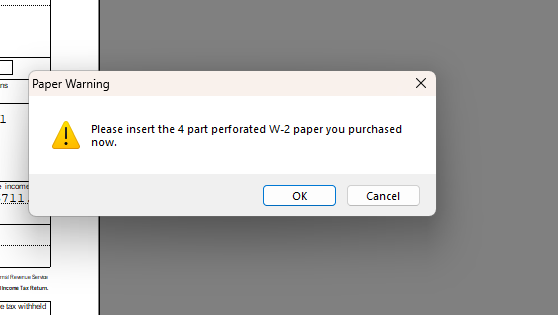
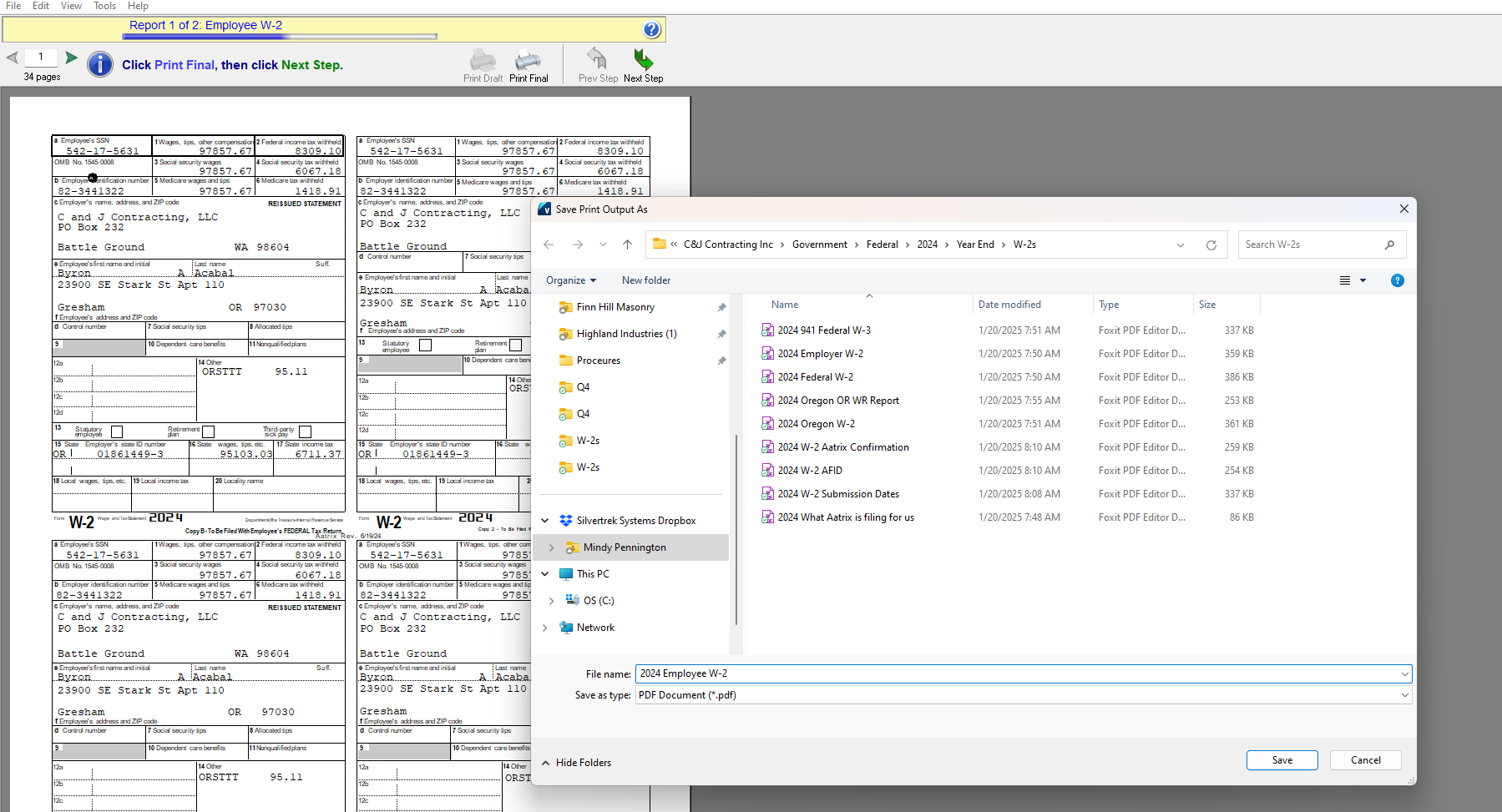
If you hit next step it will bring up the W-2 notice to employees. This can be found by doing a Google search and there is no reason to print and save. Click Next.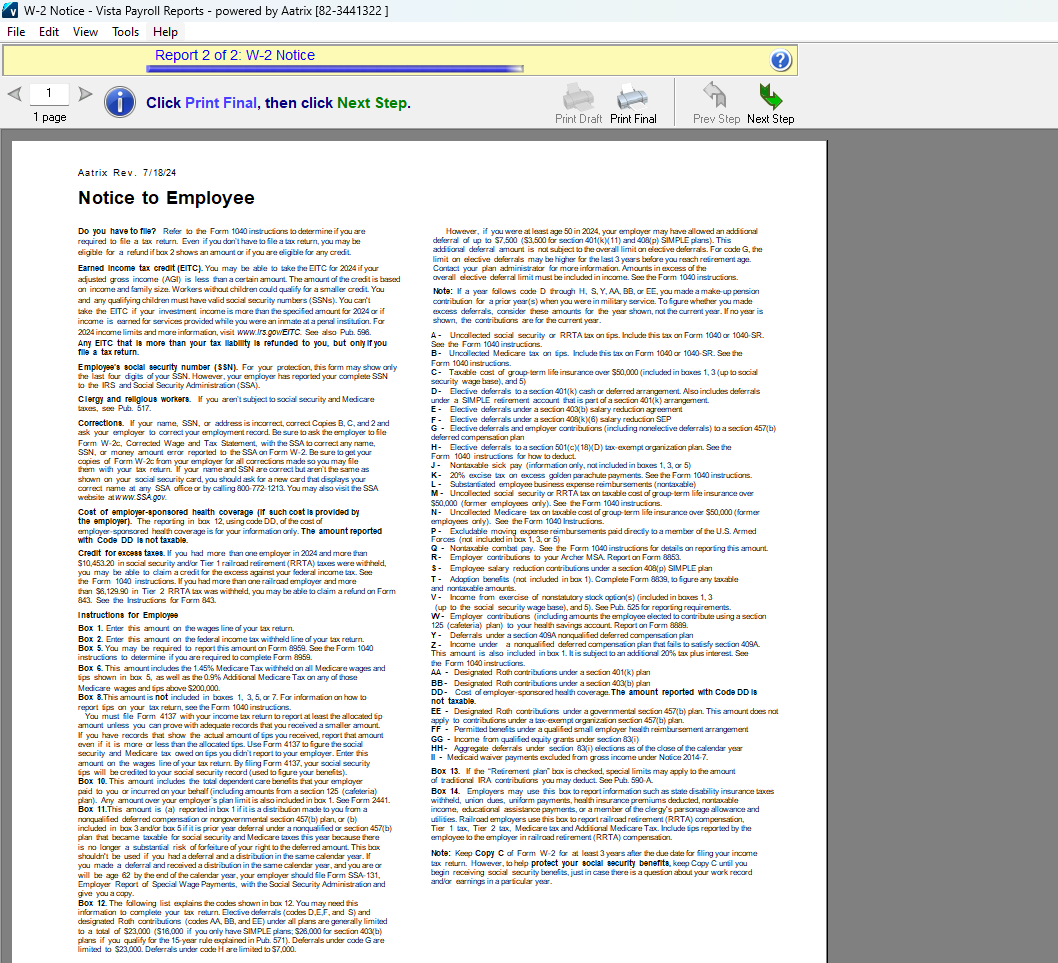
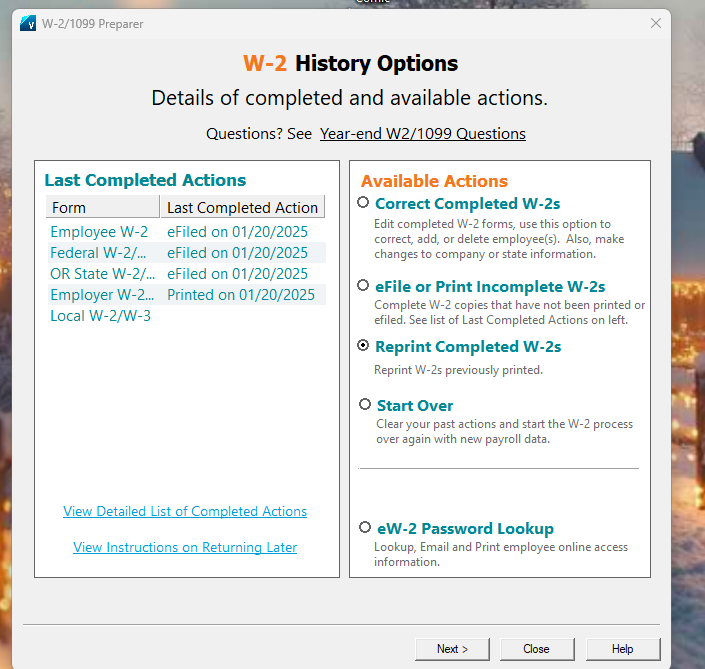
It should return you to this screen and you are done!
Was this article helpful?
That’s Great!
Thank you for your feedback
Sorry! We couldn't be helpful
Thank you for your feedback
Feedback sent
We appreciate your effort and will try to fix the article