How to Use the EM Equipment Form
1. Introduction to the EM Equipment Form 0:00
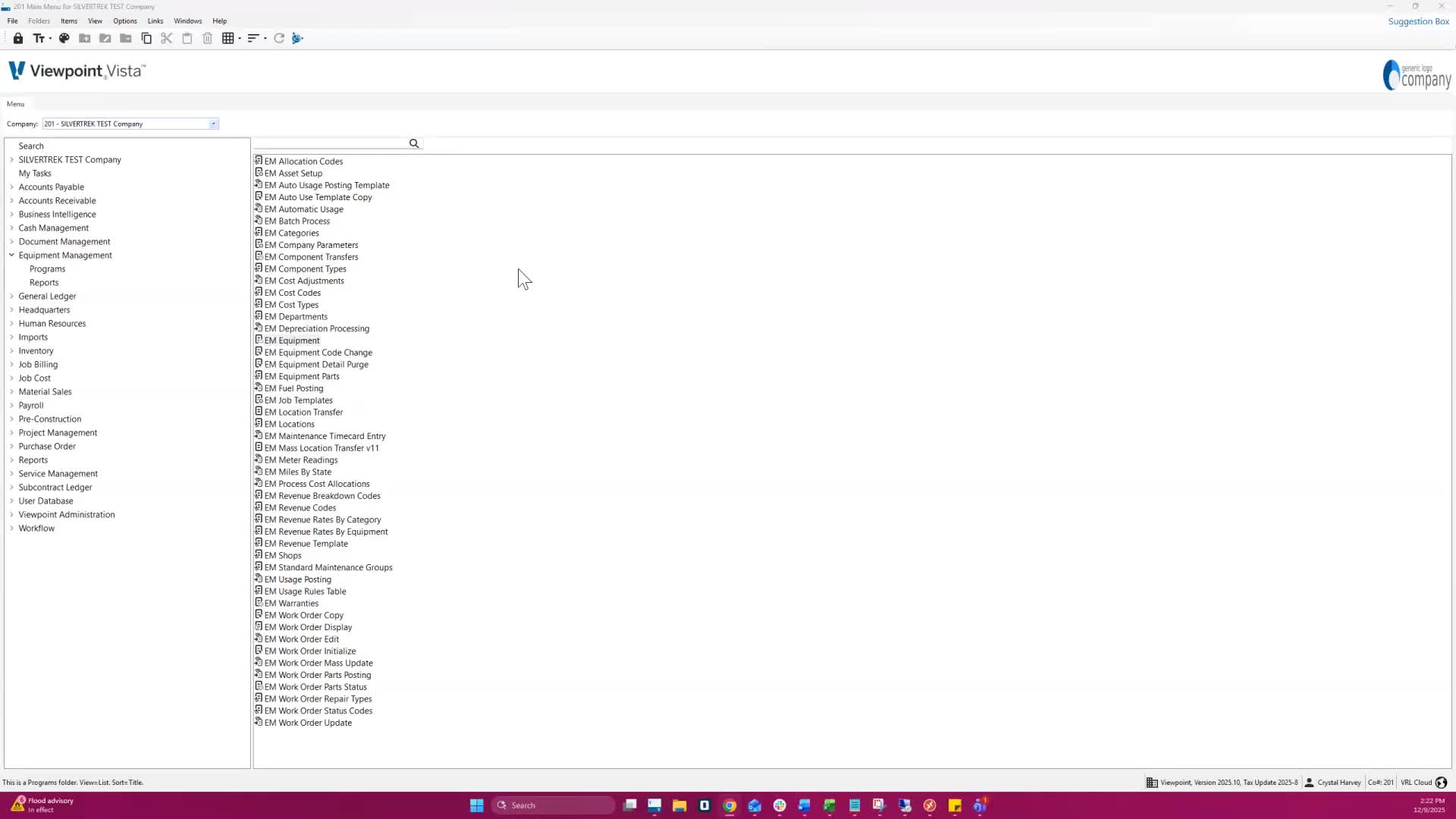
Purpose: To create and maintain equipment and components.
Components are managed similarly to equipment, inheriting details from primary equipment.
2. Accessing the EM Equipment Form 0:27
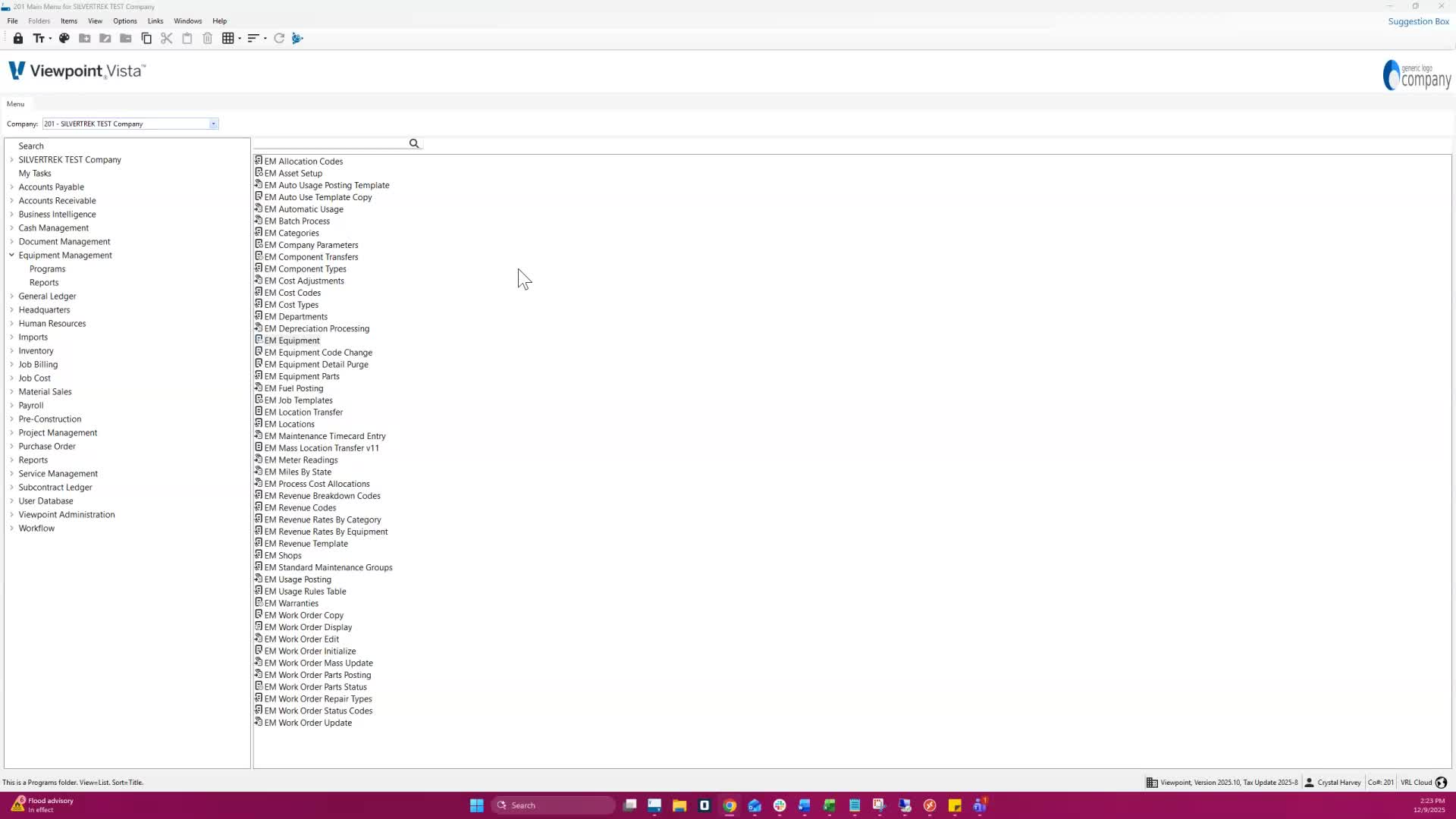
Navigate to Equipment Management on the left-hand side.
Click on Programs, then select EM Equipment.
3. Creating a New Equipment Record 0:41
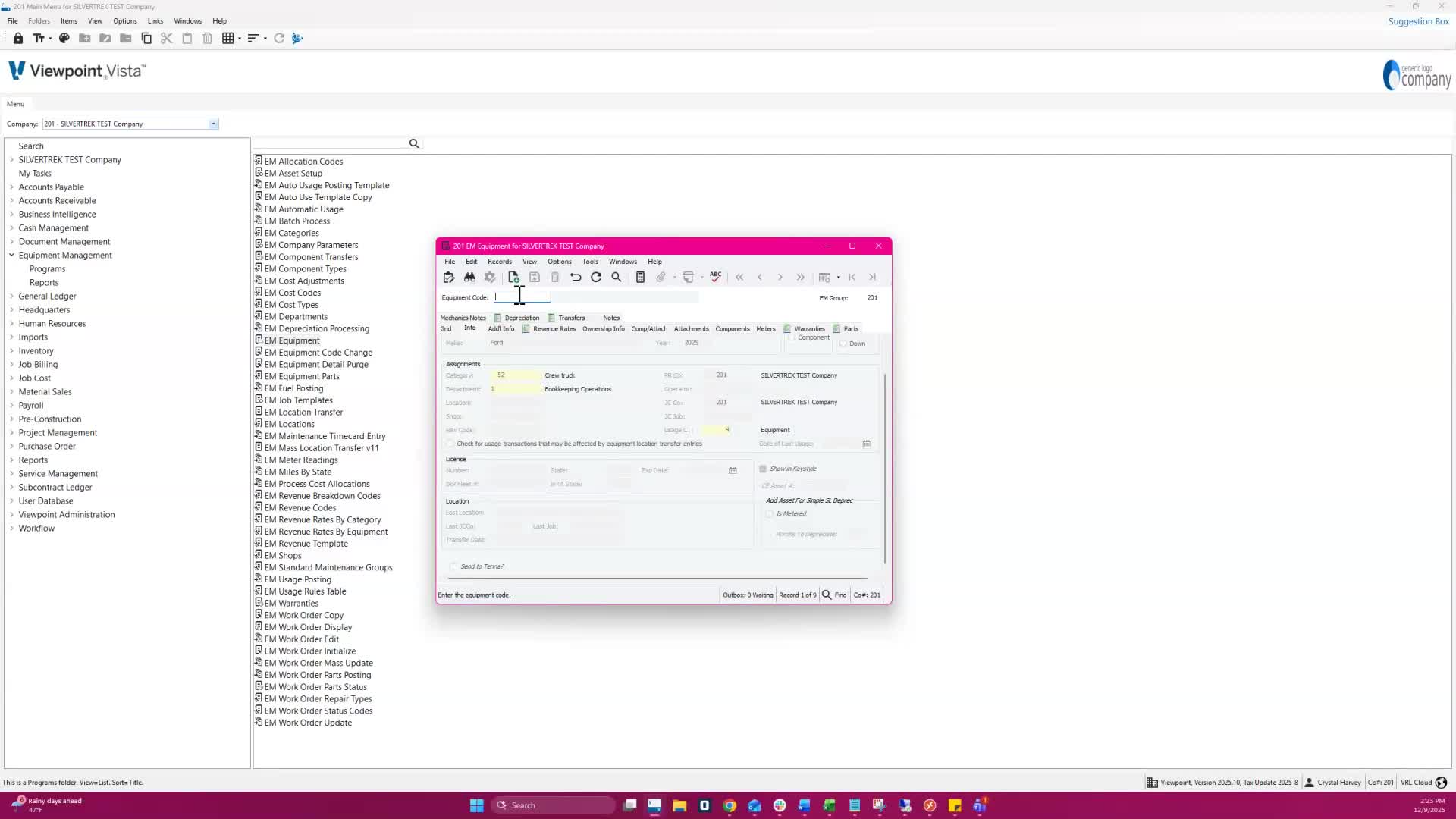
Click on the new record icon.
Assign a 10-digit or less Equipment Code. (for help with determining the Equipment code go here)
Enter a short description (up to 60 characters).
You may want to set up pieces of equipment for tracking reasons only even if the piece of equipment is under the $2500 threshold to be depreciated.
4. Entering Equipment Details 0:54
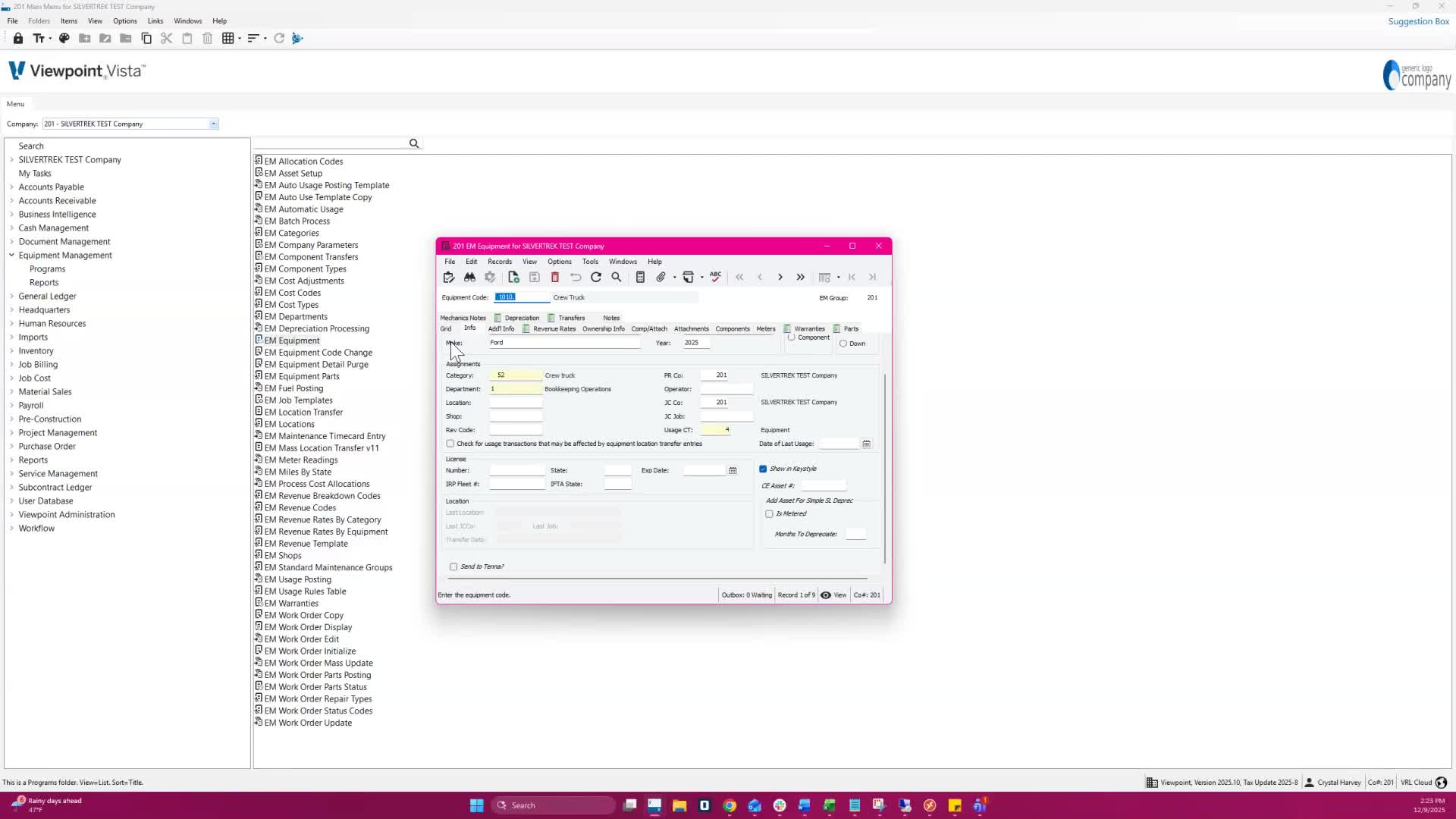
The more information that you can enter here, the better.
Input VIN number (up to 40 characters).
Fill in model and year of the equipment.
Define the equipment type (primary equipment, attachment, or component).
5. Setting Equipment Status 1:22
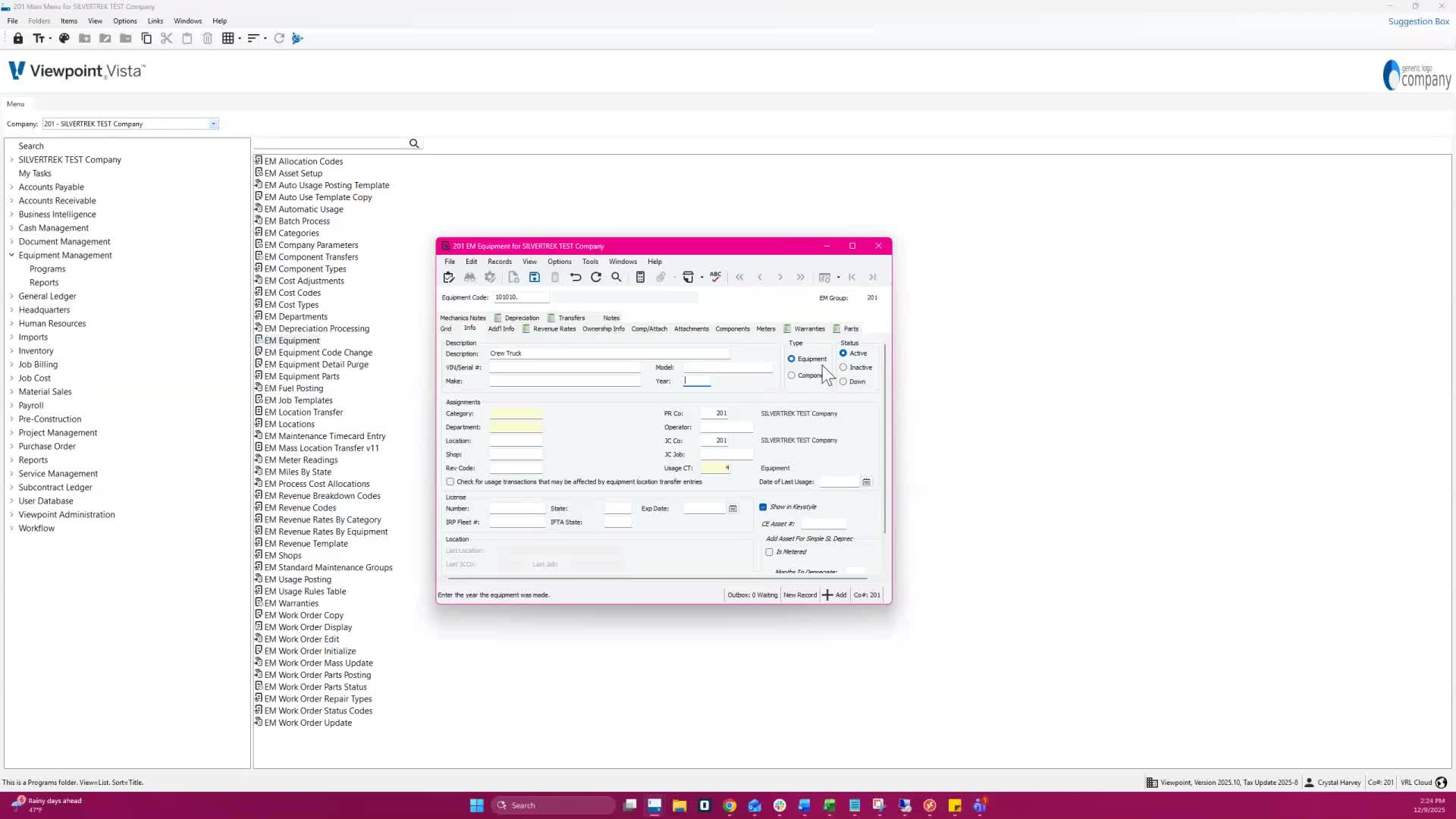
Status options:
Active: in use
Inactive: not in use
Down: out of service for repairs.
6. Assigning Categories and Departments 1:36
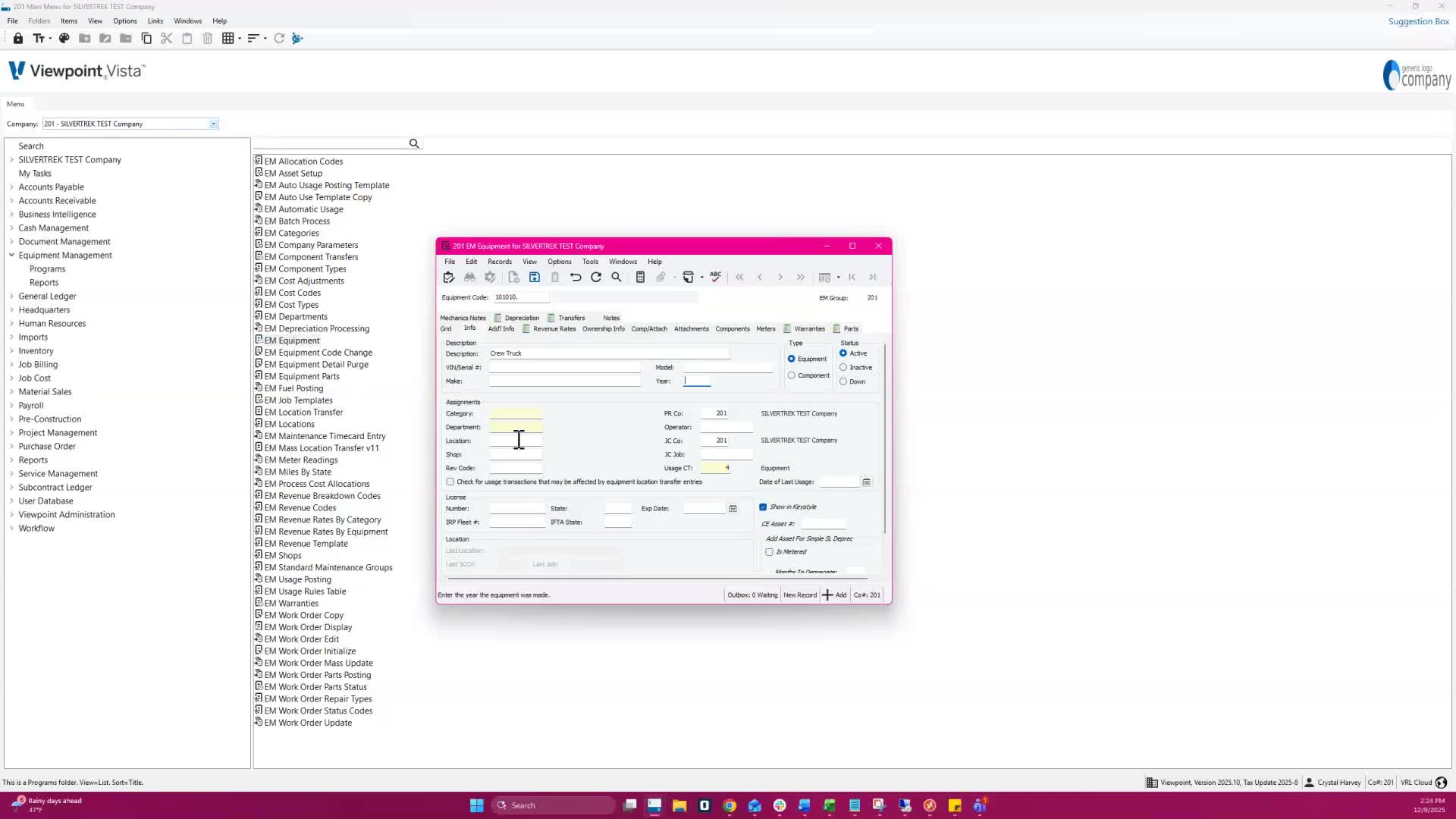
Select Category from EM Categories (e.g., Crew Truck). Your category should match the first two digits of your Equipment Number ex: 1001 should be 10.
Department determines GL accounts for costs and revenue.
7. Additional Equipment Information 2:15
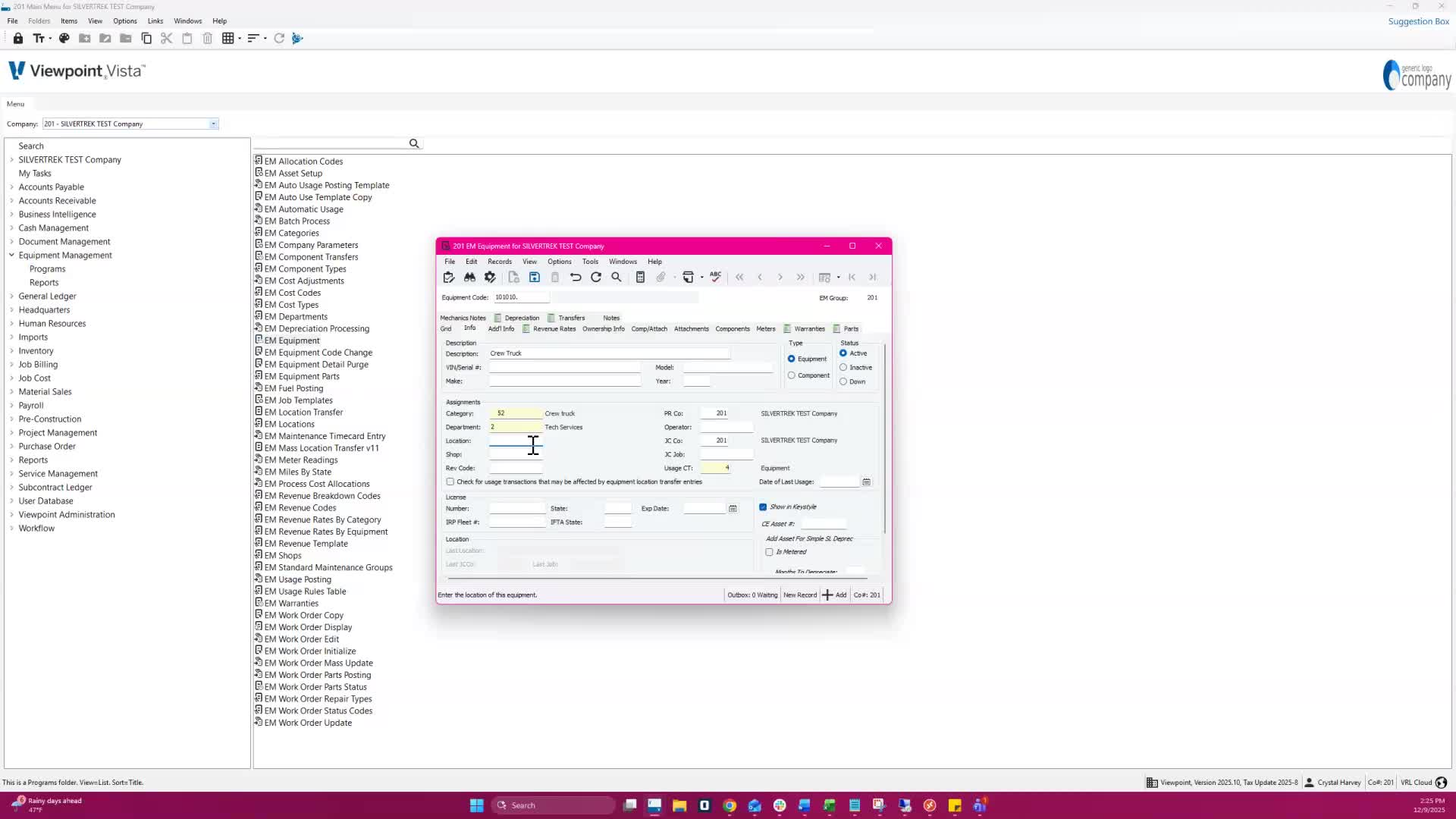
Fill in location, revenue code, PR company, operator, job cost company, and JC job.
Usage cost type should default to equipment.
8. License Information 3:07
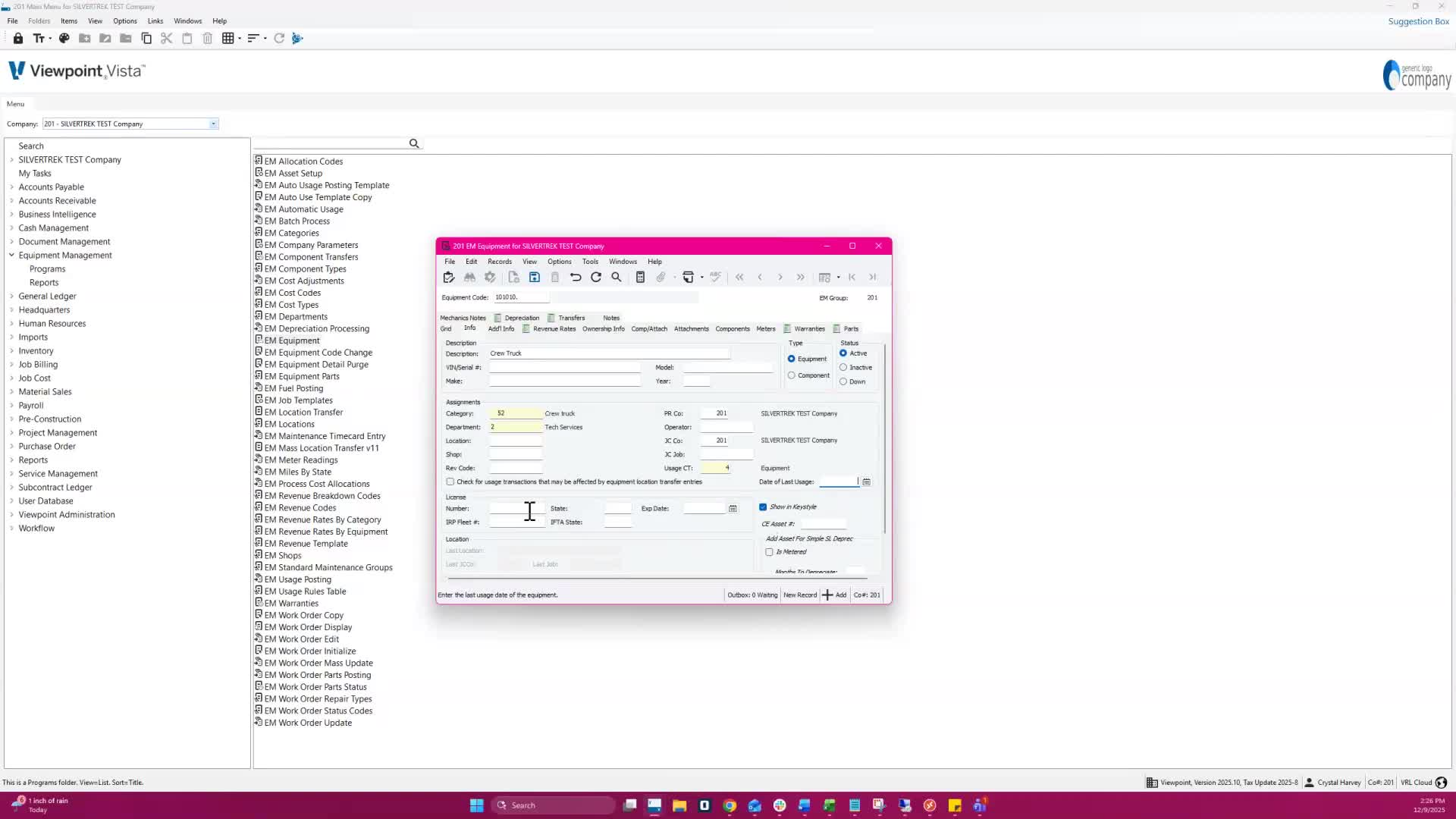
Enter license number, state, and expiration.
Include IRP Fleet and IFTA State for fuel tax reporting.
We do not check the "Check for usage transactions that may be affected by equipment location transfer entries". The only time this will be checked is if we have companies who manually move their equipment in Vista.
Manual usage only is only checked when use will not be posted through payroll. If the equipment usage will be posted through payroll, you want to check the show in Keystyle. (In most cases, this means component parts, small tools and office equipment will not have this checked).
9. Additional Info Tab 3:24
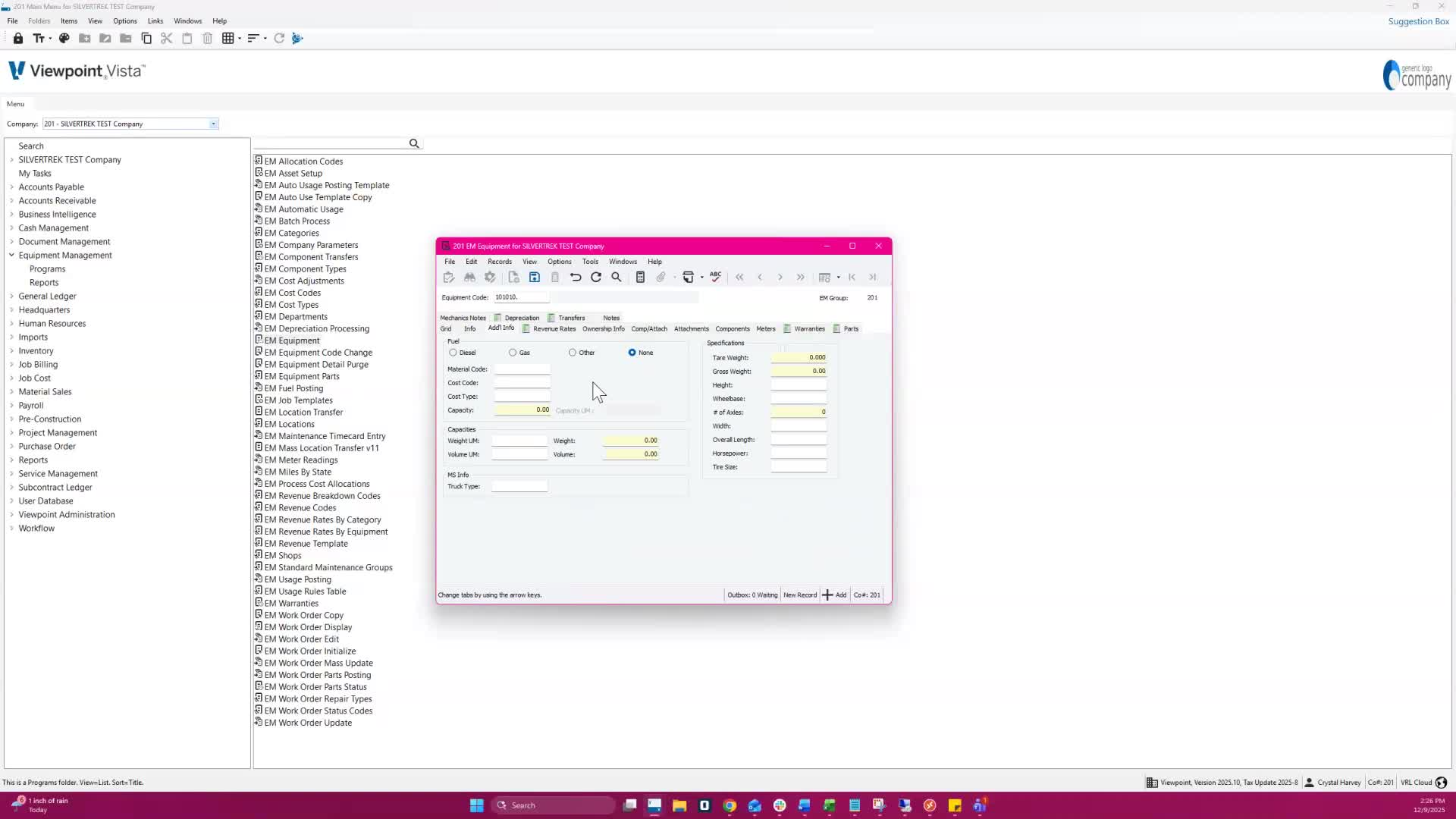
Select fuel type, material code, cost code, and cost type.
Specify fuel tank capacity and unit of measure.
10. Specifications Section 3:46
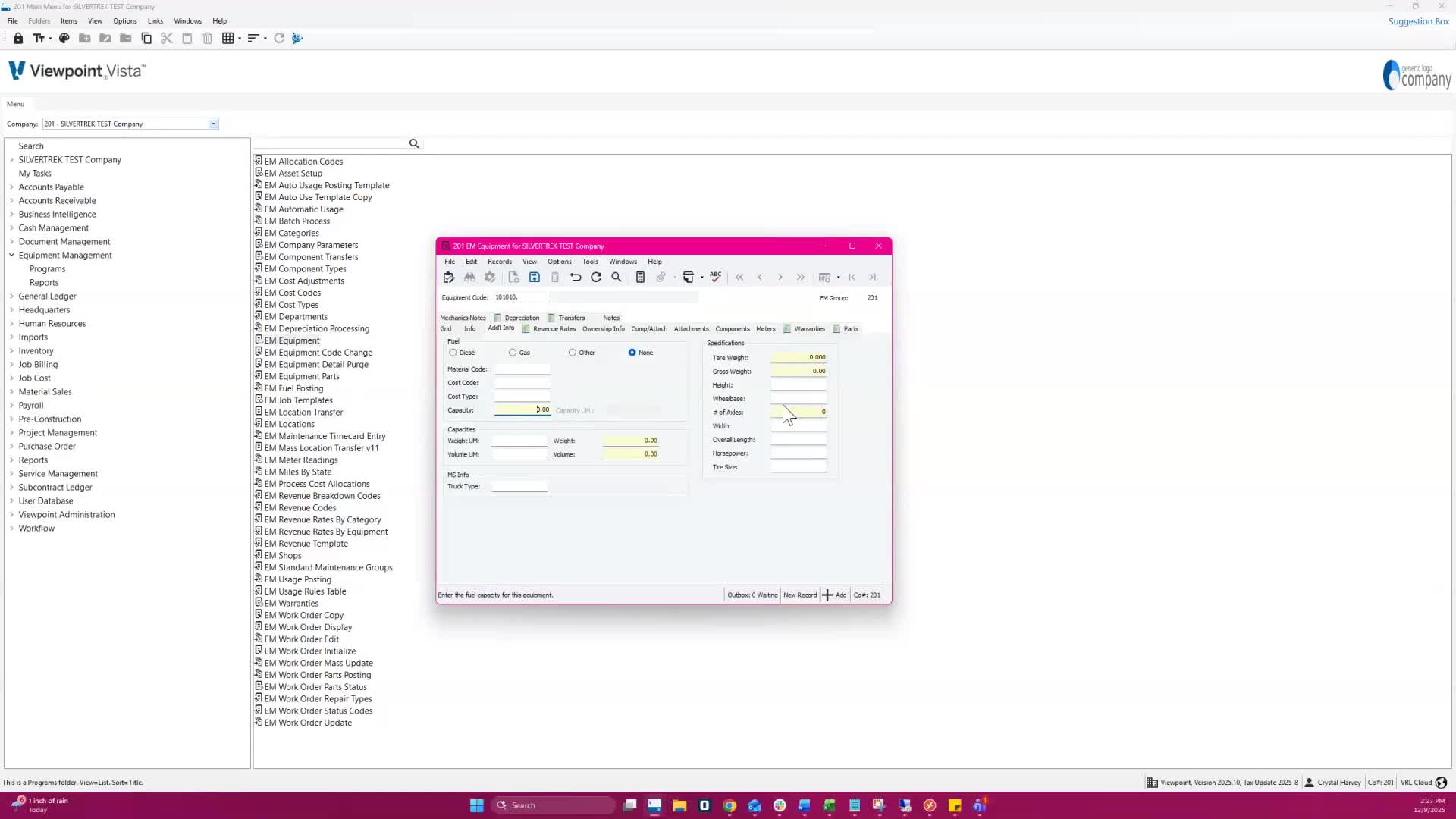
Enter weight, volume, tar weight, gross weight, height, width, wheelbase, length, horsepower, tire size, and axles.
11. Revenue Rates Tab 4:03
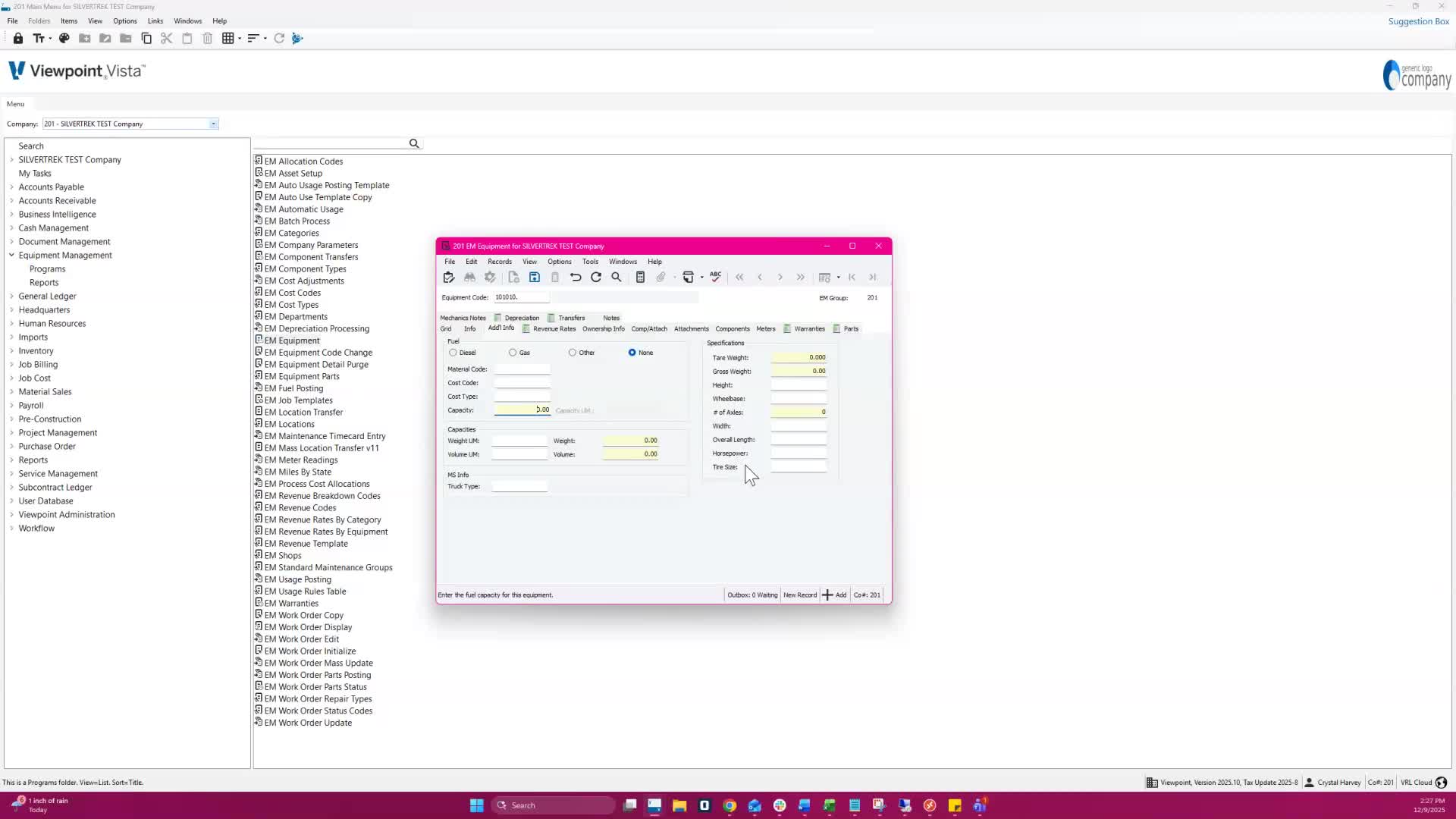
Review and modify revenue rates for the equipment.
Note: Cannot delete existing rates directly.
This is the rate that you want charged to jobs for this piece of equipment.
If this is already set up at the category level, you don't have to set it up here.
If it is set up at the category level, you can still override it to a different rate.
The Work Units with Usage only applies when revenue codes are being used for haul charges. I don't think we have anyone using this.
You should check Update Hour Meter for any piece of equipment that has an hour meter (large equipment).
You will want to make sure that this is set up so that when you enter time in the employee portal the foreman on the job can make sure that equipment is charged for accurate tracking.
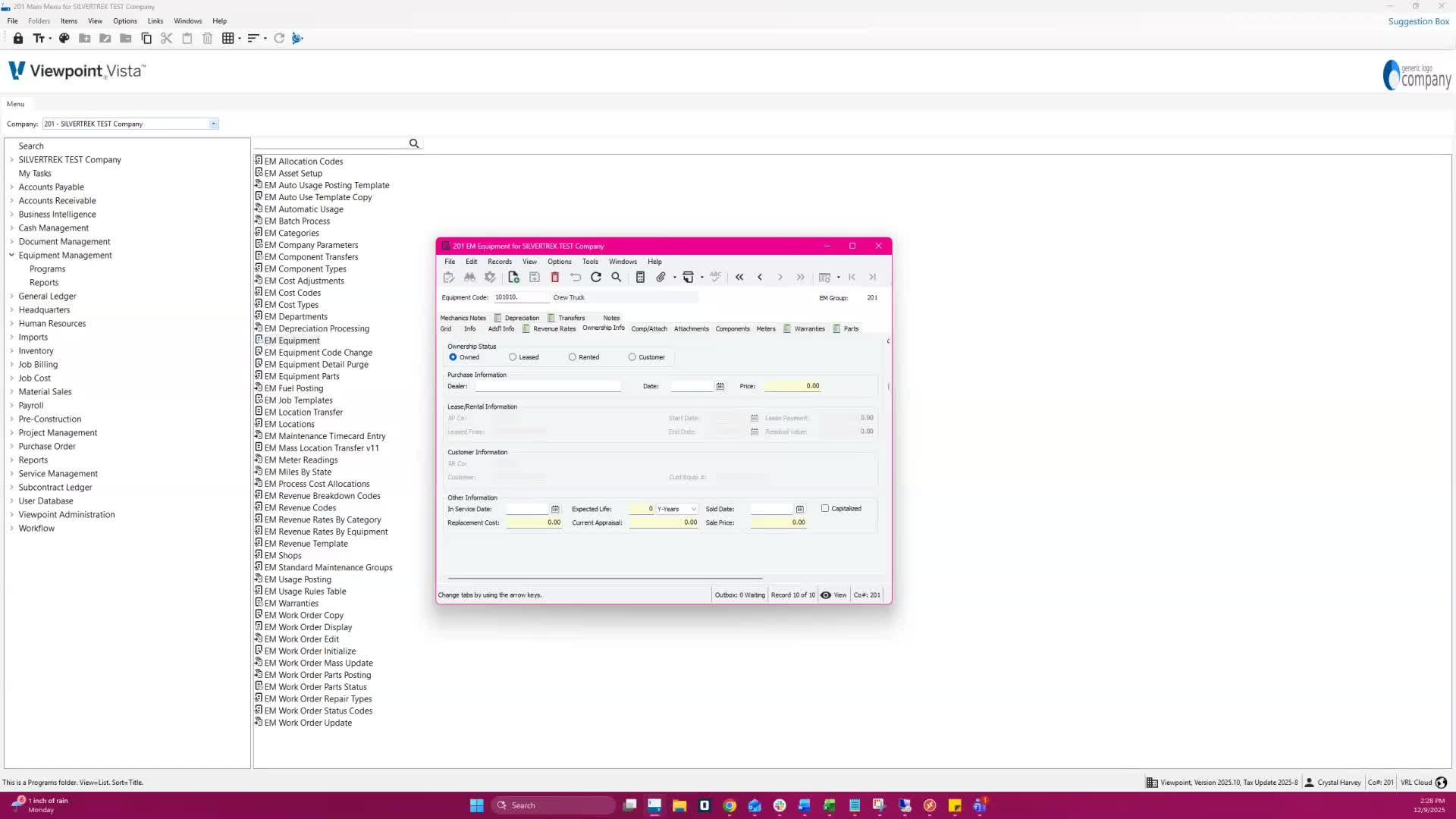
12. Ownership Info Tab 4:33
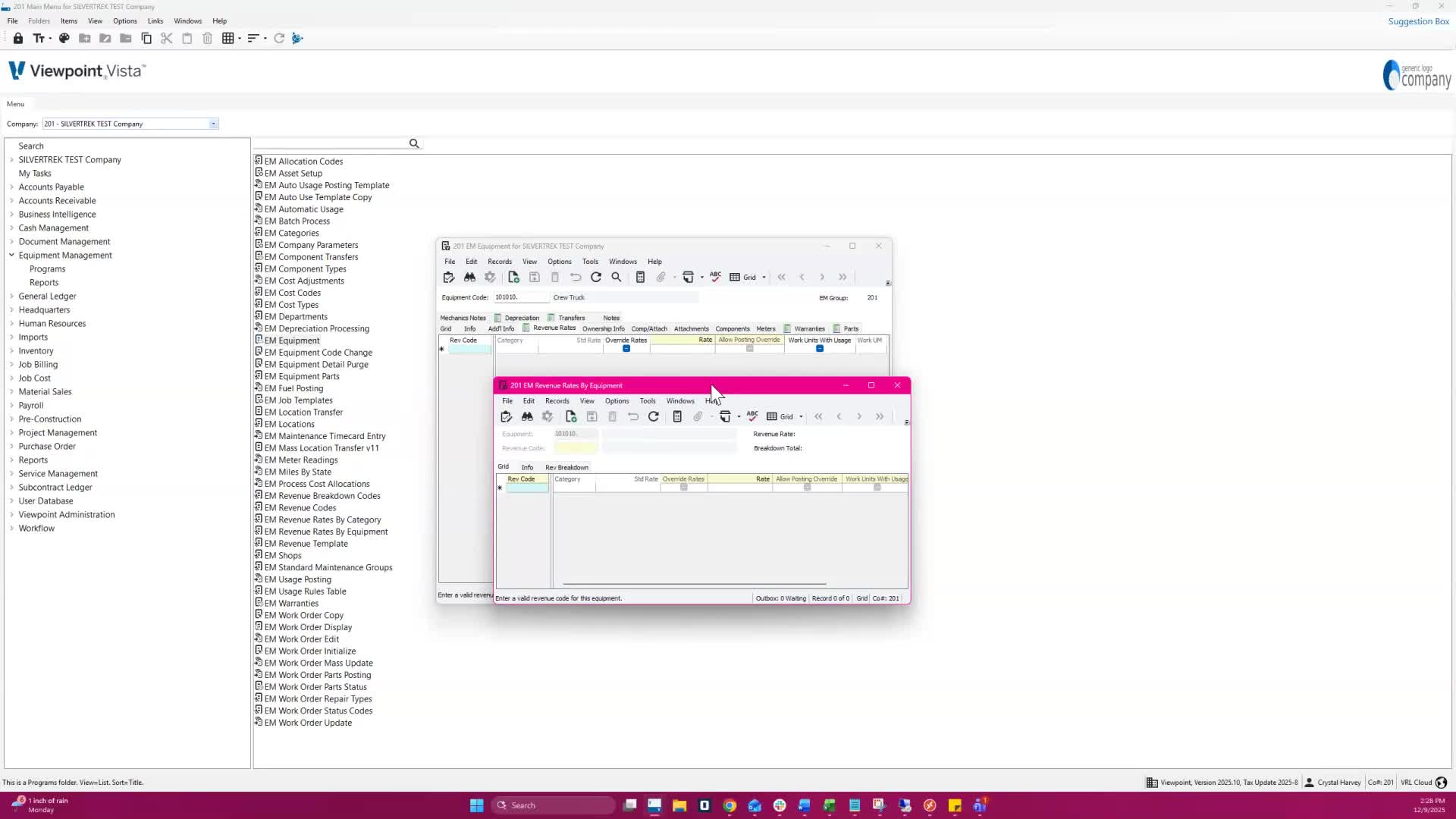
Enter ownership, lease, or rental details.
Record In-Service Date, Expected Life, Report Date, Placement Cost, Appraised Value, and Sale Information.
The more completed information the better. You do not enter a sold date until it is sold. Be sure to check the Capitalized box if the purchase amount is over the $2500 threshold for depreciation.
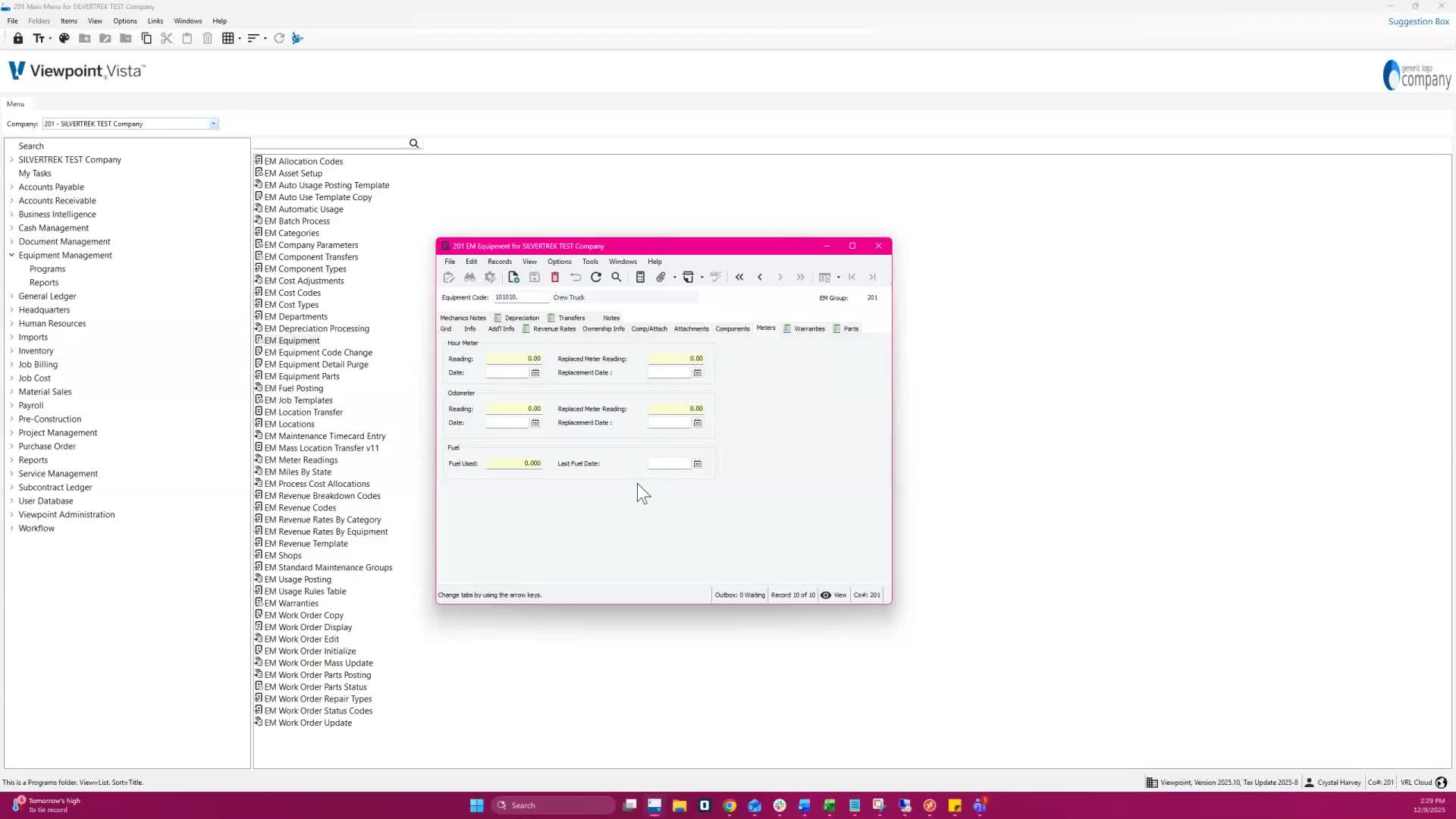
13. Comp and Attach Tab 4:44
Assign attachments and components to primary equipment.
Set up meter tracking for equipment (hour meter, odometer, fuel meter).
The only time you will use this is if you purchase a part for a piece of equipment after purchasing the equipment that is over the $2500 threshold.
If you buy a pickup and then later buy a canopy this tab will be used.
You will set up a new Equipment Code and then enter here what piece of equipment it belongs to. Post Revenue to Components
In rare cases, such as where you purchase a expensive laser that is detachable, you may post to revenue, but if that is the case, this component must be set up in the employee portal for timecard entry.
14. Conclusion and Additional Resources 5:41
For more guides and support, visit silvertreksystems.freshdesk.com
Link to Loom
https://loom.com/share/92c29ed7b3f041948b4ee3d4932daa31
Was this article helpful?
That’s Great!
Thank you for your feedback
Sorry! We couldn't be helpful
Thank you for your feedback
Feedback sent
We appreciate your effort and will try to fix the article