The Mail feature in Team.Viewpoint allows emails from vendors to be forwarded directly into Vista’s AP Automatic Invoicing, reducing the need to manually upload invoice documents. The email address must first be set up/configured by an administrator in Team.Viewpoint. Only users with the appropriate Admin access can create or change this email setup.
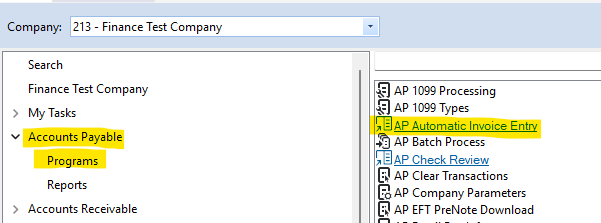
1- Go to team.viewpoint.com or, in Vista, click on Accounts Payable>Programs>AP Automatic Invoice Entry
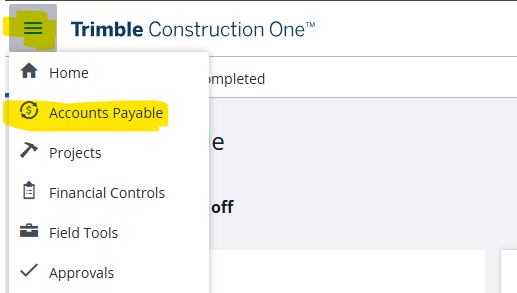
2- Ensure you are on the Accounts Payable screen
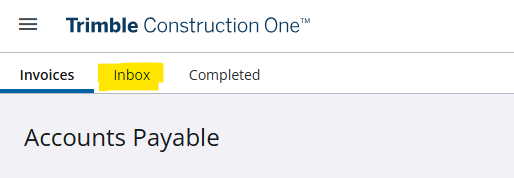
3- Go to the Inbox tab
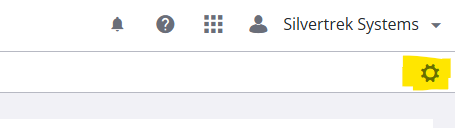
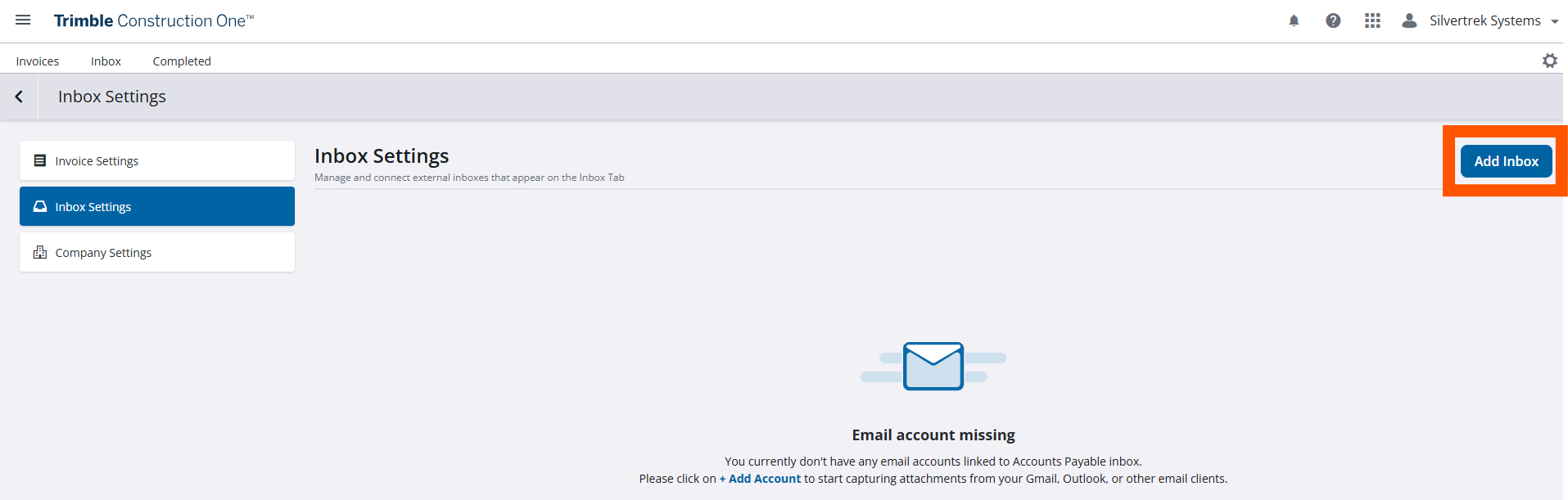
4- In the top right hand corner, click on the gear icon. If you do not see the gear icon, you're not an admin and cannot setup or make changes. Contact an admin.
5- Press the 'Add Inbox' button.
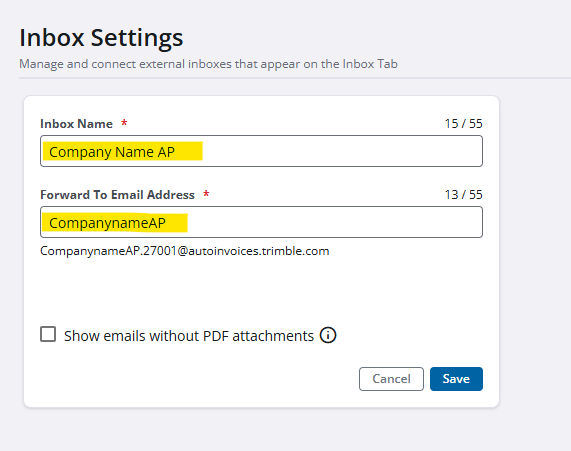
6- In the 'Inbox Name' field enter in the name of this inbox.
7- Then in the 'Forward To Email Address' field enter in the beginning name of the forwarding address. Below this field, it will automatically create a generic email based off the name you enter in the field.
8- Once you are done, press Save.
**Note: The checkbox labeled 'Show emails without PDF attachments' will allow emails to be forwarded to team.viewpoint even if they do not have a PDF. These emails cannot be added to your AP batch.
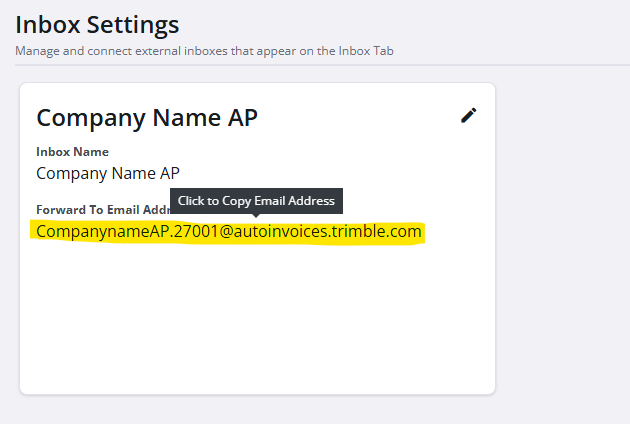
9- Now you have the forwarding address, copy this email and in your already existing AP email you may set up a rule to forward emails to this email. You may also give this email to your AP team so they can forward emails they receive.
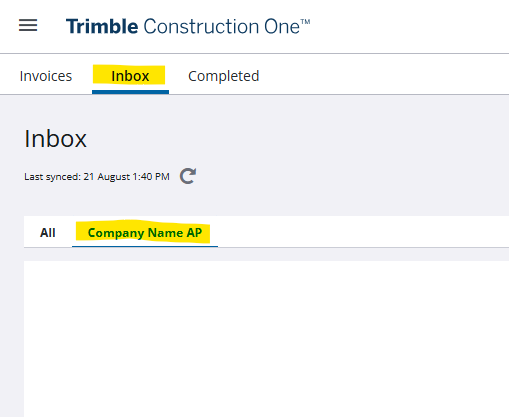
10- You are now able to press the Inbox tab and see your email.
You can repeat these steps to set up multiple emails. To view emails from all your inboxes, navigate to the ALL tab. To view emails from a particular inbox, press on that emails tab.
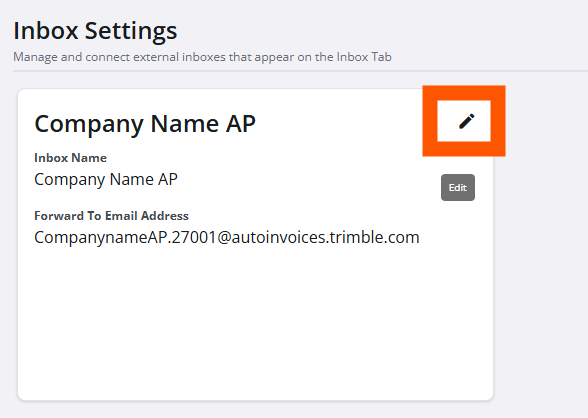
If you need to make changes to the name or email. Go back to the Gear icon (step 4). Click on the pencil/edit icon on the email you want to change.
Was this article helpful?
That’s Great!
Thank you for your feedback
Sorry! We couldn't be helpful
Thank you for your feedback
Feedback sent
We appreciate your effort and will try to fix the article