Setting Up a Child Support Deduction Code
Objective
This SOP outlines the steps to create a child support deduction code for employees, ensuring compliance with garnishment requirements.
Key Steps
Step 1: Access PR Deductions and Liabilities 0:22
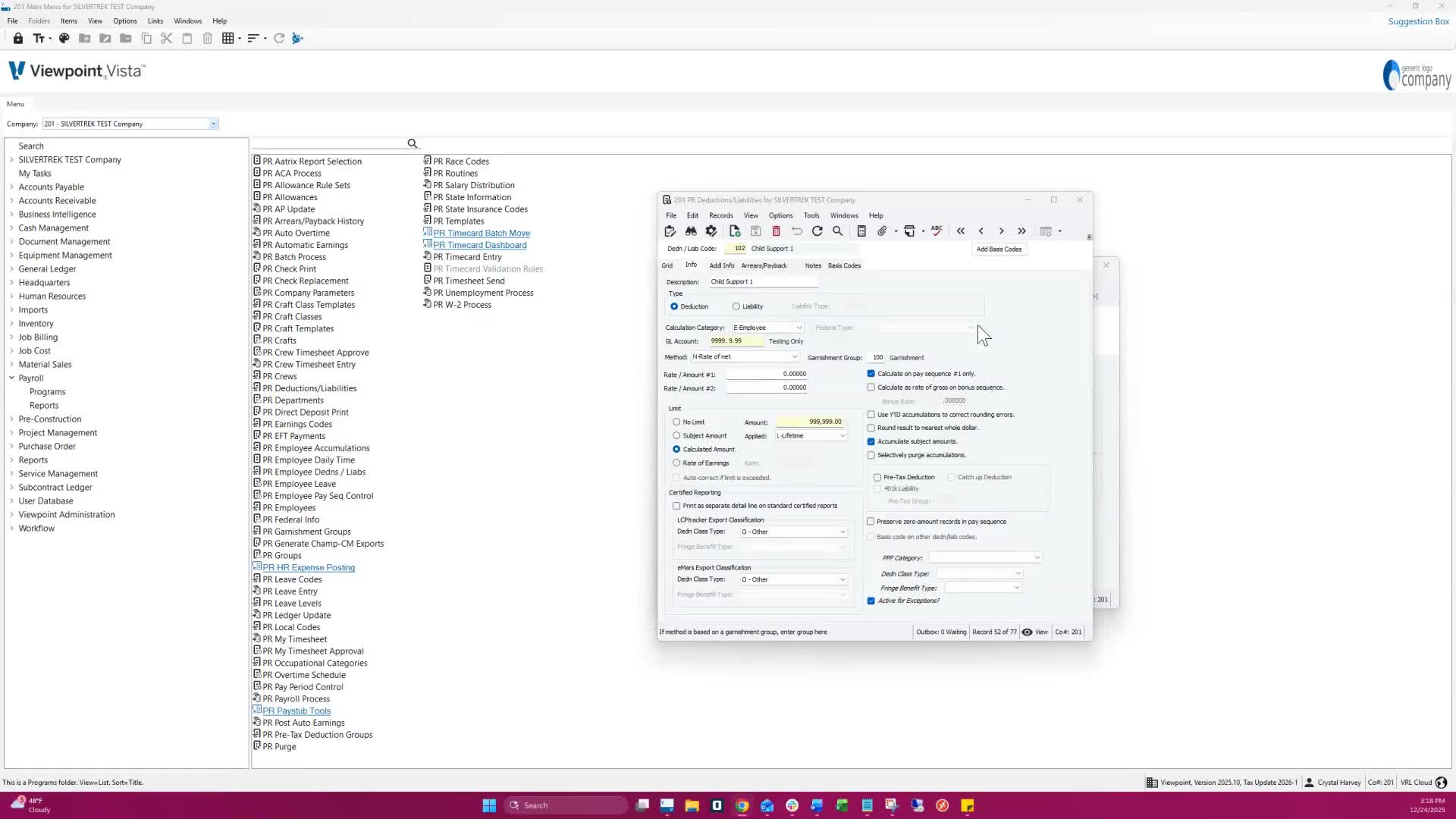
Navigate to the PR Deductions and Liabilities section.
On the Info tab, select 'Deduction' for the type.
Step 2: Select Calculation Category 0:30
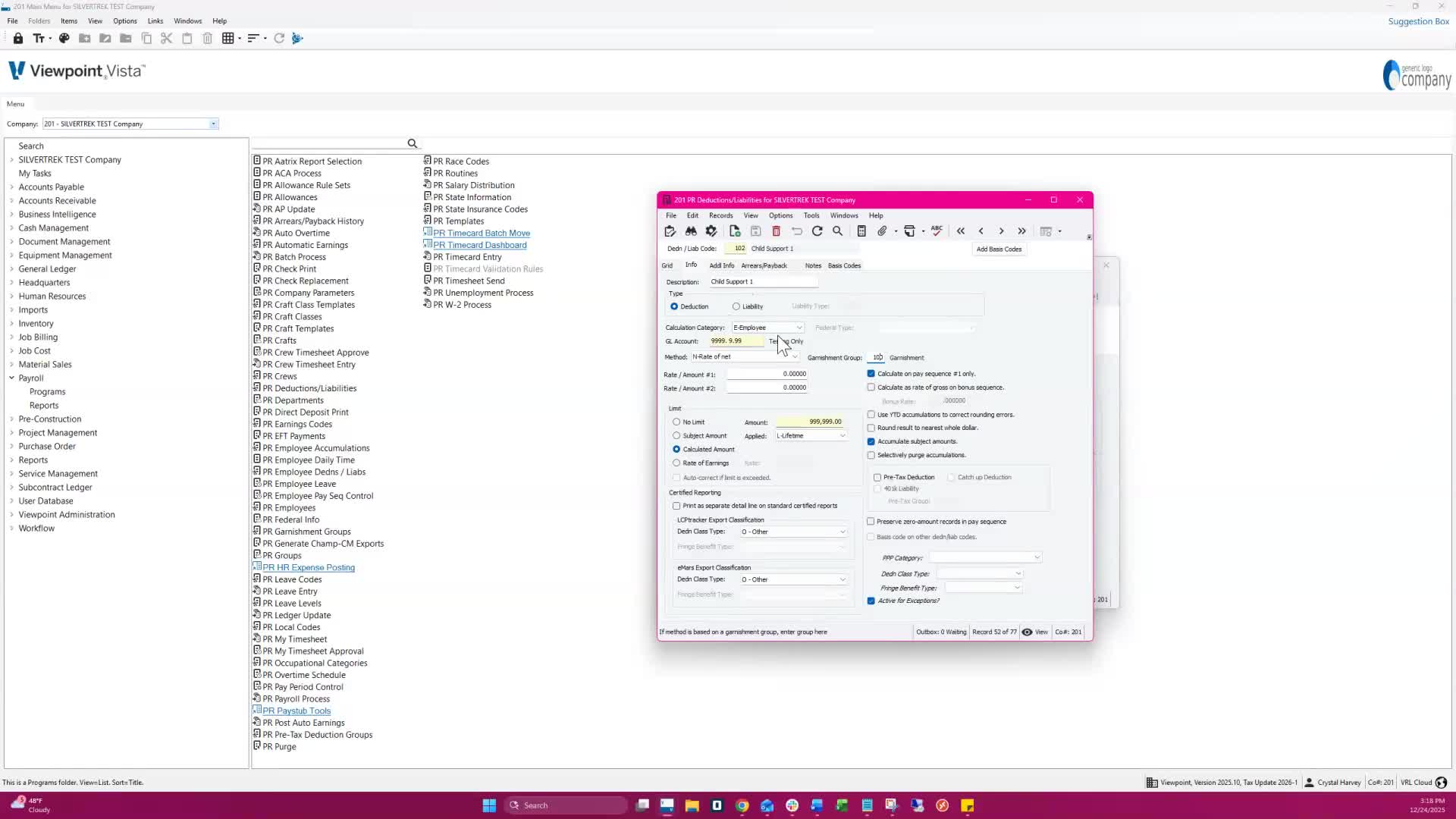
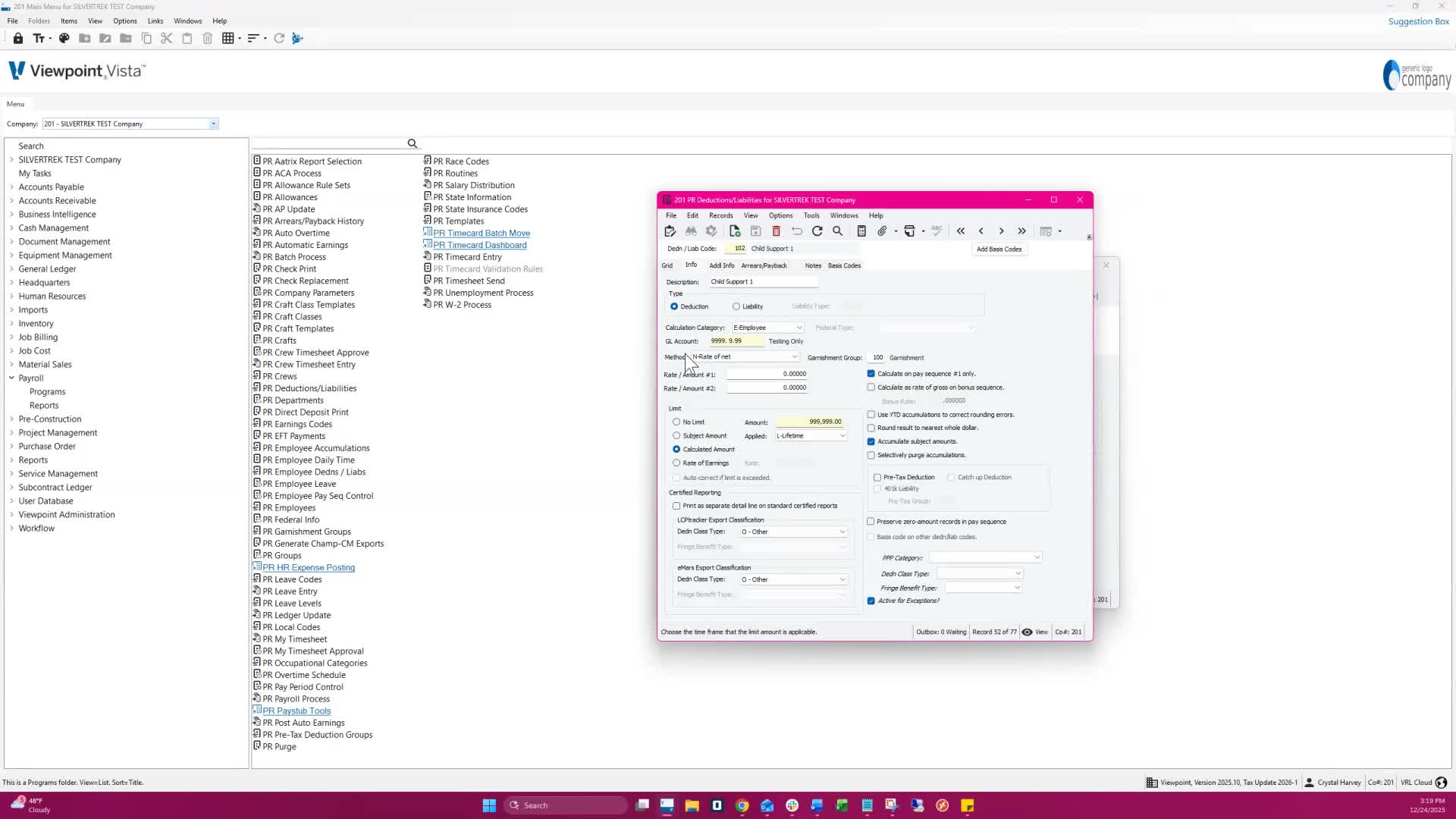
Choose 'Employee' as the Calculation Category.
Select the method:
'N' for Rate of Net (most commonly used)
'A' for Fixed Amount.
Step 3: Choose Garnishment Group 0:40
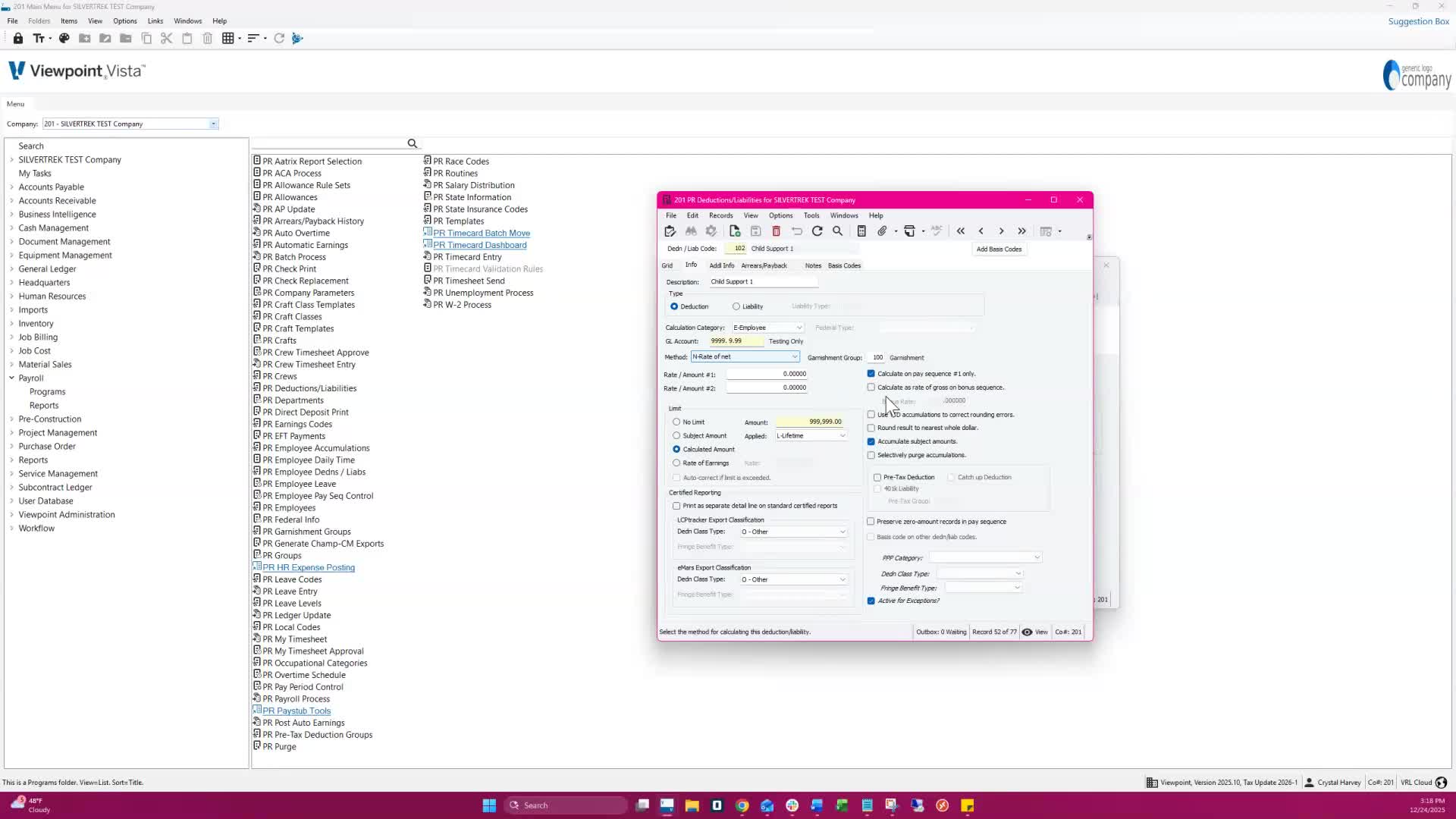
Select the appropriate garnishment group.
Ensure it aligns with how net pay is calculated.
Step 4: Create Garnishment Group 0:50
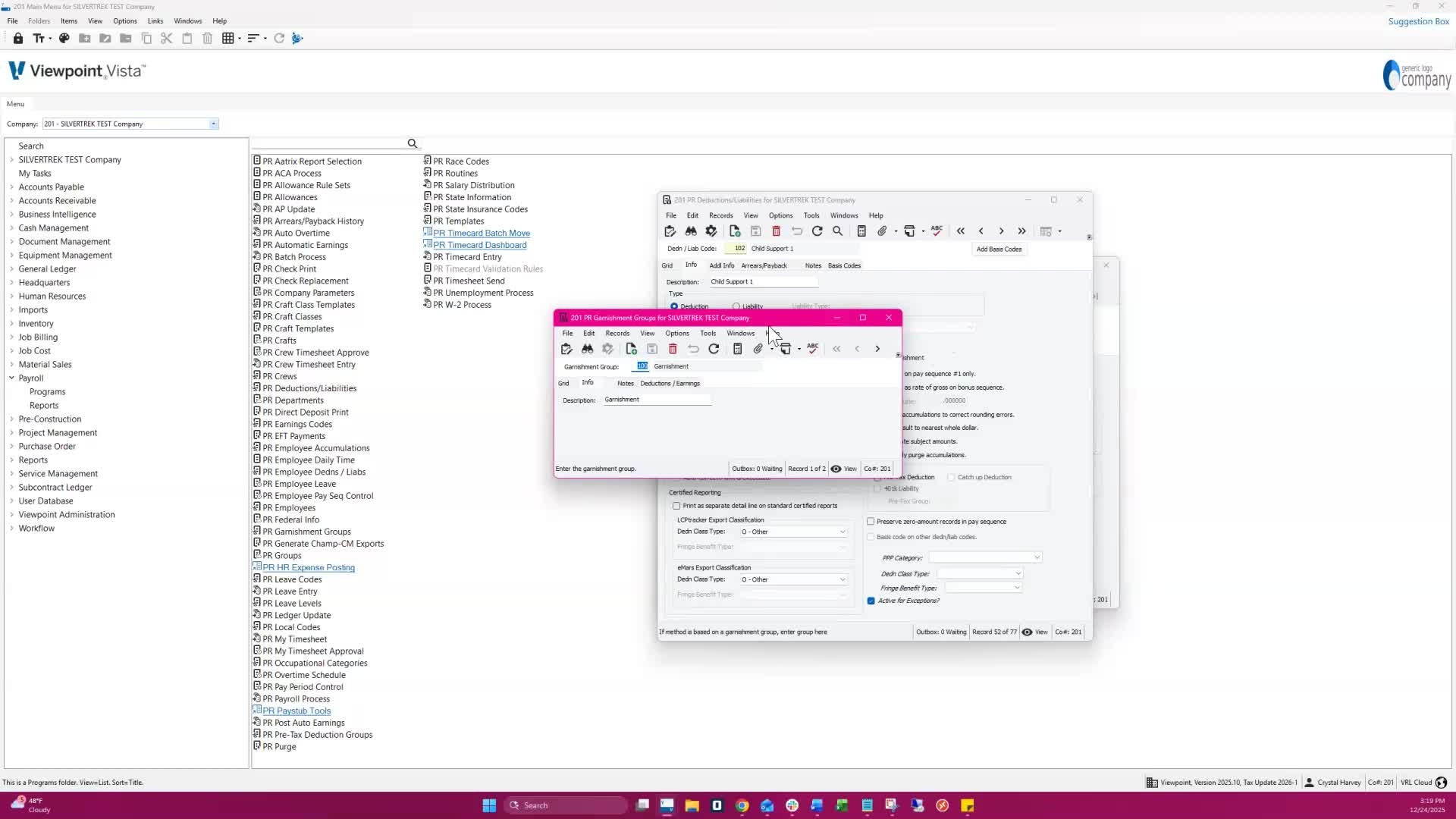
Create a group number and a description.
Add earnings and deductions that define net pay.
Set amount fields 1 and 2 to 0.
Step 5: Set Limit Type 0:59
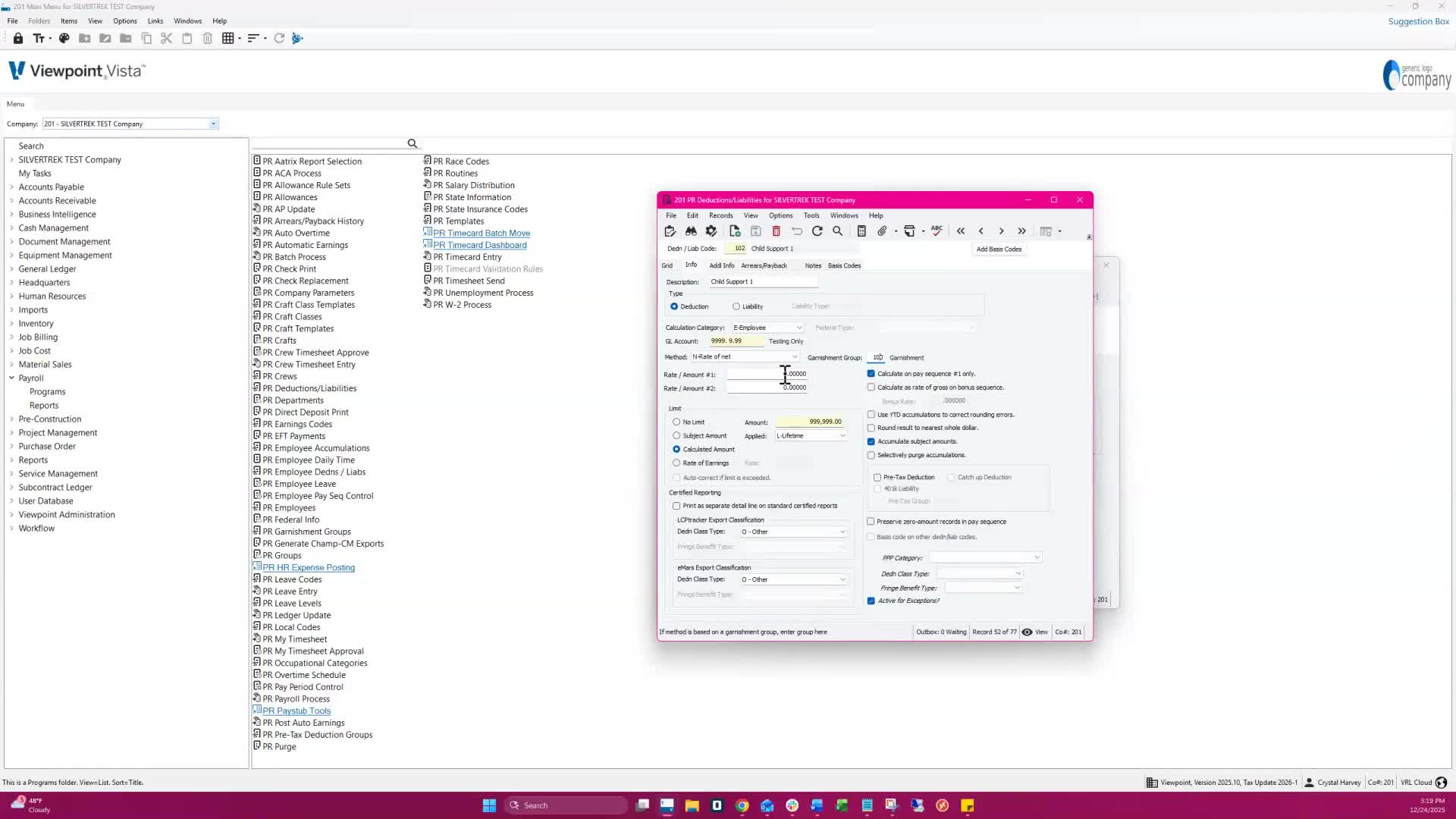
Set the Limit Type to 'Calculated Amount'.
Enter a limit.
Select 'Lifetime' on the Apply dropdown.
Check 'Accumulate Subject Amounts'.
Step 6: Additional Info Tab 1:09
On the Additional Info tab, set the deduction to automatically update to accounts payable.
Step 7: Basis Codes Tab 1:19
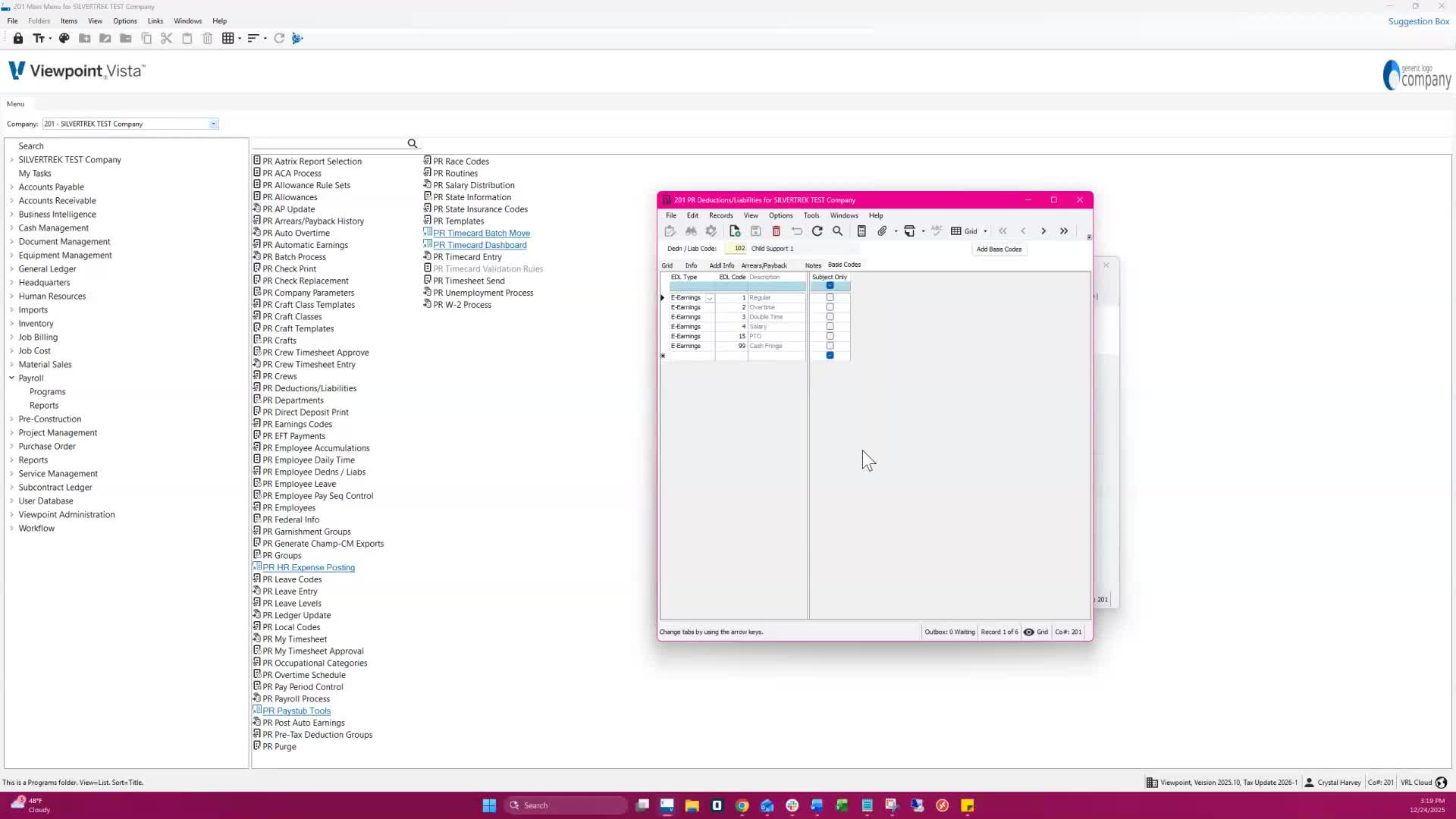
Add all earnings that contribute to the Child Support Calculation.
Step 8: Assign Garnishment to Employee 1:32
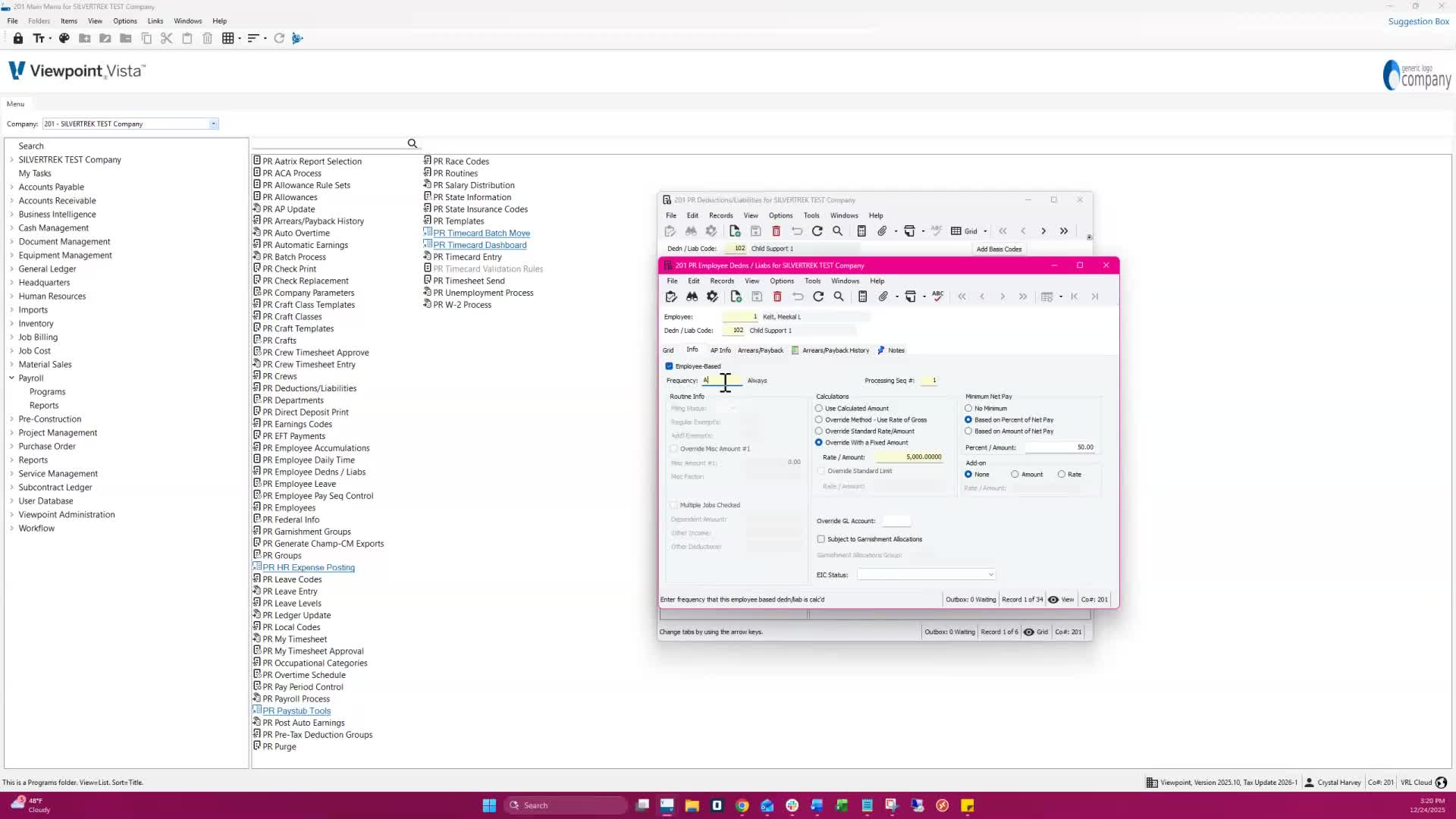
Navigate to PR Employee Deductions and Liabilities.
Check the box for 'Employee-Based'.
Select a frequency code (e.g., 'A' for Always or 'W' for Weekly).
Step 9: Enter Product Name and Sequence 1:32
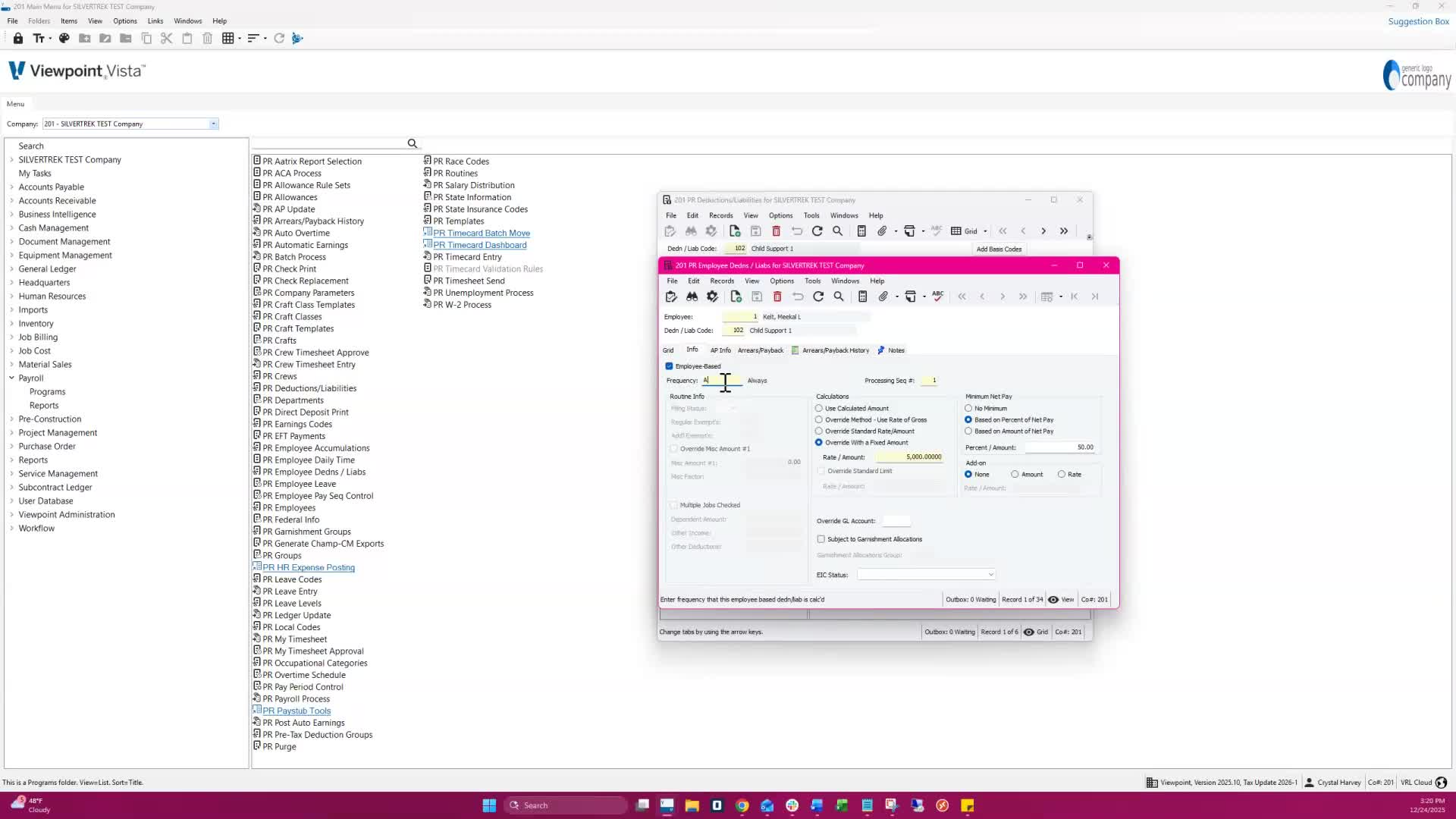
Enter a product name.
For the first garnishment, enter '1' in the sequence field; for the second, enter '2', and so on.
Step 10: Calculation Section 1:38
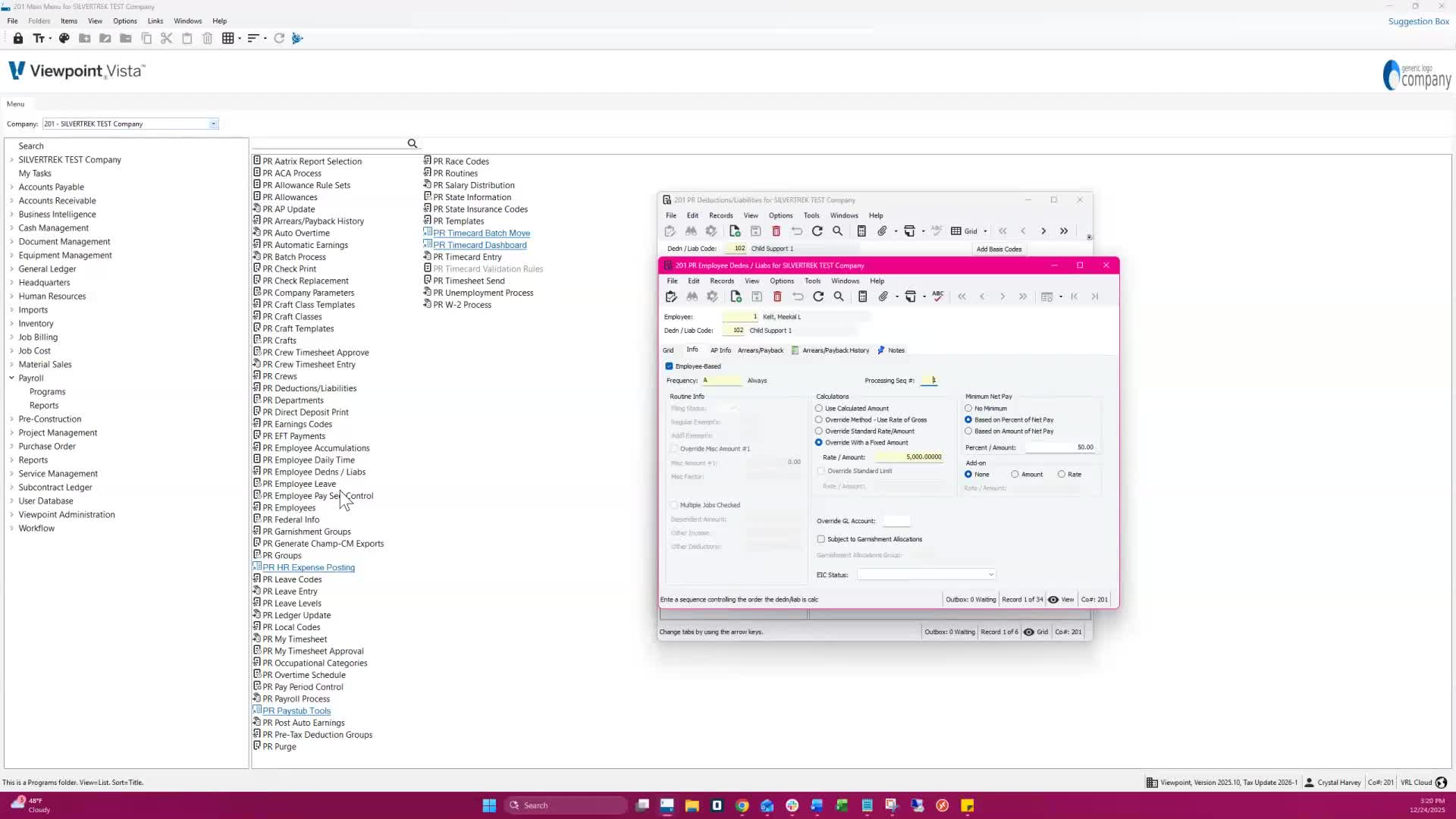
Use 'Override Standard Rate Amount' or 'Override with Fixed Amount' and enter the code.
If a limit is required, check 'Override Standard Limit' and enter the amount.
Step 11: Set Minimum Net Pay 1:49
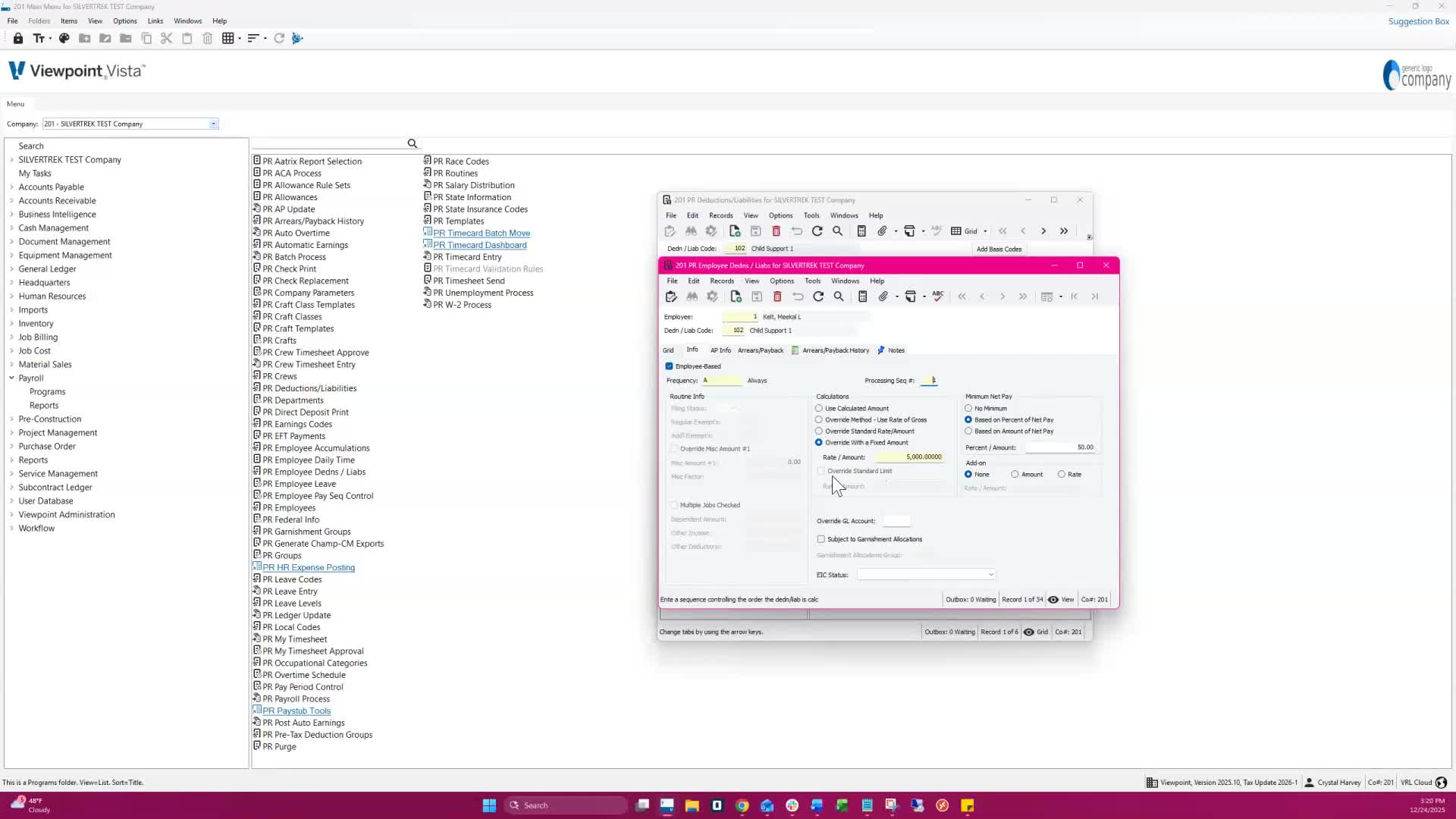
Set the minimum net pay if required by the court order.
Step 12: Finalize Setup 1:55
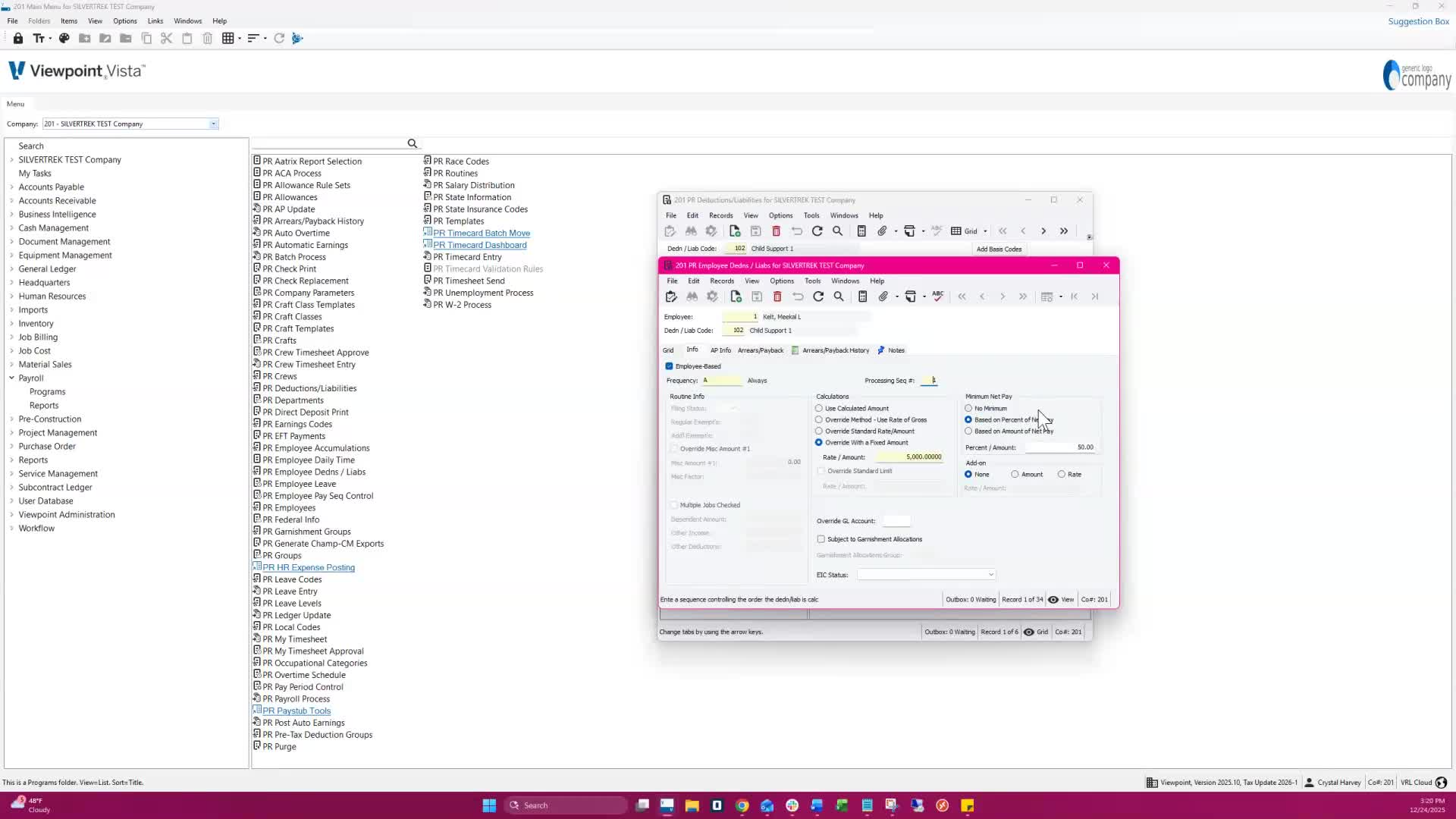
Select 'Based on Percent of Net Pay' or 'Based on an Amount of Net Pay'.
Save the record once all setup is complete.
Cautionary Notes
Ensure compliance with local laws regarding child support deductions.
Double-check all entries for accuracy before saving.
Tips for Efficiency
Use templates for common garnishment codes to save time.
Regularly review and update deduction codes to reflect any changes in employee circumstances.
Link to Loom
Was this article helpful?
That’s Great!
Thank you for your feedback
Sorry! We couldn't be helpful
Thank you for your feedback
Feedback sent
We appreciate your effort and will try to fix the article